Revamping your website can unlock incredible benefits, from boosting traffic to increasing conversions. The real challenge? Knowing when and how to update your website without running into roadblocks.
Lucky for you, we’ve put together a complete guide to website redesign in WordPress to make the entire process smoother and hassle-free!
Why and When You Should Redesign Your WordPress Website
Website redesign offers countless benefits, but the key to success is knowing why and when to make the change. Here are the scenarios where redesigning your website isn’t just helpful but essential:
Outdated Design: Website design trends are constantly evolving and an older site can start to feel outdated and stuck in time. Redesigning your website helps modernize its look, keeping it fresh and engaging for users.
Rebranding: Companies often undergo rebranding to refresh their identity and align with evolving goals. This is the perfect opportunity for a website rebrand, as it ensures consistency and a unified brand presence across all channels.
UX Improvement: Noticing poor user experience on your website? This can lead to higher bounce rates, dissatisfied visitors, and fewer returning users — making it a major reason to consider a website redesign.
Improving Responsiveness: If your website shows inconsistencies across different screen sizes, it’s a clear sign you need to redesign it to ensure a seamless experience across all devices.
Improving SEO: Website redesign goes beyond aesthetic changes. If your website is not gaining much organic traffic, it might be time to improve its SEO — optimizing metadata, updating content, improving site structure, and more to boost visibility and rankings.
Optimizing Website Performance: Poor website structure, large media files, loading excessive fonts, and other factors can significantly hinder performance. A website redesign might be necessary to address and optimize these aspects.
Launching a New Product or Service: When launching something new, a website redesign can help direct attention to it more effectively, highlight key information, and create an engaging experience that drives user interest.
Improving Website Conversions: Another key reason for a website redesign is optimizing its layout to boost conversions. This could involve rethinking your call-to-actions, incorporating more effective pop-ups, and enhancing user flow to drive better results.
How to Redesign Your Website in WordPress
Now that you know when you need a website redesign, it’s time to learn how to make these changes in a way that’s streamlined and hassle-free. Let’s dive right in!
Step 1: Analyze Your Website and Run an Audit
The first step to redesigning your WordPress website is analyzing it thoroughly. Even if you already have a clear purpose for the redesign, it’s essential to review all aspects of your site, including design, content, user experience, target audience, performance, and SEO.
This helps pinpoint areas that need fixing or improvement while identifying parts that work well and shouldn’t undergo major changes.
Step 2: Clearly Outline Planned Changes
After analyzing what’s working and what’s not, the next step is to clearly define the changes you plan to implement in your website revamp.
Think about the purpose of your website and set clear goals for what you want to achieve with this overhaul. Doing so streamlines the website redesign process and helps avoid unnecessary confusion or revisions along the way.
Step 3: Find the Right Tool to Simplify Website Redesign
With your plan in place, the next step is finding the right tool to simplify the process. The Kirki WordPress website builder is an all-in-one platform with everything you need to make your website overhaul easier — from design and content management to SEO, performance optimization, and more.
Step 4: Implement Your Website Redesign
If you’re only making minor updates to your layout or content, Kirki’s visual drag-and-drop editor with granular, atomic-level control makes this step a breeze. Select any element on the canvas and adjust every detail from the Design tab — typography, backgrounds, spacing, sizing, and more.
If you want to completely revamp your website’s look, you can design your vision in Figma and use Kirki’s built-in Figma to Kirki tool to instantly import your design.
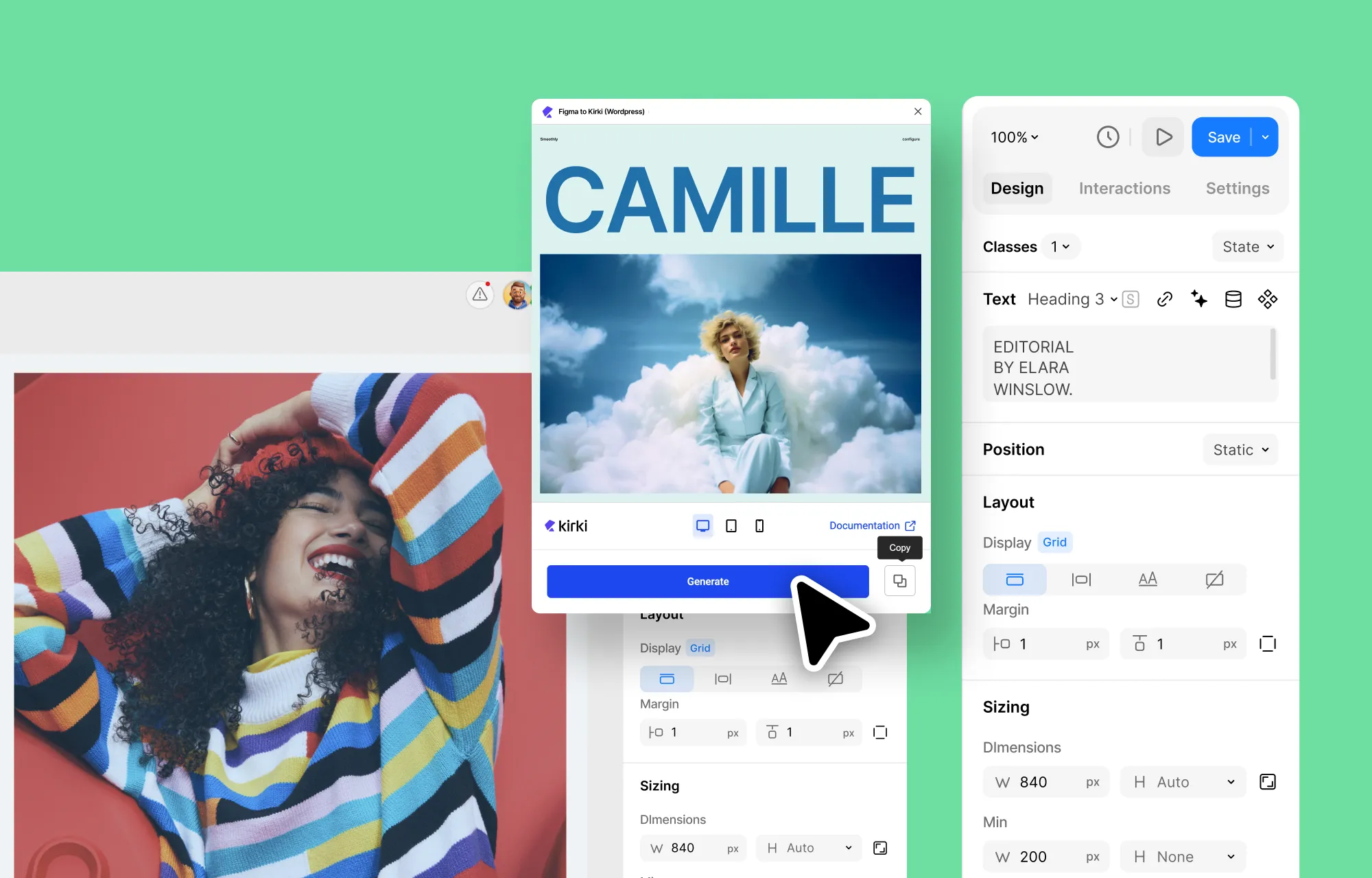
This eliminates the hours or even days needed to manually convert Figma design files into code, giving you a fully auto-responsive and pixel-perfect website immediately.
Once imported, fine-tune your design further using Kirki’s extensive customization options, and take advantage of the infinite canvas to view and edit all your responsive breakpoints side by side simultaneously, ensuring your redesign looks perfect across every device.
You can also enhance your website’s scalability with Kirki’s native Dynamic Content Manager, which allows you to manage large amounts of data effortlessly — ensuring your design expands automatically as your content grows.
And with Kirki’s real-time collaboration and comments features, your entire team can work on the redesign together simultaneously, leaving contextual feedback directly on the canvas to keep the process efficient and aligned.
Step 5: Improve Website SEO
If you need to boost your website’s visibility and increase organic traffic, Kirki offers built-in SEO options that let you easily set the meta title, meta description, and more for all your web pages — accessible via Page Settings > SEO tab.
And with Kirki’s dynamic SEO field tags, you can set unique meta information for all your dynamic single pages in one go, improving SEO across your entire site automatically.
Step 6: Speed Up Your WordPress Website
Kirki improves website performance by generating clean code, loading only the fonts being used on a page, and avoiding dependency on any third-party plugins.
To further speed up your website, you can also enable Kirki’s built-in image optimization functionality, which compresses images without affecting their quality.
For more info, check out our article on how to improve your WordPress website’s speed.
Step 7: Test and Launch Your Redesigned Website
Once you’ve made all your changes, it’s time to test your website thoroughly. Kirki’s in-house Audit tool proves invaluable here, automatically analyzing your website for missing links, classes, alt text, and more — helping you catch issues before going live.
After ensuring everything is in top form and your site is performing optimally, you’re all set to relaunch your redesigned WordPress website!
Website Redesign Now Simplified
And that’s a wrap on our complete guide to website redesign in WordPress! As you’ve seen, the key to a successful website overhaul lies in thorough planning and selecting the right tools.
With the Kirki WordPress website builder, you can effortlessly revamp your site while keeping redesign costs low, thanks to its all-in-one capabilities that eliminate the need for countless extra plugins.
So what are you waiting for? Get Kirki and simplify your website redesign today!

