Displaying Content From Multiple Collections With Reference Fields in WordPress
Dynamic websites are the here and now — but you may still face certain roadblocks.
One common headache is attempting to showcase related content from different collections, only to end up entering the same data again and again. It’s messy. It’s inefficient. And it’s totally avoidable with the right capabilities, such as collection references.
So dive in to discover all you need to know about displaying content from multiple collections with Reference Fields in WordPress!
What Are Reference Fields
Simply put, reference fields are special collection fields you can add to any CMS collection and use to define a relationship linking other collections.
This makes connecting and displaying content from multiple collections effortless.
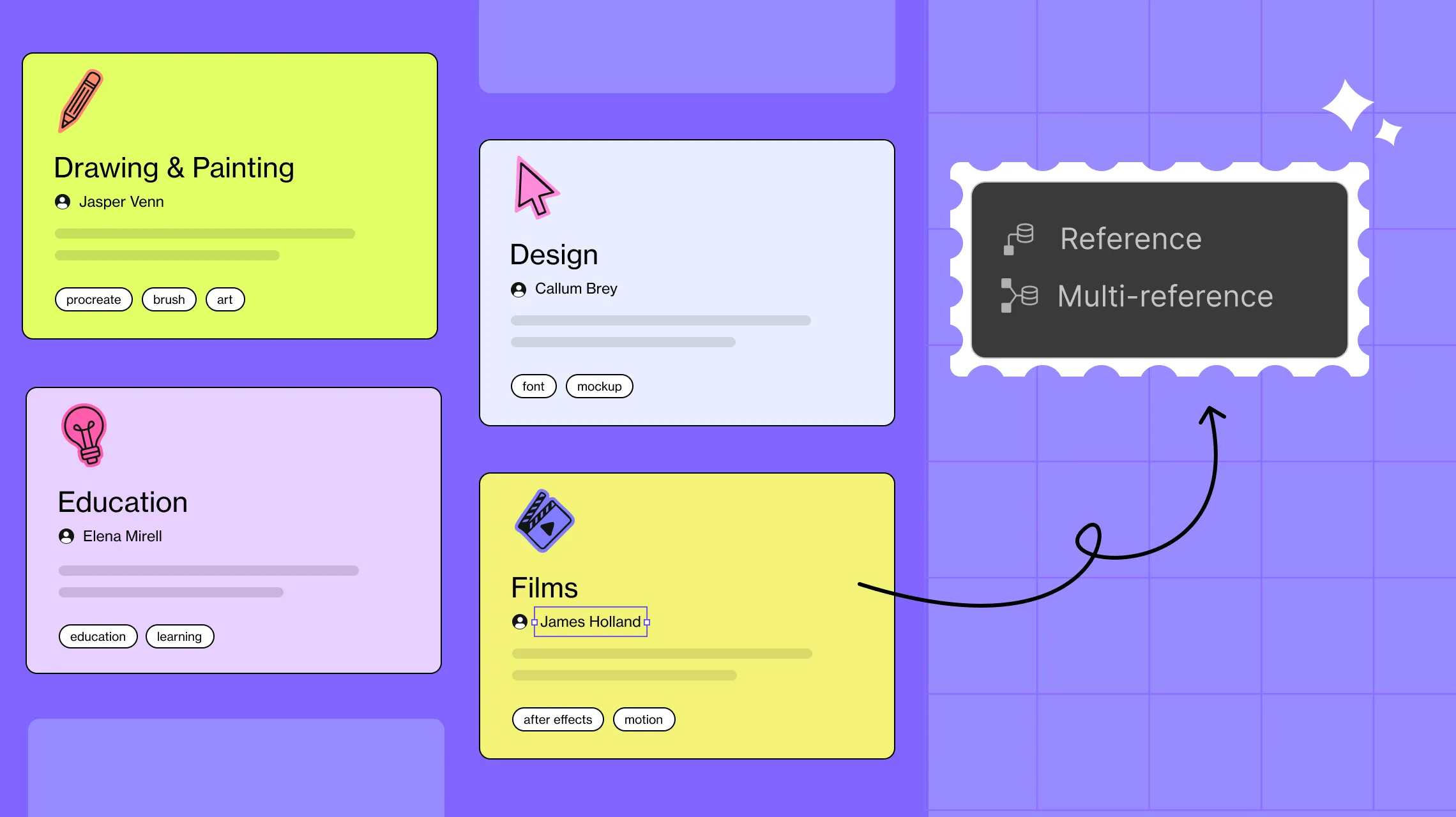
There are two types of reference fields — Reference and Multi-reference.
With a Reference field, you can pair each item in a collection to a single item from another collection.
With a Multi-reference field, you can link each item in a collection to multiple items from another collection.
How Reference Fields Change the Dynamic Website Game
Reference fields take dynamic website building to new heights. Here’s how they shake things up:
More Connected Dynamic Content: Link related items across collections and display them dynamically with ease, no manual workarounds needed.
Cleaner Data Structures: Skip the duplicates. Keep data structures tidy, consistent, and manageable using reference fields.
Faster Workflow: Connect collections easily without duplicating data, speeding up your workflow and increasing efficiency.
Enhanced Flexibility: Get more freedom to build smarter, more dynamic layouts to perfectly display related content how you like.
Improved Scalability: With no need to repeat content across collections, you can scale your website with ease, saving loads of time and effort.
Using Reference Fields in Kirki to Display Content From Multiple Collections

So reference fields are a real game-changer for dynamic content. But how do you use them? Let’s find out!
To use reference fields for your website, you’ll need a CMS that supports them. But why juggle multiple tools when you can get CMS capabilities, including reference fields, built right into your website builder?
That’s exactly what Kirki offers! Known as a one-stop solution for building websites, Kirki includes a native CMS which supports all the necessary collection field types, including Reference and Multi-reference fields.
With ACF-level flexibility, Kirki lets you build advanced relationships between collections without breaking a sweat. And when it’s time to display the content, simply drop in a Collection element to showcase listings dynamically, or create single-page templates to display each item individually.
Dynamically Display Single Reference Content in Lists
Let’s start by displaying single reference content in Kirki. Here’s what to do:
Set Up Both Main and Reference Collections
Step 1: Open the CMS panel from the left sidebar by clicking the database icon. Click “+” at the top to create your reference collection. Give it a name, add the necessary fields, and click Create Collection.
Some examples of reference collections include:
- “Project Categories” for Projects
- “Departments” for Courses
- “Authors” for Recipes
Step 2: Select your newly created reference collection and click Add Item + at the bottom to add data entries. Repeat for each item you want in the collection.
Step 3: Similarly, create your main collection, adding all the core fields you need.
Create a Reference Field
Step 1: In your main collection’s field editor, click “+” next to Custom Fields and select Reference from the field type list.
Step 2: Give it a name, add help text if desired, and select your reference collection from the Ref Collection dropdown to connect the two collections. Click Save to finish.
Pair Items Across Collections
Step 1: When adding items to your main collection, you’ll now see the reference field. Use it to specify which reference collection item you want to pair with each main collection item.
Display Content Dynamically
Step 1: On your canvas, add a Collection element from the Insert panel. Open its Collection List Settings and set the Source to Posts and choose your main collection as the Type.
Step 2: For each element inside the collection, click the Dynamic Content icon in the Design tab and set the Type to Posts and the Value to the relevant field.
Display Single Reference Content
Step 1: To display your reference content, select an element inside the collection. Click the Dynamic Content icon and in the Dynamic Content Settings popup, set the Type to Reference, the Name to your reference field, and the Value to the field you want to display (e.g. Title).
And just like that, your single reference content is displaying dynamically!
Dynamically Display Multi-Reference Content in Lists
Now let’s see how to display multi-reference content:
Set Up Both Main and Reference Collections
Step 1: Create your multi-reference collection and add your data items just as described above.
Some examples of multi-reference collections include:
- “Tags” for Works
- “Team Members” for Projects
- “Students” for Courses
Step 2: Create your main collection and add all the core fields.
Create a Multi-Reference Field
Step 1: In your main collection’s field editor, click “+” next to Custom Fields and select Multi-reference from the field type list.
Step 2: Give it a name, add help text if desired, and select your multi-reference collection from the Ref Collection dropdown. Click Save to finish.
Pair Items Across Collections
Step 1: When adding items to your main collection, use the multi-reference field to select multiple items from the reference collection to link to each main item.
Display Content Dynamically
Step 1: Add a Collection element to your canvas, set its Source to Posts and Type to your main collection in the Collection List Settings.
Step 2: Bind each element to its relevant field using the Dynamic Content icon in the Design tab.
Display Multi-Reference Content
Step 1: To display multi-reference content, nest another Collection element inside your main collection element on the canvas. Open its Collection List Settings and set the Source to Multi reference and the Name to your multi-reference field.
Step 2: Add an element inside this nested collection, click the Dynamic Content icon, and set its Type to Posts and Value to the field you want to display.
And just like that, your multi-reference content is displaying dynamically!
Display Content From Multiple Collections in Single-Page Templates
In Kirki, you can also create dynamic single-page templates to individually showcase each collection item and its details, including referenced content.
Create a Dynamic Single-Page Template
Step 1: In the Pages panel, click “+” and select Template. In the Add Template modal, set the Collection to Post and Post Type to your main collection, then click Add Template.
Step 2: Design your template page however you like using any elements and the extensive options in the Design tab.
Display Content Dynamically
Step 1: For each element, click the Dynamic Content icon in the Design tab and set its Type to Posts and Value to the relevant field.
Display Content From Multiple Collections
Display Reference Content: Select an element, open Dynamic Content Settings, set Type to Reference, Name to your reference field, and Value to the field you want to display.
Display Multi-Reference Content: Add a Collection element to the template, set its Source to Multi reference and Name to your multi-reference field. Add an element inside it and set its Type to Posts and Value to the field you want to display.
💡 Tip: To preview how the page looks for other items in your collection, just select a different item from the dropdown at the top of the template page.
With Kirki, you design your single-page template once and automatically generate dynamic pages for every item in your collection, complete with all referenced content displayed perfectly.
Design Smart Dynamic Websites in WordPress
No more dependency on tools like ACF and its repeater fields or other external plugins. With the Kirki WordPress website builder, you can display dynamic content from multiple collections with reference fields using no code and no extra plugins.
Through Kirki’s built-in CMS and powerful reference field capabilities, designing smart, scalable, dynamic websites is easier and more efficient than ever.
So what are you waiting for? Start your Kirki journey today!

