Want to learn how to create a dynamic website design without coding? You’ve come to the right place!
In this guide, we’ll walk through the ins and outs of dynamic website design, from what it truly means to how you can easily create one for any purpose — from blogs to portfolios and beyond!
What is Dynamic Website Design
When you think of dynamic website design, the first thing that likely comes to mind is a website that is constantly evolving, with content that updates automatically and stays relevant.
But it’s more than just that! A dynamic website design also includes interactivity and responsiveness — one that responds in real-time to user behavior and provides an engaging and seamless website experience across all platforms.
Best Dynamic Website Design Principles
Before you get started, here are some key principles for creating the best dynamic website design:
Effectively Use Dynamic Content: Carefully choose which sections of your content should update dynamically and structure them strategically to minimize the need for major changes down the road.
User-Centric Design: Design your dynamic website with the user in mind. Make sure it’s easy to navigate, the content is always up-to-date where needed, and the design is both readable and aesthetically pleasing.
Seamlessly Responsive: To design a truly dynamic website, ensure that it seamlessly adapts to any screen size for a smooth website experience across any device.
Optimize Dynamic SEO: Don’t forget to optimize the SEO for not just static content but dynamic content as well, ensuring all areas of your site become discoverable in search engine results.
Maximize Performance Efficiency: Ensure optimal performance for your dynamic website design by compressing images, avoiding reliance on third-party resources, and keeping code clean to deliver a seamless website experience.
Creating a Dynamic Website Design Without Coding
It’s finally time to learn how to create a dynamic website design without coding! With just these few simple steps, you’ll be all set to start building a dynamic responsive website for any purpose.
Step 1: Choose the Right No-Code Tool
To create a dynamic website design without code, you need a fully visual website builder — and you must choose the right one that suits this purpose best. Here’s what to look for:
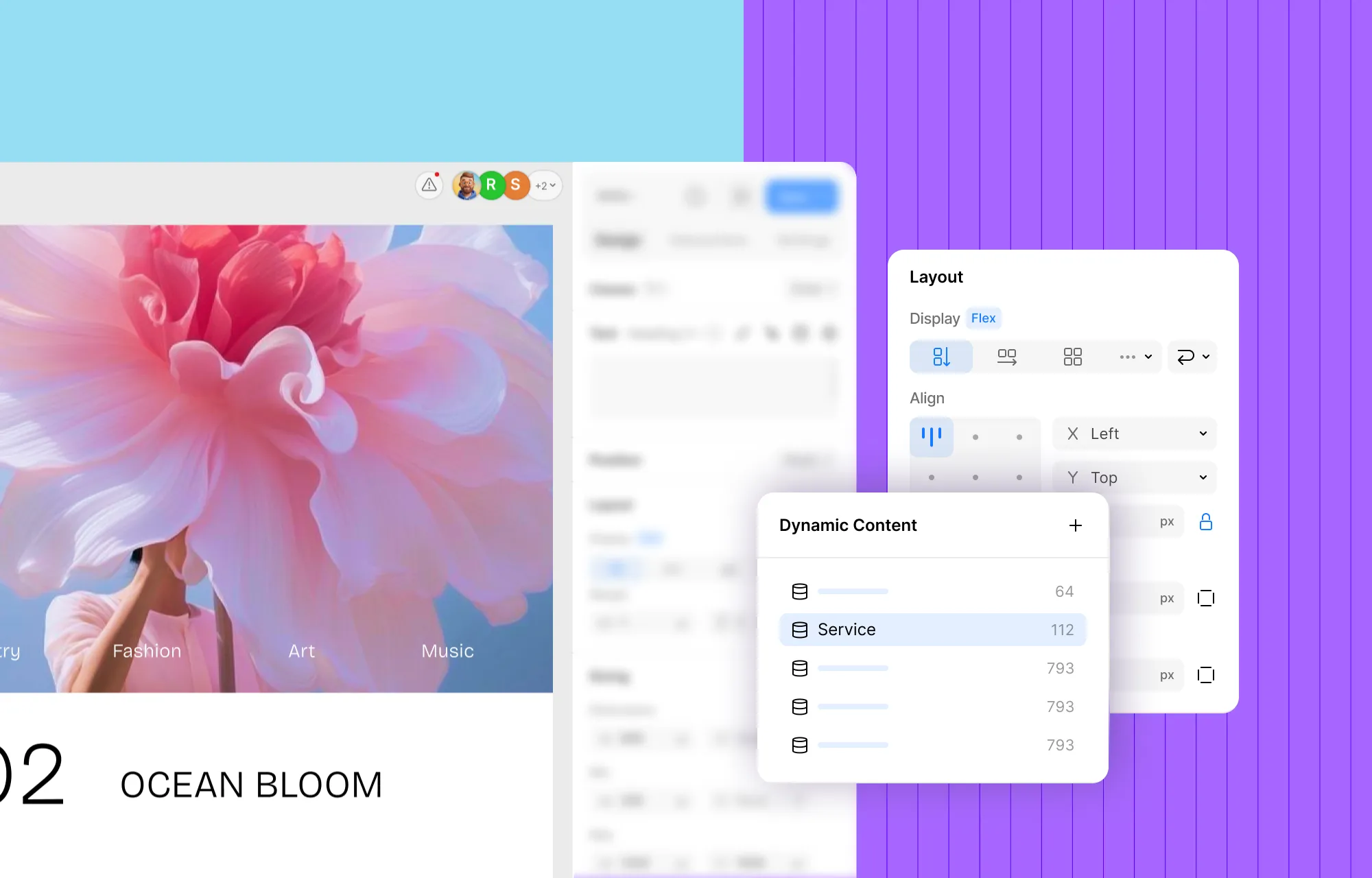
Native Dynamic Content Manager: A dynamic website design needs a Dynamic Content Manager to ensure content is easily editable and expandable. But instead of slowing down your website with extra third-party tools, opt for a website builder with built-in dynamic data handling capabilities to keep everything streamlined and efficient.
Built-in Dynamic SEO: Another key feature to look for is built-in dynamic SEO functionality, a key characteristic of dynamic website design that ensures all website pages, including dynamic ones, are easily discoverable on search engines.
Unlimited Responsiveness: A truly dynamic website should be responsive across any device, so look for a website builder that offers unlimited responsiveness.
Visual Interaction Building Capabilities: Find a website builder that lets you create an interactive website visually, so you can add engaging, complex interactions without needing to code.
Independence From Third-Party Plugins: Opt for a website builder with all necessary features built-in, reducing reliance on third-party plugins, to enhance the performance and efficiency of your dynamic website.
Clean Code Output: Make sure the website builder you choose generates clean code output as this will also improve the overall performance of your dynamic website.
A no-code tool that checks all of these boxes is the Kirki WordPress website builder!
With its native Dynamic Content Manager, built-in dynamic SEO features, freeform infinite canvas, side-by-side responsive views, preset animations, and much more, Kirki is the best website builder to create a fully dynamic website design without coding.
Step 2: Set Up Your Dynamic Content Collection
Now that you have your no-code website builder, it’s time to set up your dynamic content collections.
In Kirki, you can use the Dynamic Content Manager to define collections of any type effortlessly by following these steps:
Step 1: Open the Dynamic Content panel from the left sidebar icon in Kirki and click the “+” button. Select New Collection from the dropdown.
Step 2: Name your collection and build its structure by clicking “+” next to Custom Fields to add fields like title, image, date, featured tag, and more. Alternatively, select Presets from the dropdown to get a head start with a ready-made structure that you can customize to your needs.
Step 3: Click Create Collection to save your work.
Step 3: Populate Your Dynamic Content Collection
Next, it’s time to populate your dynamic collection with content!
Step 1: Select your collection from the left panel of the Dynamic Content section and click the “+” button to add a new item. A New Item panel will open, showing all your collection fields.
Step 2: Fill in all the fields with your content, then either click Save as draft to save for later or hit Publish to make it live immediately.
Step 3: Repeat these steps for each item in the collection.
Step 4: Dynamically Display Your Content as a List
Now you’re all set to dynamically display your content! Here’s how:
Step 1: Open the Insert panel from the left sidebar and navigate to Contents > Collections. Select your collection to add it as a Collection element on your canvas.
Step 2: For each child element inside the collection, select it on the canvas and click the Dynamic Content icon in the Design tab next to the element’s name. In the Dynamic Content Settings popup, set the Type to your collection and the Value to the relevant field. You can also add other elements to your collection Item to display additional content as needed.
Step 3: To refine the listing further, open the Collection List Settings and configure options like filter, sort, limit, and pagination. Kirki also offers extensive customization options in the Design tab to tailor the design of your list to match your website’s aesthetic and brand identity.
And just like that, your dynamic content is displayed as a list on your website!
Step 5: Craft Dynamic Single Pages Using Templates
With Kirki, you can also create individual dynamic pages using templates to display each collection item in detail:
Step 1: In the Pages panel, click “+” and select Template. In the Add Template modal, set Collection to Post and Post Type to your collection, then click Add Template.
Step 2: Design your dynamic template page however you like using any elements and the extensive options available in the Design tab.
Step 3: For each element, click the Dynamic Content icon in the Design tab and set the Type to your collection and the Value to the relevant field you want to display.
Kirki will automatically generate a unique, fully populated detail page for every item in your collection!
Step 6: Optimize Dynamic SEO
Next, use Kirki’s built-in dynamic SEO options to boost the visibility of your dynamic web pages on search engines!
Step 1: Right-click your template page in the Pages panel and open Page Settings. Navigate to the SEO tab.
Step 2: In the Title and Meta Description fields, click the relevant field tags such as Post Title, Post Date, or Post Author to insert them dynamically. This ensures each dynamic page automatically gets its own unique, optimized SEO title and description without any manual work.
And just like that, every dynamic page on your website is SEO-optimized and ready to rank!
Step 7: Make Your Design Responsive and Interactive
Finally, the last step in creating a dynamic website design is making sure your website is both responsive and interactive.
Responsive Design
One of Kirki’s most powerful features for responsive design is its infinite canvas, which displays all your breakpoints — Desktop, Tablet, Landscape, and Mobile — side by side simultaneously. This means you can design across every screen size at once, see how changes look across all devices in real time, and make breakpoint-specific adjustments on the fly — all without switching modes.
Simply select the breakpoint view you want to adjust directly on the canvas and tailor your design for that screen size. Adjust attributes in the Design tab, add or hide elements, and more.
📝 Note: Changes made at a larger breakpoint automatically apply to smaller breakpoints unless overridden. This streamlines the design process and ensures consistency across devices.
Interactive Design
To make your dynamic website interactive in Kirki, do the following:
Step 1: Select any element on the canvas, then open the Interaction tab on the right panel and click Add trigger + to choose your trigger — such as Click (tap), Hover, Scroll into view, or While element is scrolling.
Step 2: Under your chosen trigger, click “+” to add a response. You can choose Set New to build a custom interaction from scratch using Kirki’s visual timeline builder, or click Library to instantly apply a preset animation — including Fade, Back, Slide, Light-Speed, Flip, Bounce, Marquee, and more. For text elements, you’ll also find text-specific presets like Text Stagger for elegant scroll-in effects.
For more details check out our dedicated documentation on Interactions, and our blog on Micro Interactions for inspiration!
Design Dynamic Websites Effortlessly With Kirki
And so we’ve reached the end of our detailed guide on how to create a dynamic website design without coding!
With the right no-code tool like Kirki, you can build a fully responsive, interactive, and SEO-optimized dynamic website that’s perfectly tailored to your needs — without writing a single line of code.
So get Kirki today and bring your dynamic website design to life!

