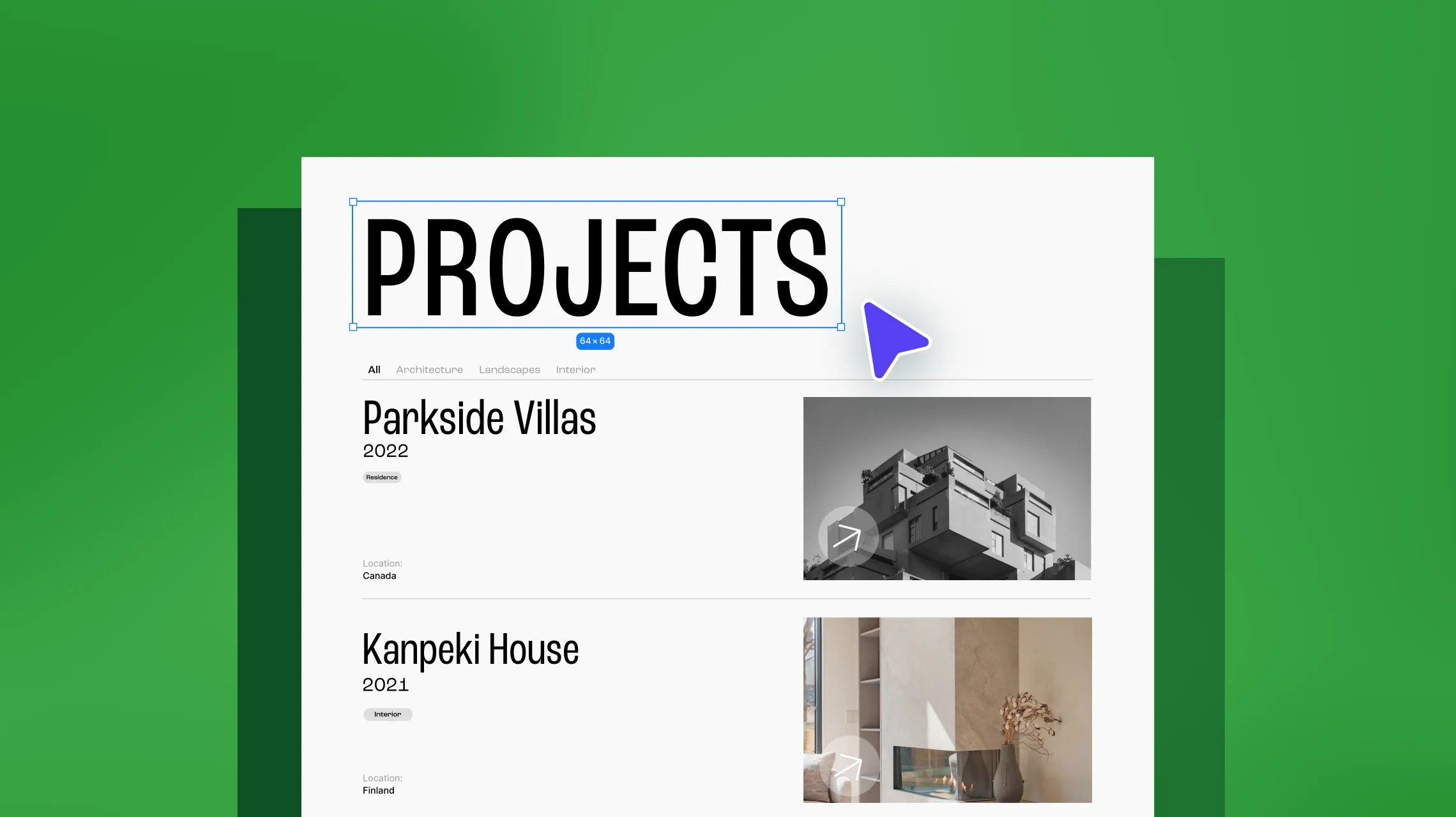
A portfolio website is the ultimate present-day alternative to resumes, business cards, and project files combined, and it’s a must-have for anyone who has something to showcase!
Building one, however, can be a very daunting task. But don’t worry, we’re going to show you how to create a dynamic WordPress portfolio website with no code, effortlessly!
Step 1: Find the Right WordPress Website Builder
The first step to creating an eye-catching and functional portfolio website is choosing the right no-code tool. Here’s what to look for:
Ease of Use: A drag-and-drop interface is key for hassle-free, efficient website building.
Extensive Customizability: Look for granular control that allows you to design a unique portfolio website that stands out and perfectly showcases your work the way you envisioned it.
Responsive Design: Ensure the builder supports responsive design to provide a seamless experience across all devices.
Native Dynamic Content Manager: Opt for a builder with a dynamic content manager built right in, eliminating the need for third-party tools.
Complete Media Manager: Make sure you have access to a robust media manager for easy organization and handling of all the media you showcase.
Built-in SEO Capabilities: Ensure the builder has built-in SEO tools to help optimize your portfolio for search engines.
Optimized Performance: Find a builder that prioritizes fast loading times and automatically optimizes media — crucial for image-heavy portfolios.
Kirki – the first freeform WordPress builder ticks all the right boxes with its visual infinite canvas, unlimited breakpoints, native Dynamic Content Manager, all-in-one media manager, and more.
With Kirki as your one-stop toolkit, creating a dynamic WordPress portfolio website is easier than ever!
Step 2: Create a Portfolio Collection
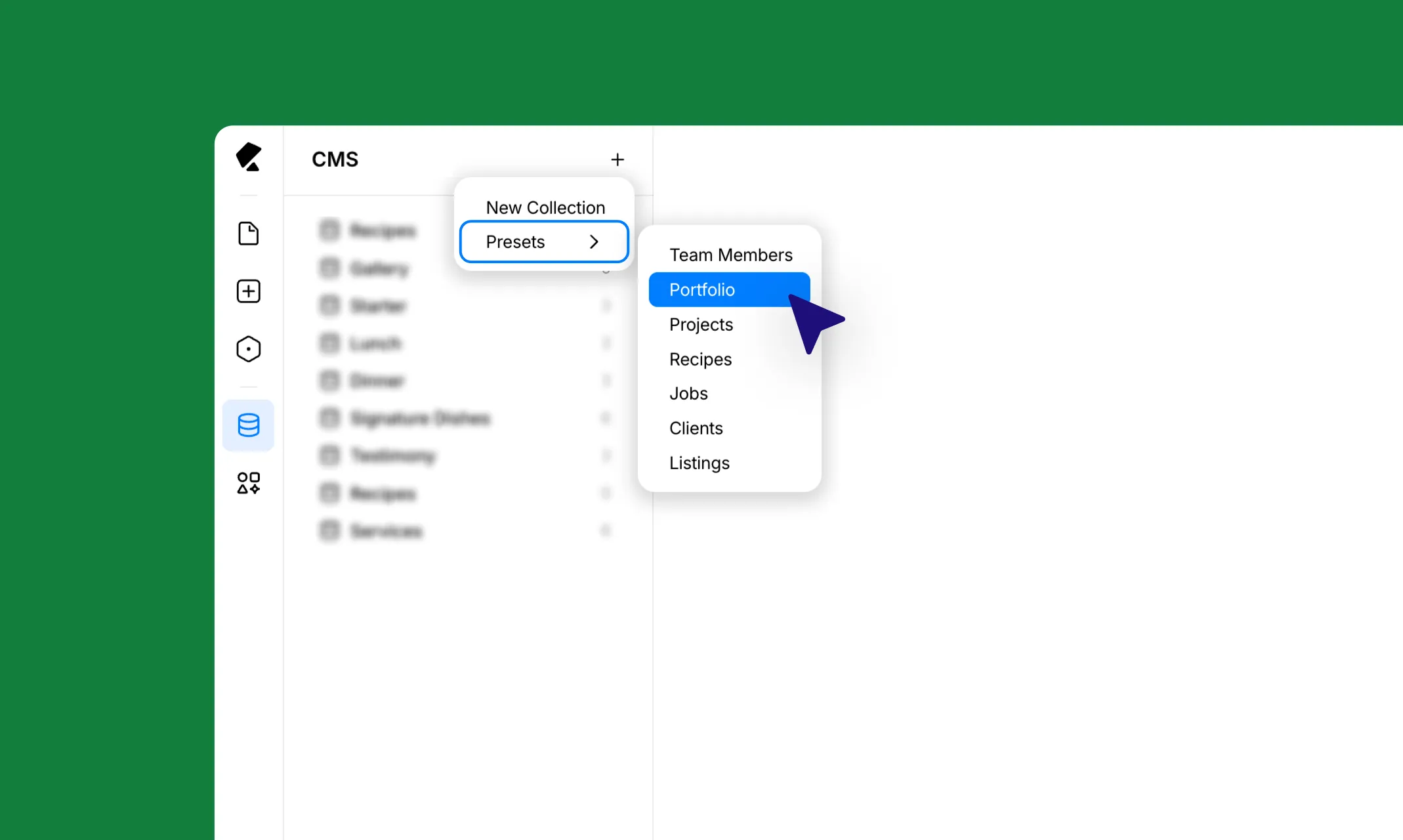
Once you’ve chosen your builder, it’s time to set up the Dynamic Content Manager to store your portfolio items.
Open the Dynamic Content panel from the left sidebar icon in Kirki. Click the “+” button and select New Collection from the dropdown.
Give your collection a meaningful name and start building its structure by clicking “+” next to Custom Fields to add the fields relevant to your portfolio. Popular fields to include are title, image, description, date, and featured tag – though this will vary depending on your profession, whether you’re a photographer, web developer, makeup artist, or anything else.
Alternatively, select Presets from the dropdown to get a head start with a ready-made portfolio structure that you can then customize to your needs.
Once you’re happy with your fields, click Create Collection to save.
Step 3: Add Portfolio Items to Your Collection
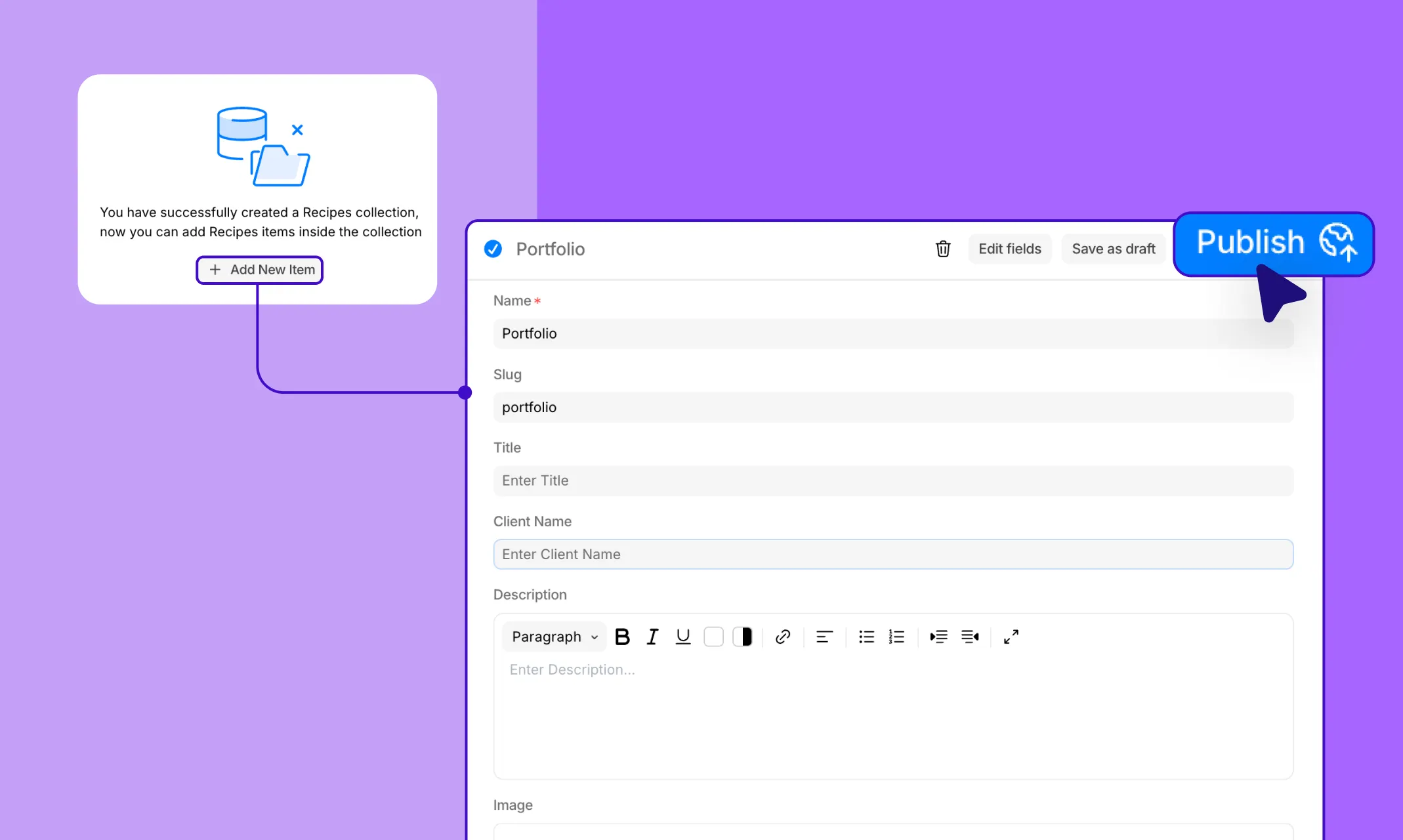
Next, it’s time to populate your collection with your actual portfolio items.
Select your portfolio collection from the left panel of the Dynamic Content section and click the “+” button to add a new item.
Fill in all the fields with your content, then either click Save as draft or Publish to make it live.
Repeat these steps for each portfolio item you want to showcase.
Step 4: Dynamically Display Portfolio Items as Lists
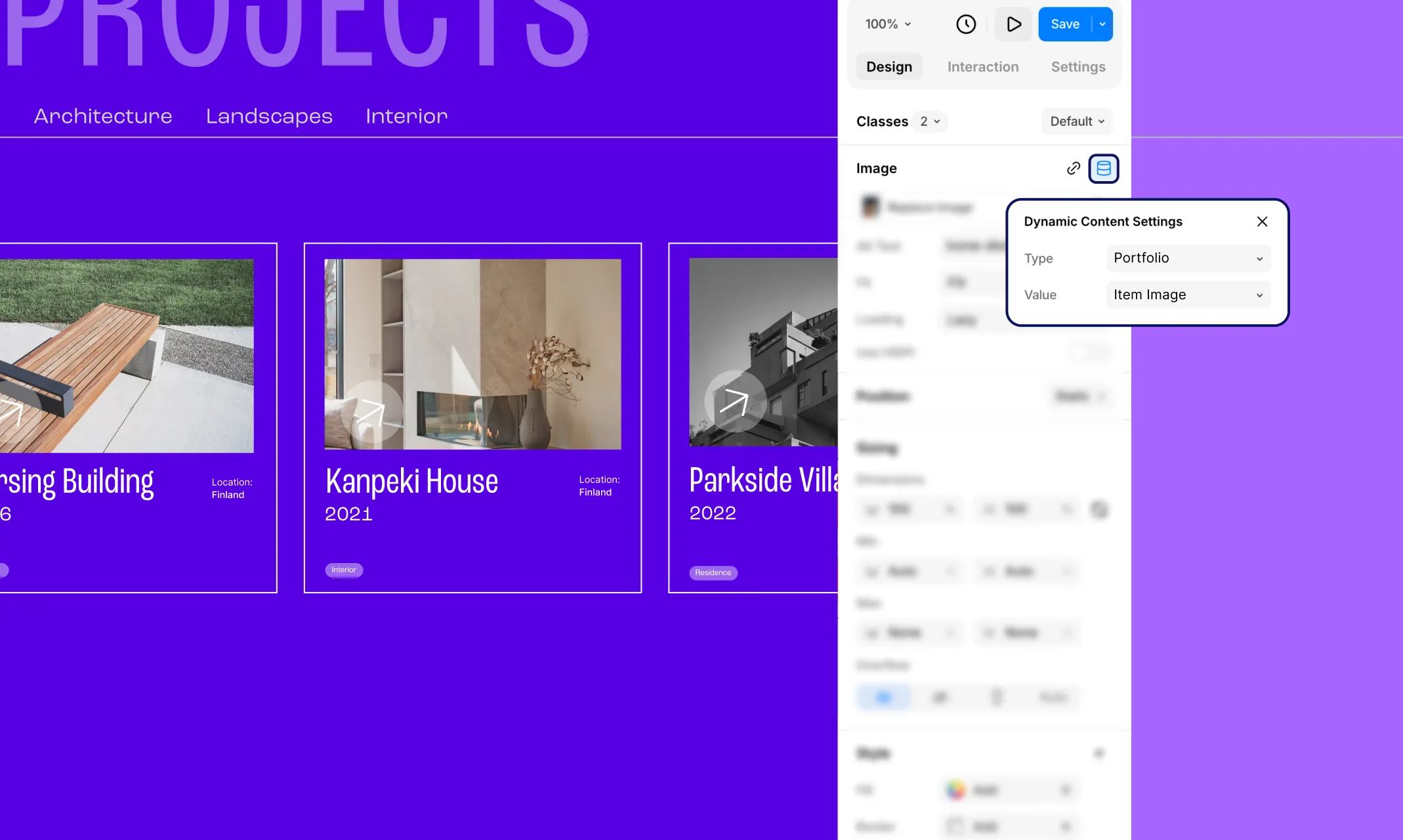
Now it’s time to dynamically display your portfolio items on a listing page.
Open the Insert panel from the left sidebar and navigate to Contents > Collections. Select your portfolio collection to add it to your canvas.
Once placed, select each child element inside the collection and click the Dynamic Content icon in the Design tab next to the element’s name. In the Dynamic Content Settings popup, set the Type to your portfolio collection and the Value to the relevant field (e.g. Item Image, Item Title, Item Description).
Once all elements are mapped, your portfolio listing page will dynamically display all your items automatically!
You can also configure filter, sort, and item limit options from the collection settings to refine how your portfolio items are displayed.
Step 5: Craft Dynamic Portfolio Pages Using Templates
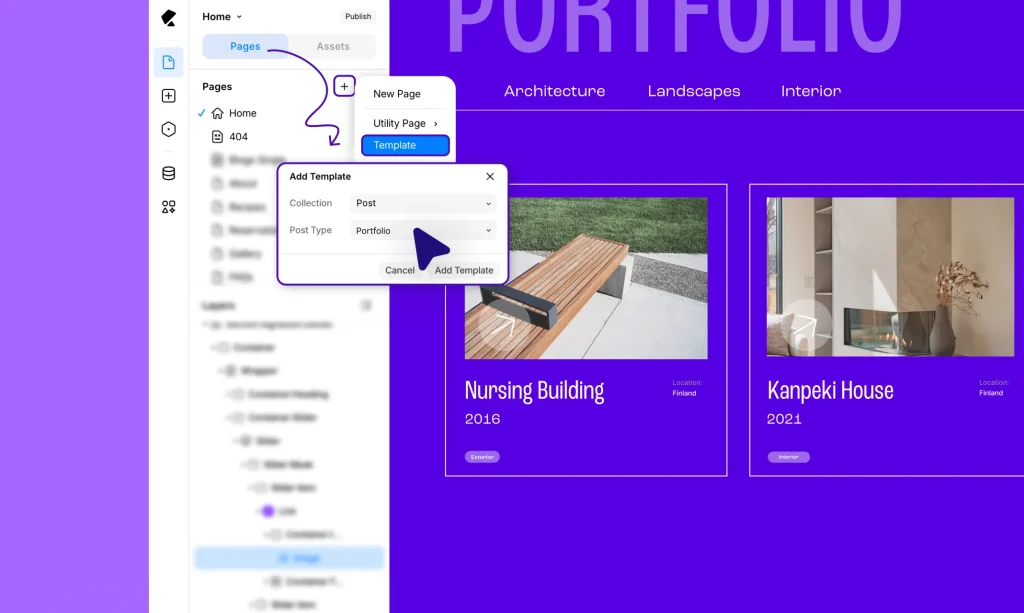
To showcase each portfolio item in detail on its own page, you’ll need to create a collection template.
In the Pages panel, click “+” and select Template. In the Add Template modal, set Collection to Post and Post Type to your portfolio collection, then click Add Template.
Design your template page however you like. Then, for each element, click the Dynamic Content icon in the Design tab and set the Type to your portfolio collection and the Value to the relevant field, just like you did on the listing page.
Kirki will automatically generate a unique, fully populated detail page for every item in your collection!
Step 6: Set Up Dynamic SEO Using Field Tags
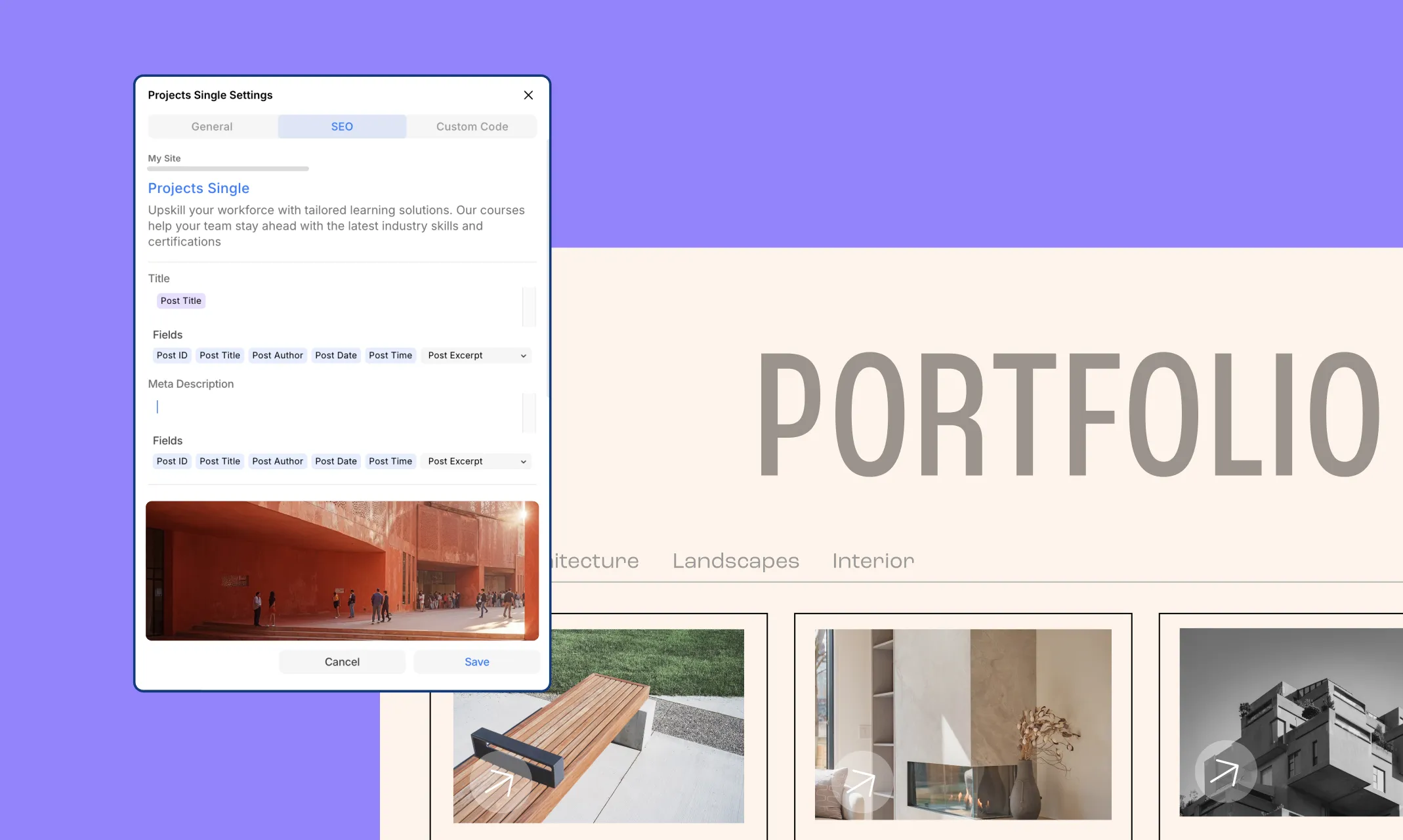
Finally, SEO-optimize your portfolio template so each portfolio item page ranks on its own.
Right-click your template page in the Pages panel and open Page Settings. Navigate to the SEO tab. Fill in your Title and Meta Description, and for any parts that should be item-specific, click the relevant field tags — such as Post Title or Post Date — to insert them dynamically.
This way, every portfolio item page automatically gets its own unique, optimized SEO title and description without any manual work.
Additional Key Elements in a Portfolio Website
Now that you know how to dynamically display your portfolio items, make sure to also include these essential sections:
Navbar: Offer intuitive navigation so visitors can explore your portfolio effortlessly.
Hero Section: Add a visually striking hero section to instantly captivate your audience and introduce your work with impact.
About Me: Include a brief bio to give visitors insight into who you are and your background, either as a dedicated section or a full page, depending on your site structure.
Contact: Make it easy for visitors to reach you. If you’re concerned about spam, use Kirki’s built-in Form Builder to add a contact form directly on your site.
Footer: Include a footer for copyright details, additional navigation, and other important information.
Why Make Your WordPress Portfolio Website Dynamic?
Imagine having to manually redesign your page every time you want to add a new portfolio item. With a dynamic portfolio website, you never have to. Here’s why it’s worth it:
Effortless Updates & Scalability: Add new portfolio items without redesigning pages — your website grows seamlessly alongside your content.
Accelerated Design: Design once and see updates reflected across the entire site automatically.
Seamless Collaboration: Separate design and content management tasks so your team can work more efficiently.
Consistency: With a single source to edit, maintaining a consistent look throughout your website is effortless and reduces room for error.
Future-Proof: As trends evolve or your needs change, update your design or layouts without ever needing to touch the content.
WordPress Portfolio Website Made Easy
Creating a dynamic WordPress portfolio website has never been easier! With Kirki, you get effortless scalability, consistent design, built-in SEO optimization, and a truly freeform building experience — all in one place.
So why wait? Get Kirki today and start sharing your work with the world!

