Building your first WordPress website can feel daunting — but we’re here to help.
You may have seen this title before, but if you want a clear, step-by-step guide on how to build a WordPress website from scratch, this is it.
By the end of this guide, you’ll know exactly which tools to go for, how to customize your design, how to add functionality, and how to launch your website, all without breaking a sweat.
So let’s dive in!
Step 1: Plan Your Website
A little planning goes a long way.
Before diving into building a website, take the time to figure out some key aspects, such as:
- Purpose of This Website: What is your website for? A blog, portfolio, business site, or something else?
- Target Audience: Who is this site for, and what do they need from it?
- Website Pages: Decide what pages you need — Home, About, Services, Contact, Blog, etc.
- What Actions Visitors Should Be Able to Do: What do you want visitors to do? Read blogs, sign up for a newsletter, or fill out forms?
- Functionality to Be Added: Identify the features your site needs based on the desired actions of your visitors.
- Types of Content Needed: Identify the types of content you need, like text, images, videos, etc.
Defining these details first will make the actual website-building process smoother and more efficient.
Step 2: Choose Your WordPress Plan
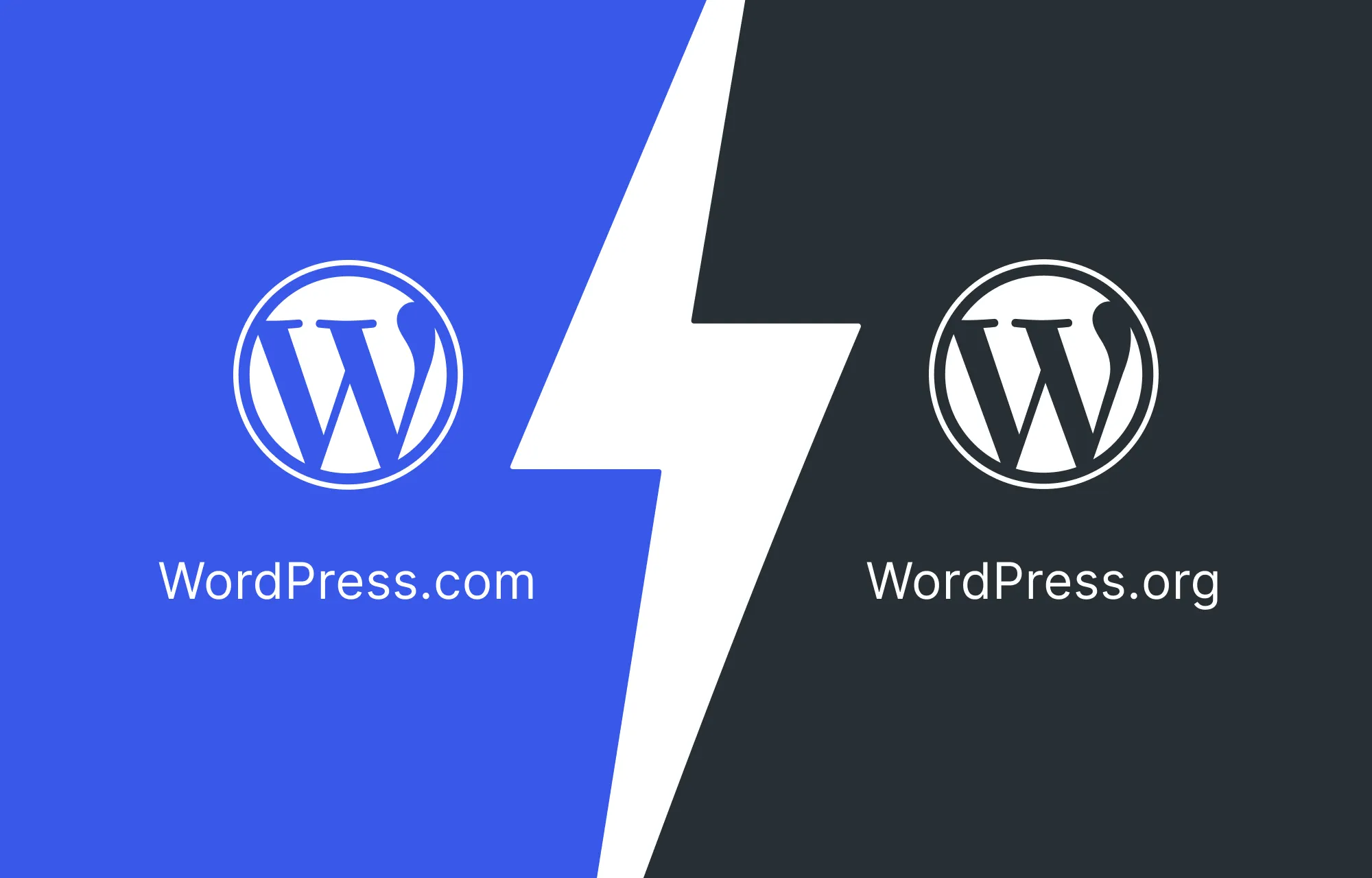
Once you’ve nailed down the basics, it’s time to choose the right WordPress plan for your website.
There are mainly two types: WordPress.com or WordPress.org.
WordPress.com is a fully-managed service that provides both the free WordPress software and hosting in one convenient package.
It does have a free plan, but customization is very limited. You’ll need to upgrade to higher-tiered, paid plans to install plugins and get access to all themes, which can get quite expensive.
So, it’s not the best choice if you want more control, need advanced functionality, or are working within a tight budget.
WordPress.org, on the other hand, provides the same free WordPress software, but you’ll need to arrange your own hosting and domain.
In return, you get complete control over your website, the freedom to install any plugins or themes, and full ownership of your content.
In short:
- WordPress.com is simple and beginner-friendly, perfect if you want an easy, secure setup with built-in maintenance and don’t need to dive into deep customization or advanced features.
- WordPress.org, which powers over 43% of all websites worldwide, is ideal if you want flexibility, scalability, and total control over your site’s design and functionality.
Step 3: Get Your Domain & Hosting Ready
If you went with WordPress.com, you can skip this step, as your hosting and domain name are already taken care of.
However, if you choose WordPress.org, you’ll need to set up your own domain name and hosting.
These are key to your website’s success, so it’s worth knowing how to choose them wisely.
Choose a Domain Name:
Find and purchase your domain through providers like GoDaddy, Namecheap, Bluehost, and others.
When choosing a domain name:
- Keep it short, easy to spell, and memorable.
- Make sure it’s relevant to your brand or niche.
- Avoid using numbers and symbols if possible.
- Choose the right domain extension (like .com, .net, .org, .edu, etc.)
Pick a Secure & Flexible Hosting:
Your hosting provider plays a major role in your website’s speed, reliability, security, and overall performance. Look for a hosting solution that offers strong uptime, fast loading speeds, responsive support, and room to grow as your website expands.
One reliable option is Kinsta, a premium hosting provider built specifically for WordPress websites. It includes features such as automatic backups, a global CDN, staging environments, performance optimization tools, and robust security measures, making it a solid choice for businesses, blogs, portfolios, and growing websites.
💡 Tip: You can also simplify things by looking for bundled solutions that offer both domain and hosting in one combined package to make things easier and more feasible!
Step 4: Install WordPress
For WordPress.org users, now that your hosting and domain are all figured out, it’s time to install WordPress and set up your website.
Install WordPress
Installing the WordPress software is quick and easy. You can either install it automatically through your hosting provider or run a manual installation:
- Step 1: Download WordPress.
- Step 2: Create a database.
- Step 3: Upload, unzip, and save the downloaded WordPress files to your server’s root directory.
- Step 4: Finally, access your domain on a browser to run the WordPress installation script.
- Step 5: Follow the on-screen prompts to set your language, database details, site title, username, password, etc, and complete the process.
Initial Setup
Once you’ve installed WordPress, it’s important to configure a few key settings, such as:
- Site Title & Tagline: From your domain, go to WP Admin > Settings > General and set your title and tagline to make it more understandable for users and search engines alike.
- Time Zone & Language: Also set basic things like your time zone, language, date format, etc.
- Membership: Enable this option if you want users to be able to register on your website.
- Permalinks: Set SEO-friendly URLs from Settings > Permalinks. The “post name” option is a recommended choice.
Finally, secure your website by using strong passwords for all accounts, enabling SSL to encrypt data and authentication, and performing regular backups.
Step 5: Choose Your Website Builder
After your WordPress website is set up, it’s time to design it.
While WordPress comes with a default editor and many plugins, most are limited in capability. To build modern websites, you need a modern website builder that lets you:
- Visually design with ease
- Customize every granular detail
- Adapt seamlessly to any screen size
- Work with dynamic content
- Collaborate in real time with your team
- And more
Most traditional WordPress builders fall short here, often relying on add-ons or extra plugins just to get things done.
But not Kirki.
Built as a one-stop solution, the Kirki WordPress website builder lets you craft contemporary WordPress websites with no code and no extra plugins. With Kirki, you can:
- Choose from an extensive free WordPress theme library
- Visually design your site with full granular control
- Collaborate, co-edit, and communicate with your team in real time
- Display and manage dynamic content through a built-in CMS
- Craft complex interactions and animations effortlessly
- And much more
How to Install Kirki:
Step 1: Create an account on kirki.com and purchase the plan that best fits your needs.
Step 2: From your account, go to Account Settings and download the latest version of Kirki Pro.
Step 3: In your WordPress dashboard, navigate to Plugins > Add New > Upload Plugin and upload the downloaded file.
Step 4: Click Install and then Activate.
Step 5: Enter your license key to complete the activation.
Step 6: Choose Your WordPress Theme
Now it’s time to think about your WordPress theme.
Themes are a game-changer. They let you build professional-looking websites quickly without starting from scratch. Kirki has you covered with its growing library of free WordPress themes covering a wide range of niches.
Every Kirki theme comes complete with all the essential pages, is fully customizable, and endlessly scalable.
How to Install a Kirki WordPress Theme:
Step 1: In the Kirki editor, click on the Template icon to open the template library.
Step 2: Browse the library to find a theme that fits your website.
Step 3: Click the template to view its details, hit Import to install it, and click Proceed to confirm.
Your theme is now installed, complete with pages, site settings, and more. From here, replace placeholder content, swap media, tweak layouts, and customize the design to match your brand.
Step 7: Design Your WordPress Website
With your theme in place, it’s time to design your website. Here are the key design tools in Kirki to get familiar with:
Convert Instantly From Figma to WordPress
Already have a design in Figma? With the Figma to Kirki tool, import sections or fully designed pages directly from Figma with pixel-perfect accuracy and auto-responsiveness. No developer dependency, no manual conversion, just instant results.
Save and Reuse Styles Globally With Variables
Instead of manually applying colors, fonts, or sizes across every page, save them as Variables and reuse them across your entire site. Update a Variable once and watch it take effect everywhere it was applied instantly.
Define Variable Modes to create alternate sets of values for things like dark mode or seasonal campaigns, and switch between them at the page or section level with a single click.
Design Cohesively Using the Class Manager
Kirki’s Class Manager lets you visually create, organize, and apply CSS classes to elements across your website without recreating the same style repeatedly. Changing one element’s style automatically updates all elements sharing the same class.
Take it further with child classes that let you build on an existing style on a specific element without altering the original or affecting other instances.
Get Full Creative Freedom With the Design Tab
With Kirki, you get granular, atomic-level control over every aspect of design. From Typography and Fill to Transforms, Transitions, Glass effects, Cursor effects, and more — you can customize every detail visually and precisely from the Design tab on the right panel.
Step 8: Add Functionality
Once your design is ready, it’s time to make it truly functional.
Display Dynamic Content
For content like works, services, blogs, testimonials, and team members that follow patterns and evolve constantly, Kirki’s built-in CMS is the answer. Define custom content types, add your data, and display it dynamically through collection lists or single-page templates. Update content once and have it reflected everywhere automatically.
Build Forms and Manage Data
With Kirki’s built-in Form Builder, create contact forms, newsletter sign-ups, booking forms, feedback forms, and more — all visually. Secure your forms with reCAPTCHA via the Apps panel, set up Email notifications for instant alerts, and view all submissions in Kirki’s Submissions panel in the dashboard.
Create and Utilize Pop-ups
With Kirki’s built-in Pop-up Builder, visually craft eye-catching pop-ups with the same level of control as full pages. Control when, where, and to whom pop-ups appear using triggers and Visibility Conditions from the Settings tab.
Craft Complex Animations and Interactions
In Kirki, create professional-grade interactions visually with no code using:
- Library: Apply quick preset animations (Fade, Bounce, Slide, Flip, etc.) for instant visual flair
- Set New: Visually craft intricate, multi-layered custom interactions using the timeline
- Text Animation: Animate text by character, word, or element with presets like Blur, Shoot, Stagger, and more
Extend With Kirki Apps
Open the Apps panel from the left sidebar to connect with popular third-party platforms, including Google Login, MailerLite, Mailchimp, Zendesk, LiveChat, Olark, Tawk.to, and many more — all without leaving the editor.
Step 9 (For Teams): Collaborate in Real Time
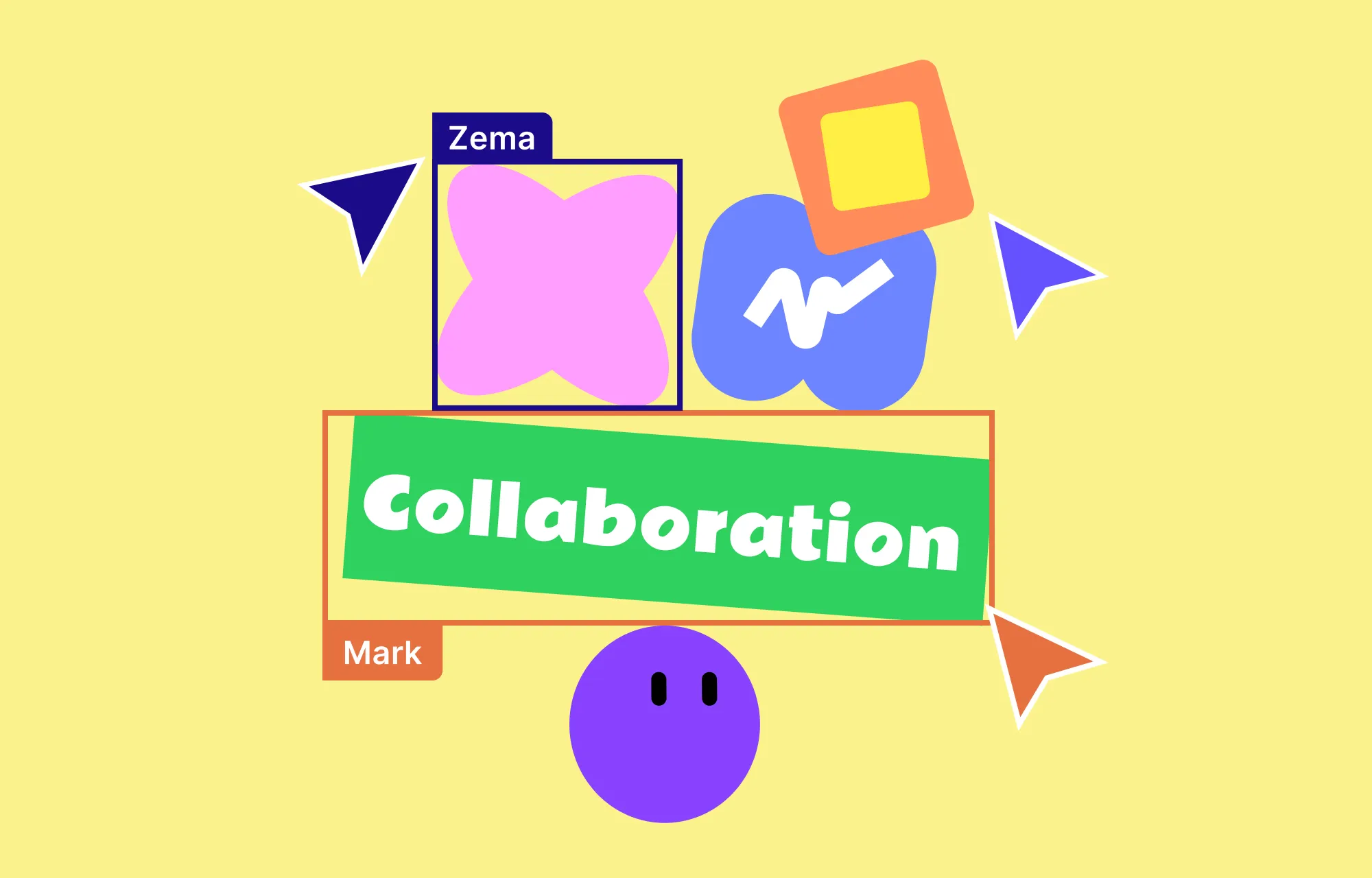
In Kirki, multiple users can collaborate in real time, making teamwork seamless and efficient.
With the complete collaboration suite built in, your team can co-edit the same page simultaneously, seeing changes live, leave contextual feedback using in-canvas comments, restore previous versions with Smart Versioning, and keep clients in the loop with a Shareable View-Only Link.
No special setup required. Real-time collaboration is available the moment your team logs in.
Step 10: Optimize Your SEO
Your website is designed and functional. Now make sure people can find it.
Right-click any page in the Pages panel and open Page Settings. Navigate to the SEO tab to add your meta title, description, cover image, and Open Graph information.
If you have OpenAI connected via the Apps panel, use the sparkle icon next to any SEO text field to generate suggestions automatically using AI.
For dynamic single-page templates, set up dynamic SEO field tags so each item’s detail page automatically gets its own unique metadata.
Don’t forget to add alt text for all images directly from the Design tab and enable Lazy Loading for media from Kirki’s Settings panel.
Step 11: Audit Your Website
Before going live, run a thorough audit using Kirki’s built-in Audit tool. It automatically detects missing links, metadata, alt text, and other issues that could impact performance or SEO. Click any listed issue to jump directly to that section and fix it.
Then run user testing and cross-browser testing to confirm your website looks and functions perfectly across all devices and browsers. Use tools like Google PageSpeed Insights, Pingdom, or Lighthouse to analyze loading times and overall efficiency.
Step 12: Launch Your WordPress Website
You’ve built your WordPress website. Now comes the most exciting part — going live!
If you’ve been building on a staging site, use Kirki’s Export and Import feature to transfer everything seamlessly. Go to Kirki > Settings > Data and Sharing, export your project, and import it on your live site in just a few clicks.
Once live, celebrate your launch! Share the news on social media, start promoting your content, and grow your audience.
Keep your site thriving by running regular maintenance checks, updating content to keep things fresh, and scaling as your brand grows.
Wrapping Up
And there you have it — everything you need to know about how to build a WordPress website from scratch!
From sketching your blueprint and choosing the right WordPress setup, to designing with Kirki, adding functionality, and going live, you now have a complete roadmap to get started.
The right tools make the journey a whole lot easier. And with Kirki, you can design, customize, add functionality, launch, and grow without limits.
So what are you waiting for? Start building your dream WordPress website today!

