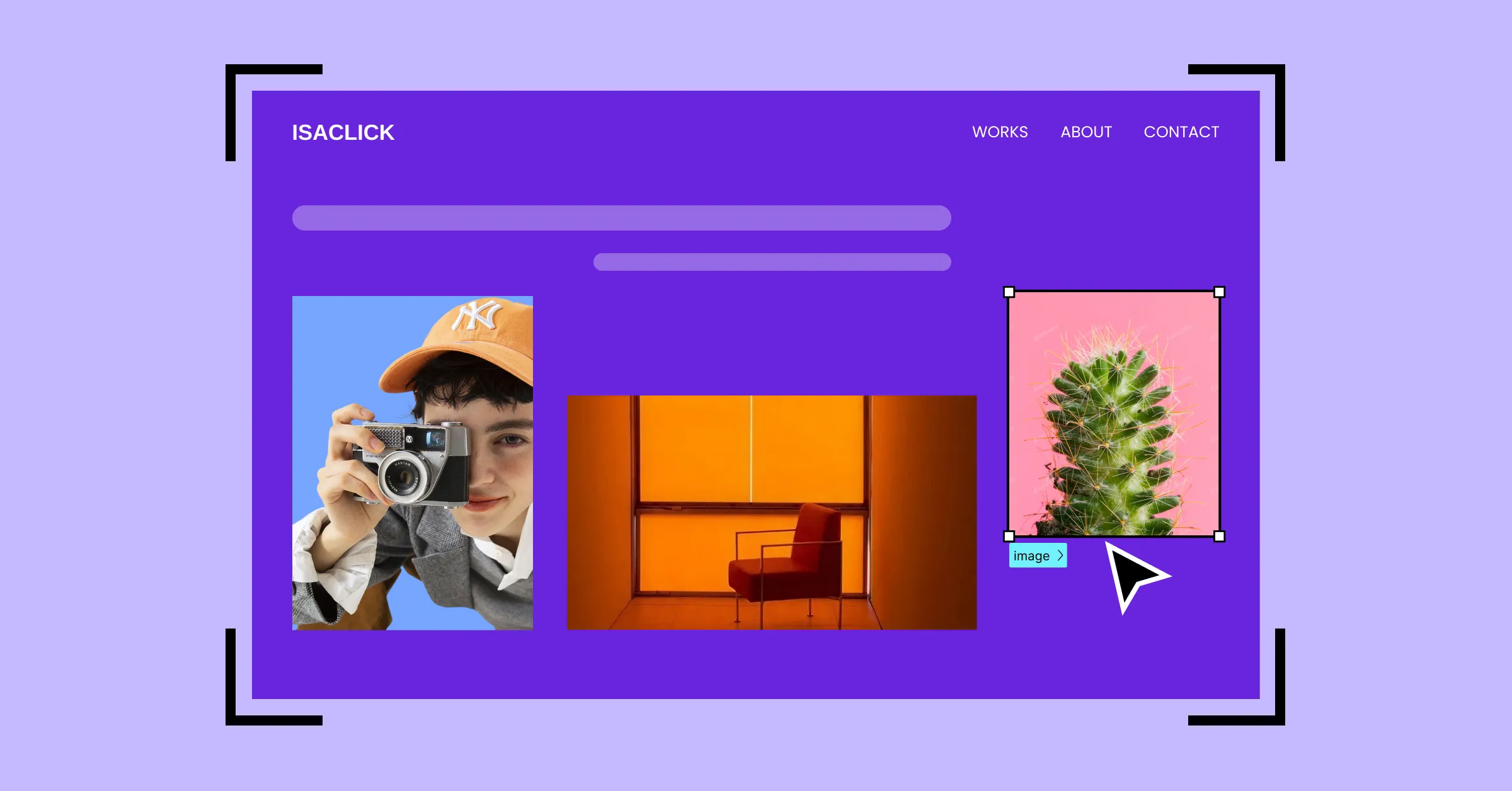
Great artists deserve the best stage — and for photographers, that stage is a stunning website that puts their work in the spotlight.
That’s why in this guide, we’ll show you how to create a photography website in WordPress with no code, hassle-free, and ready in no time.
So let’s dive right in!
Step 1: Find the Right Platform and Website Builder
To build a photography WordPress website without code, the first step is finding the right platform and website builder.
There’s no shortage of options, from WordPress builders to SaaS solutions and more. But SaaS platforms can often lock you into their ecosystem, offer limited flexibility and customization, and come with high or recurring costs.
That’s why, if you’re looking for flexibility at an affordable price point, WordPress is your best bet.
Here’s a breakdown of what an ideal WordPress website builder should offer for a photography website:
Work easily with images: It’s a photography portfolio website, so handling images should be a breeze — easily adding, viewing, managing, and editing images directly within the editor.
Freely customize your design: Photography websites rely heavily on visuals. Find a tool with a real-time visual editor and granular control that gives you the freedom to create a website that reflects you perfectly.
Make it responsive across any device: Stunning visuals lose their impact if they break on a different device. Choose a responsive website builder that makes adapting your design effortless.
Organize and display content dynamically: A must-have for future-proofing your website. With dynamic content, you update and add content from one place, making alterations and expansion hassle-free.
Optimize for speed and performance: A photography portfolio with high-quality images can slow down your site. Look for a website builder that generates fast pages with clean code output and optimized media.
Avoid extra plugins and expenses: Don’t fall into the extra plugin trap as it’ll slow down your site and stretch your budget. Choose a one-stop website builder that offers everything built in.
The Kirki WordPress website builder ticks all of these boxes, giving you everything you need to build a professional photography portfolio website with no code required.
Kirki comes with a growing library of free WordPress themes, many of which are perfect for professional online photography portfolios. Beyond its real-time editor and free themes, Kirki is a genuine one-stop solution with powerful built-in features including:
- Figma to Kirki handoff
- Dynamic Content Manager (CMS)
- Global Styling Using Variables
- Real-time Collaboration and Comments
- Visual Interaction Builder
- And more!
Plus, Kirki’s clean code output, no reliance on third-party JavaScript libraries, and automatic CSS and JS compression ensure flawless performance, making it the best choice for media-heavy photography websites.
Step 2: Install and Set Up Your WordPress Website
After choosing your website platform and builder, it’s time to go ahead and set it up.
For WordPress, this is super easy to do:
Step 1: Go to the WordPress website and download its latest version.
Step 2: Next, create a database for your site.
Step 3: Upload the WordPress files to your hosting server or local device if it’s a staging site.
Step 4: Navigate to your domain on a browser to run the WordPress installation.
Once your WordPress website is all set up, you can then install the website builder, which in our case is Kirki:
Step 1: Create an account on the Kirki website and choose a Kirki plan that best fits your needs.
Step 2: Make your purchase and from your Account > Subscriptions > Downloads, save the latest version.
Step 3: Upload this file by going to your WordPress website > WP Admin > Plugins > Add New > Upload Plugin.
Step 4: Hit Install and Activate. Then activate your license to finish.
Step 3: Design Your Photography Website With Kirki
Now it’s time to design your website. Kirki makes this simple with four different ways to get started:
Method 1: Import From Figma to WordPress
If you have a design ready on Figma or prefer it, no need to fret. With Kirki, you can import your designs from Figma to WordPress instantly.
No more waiting weeks or even months for developers to recreate your design. Instead, with just a few steps, you can have a fully-functional, pixel-perfect, and responsive website ready to go.
Check out our Figma to WordPress guide to learn all about it.
Method 2: Use a Kirki WordPress Theme
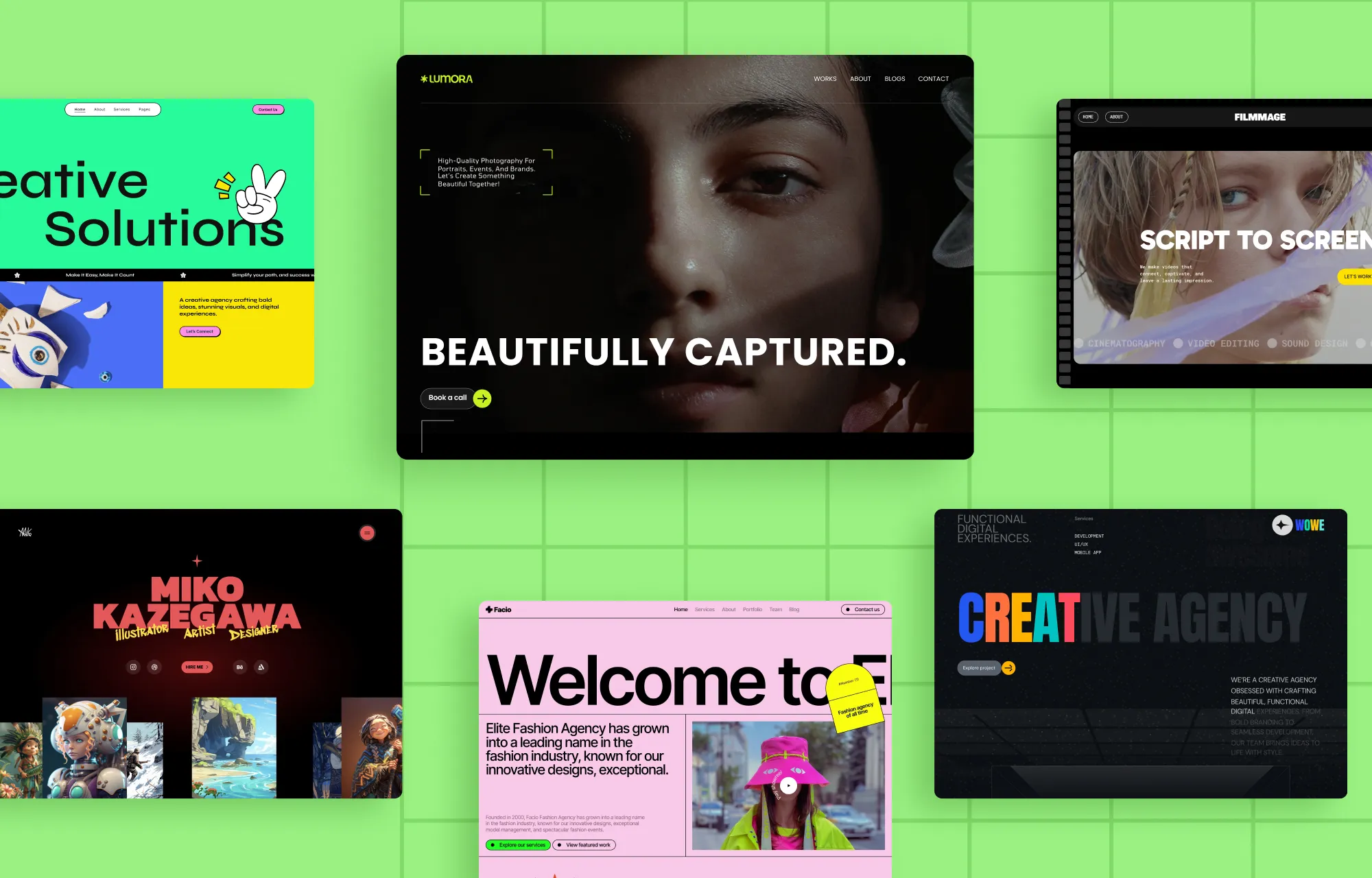
Kirki also offers tons of ready-made, free WordPress themes with all the essential pages, making them the easiest and fastest way to get your website up and running!
Here are some creative portfolio WordPress themes that you can try at no extra cost, like:
- Lumora – Creative Portfolio & Photography WordPress Theme
- Artixan — Creative Portfolio WordPress Theme
- Filmmage — Video Production Agency WordPress Theme
- Facio — Fashion Agency & Portfolio WordPress Theme
- Forges – Creative Studio & Agency WordPress Theme
- Wowe — Creative Agency WordPress Theme
Visit the Kirki WordPress theme library to explore all the available options.
To install a Kirki WordPress theme, do the following:
Step 1: In the Kirki editor, click on the Templates icon on the left sidebar.
Step 2: Browse the Template Library to find an option that fits your photography website.
Step 3: Click the template’s Details button to view more information, hit Import to install, and click Proceed to confirm.
That’s it! Your portfolio WordPress theme is now installed — complete with pages, site settings, and more.
Once your free WordPress theme is imported, you need to:
- Replace placeholder content with your own
- Swap images and other media
- Tweak layouts and design to match your brand
- Update navigation and links
- Optimize for performance and SEO
Method 3: Use Pre-Built Sections, Pages, and Components
Kirki also offers a library of pre-built wireframes, sections, pages, and components that you can mix and match to quickly build your portfolio.
Pre-built Sections: Fully styled blocks where you simply swap the demo content with your own. Showcase sections are perfect for presenting photography in a unique, eye-catching way.
Pre-made Pages: Ready-to-use pages for landing, portfolio, pricing, and more.
Pre-designed Components: Fully designed buttons, cards, and other elements you can drop anywhere on your site to boost functionality and style without extra setup.Access all of these from the Insert panel in the Kirki editor.
Method 4: Start From Scratch on the Infinite Canvas
For ultimate creative freedom, start on a blank canvas using Kirki’s full element library. Open the Insert panel, drag and drop elements onto the canvas, and use the Design tab to customize every detail exactly as you envisioned.
Here are some key media elements in Kirki that can take the way you showcase images to the next level:
The Image Element Kirki’s Image element lets you add images from the Media Manager, upload new ones, or pull directly from Unsplash and Pexels after integrating them via the Apps panel. From the Design tab, you can set Alt Text, Loading Style (Auto, Eager, or Lazy), HiDPI, and more.
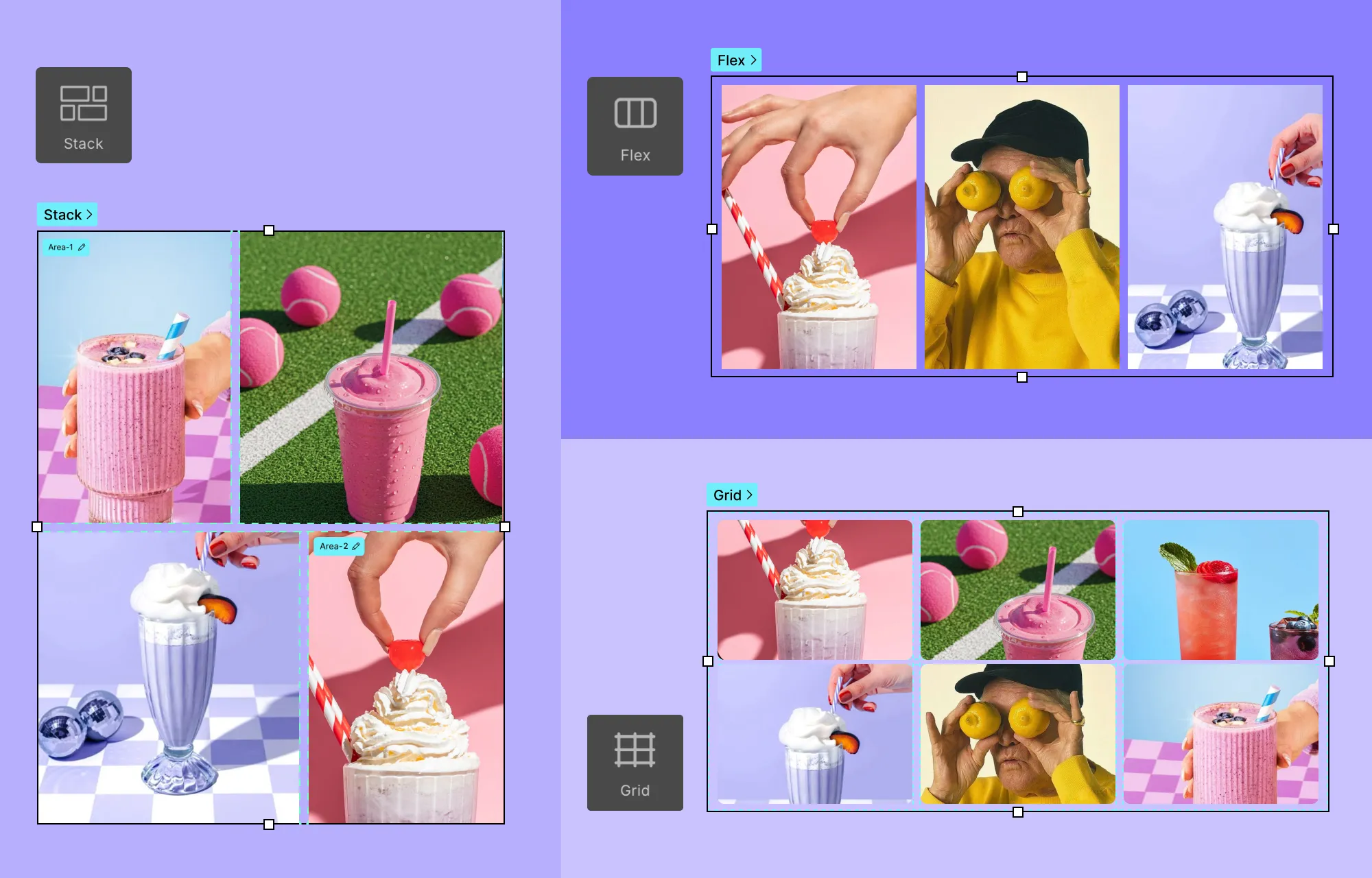
Grid, Flex and Stack Structures Kirki includes powerful layout elements to showcase your photography portfolio effectively. Grid and Flex let you arrange images in clean, structured layouts, while Stack helps you craft striking masonry layouts for added visual uniqueness.
Slider, Carousel and Lightbox For a more immersive portfolio experience, Kirki’s interactive elements are the way to go:
Slider: An interactive slideshow perfect for putting your best shots front and center, one at a time.
Carousel: Displays multiple images at once, ideal for showcasing your creative range. To create a carousel from the Slider element, set each slider item’s width to 50% for two images at once, 33% for three, and so on.
Lightbox: A combination of a modal and a slider that takes the immersive viewing experience to another level. Works great when you want your audience’s full focus on your featured projects with no distractions.
Step 4: Add Functionality to Your Photography Website
Once your design takes shape, it’s time to add functionality. With Kirki, you can edit images, display dynamic content, capture leads with forms, and add interactive effects.
Edit Images Using the Built-in Image Editor
Kirki comes with a built-in Image Editor for last-minute adjustments or to better match your images to your design. Select any image on the canvas and click Adjust to access crop, filters, and image adjustment controls.
Display Dynamic Content
Static placeholder content is easy to swap, but portfolio listings and services are constantly evolving. Manually managing these can quickly get messy and tough to scale.
This is where Kirki’s built-in CMS comes in. Create custom content types for Portfolio, Services, and more. Add your data once and display it dynamically anywhere on your website through collection lists and single-page templates.
This makes updating your content effortless and allows your portfolio website to scale seamlessly as your brand grows.
Use Forms & Form Data Manager to Capture Leads
Forms are a vital part of any website as they let you capture leads, collect important data, and connect with your audience directly from your website.
For instance, most photography portfolio websites use contact forms so potential clients can easily get in touch.
With Kirki’s built-in Form builder, you can create forms for any purpose from simple contact and inquiry forms to newsletter sign-ups and more.
You can also strengthen form security by connecting with reCAPTCHA and automate email marketing campaigns by integrating with the MailChimp API.
Plus, with a native Form Data Manager, you can access, organize, and manage your responses with ease.
To learn more, check out the Form Builder documentation.
Add Interactions and Animations
Bring your website to life with Kirki’s visual Interaction Builder.
Open the Interaction tab, choose your trigger, and apply preset animations from the Library (Fade, Bounce, Slide, etc.), create fully custom responses using the timeline, or add Text Animations to your headings and copy for extra visual impact.
Step 5: Run Final Audit and Publish
Before you go live, run a final audit using Kirki’s built-in Audit tool. It quickly catches missing links, alt text, and other issues so you can fix them before launch.
Next, test your website’s performance using tools like Google PageSpeed Insights or Pingdom to identify any areas for improvement.
Once everything looks great, you’re ready to go live! If you’ve been working on a staging site, use Kirki’s Export and Import feature to transfer your site instantly. Go to Kirki > Settings > Data and Sharing, export your project, and import it on your live site.
Launch Your Photography Website Today
And that’s our guide on how to create a photography website in WordPress with no code, all wrapped up!
Launching an online photography portfolio on WordPress has never been easier or more flexible. With Kirki, it can be as simple as picking a free WordPress theme, swapping in your content, customizing the style, adding functionality, and going live.
So why wait? Get Kirki today and start building your dream photography website visually!

