You’ve taken the smart approach by building your website on a staging site. Now it’s time to go live! There are multiple ways to do so but not all of them are as straightforward as you’d hope.
The good news? We’ve got you covered with a step-by-step guide on how to move a WordPress site from staging to live instantly. So without further ado, let’s dive in!
Essential Steps Before You Move to Your Live Site
Before you start moving your site, take a few essential steps to ensure a smooth transition:
Use HTTPS: If your live site runs on HTTPS, ensure your staging site does too. This helps maintain consistency and catch any HTTPS-related issues before going live.
Conduct Thorough Testing: Perform a final website check to ensure consistency, responsiveness, cross-browser compatibility, and full functionality. Make sure all links, buttons, and interactive elements work as expected.
Back Up Your Site: Most importantly, create a full backup of your website before migrating so you can easily restore your site in case any issues arise.
Choose the Best Way to Move to Your Live Site
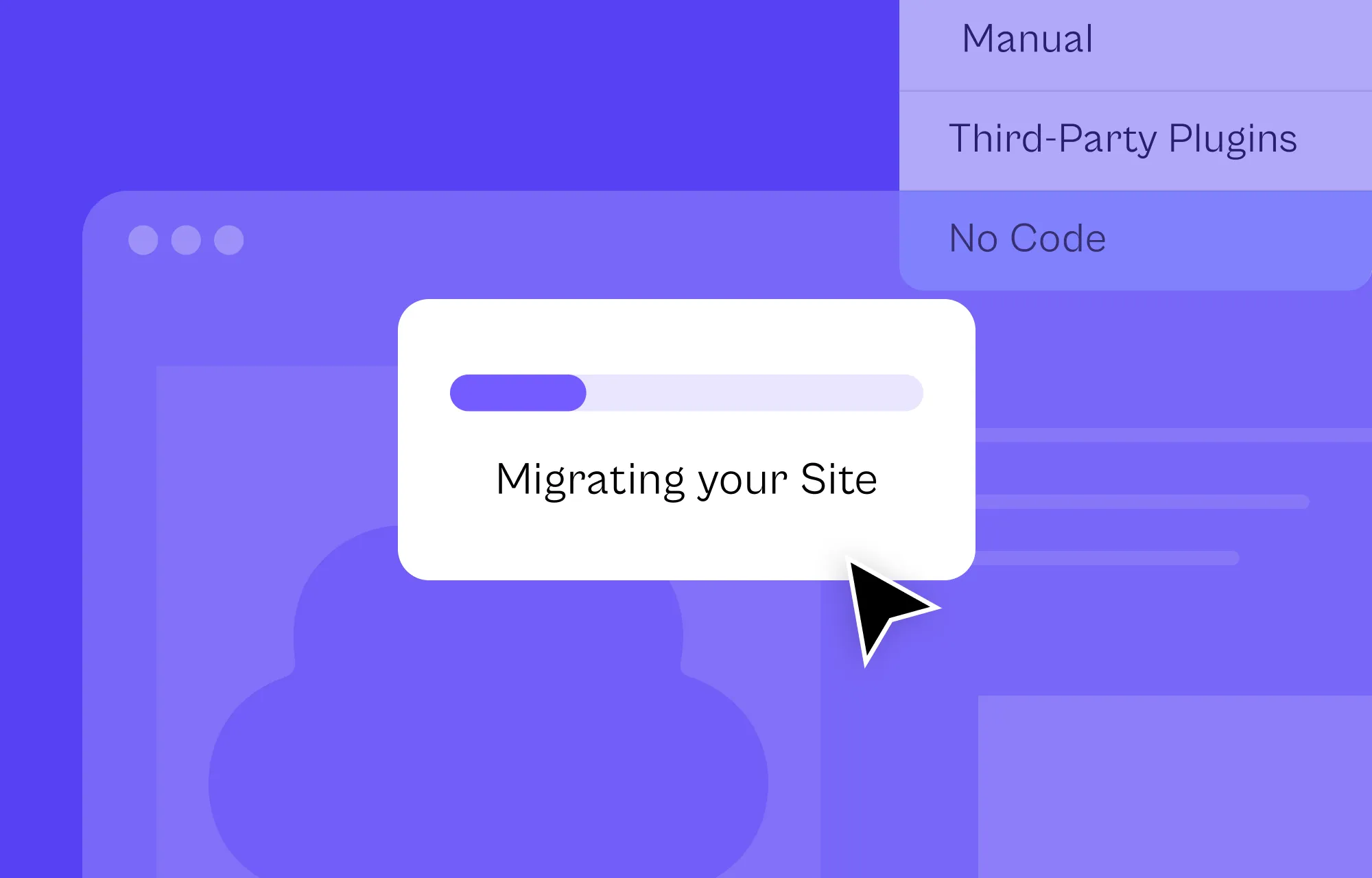
With the prep work done, it’s time to choose the best method for moving your site from staging to live. Let’s break down the available options:
Manually Migrate Your WordPress Site to Live
First, there’s Manual Migration, a more hands-on approach that involves downloading all essential files from the staging site, including its database, transferring them to the live site, and manually updating the database URLs.
Sounds complicated? That’s because it is! While this method gives you full control, it requires technical expertise and meticulous execution to avoid potential issues.
Migrating Using Third-Party Plugins or Hosting
Alternatively, many third-party WordPress staging plugins can simplify migration, and certain hosting providers also provide built-in tools to assist with the process.
While these tools eliminate the need for coding knowledge or advanced technical expertise, they come with downsides. Many are costly and some can be unreliable.
Instant Migration With No Code and No Extra Plugins (Recommended)
But what if there was a method that required no coding or extra plugins, a solution built right into your website builder?
That’s exactly what Kirki offers! The Kirki WordPress website builder comes with a built-in Export and Import feature, allowing you to move your site from staging to live instantly and effortlessly.
This not only makes migration more accessible for non-technical users but also eliminates the need for extra plugins, saving you from the hassle and additional costs!
Instant Staging to Live Migration With Kirki
The Kirki WordPress website builder simplifies project migration like no other. Here’s how to move your WordPress site from staging to live in just a few clicks:
Step 1: Export Your Entire Project
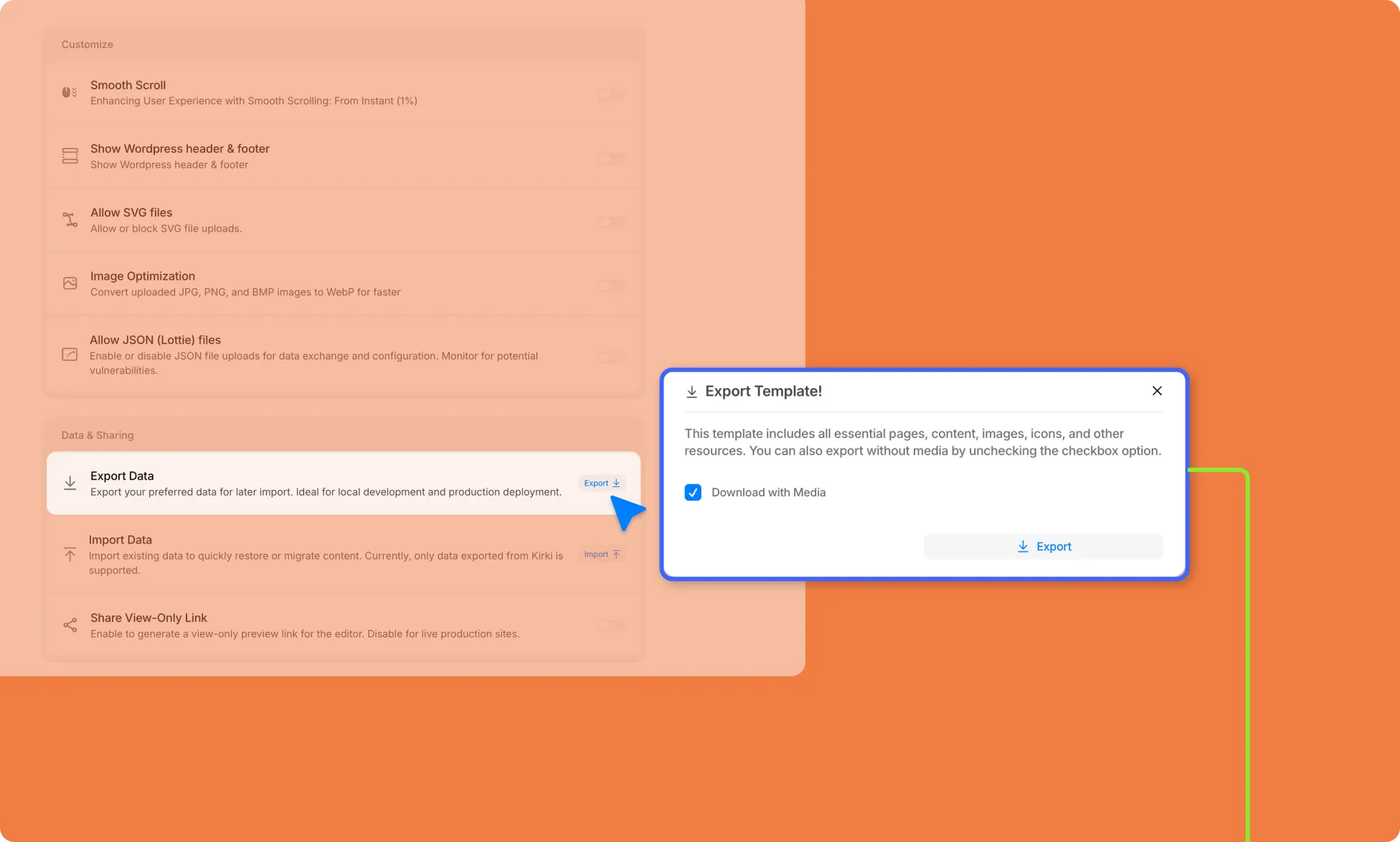
From your WordPress staging site dashboard, navigate to Kirki > Settings in the left sidebar. Scroll down to the Data & Sharing section and click the Export button next to Export Data.
An Export Template modal will appear, confirming that the export includes all essential pages, content, images, icons, and other resources. Make sure the Download with Media checkbox is checked to include all your media files, then click Export.
Kirki will then package your entire project, including Pages and Templates, View Ports and Fonts, Styles and Variables, Content Manager data, Site Info, and Assets. Once complete, your project file will be downloaded to your local device.
⚠️ Note: Before moving to Step 2, ensure your staging and live site environments match. Also confirm that Kirki is installed and its license is activated on your live site.
Step 2: Import Your Project to the Live Site
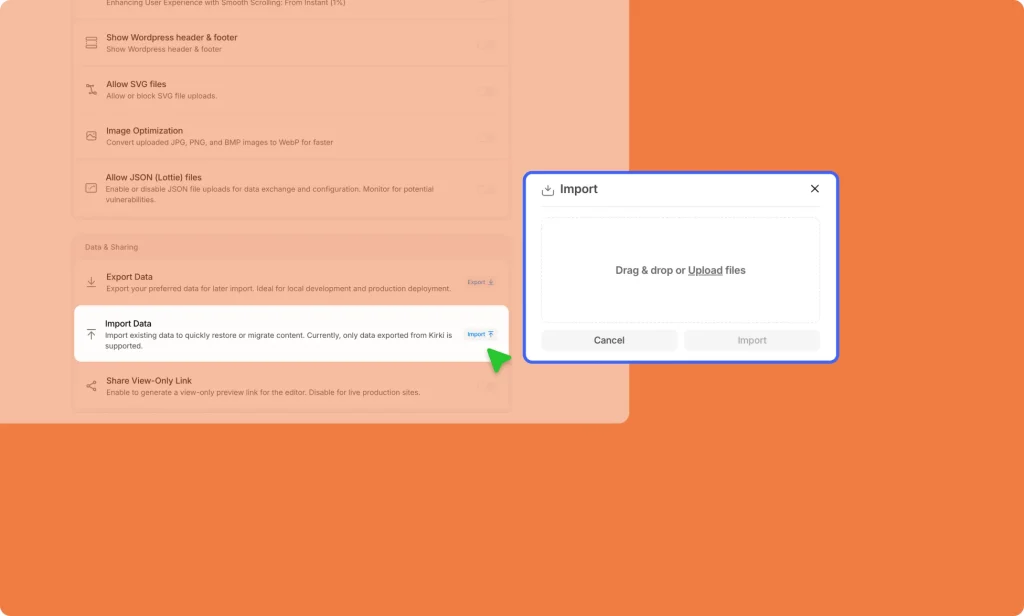
Go to your WordPress live site dashboard and navigate to Kirki > Settings. Scroll down to the Data & Sharing section and click the Import button next to Import Data.
An Import modal will appear. Select the project file you just downloaded and click Import to begin.
And that’s it! Moving a WordPress site from staging to live is just that simple with Kirki.
Note: When importing, Kirki automatically handles conflicting pages and data. You can choose to review and remove any additional unwanted content beforehand if needed.
Note: When importing, Kirki automatically handles conflicting pages and data. You can choose to review and remove any additional unwanted content beforehand if needed.
Once you’ve successfully moved your WordPress staging site to live, take the time to review your pages and ensure everything is functioning as expected.
How Kirki Simplifies Staging to Live Migration
To summarize, with Kirki, migrating from staging to live is as simple as exporting and importing your project. This leads to several key benefits:
Instant Staging-to-Live Migration: Move your site seamlessly in just a few clicks, saving you valuable time.
No Coding Required: Migrate your WordPress website effortlessly without any coding knowledge.
Built-In Solution, No Extra Plugins Needed: Avoid the need for extra migration plugins, keeping your site lighter and more secure.
Cost-Effective and Hassle-Free: Save costs and enjoy a smooth, plugin-free migration process.
Why You Should Use a Staging Site
Now that you can transfer WordPress staging sites to their live counterpart more easily than ever, there’s even more reason to use a staging site initially, thanks to its many benefits:
Safe Testing Environment: Safely experiment with new features for your website without affecting the live version.
Prevent Downtime: Avoid the chance of your live site breaking by catching errors before deployment.
Seamless Updates: Test updates of WordPress, themes, and plugins before applying them to your live site.
Better Client and Team Collaboration: Collaborate more easily with your team or client without worrying about disrupting your live site. With Kirki’s built-in real-time collaboration and comments feature, your entire team can work on the staging site together before confidently going live.
Build and Deploy WordPress Websites Seamlessly
With Kirki, moving a WordPress site from staging to live instantly is a piece of cake, letting you experiment and perfect your website before going live confidently with just a few clicks.
Alongside its handy Export and Import feature for instant staging to live migration, Kirki packs many other powerful built-in capabilities including the Dynamic Content Manager, Figma to Kirki tool, Form Builder, Variable system for global styling, real-time collaboration, and much more, making it your all-in-one WordPress website building solution.
So why wait? Get Kirki today, build your WordPress site effortlessly, and go live with ease!⚠️ Note: When importing, Kirki automatically replaces any conflicting pages and data. However, you can choose to remove any additional unwanted content beforehand.

