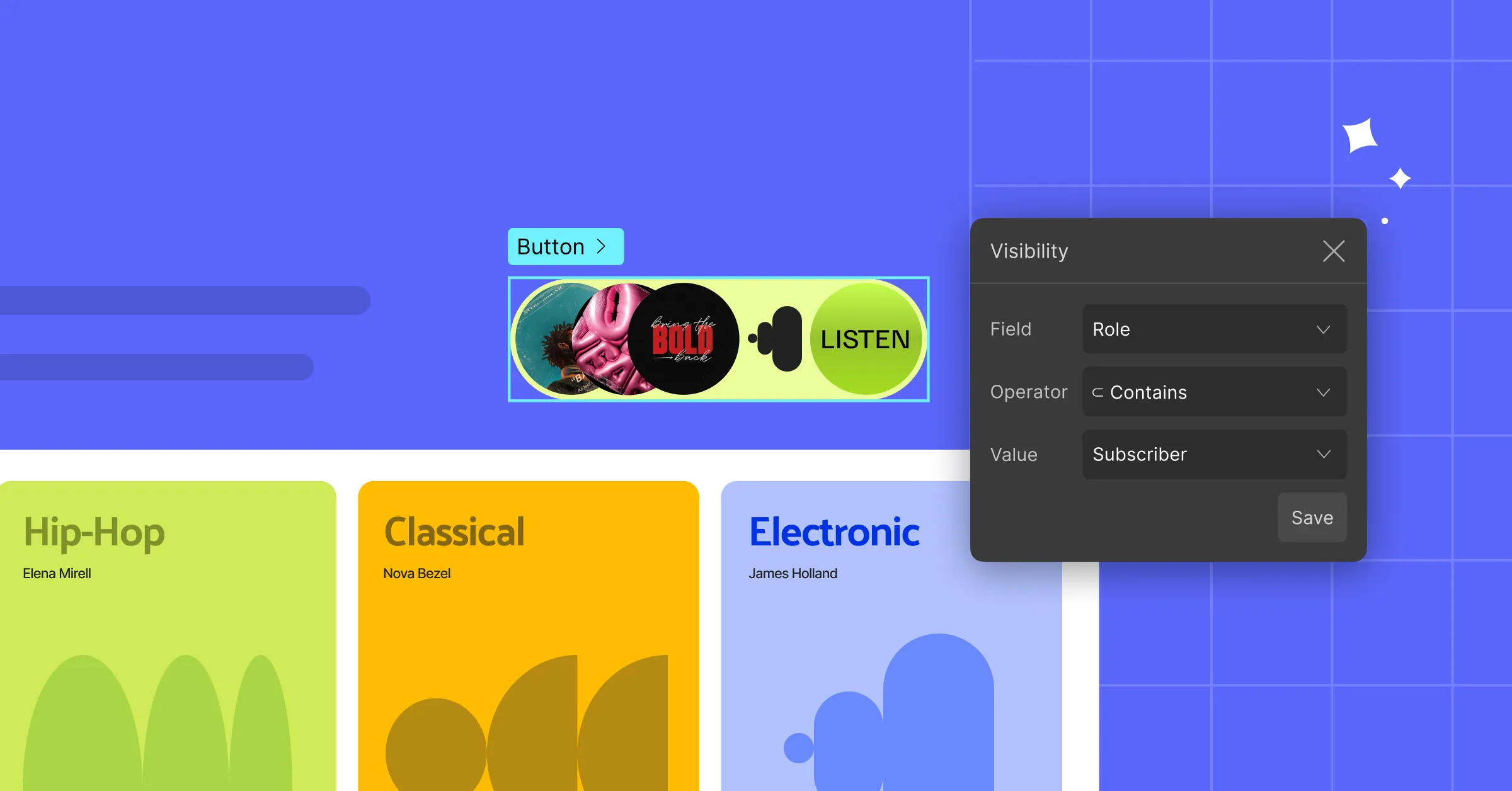
Wondering what visibility conditions are in web design and how to use them? You’re in the right place!
To put it simply, visibility conditions determine whether to show or hide elements on a website based on specific criteria.
For example, you might want to display a sign-up button only to users who aren’t logged in and hide it for those who are. With visibility conditions, that’s easy to do!
Why You Need Website Visibility Conditions
Users don’t want to see content that doesn’t apply to them or their needs. Whether they’re a first-time visitor or a returning member, they all expect personalized and relevant experiences.
This is where visibility conditions come in. By setting specific display rules, you can control what content appears and for whom on your website.
By showcasing tailored content based on users’ context or rules that define what’s relevant, you’re not just streamlining their flow. You’re creating a smarter, more intuitive, and engaging website experience.
How to Use Visibility Conditions in WordPress
So how do you actually implement conditional visibility in WordPress?
It all starts with finding the right tools.
When it comes to tools or methods, you have a few options.
Using code? That’s way too convoluted.
Using third-party plugins? Not ideal either, because they can cause conflicts, slow down your site, stretch your budget, and leave you juggling disjointed support systems.
If only there were a no-code website builder with built-in visibility conditions.
Well, good news — there is!
Enter the Kirki WordPress Website Builder, the all-in-one platform that lets you build, manage, and scale websites effortlessly. Using Kirki, you can apply conditions that show or hide elements on your website and showcase user-specific content with no extra hassle.
Applying Visibility Conditions in Kirki
Now without further ado, let’s see how to use visibility conditions in Kirki to show or hide certain elements.
Step 1: Select the element you want to apply conditions to on the canvas.
Step 2: In the right panel, open the Settings tab. Scroll down to find the Visibility Conditions section and click the “+” icon to add a new condition.
Step 3: A Visibility Condition modal will appear. From the Field dropdown, select User and then choose the user data field you want to base your condition on. Available user fields include: Display Name, Username, Nice Name, Email, Registered Date, and Role.
Step 4: From the Operator dropdown, select the comparison type (e.g. Contains).
Step 5: From the Value dropdown, choose the value to compare against (e.g. Subscriber).
Step 6: Click Save to apply the condition.
And just like that, you can implement visibility conditions in WordPress!
Applying Multiple Visibility Conditions in Kirki
Conditional visibility in Kirki doesn’t just stop at a single condition. You can apply multiple conditions on an element using both AND and OR logic:
AND Conditions: All conditions must be met for the element to be visible to a user.
OR Conditions: Any one condition being met is enough to make the element visible to a user.
To add an AND condition: Click Add Rule below your existing condition within the same group. Define your new condition using the Field, Operator, and Value dropdowns and click Save.
To add an OR condition: Click the “+” next to Visibility Conditions again to create a separate condition group. Any condition in this new group will work independently from the first.
Once set, you can edit any condition by clicking on it, or remove it entirely using the “-“ button next to it.
Applying Visibility Conditions to Dynamic Content
You can also apply visibility conditions to dynamic content based on Post fields, whether it’s part of a dynamic collection list or a single-page template!
Step 1: Select the element you want to show or hide. This could be a collection element, an element within a collection, or an element within a single-page template.
Step 2: Open the Settings tab and click “+” next to Visibility Conditions to add a new condition.
Step 3: From the Field dropdown, select Post to access the collection fields you want to base your condition on.
Step 4: From the Operator dropdown, choose the comparison type, and from the Value dropdown, set the value to compare against.
Step 5: Click Save to apply the condition.
And just like that, you’ve applied visibility conditions to dynamic content using post fields!
Real-World Use Cases for Visibility Conditions
To give you a clearer idea of where you can use visibility conditions, here are a few real-world examples:
Personalize Forms for Logged-in Users Using visibility conditions, you can personalize your contact form for logged-in users by hiding the Name and Email fields since you already have that information, creating a more streamlined experience.
Show Exclusive Content to Subscribers Only Target specific user roles — for instance, displaying exclusive content, premium articles, or members-only sections only to users whose Role contains Subscriber.
Display a “New” Tag for Latest Content Based on Date Using dynamic collections with Post field visibility conditions, you can automatically display a “New” tag for the latest works based on the date field, keeping your content fresh and engaging without manual updates.
These are just a few examples of what you can do with Kirki’s powerful visibility condition controls. Whether you’re targeting specific user attributes or customizing content based on dynamic collection item fields, Kirki gives you the ability to achieve it all effortlessly.
Build Personalized Websites With Kirki
Now that you know what visibility conditions are in web design and how to use them, it’s time to put them to work.
Get Kirki today and start personalizing website content for your users, creating smarter, more relevant, and more engaging website experiences!

