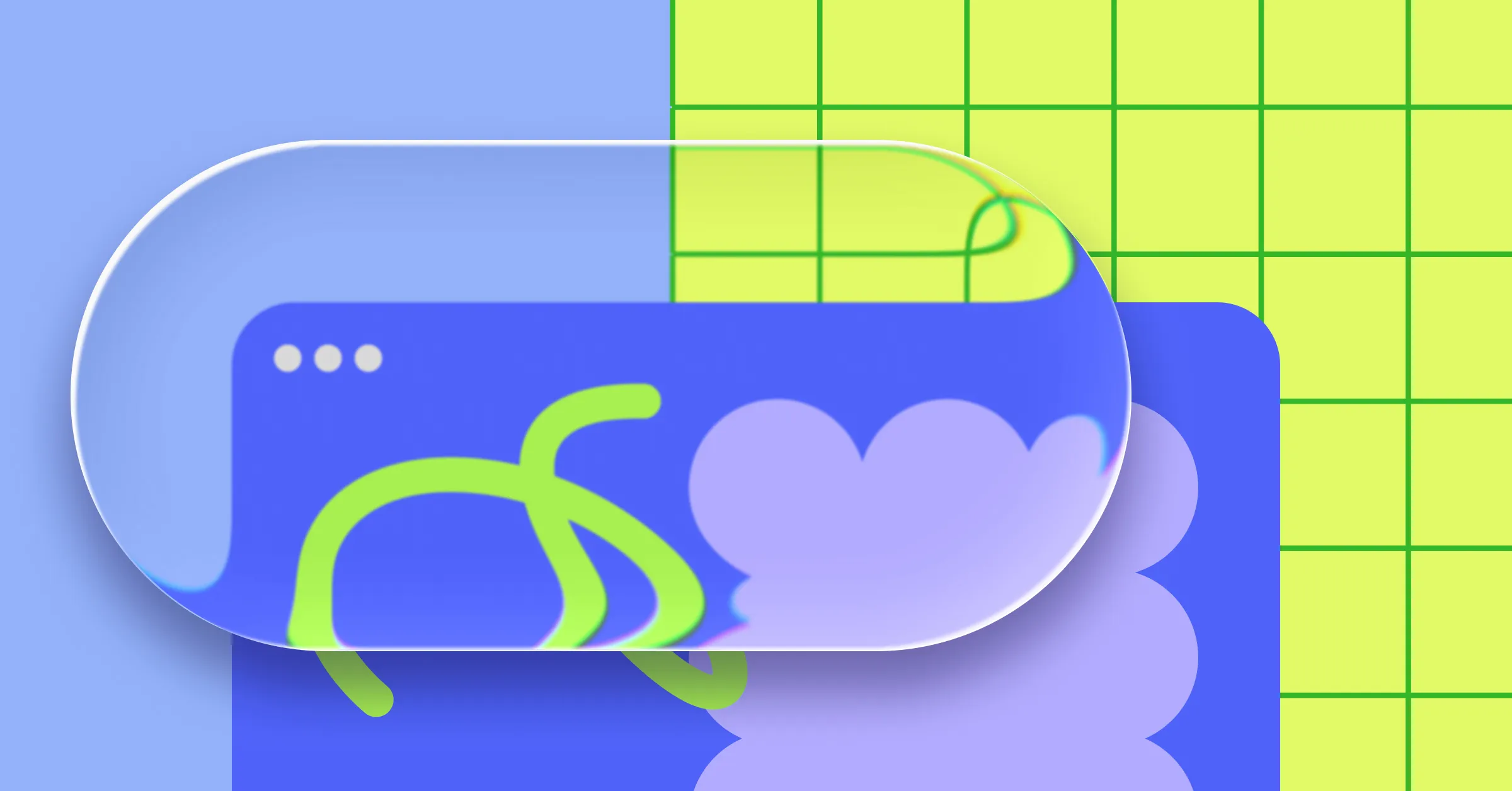
Glass Effect, or Glassmorphism, is a design trend that’s all the rage for users seeking to craft sleek, modern websites. And so, today, we’re here to show you how to create Apple style glass effects on WordPress websites without any extra plugins or complex code!
What is Glass Effect
As the name suggests, the Glass Effect gives elements a translucent, liquid glass-like appearance, including characteristics like light refraction and fluidity.
Using a combination of depth, light, and blur, it creates the most eye-catching visuals and adds interest to your pages.
Apart from being aesthetically pleasing, glass effects are also a great way to visually separate content, enhance focus, and even elevate the user experience.
How to Create Glass Effects in WordPress
Glass Effect isn’t new to web design, but it can be tricky to pull off without the right tools.
And for WordPress websites, many of you might assume you’ll need yet another plugin or add-on to make it happen.
But what if you didn’t?
With an all-in-one solution like the Kirki WordPress website builder, you can create glass effects right from the editor, no extra plugins, wasted time, costs, or risks whatsoever.
And that’s not all it’s got. As a powerful no-code website builder, it goes beyond the basics with features like the Native CMS, Instant Figma to WordPress handoff, Real-time Collaboration, and more.
With Kirki, you’re free to visually design liquid glass effects in multiple ways and effortlessly elevate your website.
Designing Glass Effects in Kirki
Now that we’ve covered how easy it is to add glass effects on WordPress websites using the right tools, it’s time to start designing Glass Effects in Kirki!
To give you the full picture, we’ll walk you through the different ways glass effects can elevate website design.
Frosted Navigation Menu
Frosted Navbars created with Glass Effect instantly add a sleek, modern touch to your websites! Placed over contrasting static or video backgrounds to make them pop, they’re sure to grab attention.
To create Frosted Navigation Menus in Kirki:
Step 1: Set Up Your Hero Section
Add a Section to your canvas and rename it Hero Section. Inside it, build your navigation menu using a pre-built Navigation from the Insert panel or by building one from scratch.
Step 2: Apply the Glass Effect
Select your Navigation element, go to the Design tab, scroll down to the Style section, and click Add next to Glass to enable it.
A Glass settings panel will open. Set the following values or adjust them as you see fit:
- Refraction: 80
- Depth: 20
- Dispersion: 50
- Blur: 13
- Light: 30
And just like that, you have your frosted navigation bar! To make it pop, use a background with high contrast behind it.
Optional: Add a Video Background
To overlay your glass navigation over a video background:
Step 1: Add a Div to your Hero Section and place a Video element inside it. Rename the Div Video Wrapper and set its Position to Relative in the Design tab.
Select the Video element and from its Video Options panel, upload or link your video, enable Looping and Play Inline, and disable Audio and Controls.
Step 2: To add a tinted overlay that matches your design, add another Div inside the Video Wrapper, give it a Fill color from the Style section, and lower its Opacity. Set its Position to Absolute, Left and Top offsets to 0, and Width and Height to 100% from the Sizing section.
Glass Effect Button
You can apply the Glass Effect to buttons too, giving them extra impact and modern flair while directing focus to important CTAs.
Step 1: Adjust Button Style
Select your button and remove its background fill or lower its opacity from the Style section in the Design tab.
Step 2: Apply the Glass Effect
With the button still selected, scroll down to the Style section in the Design tab and click Add next to Glass.
Set the following values or adjust them as you see fit:
- Refraction: 100
- Depth: 26
- Dispersion: 16
- Blur: 8
- Light: 80
And just like that, you have a futuristic-looking button that adds modern flair to your design!
In the same way, you can apply the Glass Effect to any element on your canvas and adjust the values to create different styles and intensities of the effect.
Frosted Cursor Trail
Next, let’s create a Frosted Cursor Trail — a glass-style element that follows the direction of the cursor, enhancing both user experience and interactivity.
This effect combines two built-in Kirki features: Glass Effect and Cursor Trail.
Step 1: Design Your Trailing Element
Add a Div element to the top of your page and nest another Div inside it. Rename the parent div Cursor and the child div Circle.
For the Cursor div, set its Layout to Flex, Align to Center, and Justify to Center from the Design tab. Set its Position to Absolute and give it a high enough Z-index to layer it over all other page elements.
Set its Radius to 100 from the Style section to make it circular, and define its Width and Height from the Sizing section.
For the Circle div, do the same but make its size smaller than the Cursor div. Give the Circle div a Fill color from the Style section.
Step 2: Apply the Glass Effect
Select the Cursor div, go to the Style section in the Design tab, and click Add next to Glass.
Set the following values or adjust them as you see fit:
- Refraction: 10
- Depth: 10
- Dispersion: 10
- Blur: 0
- Light: 80
Step 3: Implement the Cursor Trail Animation
With the Cursor div still selected, open the Interaction tab on the right panel. Click Add trigger + and select Scroll into view.
Under Scrolled Into, click “+” and select Library, then choose Cursor Trail.In the Cursor Trail settings panel, set Container to Viewport and adjust the Smoothing to control how fluid the cursor movement feels. And you’re done!
Build Modern Websites With Kirki
So that was how to create Apple style glass effects on WordPress websites, now made effortless with Kirki!
Of course, the examples shown here are just a drop in the ocean of what’s possible using Glass Effects.
To explore all the possibilities, get Kirki and start creating yourself and build fluid, modern websites in no time!

