Scalable Vector Graphics (SVG) is an XML-based vector image format for 2D graphics with support for interactivity and animation.
The SVG element in Kirki allows you to add custom SVG graphics directly to your page by pasting in SVG code, giving you full control over scalable vector graphics in your design.
Why Use SVG Shapes?
There are several reasons why you might want to use SVG shapes on your website:
- Scalability: SVG shapes are vector-based, which means they can be scaled to any size without losing quality. This is especially useful when creating graphics that need to be displayed on different devices with different screen sizes.
- Interactivity and Animation: SVG shapes can be animated and made interactive, making them a great choice for creating dynamic graphics and user interfaces.
- Small File Size: SVG shapes are usually smaller in file size than bitmap images, which can improve your website’s loading speed.
- Accessibility: SVG shapes can be made accessible for users with disabilities, for example, by adding descriptive text for screen readers.
- Style Control: You can easily control the appearance of SVG shapes, making it easy to match your website’s style and brand.
- Reusability: You can reuse SVG shapes across multiple website pages, saving time and resources compared to creating multiple images.
These are just a few of the benefits of using SVG shapes on your website. By using SVGs, you can create visually appealing, fast-loading, and interactive graphics that enhance the user experience on your website.
Types of SVG Elements in Kirki
In Kirki, we have two elements that are in the SVG file format. They are:
- SVG element
- Icon element.
Before You Begin

To use the SVG element, make sure SVG File Uploads are enabled first:
- Go to your Kirki Dashboard → Settings from the main menu at the top-left corner.
- Enable Allow SVG files.
Add an SVG Element
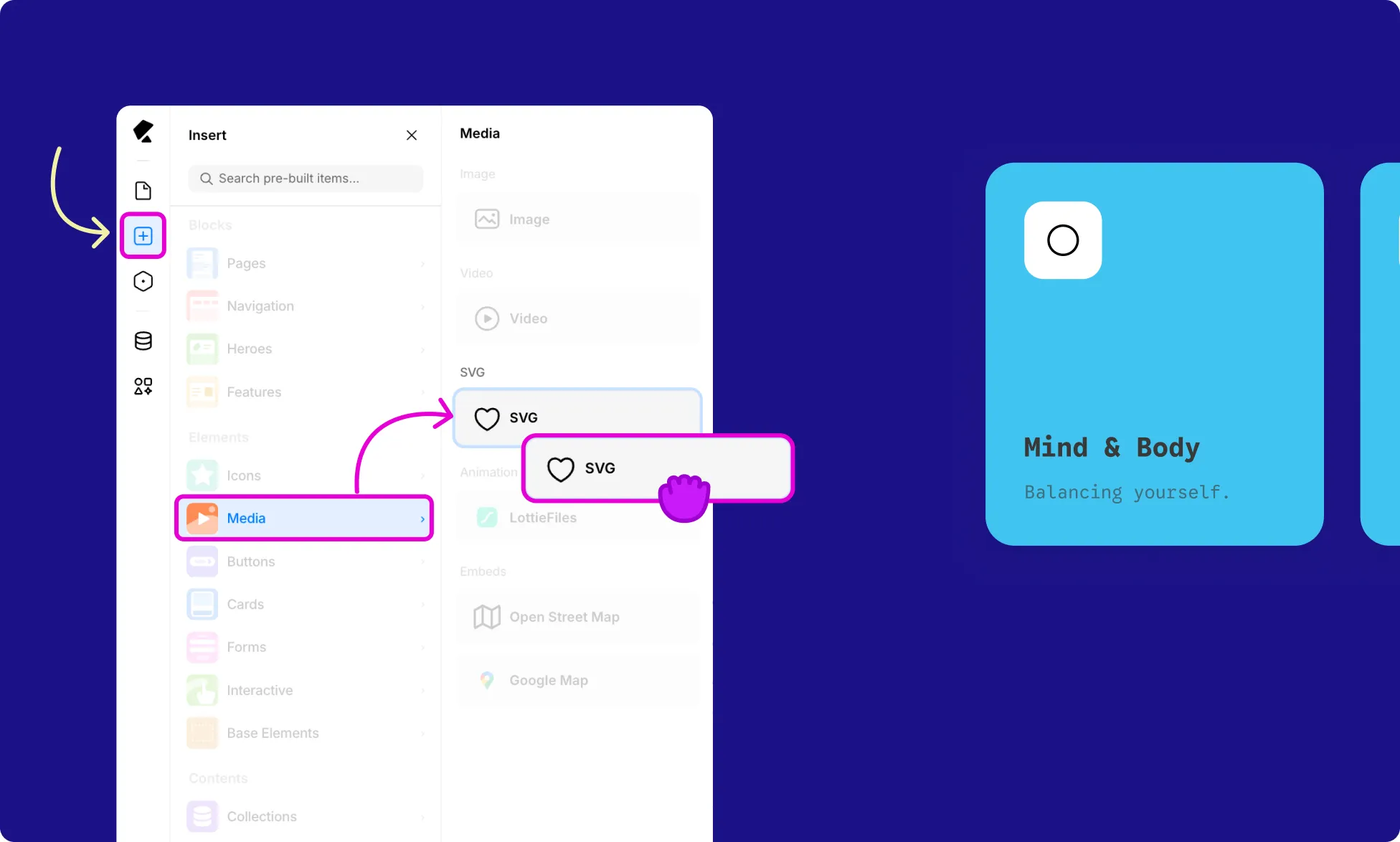
To add an SVG element to your page:
- Open the Insert panel from the Left Sidebar.
- Go to Media from the Elements section.
- Click or drag the SVG element onto the canvas.
Add SVG Code
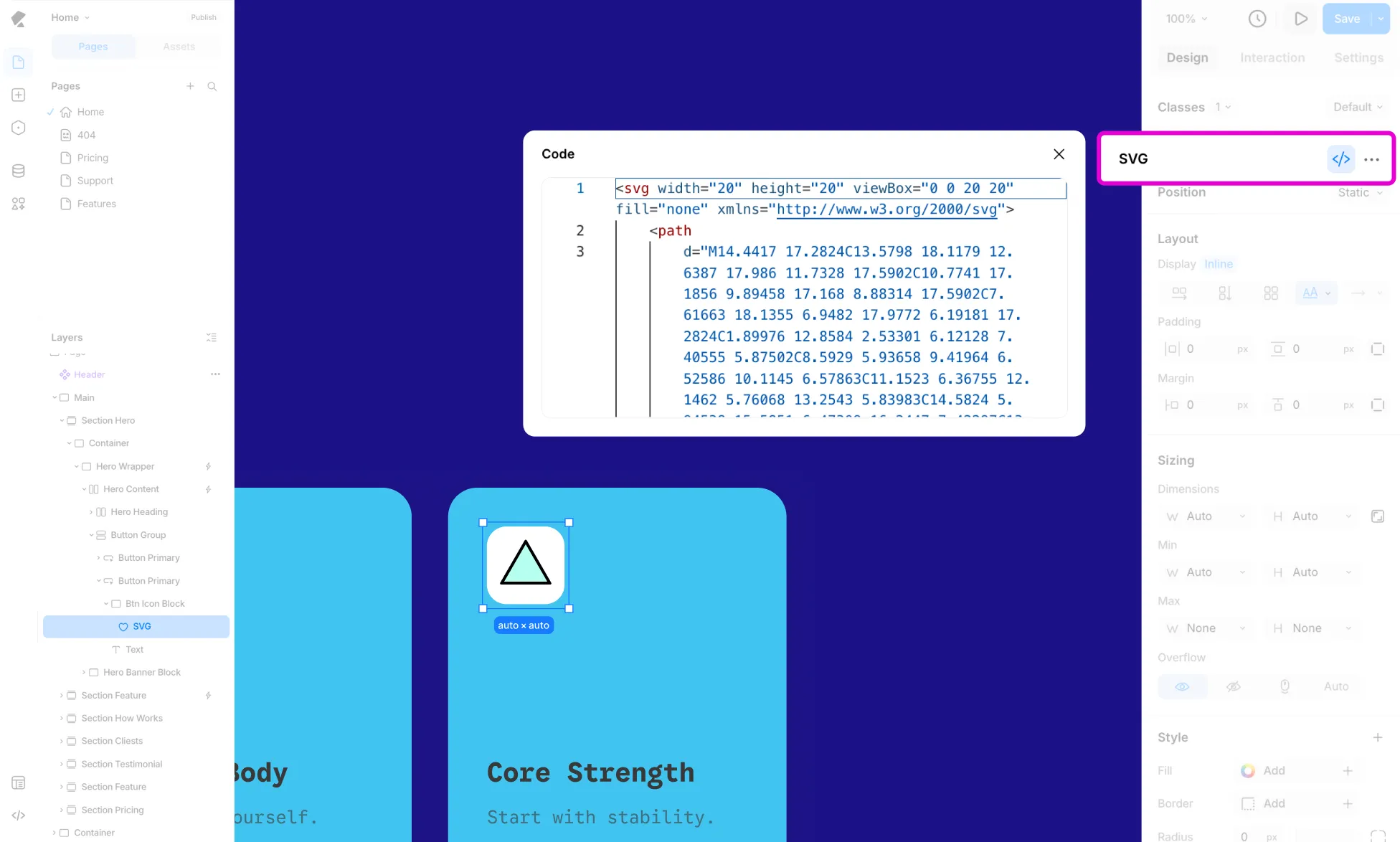
Once the element is on the canvas:
- Select the SVG element on the canvas.
- From the Design tab in the Right Panel, click the Code (< / >) icon next to SVG.
- A Code panel will open. Paste your SVG code here.
- Close the panel when done. Your SVG will render on the canvas automatically.