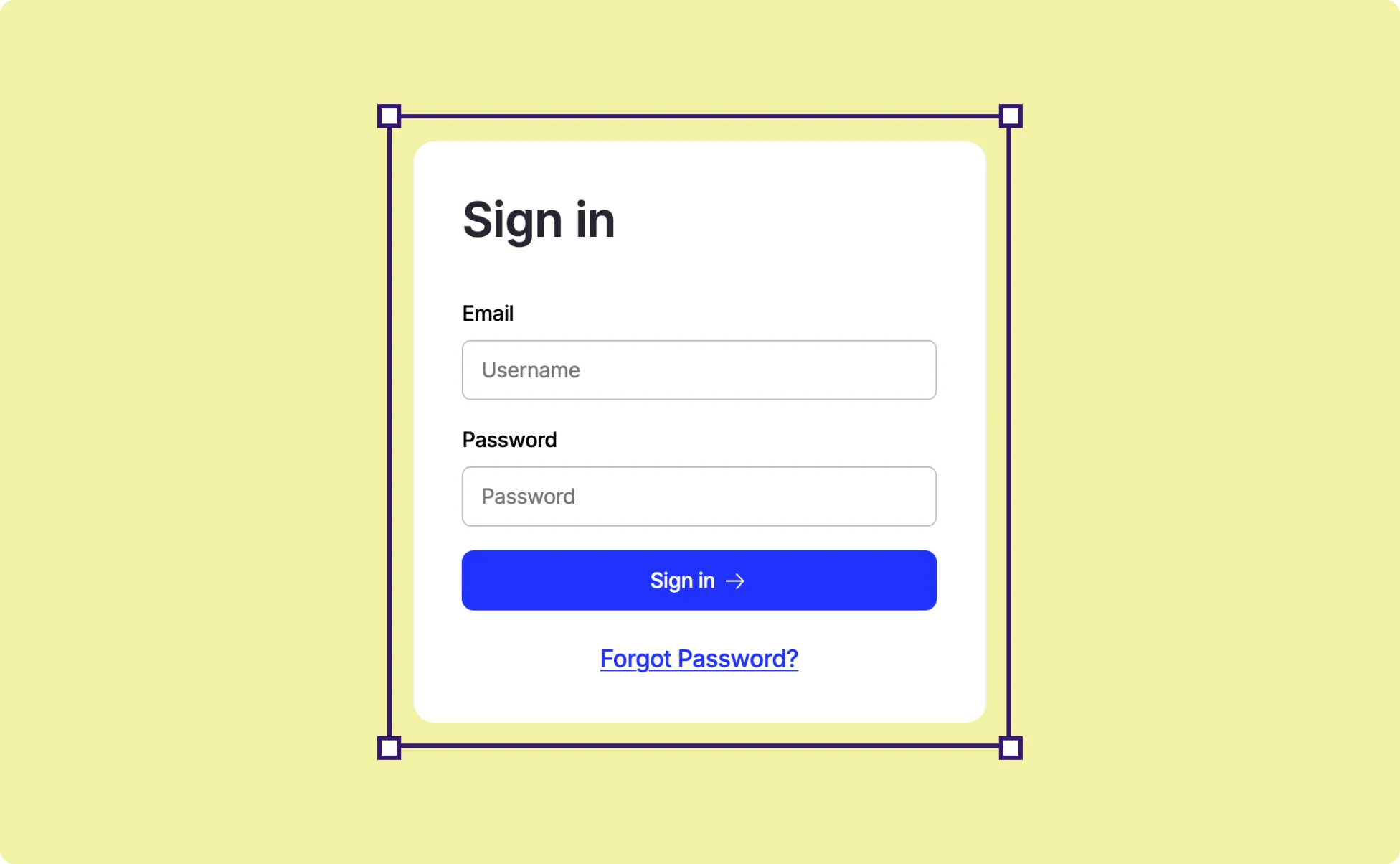
Kirki makes it easy to add a Login page using a pre-built, fully functional Utility Page.
This guide walks you through how to set up, customize, and test your Login page.
How to Create a Login Page
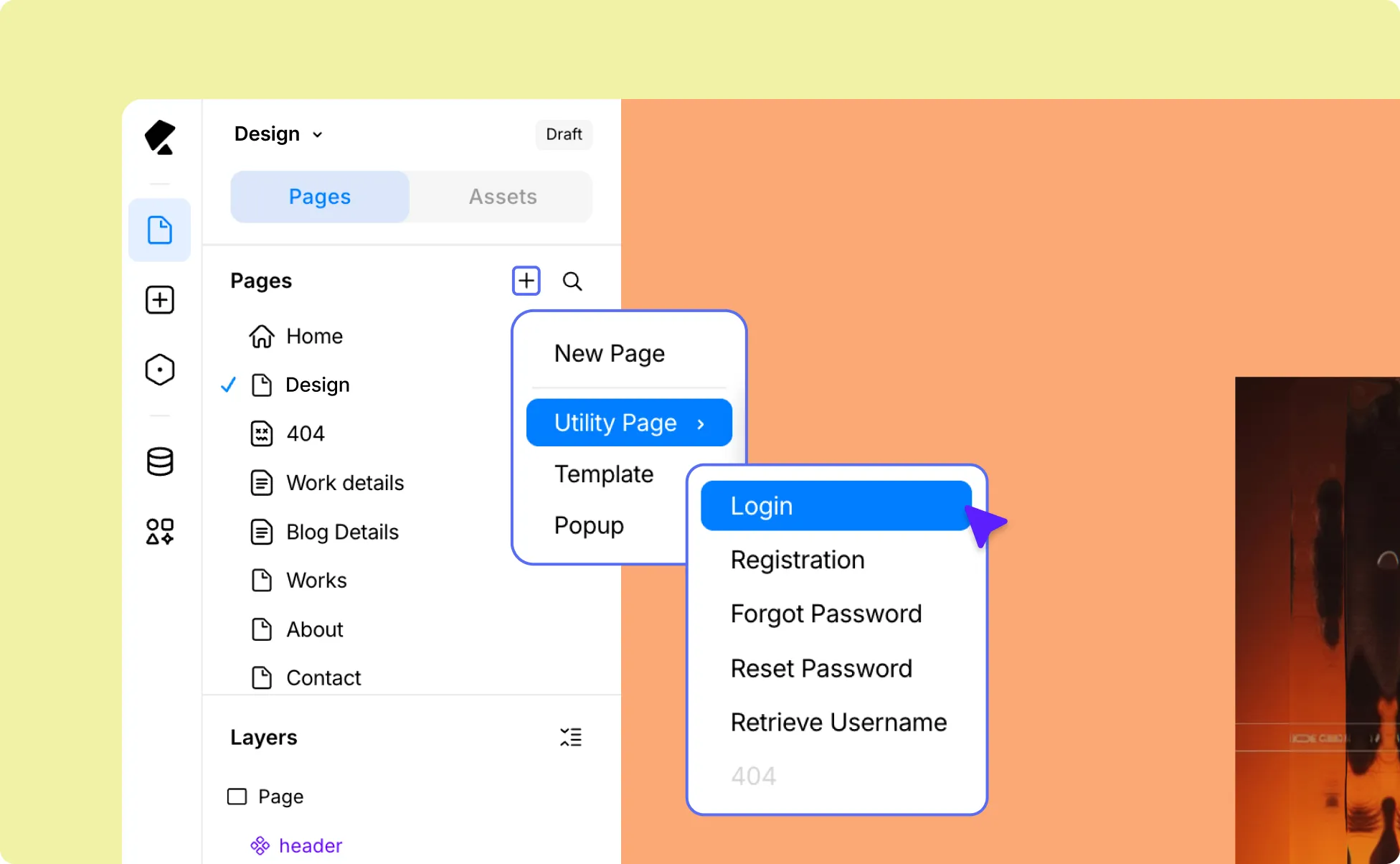
- Open the Kirki Editor.
- Go to the Pages panel on the Left Sidebar and click the plus (+) icon.
- Select Login under Utility Pages.
Kirki will automatically add a pre-made Login form to the page.
How to Customize the Login Page
Now it’s time to style your Login form and fine-tune its settings:
Use the options in the Right Panel to style and arrange the form to match your website’s brand.
Then, head to Page Settings to update your Page Title, Slug, and Description as needed. You can also find the SEO and Open Graph settings tab right here.
How to (Optional) Enable Social Login For Users
Users can log in using the form as is, but you can also enable Social Login in Kirki to let them access your site using their existing social media accounts.
Kirki supports social login through Google, Facebook, and X (Twitter). To get started, create the required API credentials for your preferred platform, then set up social login through Kirki Apps.
Choose the provider you want to set up:
- X (Twitter) Login
How to Publish and Test the Login Page
If you’re already logged into your site, the login page will appear blank when previewed through the editor or visited.
So once everything looks good in the editor, go ahead and Publish your page.
Then open the page in an incognito window, or log out of your site and visit the page. This ensures you see the login form as a new visitor would.