Transitions make animations between different states of an element smoother and more natural. Use them alongside features like Transform, Opacity, Size, and more to create polished, interactive pages.
How to Add a Transition
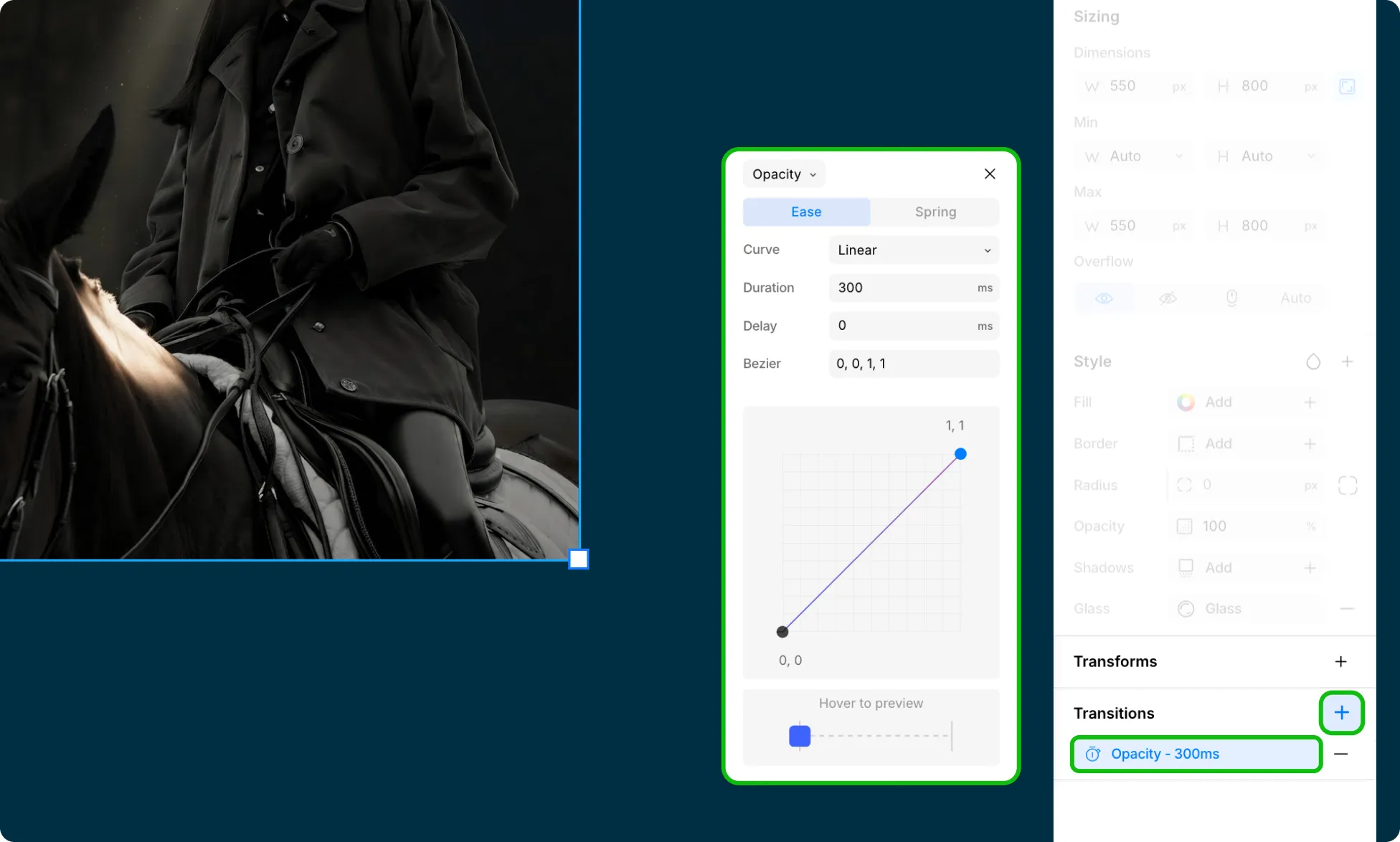
- Select an element on the canvas.
- In the Design tab of the Right Panel, scroll to the Transitions section.
- Click the plus (+) icon to add a new transition.
- Click on the newly created transition layer to configure its settings.
How to Set the Transition Type
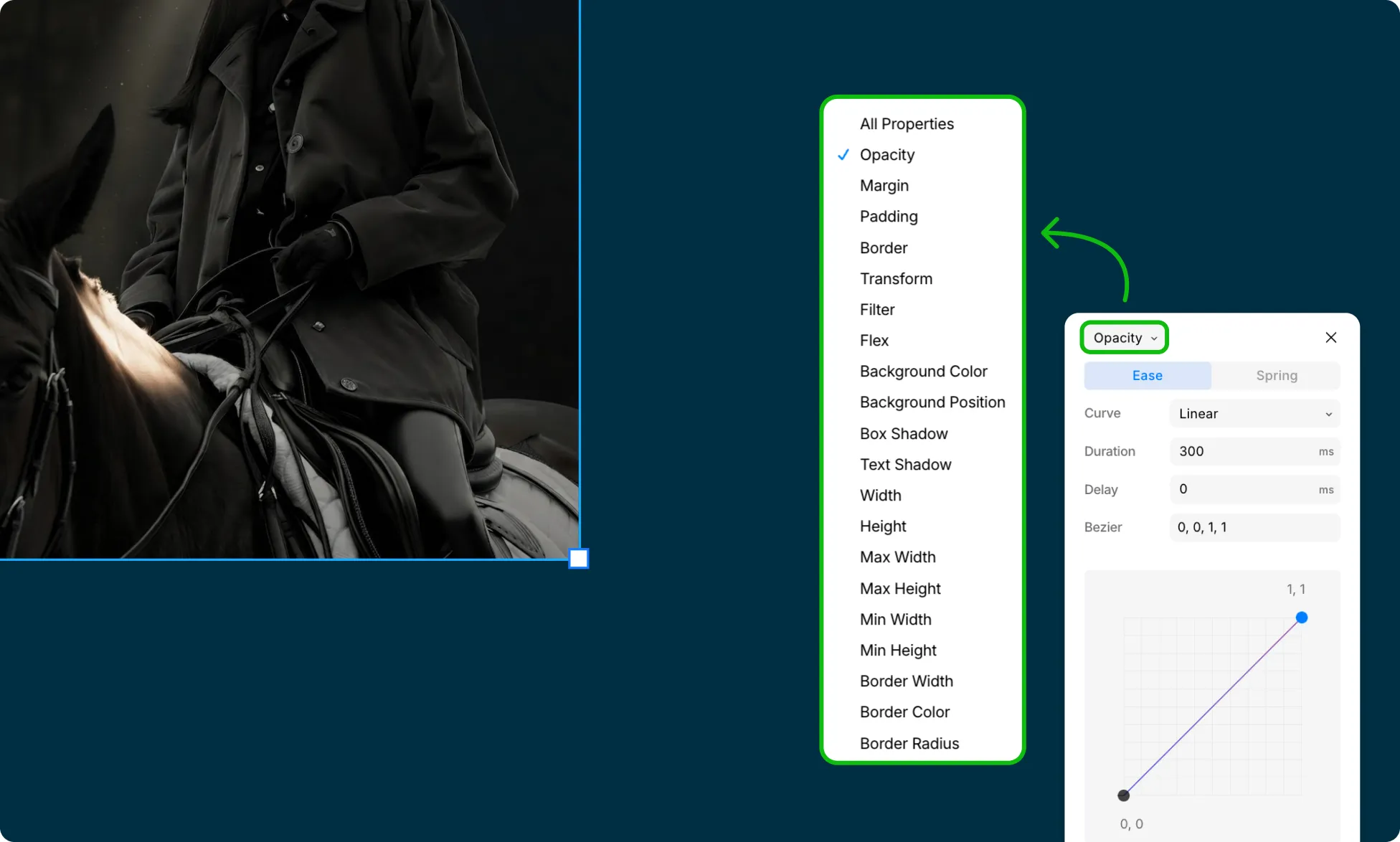
Click the dropdown at the top of the panel to select which property the transition applies to.
Options include:
- All Properties
- Opacity
- Margin
- Padding
- Border
- Transform
- Filter
- Flex
- Background Color
- Background Position
- Box Shadow
- Text Shadow
- Width
- Height
- Max Width
- Max Height
- Min Width
- Min Height
- Border Width
- Border Color
- Border Radius
- Font Color
- Font Size
- Line Height
- Letter Spacing
- Text Indent
- Word Spacing
- Top
- Right
- Bottom
- Left
- Z-Index
- Margin Top
- Margin Right
- Margin Bottom
- Margin Left
- Padding Top
- Padding Right
- Padding Bottom
- Padding Left
Note: Scroll down to see all available options.
How to Choose a Transition Curve
Click the Ease or Spring tab to set how the transition progresses over time.
Ease Curves
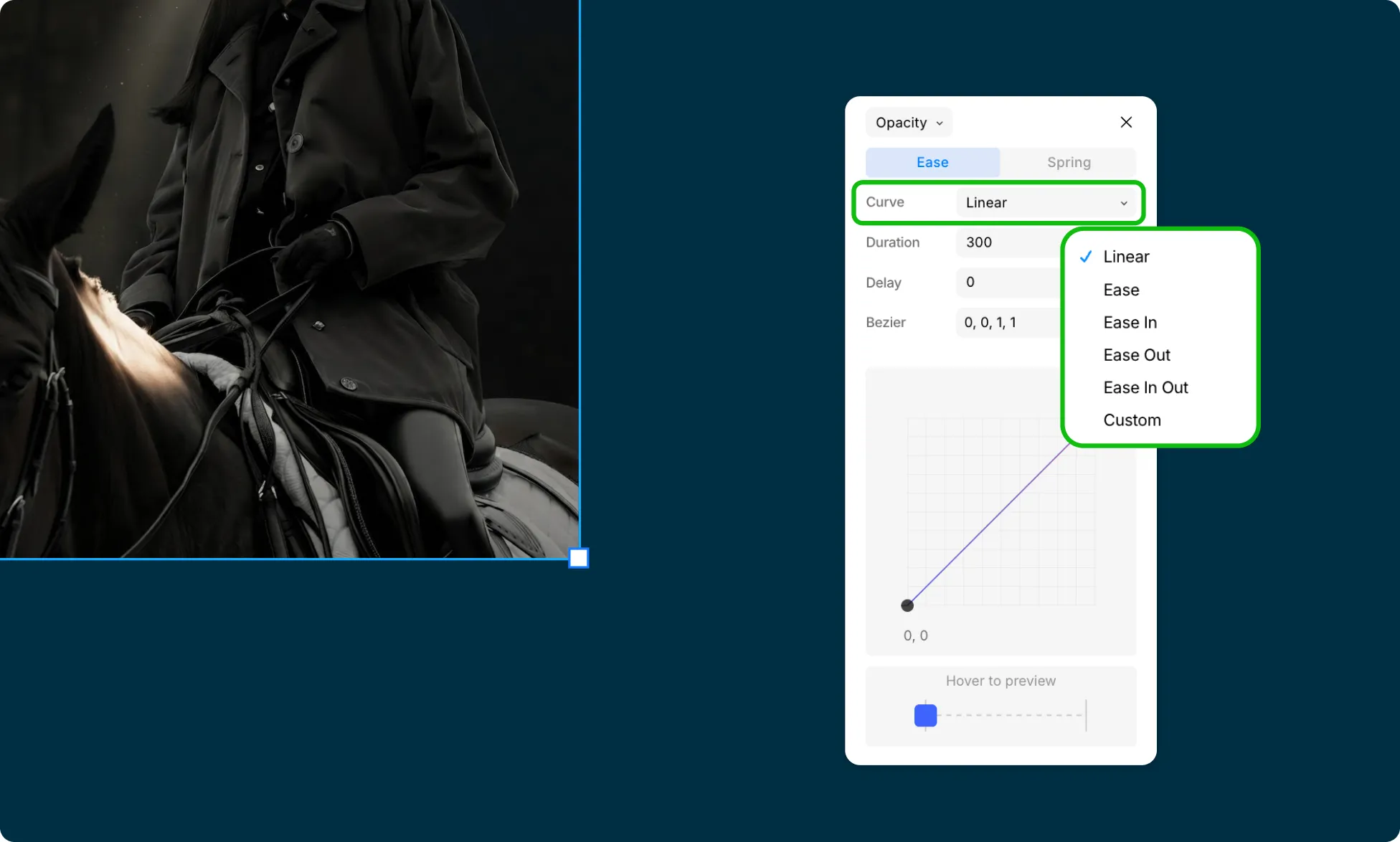
Choose from the following preset Ease Curves or define your own:
- Linear – Maintains an even speed throughout.
- Ease – Speeds up in the middle and slows down at the end.
- Ease In – Starts slowly and increases in speed.
- Ease Out – Starts quickly and slows down toward the end.
- Ease In Out – Starts slowly, speeds up, then slows down again.
- Custom – Lets you define the curve manually using the Bézier graph. Drag the two handles to adjust the curve shape. The Bézier field shows the corresponding values.
Spring Curves
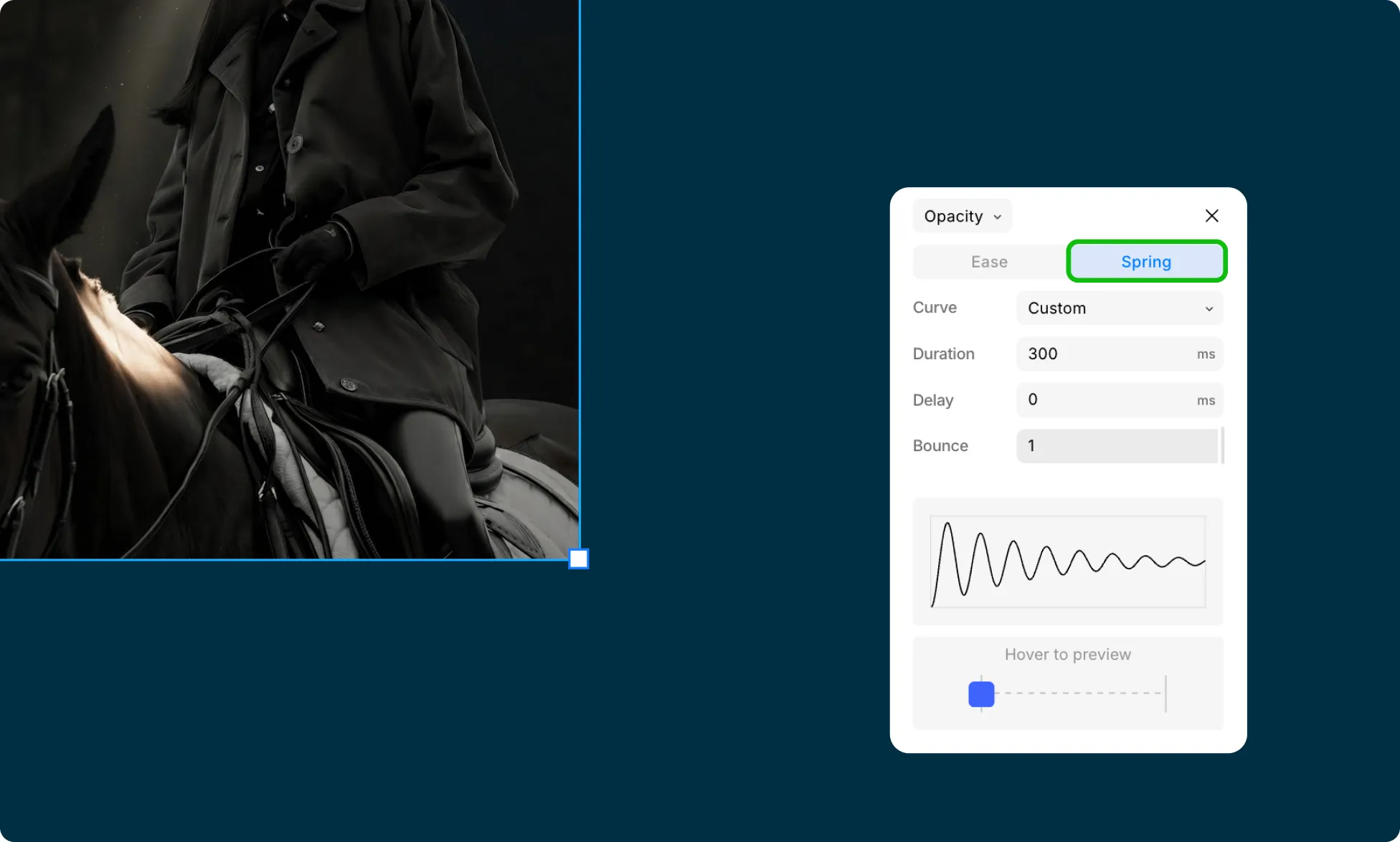
Spring Curves give your transition a natural, physics-based bounce effect. To apply it, simply switch to its dedicated tab and configure settings if needed.
Learn more about Spring Transitions.
How to Set Transition Duration and Delay
- Click the Duration field and enter a value in milliseconds – this controls how long the transition takes to complete.
- Click the Delay field and enter a value in milliseconds – this controls how long Kirki waits before the transition starts.
How to Fine-Tune the Curve with Bézier Values
The curve graph shows how the transition progresses over time, with the Bézier fields displaying the matching cubic values for the selected curve.
Adjust either one – type directly into the Bézier field, or drag the handles on the graph – and the Curve automatically switches to Custom.
How to Preview a Transition Before Publishing
Use the Hover to Preview bar at the bottom of the panel to preview the transition before publishing.
📝 Note: These settings also appear elsewhere in Kirki as the Custom Timing Editor, including in the Interaction Timeline Editor and Text Animations. The only difference: the transition type dropdown is hidden there, since the animated property is already determined by the interaction itself. Everything else works the same.
Example: Button Hover Effect
Here’s how to style a CTA button so it scales smoothly and changes background color on hover.
Step 1 – Set the Hover State
- Select the Button, click the Element States dropdown next to Classes in the Right Panel → Design tab, and switch to the Hovered state.
- In the Style section, change the Fill color to your desired hover color.
- In the Transforms section, set Scale X and Y to 1.05.
The button will scale up and shift color when hovered over, but it’ll be very abrupt.
Step 2 – Add the Transitions
- Switch back to the Default state from the Element States dropdown.
- Scroll to the Transitions section and click the plus (+) icon to add a transition.
- Click on the newly added transition to open its settings, set the Type to Background Color, Duration to 300ms, and Curve to Ease.
- Click the plus (+) icon again to add a second transition.
- Set this one’s Type to Transform, Duration to 300ms, and Curve to Ease.
The button will now smoothly scale up and shift color when hovered over.