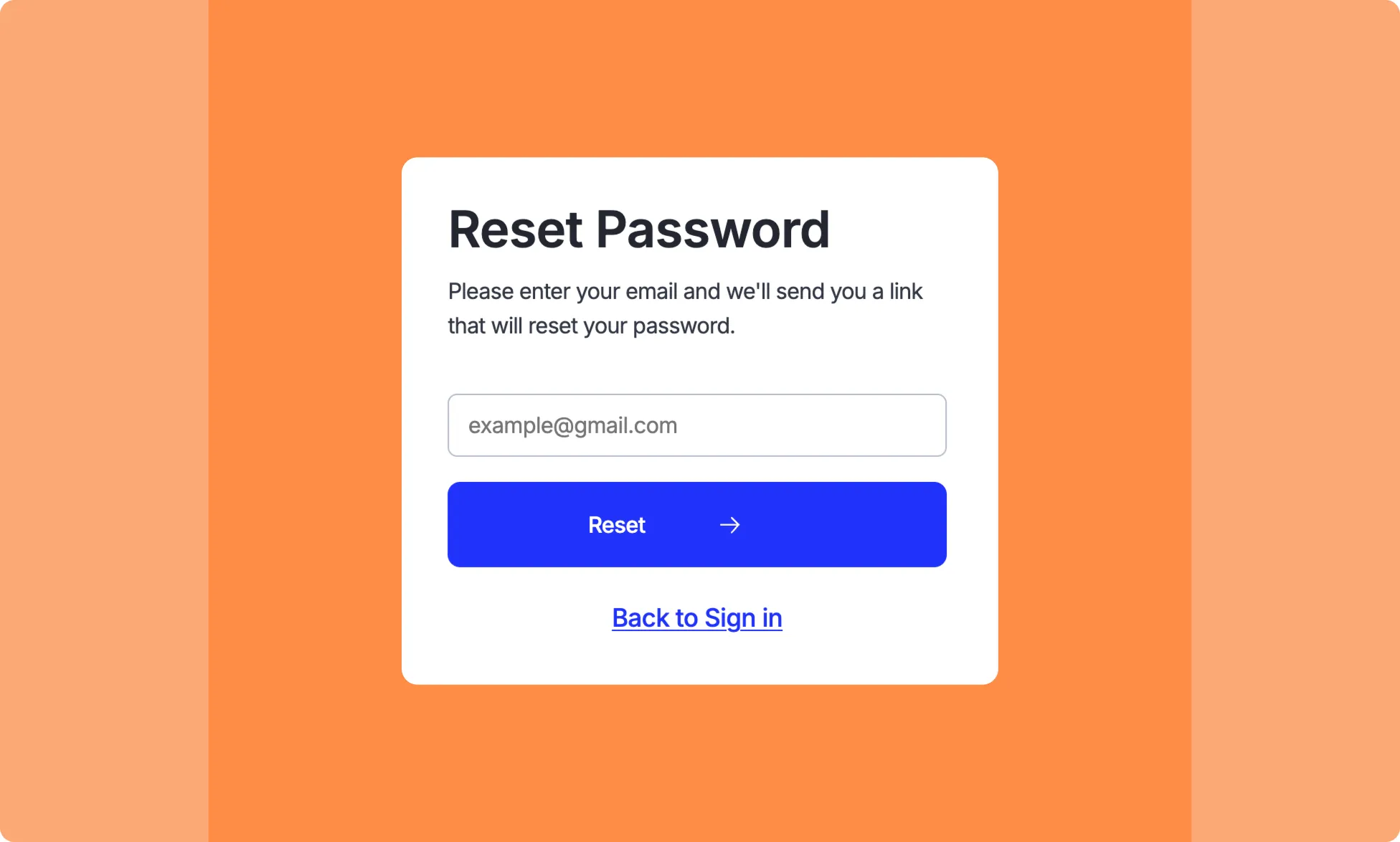
Using the Forgot Password Utility Page, easily set up a form to help users securely reset their passwords and regain access to their accounts.
How to Create a Forgot Password Page
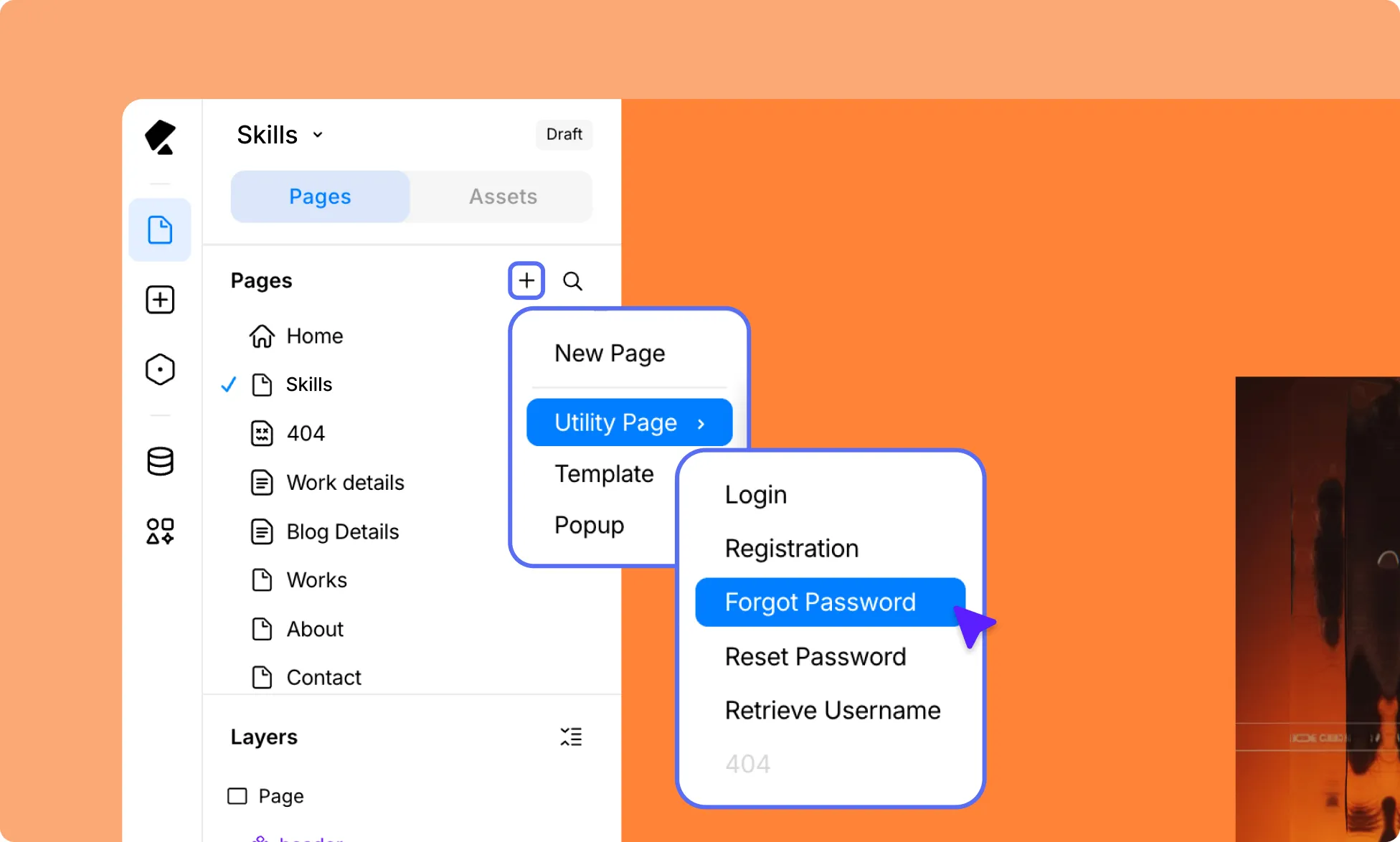
To create a Forgot Password page in Kirki:
- Go to the Pages panel in the Left Sidebar and click the plus (+) icon.
- Hover over Utility Page in the menu.
- Select Forgot Password.
Kirki will automatically add a pre-made Forgot Password form to the page.
How to Set Up SMTP for Form Emails
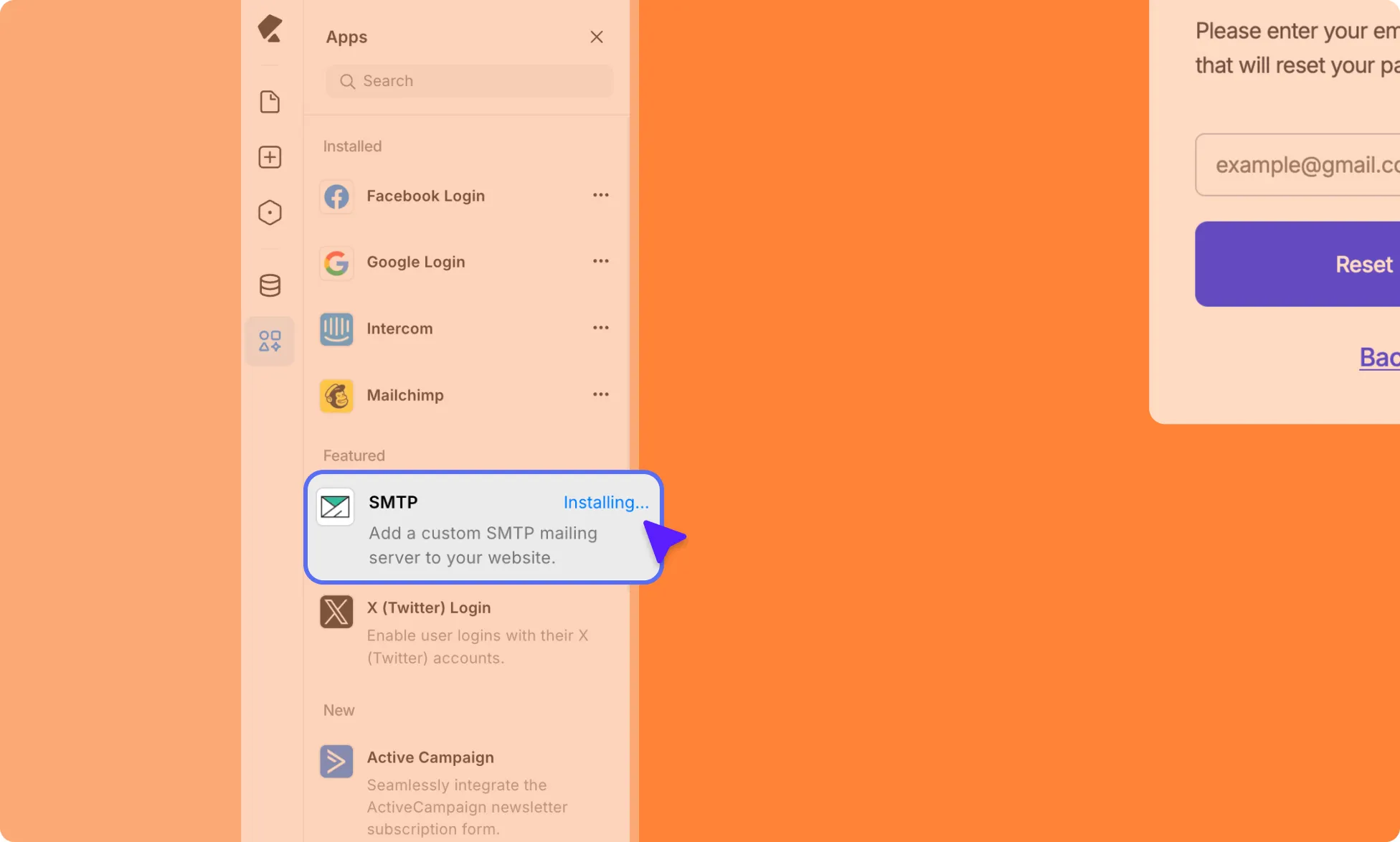
To securely automate sending emails through your form, you need to install and configure SMTP.
Install SMTP
- Open the Kirki Editor.
- Go to Apps from the Left Sidebar.
- Find SMTP and install it.
Configure SMTP for Gmail
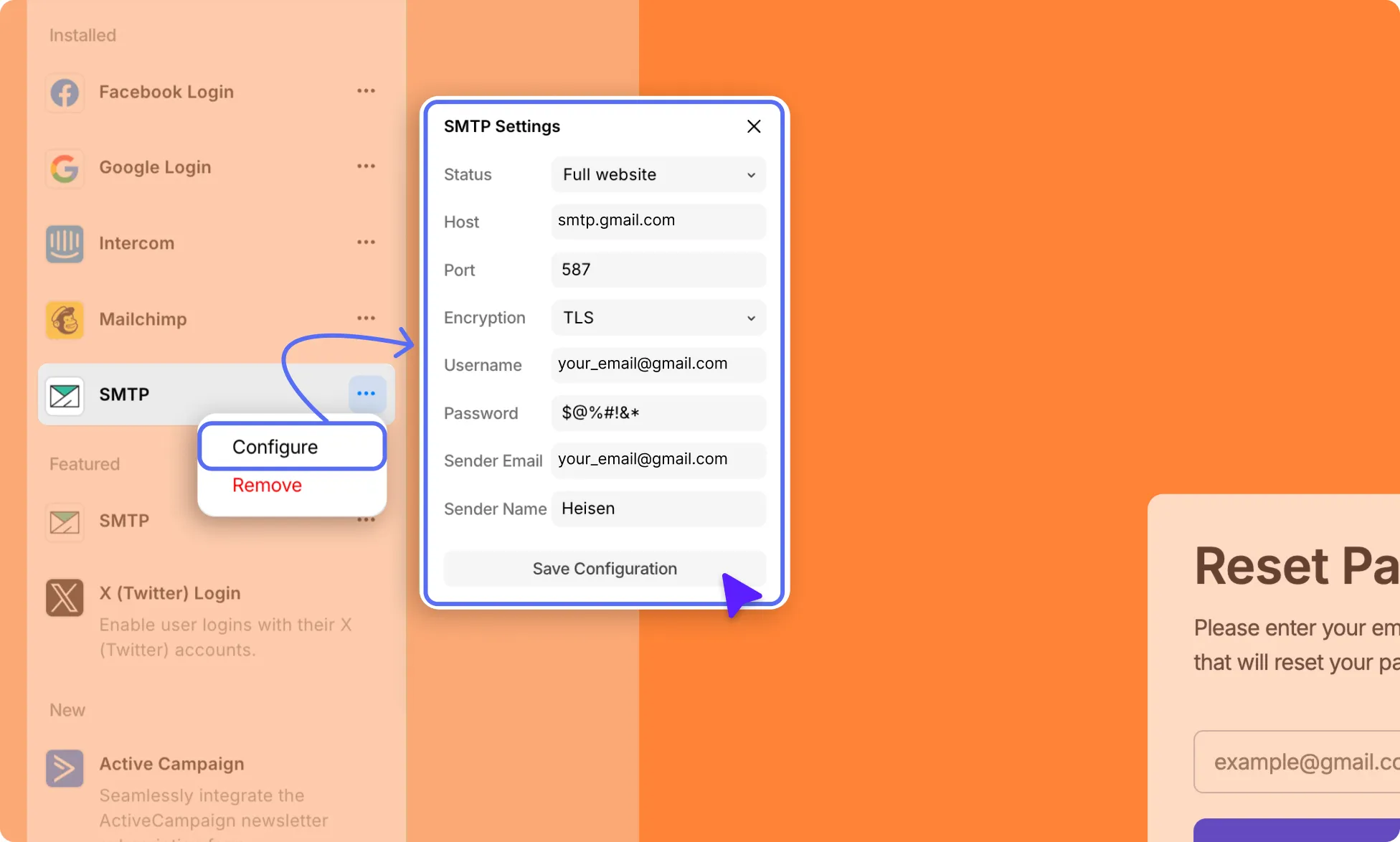
In this guide, we’ll walk you through how to set up SMTP for Gmail.
Step 1: Enable 2-Step Verification
- Go to your Google Account Security page.
- Find 2-Step Verification and turn it on.
Step 2: Generate an App Password
- After enabling 2-Step Verification, go to App Passwords.
- Name your app like “WordPressSMTP” or “KirkiSMTP.”
- Copy the 16-character password generated. This is your SMTP password, not your normal Gmail password.
Step 3: Enter SMTP Settings in Kirki
- In the Kirki Editor, go to Apps.
- Find SMTP, click the ellipsis (…) icon next to it, and select Configure.
- Set Status to Full Website.
- Fill in the following fields:
- Host: Use smtp.gmail.com.
- Port: 587 (TLS) or 465 (SSL).
- Encryption: TLS for 587 / SSL for 465.
- Username: Your Gmail address (e.g., [email protected]).
- Password: The 16-character App Password from Step 2.
- Sender Email: Your Gmail address (e.g., [email protected]).
- Sender Name: Your name or company name, as it will appear to email recipients.
How to Set Up Your Email Content
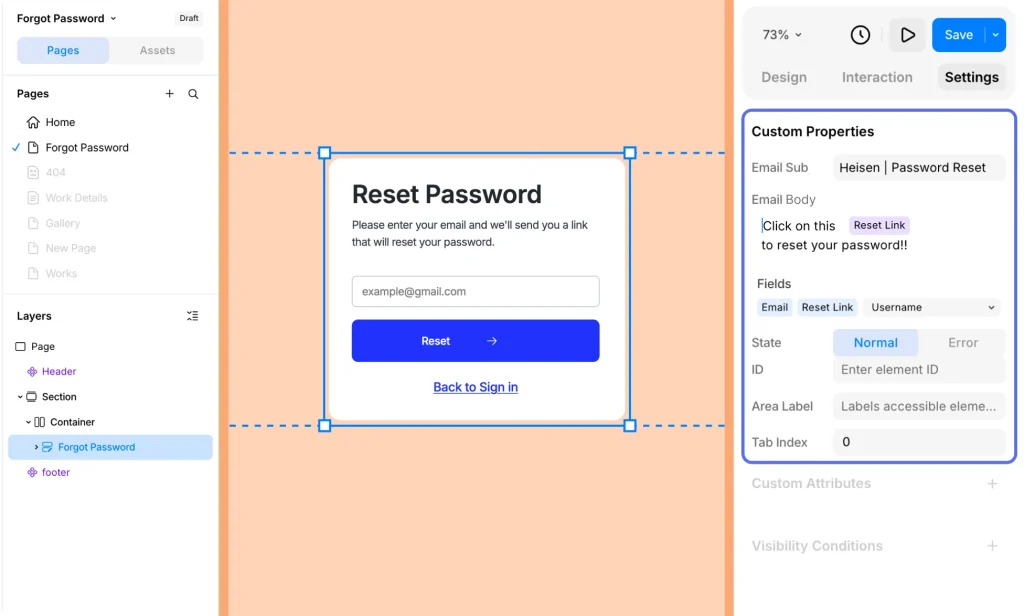
Next, set up the email your users will receive when they request a password reset.
- Select your form and go to Settings on the Right Panel.
- Enter your Email Subject – for example, “Reset Your Password”.
- Design your email body using the available dynamic fields, such as username and reset link, to personalize the message for each user in one go.
How to Publish Your Forgot Password Page
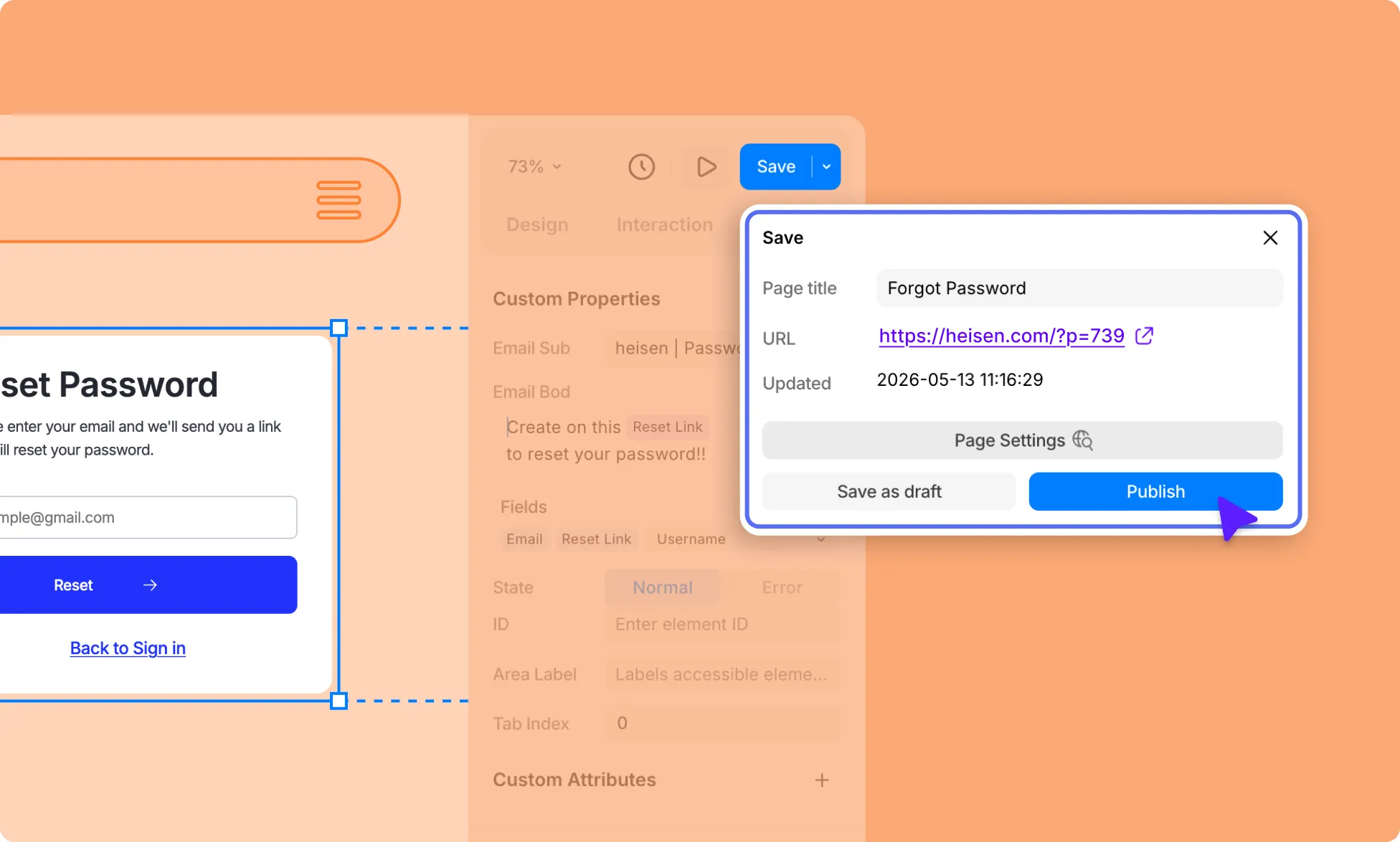
Once your form and email template are ready, go ahead and publish your page:
- Click the arrow next to Save in the top bar of the Kirki Editor.
- Select Publish.
Your Forgot Password page is now live.
How to Test Your Forgot Password Page
Once published, test it to make sure everything works correctly:
- Visit your Forgot Password page as a regular user (you can do this by logging out or visiting the page in incognito mode.
- Enter a registered email address that you have access to and submit the form.
- Check that the password reset email is received and that the reset link works correctly.
If it works as expected, add the Login page link to your navbar so users can easily access the sign-in page and the forgot password form from anywhere on your site.