SMTP (Simple Mail Transfer Protocol) allows Kirki to send emails through a dedicated mail server instead of the default PHP mail system. This can improve email delivery and reduce the chances of form emails being marked as spam. Connect SMTP through Kirki Apps to send form submission emails reliably using your email provider.
What Is the SMTP App?
The SMTP app is an integration available in Kirki Apps. It allows Kirki to send emails through an SMTP server using the email provider’s server settings.
SMTP works together with the Email Action in Kirki forms. The Email Action controls where form submissions are sent, what the email contains, and how replies are handled.
What Do You Need Before Connecting SMTP?
- An email account
- SMTP server details from your email provider
- SMTP host
- SMTP port
- Encryption type
- SMTP username
- SMTP password
Note: We used Gmail here as an example if you’re on a different email provider, check with them for the port details. Kirki works with any Email Service provider.
How to Set Up SMTP for Gmail?
If you want to use Gmail to send emails from your Kirki forms, first enable 2-step verification and follow the steps below to create a Gmail App Password.
- After enabling 2-Step Verification, go to Google App Passwords.
- Enter an app name and create the App Password.
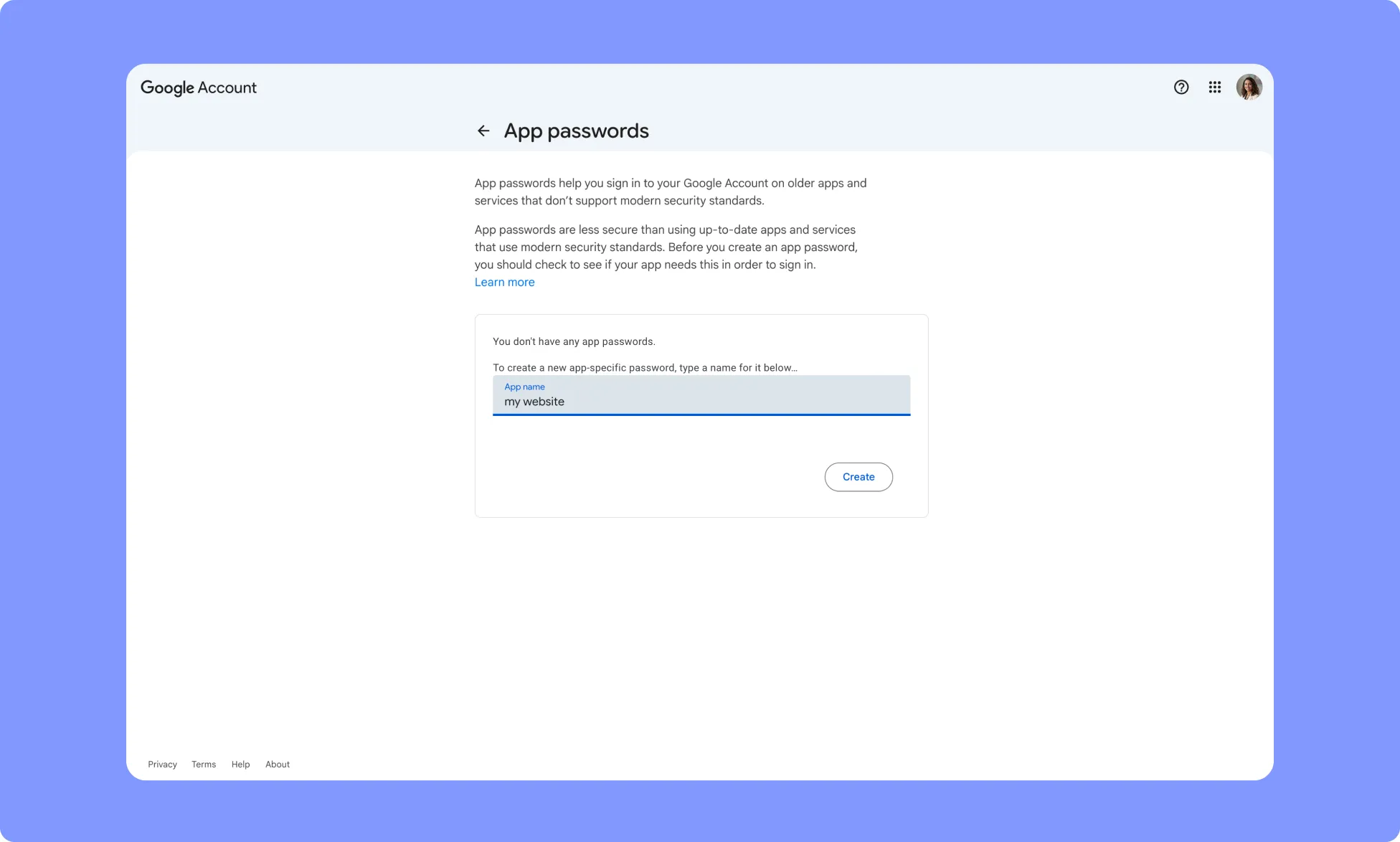
- Copy the generated 16-character App Password.
Note: Use this App Password as your SMTP password.
How to Configure Google SMTP in Kirki?
- Open the Kirki Editor.
- Navigate to Apps → SMTP.
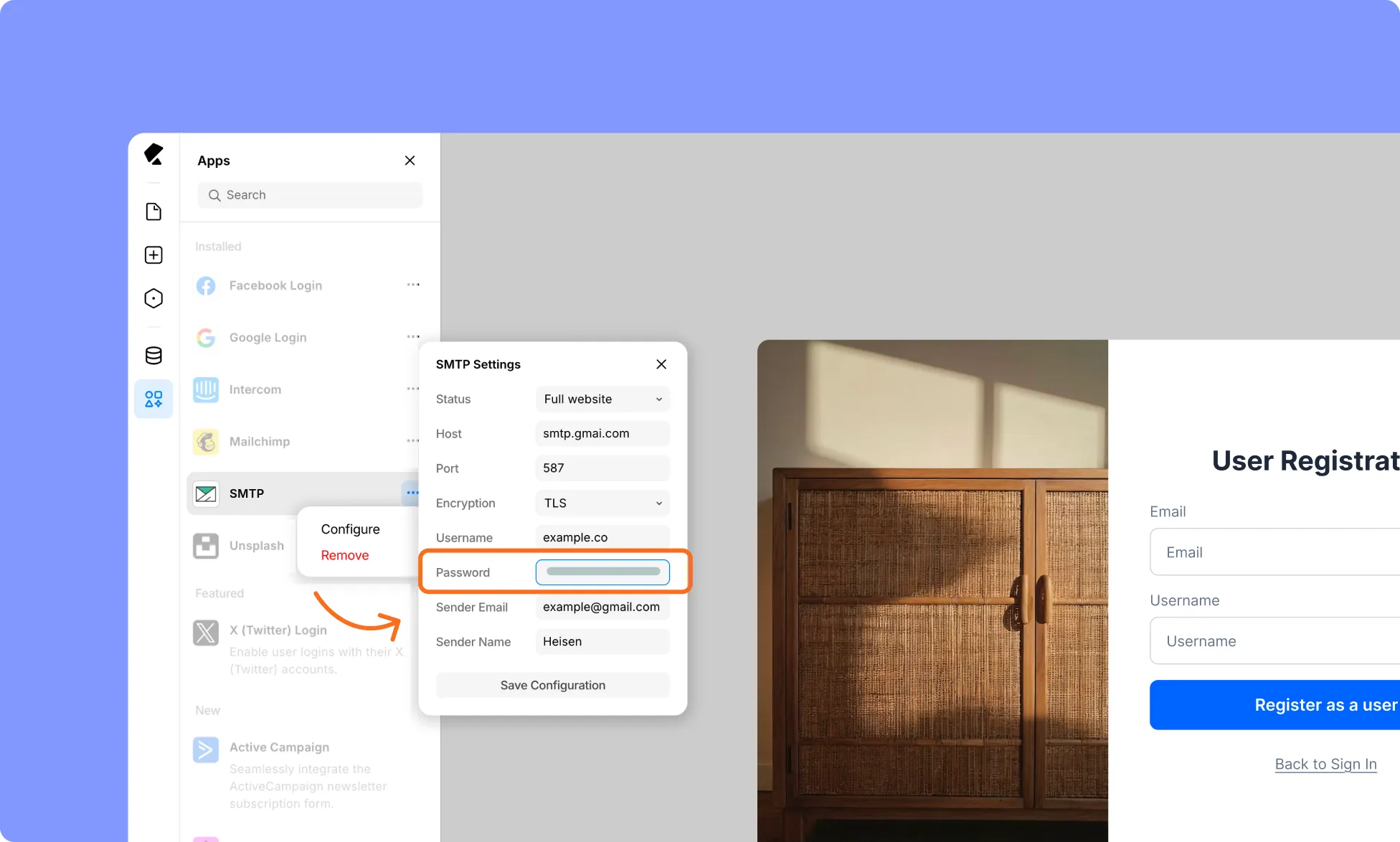
- Enter the following Gmail SMTP settings:
- Host: smtp.gmail.com
- Port: 587 for TLS or, 465 for SSL
- Encryption: TLS for port 587 or, SSL for port 465
Note: For different email service providers, check on their site for respective port numbers for corresponding encryption types
- Username: Your Gmail address, such as [email protected]
- Password: Your 16-character Gmail App Password
- Sender Email: Your Gmail address
- Sender Name: Your name or company name
- Save the SMTP configuration.
Your Kirki website can now send emails through Gmail’s SMTP server.
How to Test the SMTP Integration?
- Open a page containing a form with email actions, for example: a user registration form.
- Fill out and submit the form.
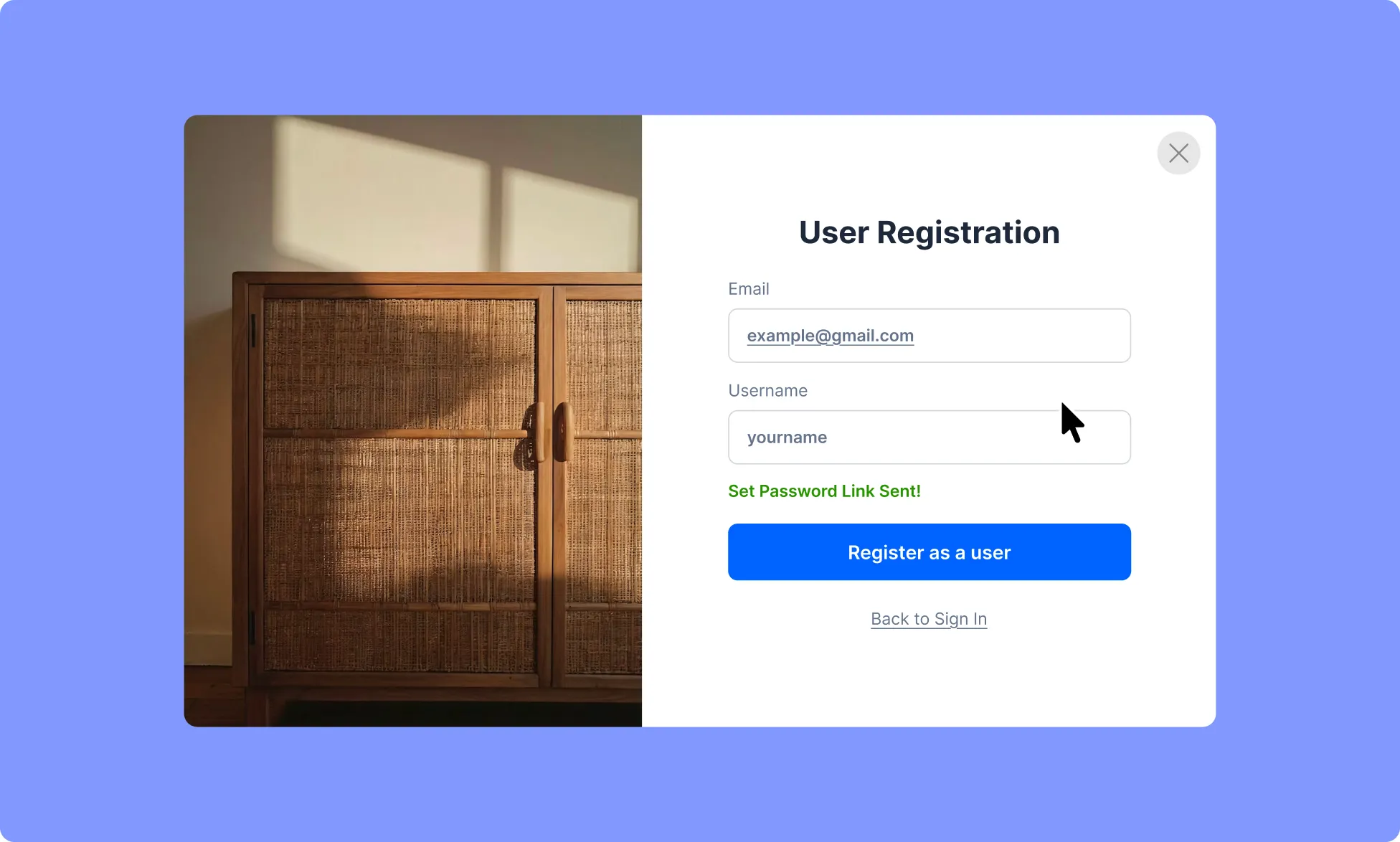
- Check the recipient’s inbox and confirm that the email arrives.
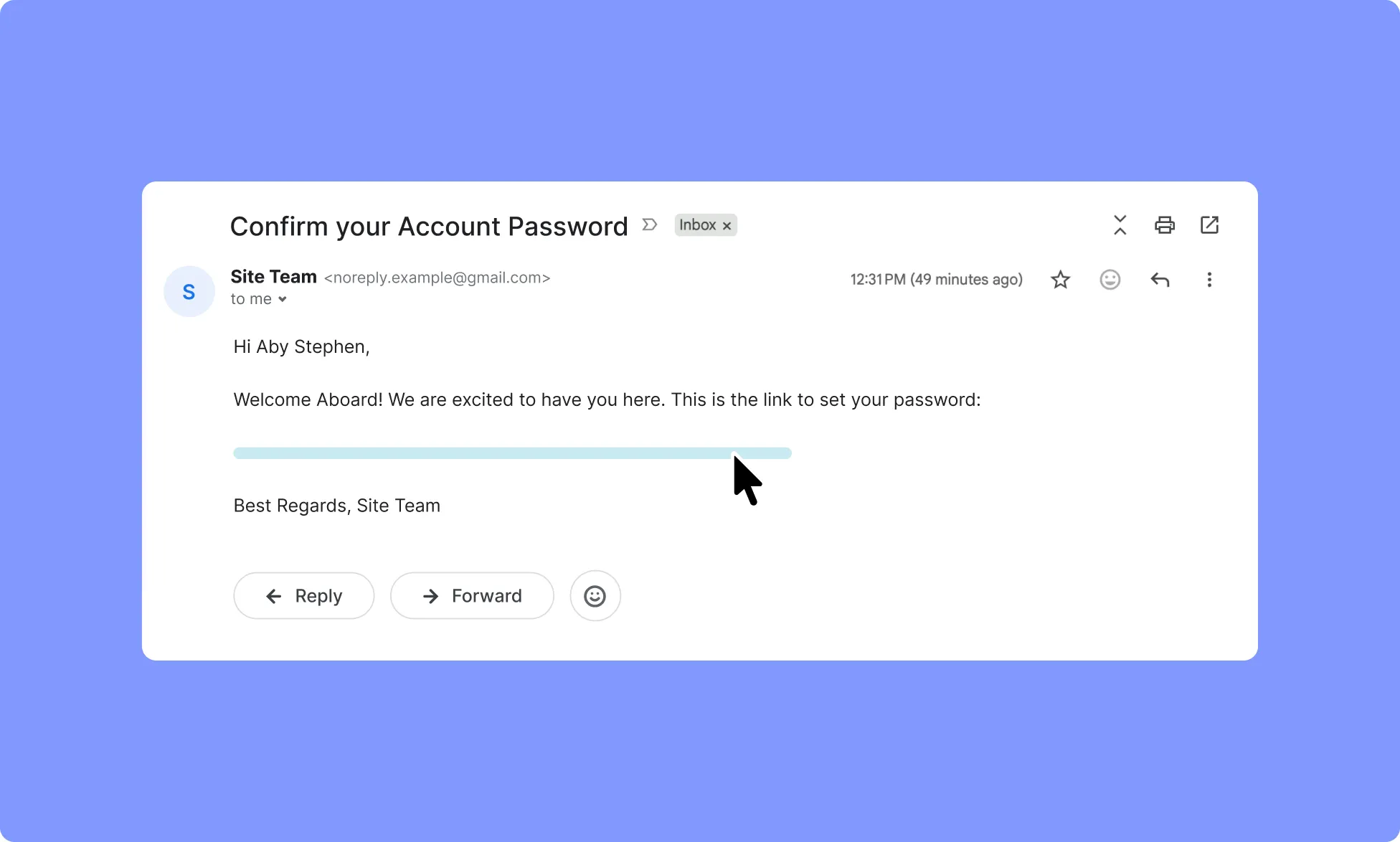
- If the email doesn’t appear in the inbox, check the Spam or Junk folder. And even If it has not arrived there , verify your SMTP host, port, encryption, username, and password.