Mailchimp is an email marketing platform used to manage subscriber lists, send campaigns and newsletters, and automate follow-up emails. Connect Mailchimp through Kirki Apps to automatically add subscribers from your Kirki forms to a Mailchimp Audience.
What Is the Mailchimp App?
The Mailchimp app is an integration available in Kirki Apps. Once connected, it links your Kirki forms to a Mailchimp Audience using an API key from your Mailchimp account.
This allows contacts who submit a connected Kirki form — such as a newsletter sign-up, contact form, or checkout opt-in — to be added to your Mailchimp Audience automatically.
What You Need Before Connecting Mailchimp?
- A Mailchimp account
- A Mailchimp Audience Name
- A Mailchimp API Key
You’ll generate the API Key from your Mailchimp account, then enter it into Kirki to connect Mailchimp.
How to Get Your Mailchimp API Key?
- Log in to your Mailchimp account.
- Click your profile icon in the top-right corner.
- Select Profile or Account & billing.
- Open the Extras dropdown.
- Select API keys.
- Click Create A Key.
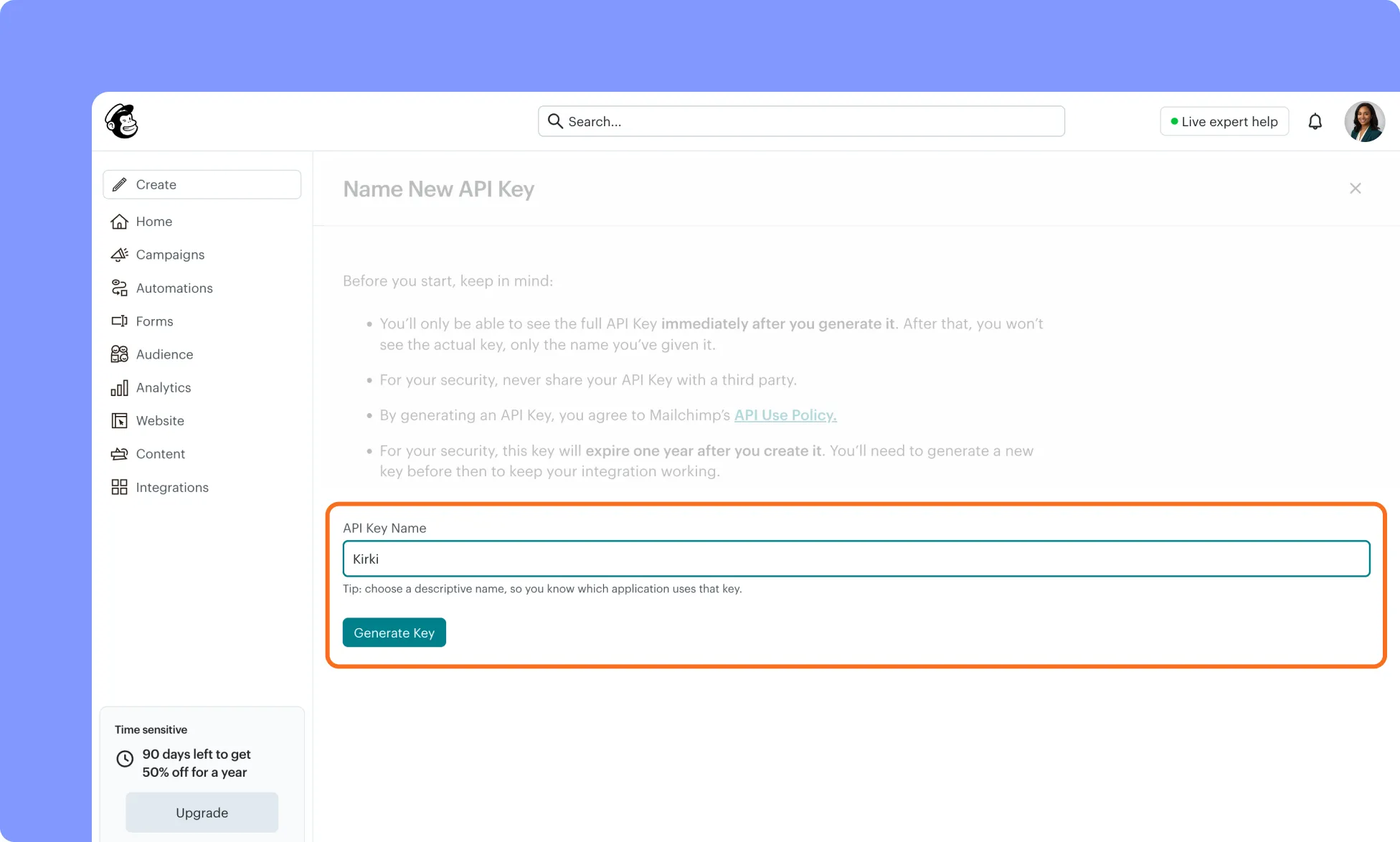
- Enter a name for your API key (eg: Kirki).
- Click Generate and copy the API key.
Note: Mailchimp only shows the full API key when it is created. Make sure you copy and save it before leaving the page. If you lose a key, you’ll need to generate a new key and update any integration that uses it.
- Make sure you copy the entire API key, including the server/data center suffix at the end, such as -us1.
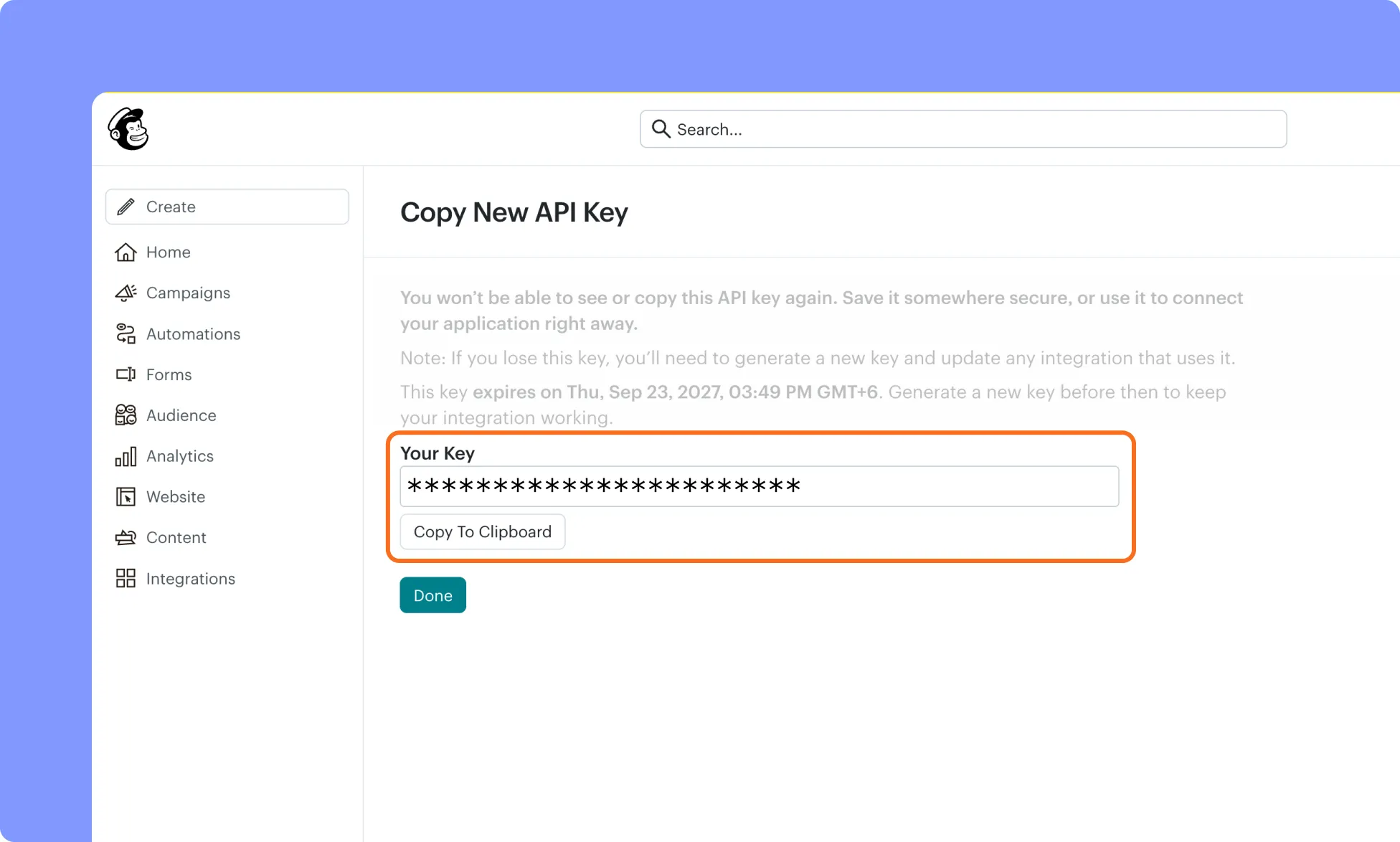
The suffix tells Kirki which Mailchimp server to connect to.
How to find Mailchimp Audience Name?
If you don’t already have an Audience, create one before configuring Mailchimp in Kirki. To find the Mailchimp Audience name, follow these steps:
- In Mailchimp, click Audience from the left-hand navigation menu.
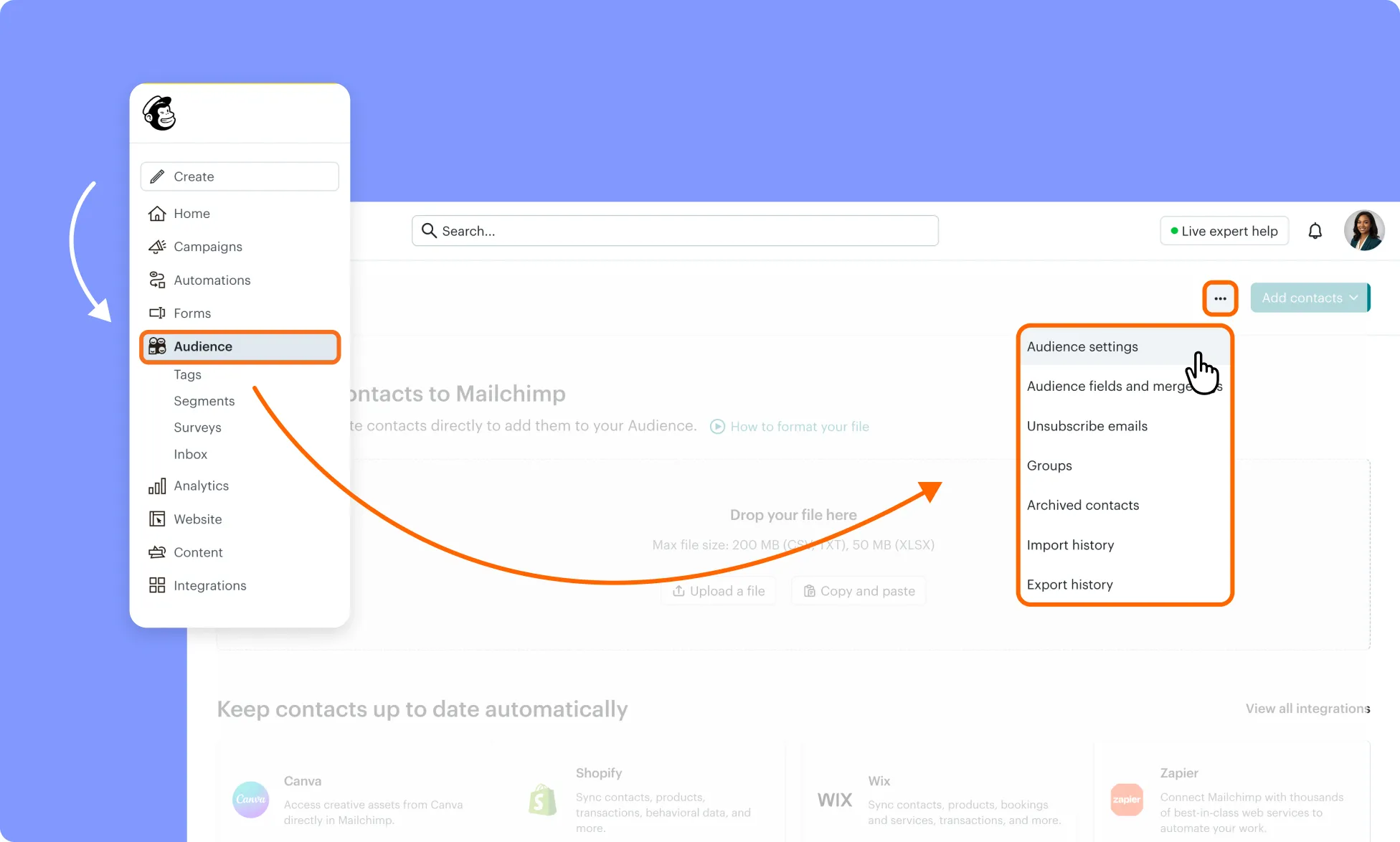
- Open Audience settings from the dropdown menu.
- You can view your Audience name and other information about it.
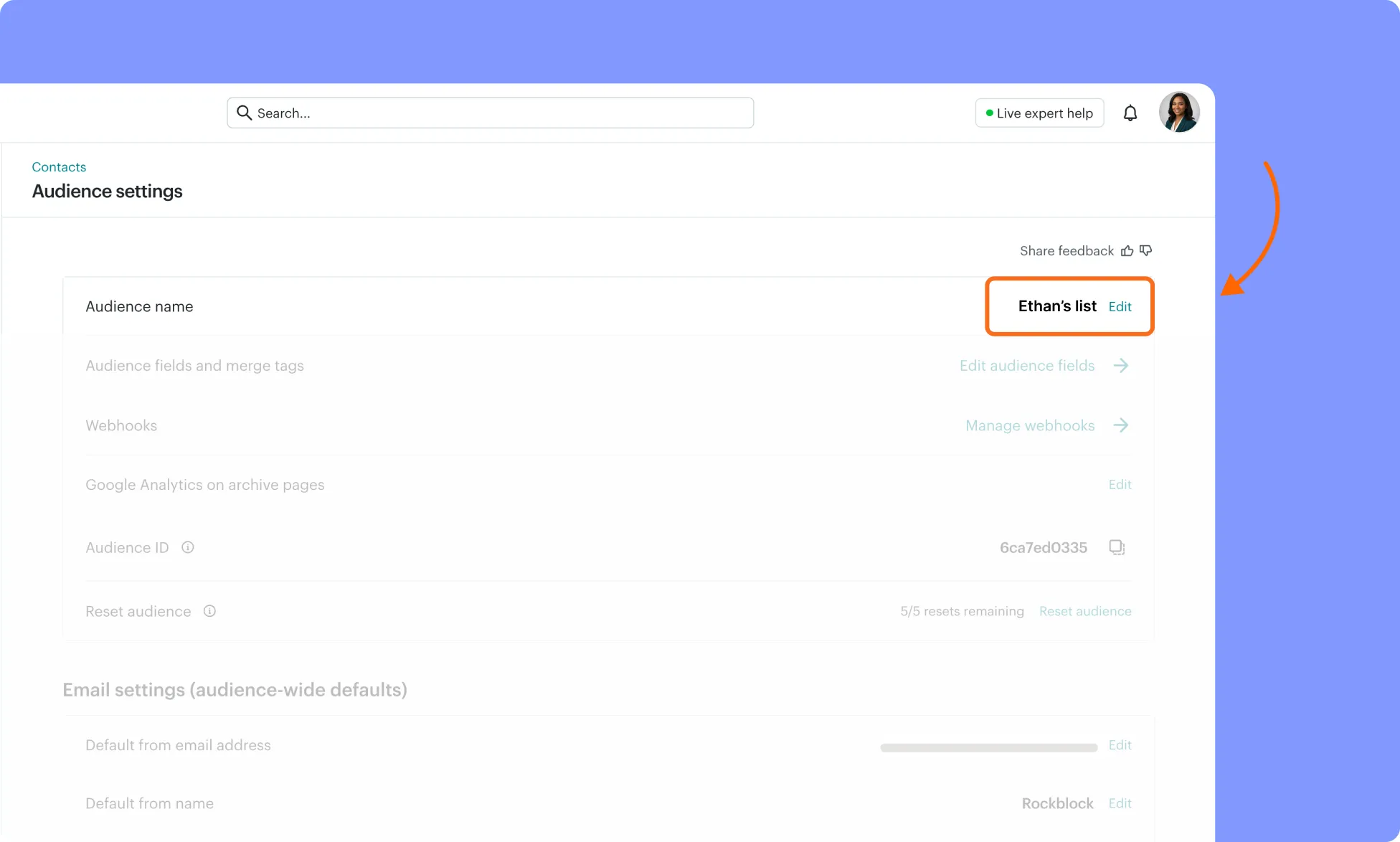
You will need this Audience name to integrate Mailchimp in Kirki websites.
Note: Mailchimp recommends using one main Audience and organizing contacts with tags or segments instead of creating multiple Audiences.
How to Configure the Mailchimp App in Kirki?
- In Kirki, go to Kirki → Apps → Mailchimp → Settings.
- Enter your Mailchimp API Key in the API Key field.
- Make sure you include the complete API Key, including the server/data center suffix.
- Click Save Configuration and refresh the Kirki editor page.
Your Mailchimp account is now connected to Kirki.
How to Connect Mailchimp to a Kirki Form?
- Add the MailChimp Form element to your page, using the Insert option in the MailChimp App in Kirki.
Note: After configuring the Mailchimp app, refresh Kirki Editor to get this form element after clicking insert option
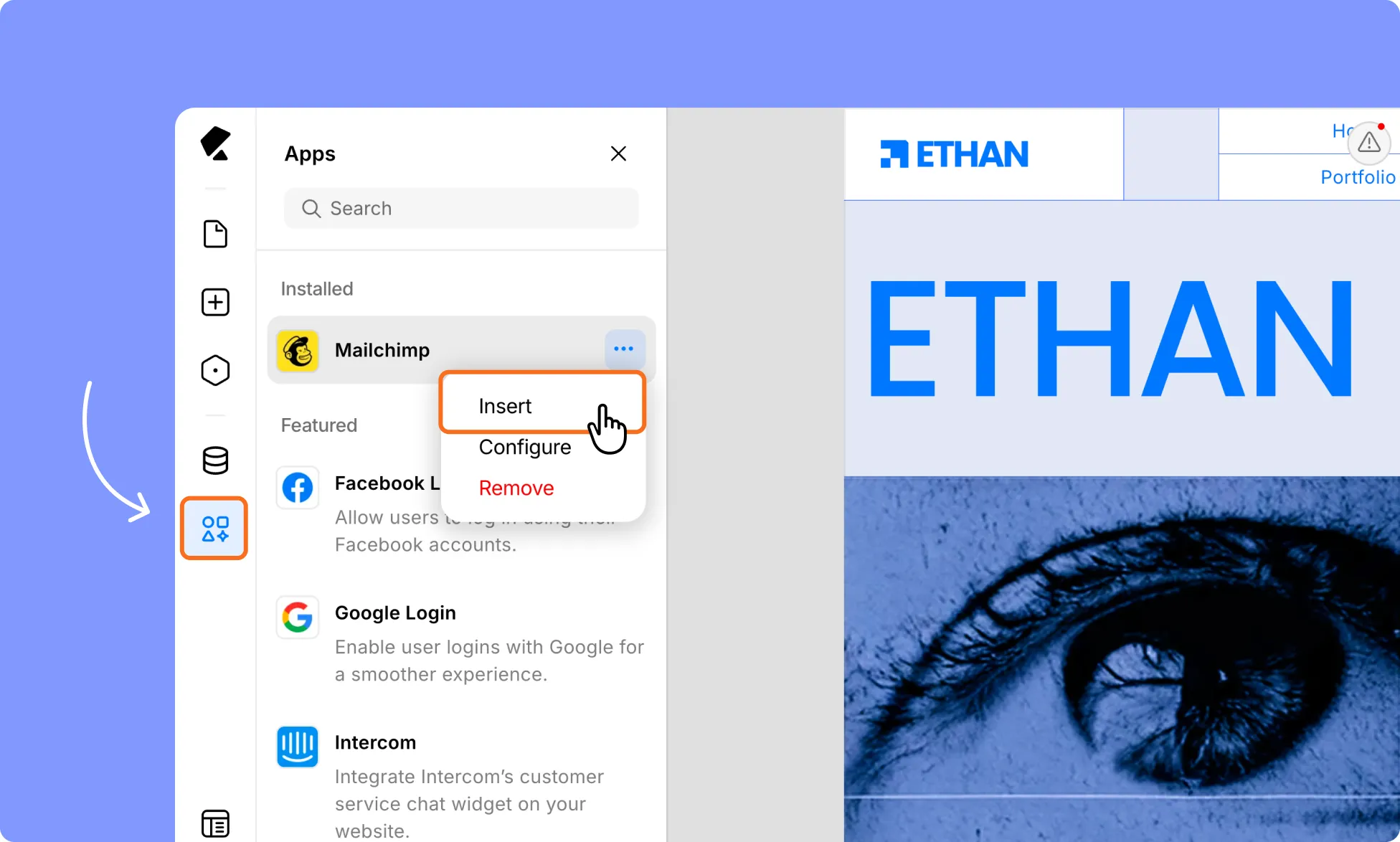
- You use it as a standalone mail subscription form.
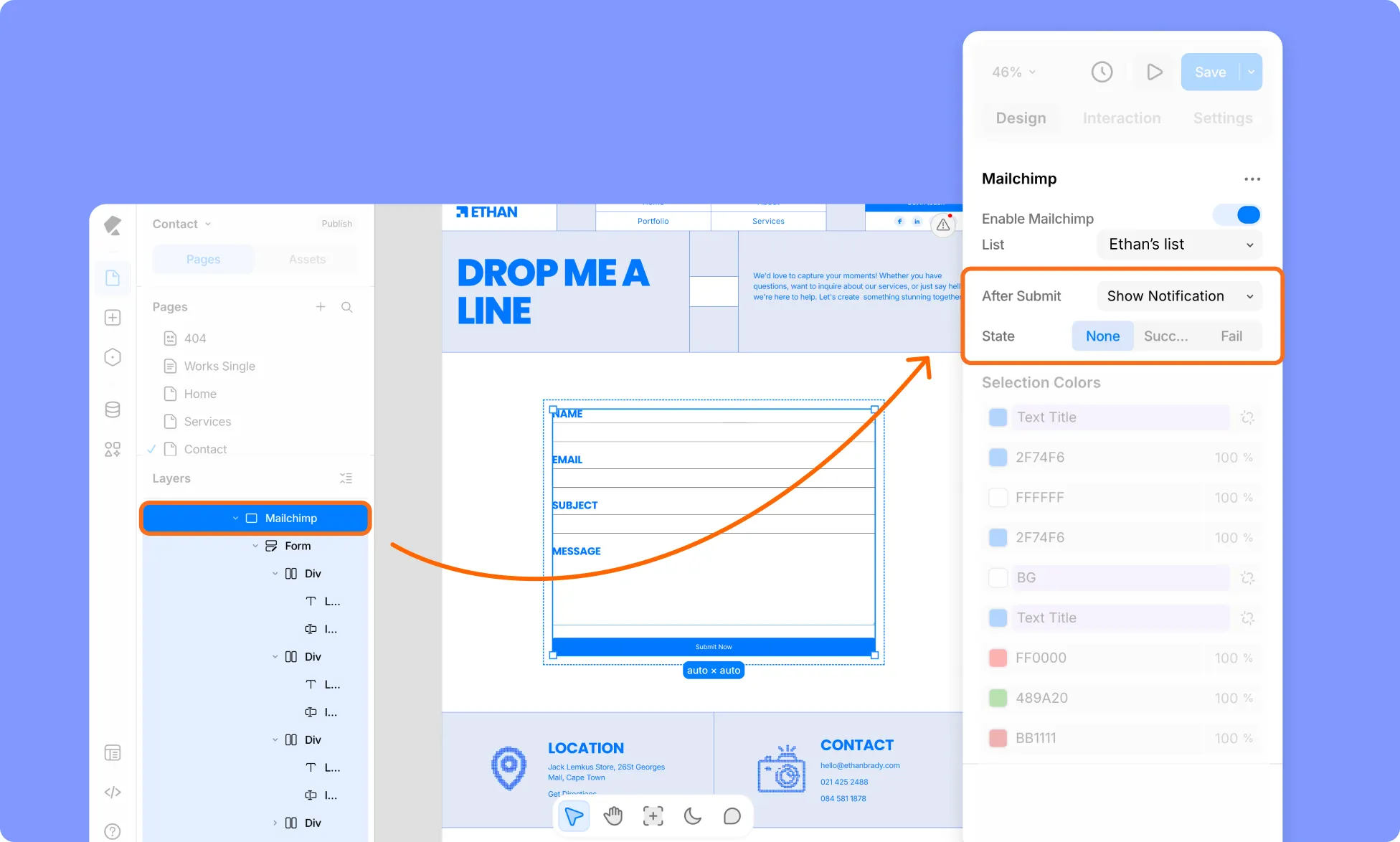
- In the right-hand panel, toggle on Enable Mailchimp.
- Select the Audience Name you want to use.
- Configure the After Submit Form Actions according to your requirements.
- Set up the required success, error, or other form visuals.
Your Kirki form is now connected to your Mailchimp Audience.
How to Test the Mailchimp Integration?
- Open the page containing your Mailchimp-connected Kirki form.
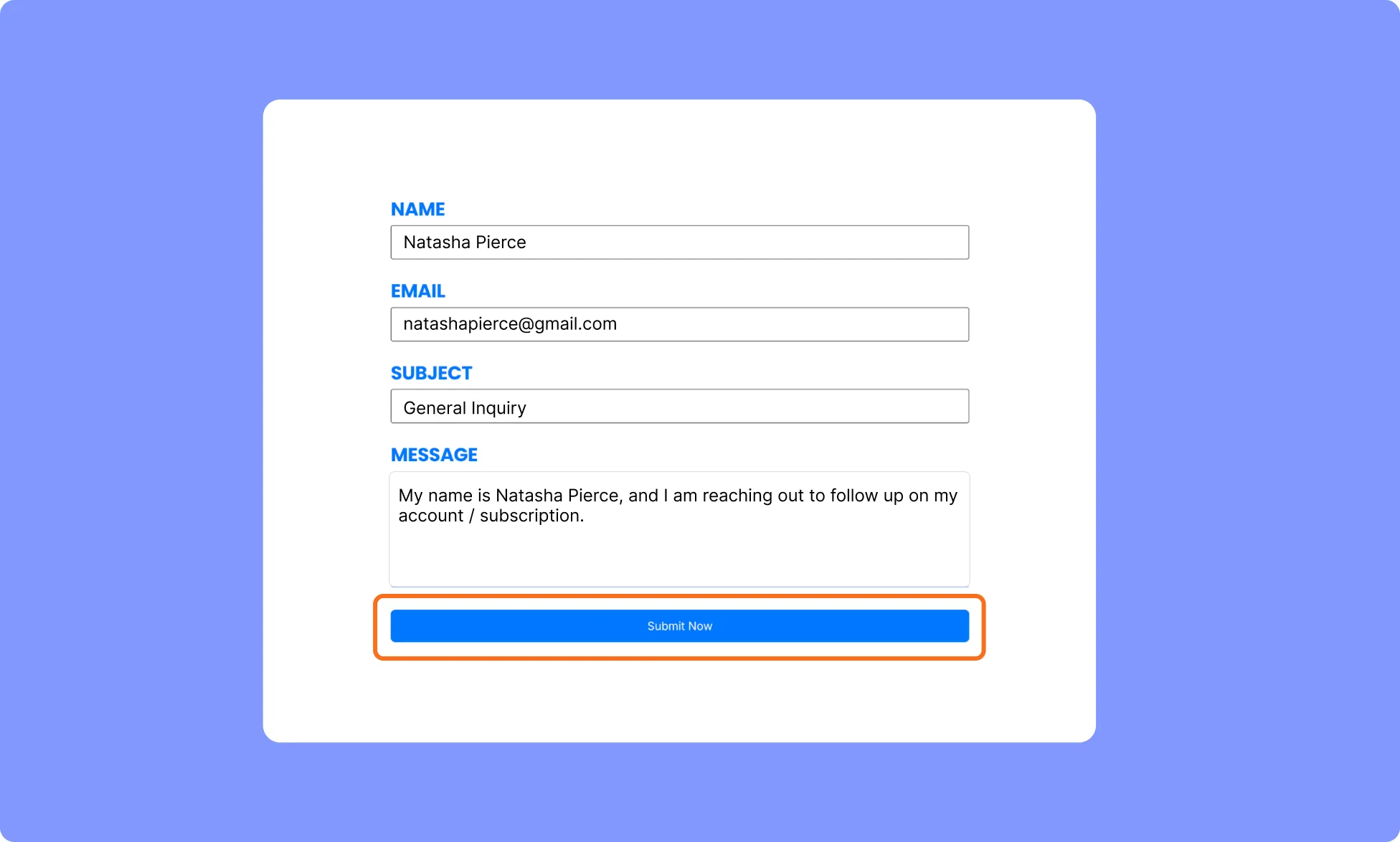
- Submit a test entry using the form.
- Log in to Mailchimp.
- Go to Audience → All contacts.
- Check that the test subscriber appears in your Audience.
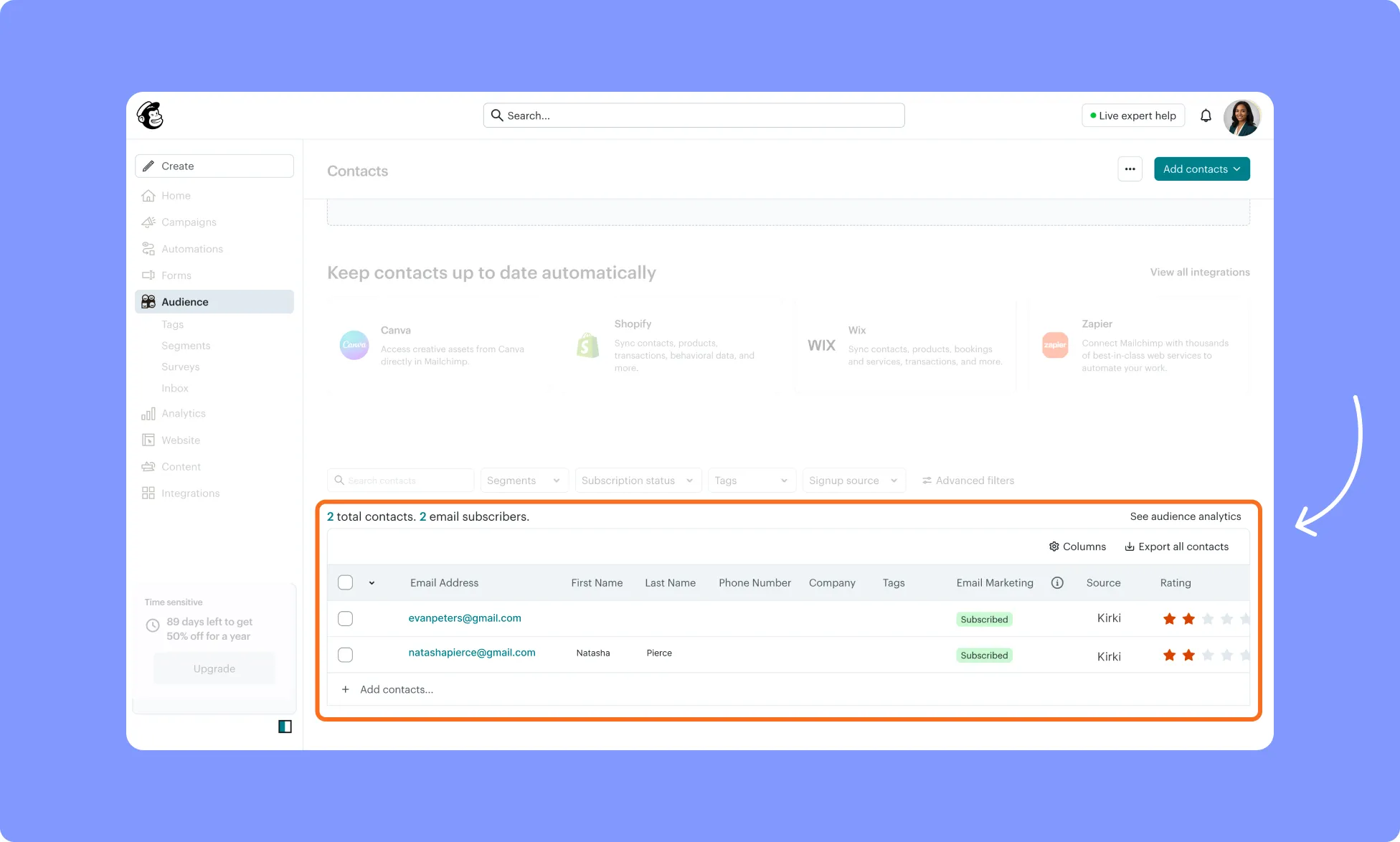
Note: It may take a minute for the new subscriber to appear in Mailchimp.