In Kirki, you can draw ready-made vector shapes (a triangle, square, circle, or polygon), draw custom shapes point by point, or paste in a vector from the web and edit it, all right on the canvas.
What Are Vector Shapes
Vector Shapes are graphics defined by points and the paths that connect them. Because they’re drawn from math, not fixed pixels, they stay sharp at any size. You can scale them up or down, but the edges will never blur.
Now, every vector shape is made of the same few parts:
- Points: The anchor positions that mark where a shape changes direction.
- Paths: The straight or curved lines that connect the points.
- Handles: The controls on a point that bend the curve around it.
- Fill and stroke: The color inside the shape and the outline around it.
That structure makes vectors easy to reshape. You can move a point or adjust its handle to change only the area around it. Fill and stroke stay editable too, so you can restyle a shape at any time without redrawing it.
What Can You Do With Vectors in Kirki
Kirki lets you draw ready-made vector shapes, draw custom vector shapes point by point, and edit vector shapes you bring in from the web, all right on the canvas.
In Kirki, you can:
- Draw a ready-made triangle, square, circle, or polygon.
- Draw custom shapes from scratch with straight lines, curved lines, or both.
- Paste in a vector shape from the web.
- Reshape any drawn or pasted shape by moving points, adding points, and adjusting curve handles.
- Style any shape’s fill and stroke, including color, width, gap, alignment, end points, joins, and more.
How to Draw Vector Shapes
Draw a ready-made shape or build a custom one point by point. Both start from the triangle icon on the Island.
Draw a Ready-Made Vector Shape
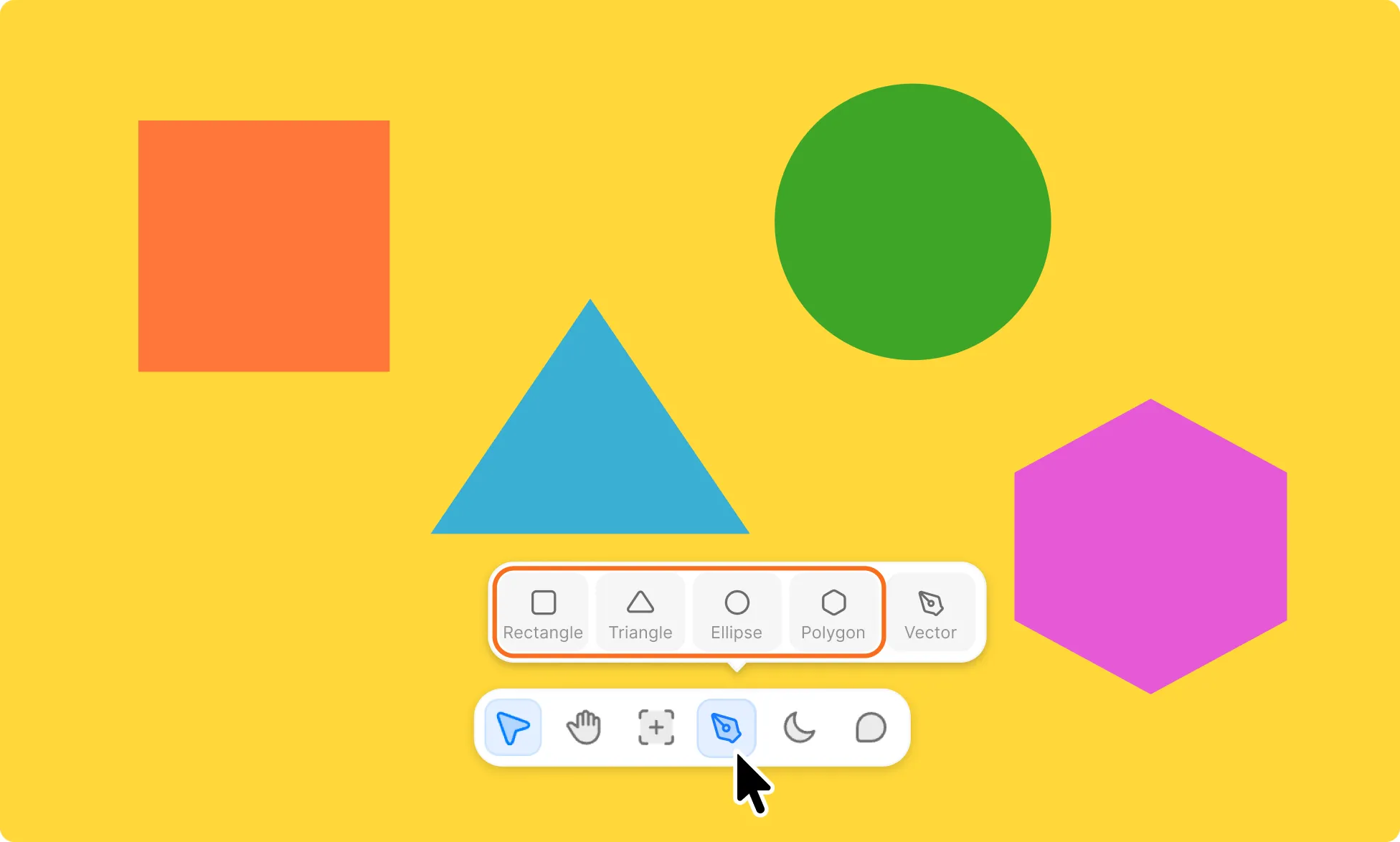
To draw a custom vector shape:
- Go to the Island at the bottom of the editor.
- Click the triangle icon to access the vector options.
- Select Triangle, Square, Circle, or Polygon.
- Click on the canvas and drag to draw the shape.
Draw a Custom Vector Shape
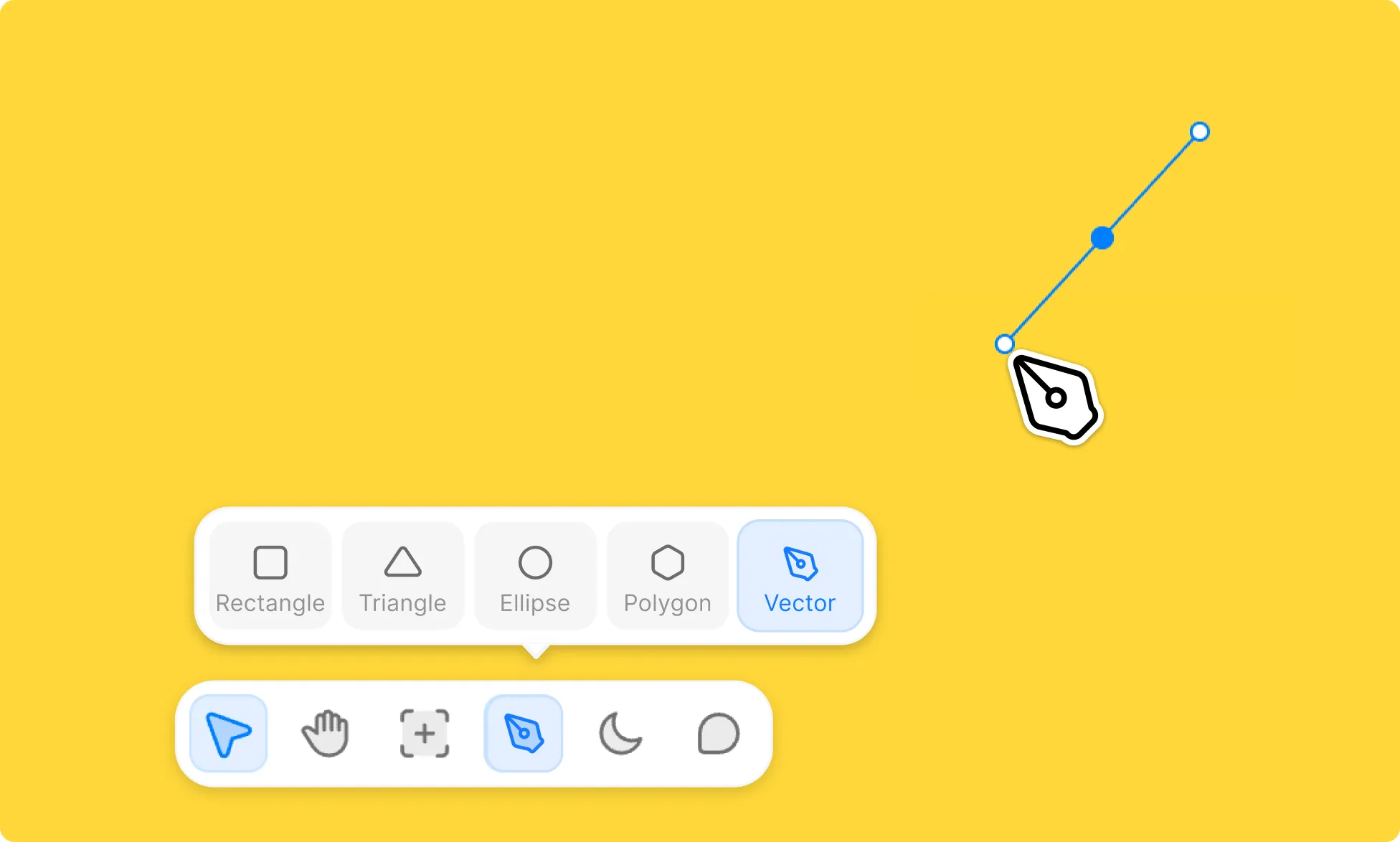
You can also draw a vector shape point by point, using straight lines, curves, or both. Kirki shows suggestions as you go, then closes the shape when you finish.
To draw a custom vector shape:
- Go to the Island at the bottom of the editor.
- Click the triangle icon to access the vector options.
- Select Path to start drawing.
You can also press P on the keyboard to start drawing.
Use Path to add hand-drawn doodles, fun background shapes, custom section dividers, and more.
Draw Straight Lines
Click to place each point. Kirki connects the points with straight lines.
Draw Curved Lines
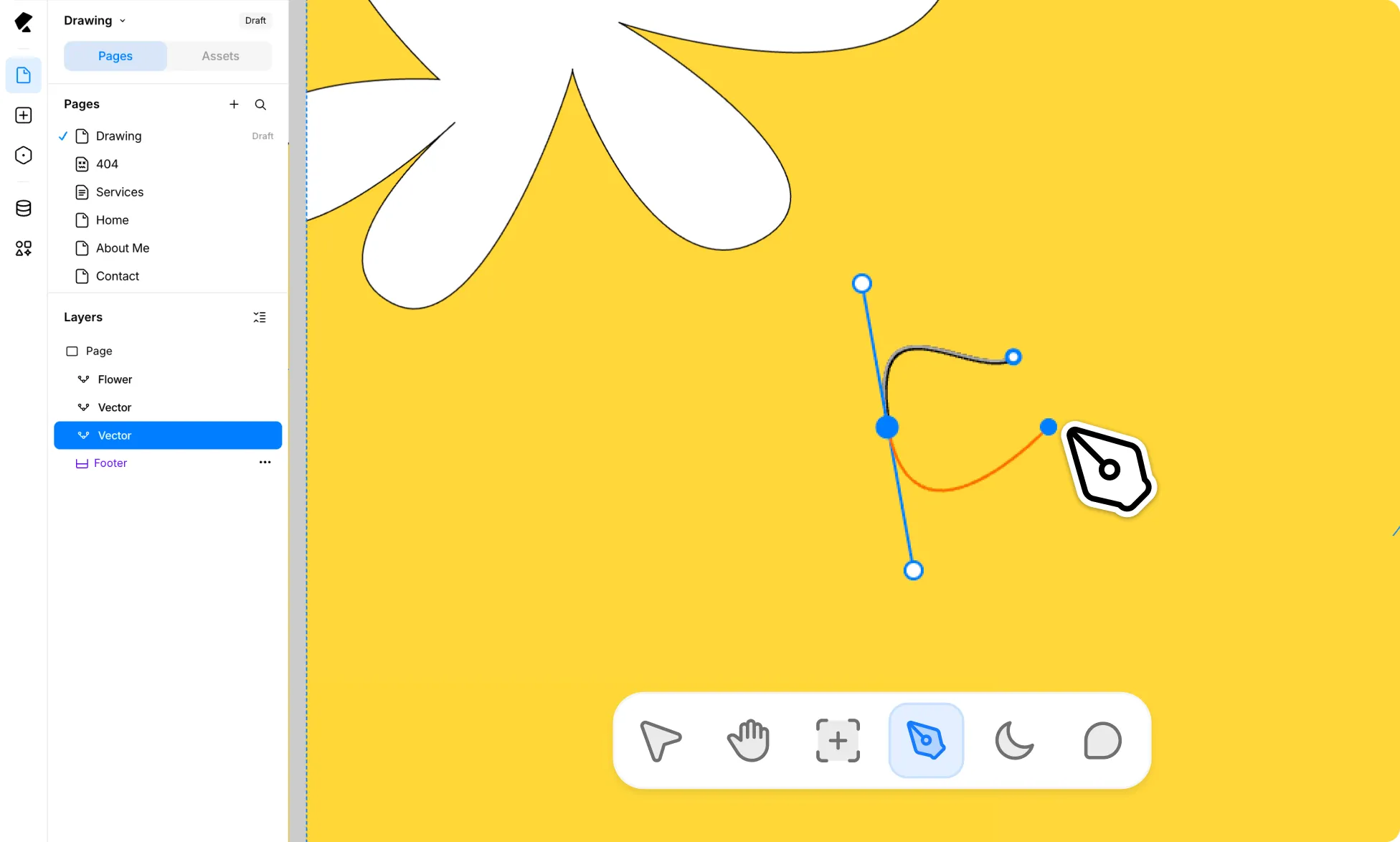
Click and drag instead of simply clicking to draw curved lines.
Use Suggestions to Guide Your Shape
As you draw, Kirki shows suggestion lines that preview where your shape could go next and how to complete it.
Magnetic snapping ensures predictable lines at 45 degrees, 90 degrees, etc., and that other vector points line up easily.
But magnetic snapping is also just a suggestion. If you want to draw something irregular, you can just drag away from the snap and place the point freely.
Complete Your Shape
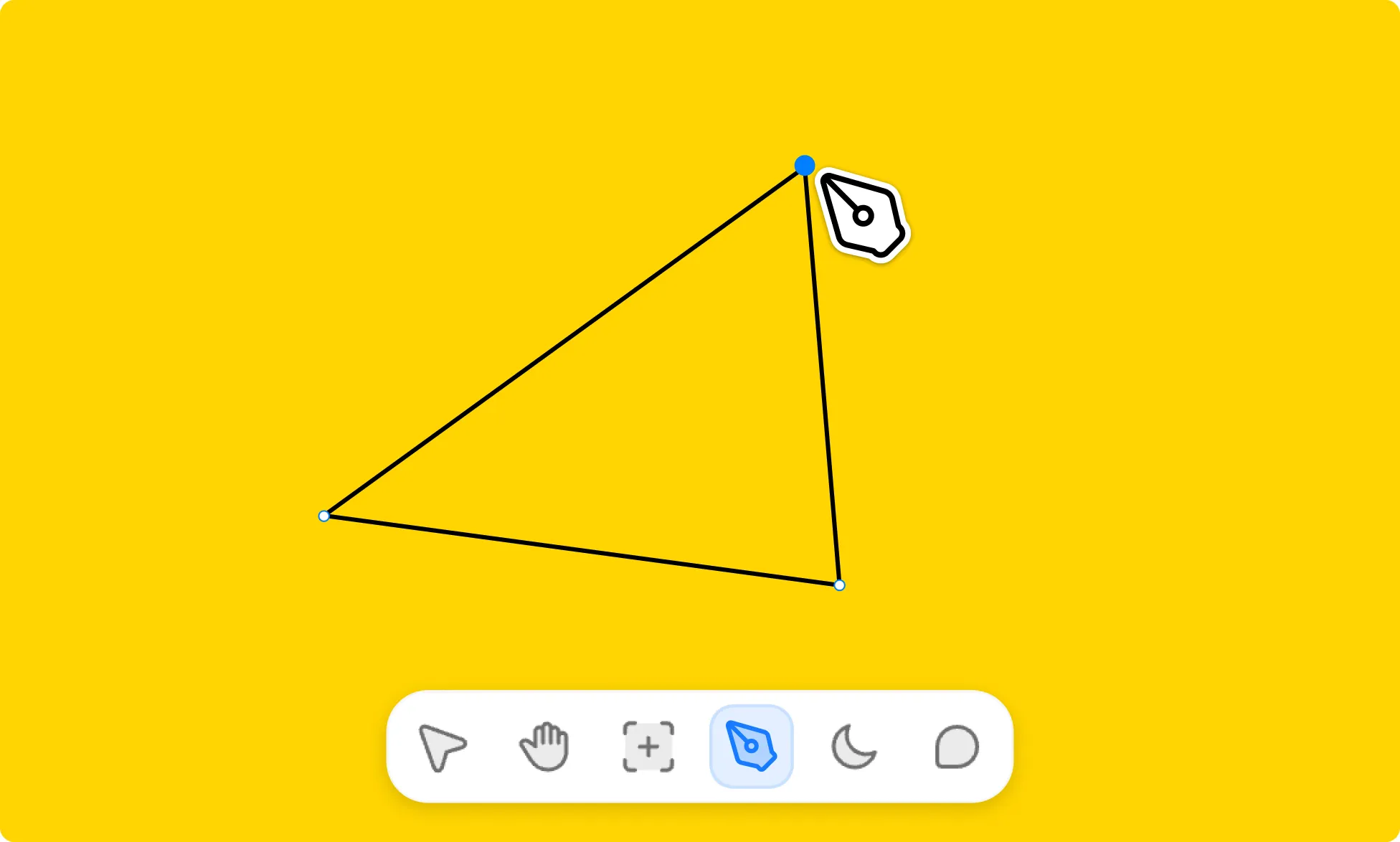
To finish drawing, click the first point from your last point. This closes the shape and ends the path.
Once the shape is closed, Kirki stops showing suggestion lines.
Once your shape is closed, you can start another shape, adjust this one, or press the ESC key to exit vector drawing mode.
Adjust a Vector Shape After Drawing
A finished shape doesn’t need to be redrawn if you’re not happy with how it looks. Move points, add new ones, and adjust handles to refine it.
How to Move Vector Points
Select and drag any existing point to a new position. The lines connected to it follow, reshaping that part of the shape.
How to Add More Vector Points
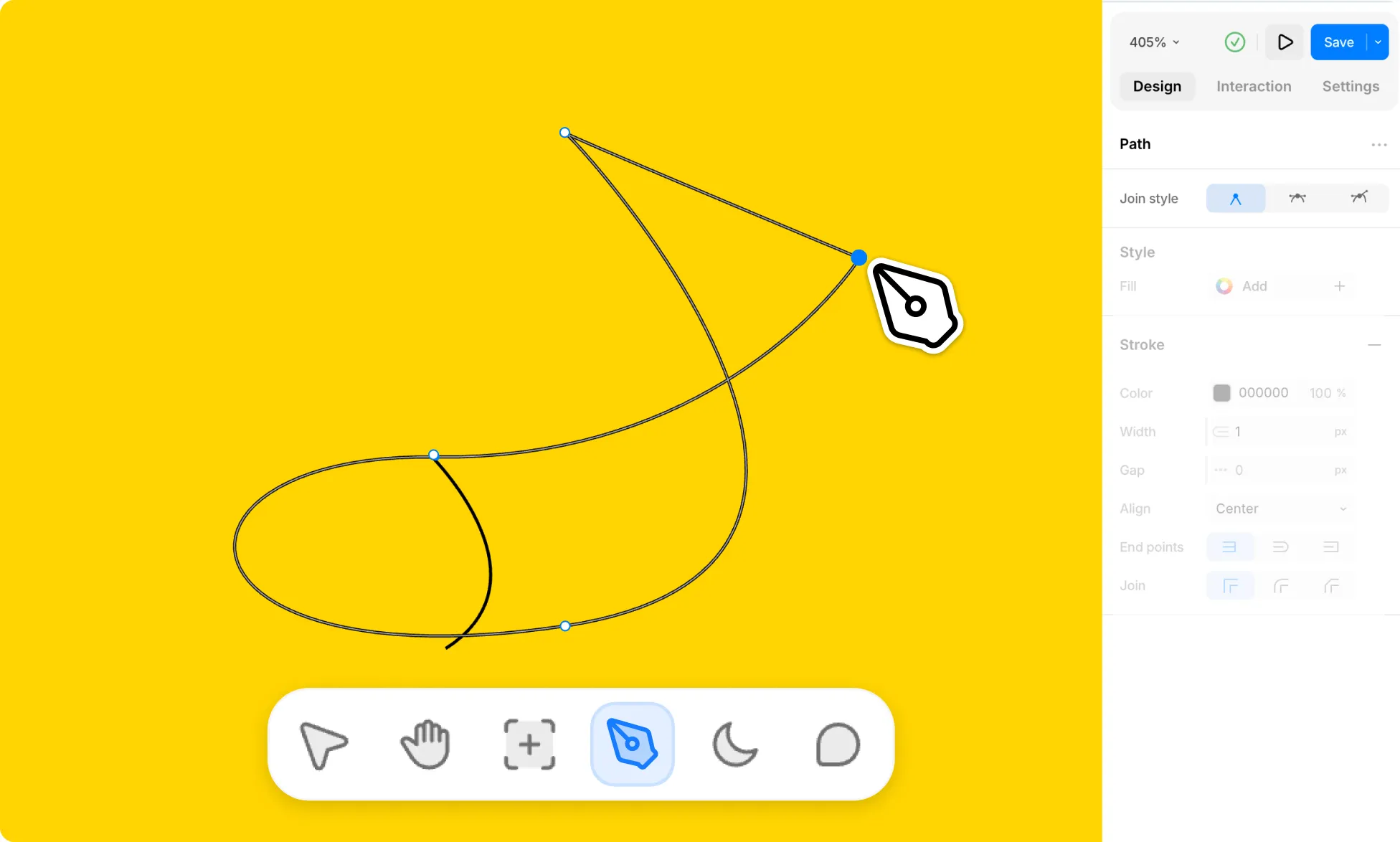
Hover over the path where you want an extra point, then click to add it. The new point works like any other, so you can drag it or its handles to reshape that area.
How to Adjust a Curve With Point Handles
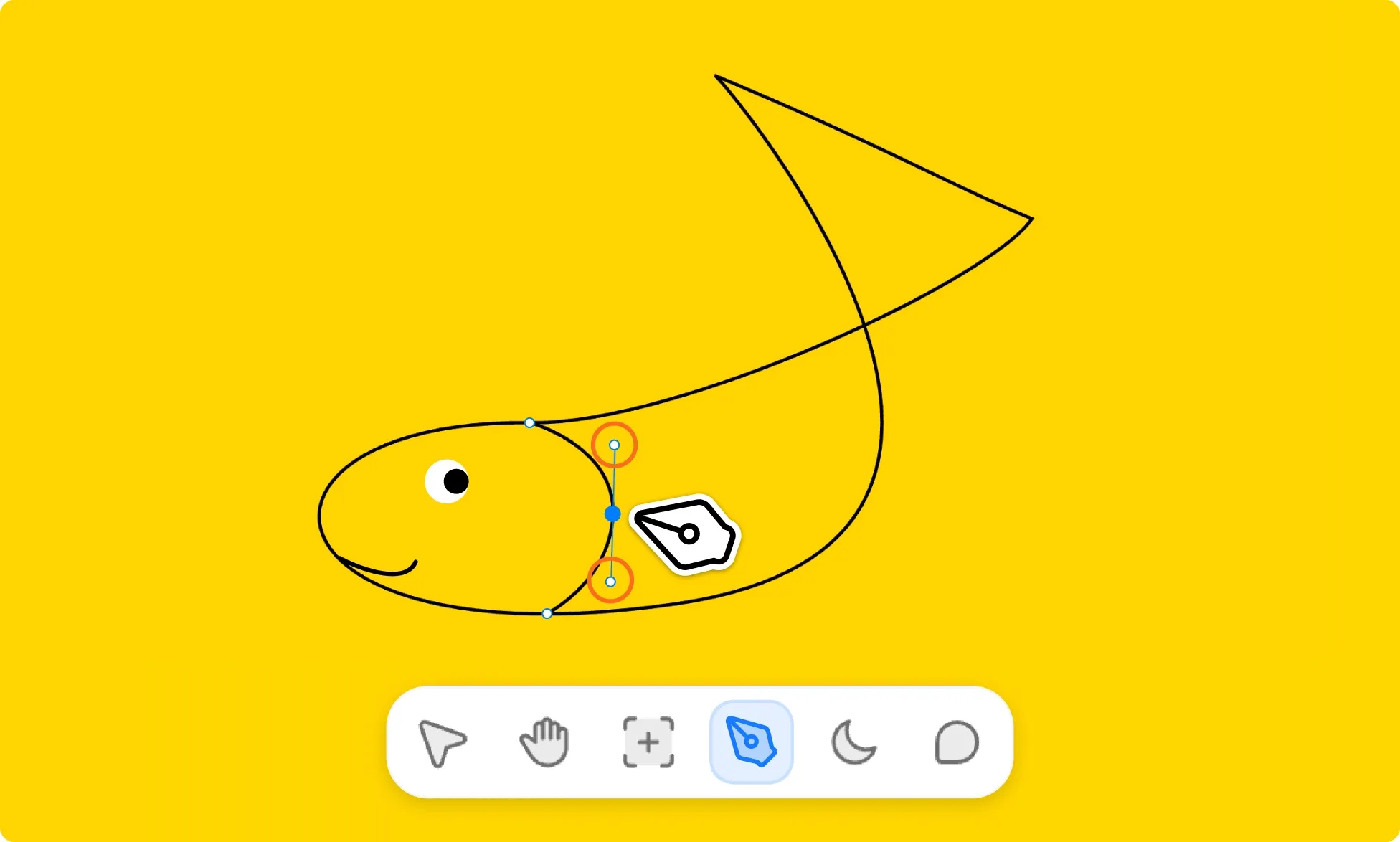
Select a point to show its handles. Drag either handle to change the curve of the line around it.
How to Change a Vector Point’s Join Style
Join style controls how the lines meet at a single point. It’s the only setting that applies to individual points. Everything else in the panel applies to the whole shape.
To change it, select a point, then from the Path settings in the right panel choose a Join Style:
Straight
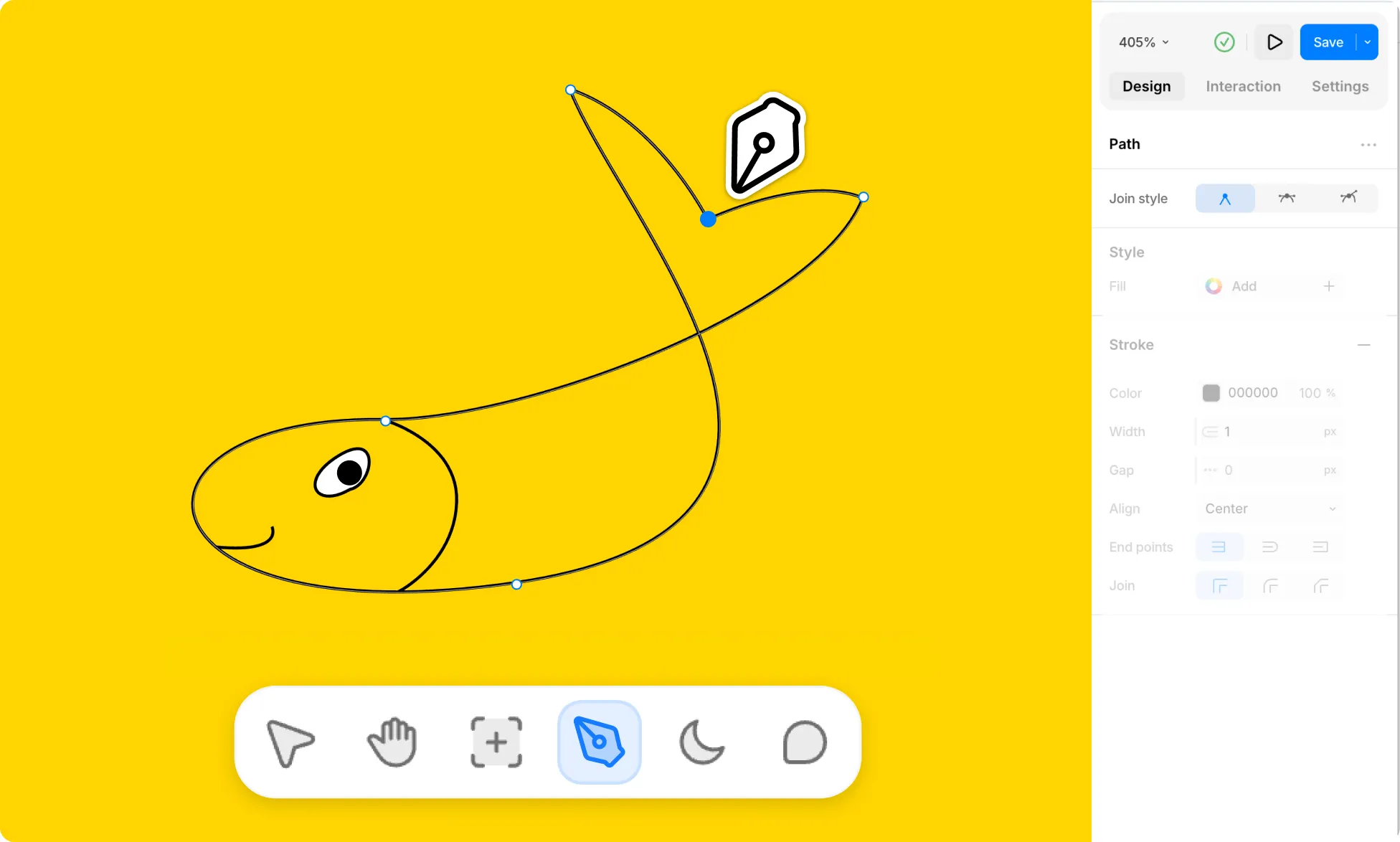
Removes the curve, so the lines meeting at this point form a sharp corner.
Mirrored
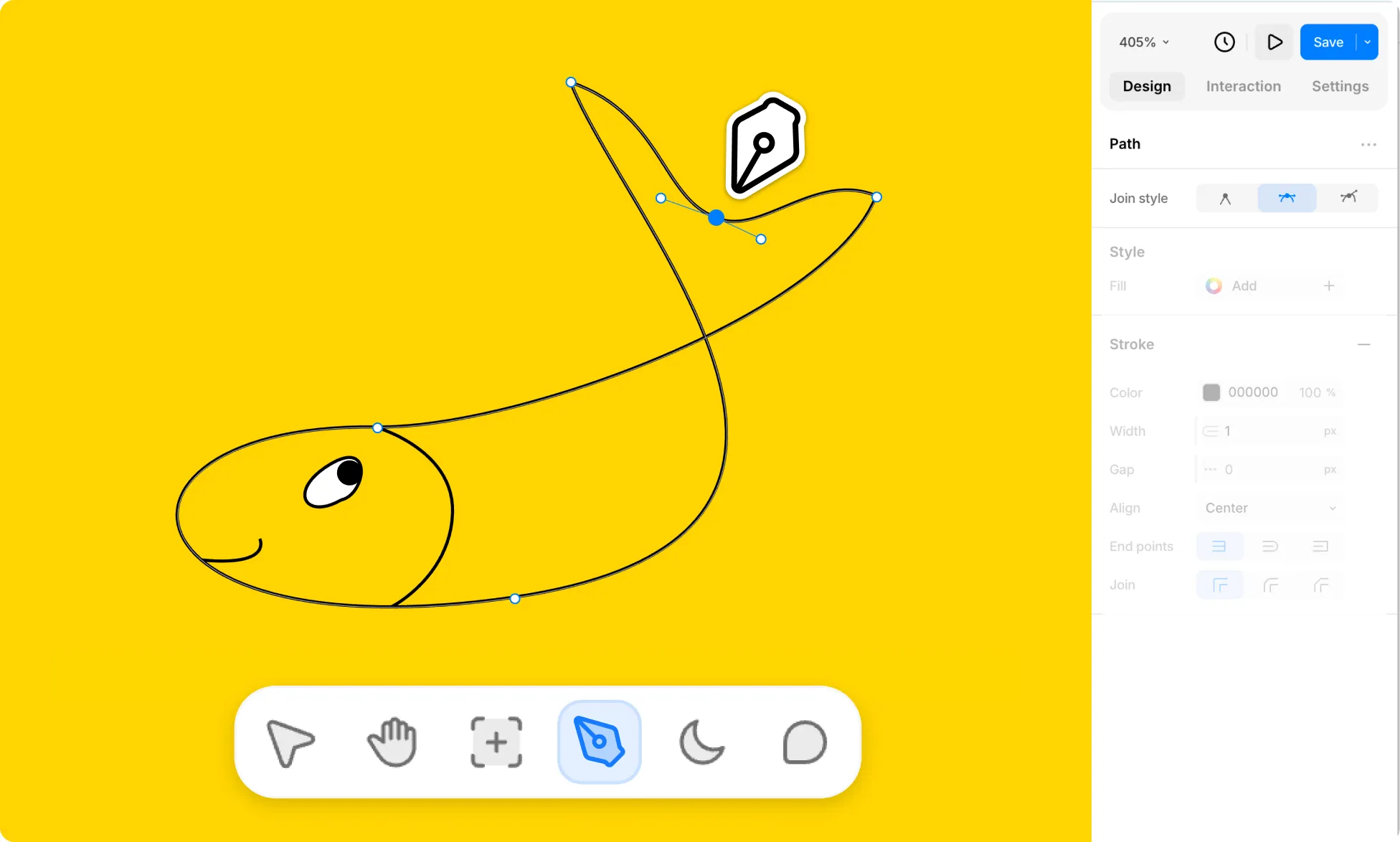
Links the two handles so they move together in opposite directions. This balances the curves on each side of the point.
Individual
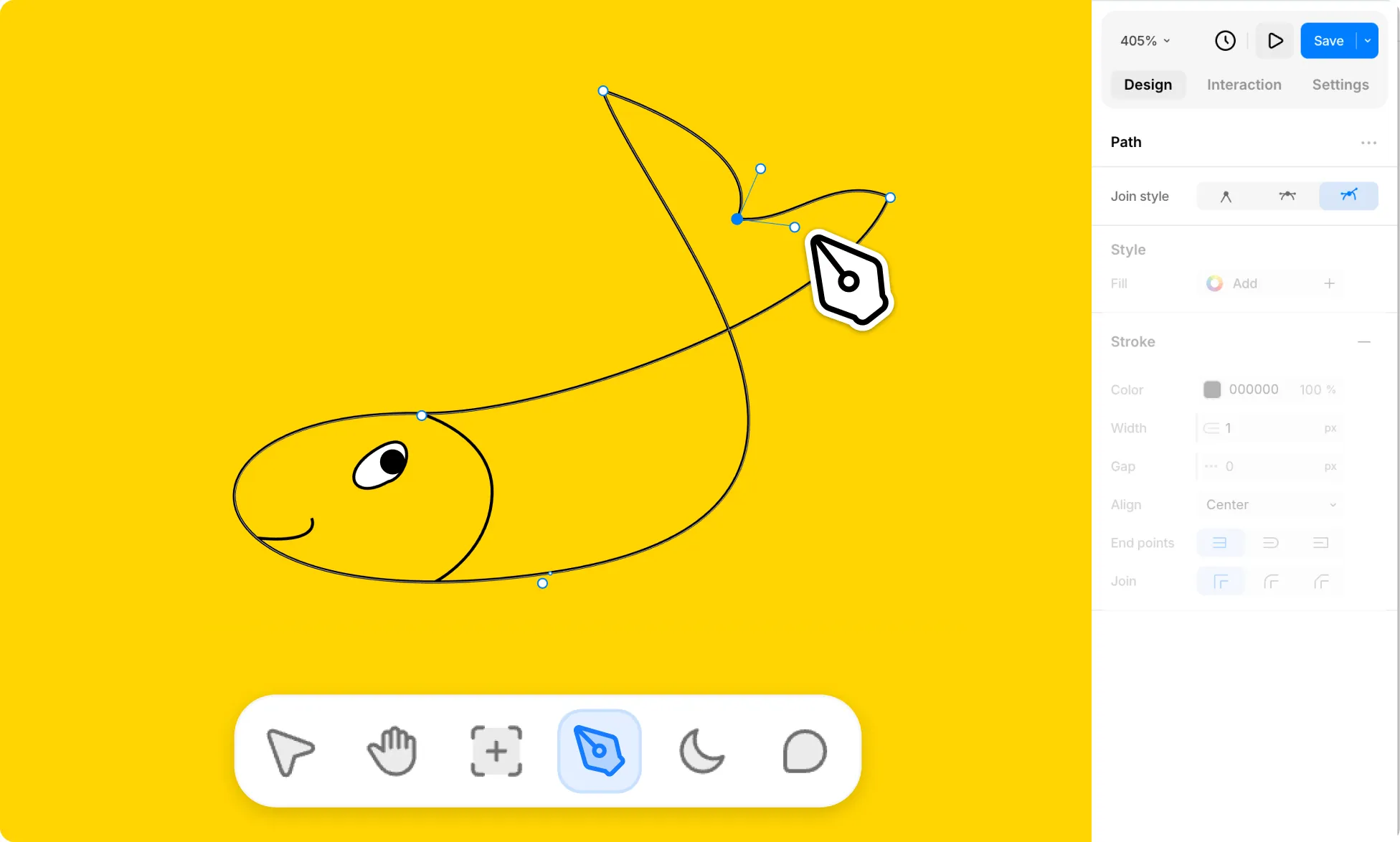
Lets each handle move on its own, so each side of the point can curve differently.
Note: If you’ve exited vector drawing mode, double-click your vector shape to re-enter edit mode and access the Path settings.
How to Add Fill to a Vector Shape
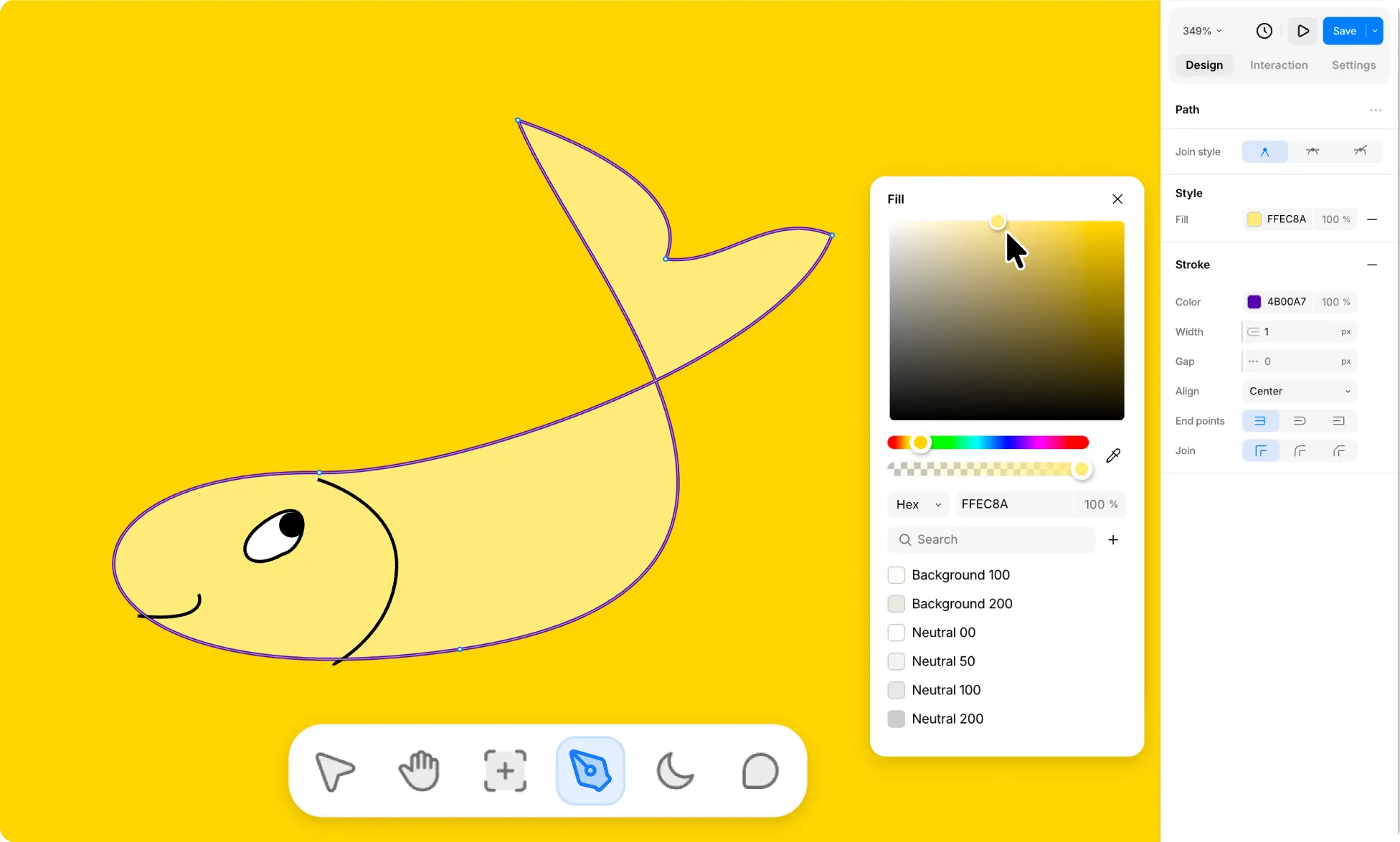
To add a Fill color:
- Select your vector shape and go to Style in the Right Panel.
- Click Add next to Fill and choose a color.
- Pick one in the color picker, or enter a hex or RGB value. Then set the opacity if needed.
Style Vector Stroke
The stroke is the outline around a vector shape. Set its color, width, gap, alignment, end points, and joins to control how that outline looks.
How to Add a Stroke
Click the plus (+) icon next to Stroke to add one.
How to Change Stroke Color
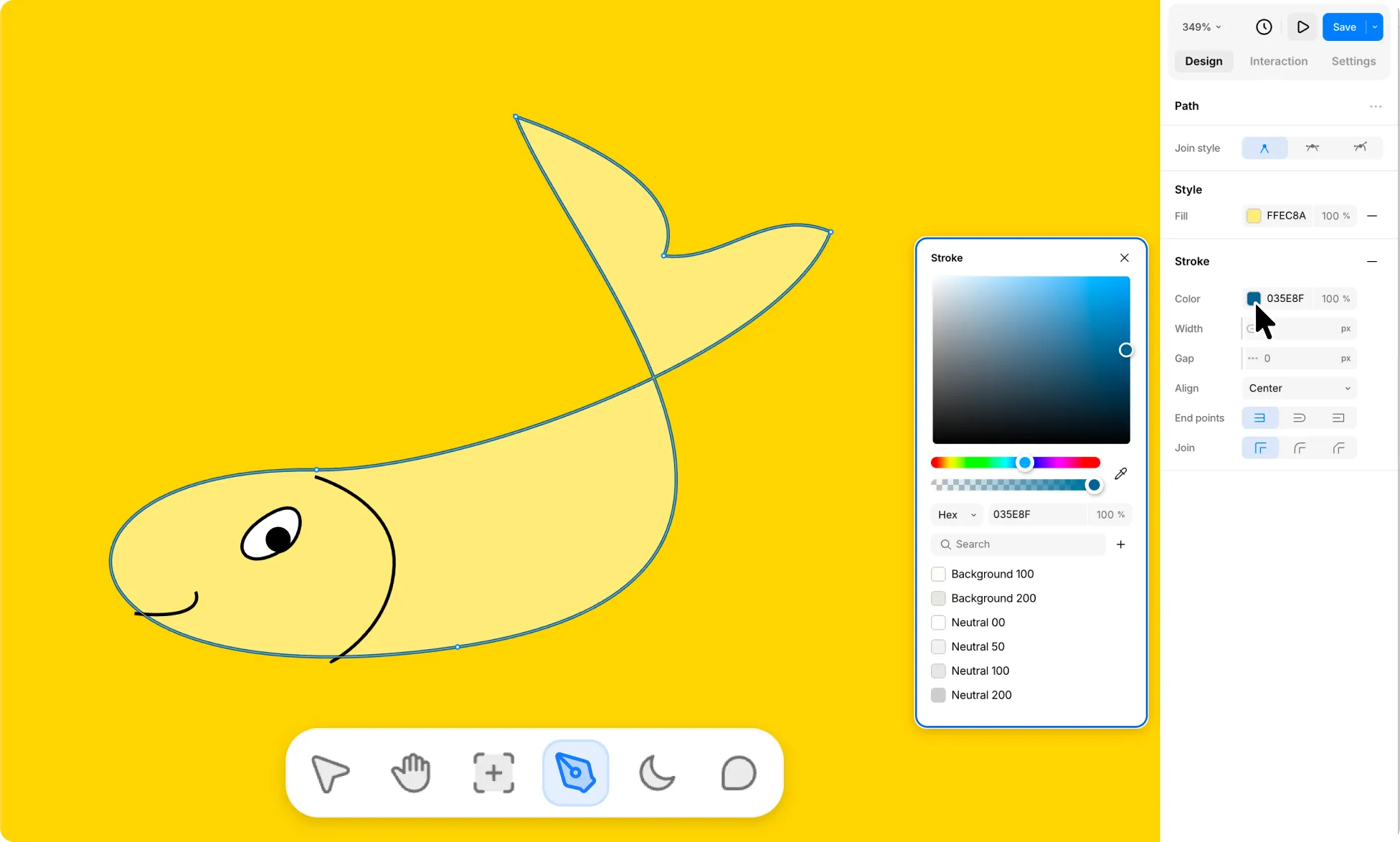
Under Stroke, click the Color swatch and choose a color.
How to Change Stroke Width
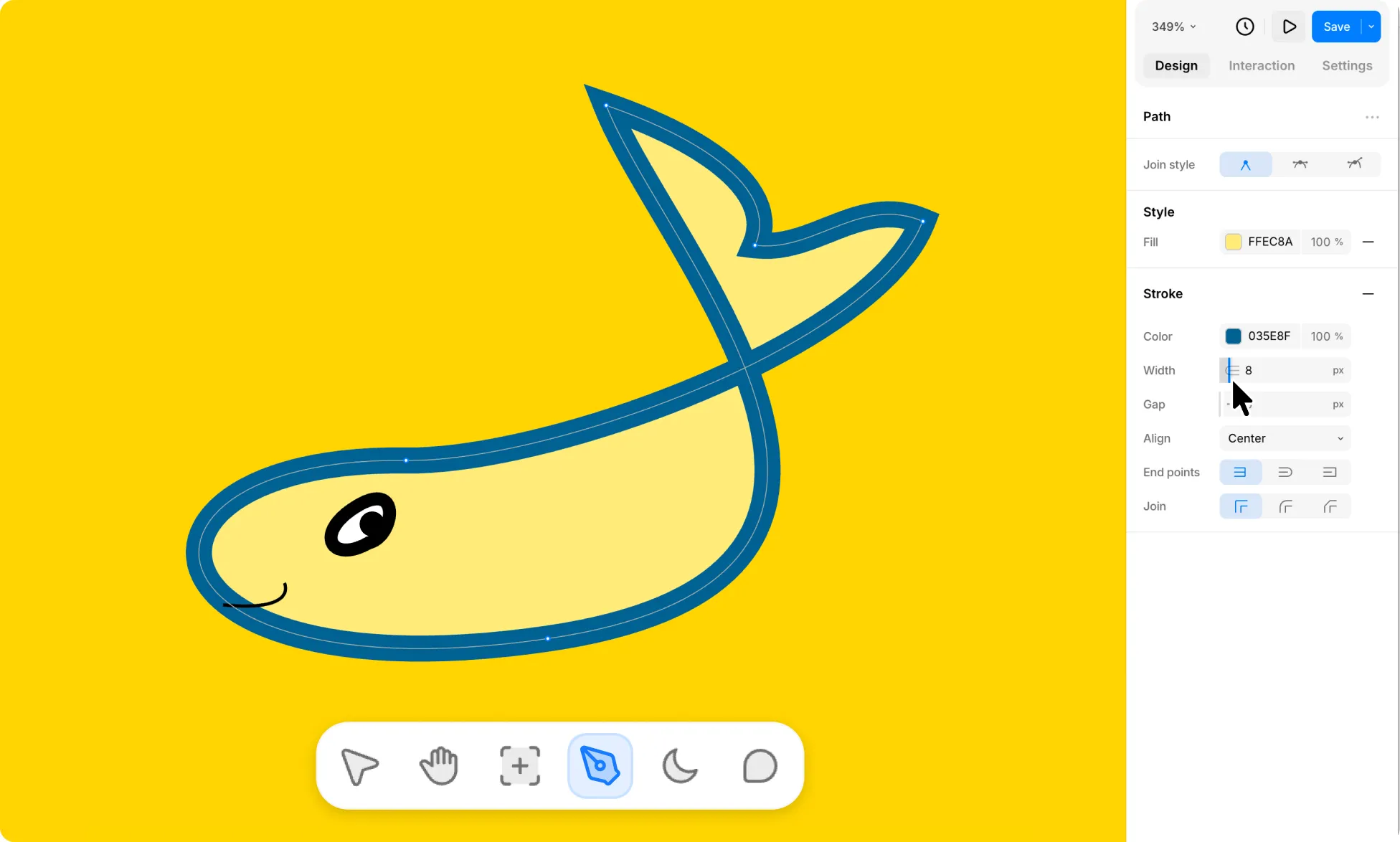
Under Stroke, click the field to set a Width. You can also drag the control to either side to adjust the value.
How to Create a Dashed Stroke With Gap
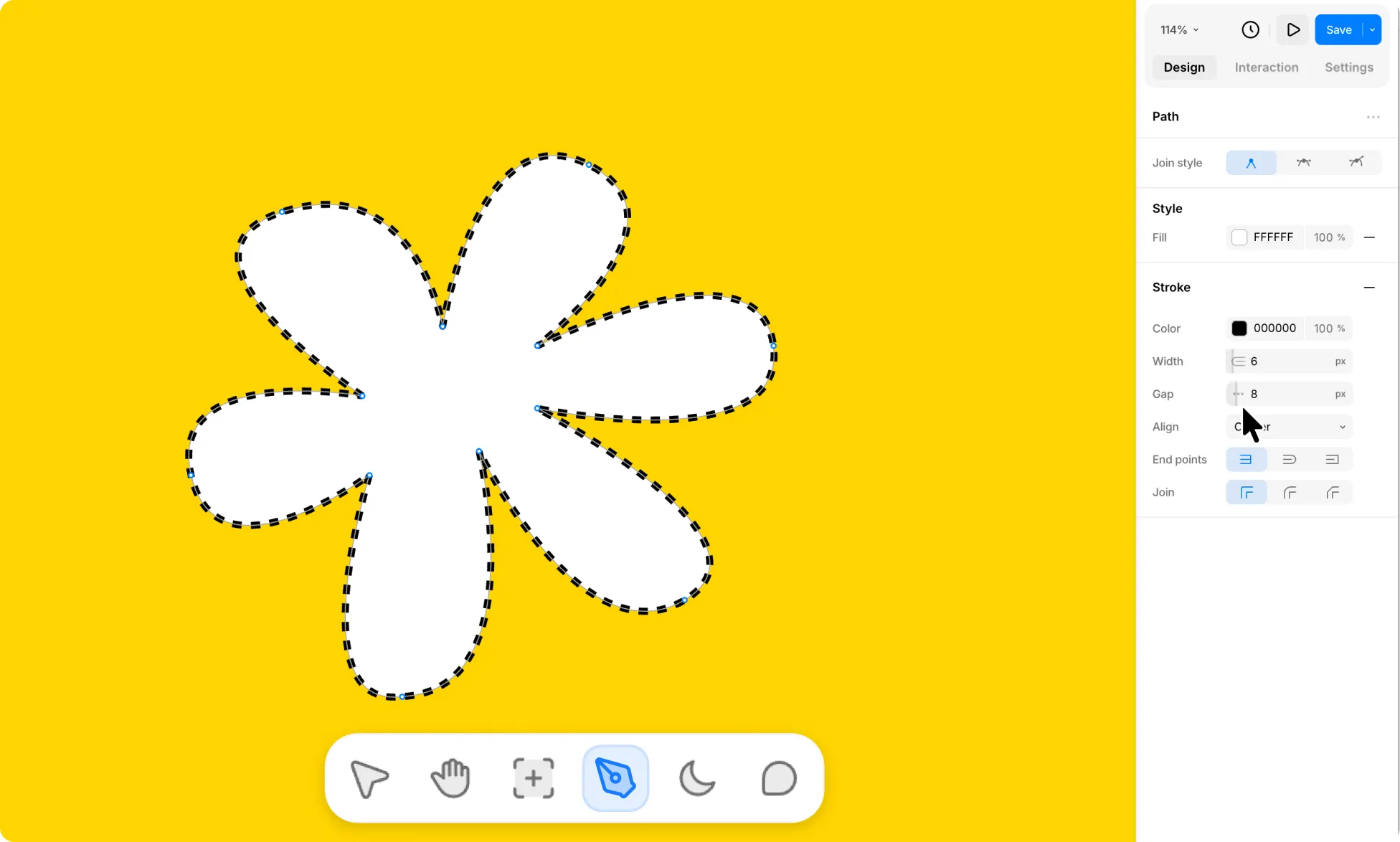
Under Stroke, click the field to set a Gap. You can also drag the control to either side to adjust the value. This gap creates a dashed outline effect.
How to Change Stroke Alignment
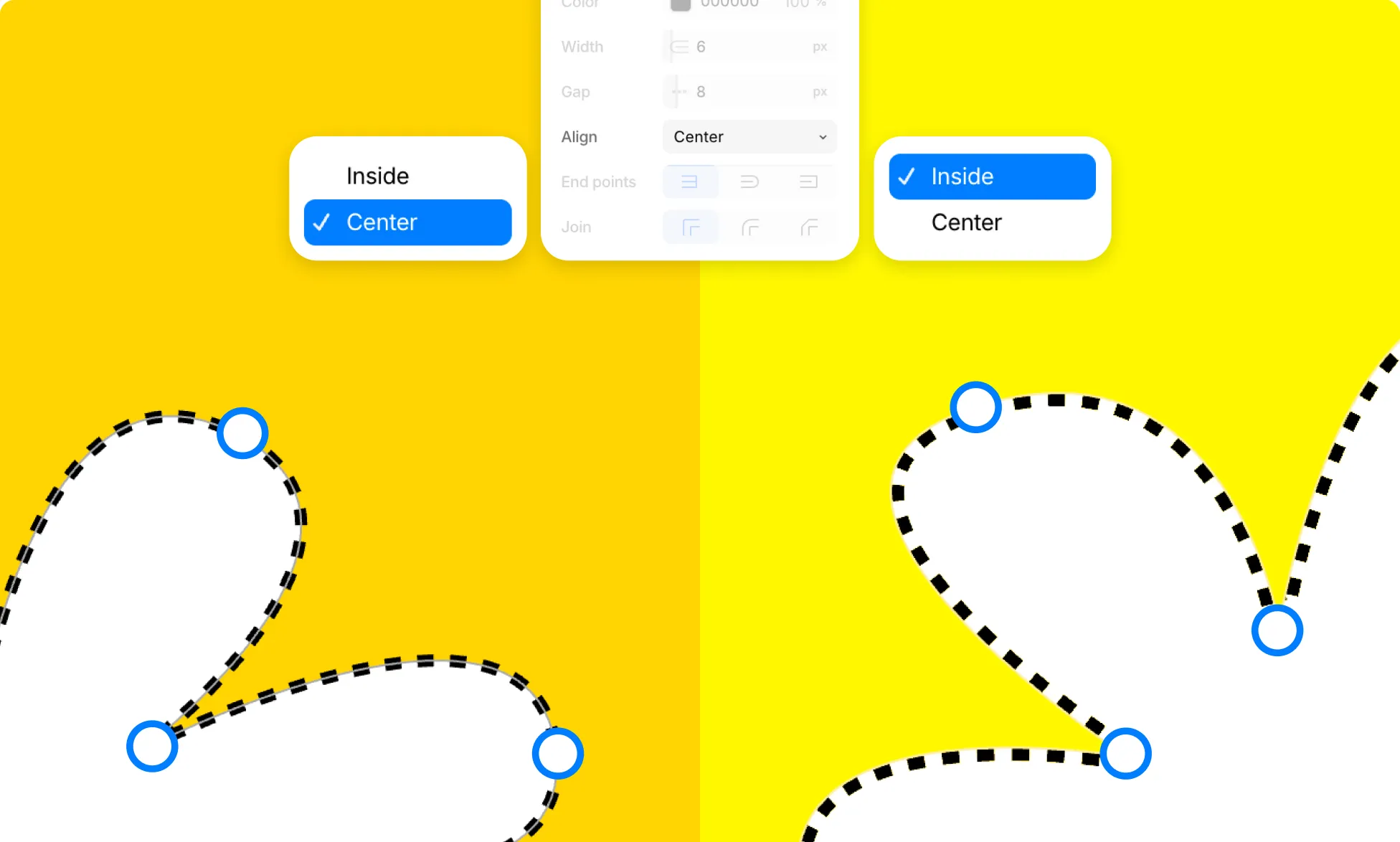
Under Stroke, open the Align dropdown. Choose Center to place the stroke on the path, or Inside to keep it within the shape.
How to Change Stroke End Points
Under Stroke, choose an End Points style to change how the ends of an open line look.
Default
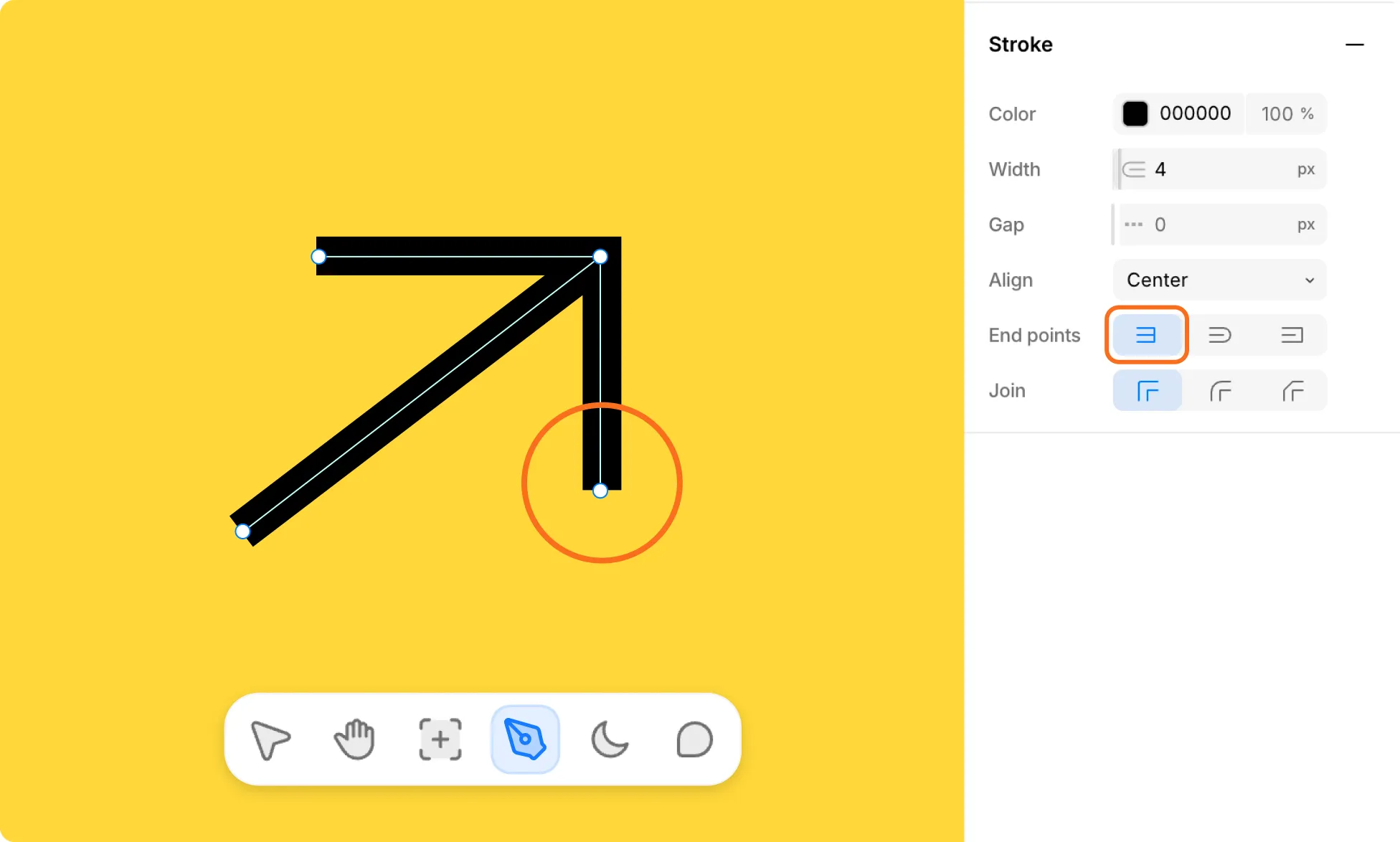
Ends the stroke flat at the end point.
Round
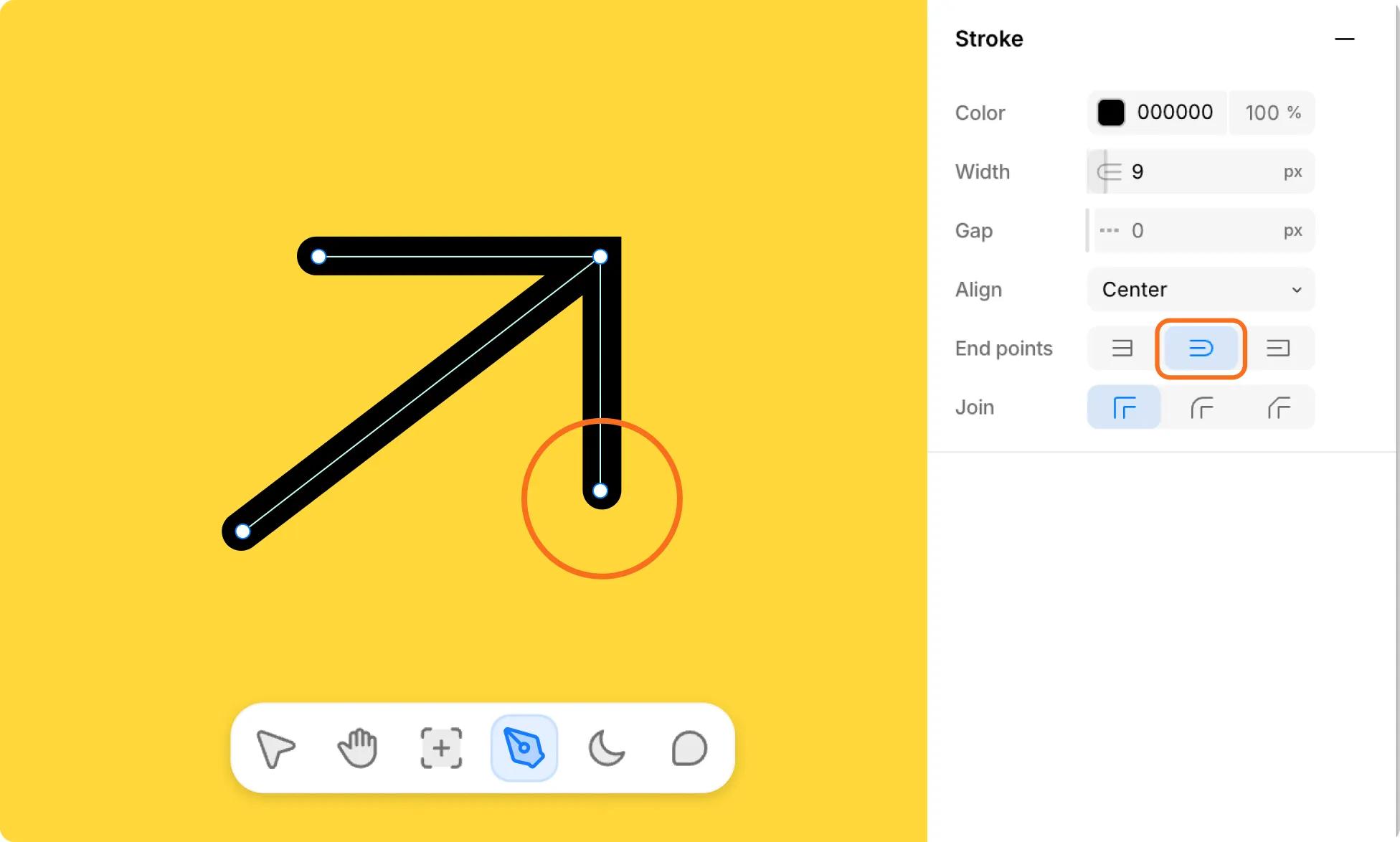
Rounds off the end of the stroke.
Square
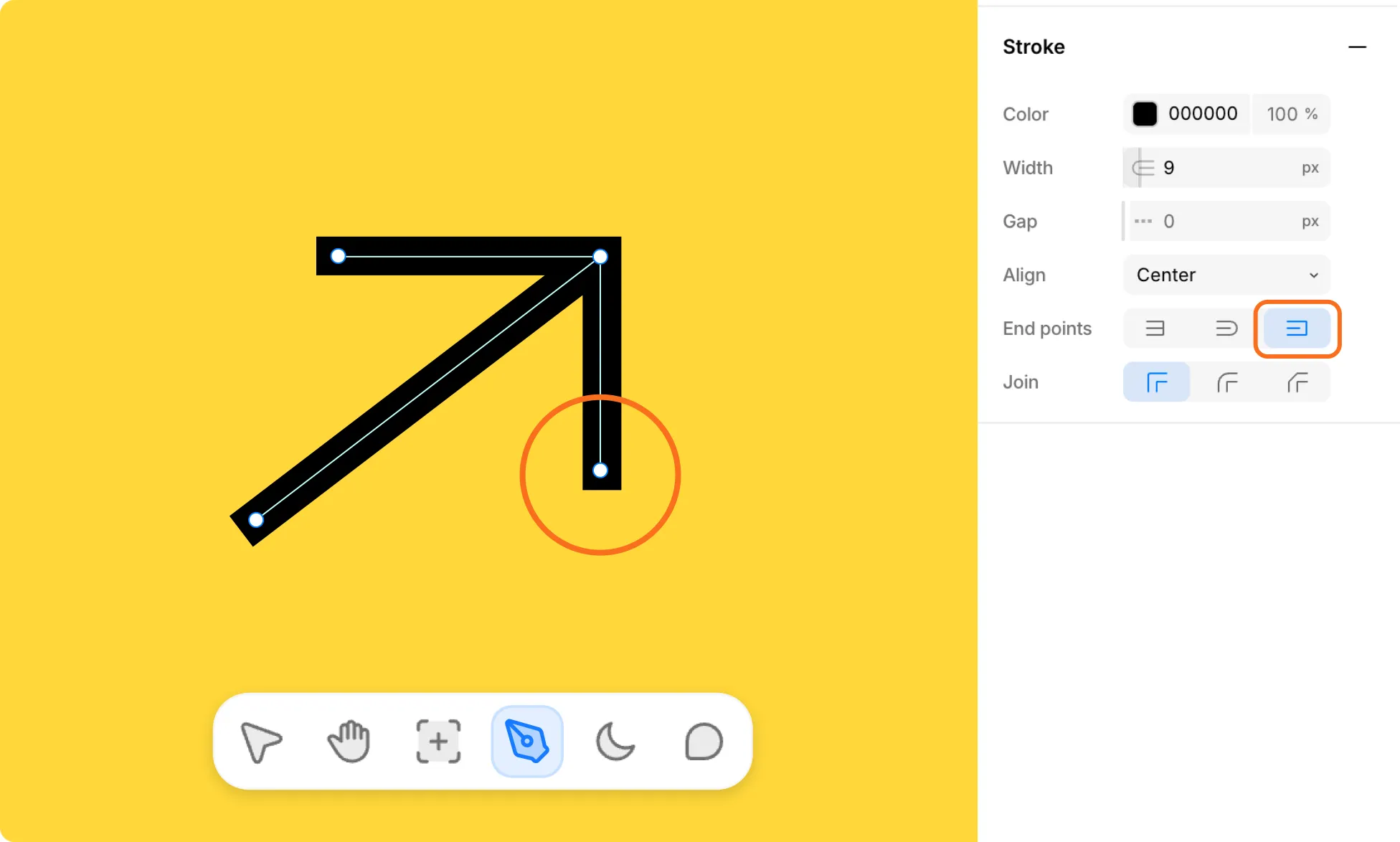
Squares off the end and extends it slightly past the end point.
Again, note that this only applies to open paths. Closed shapes have no ends, so the setting won’t change how they look.
How to Change Stroke Join
Under Stroke, choose a Join option to change how the outline looks at each corner.
Miter
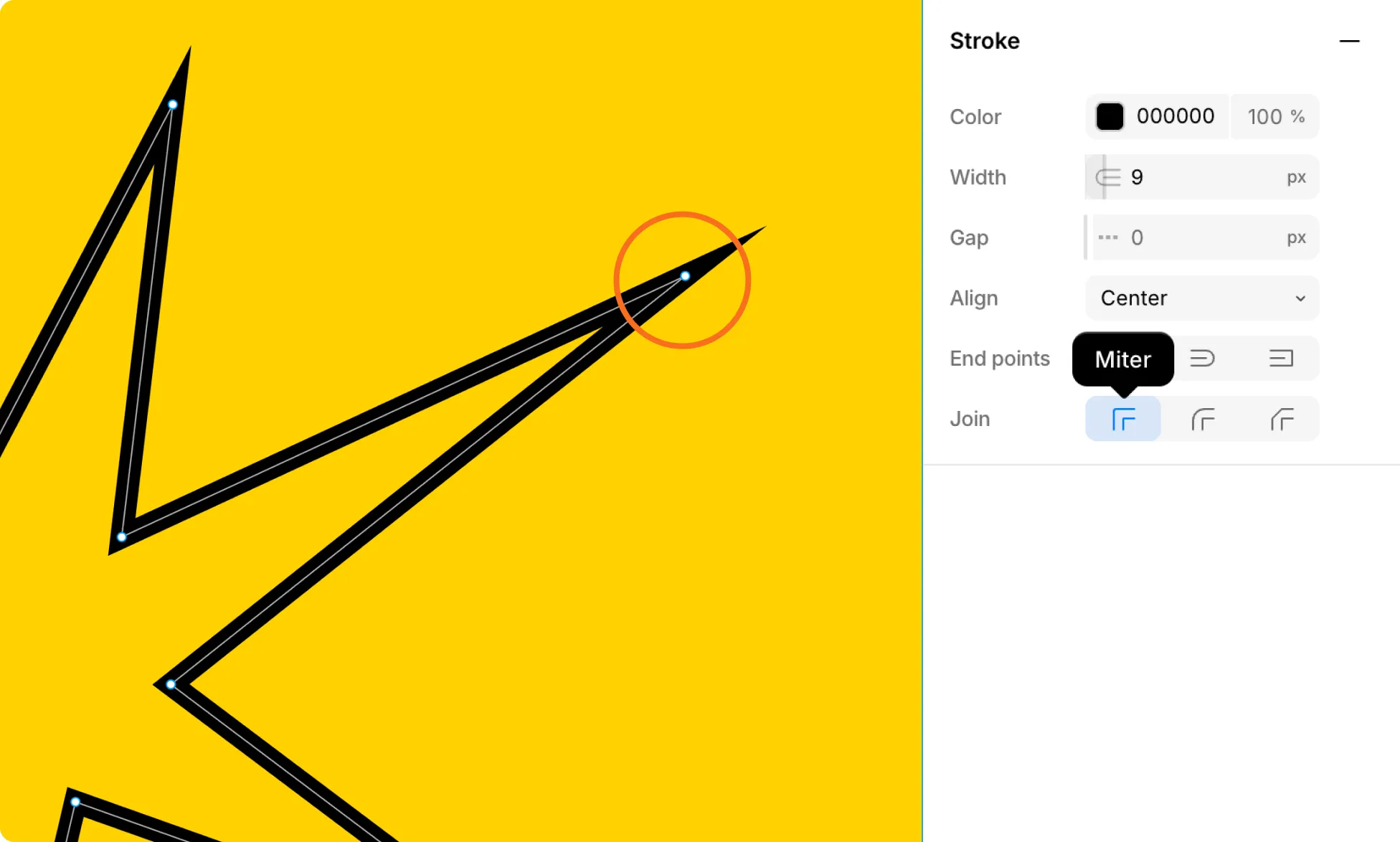
Creates a sharp, pointed corner.
Round
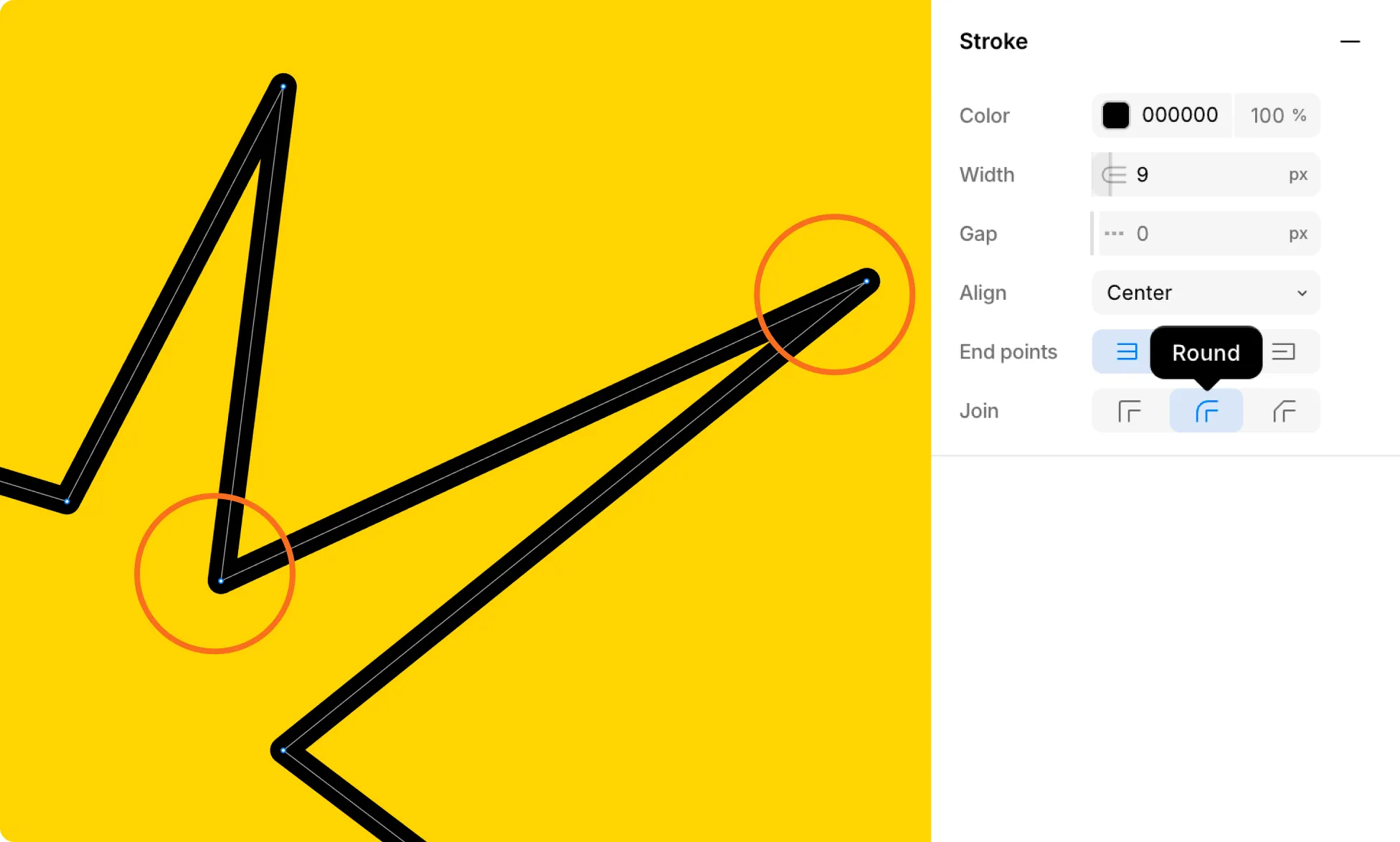
Rounds the corner.
Bevel
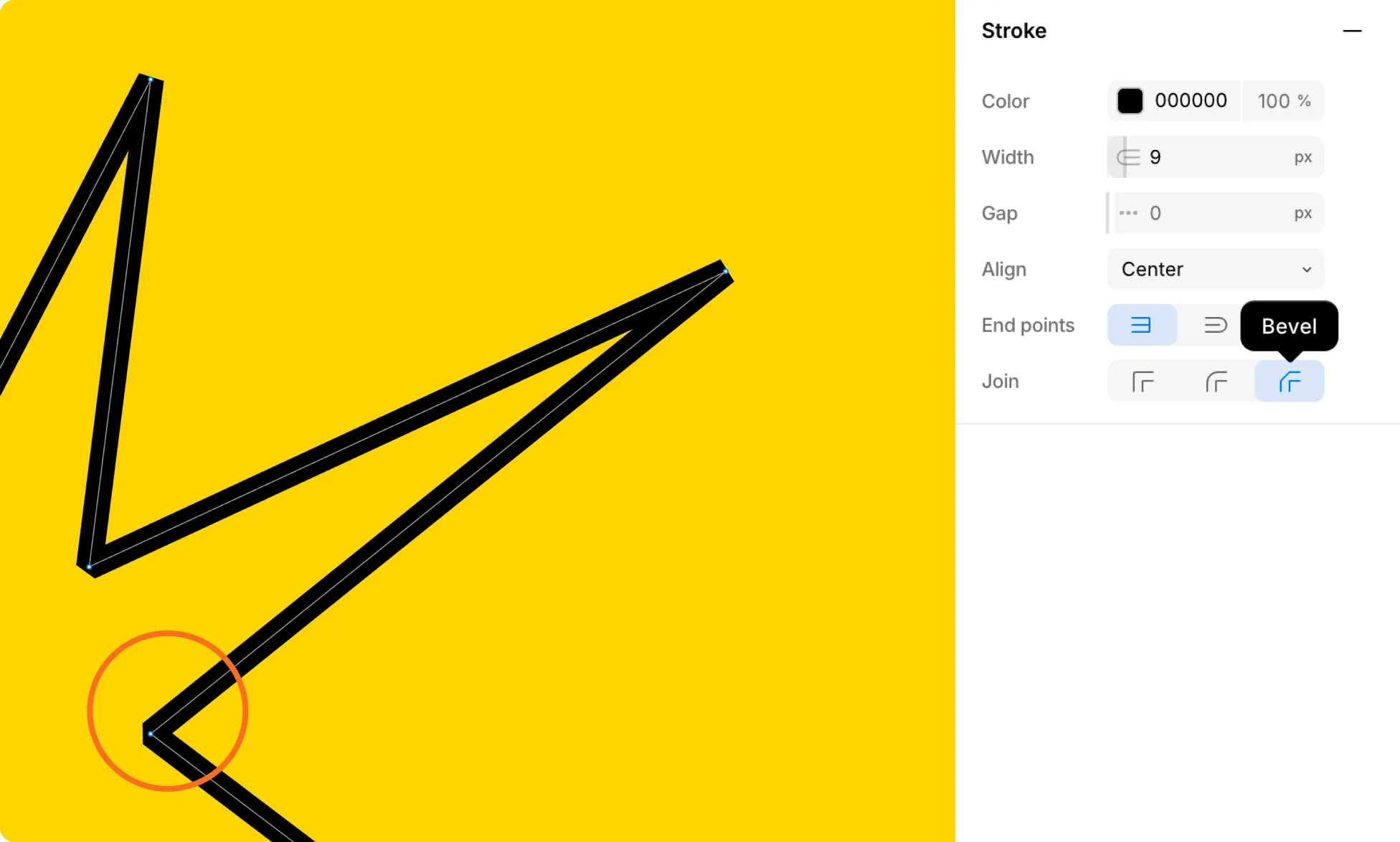
Cuts the corner flat.
Add & Edit Vector Shapes From the Web
You don’t have to draw every shape from scratch. Paste any SVG file from the web onto the canvas, then edit it like a drawn shape if it meets the requirements below.
How to Add a Vector Shape From the Web
To add an external SVG:
- Download an .svg file from the web.
- Copy the file from your device.
- Paste it onto the canvas.
Note: For the shape to paste as an editable vector, the SVG must contain only a < path >…< /path > tag inside the < svg>…</svg > element, like this: < svg >< path d=“…” >< /path >< /svg >. And if the path contains data Kirki doesn’t support, the shape can’t be edited.
How to Edit a Vector Shape
Double-click any existing vector shape to enter edit mode. Then move points and adjust handles the same way you did while drawing. You can also use the settings in the right panel to change the fill, stroke, and join style.