


In Kirki, you can connect to Pusher to sync cursor movement when multiple users collaborate on the same page in real-time.
This guide covers creating the Pusher app, enabling Client Events, and connecting it to Kirki.
What is Pusher
Pusher is a hosted service that handles real-time messaging for you. Instead of building and maintaining your own infrastructure to send instant updates between connected users, you connect to Pusher’s API, and it takes care of delivering those updates the moment they happen.
This is what makes cursor sync possible when connected to Kirki. When one person moves their cursor, Pusher relays that movement to every other connected editor in real-time.
Why Use Pusher For Real-Time Collaboration
By default, Kirki’s real-time collaboration runs on EventStream, which sends updates directly from your own website’s server with no extra setup needed. Pusher is an optional alternative that hands this job off to a dedicated external service instead, which can be a good fit for certain setups.
Here’s how that makes a difference:
- Where the work happens: EventStream uses your own server to keep every editor updated, which works well for most sites. Pusher moves that work to its own servers instead, which can be useful if you’d rather keep real-time collaboration separate from your website’s resources.
- How updates travel: EventStream sends updates one way, from your server to each editor. Pusher sends and receives updates in both directions at once, which can make cursor movement feel much more immediate.
- Handling more people at once: EventStream handles collaboration well for typical team sizes depending on your hosting. But if you regularly have a large number of people editing the same page at once, Pusher is built to manage that kind of scale, since it’s purpose-built for high-volume real-time connections.
Pusher’s Free Plan & Its Limits
Pusher offers a free plan (called Sandbox), so you can power Real-time Collaboration in Kirki with Pusher at no cost to start. It includes:
- 100 people connected at the same time
- 200,000 messages per day
For most teams, this is more than enough. Keep in mind the message count resets daily rather than rolling over, so if you’re running a lot of collaborative sessions in a single day, it’s worth keeping an eye on usage.
Also note that each cursor update sent to multiple editors counts as a message per person it reaches, not just once – so a page with several active editors will use up the daily limit faster than a page with just two.
If you ever outgrow these limits, Pusher offers paid plans with higher capacity.
What You Need
Before configuring Pusher in Kirki, make sure you have:
- A Pusher account
- A Channels app created in your Pusher dashboard
- Your Pusher App
- ID
- Key
- Secret
- Cluster
- Client Events enabled for the app
Pusher provides these credentials automatically when you create a Channels app.
How to Create a Pusher Channels App
- Log in to your Pusher account.
- Open the Channels section.
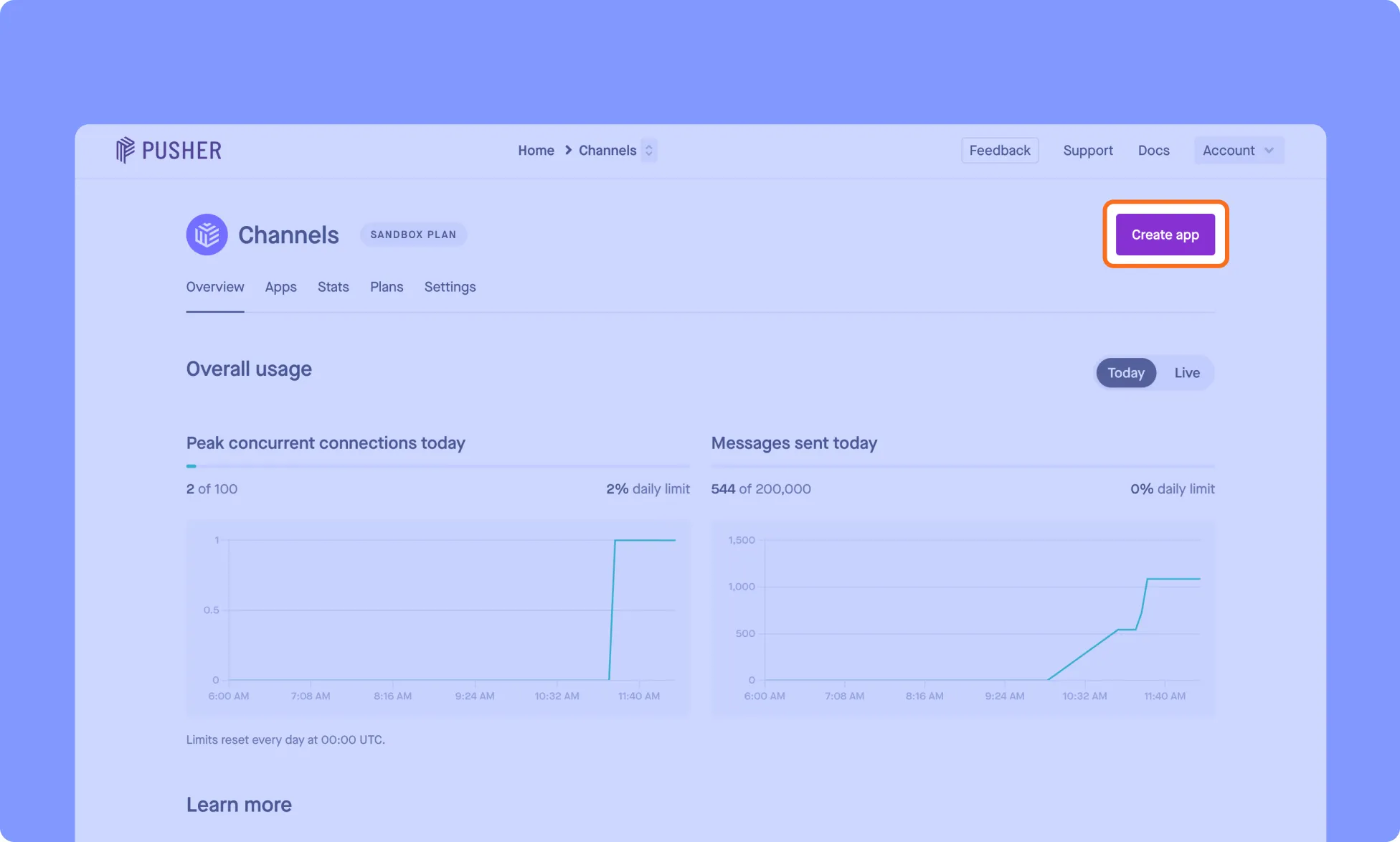
- Click Create app.
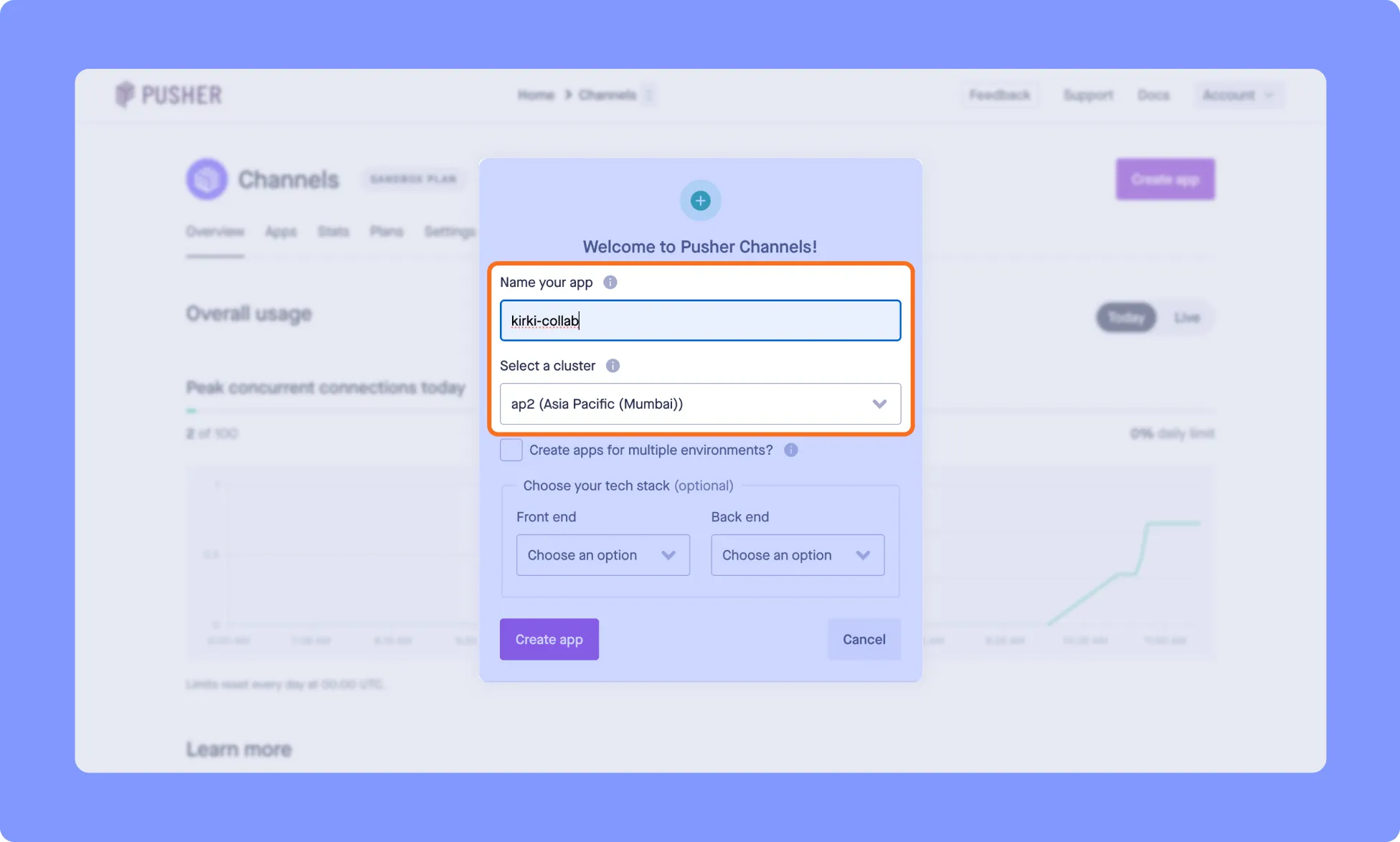
- Enter a name for your app.
- Select a suitable Cluster. This determines which regional data center handles your app’s real-time traffic, so pick the one closest to where most of your users are located.
- Create the app.
Once the app is created, go to App Keys in the left sidebar to find your credentials: App ID, Key, Secret, and Cluster.
The Key and Cluster establish the client-side connection. The App ID and Secret handle server-side operations.
How to Enable Client Events in Pusher
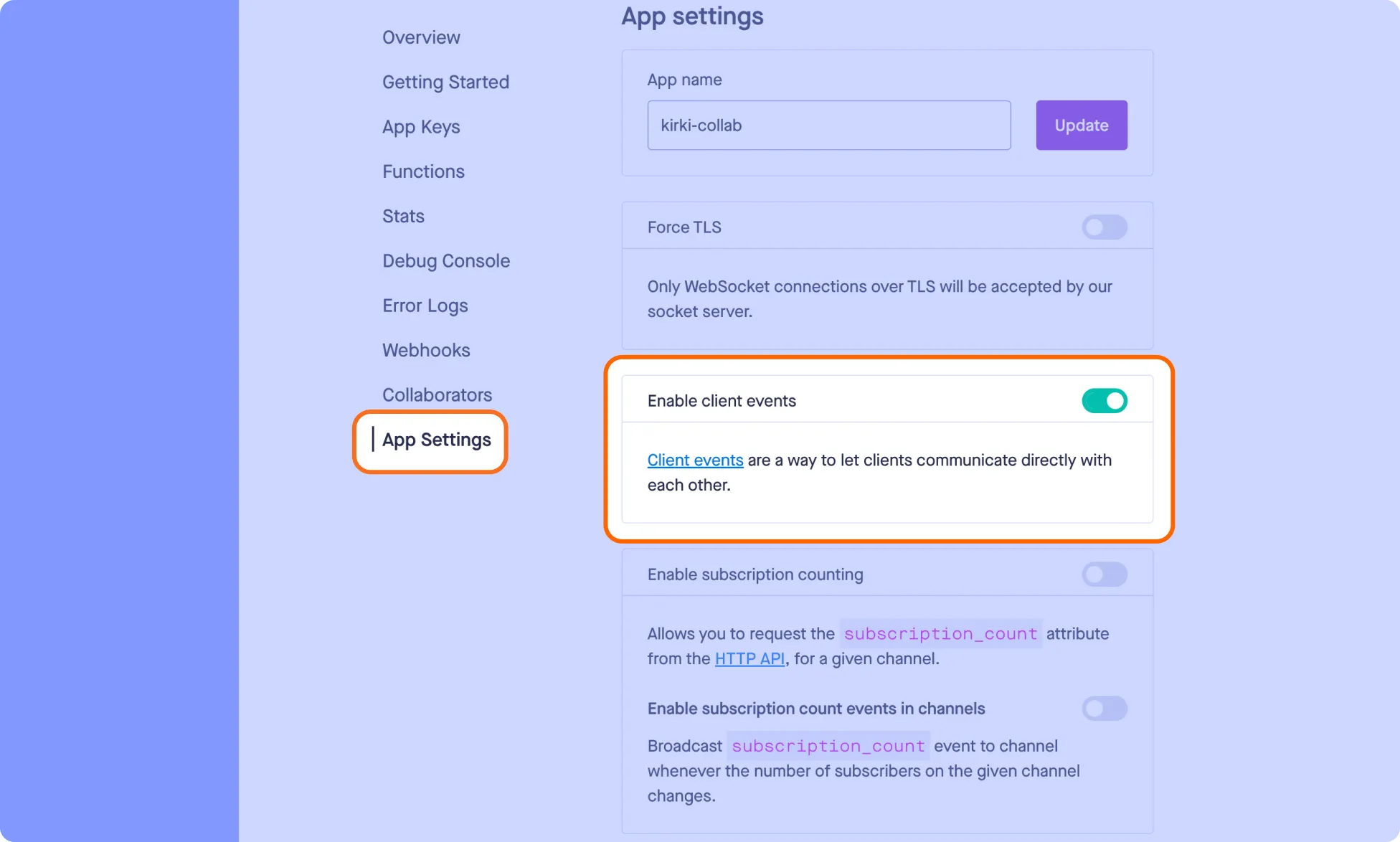
Kirki uses Pusher’s client events to send real-time collaboration activity between users, so this step is important.
- Open your Pusher Channels app.
- Go to App Settings.
- Enable Client Events.
Kirki requires Client Events to be explicitly enabled – real-time collaboration won’t work without this step.
How to Connect Pusher App With Kirki
Once your Pusher app is ready, connect it to Kirki:
- Open your WordPress dashboard and go to the Settings tab in the Kirki Dashboard.
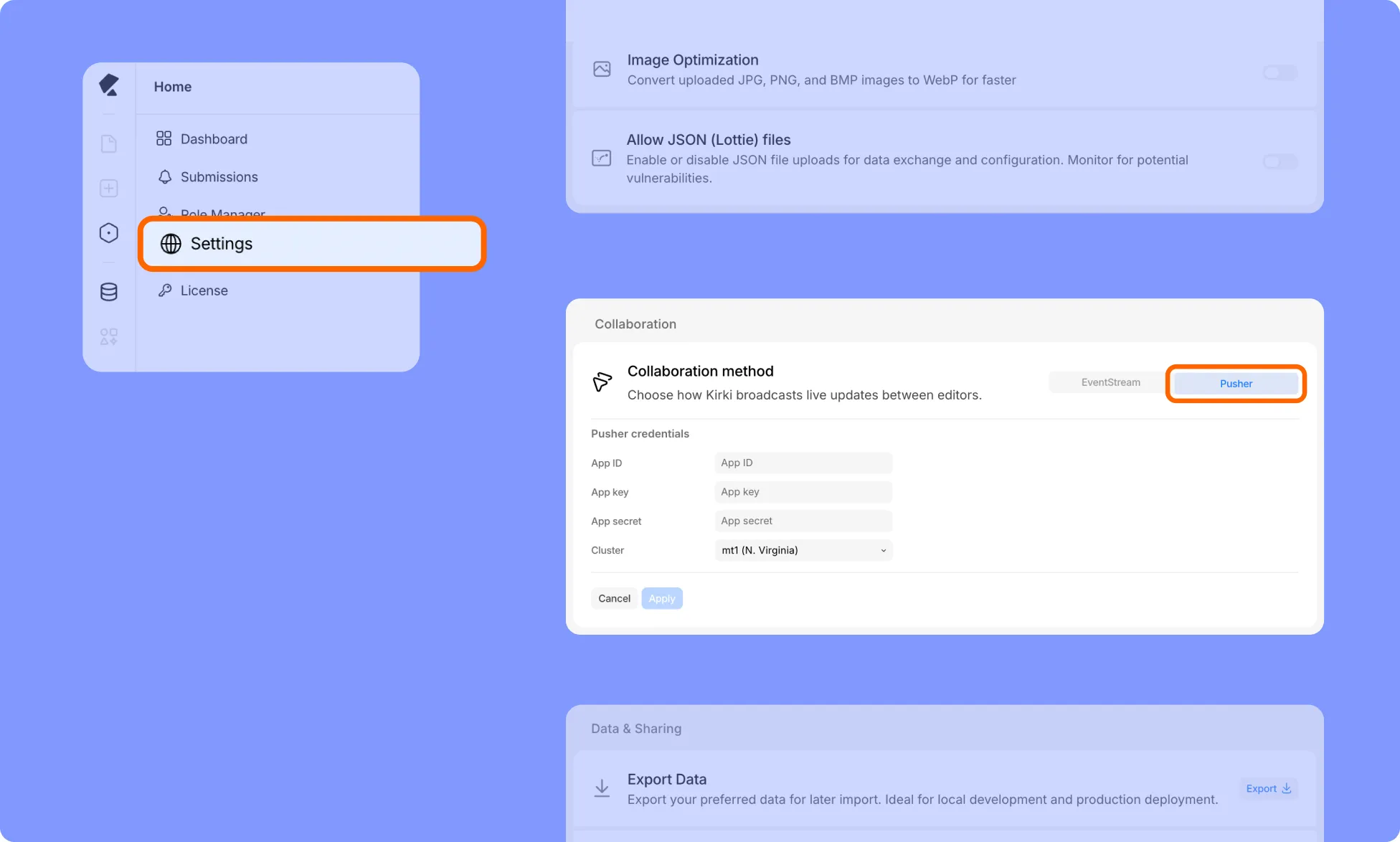
- Under Collaboration Method, switch from EventStream (Kirki’s default) to Pusher.
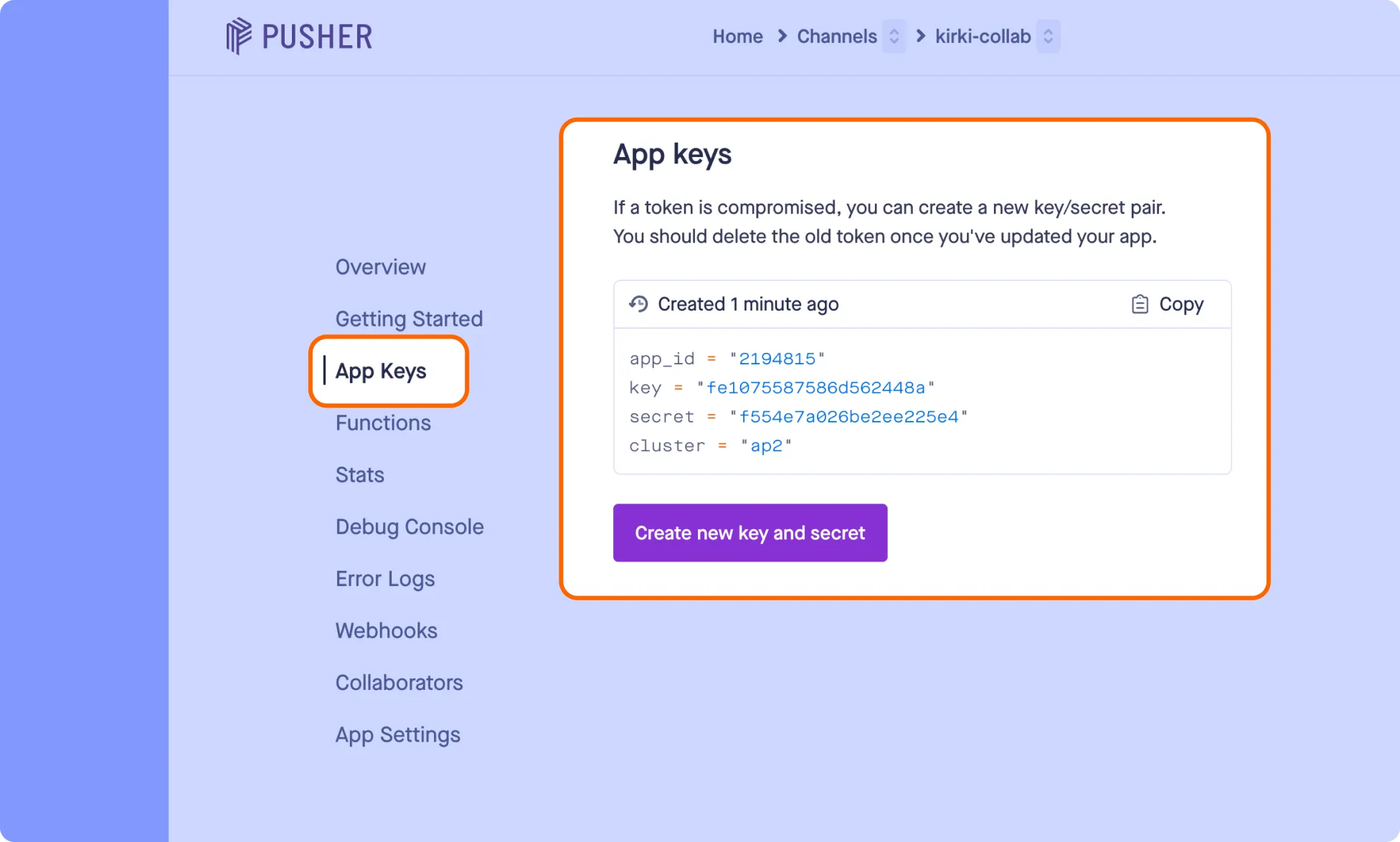
- In your Pusher dashboard, go to App Keys to copy your credentials, then paste them into the matching Kirki fields:
- App ID
- App Key
- Cluster
- App Secret
- Click Apply to save your settings.
How to Test Real-Time Collaboration
- Open a page in the Kirki editor.
- Open the same page in another browser, or sign in with another user account.
- Make sure both users have edit access to the page.
- Move the cursor around the canvas.
If the connection is working, each editor sees the other editor’s cursor activity on the canvas in real time.
That’s it – Pusher now handles real-time cursor sync for your team in Kirki, letting everyone editing the same page see exactly where others are working. To dive deeper, learn more about Real-time Collaboration.