The Tabs element organizes multiple content panes within a single space – ideal for single-page layouts or areas with limited room.
Tab Structure
Tabs consist of three parts:
- Tab Menu – The Tab Menu lets users navigate between each pane.
- Tab Content – Tab Content holds all the Tab Panes.
- Tab Panes – Finally, Tab Panes is where elements get added within a wrapper div called Holder.
How to Add Tabs
Add Tabs From Interactive Elements
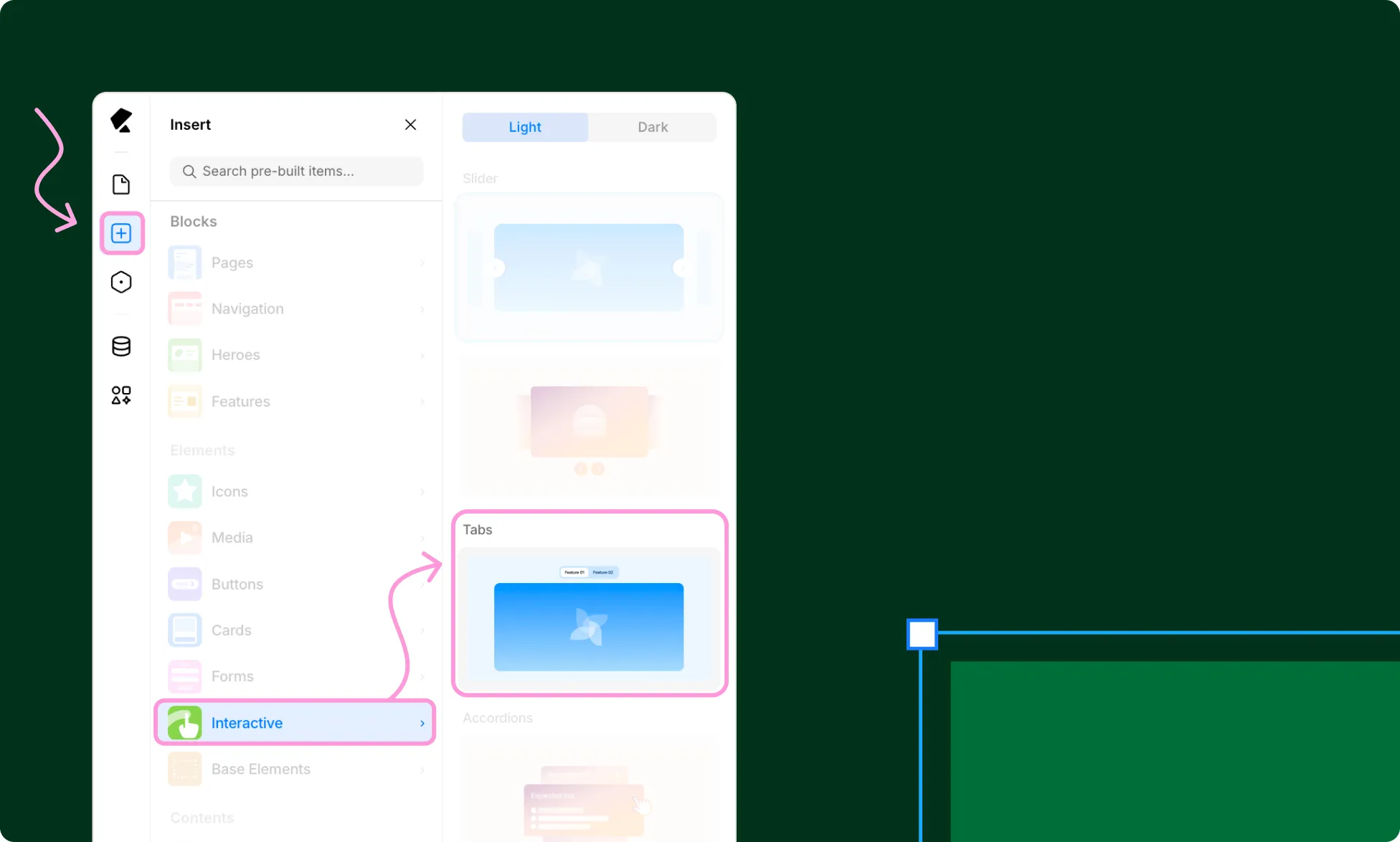
- Open the Insert panel from the Left Sidebar.
- Navigate to Elements → Interactive.
- Drag the Tabs premade block onto your page. You’ll find it in both light and dark variants.
Add Tabs From Base Elements
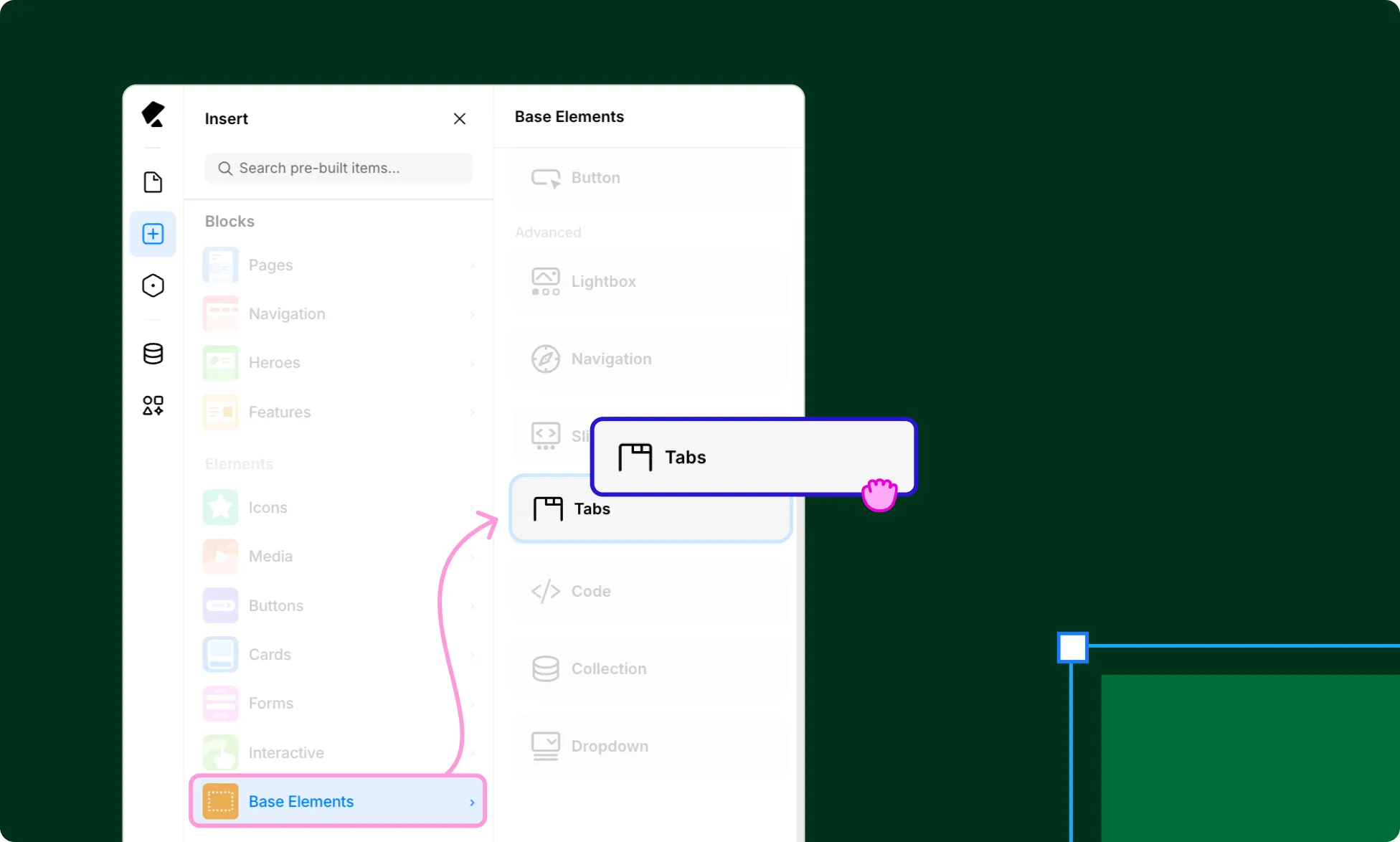
- Open the Insert panel from the Left Sidebar.
- Navigate to Base Elements.
- Drag the Tabs element onto your page.
Managing Tab Items
How to Add a Tab Item
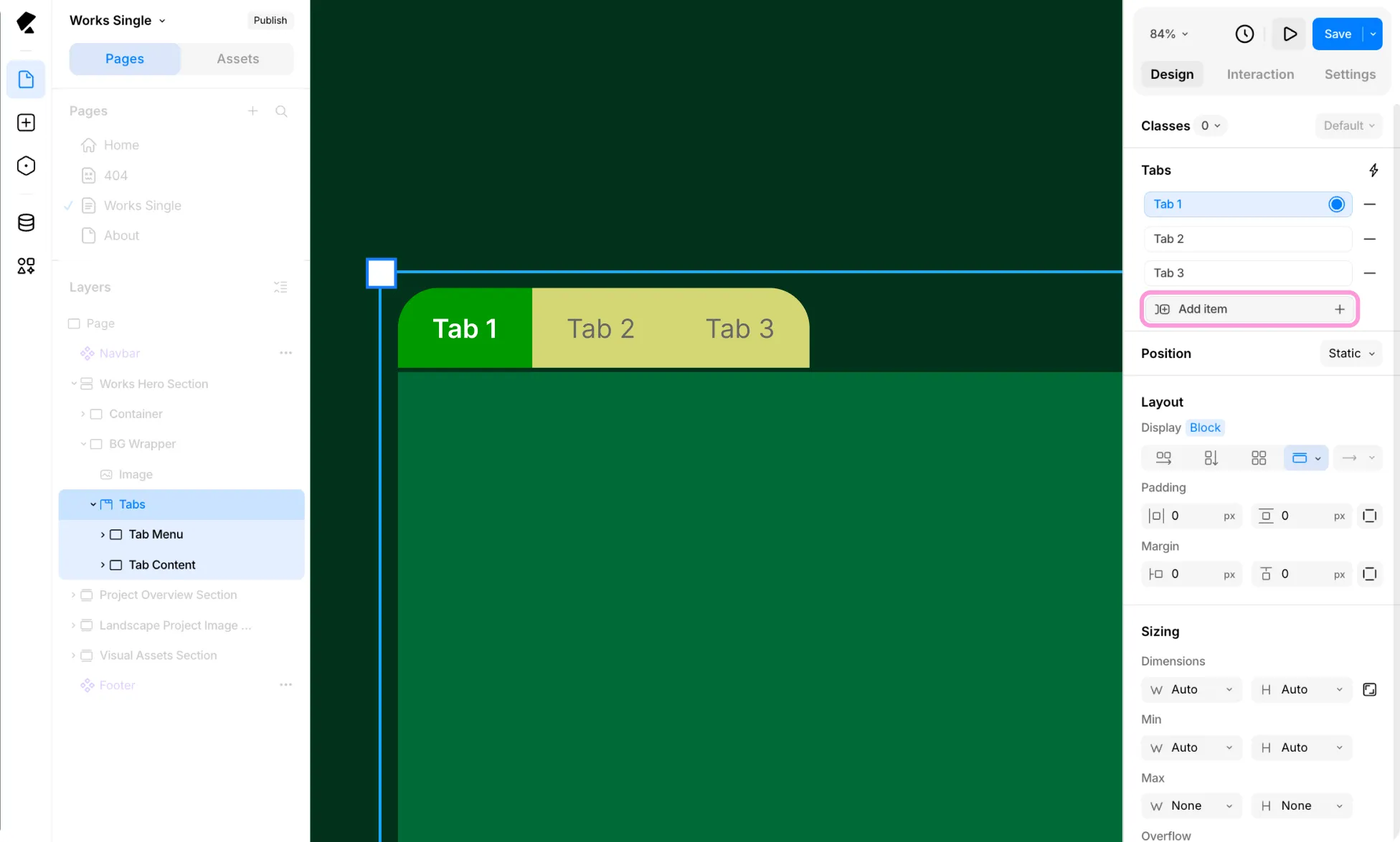
- Select the Tabs element on the canvas.
- Go to the Design tab in the Right Panel.
- Under the Tabs section, click Add Item.
How to Remove a Tab Item
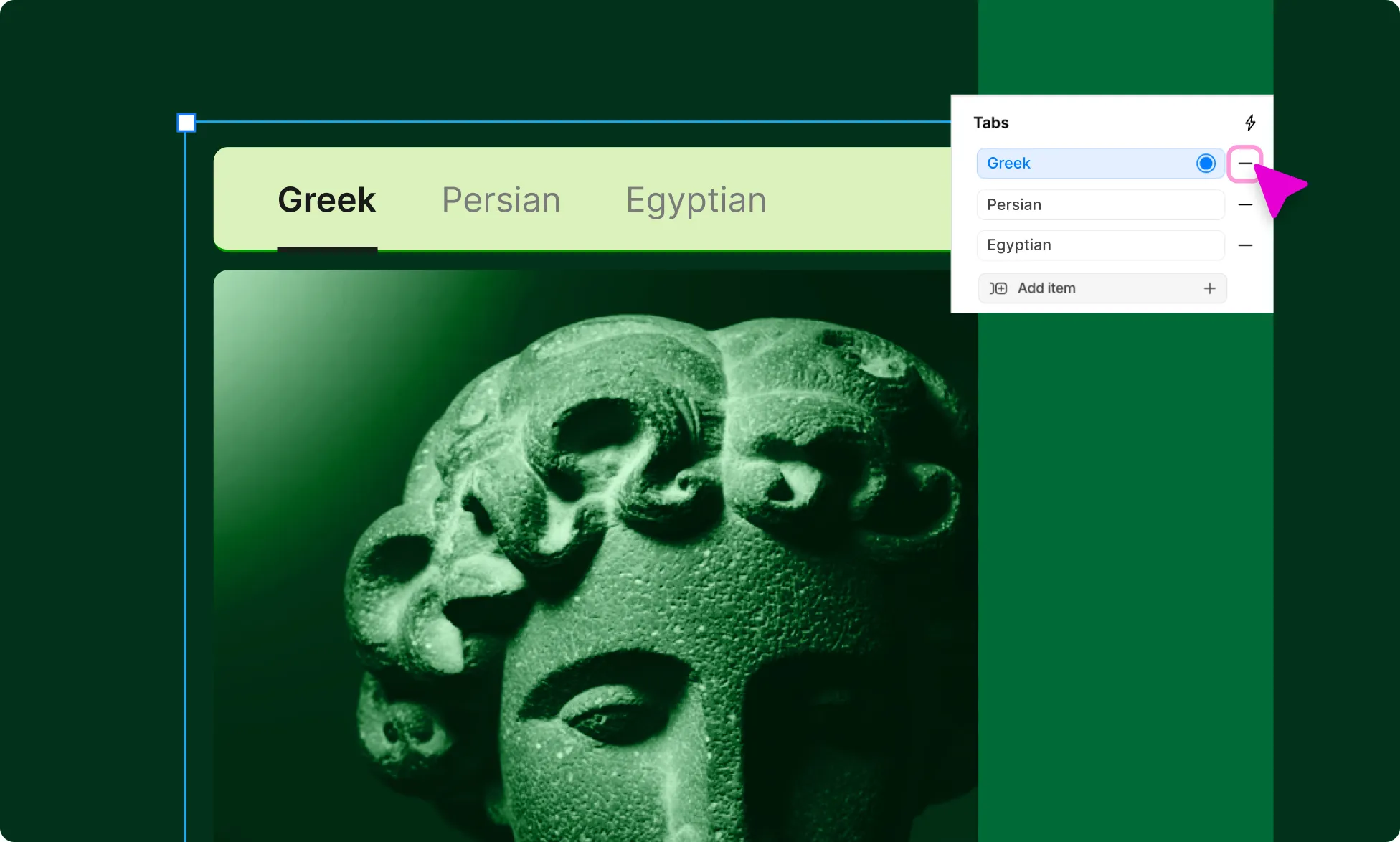
- Select the Tabs element on the canvas.
- Go to the Design tab in the Right Panel.
- Under the Tabs section, click the Minus (–) icon next to the Tab Item you want to remove.
How to Rename a Tab Item
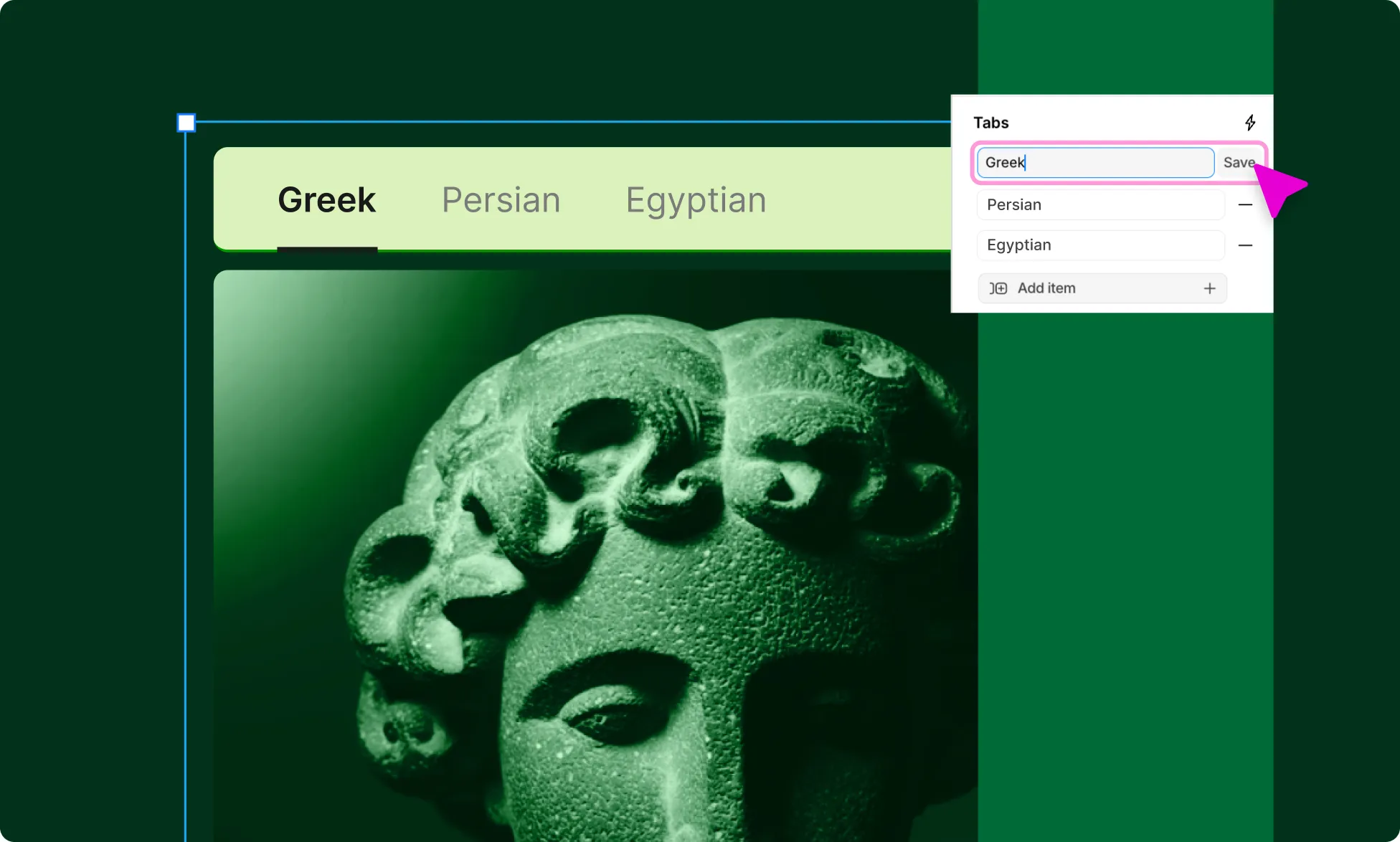
- Select the Tabs element on the canvas.
- Go to the Design tab in the Right Panel.
- Under the Tabs section, double-click on the Tab Item you want to rename.
- Type the new name and click Save.
How to Reorder a Tab Item
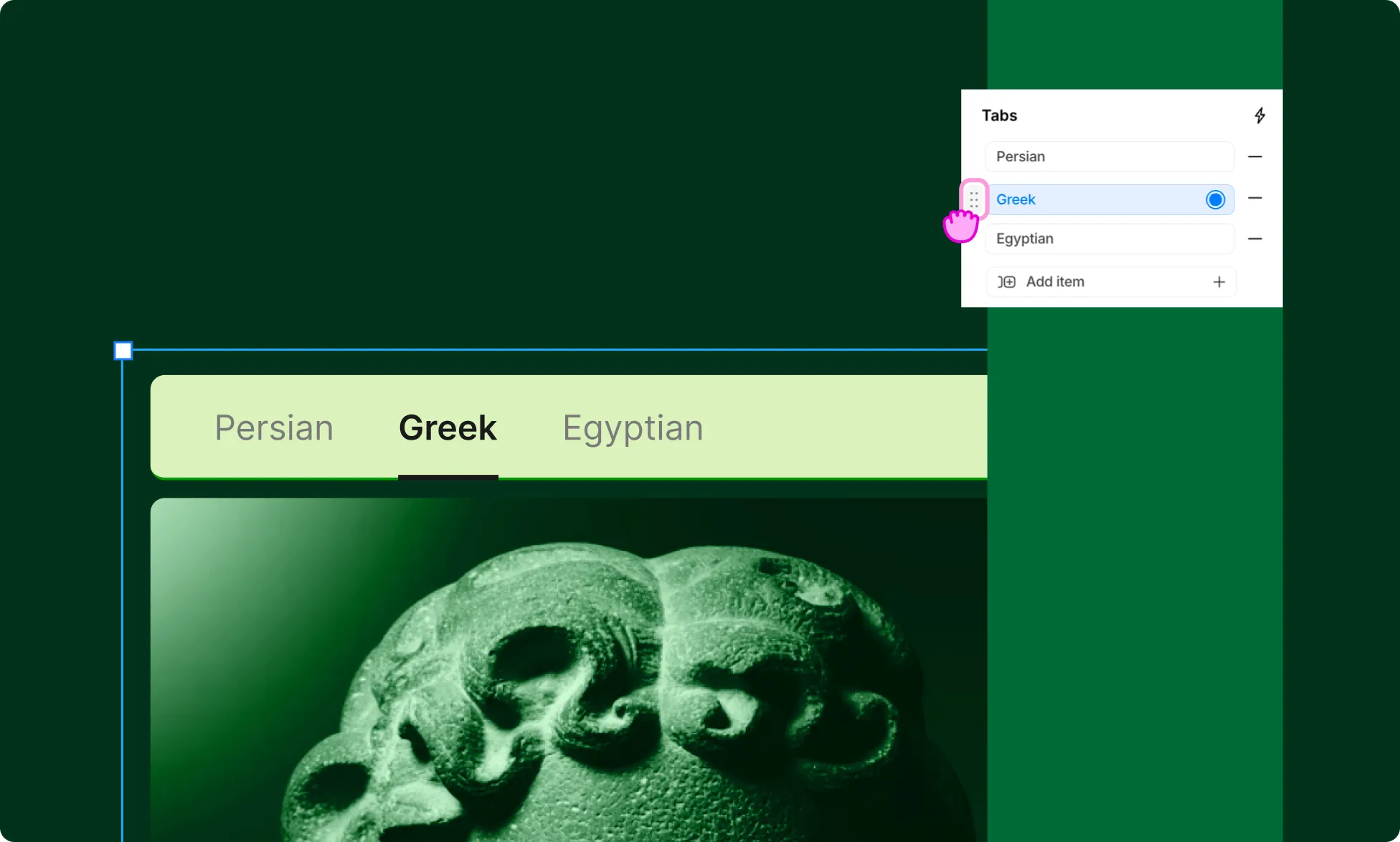
- Select the Tabs element on the canvas.
- Go to the Design tab in the Right Panel.
- Under the Tabs section, use the toggle next to any Tab Item to drag it to your desired position.
How to Add Content to a Tab
- Select the Tabs element on the canvas, then go to the Design tab in the Right Panel.
- Under the Tabs section, select the Tab Item you want to add content to.
- Open the Insert panel and drag any element to Tab Pane → Holder on the canvas.
- Repeat for each Tab.
How to Set Tab Transition Animation
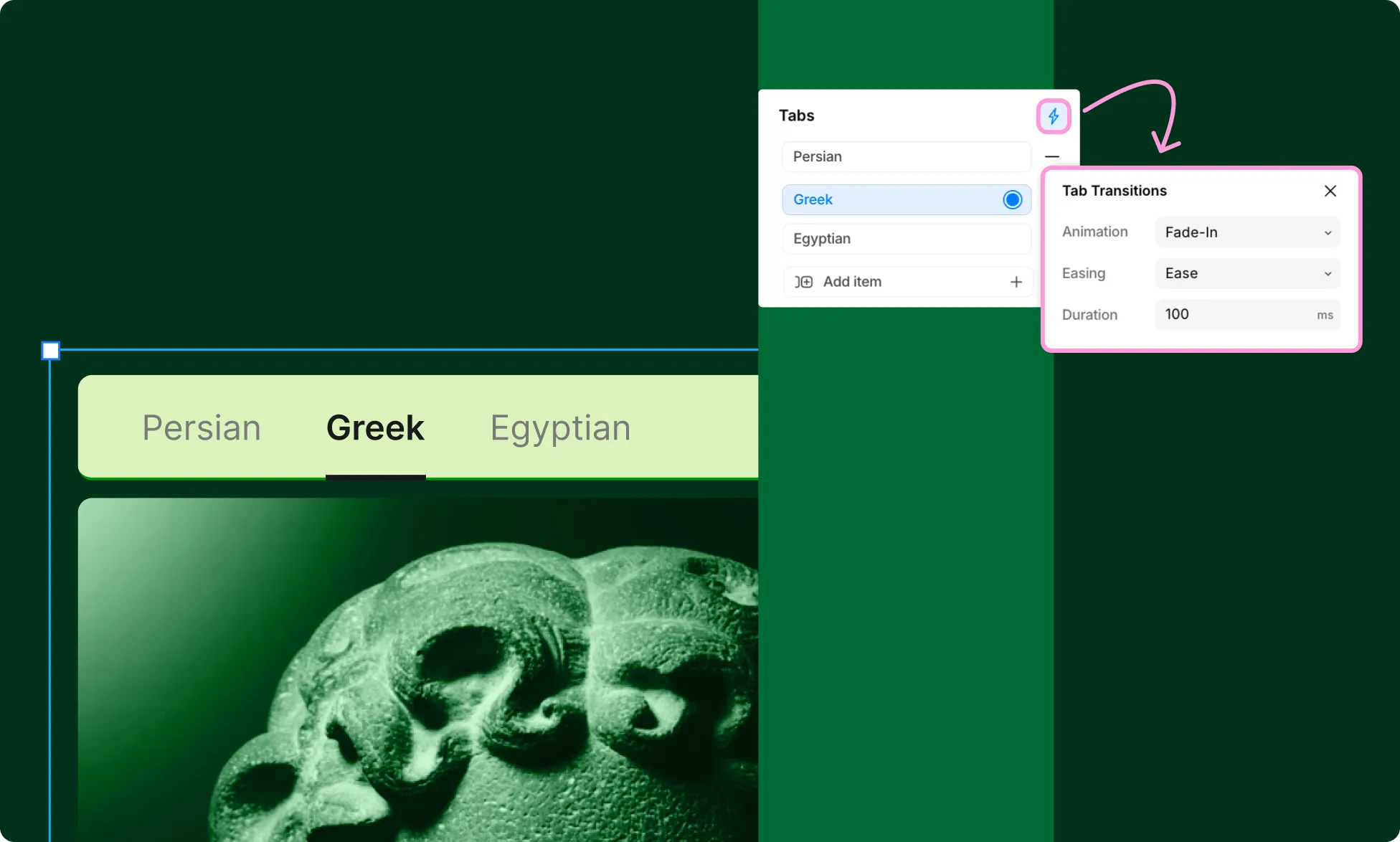
- Select the Tabs element on the canvas.
- Go to the Design tab in the Right Panel.
- Under the Tabs section, click the Lightning icon to access the Tab Animation panel:
- Animation – Choose the entry transition style for tab content.
- Easing – Controls the acceleration of the animation. Options include Linear, Ease, Ease-in, Ease-out, and Ease-in-out.
- Duration – Sets how long the transition takes, in milliseconds.