Facebook Login allows visitors to sign in to your website using their existing Facebook account instead of creating a separate username and password. Connect Facebook Login through Kirki Apps to add a Log in with Facebook button to your Kirki login and registration forms. When users sign in, Facebook verifies their identity and redirects them back to your website.
What Is the Facebook Login App
The Facebook Login app is an integration available in Kirki Apps. Once connected, it allows visitors to authenticate on your website using their Facebook account.
To connect Facebook Login to Kirki, you’ll need to create an app in Meta for Developers, add Facebook Login to the app, and enter the generated App ID and App Secret into Kirki.
What You Need to Connect Facebook Login
- A Facebook account
- A Meta for Developers account
- A Facebook App with Facebook Login added
- Your website domain
- An App ID
- An App Secret
You’ll create the App ID and App Secret through Meta for Developers, then enter them into the Facebook Login app in Kirki.
Note: Social Login buttons can only be added to a Login/Registration Utility Page.
How to Get Facebook App ID and App Secret
- Go to Meta for Developers and sign in with your Facebook account.
- Click My Apps → Create App.
- Fill out App Details, enter your App name and Contact email.
- Choose Others from the use case filters, and again select Other from the end of the use cases list.
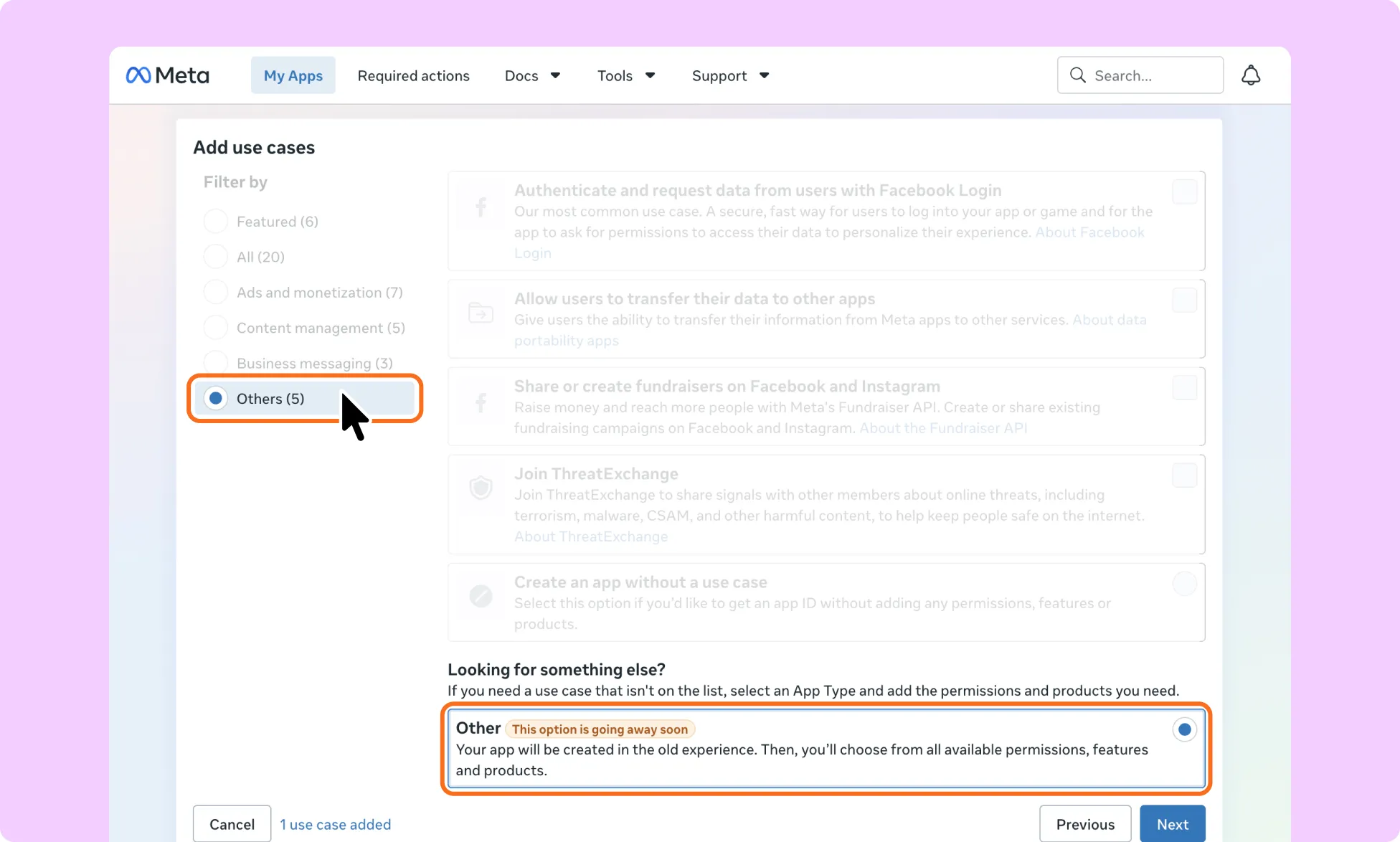
- Select Consumer for the App Type and create the app after verifying the App Details.
- Then, select Facebook Login as the product and go to Settings. Then from the Facebook Login App Configuration window in Kirki, copy the Redirect URI and paste it here in App Settings.
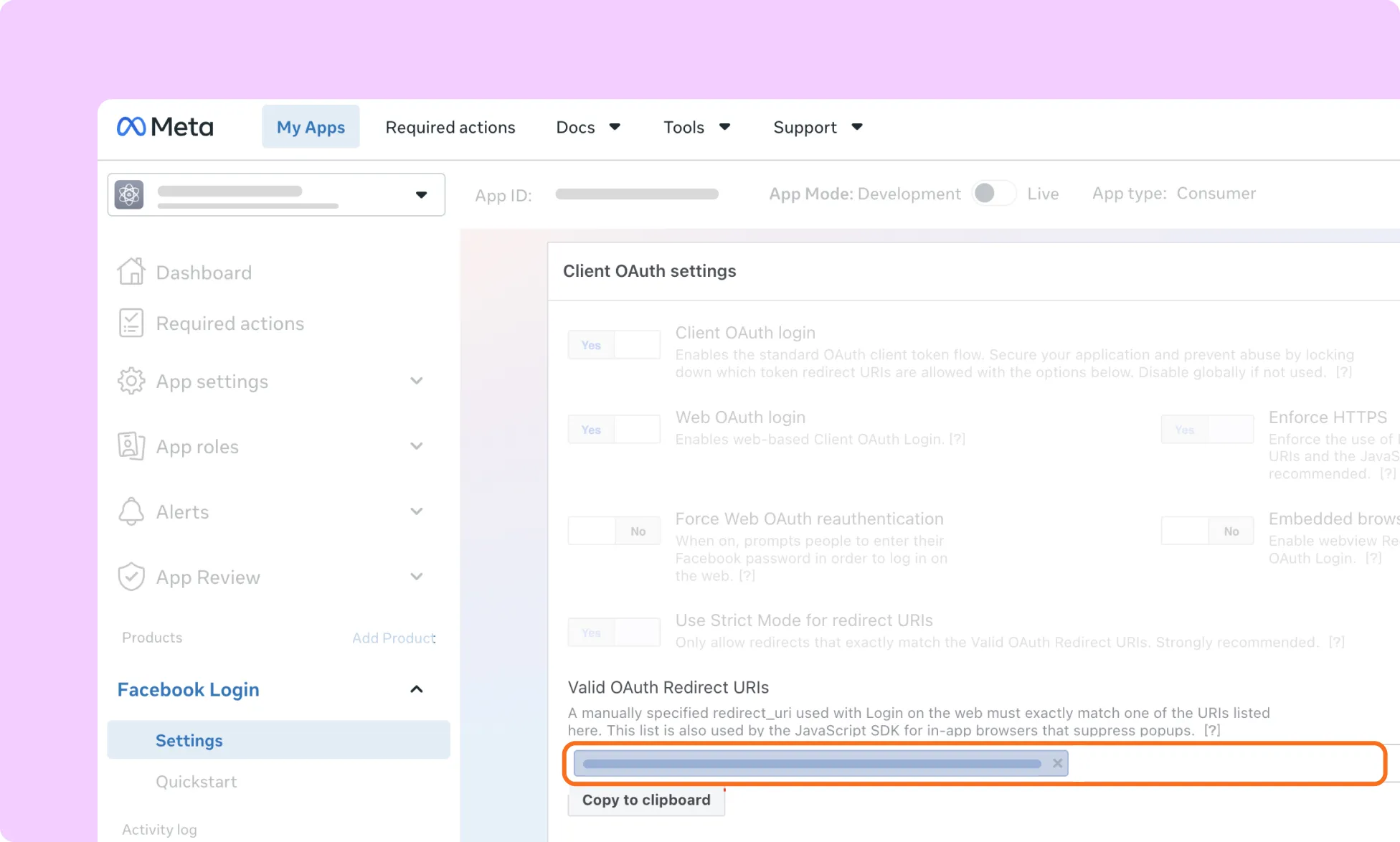
Redirect URIs have the following URL structure: “https://example.com/wp-json/FacebookLogin/v1/Auth/facebook-login”
Note: The Redirect URI shown in Kirki already contains your website’s actual domain. Copy the URI directly from Kirki; do not manually enter or modify it.
- Click Save Changes.
- Go to Settings → Basic in your Meta app.
- Add your website domain under App Domains.
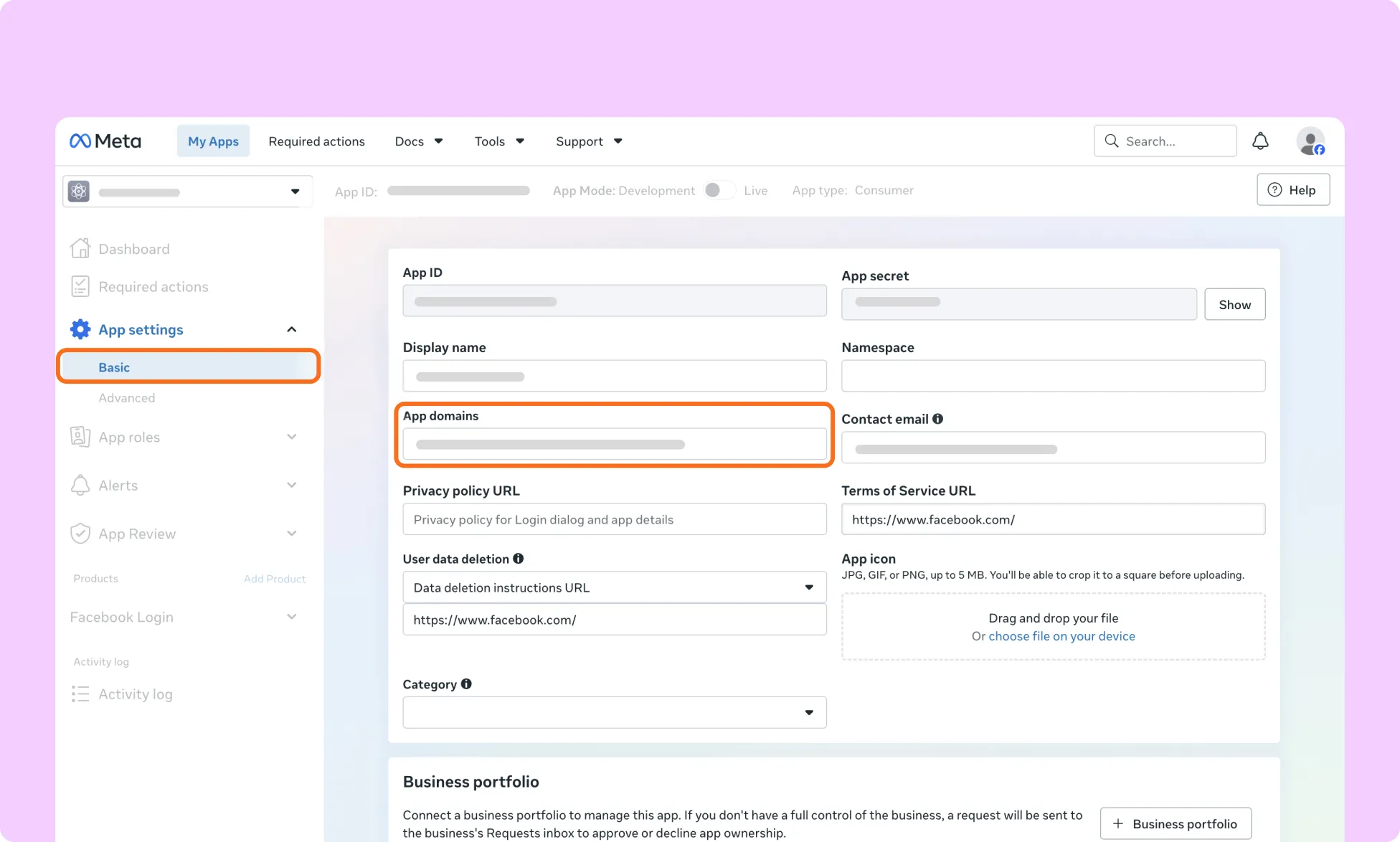
- Save changes and copy your App ID and App Secret.
How to Install the Facebook Login App in Kirki
- Open the Kirki Editor.
- Navigate to Apps from the left sidebar.
- Search for Facebook Login.
- Click Install.
How to Configure the Facebook Login App
- Once the app is installed, click the ellipsis (…) icon next to it.
- Select Configure.
- Enter your Facebook App ID, Facebook App Secret, and the Success URL where users should be redirected after successfully signing in.
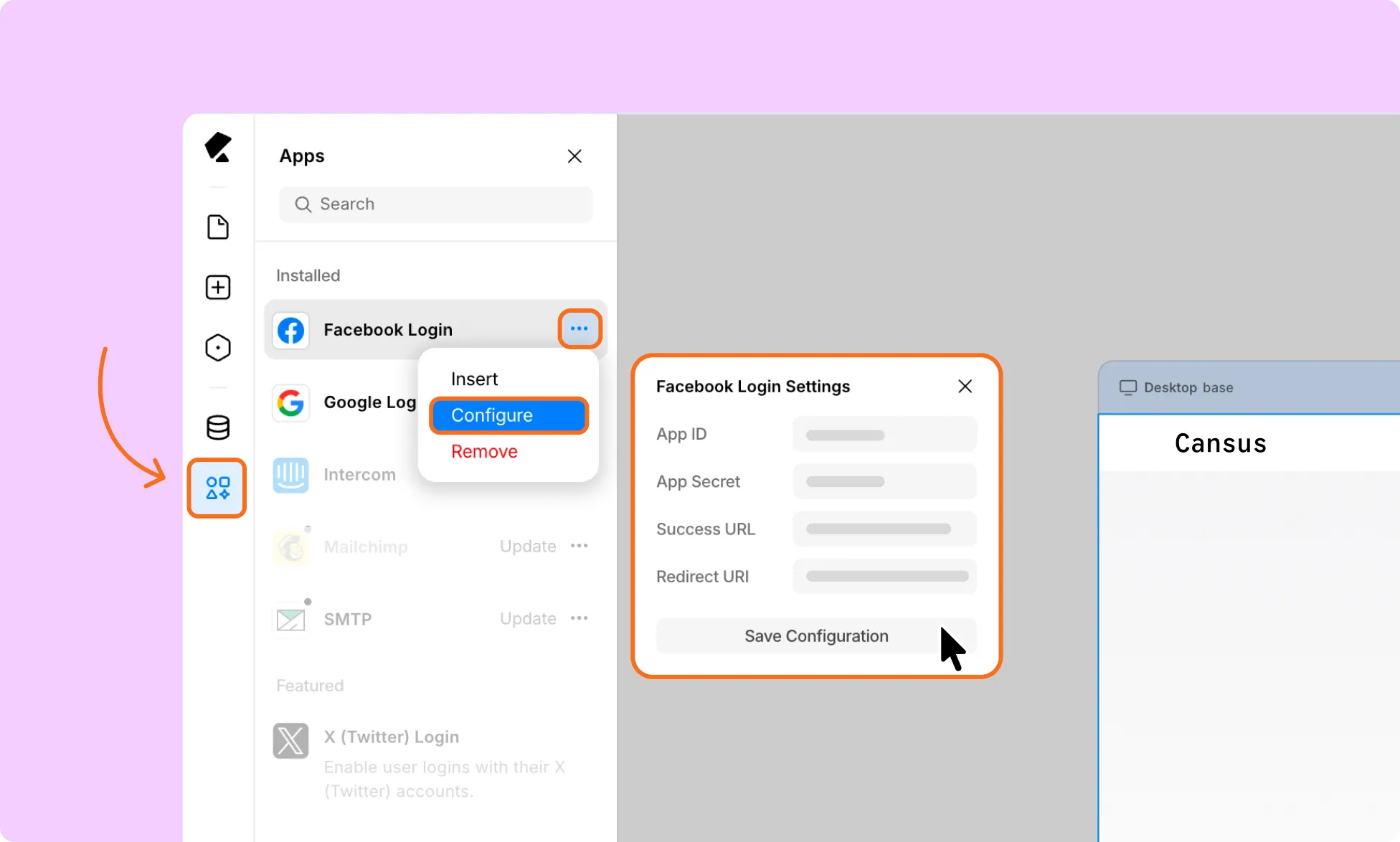
- Click Save Configuration and refresh the Kirki editor page.
- Click the ellipsis (…) icon next to Facebook Login.
- Select Insert.
- Drag the Facebook Login button into your login form.
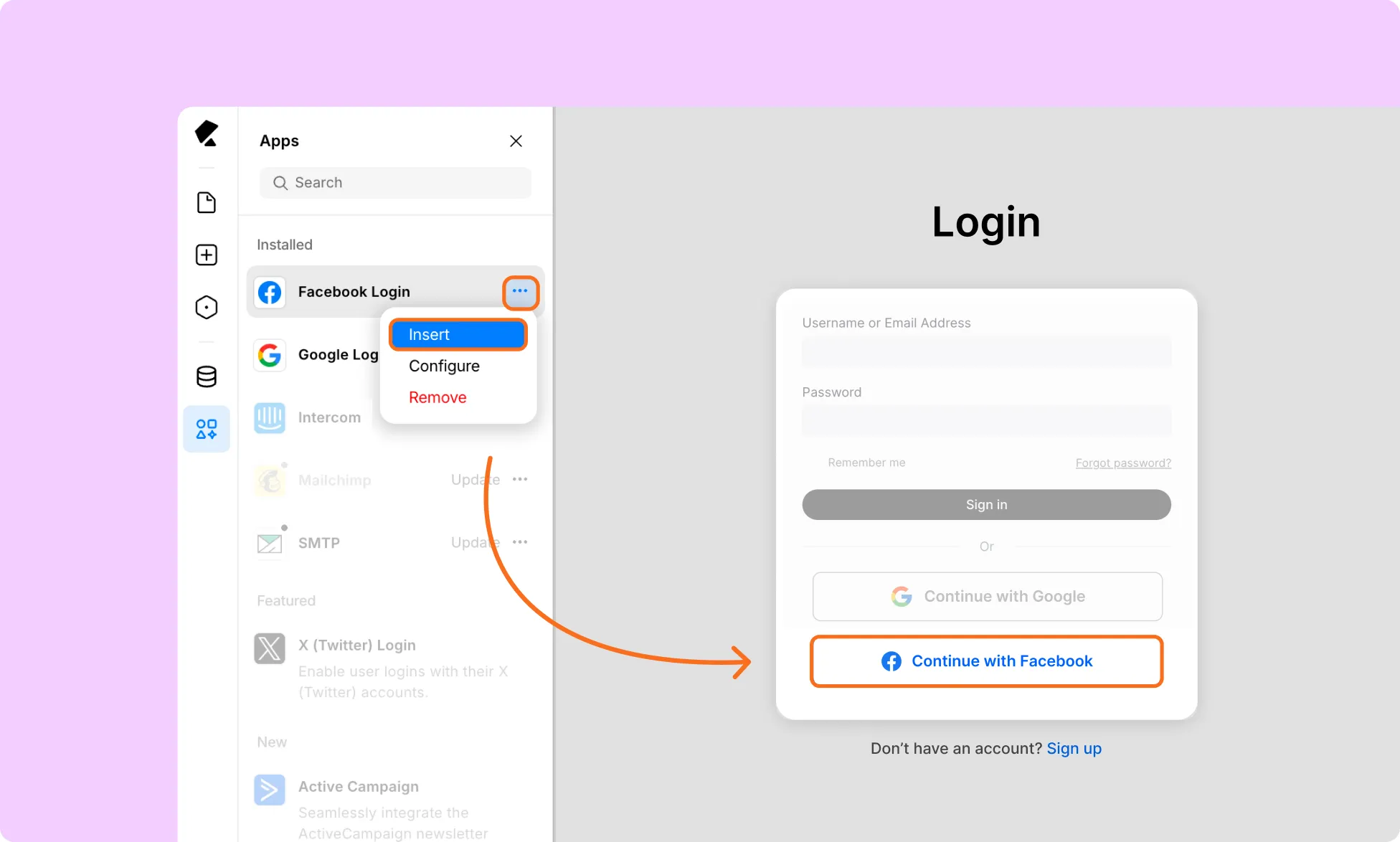
- Customize the button style if needed.
Your login form now includes Facebook Login.
Note: After configuring the Facebook Login app, refresh the Kirki editor to get this login button.
How to Test the Facebook Login Integration
- Publish your changes and open your website in a fresh browser window or private/incognito window.
- Open your login form.
- Click Log in with Facebook.
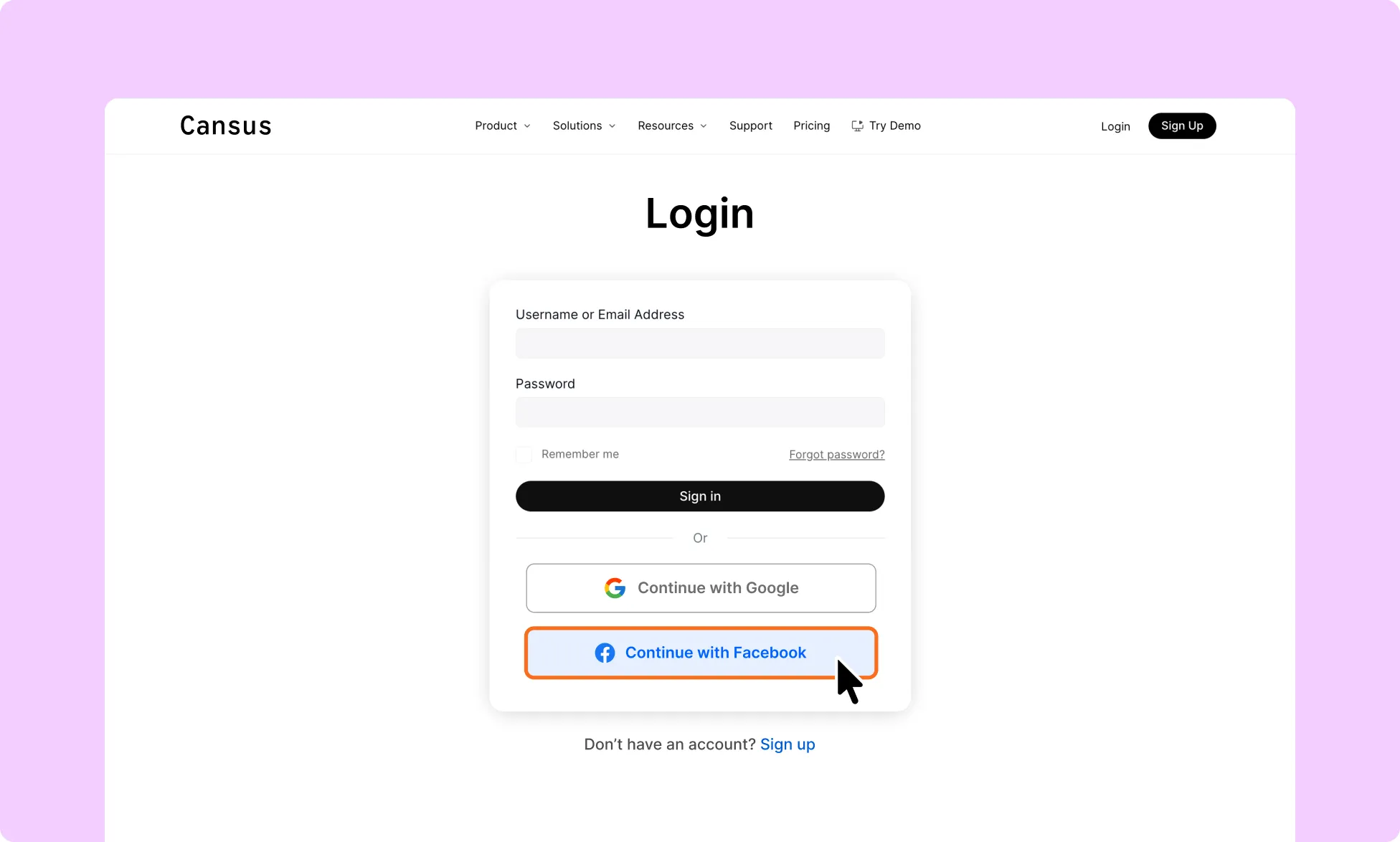
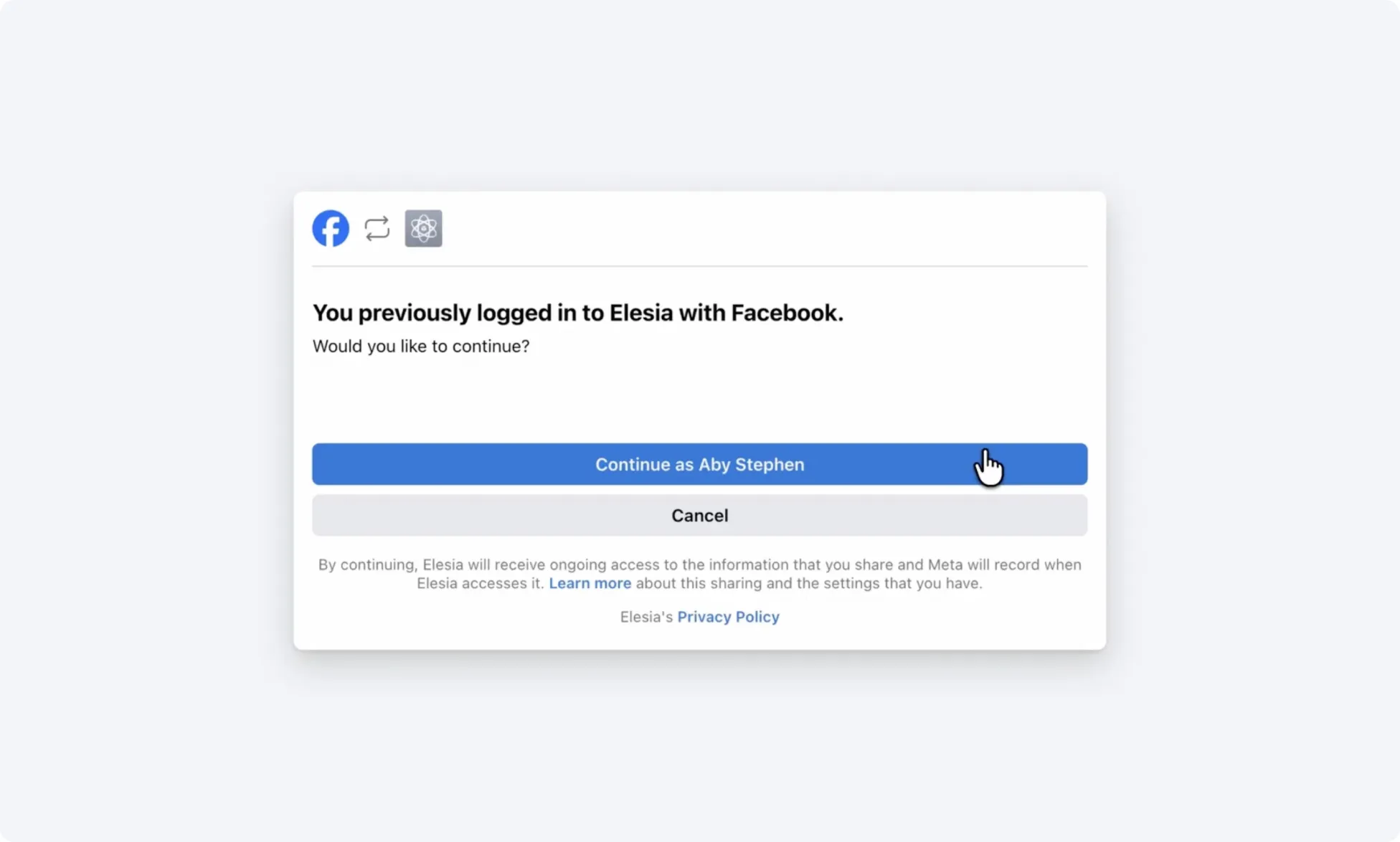
- Confirm that Facebook opens the Login and Permission screen.
- Sign in with your Facebook account and approve the requested access.
Note: If Facebook Login works for you but does not work for other visitors, check the App Mode in Meta for Developers. Switch your Meta app from Development to Live mode to allow other visitors to sign in.