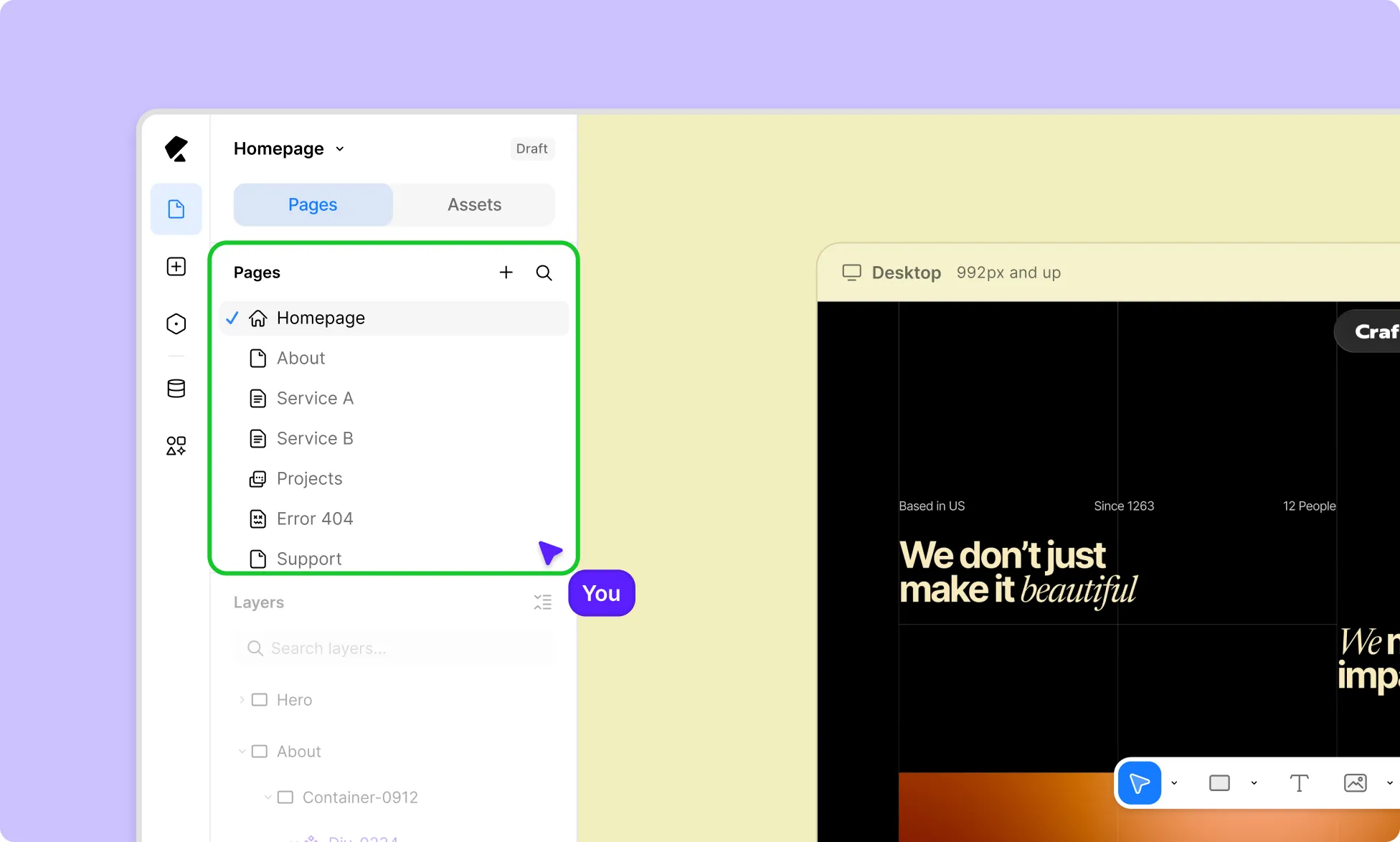
A website can consist of one or more pages, each geared towards a specific purpose.
In Kirki, you can create, manage, and design different types of pages to structure your site with ease.
Types of Pages in Kirki
Kirki lets you work with three main types of pages:
Kirki Pages
Kirki Pages are your standard pages. These are the pages you’ll use to design most of your website content, such as landing pages, listing pages, about pages, and more.
Dynamic Template Pages
Dynamic Template Pages are used to display individual items from a collection. The content updates automatically based on the item being viewed.
All you need to do is design the template and map it to the relevant collection fields you want to display.
Learn more about Dynamic Content.
Utility Pages
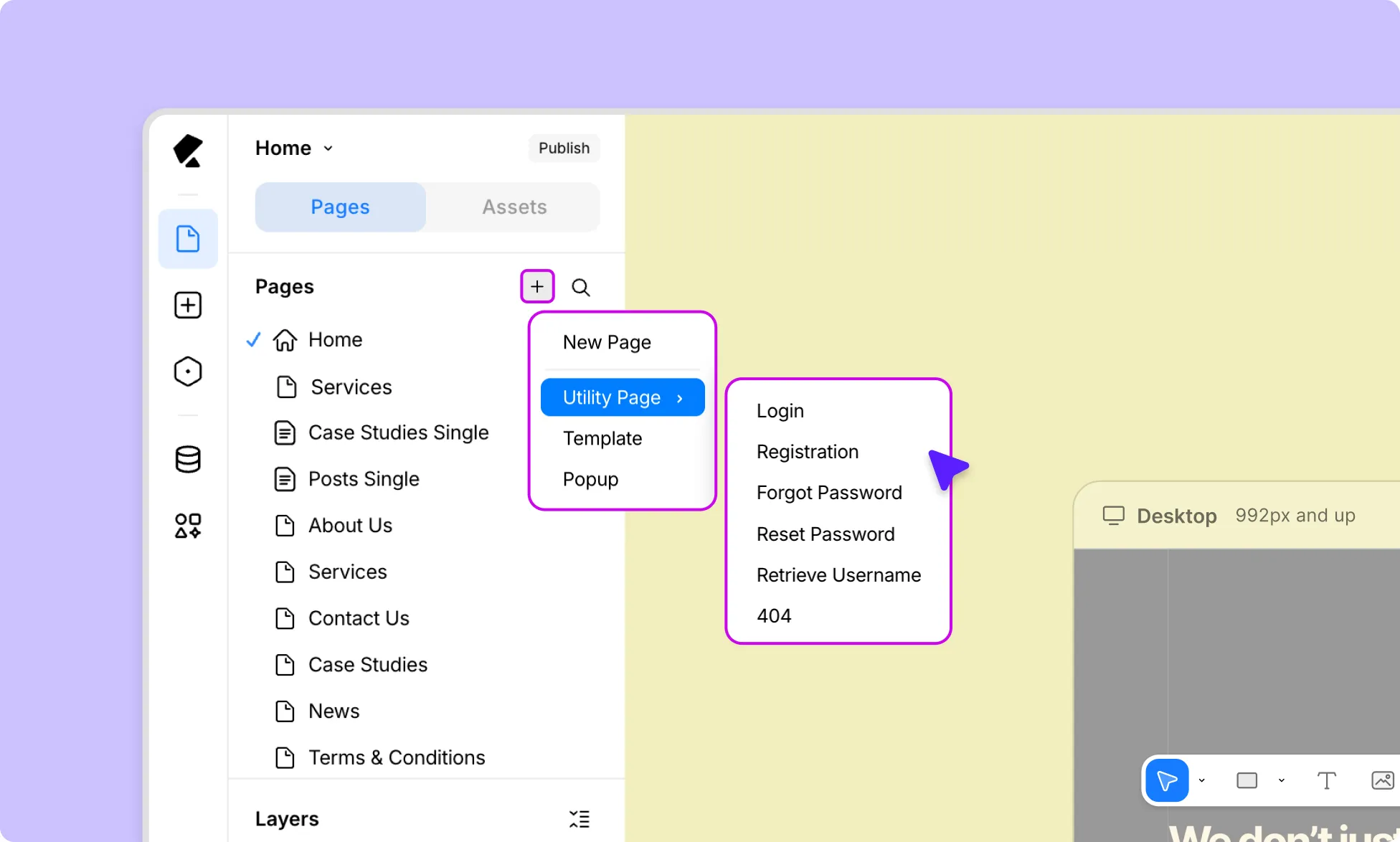
Utility Pages are essential, functional, and typically non-content pages that handle workflows like user access, account recovery, and error handling.
Since every website needs them, Kirki provides the following Utility Pages ready-made to save you time and effort:
- Login
- Registration
- Forgot Password
- Reset Password
- Retrieve Username
- 404 Page
How to Create Pages
When you first open the Kirki editor, a new page is created by default, so you can start designing right away.
But you can add more pages anytime from the Pages Panel on the Left Sidebar, either by creating new ones or duplicating existing ones.
The Pages Panel also acts as your anchor; returning from other sections means you’ll automatically land right back to Pages.
Tip: Press P to quickly open the Pages Panel.
Add a New Page
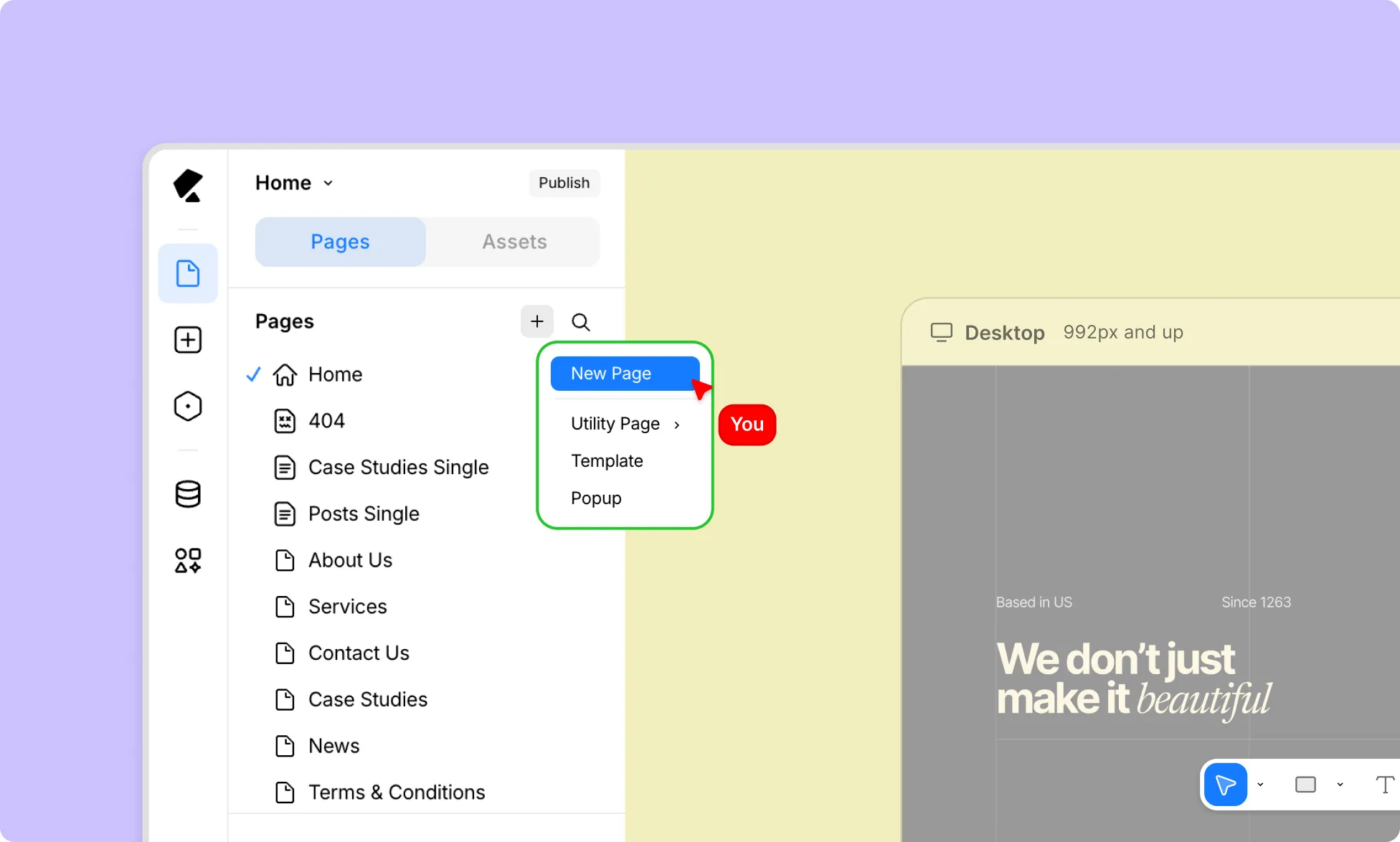
To create a new page:
- Go to the Pages Panel on the Left Sidebar.
- Click the plus (+) icon at the top and select New Page.
You’ll be automatically switched to the new page, ready for design.
Duplicate a Page
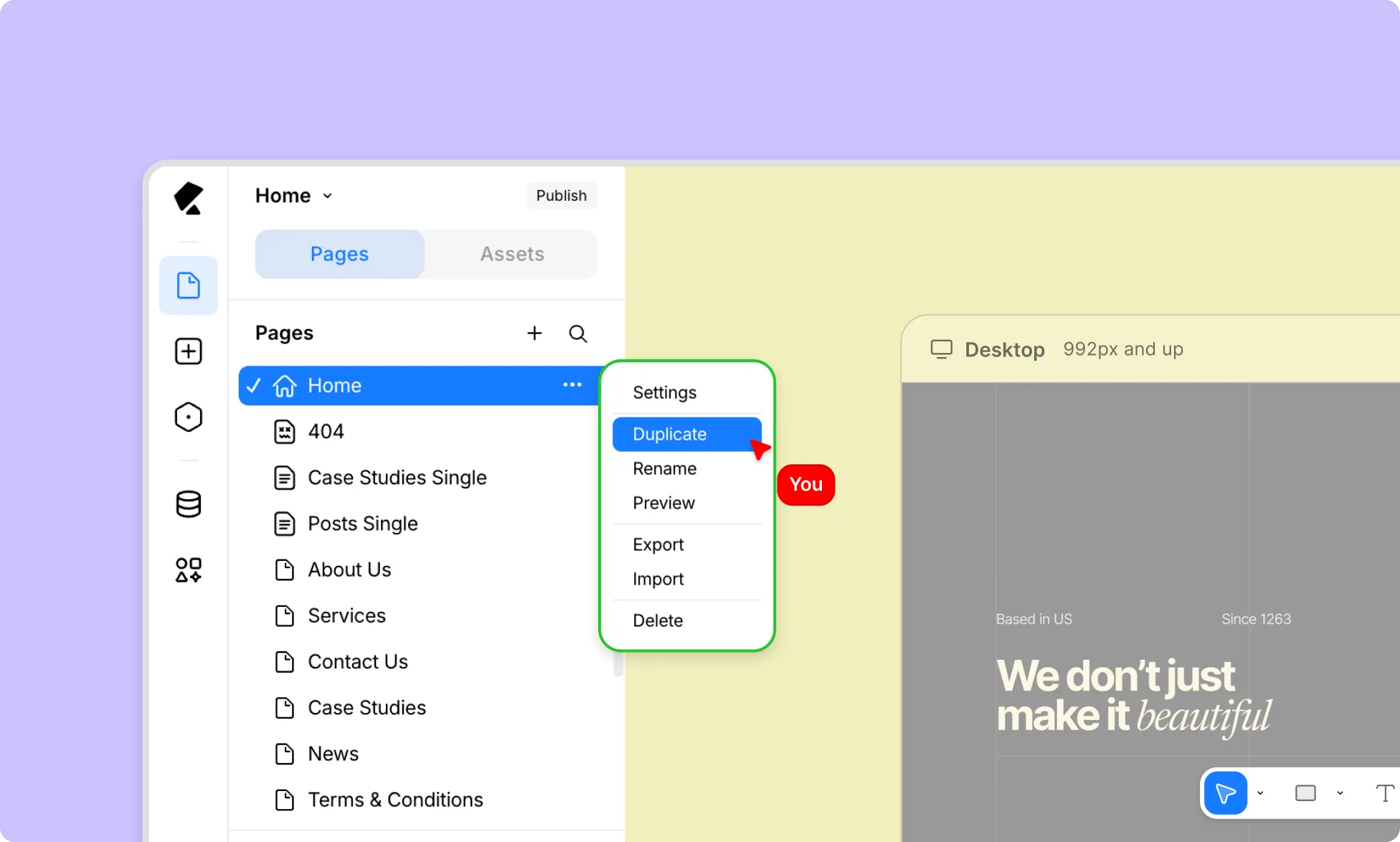
You can also duplicate an existing page to keep a backup of your current work, experiment with variations of your design, or quickly build a similar page without starting from scratch.
To duplicate an existing page:
- Go to the Pages Panel.
- Click the three-dot (…) icon next to the page you want to duplicate.
- Select Duplicate.
A new snapshot of the page will appear in the Pages Panel with the same name, followed by “(copy)” as a suffix.
Manage Pages
Rename Pages
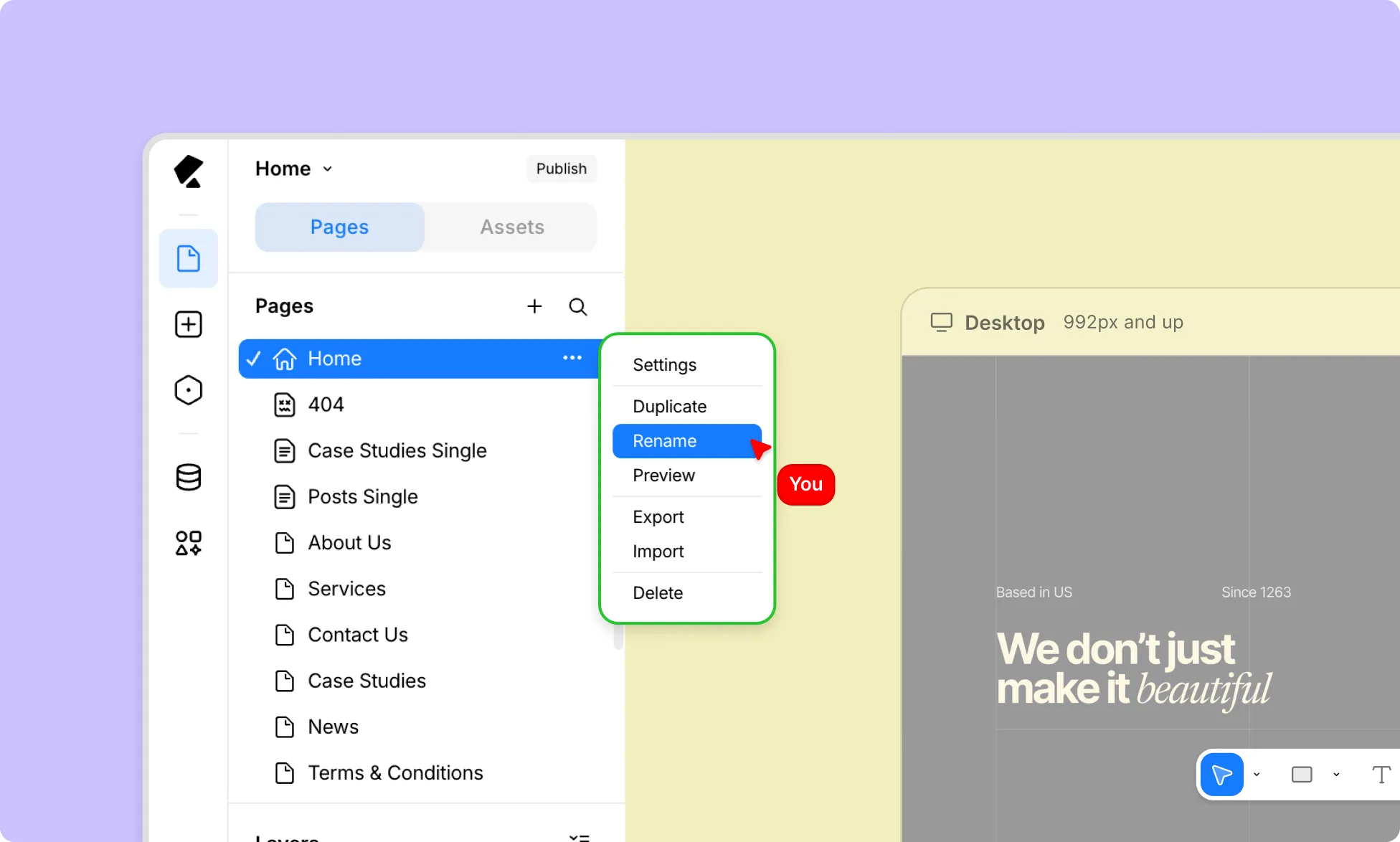
You can rename pages in Kirki in two ways on the Pages Panel:
- Double-click the page name, change the page name, and click outside of the page or press Enter.
- Click the three-dot (…) icon, select Rename, change the page name, and click outside of the page or press enter.
Delete Pages
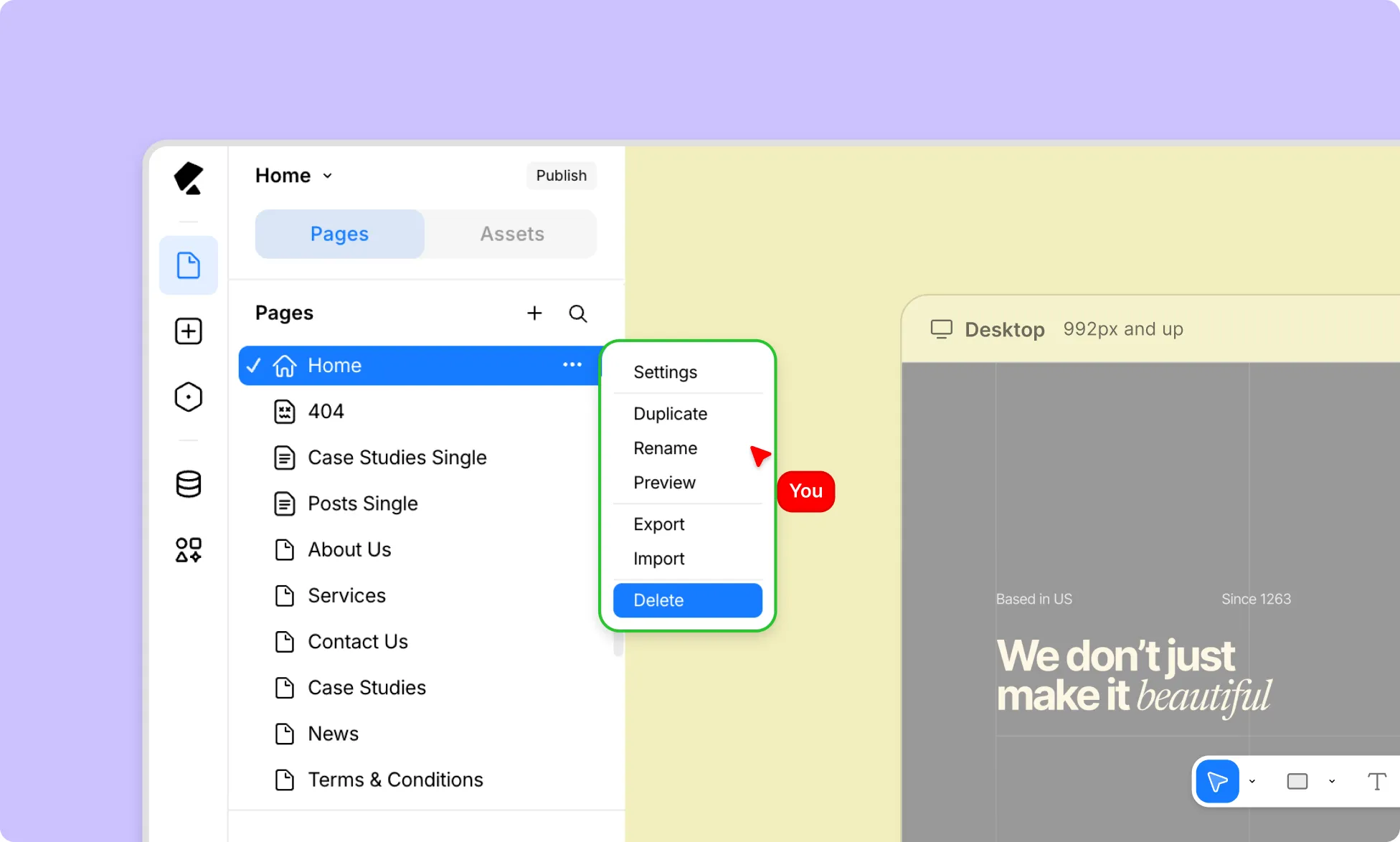
- From the Pages Panel, find the page you want to delete.
- Click the three-dot (…) icon next to it.
- Select Delete.
Find Items in the Pages Panel
Quickly locate pages, popups, or utility pages using search and filters.
Search
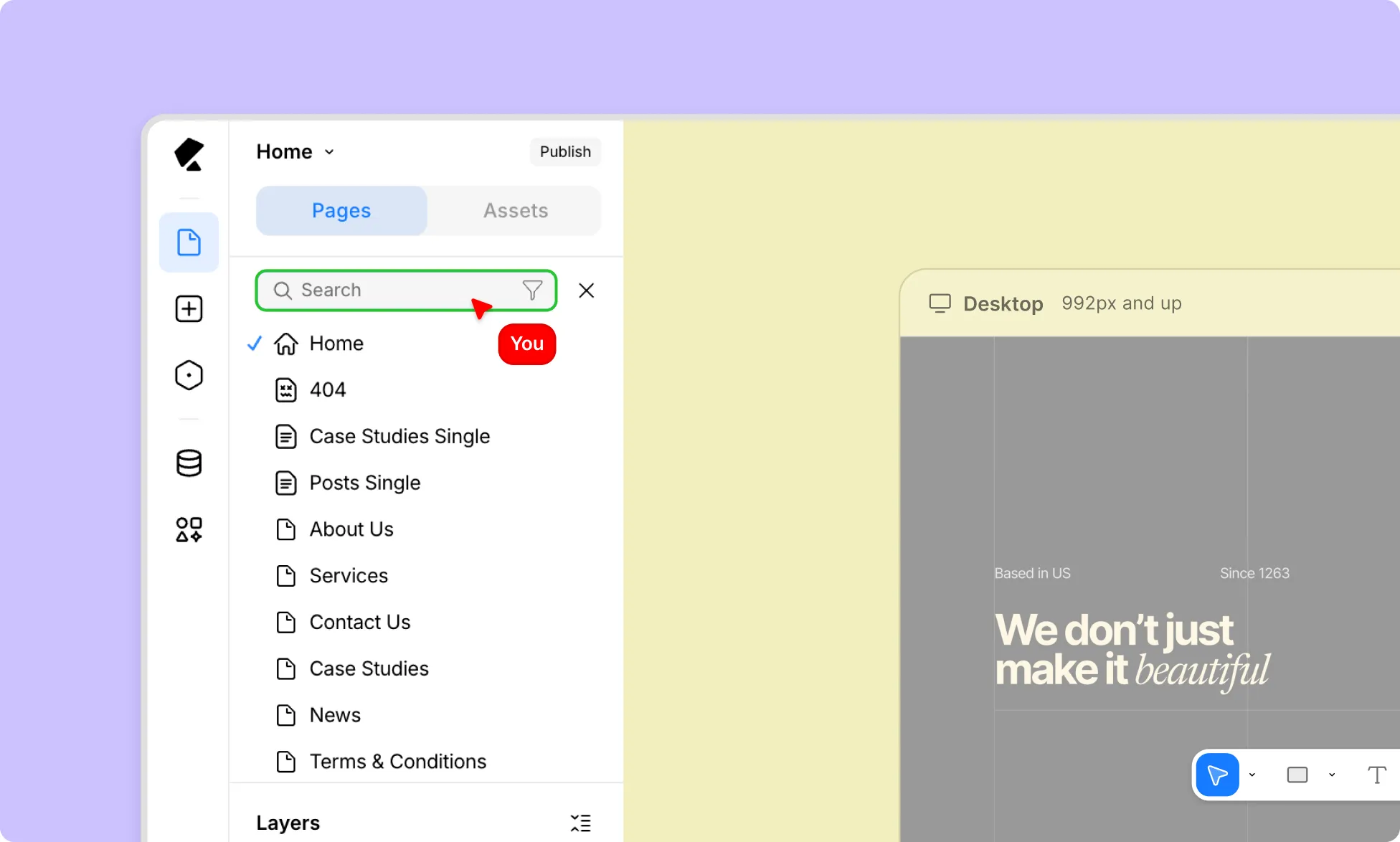
To search for a specific item:
- Click the magnifying glass icon.
- Type the name of the item you’re looking for.
Filter
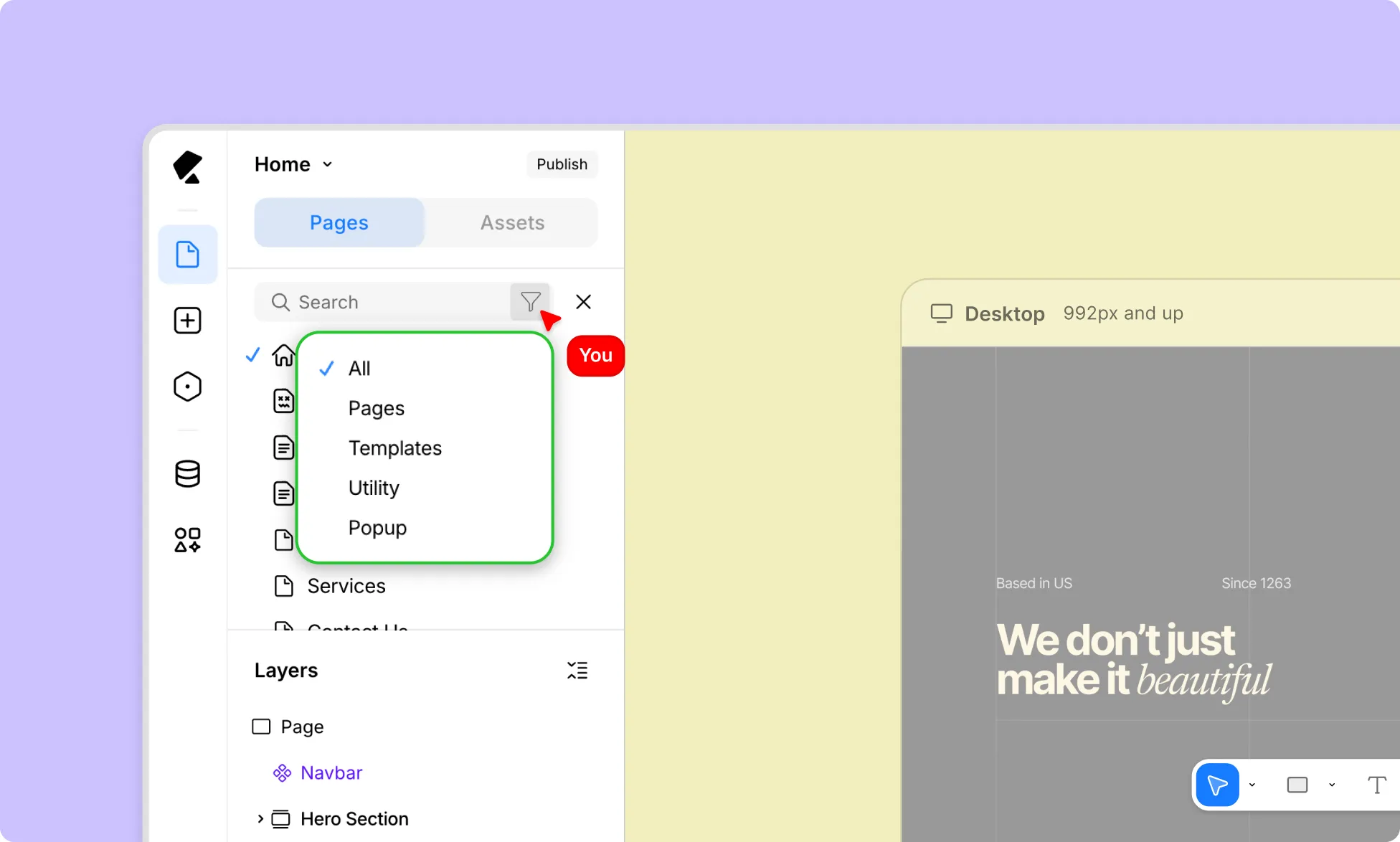
To narrow down results, you can also apply a category filter:
- Click the magnifying glass icon
- Click the filter icon.
- Set the item types you want to view (e.g., pages, templates, utility pages, and popups).
- (Optional) Enter a search term to refine results further.
Configure Page Settings
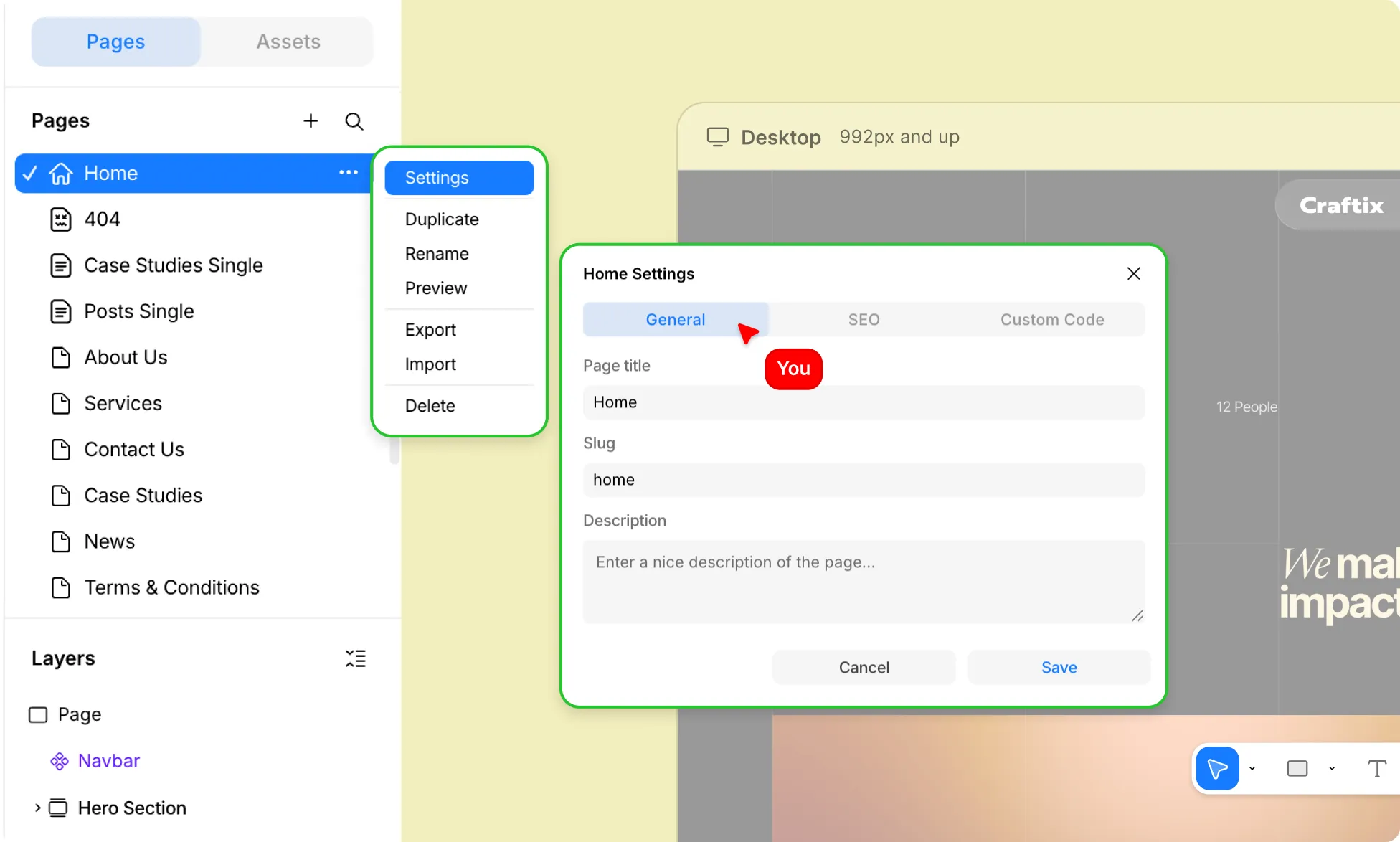
The Pages Panel also lets you directly access and configure a Page’s Settings.
- From the Pages Panel, locate the page you want to configure.
- Click the three-dot (…) icon next to it.
- Select Settings.
- From here, set the page’s Title, Slug, and Description
- Click Save to apply your changes.
From Settings, you can also access SEO Options and Custom Code.
Share & Transfer Pages
You can also easily share your work or reuse pages across projects by exporting and importing them.
Export Pages
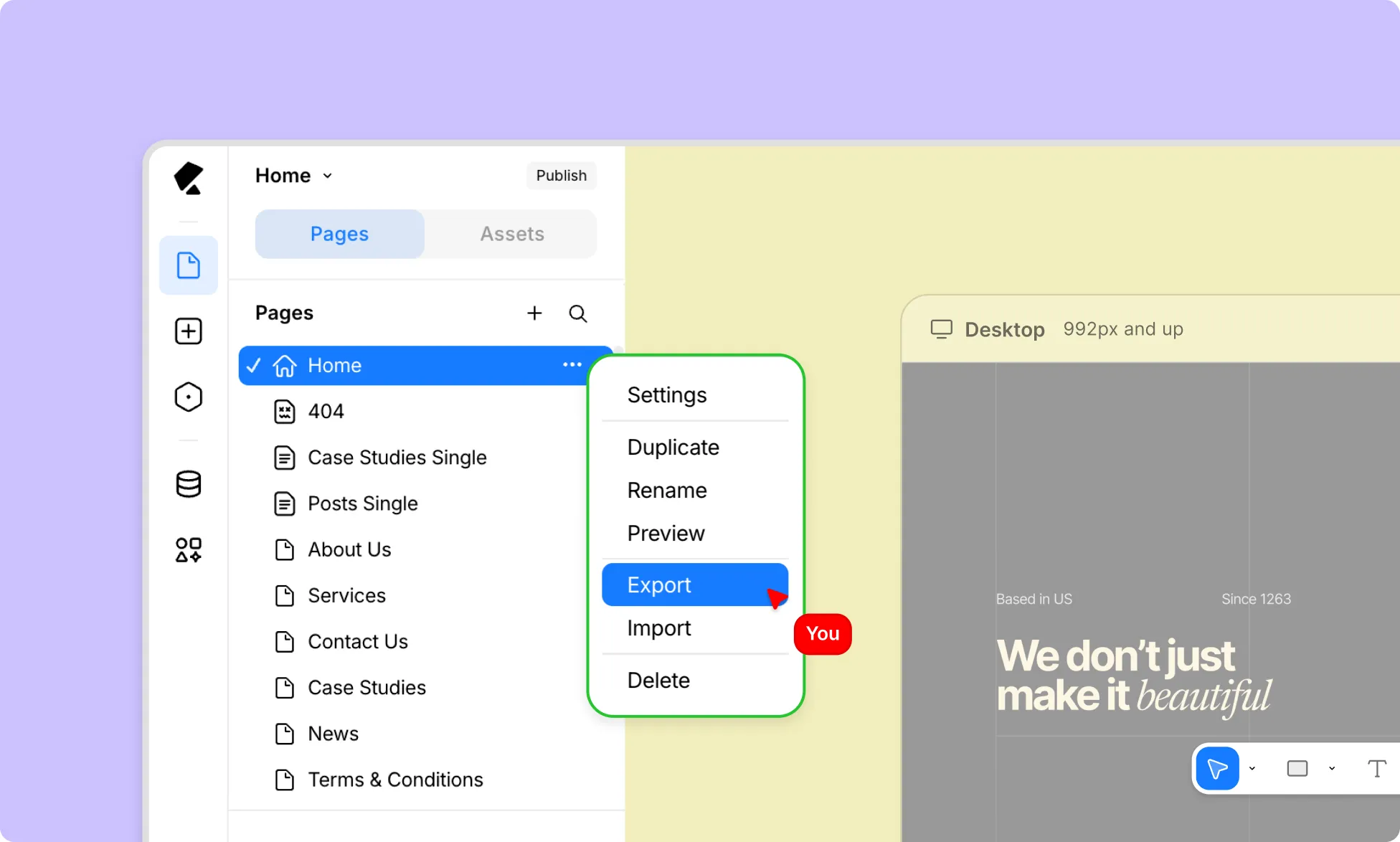
To export a page:
- From the Pages Panel, locate the page you want to export.
- Click the ellipsis (…) icon next to it and select Export.
- Optionally enter a Class Prefix and a File Name.
- Click the Export button to download the page as a zip file.
Import Pages
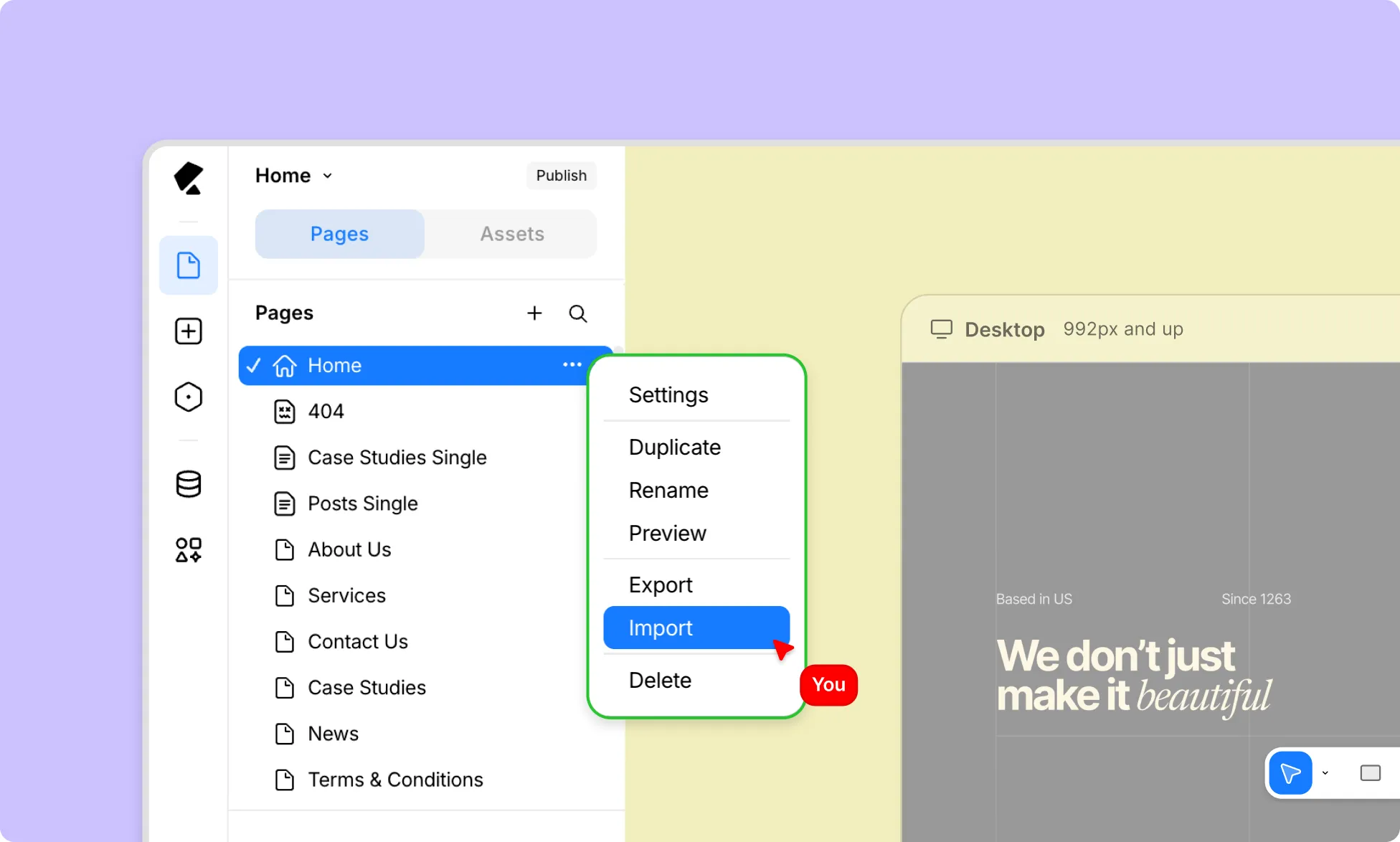
To import a page:
- From the Pages Panel, click the ellipsis (…) icon next to any page and select Import.
- Drag and drop your zip file or click Upload from Computer to select it from the file manager.
- Check Include Media if you want to import the page’s media files along with it.
- Click Import to finish.
The imported page will be added to your project and opened on the canvas.