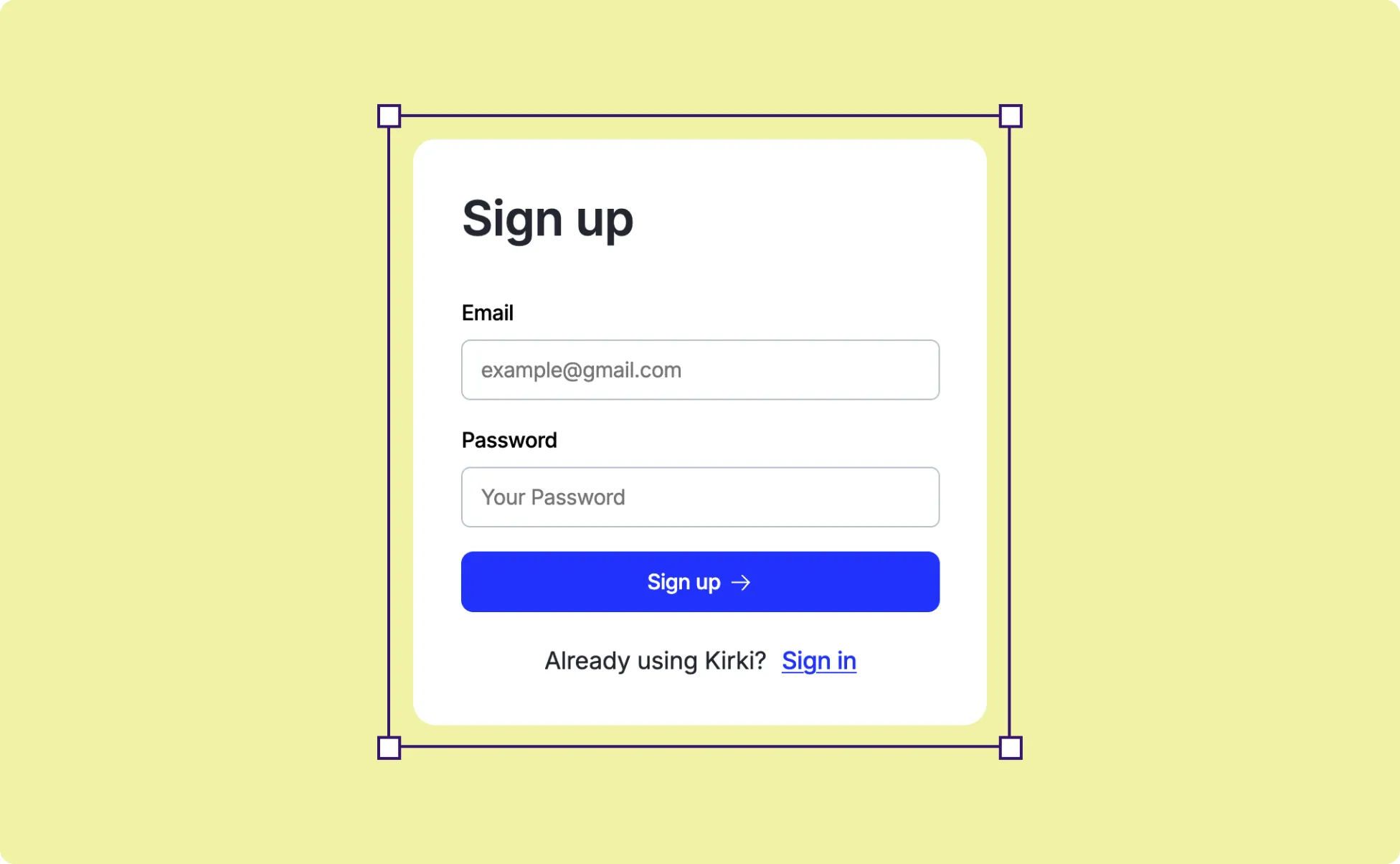
Just like your Login page, quickly create a registration page using Kirki’s pre-built Utility Pages with no complex setup or code required.
1. Create a Registration Page
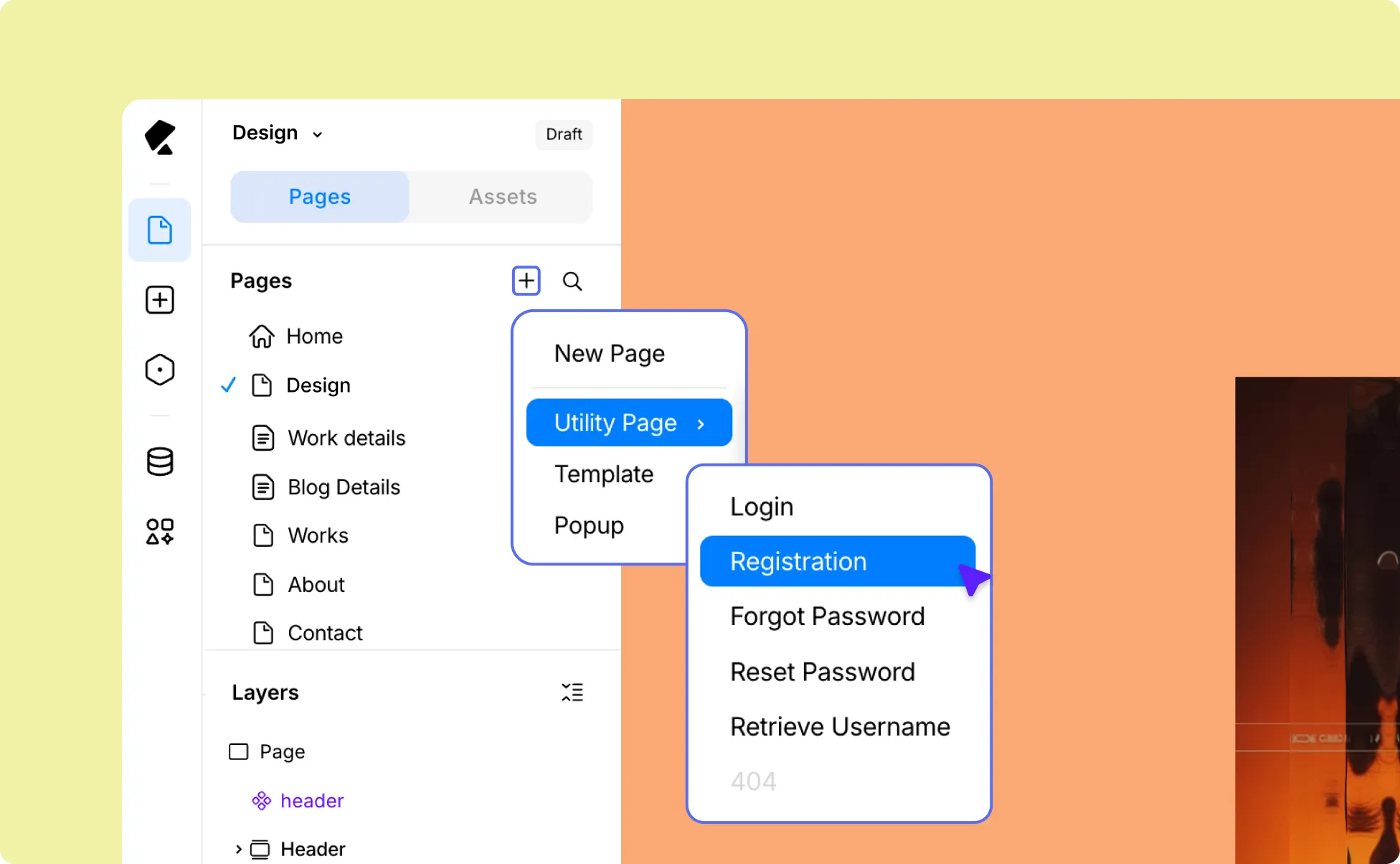
- Open the Kirki Editor.
- Go to the Pages panel on the Left Sidebar and click the plus (+) icon.
- Select Registration under Utility Pages.
Kirki will automatically add a pre-made registration form to the page.
2. Enable User Registration in WordPress
Before users can sign up, you must allow new registrations in WordPress:
- From your WordPress admin dashboard, go to Settings → General.
- Check the box Anyone can register.
- Save changes.
3. Customize & Configure the Registration Page
Now it’s time to style your registration form and fine-tune its settings:
Use the options in the Right Panel to style and arrange the form to match your website’s brand.
Then, head to Page Settings to update your Page Title, Slug, and Description as needed. You can also find the SEO and Open Graph settings tab right here.
Optionally, you can even enable social sign-ups by integrating Google and Facebook Login apps with Kirki.
Once everything looks good, make sure to save and Publish your page.
4. Preview and Test the Registration Page
If you’re already logged into your site, the registration page will appear blank when previewed through the editor or visited.
To preview and test it, open the page in an Incognito window, or log out of your site and refresh the page.
This ensures you see the registration form as a new visitor would.
5. Check Registered Users
After someone successfully registers through your site:
- Go to your WordPress Admin Dashboard.
- Navigate to Users → All Users.
You’ll see the newly created account listed there.