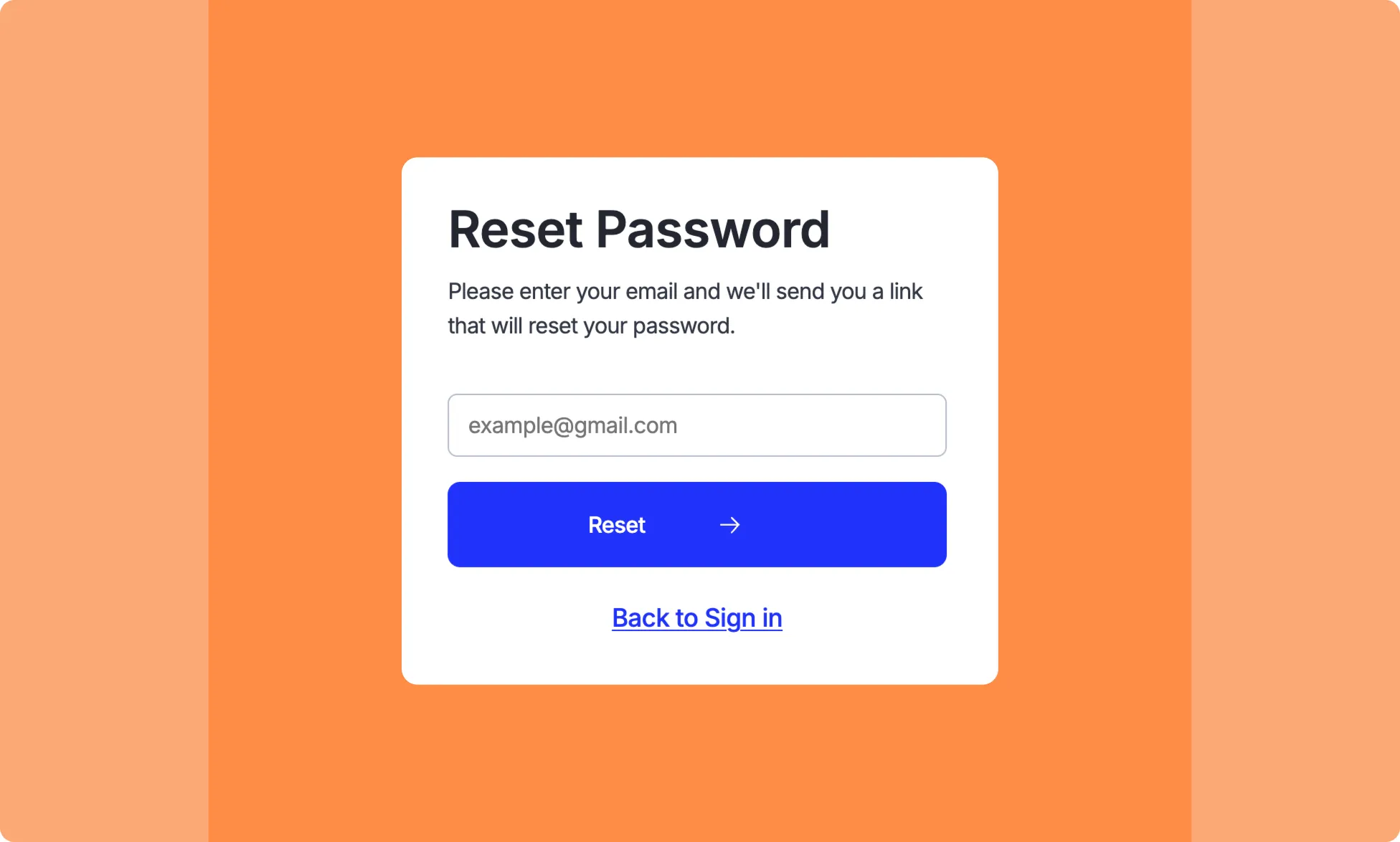
Using the Forgot Password Utility Page, easily set up a form to help users securely reset their passwords and regain access to their accounts.
1. Create a Forgot Password Page
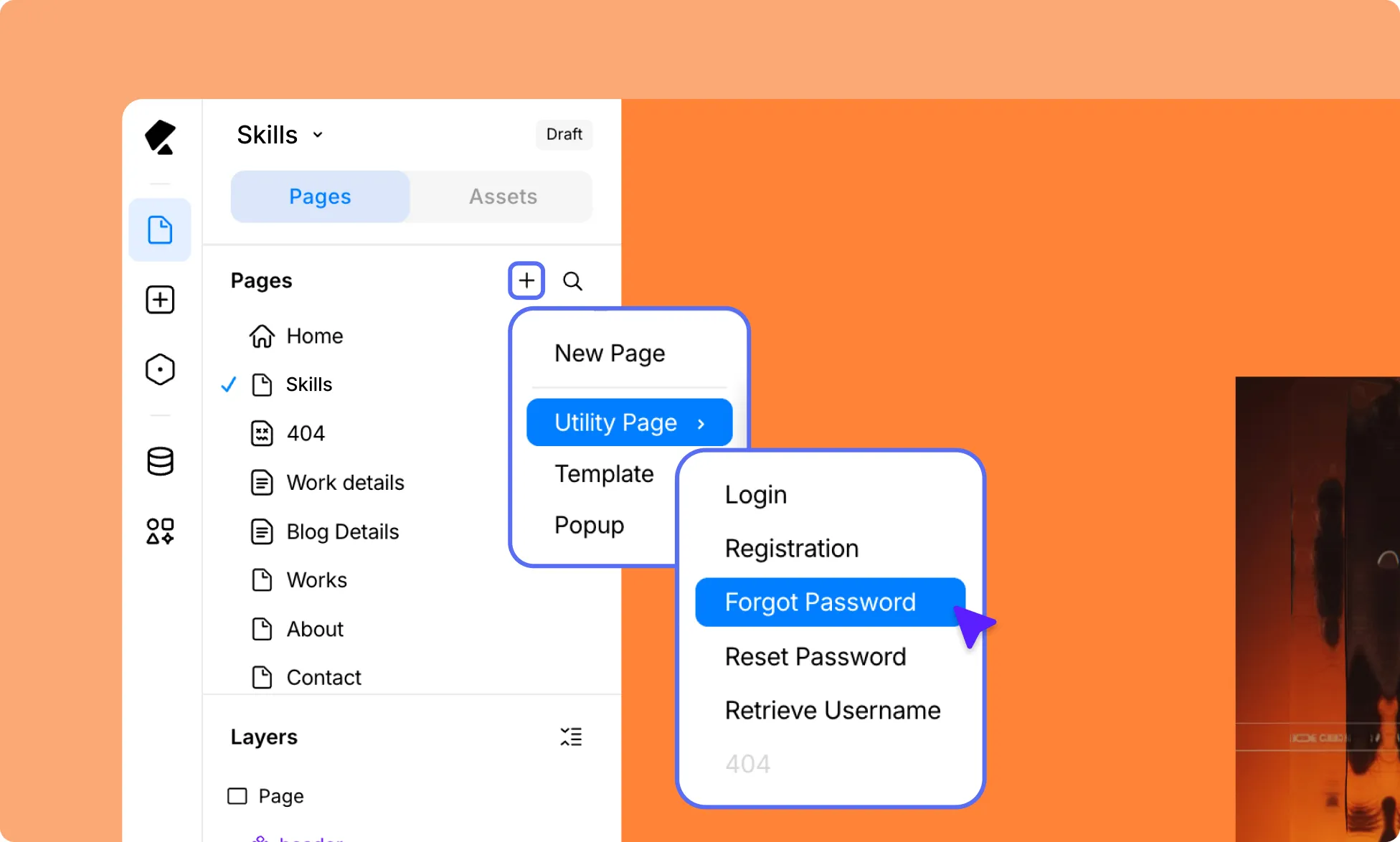
- Open the Kirki Editor.
- Go to the Pages panel in the Left Sidebar and click the plus (+) icon.
- Select Forgot Password under Utility Pages.
Kirki will automatically add a pre-made Forgot Password form to the page.
2. Install & Set Up SMTP
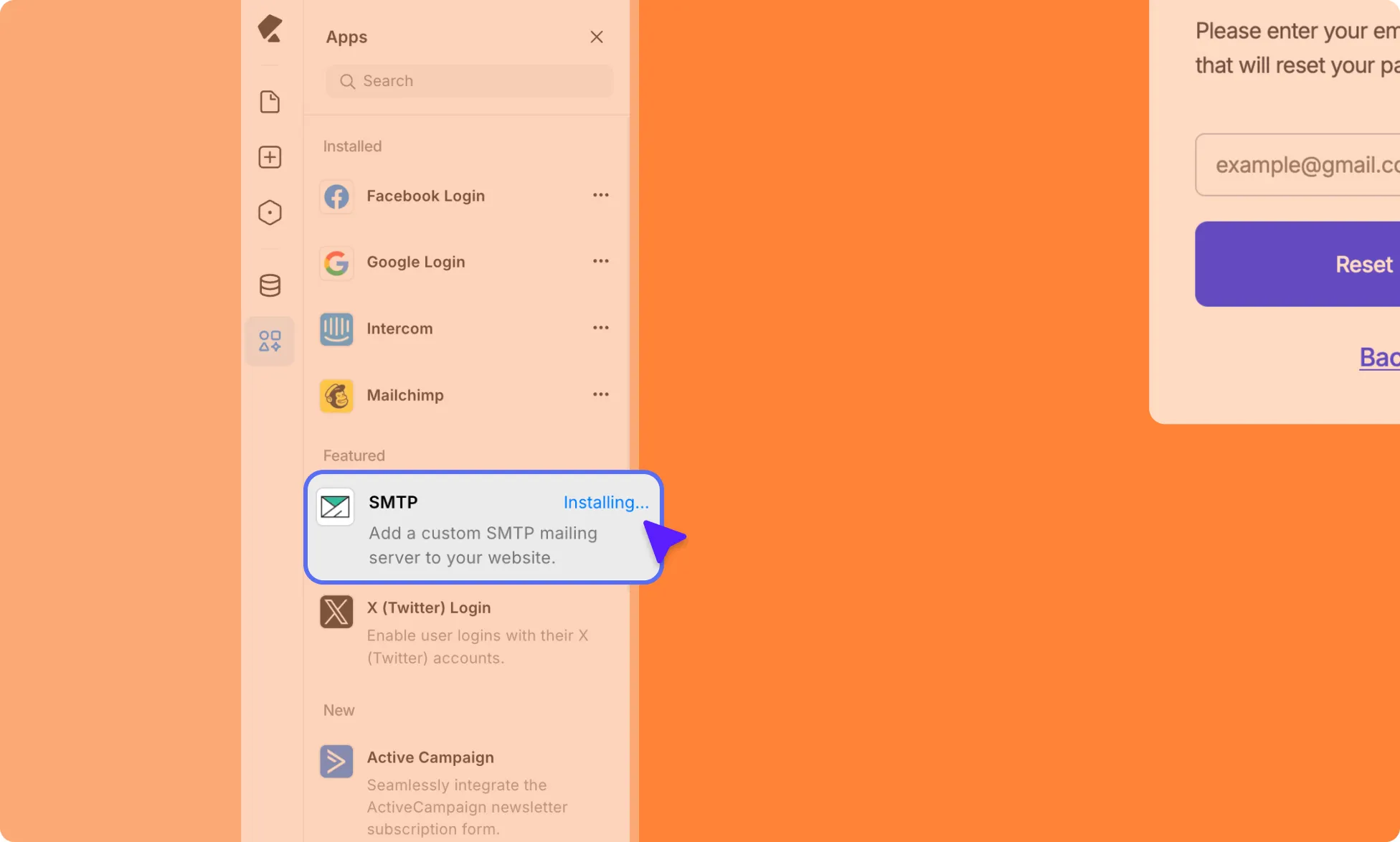
To securely automate sending emails through your form, you need to install and configure SMTP.
Install SMTP
- Open the Kirki Editor.
- Go to Apps from the Left Sidebar.
- Find SMTP and install it.
Configure SMTP for Gmail
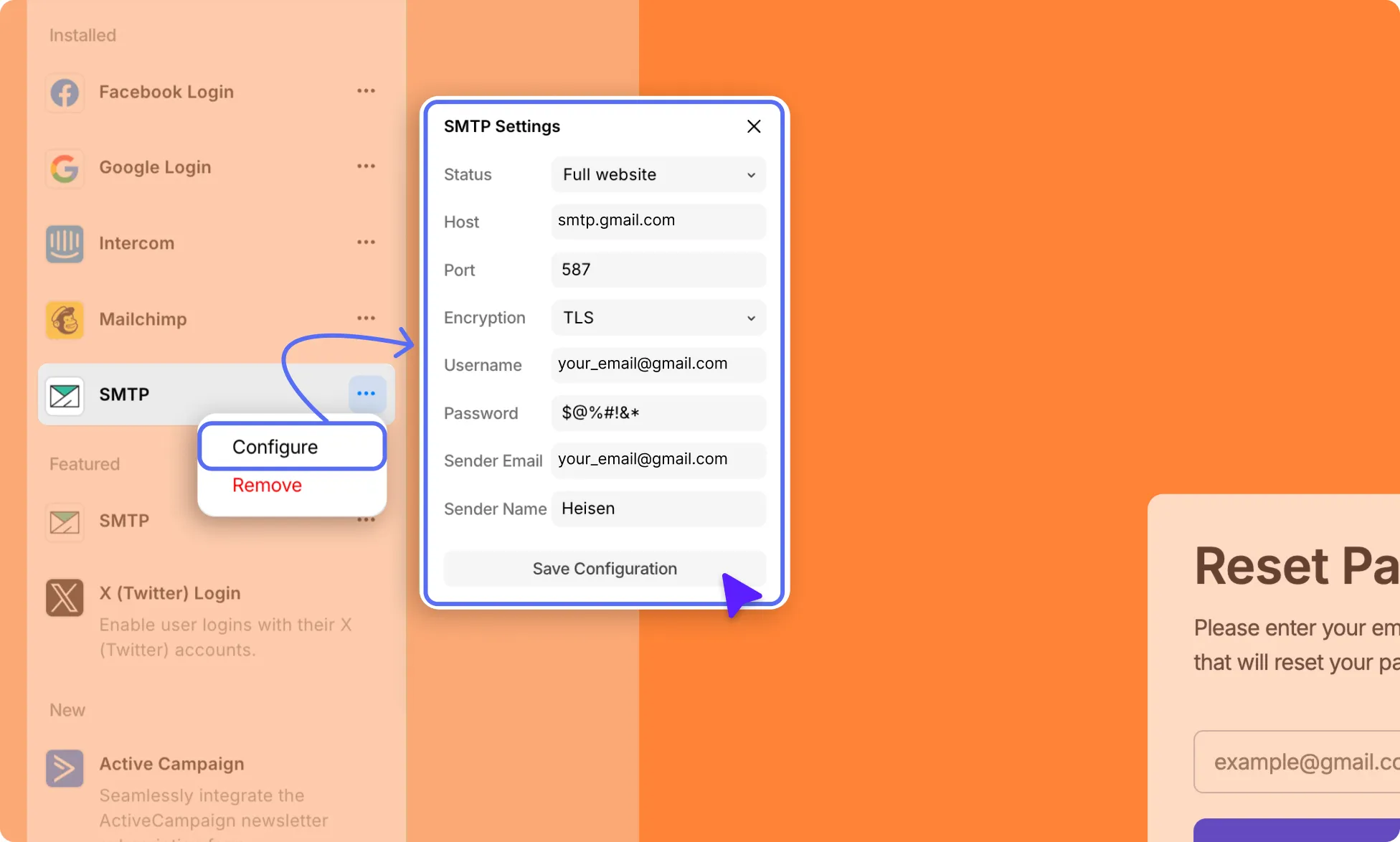
In this guide, we’ll walk you through how to set up SMTP for Gmail.
Step 1: Enable 2-Step Verification
- Go to your Google Account Security page.
- Find 2-Step Verification and turn it on.
Step 2: Generate an App Password
- After enabling 2-Step Verification, go to App Passwords.
- Name your app like “WordPressSMTP” or “KirkiSMTP.”
- Copy the 16-character password generated. This is your SMTP password, not your normal Gmail password.
Step 3: Enter SMTP Settings in Kirki
- In the Kirki Editor, go to Apps.
- Find SMTP, click the ellipsis (…) icon next to it, and select Configure.
- Set Status to Full Website.
- Fill in the following fields:
- Host: Use smtp.gmail.com.
- Port: 587 (TLS) or 465 (SSL).
- Encryption: TLS for 587 / SSL for 465.
- Username: Your Gmail address (e.g., [email protected]).
- Password: The 16-character App Password from Step 2.
- Sender Email: Your Gmail address (e.g., [email protected]).
- Sender Name: Your name or company name, as it will appear to email recipients.
3. Structure Your Email Content Template
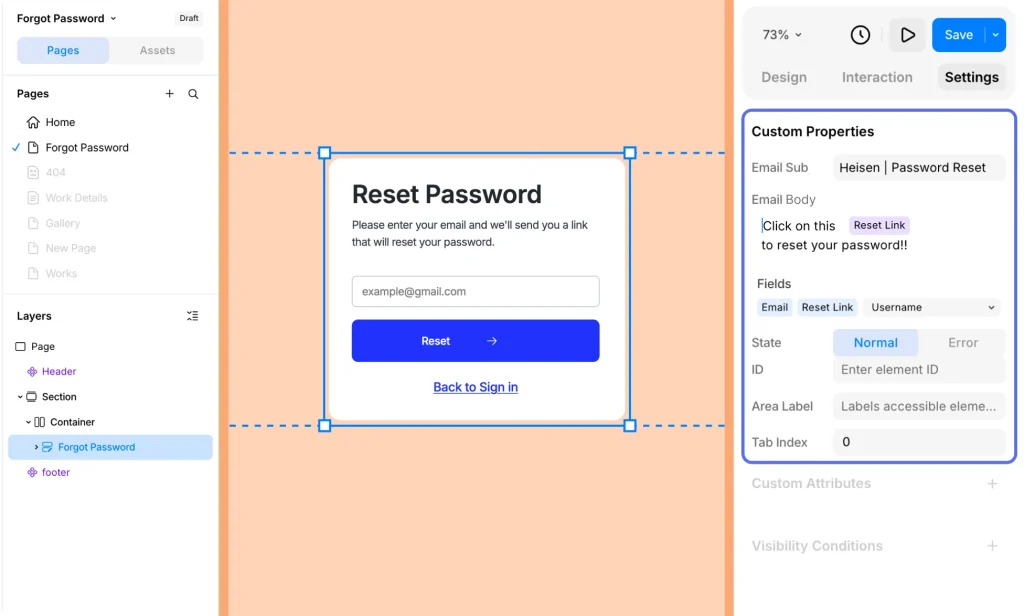
Next, set up the email your users will receive when they request a password reset.
- Select your form and go to Settings on the Right Panel.
- Enter your Email Subject – for example, “Reset Your Password”.
- Design your email body using the available dynamic fields, such as username and reset link, to personalize the message for each user in one go.
4. Publish Your Page
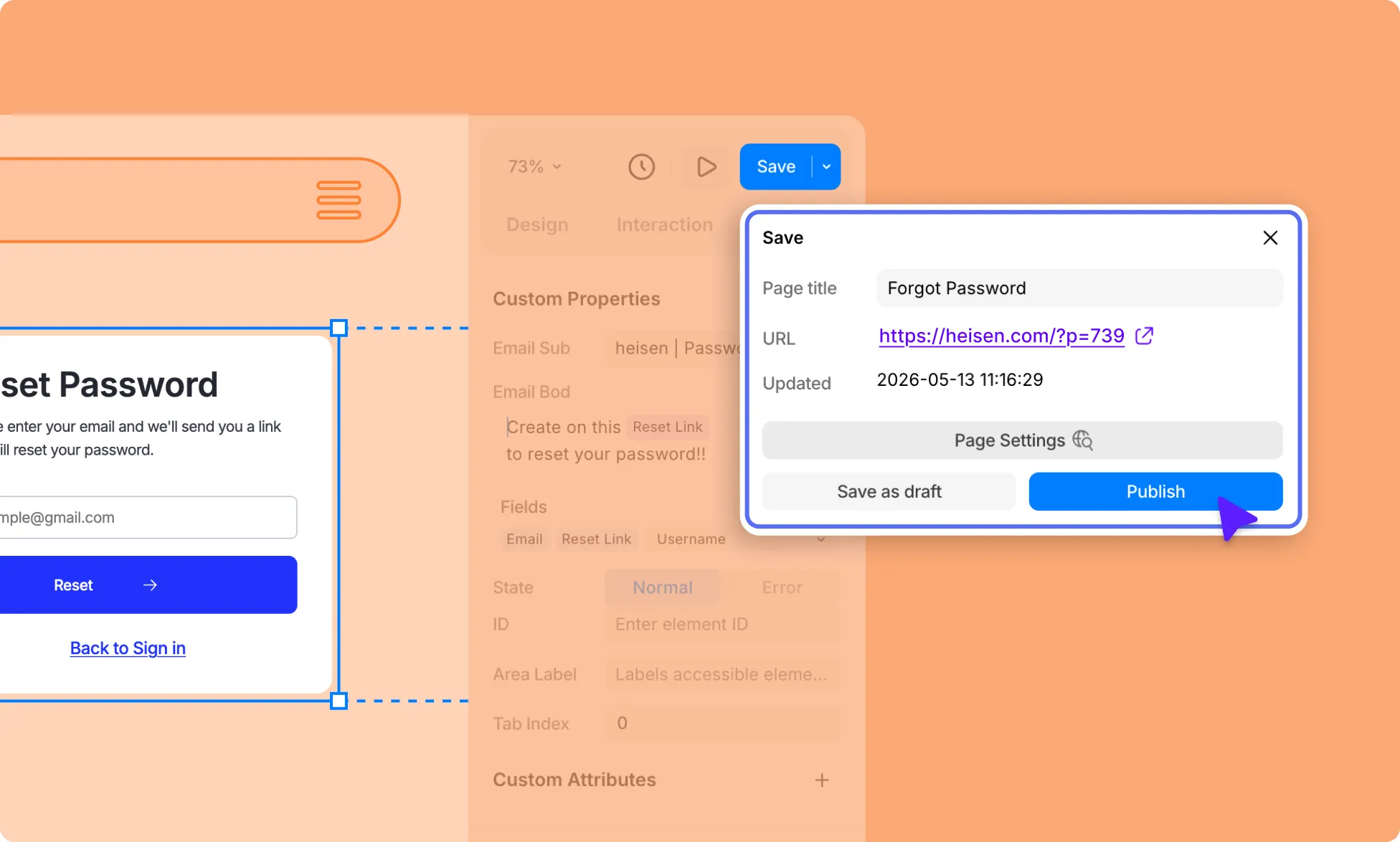
Once your form and email template are ready, go ahead and publish your page.
- Click Publish in the top bar of the Kirki Editor.
Your Forgot Password page is now publicly accessible via its URL.
5. Test Your Page
Once published, test it to make sure everything works correctly:
- Visit your Forgot Password page as a regular user (you can do this by logging out or visiting the page in incognito mode.
- Enter a registered email address that you have access to and submit the form.
- Check that the password reset email is received and that the reset link works correctly.
If it works as expected, add the Login page link to your navbar so users can easily access the sign-in page and the forgot password form from anywhere on your site.