The Map element lets you embed interactive maps on any of your web pages. Kirki offers two map elements – OpenStreetMap and Google Map.
Add Map Element
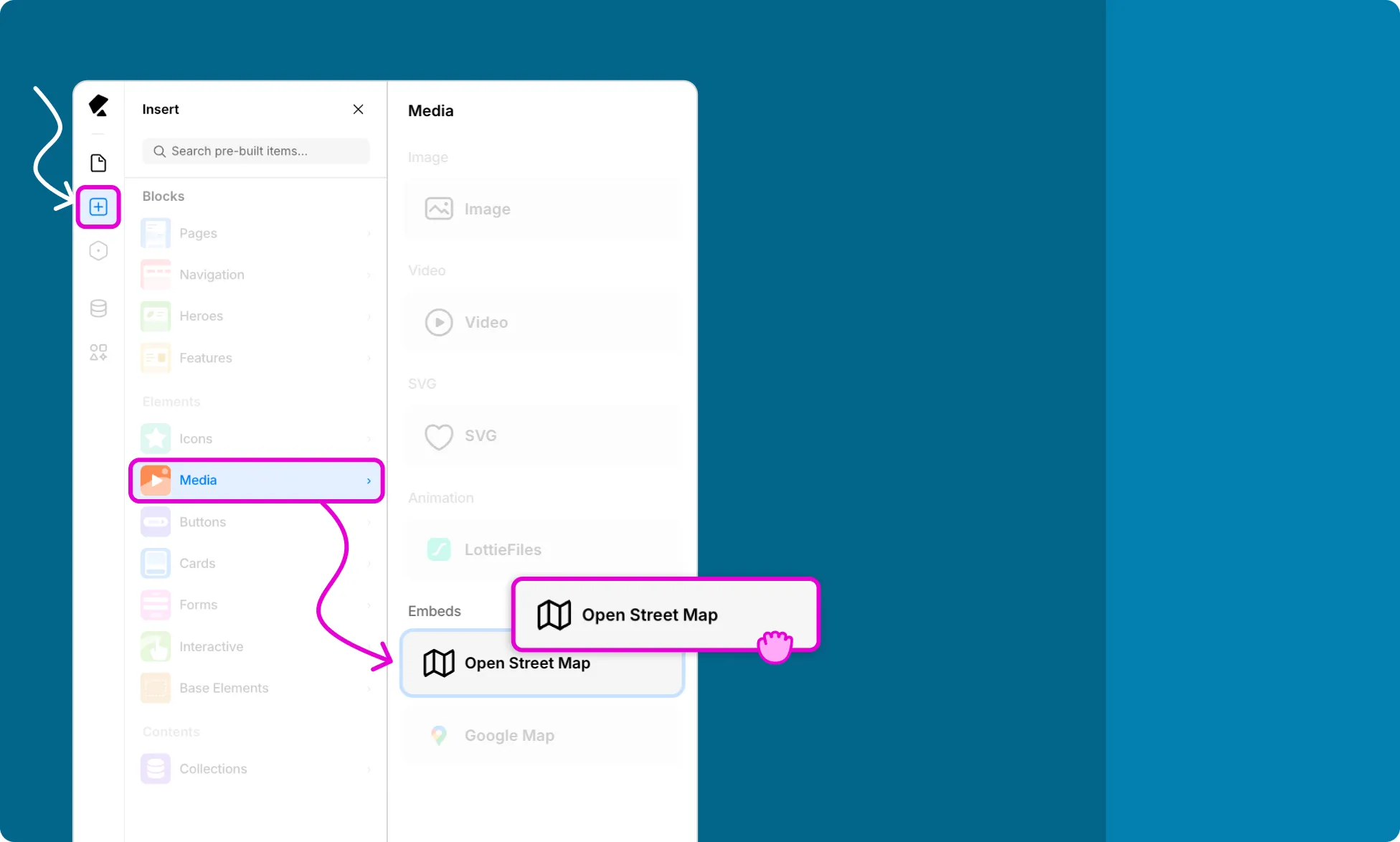
To add a map element to your page:
- Open the Insert panel from the Left Sidebar.
- Select Media from the Elements section.
- Click or drag either the Open Street Map or Google Map element onto the canvas.
Configure Open Street Map
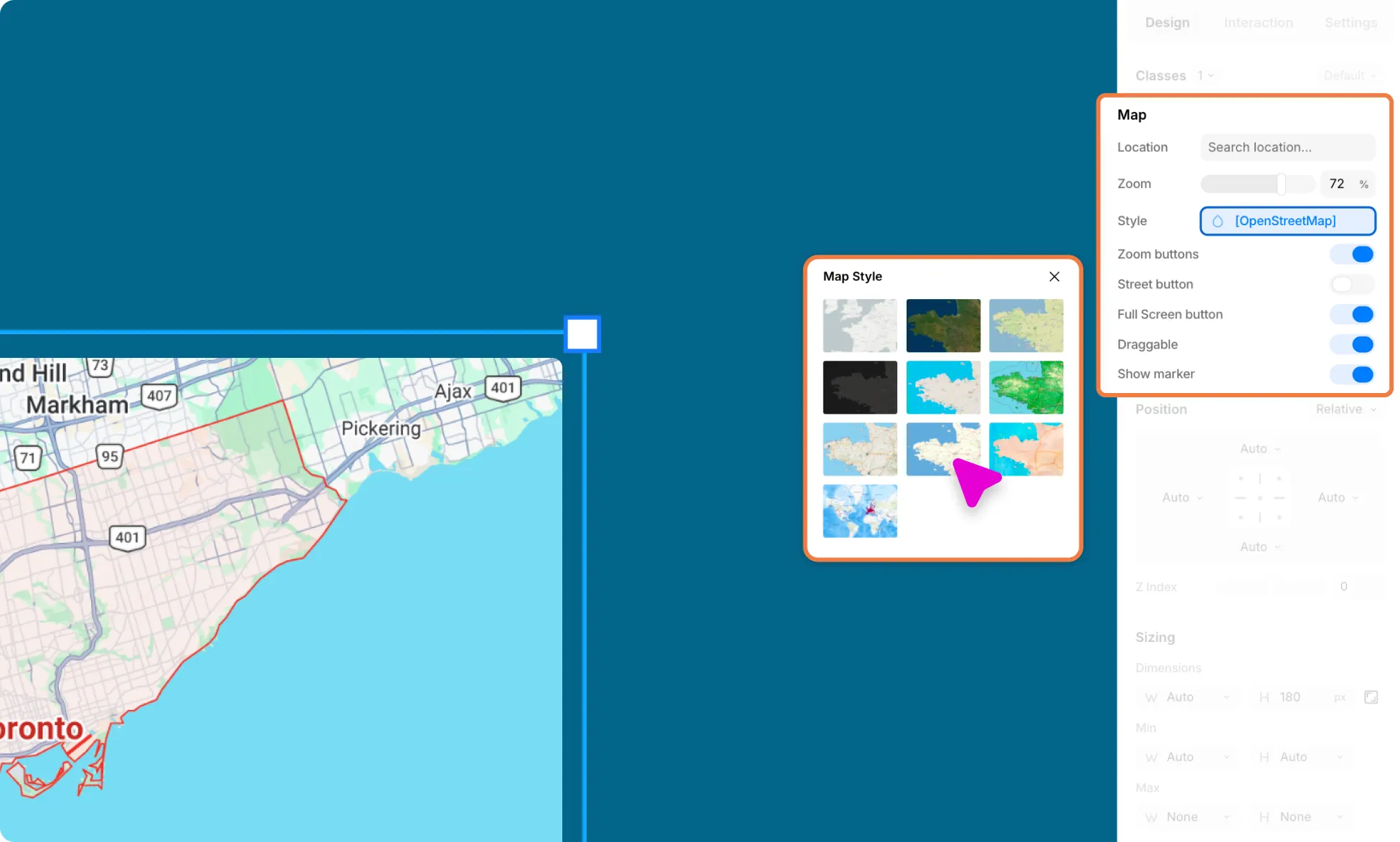
Once the Open Street Map element is on the canvas, navigate to the Design tab on the Right panel to configure it:
Set the Location
Search for the location you want to display on the map, then select the desired result from the dropdown.
Zoom
Define the initial magnification level of the map. A value of 0 displays a wider area while a value of 100 provides a more detailed view. Drag the slider or enter a value manually.
Style
Choose from 7 different styles to set the visual appearance of your map.
Zoom Buttons
Enable or disable the zoom-in and zoom-out buttons on the map.
Street Button
Enable or disable the street view button.
Full Screen Button
Enable or disable the full-screen button.
Draggable
Enable Draggable to let users drag and pan around the map.
Show Marker
Enable to display a geotag marker pointing to the specified location.
Configure Google Map
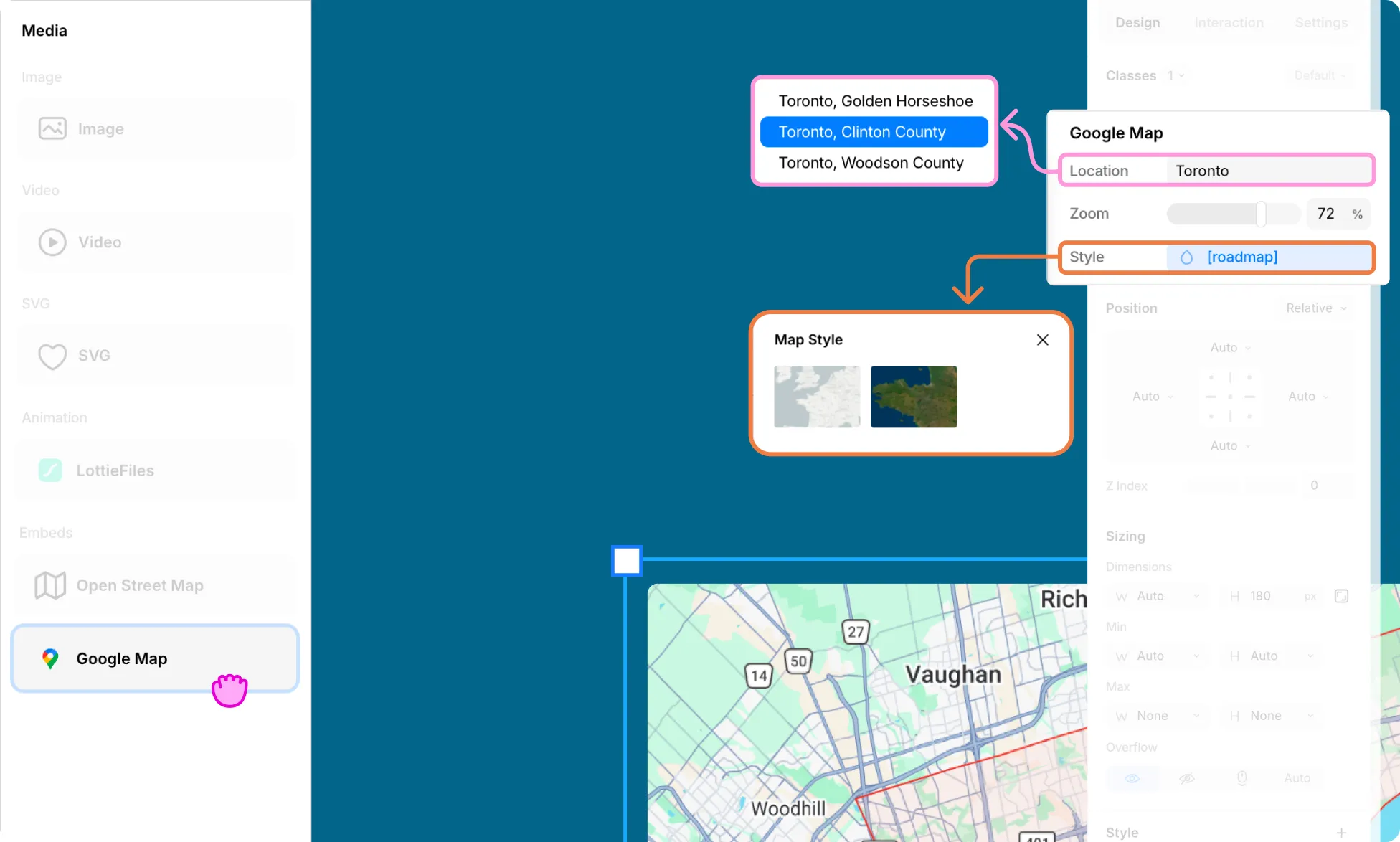
Once the Google Map element is on the canvas, navigate to the Design tab on the Right Panel to configure it:
Set the Location
Search for the name of the location you want to display on the map and select the desired result from the dropdown.
Zoom
Define the initial magnification level of the map. Drag the slider or enter a value manually.
Style
Choose from 2 different styles to set the visual appearance of your map.
Styling Your Map
You can further style your map element using the options from the Design Tab in the Right Panel. Learn More about Right Panel.