Adding images to your pages makes your content more engaging and visually appealing.
Use the Image element to upload images from your computer or choose from your media library.
Add an Image Element
You can add an Image element to your canvas in two ways:
From the Element Island
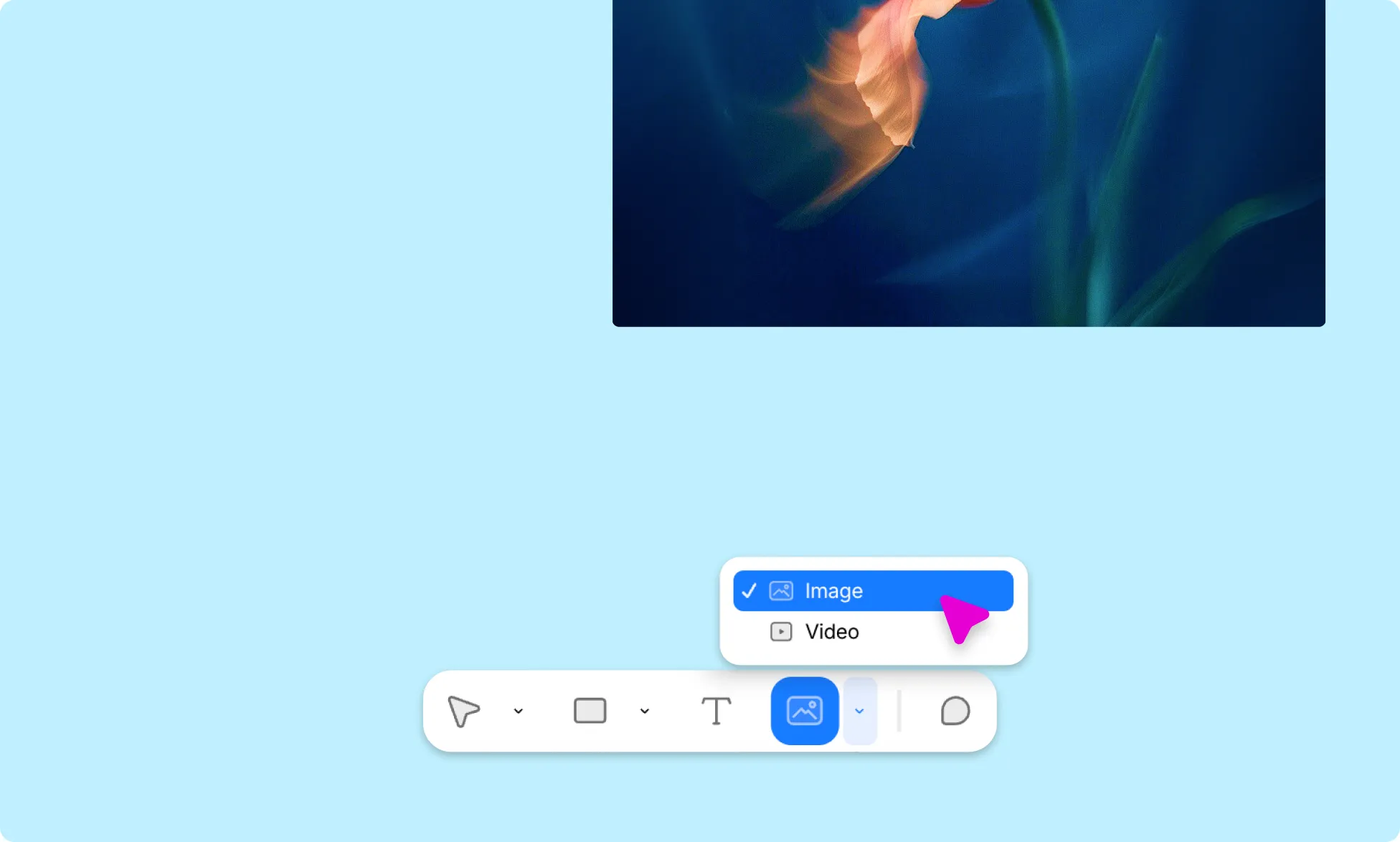
- Click the image icon in the Element Island at the bottom of the editor.
- Click or draw on the canvas to place your image.
From the Insert Panel
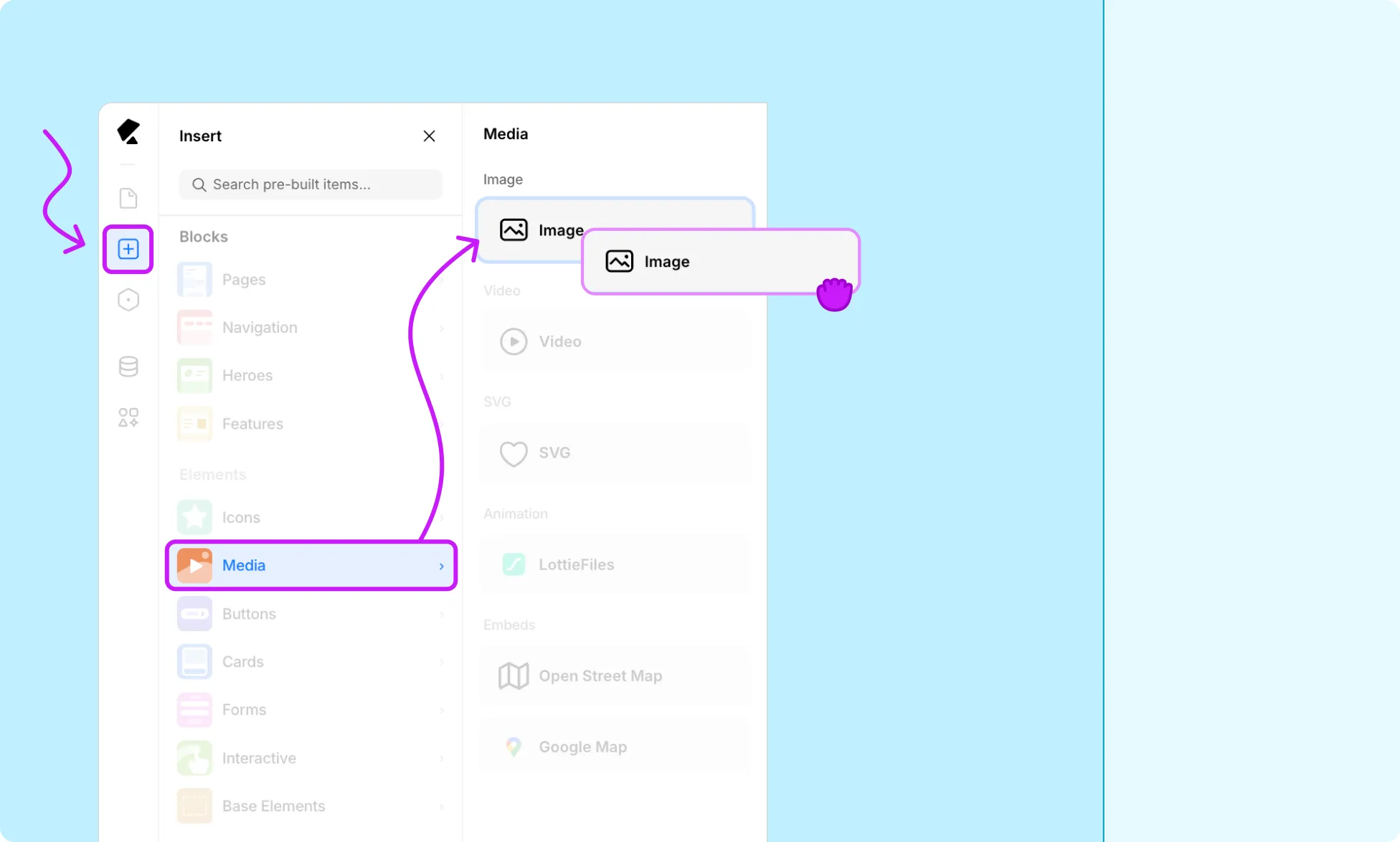
- Open the Insert panel from the Left Sidebar.
- Go to Media → Image.
- Drag the Image element onto your canvas.
Replace Image
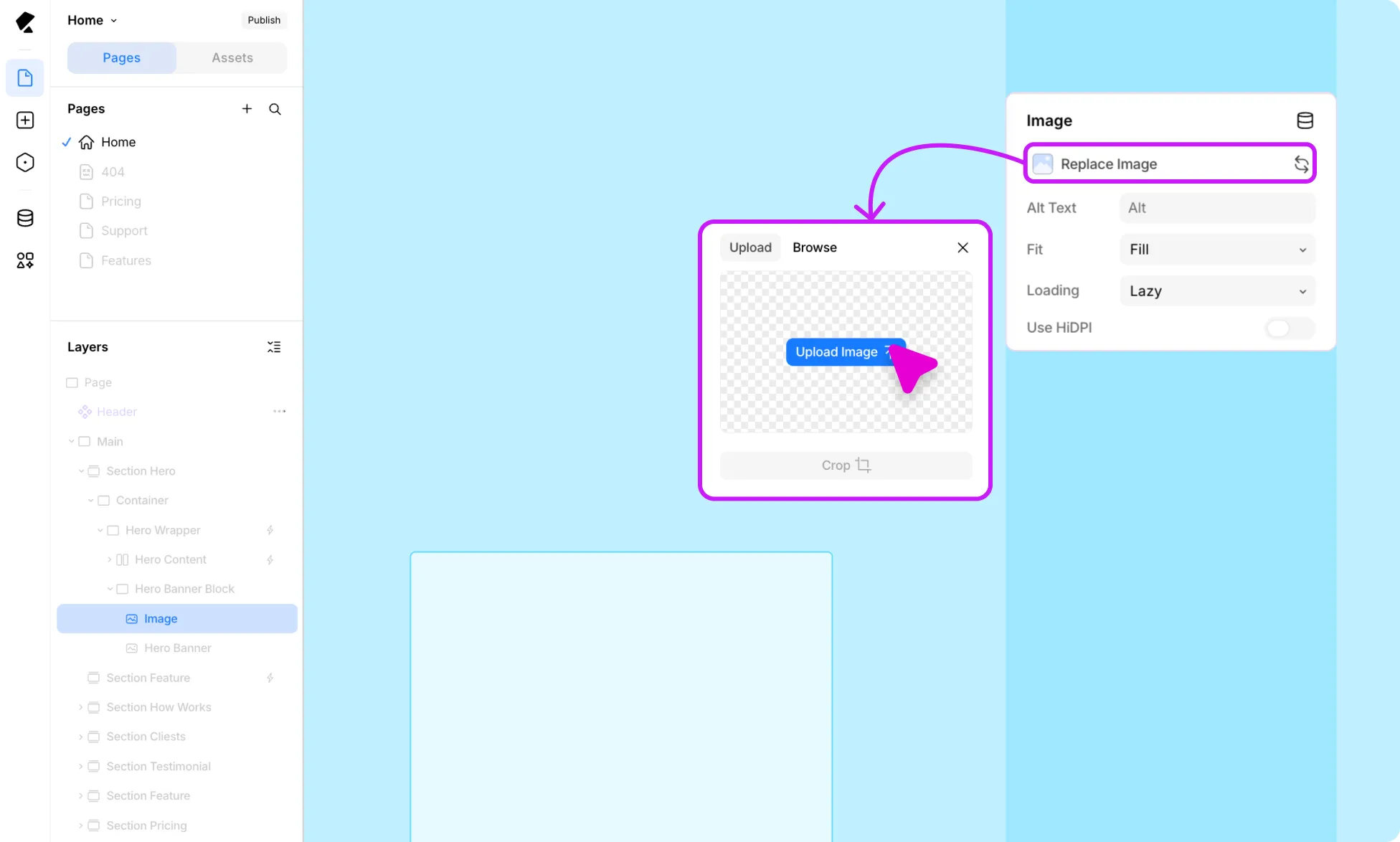
Replace the placeholder or previous image:
- Select the Image element on your canvas.
- In the Right Panel under Image, click Replace Image.
- Click Upload Image to add a new image or select Browse to pick one from the Media Library.
Edit Image
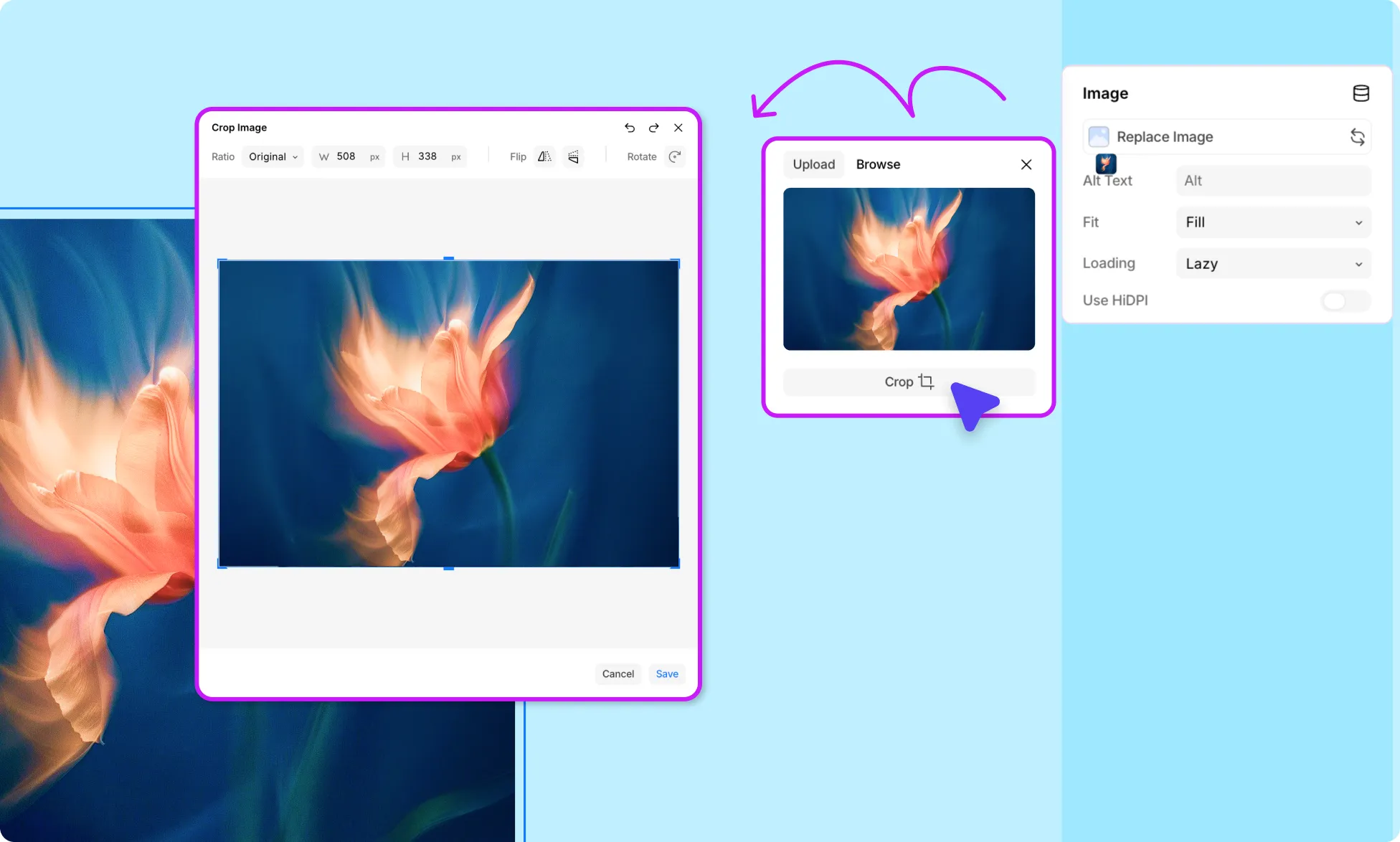
Kirki includes a built-in image editor so you can make quick adjustments without leaving the editor.
Select the image on your canvas and click the Crop button under Replace Image in the Right Panel to open the image editor.
Crop Image
Drag the handles to crop your image.
Drag the box to reposition and define the area you want to keep.
For more precision, manually enter the exact Width and Height of the crop area in the toolbar.
Ratio presets – You can also set the following crop ratio presets:
- Original
- Freeform
- Square
- And Ratios like 4:3, 5:4, 3:2, and more
Flip Image
Mirror the image horizontally or vertically using the Flip buttons in the toolbar.
Rotate Image
Rotate the image in increments using the Rotate button in the toolbar.
Add Alt Text to Image
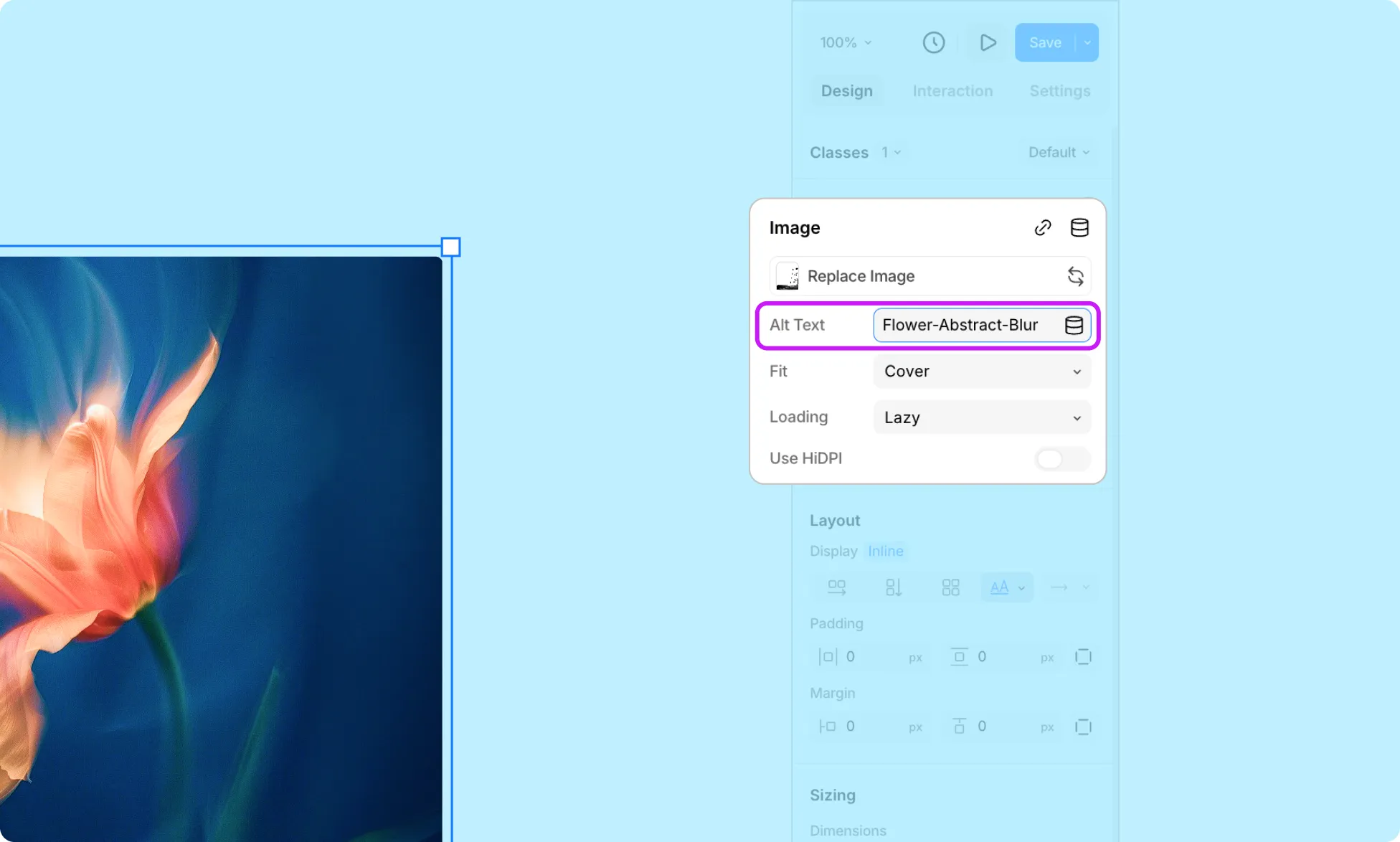
Alt text improves accessibility and helps search engines understand your images.
- Select the image on your canvas.
- In the Right Panel under Image, locate the Alt Text field.
- Enter a brief description of the image.
Set Image Fit
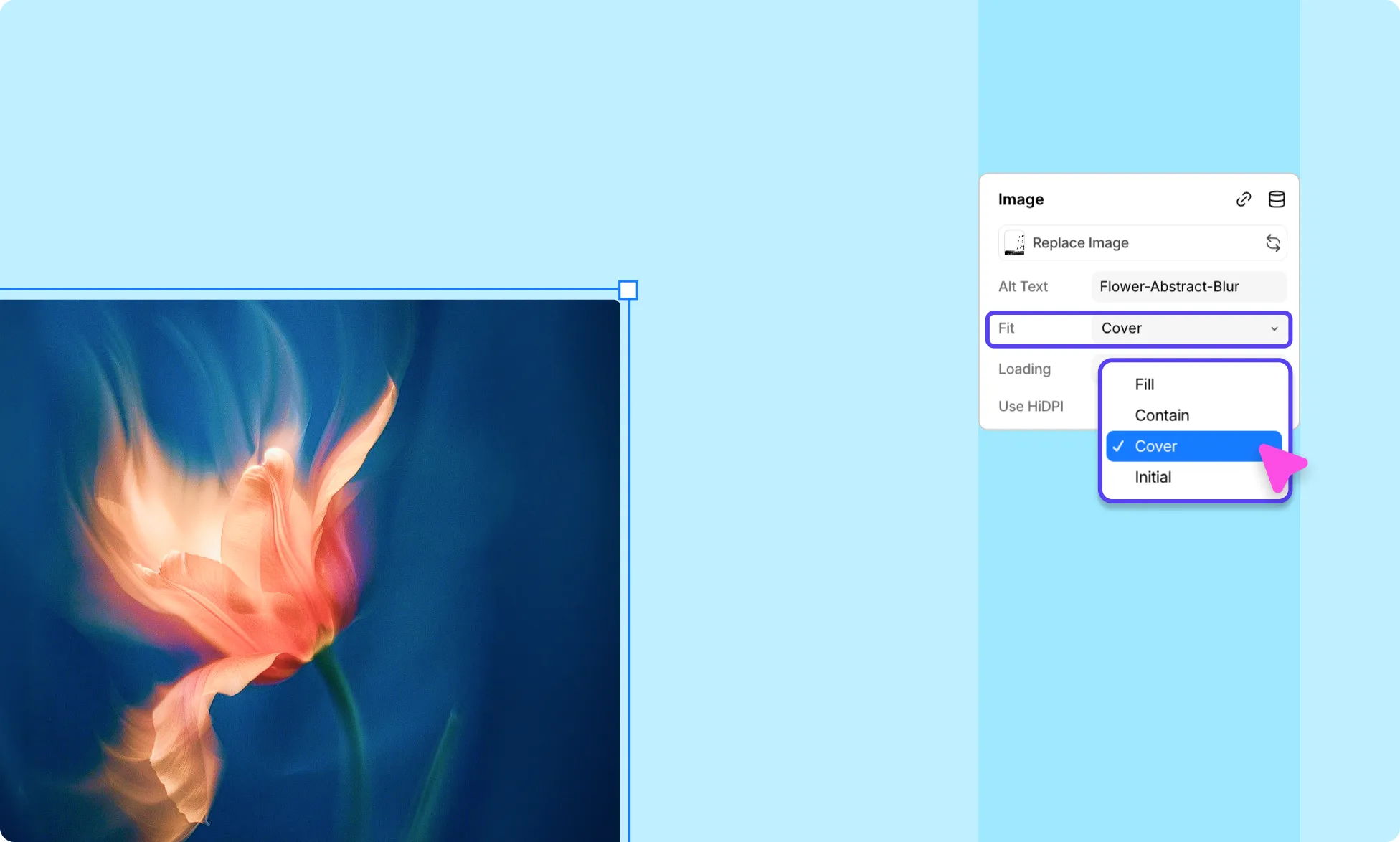
Control how your image fills its container.
- Select the image on your canvas.
- In the Right Panel under Image, open the Fit dropdown.
- Choose from:
- Fill – resizes the image to fill the space while maintaining its aspect ratio, cropping if necessary.
- Contain – fits the entire image within the space without cropping, which may leave space on the sides.
- Cover – covers the entire space, even if it means stretching or distorting the image.
- Initial – displays the image at its original dimensions regardless of available space.
Set Image Loading Behavior
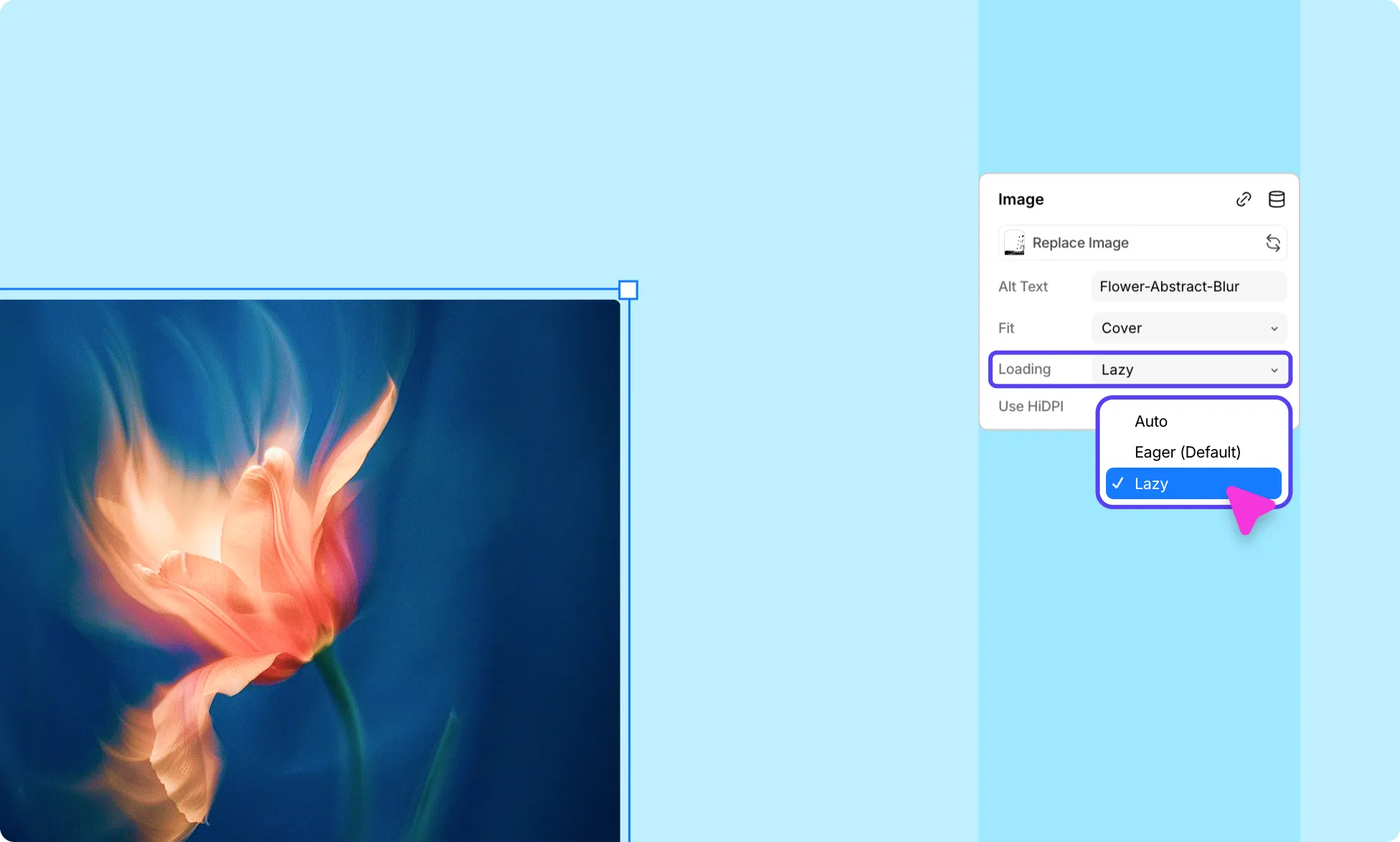
Control when your image loads to optimize page performance.
- Select the image on your canvas.
- In the right panel under Image, open the Loading dropdown.
- Choose from:
- Auto – lets the browser decide the best loading method.
- Eager – loads the image immediately on page load (default).
- Lazy – defers loading until the image is about to enter the viewport, improving initial page speed.
Enable HiDPI
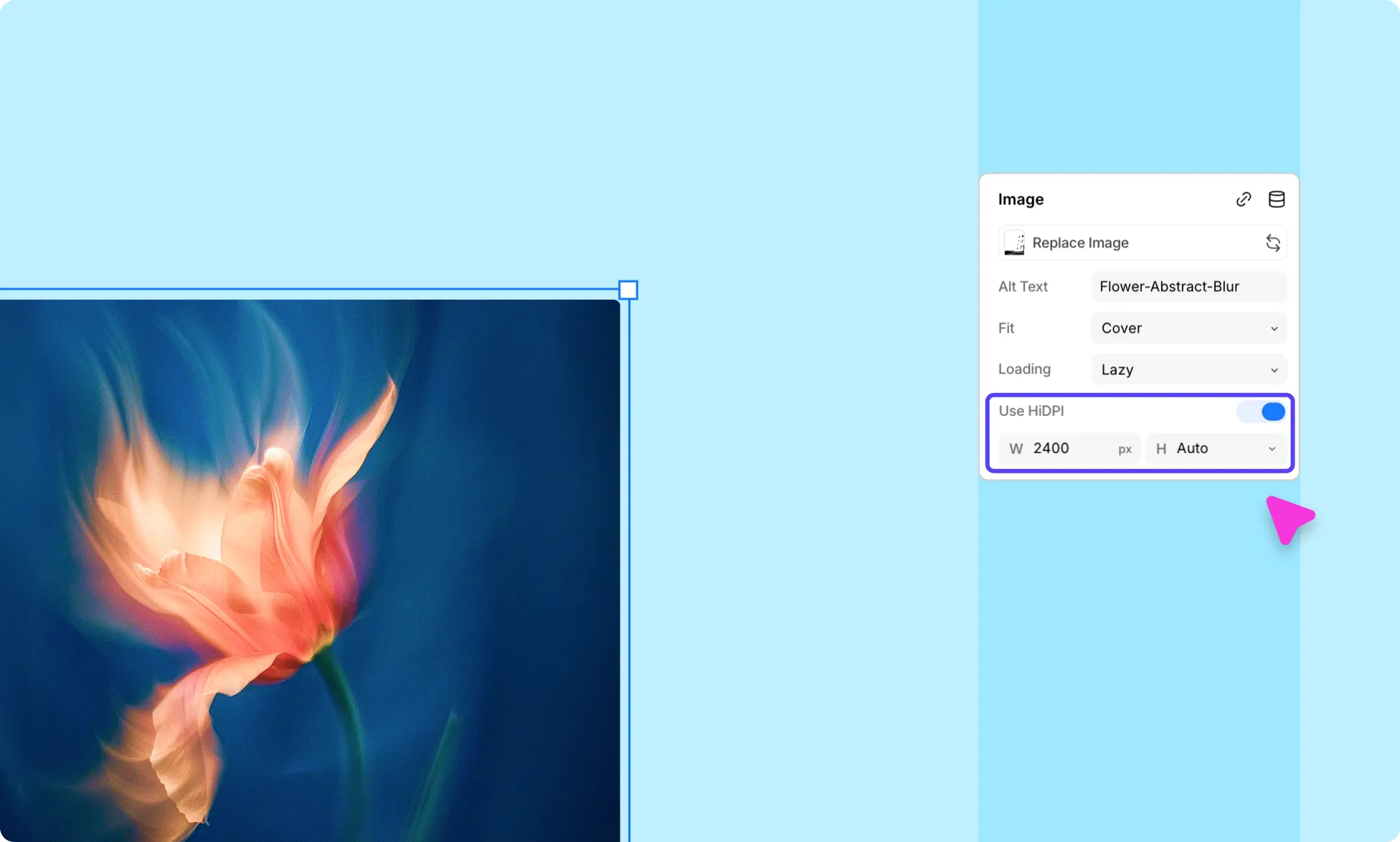
Turn on HiDPI to serve a higher resolution version of your image on retina and high-density screens.
- Select the image on your canvas.
- In the right panel under Image, toggle on Use HiDPI.
Add a Link to an Image
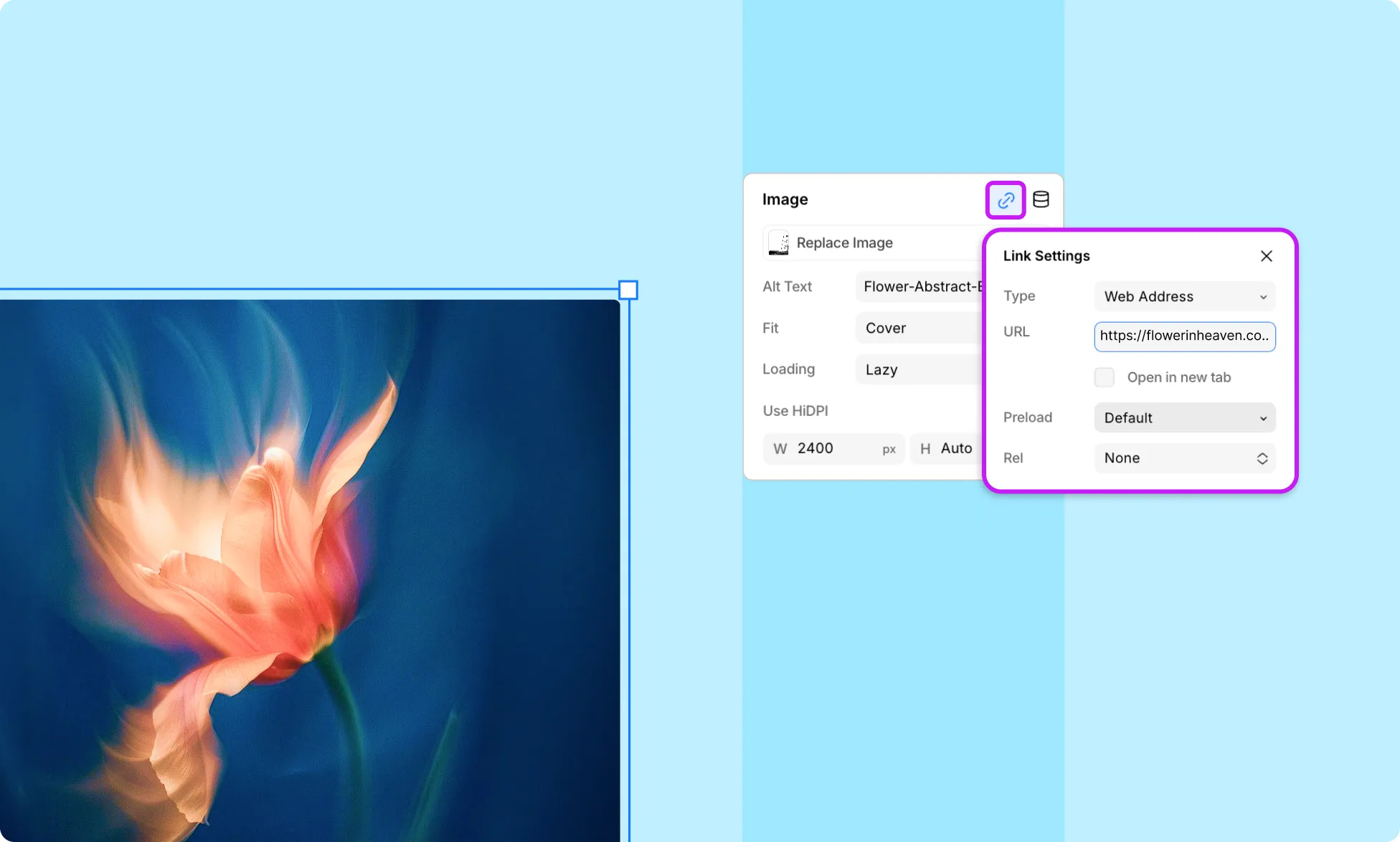
Make your image clickable by linking it to a page, URL, or pop-up.
- Select the image on your canvas.
- In the right panel under Image, click the Link icon.
- In the Link Settings panel, configure your link.
Apply Filters to an Image
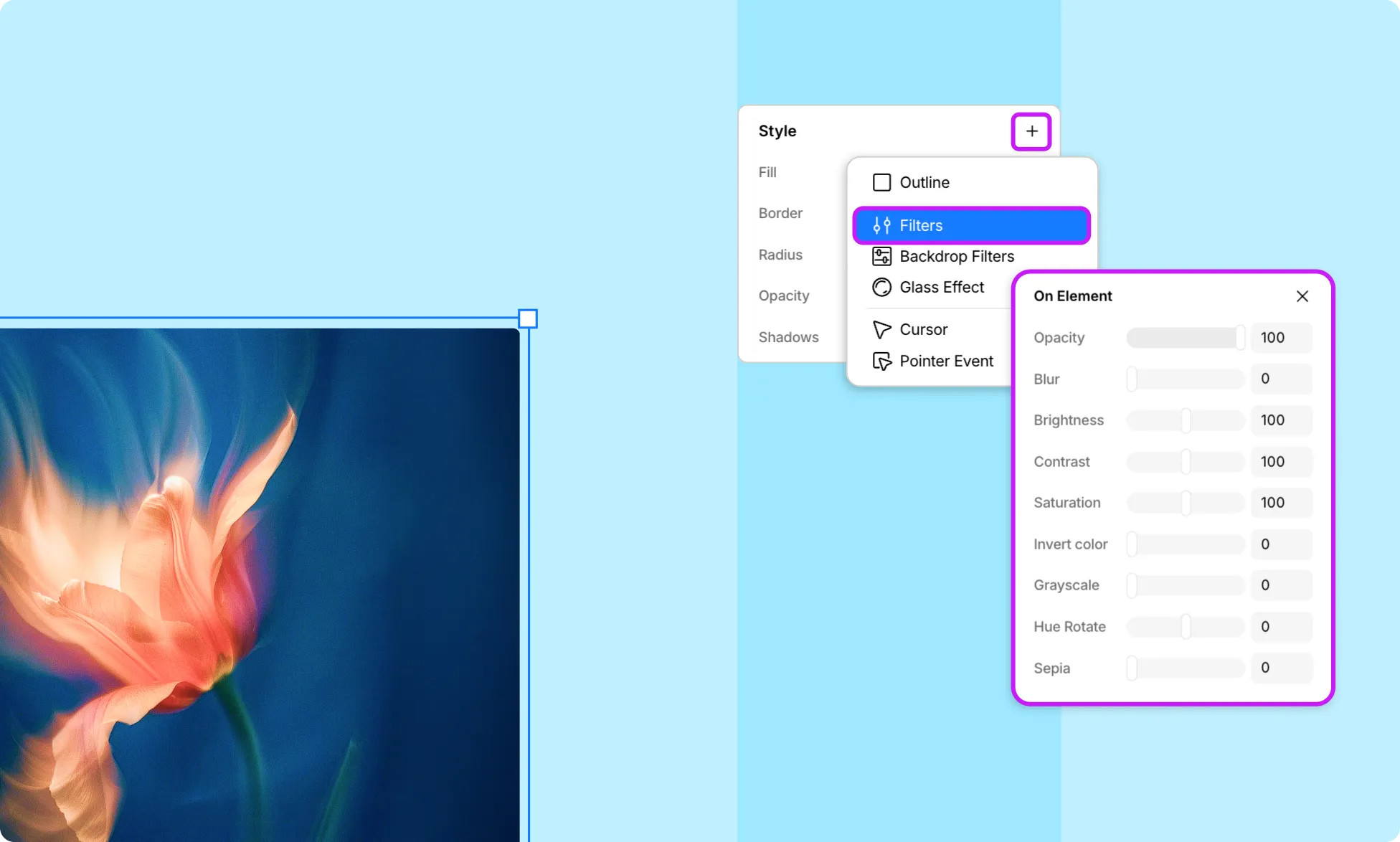
You can apply Filters to both elements and backdrops in Kirki, which means you can apply them to the Image element, too. This lets you enhance the visual appearance of your image directly from the editor even further.
- Select the image on your canvas.
- In the right panel, scroll to Style and click the plus (+) icon.
- Select Filters.
- Choose On Element to apply filters directly to the Image.
Learn more about Filters.