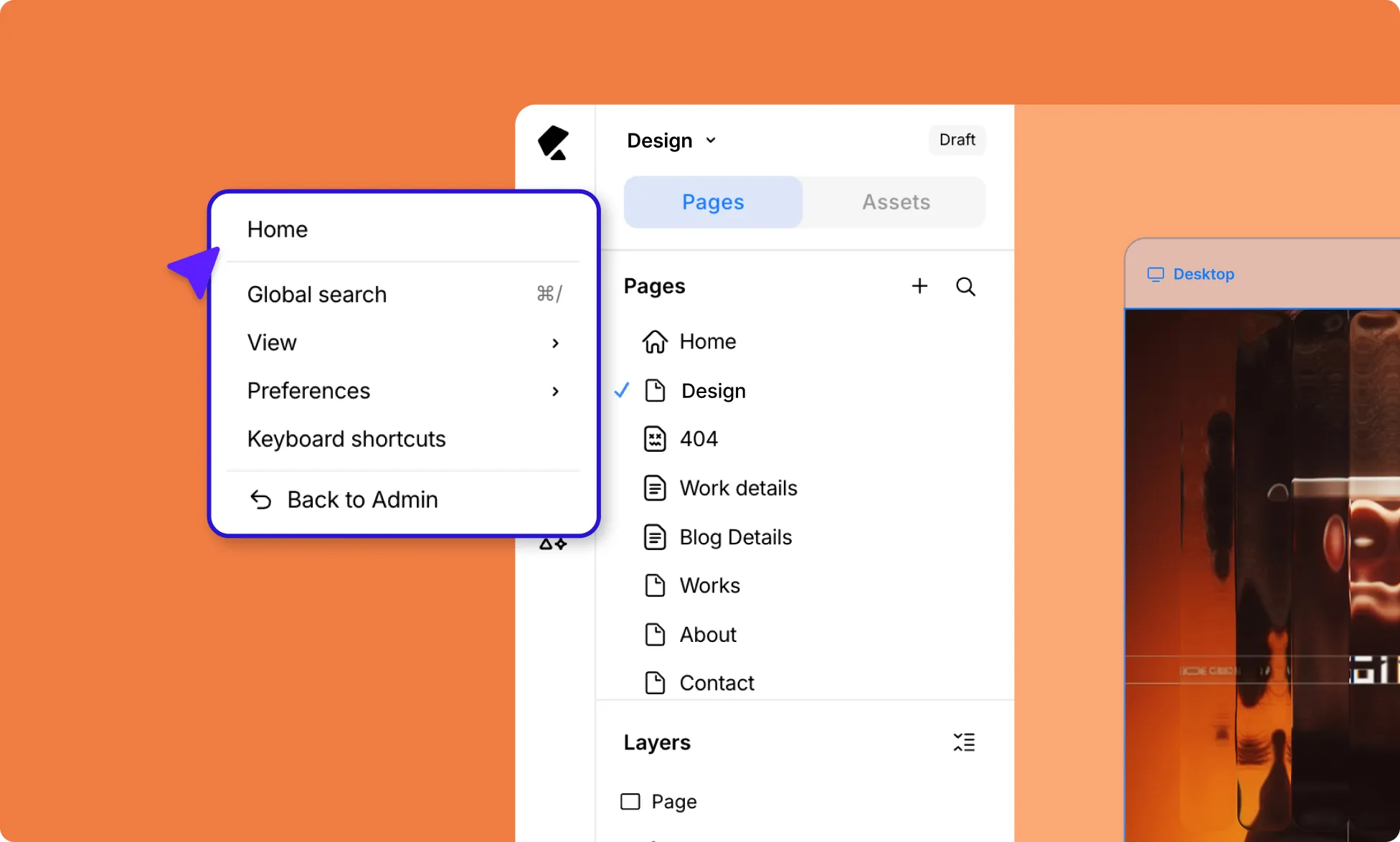
The main menu is your starting point for global controls – things that affect the design experience rather than the actual design. Access it anytime by clicking on the hamburger icon (☰) in the top-left corner of the editor.
Home
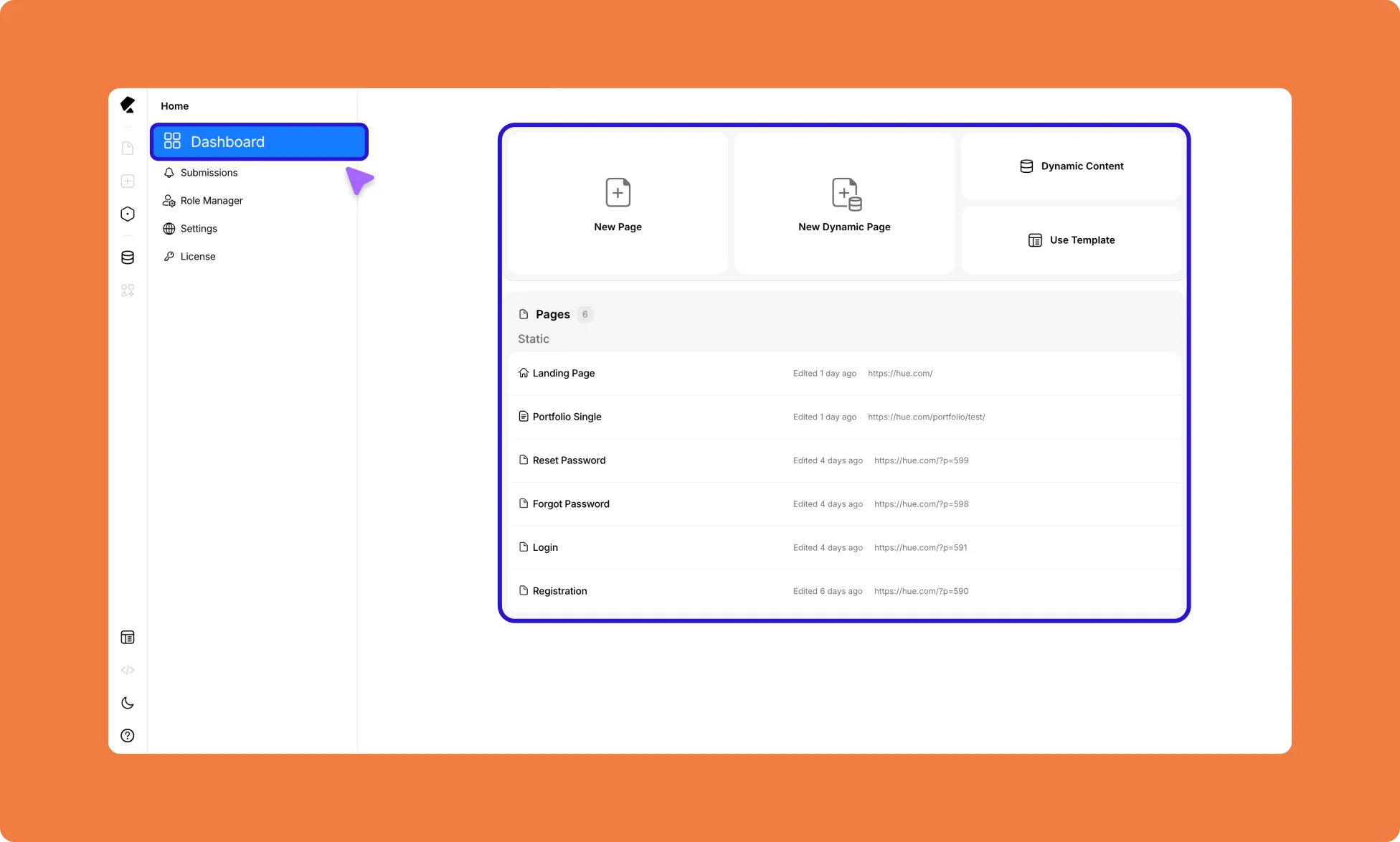
Home takes you back to the Kirki Dashboard, where you can create new pages, access your existing pages, explore Kirki video resources, and more. You can also manage:
- Submissions – View form submissions collected from your site.
- Settings – Configure global site settings.
- Role Manager – Control what different user roles can access and edit
- License – Manage your Kirki license.
Learn more about the Kirki Dashboard.
Global Search
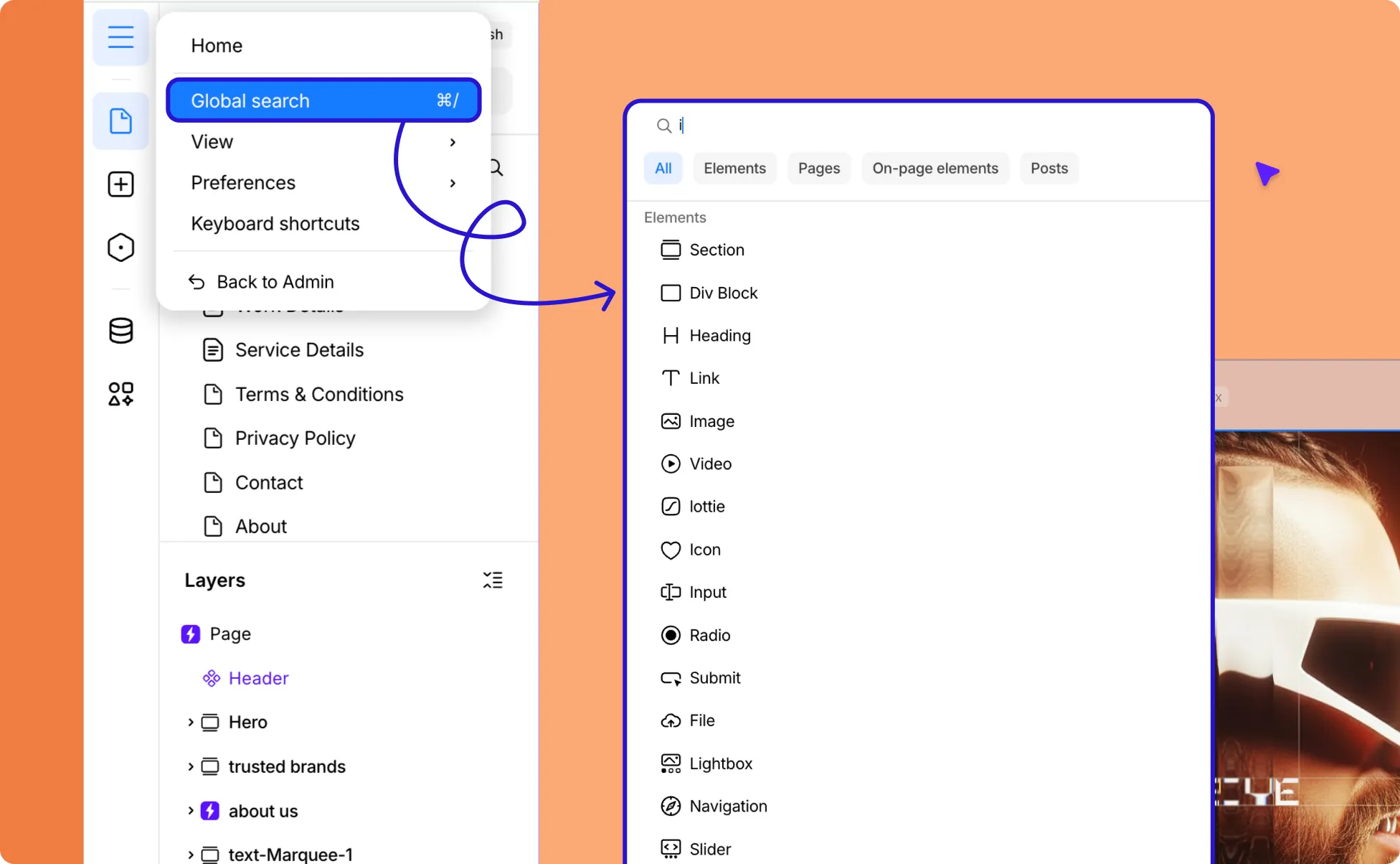
Quickly find any page, element, etc across your entire site. Trigger it from the menu or press ⌘/ (Mac) or Ctrl/ (Windows) from anywhere in the editor.
Press Esc to exit.
Personalizing Your Setup
Adjust how the editor looks and behaves to suit your workflow.
View
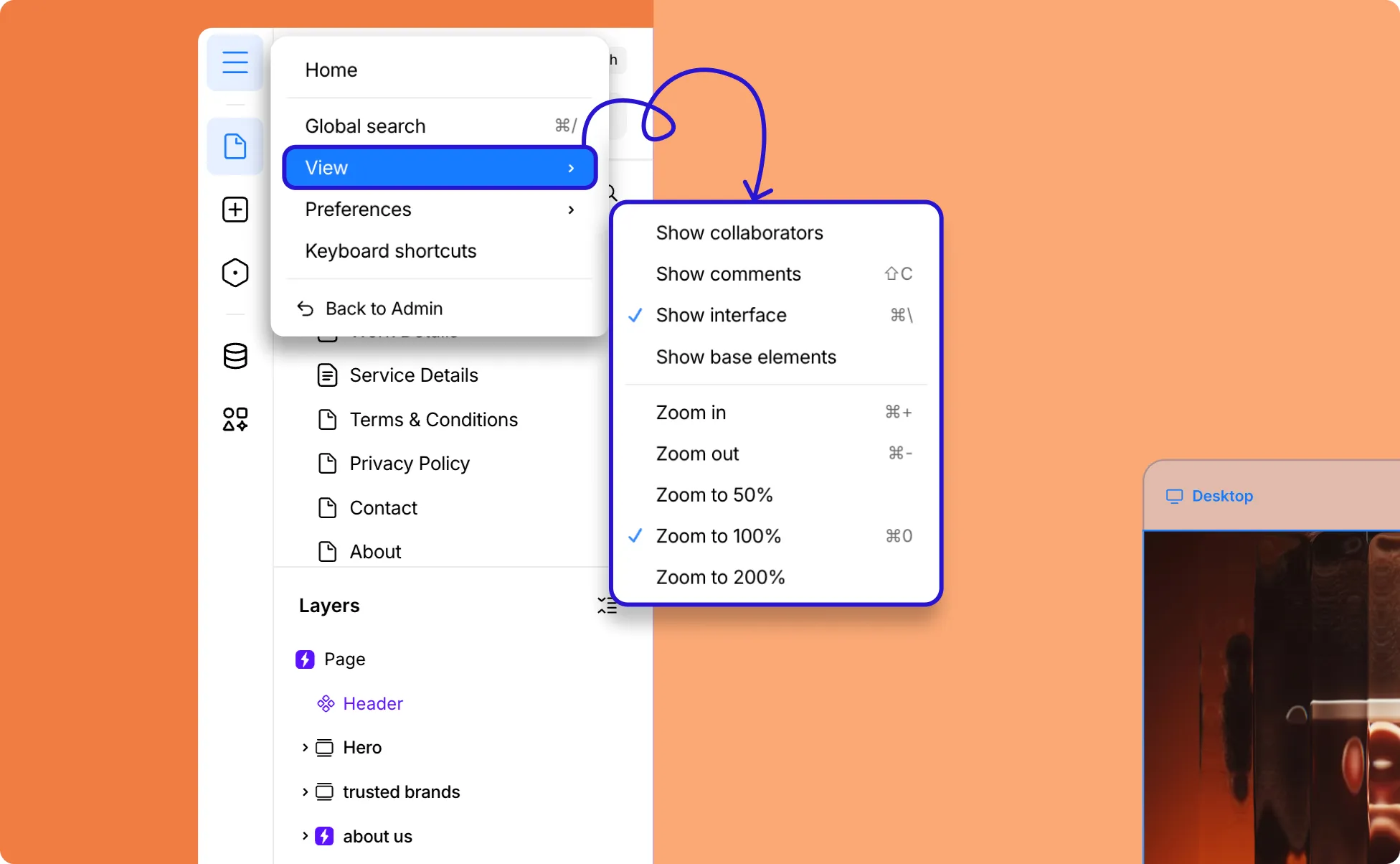
Visibility Toggles
Show or hide different parts of the interface while you work:
- Show Collaborators – See where your teammates are working in real time.
- Show Comments – Toggle to view and interact with comments on the canvas or press (⇧C).
- Show Interface – Hide all panels for a distraction-free view of your canvas (⌘\).
- Show Base Elements – Show or hide base elements on the Insert Panel.
Zoom Controls
Navigate your canvas at the right scale:
- Zoom In – Trigger it from the menu or press ⌘+
- Zoom Out – Trigger it from the menu or press ⌘−
- Zoom 50% – Scale the canvas directly to 50%
- Zoom 100% – Jump the canvas directly to 100%
- Zoom 200% – Jump the canvas directly to 200%
Preferences
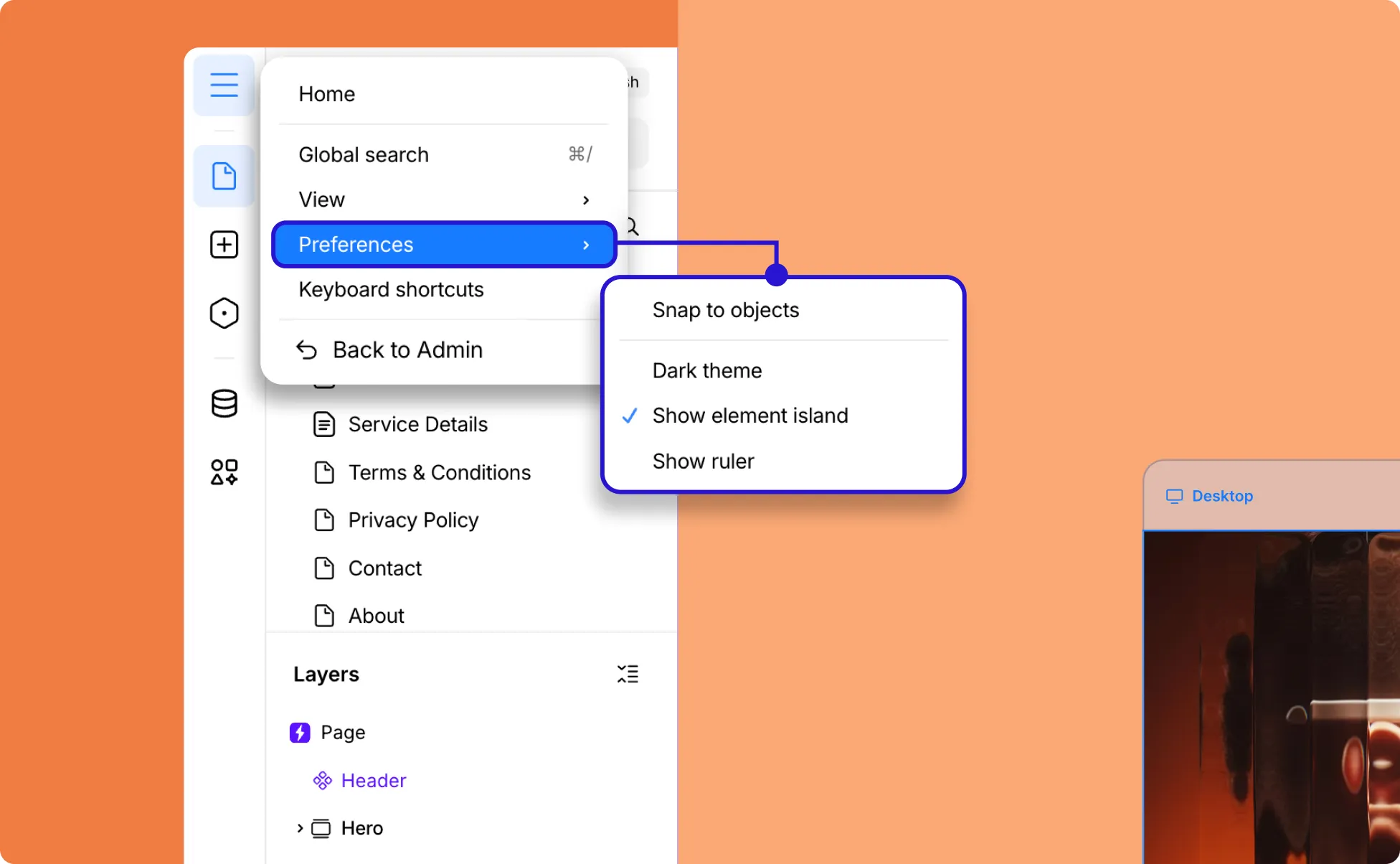
Fine-tune editor behavior:
- Snap to Objects – Let elements snap to nearby elements as you drag, making alignment effortless
- Light / Dark Theme – Switch editor to dark mode and vice versa
- Show Element Island – Toggle the floating bottom toolbar on or off
- Show Ruler – Display rulers along the canvas edges for precise positioning
Keyboard Shortcuts
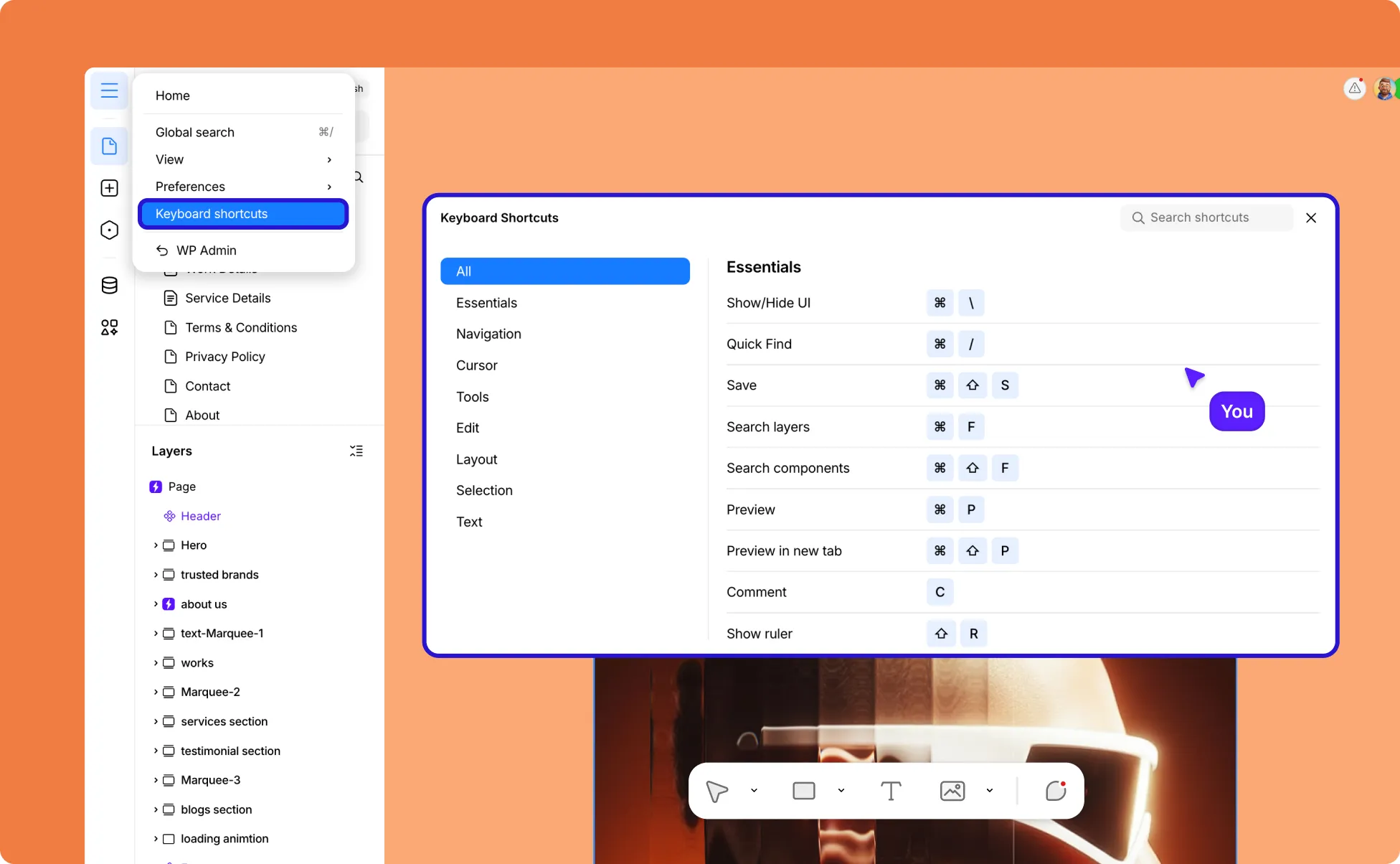
Access the full reference manual of every keyboard shortcut available in Kirki. Worth a visit early on – even learning two or three shortcuts can meaningfully speed up your workflow.
Returning to WordPress Backend
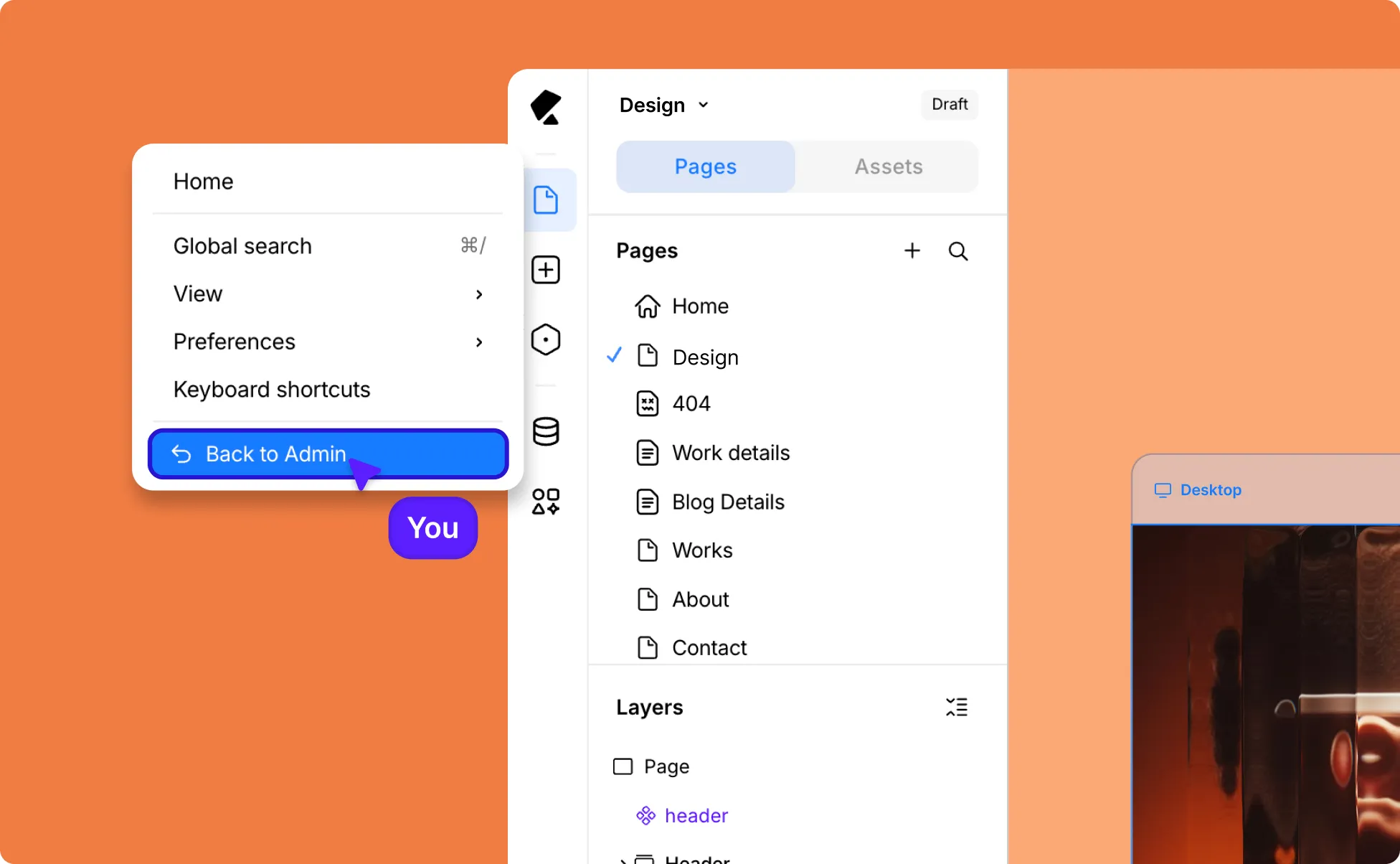
Select WP Admin to exit the Kirki editor and return to the WordPress admin panel.