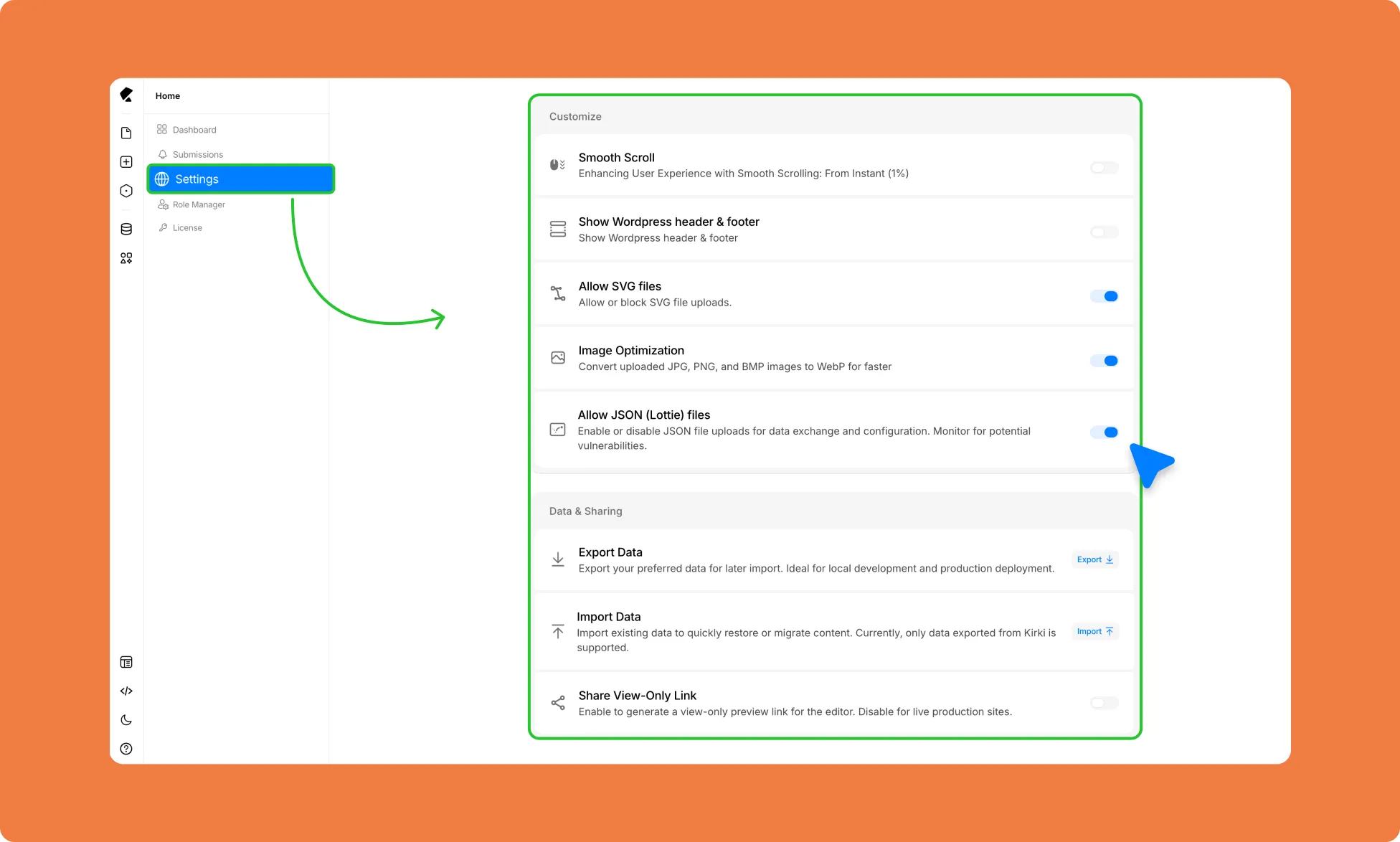
The Settings page gives you control over how Kirki behaves across your entire site, from performance and file uploads to data management and sharing.
Access it anytime from the left sidebar of the Kirki Dashboard.
Customize
These settings affect how your site looks and behaves for visitors.
Enable Smooth Scroll
Turn on Smooth Scroll to give your site a gradual, fluid scrolling experience instead of an instant jump. You can adjust the scroll intensity starting from 1% to match the feel of your design.
Show Your WordPress Header & Footer
Turn this on to display your default WordPress theme’s header and footer on Kirki-built pages. If you’ve designed your own header and footer inside Kirki, leave this off.
Allow SVG File Uploads
Turn this on to enable SVG uploads through the WordPress media library. SVGs are ideal for logos and icons since they scale crisp and clean at any size.
Optimize Your Images Automatically
Turn this on to automatically convert uploaded JPG and PNG images to WebP format on upload. This reduces file size without sacrificing quality, helping your pages load faster.
Allow Lottie (JSON) File Uploads
Turn this on to enable JSON file uploads, which are required to use Lottie animations in your designs.
Data & Sharing
These settings help you move data between environments and share your work.
Export Your Kirki Site
To back up your work or move your design from a local development environment to a live production site, do the following:
- Go to Dashboard → Settings.
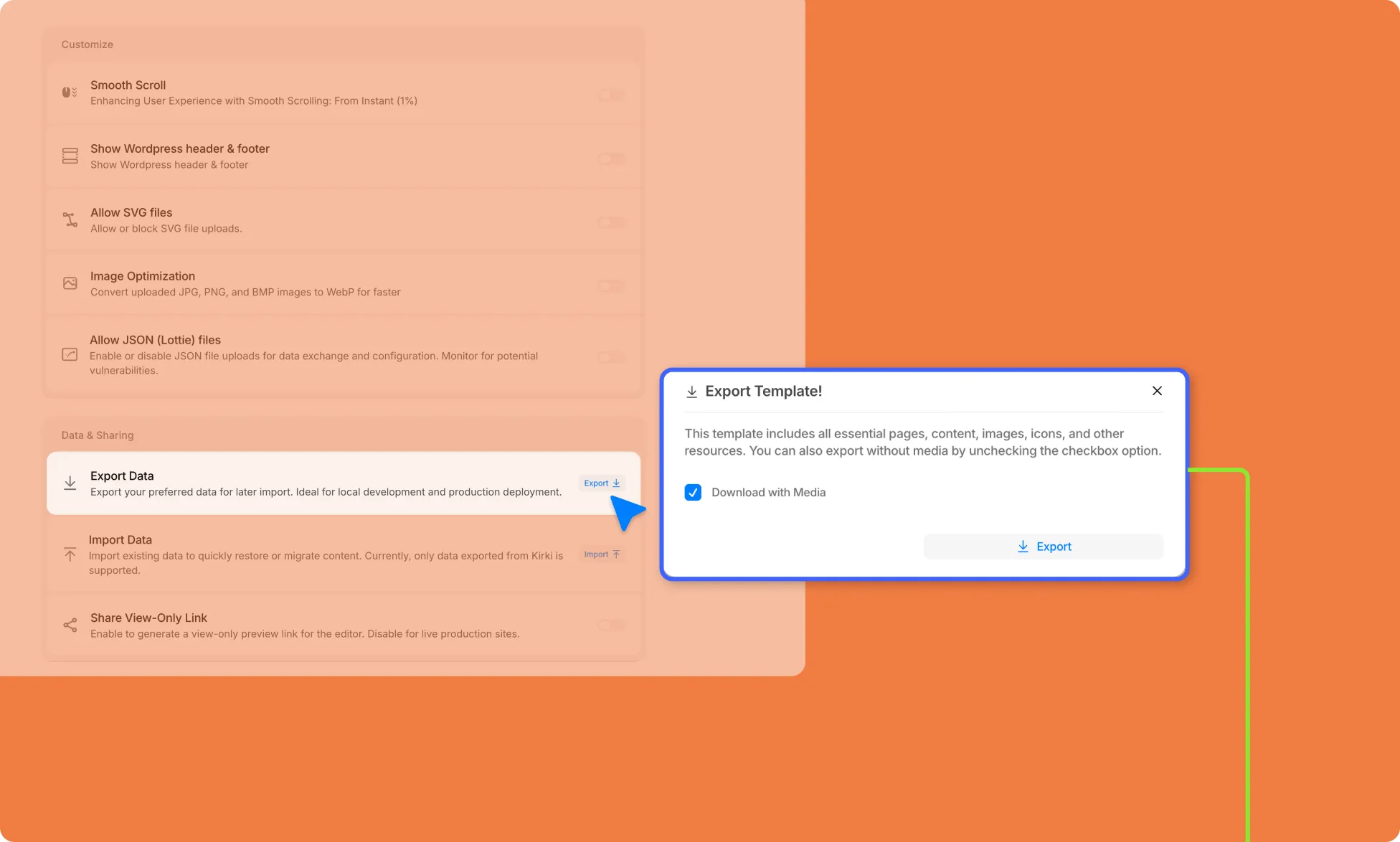
- Under Data & Sharing, click Export.
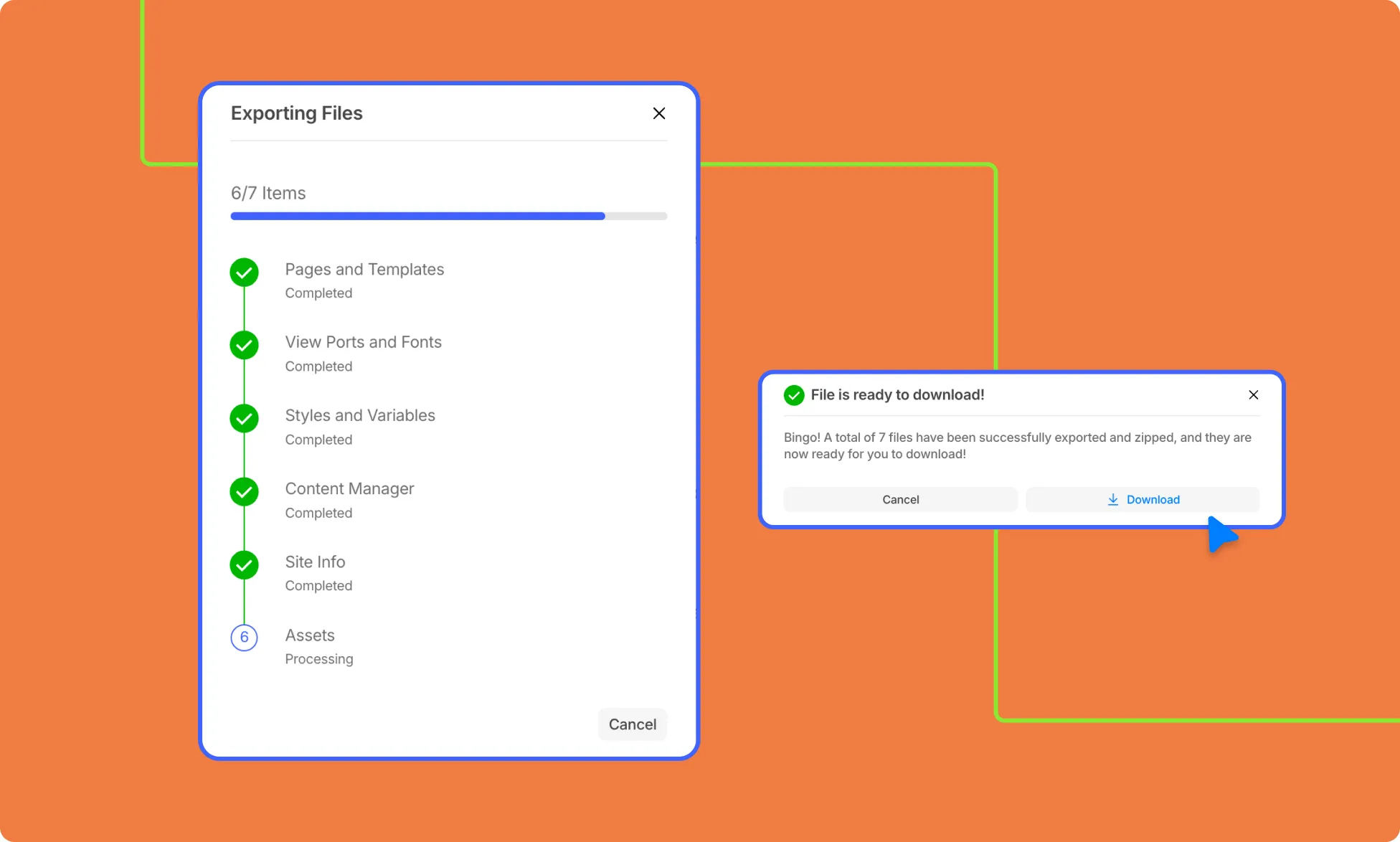
- Download the file to your computer.
This will extract all your pages, content, images, and other resources as one file, ready for import.
Import Your Kirki Site
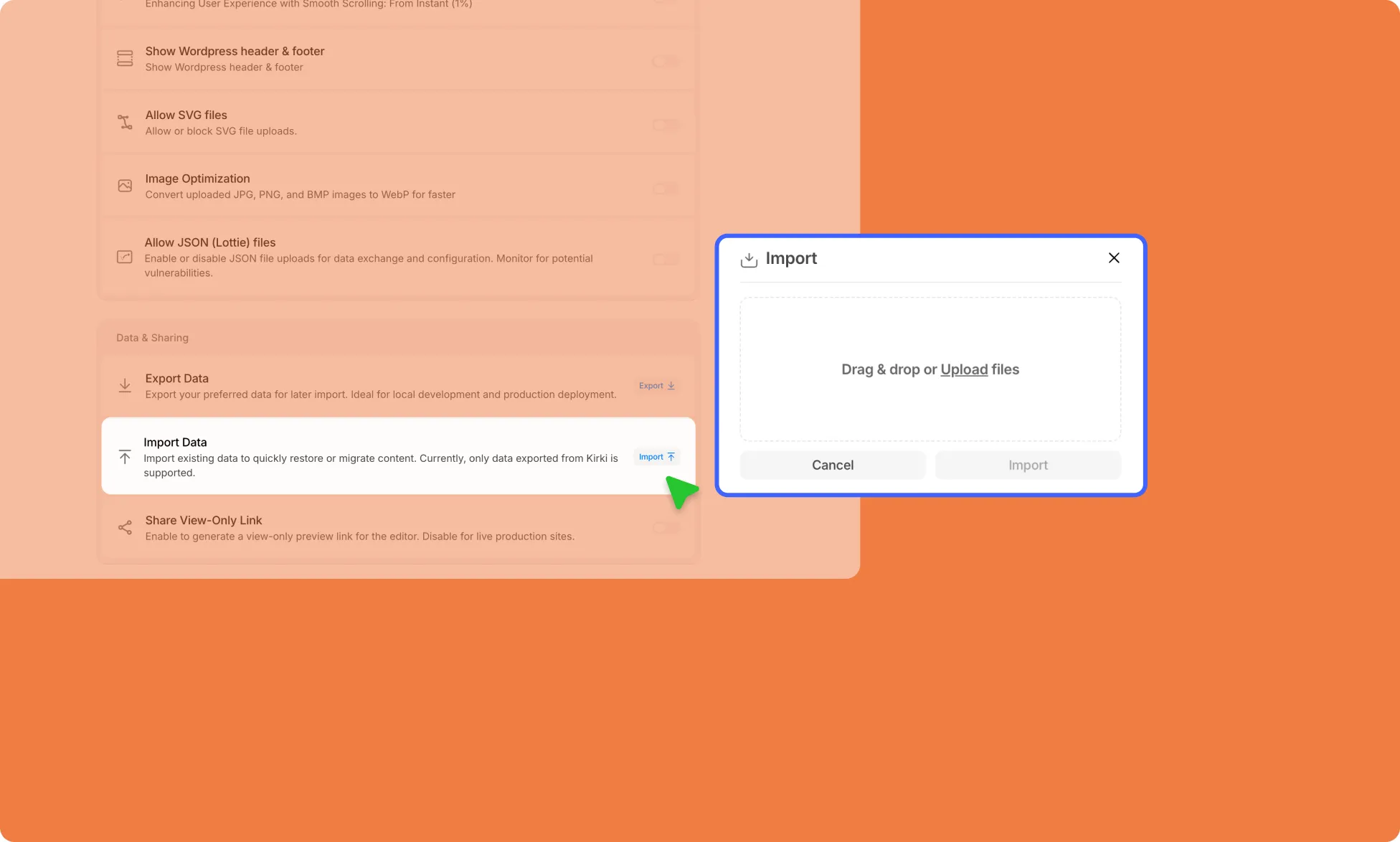
Restore or migrate your content by uploading a previously exported Kirki data file. Note that only data exported from Kirki is supported.
- Go to Dashboard → Settings.
- Under Data & Sharing, click Import.
- Select your exported Kirki data file and confirm.
Share a View-Only Preview Link
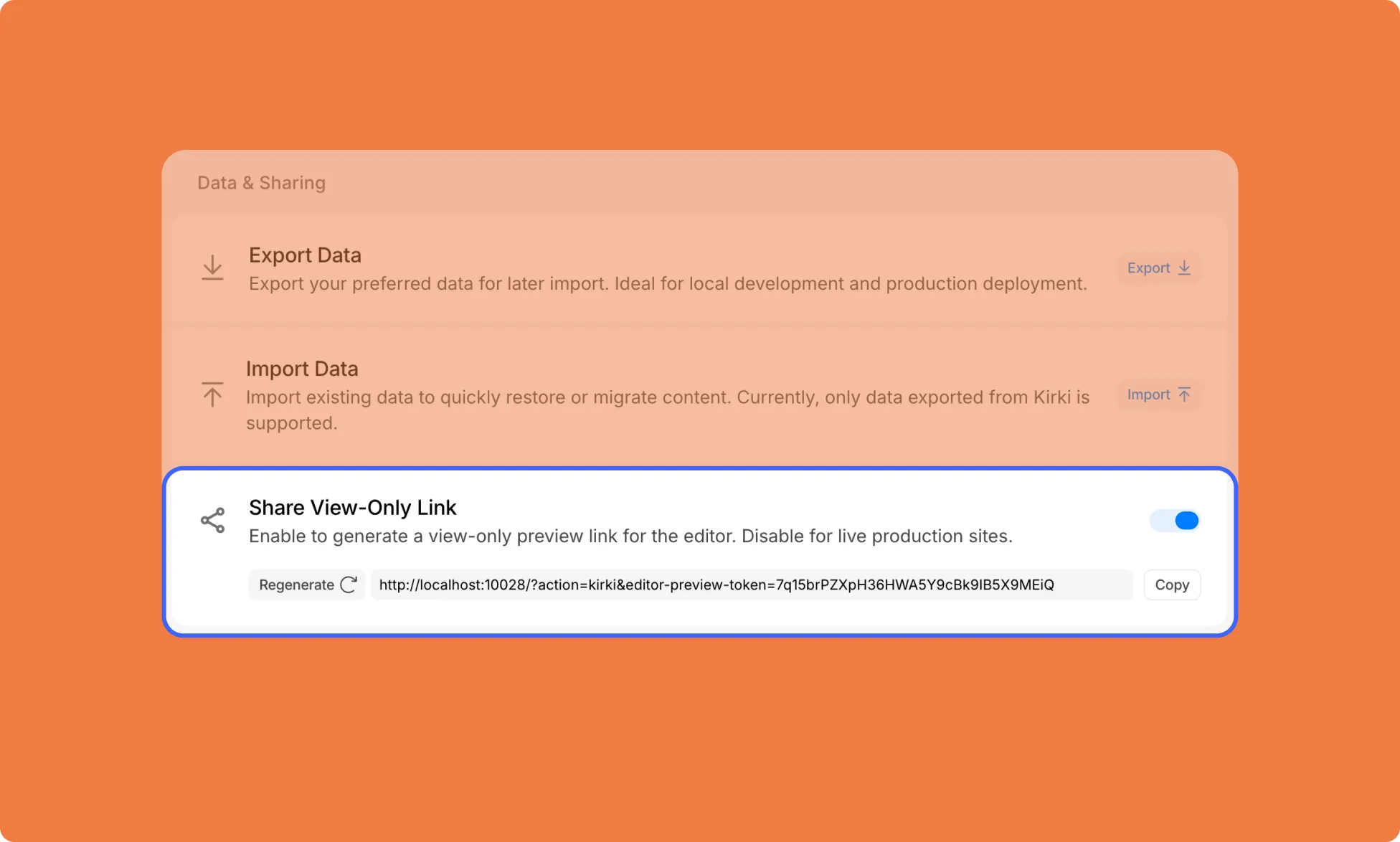
Generate a link that lets clients or collaborators view your editor and test out changes and feedback without affecting the actual design:
- Go to Dashboard → Settings.
- Under Data & Sharing, toggle on Share View-Only Link.
- Copy the generated link and share it with your intended viewer.