Videos are a great way to capture visitors’ attention and keep them engaged with your website.
Using the Video element in Kirki, you can quickly add videos to your website and customize how they are displayed.
Add Video Element
To add a Video element to your page, you can use either of these methods:
From the Element Island
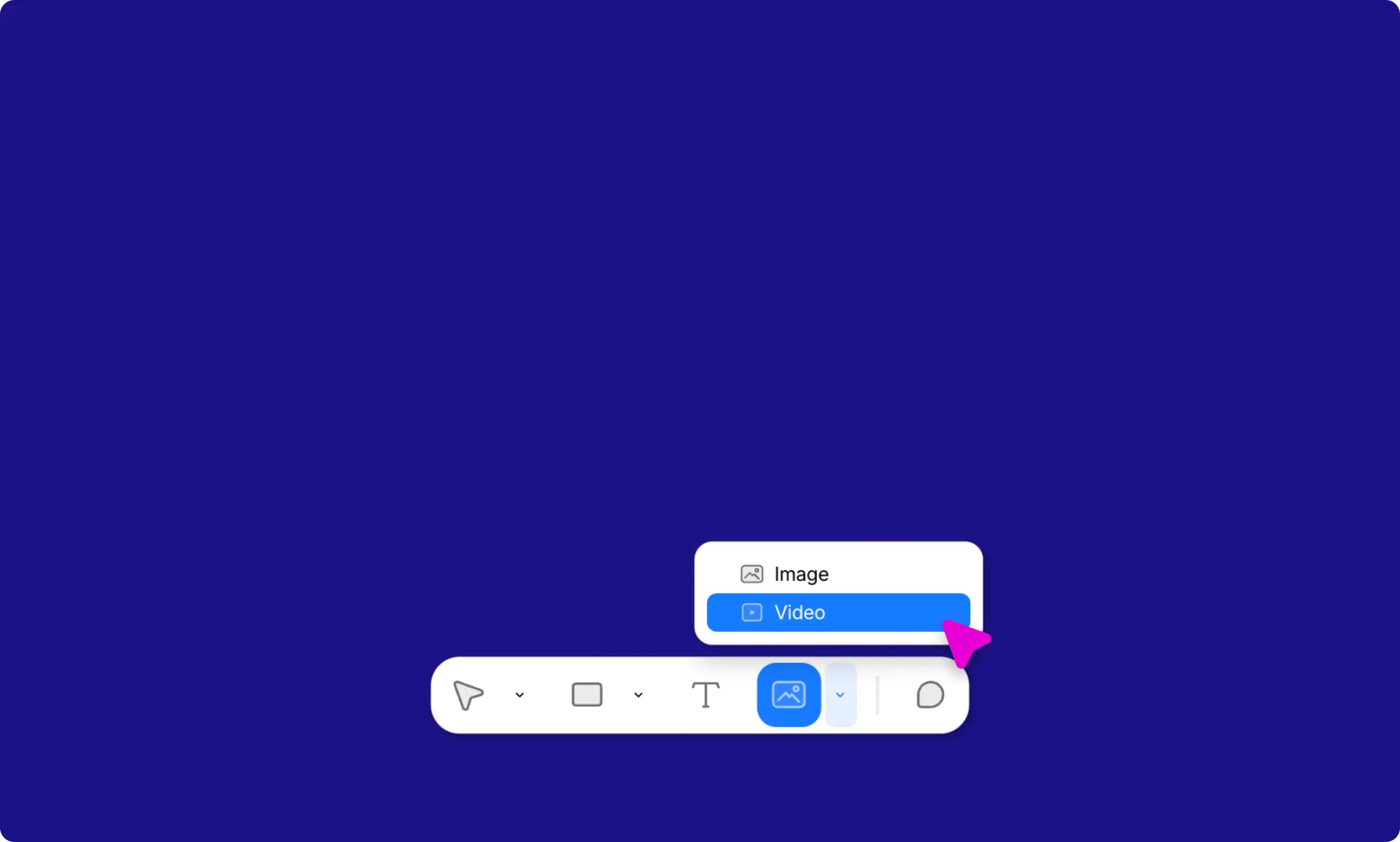
- Click the dropdown arrow beside the Image icon in the Element Island.
- Select Video from the dropdown menu.
- Click or draw on the canvas to place the Video element.
From the Insert panel
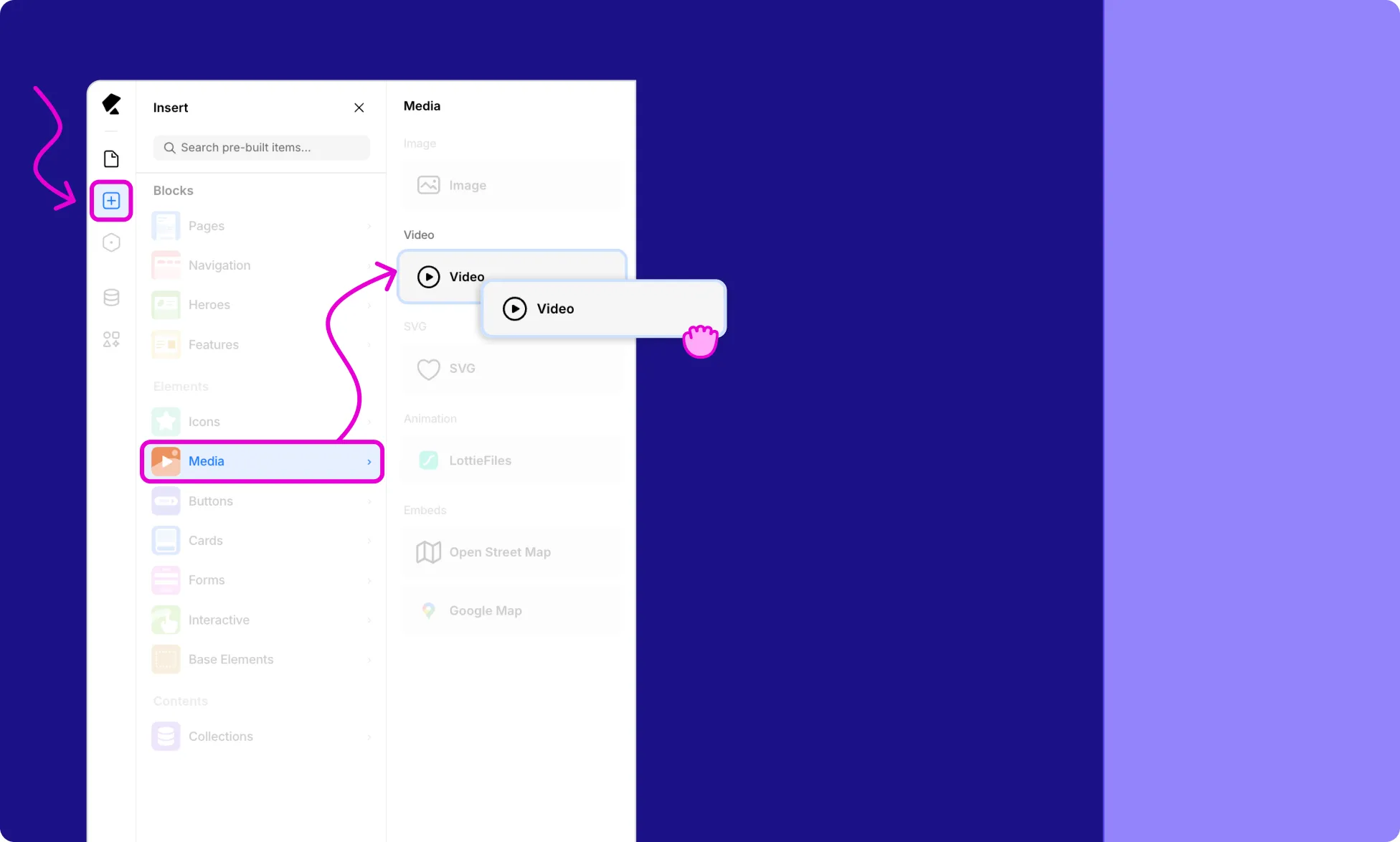
- Open the Insert panel from the Left Sidebar.
- Go to Media from the Elements section.
- Click or drag the Video element onto the canvas.
Insert / Replace Videos
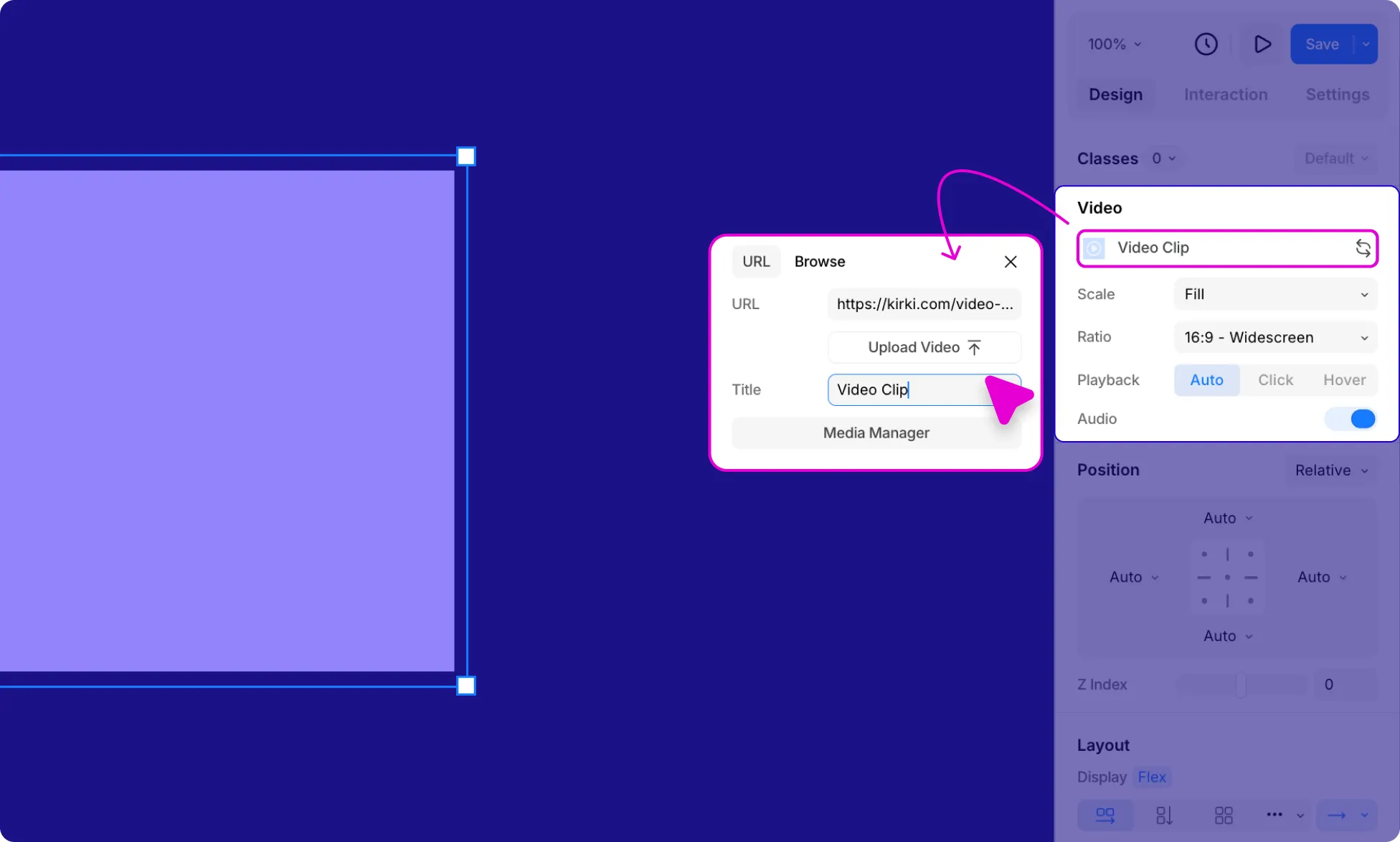
Once the element is on the canvas, click Replace Video from the Video settings in the Right Panel and insert your video in one of three ways:
- Paste a URL into the URL field to embed an externally hosted video.
- Click Upload Video to upload a video file directly.
- Click Media Manager to select an existing video from your media library.
You can also set a Title for the video element from here.
Video Settings
Once a video is added, the Design tab in the Right Panel gives you access to core settings:
Scale Video
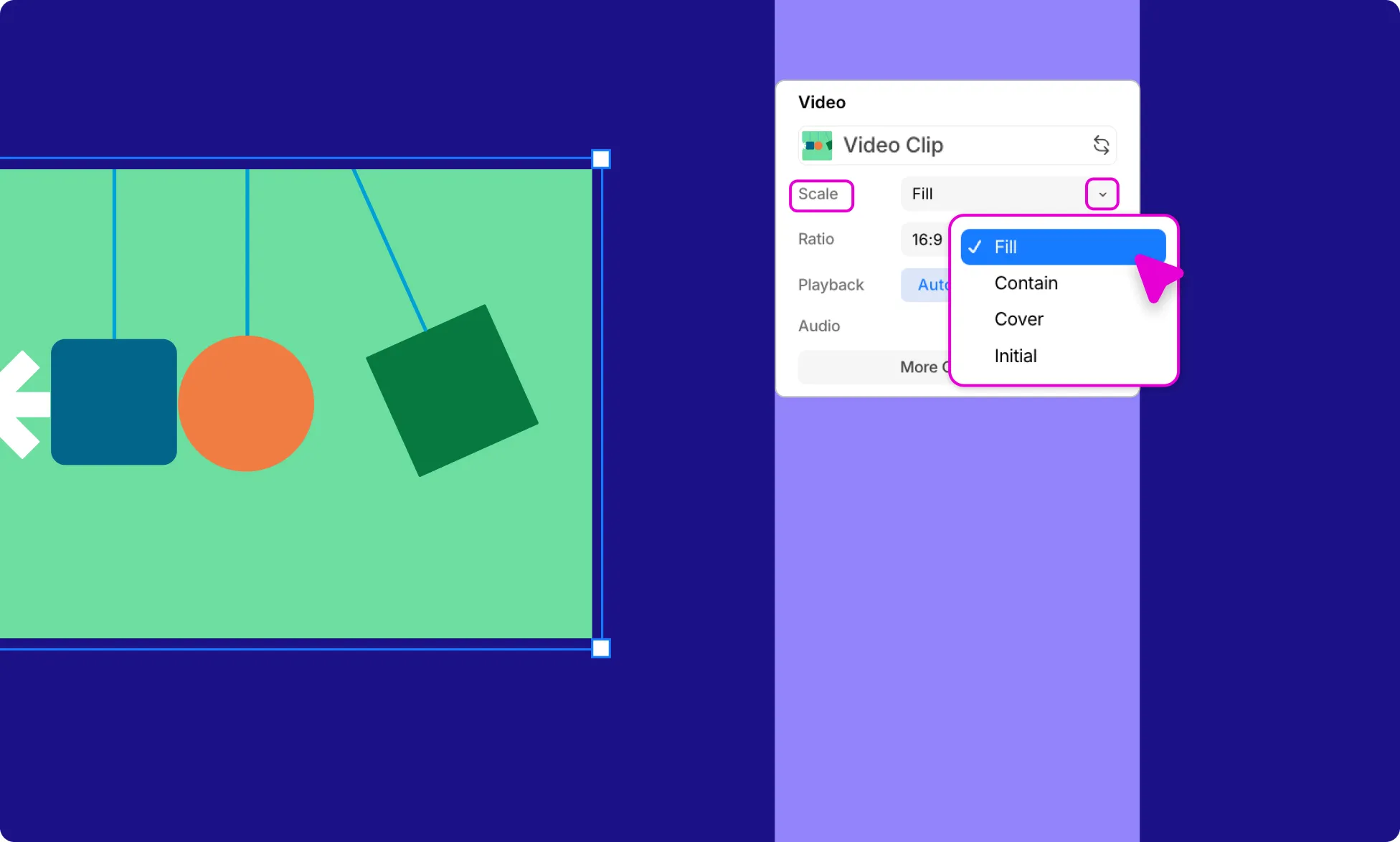
Control how the video fits within its container using Scale:
- Fill – Stretches the video to fill the entire space.
- Contain – Ensures the entire video is visible without cropping.
- Cover – Fills the container by cropping the video while maintaining the aspect ratio.
- Initial – Display the video at its original or default size, ignoring the container’s dimensions.
Adjust Video Ratio
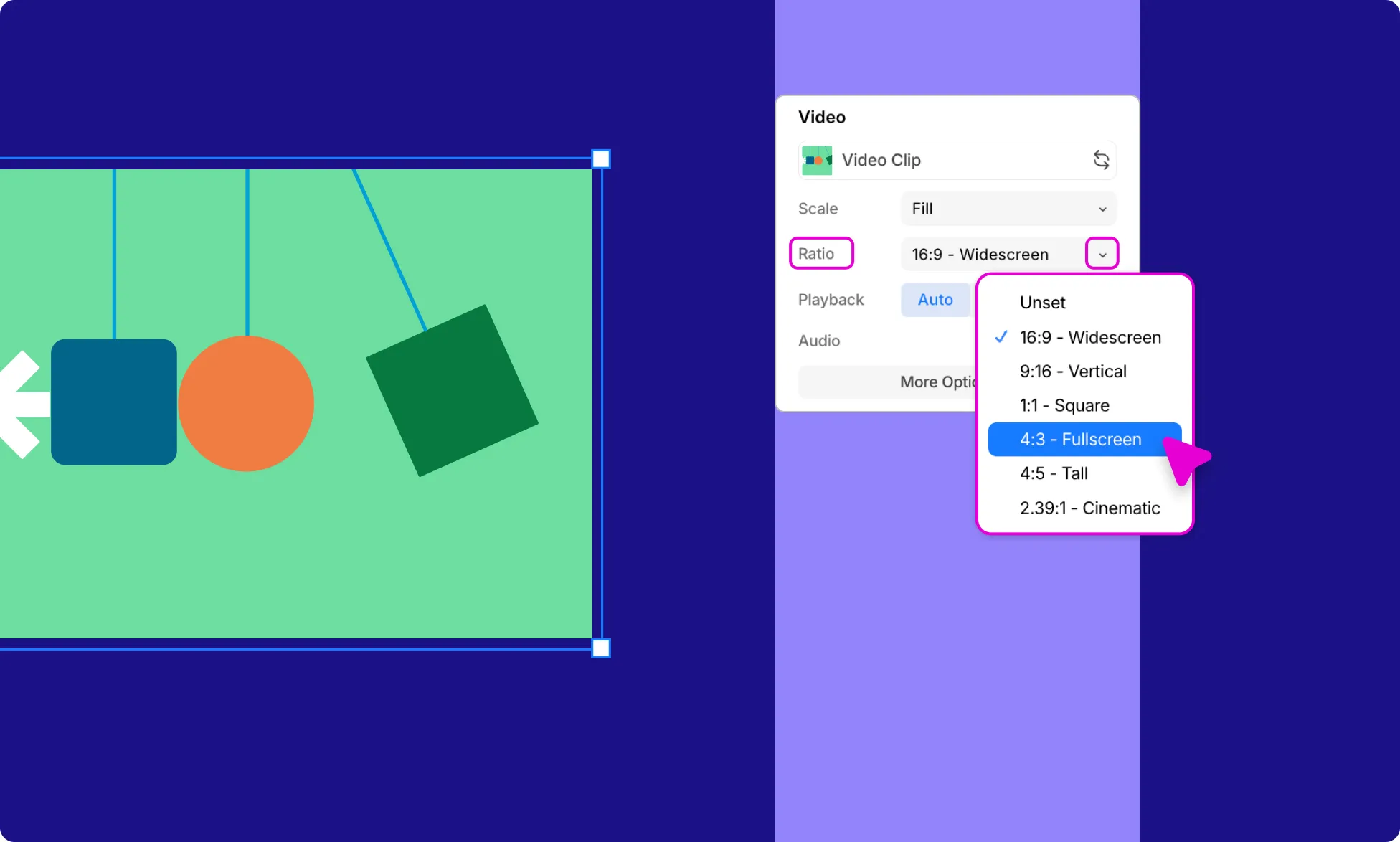
Set the aspect ratio of the video frame. Available options are:
- Unset – No fixed ratio; the video takes its natural dimensions.
- 16:9 Widescreen – Standard widescreen format, ideal for most videos.
- 9:16 Vertical – Portrait format, suited for mobile-first or social media content.
- 1:1 Square – Equal width and height, great for feeds or cards.
- 4:3 Fullscreen – Classic TV/monitor format.
- 4:5 Tall – Slightly taller than wide, common for social media posts.
- 2.39:1 Cinematic – Ultra-wide cinematic format for a film-like look.
Set Video Playback
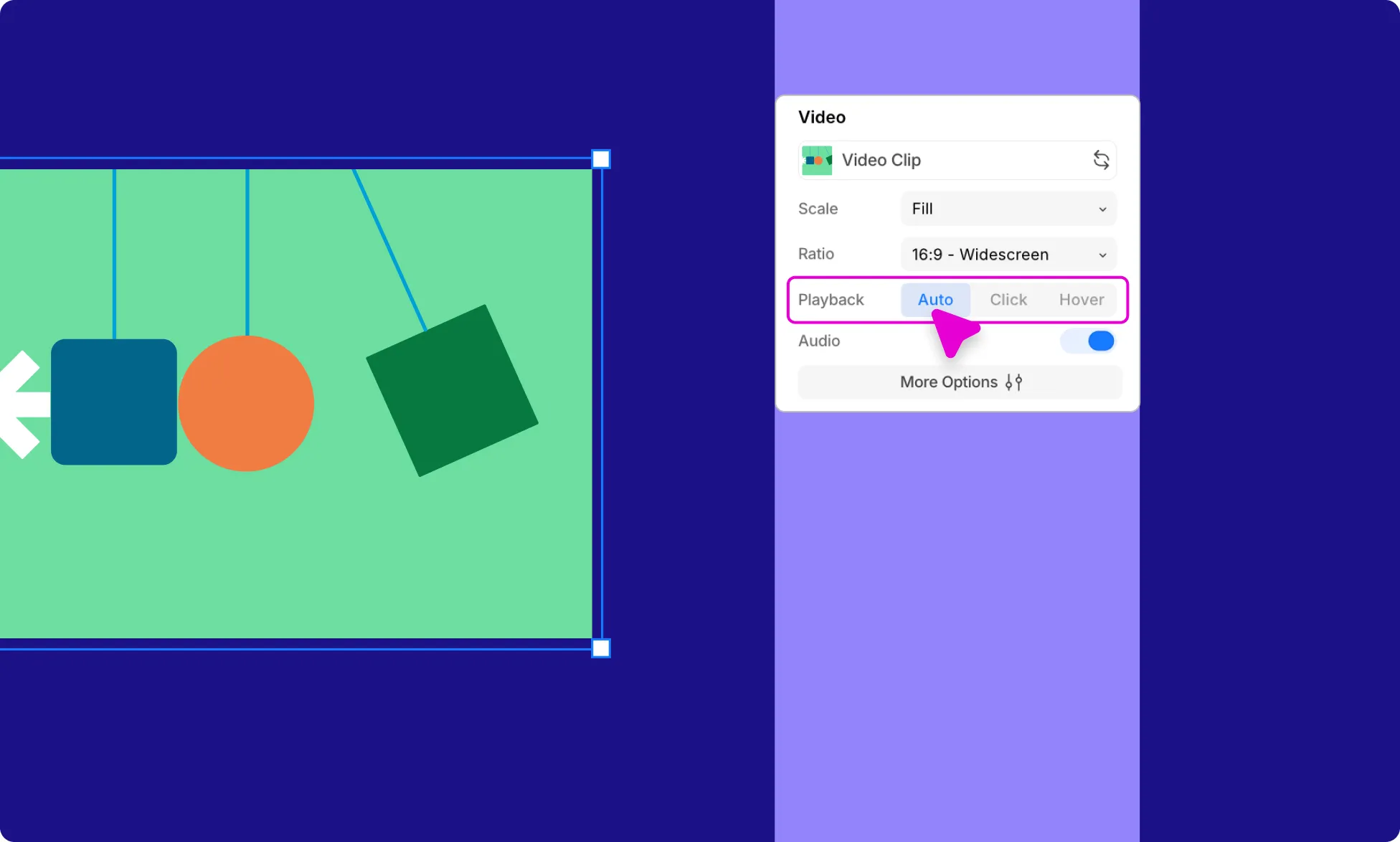
Define how and when the video starts playing:
- Auto – Plays automatically when visible.
- Click – Plays when the user clicks on it.
- Hover –Plays when the user hovers over it.
Audio
Control whether the video plays with sound:
- Enable – Plays the video with its original audio.
- Disable – Silences the video’s audio track.
Video Options
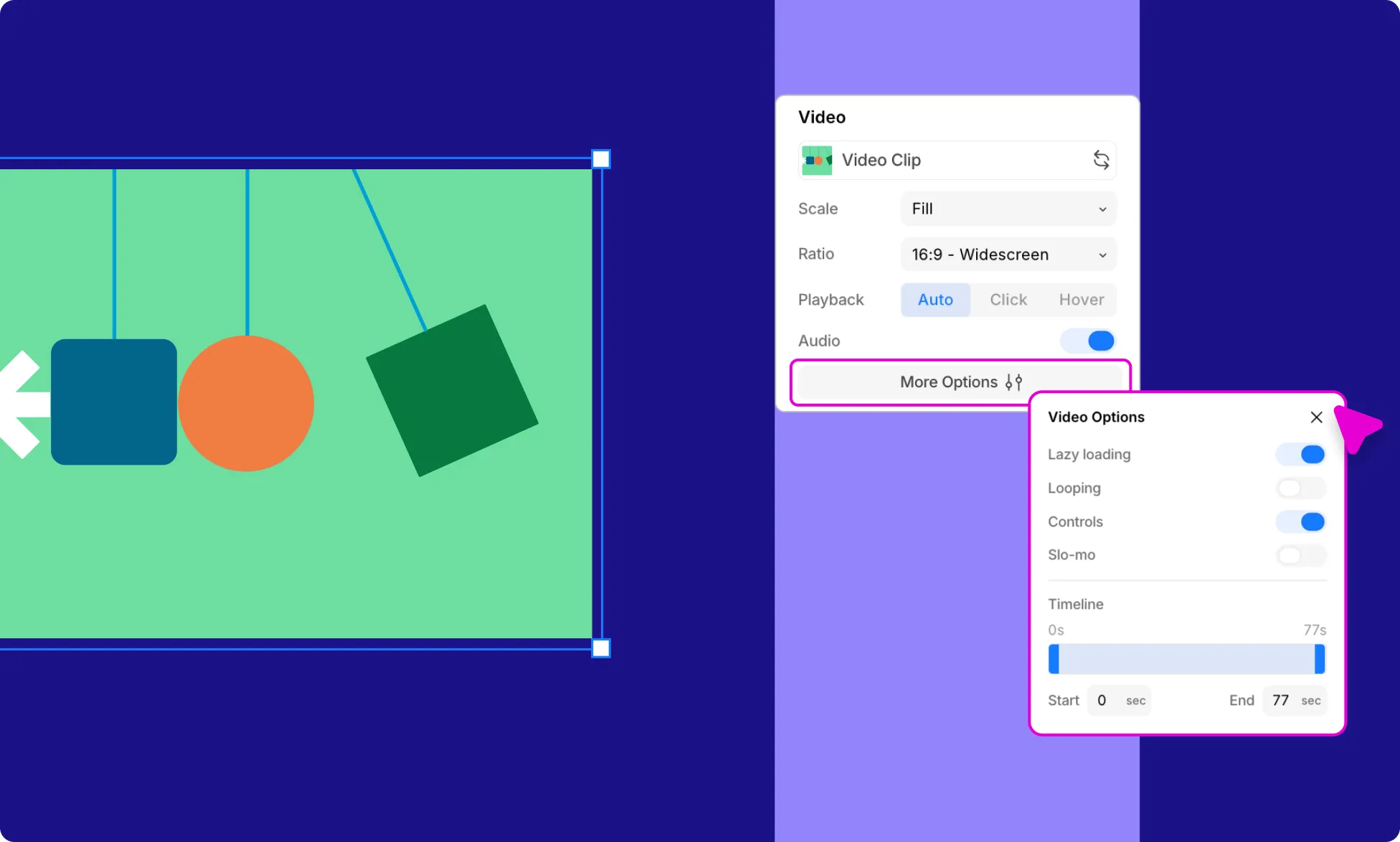
Click More Options in the settings panel to open the Video Options panel, which provides additional playback controls:
Lazy Loading
When enabled, the video loads only when it enters the viewport, improving page performance.
Looping
Enable to have the video repeat continuously; disable to play it once.
Controls
Show or hide the native video player controls (play/pause, volume, scrub bar, full-screen).
Slo-Mo
Enable to play the video at a reduced speed; disable to play at normal speed.
Timeline
Set a specific Start and End time (in seconds) to play only a selected portion of your video. Use the toggles to visually adjust it or enter values manually in the Start and End fields.