Pexels is a stock photo and video platform with a large library of free, high-quality media. Connect Pexels through Kirki Apps to search and use Pexels photos and videos directly from your Kirki editor.
What Is the Pexels App?
The Pexels app is an integration available in Kirki Apps. Once connected, it links your Kirki editor to the Pexels media library using an API key from your Pexels account.
This allows content creators and site builders to quickly find and use free, high-quality images and videos without leaving the Kirki editor.
What Do You Need Before Connecting Pexels?
- A Pexels account
- A Pexels API Key
You’ll generate the API Key from the Pexels API website, then enter it into Kirki to complete the connection.
How to Get Your Pexels API Key?
- Go to the Pexels API website: https://www.pexels.com/api/
- Sign up for a Pexels account or log in if you already have one.
- Follow the steps on the site to get your API Key. (Give it a name, category, and brief description)
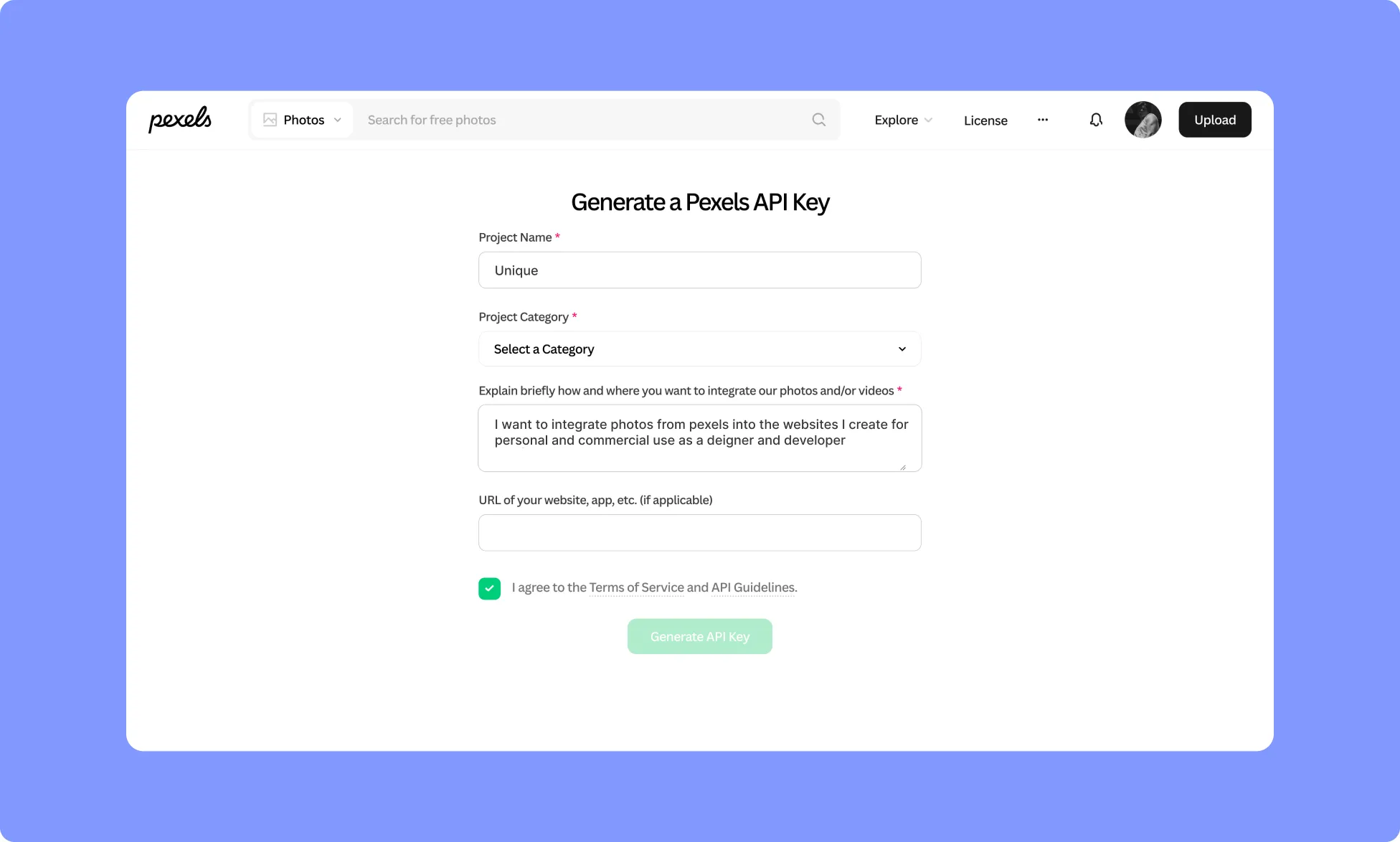
- Once your API Key is generated, copy it immediately and keep it somewhere safe.
Important: Make sure you copy the complete API Key before leaving the page.
How to Install the Pexels App in Kirki?
- In the Kirki editor, navigate to Apps from the left sidebar.
- Search for Pexels.
- Click Install.
How to Configure the Pexels App?
- Once the app is installed, click the ellipsis (…) icon next to it.
- Select Configure.
- Enter your Pexels API Key in the provided field.
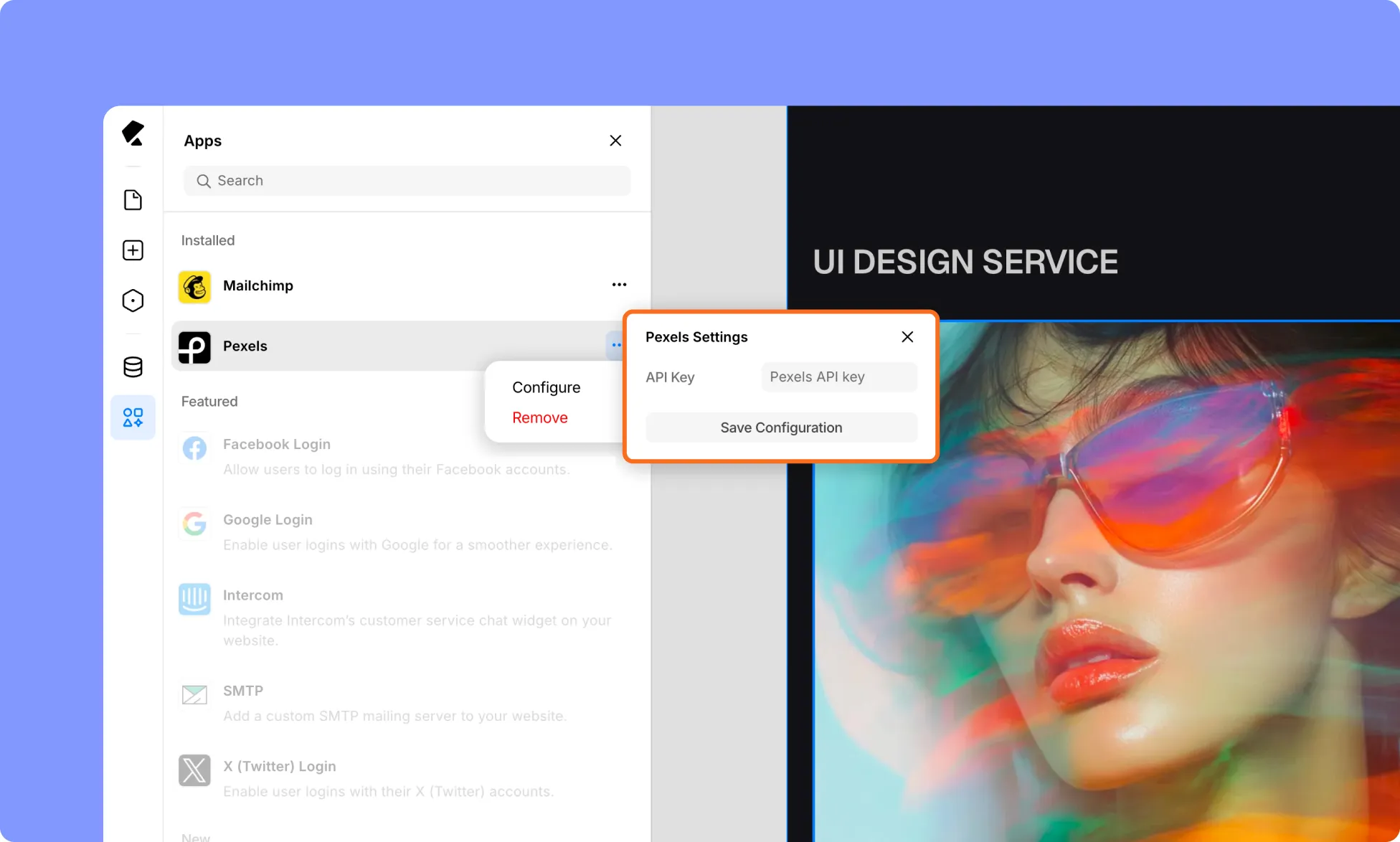
- Click Save Configuration.
Your Kirki editor is now connected to your Pexels account, and the app is ready to use.
How to Test the Pexels Integration?
- Open the media or image picker in the Kirki editor, and find the Pexels integration.
- Search for an image using a keyword, such as “female portrait colorful”.
- Confirm that Pexels search results load correctly.
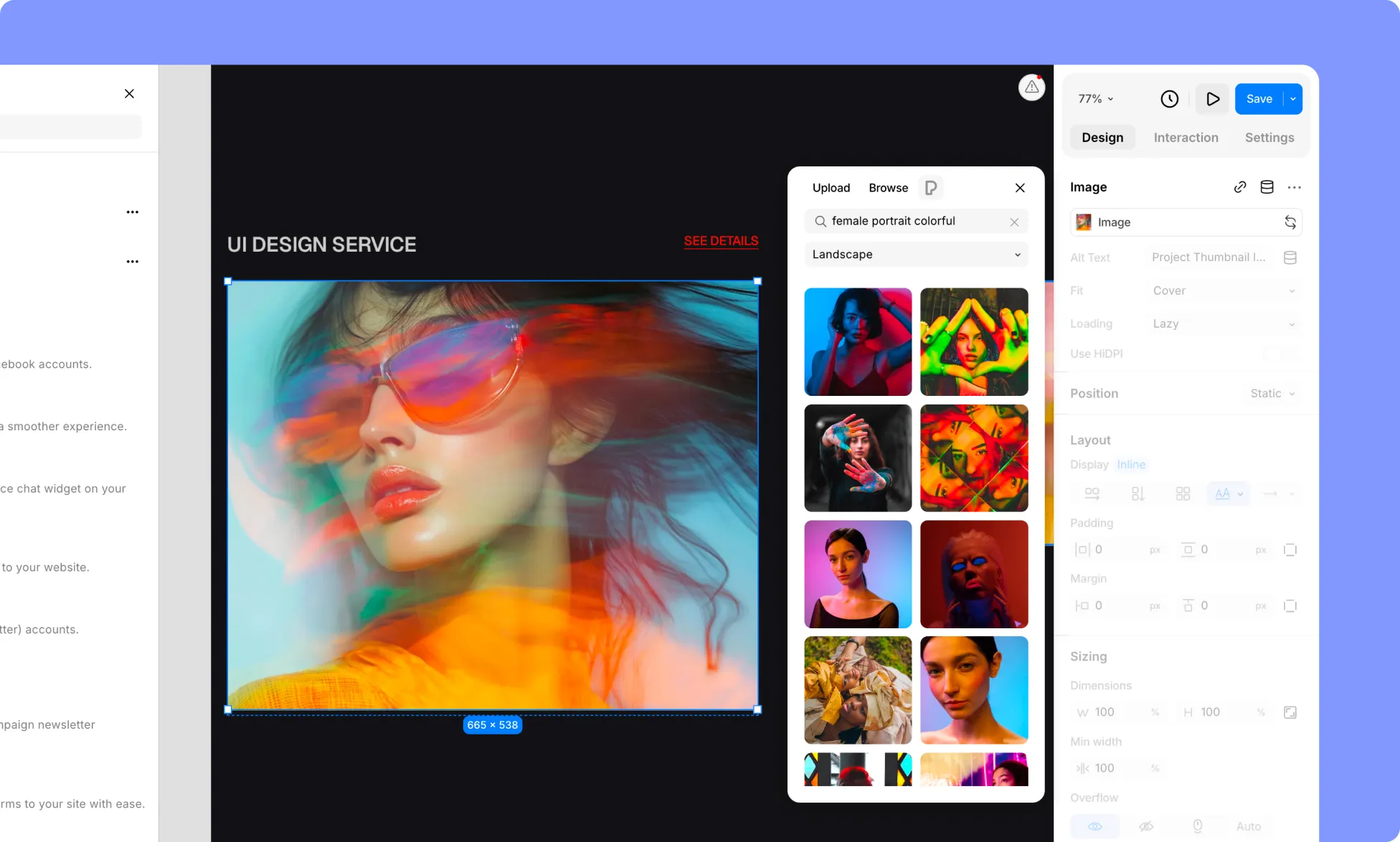
- Select an image from the results.
- Insert the image into your page.
- Confirm that the image appears correctly on the page.