The Transforms feature in Kirki lets you move, scale, rotate, skew, and apply 3D effects to elements – all visually, without altering the element’s actual layout structure.
This gives you powerful creative control while keeping your design flexible and responsive.
How to Apply Transform
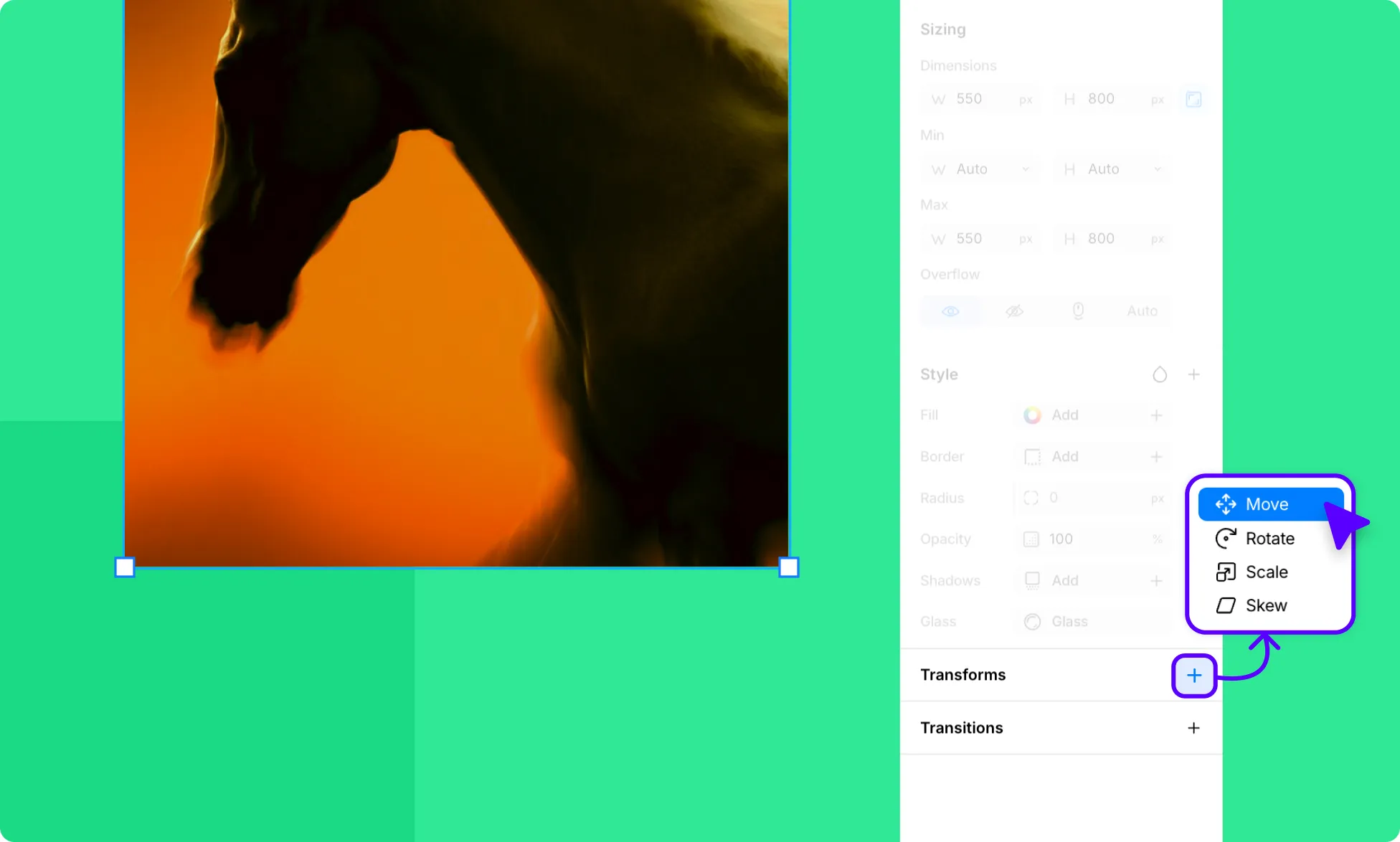
- Select an element on the canvas.
- From the Right Panel, scroll to the Transforms section.
- Click the plus (+) icon to open the transform type menu.
- Choose one of the four options: Move, Rotate, Scale, or Skew.
Once added, the selected transform appears in the sidebar with its current values, and a floating panel opens on the canvas for more adjustments.
Transform Types
Kirki offers the following transform properties:
- Move
- Rotate
- Scale
- Skew
Move
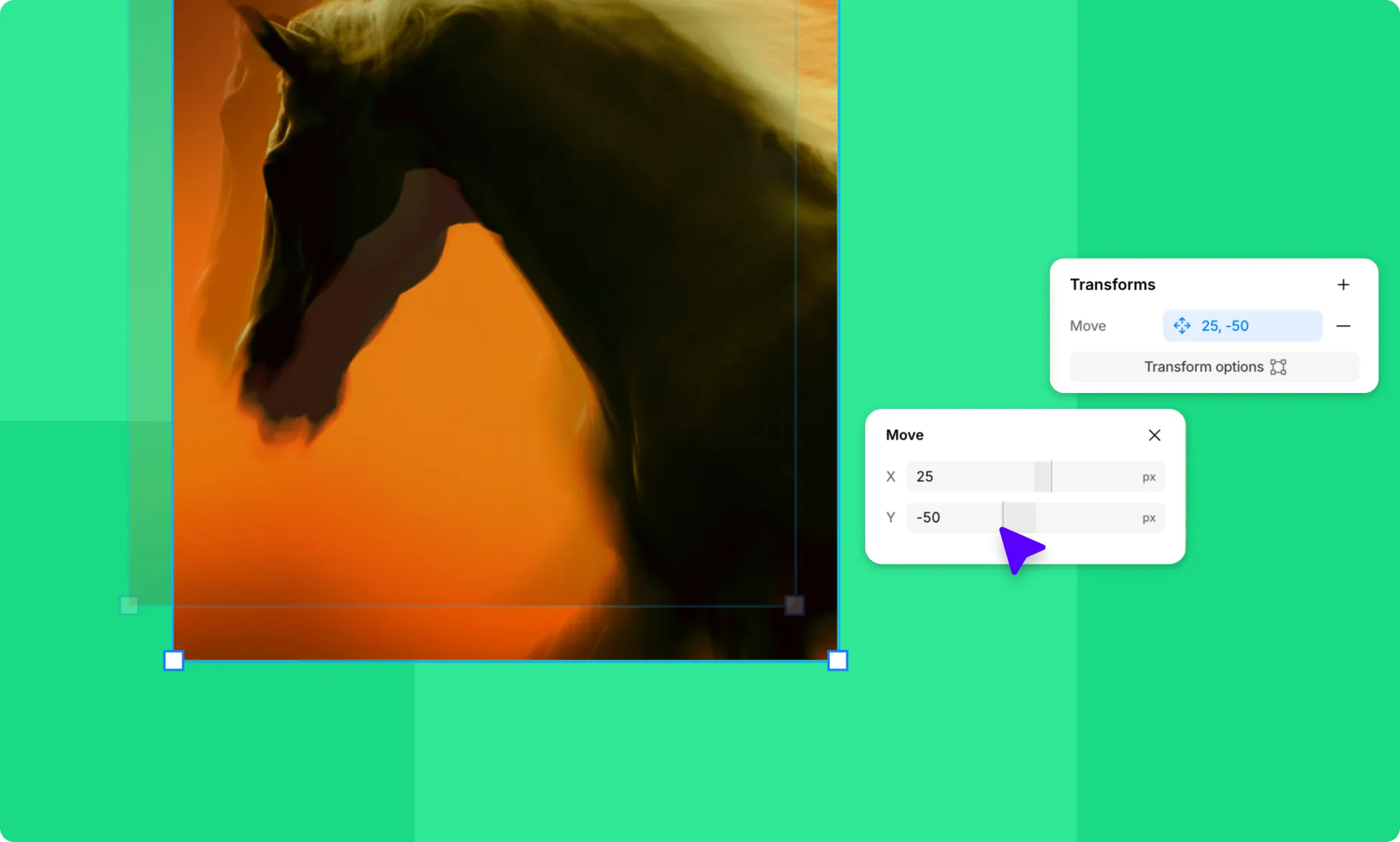
Shift your element across the page without affecting the layout of surrounding elements.
- X – Move the element horizontally.
- Y – Move the element vertically.
- Z – Move the element forward or backward (into or out of the page). Requires 3D Transformation and a Perspective value to take effect.
Rotate
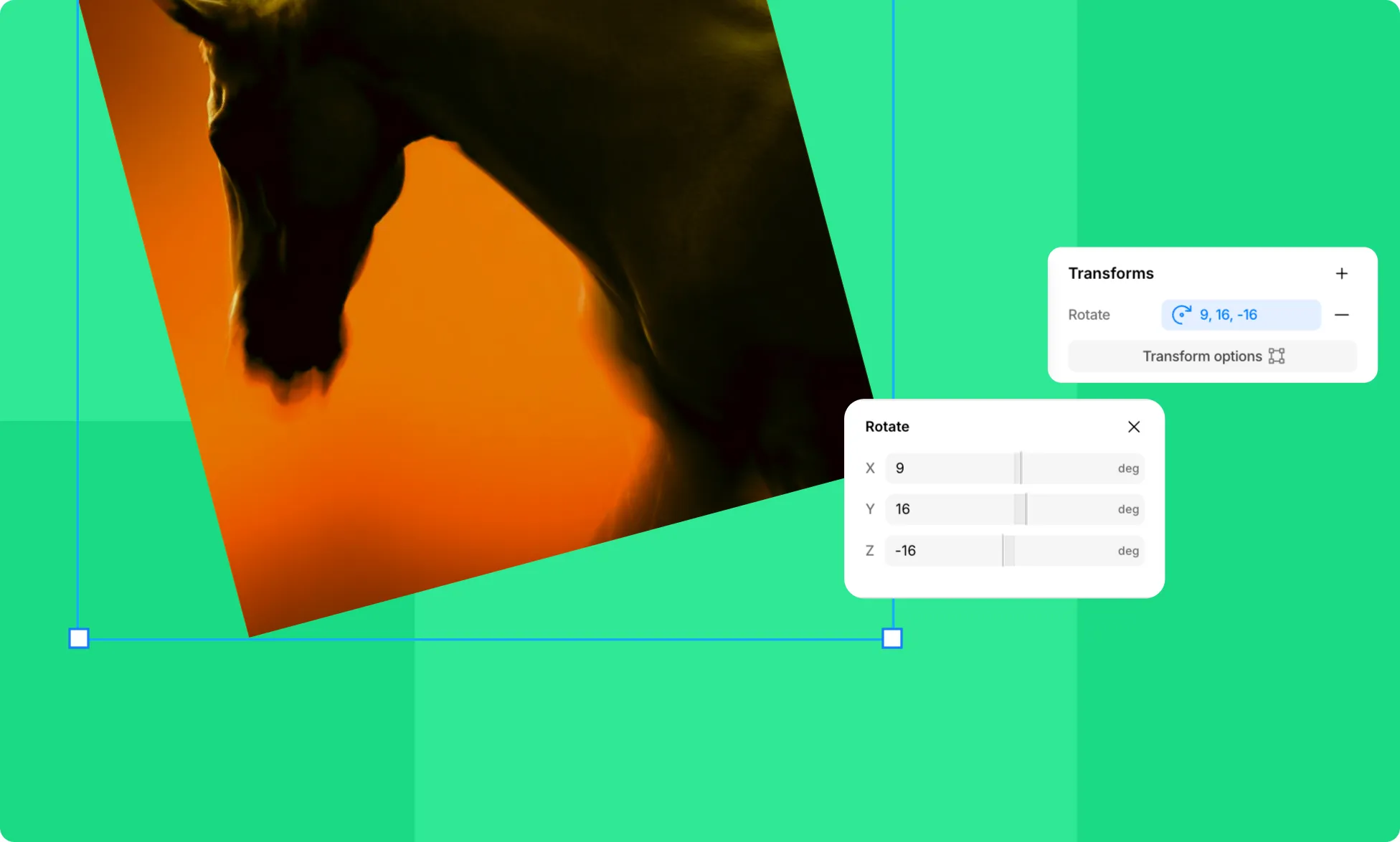
Tilt your element by any angle.
- X – Rotate along the X (horizontal) axis.
- Y – Rotate along the Y (vertical) axis.
- Z – Rotate along the Z axis.
Note: Rotating about the X or Y axis on its own produces a flat, 2D effect. To get a true 3D result, enable 3D Transformation on the parent element and configure it.
Scale
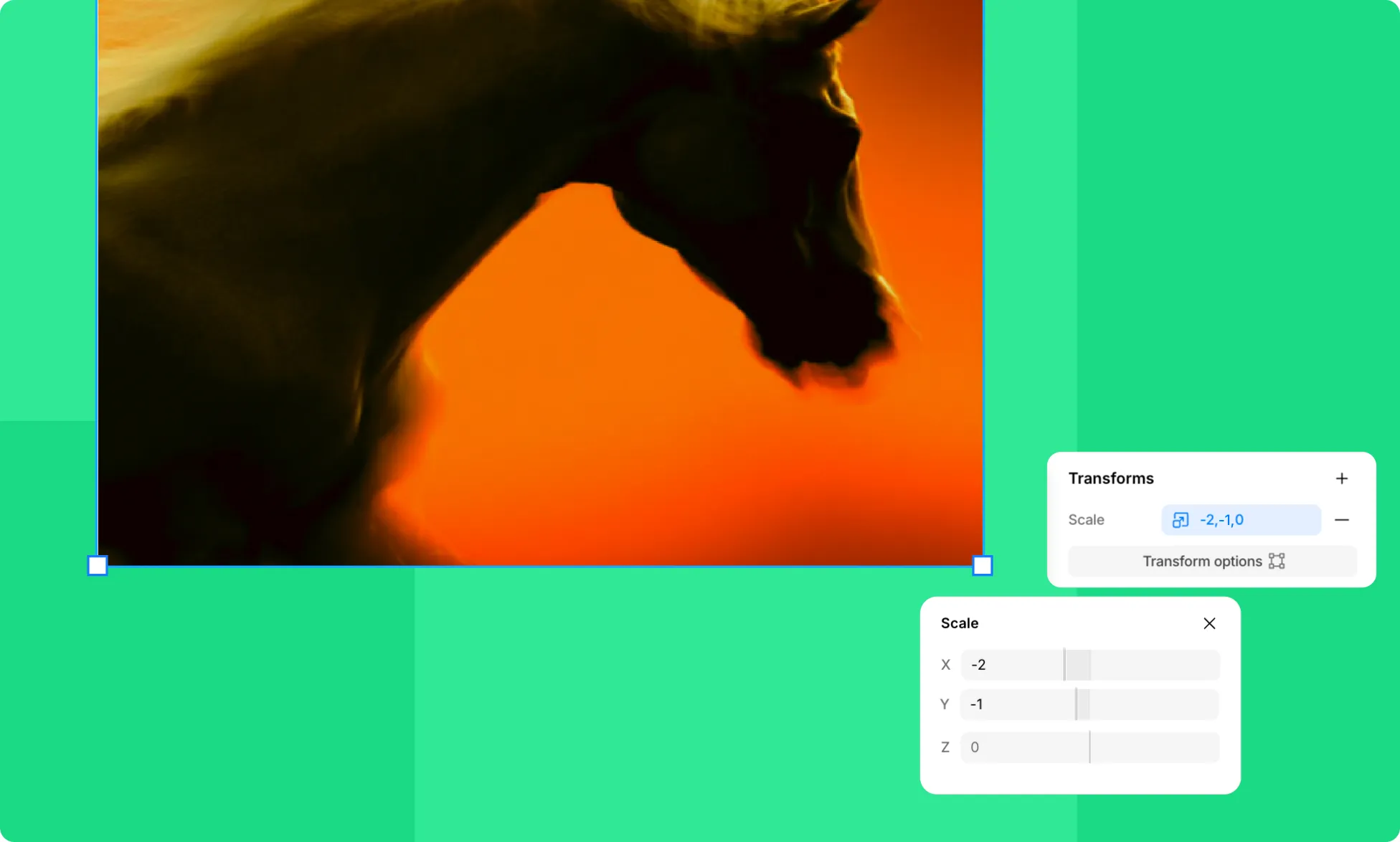
Resize your element without changing its position in the layout.
- X – Increase or decrease the element’s width.
- Y – Increase or decrease the element’s height.
- Z – Scale along the Z axis. Most effective when the parent element contains children with varying Z values for Move Z or Rotate Z.
Skew
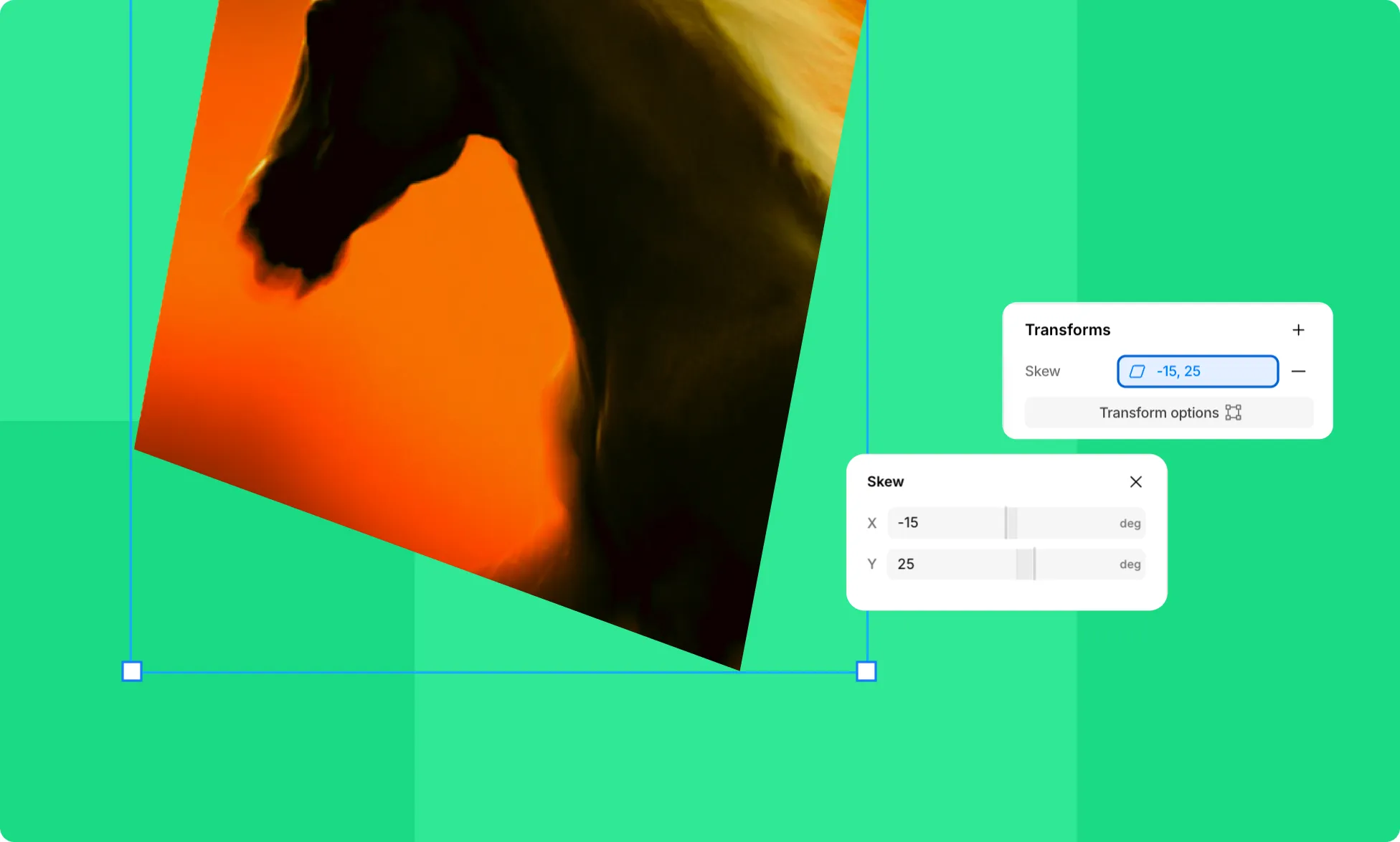
Stretch your element diagonally.
- X – Skew along the horizontal axis.
- Y – Skew along the vertical axis.
Note: Skew is not affected by 3D Perspective settings.
How to Set Self Origin
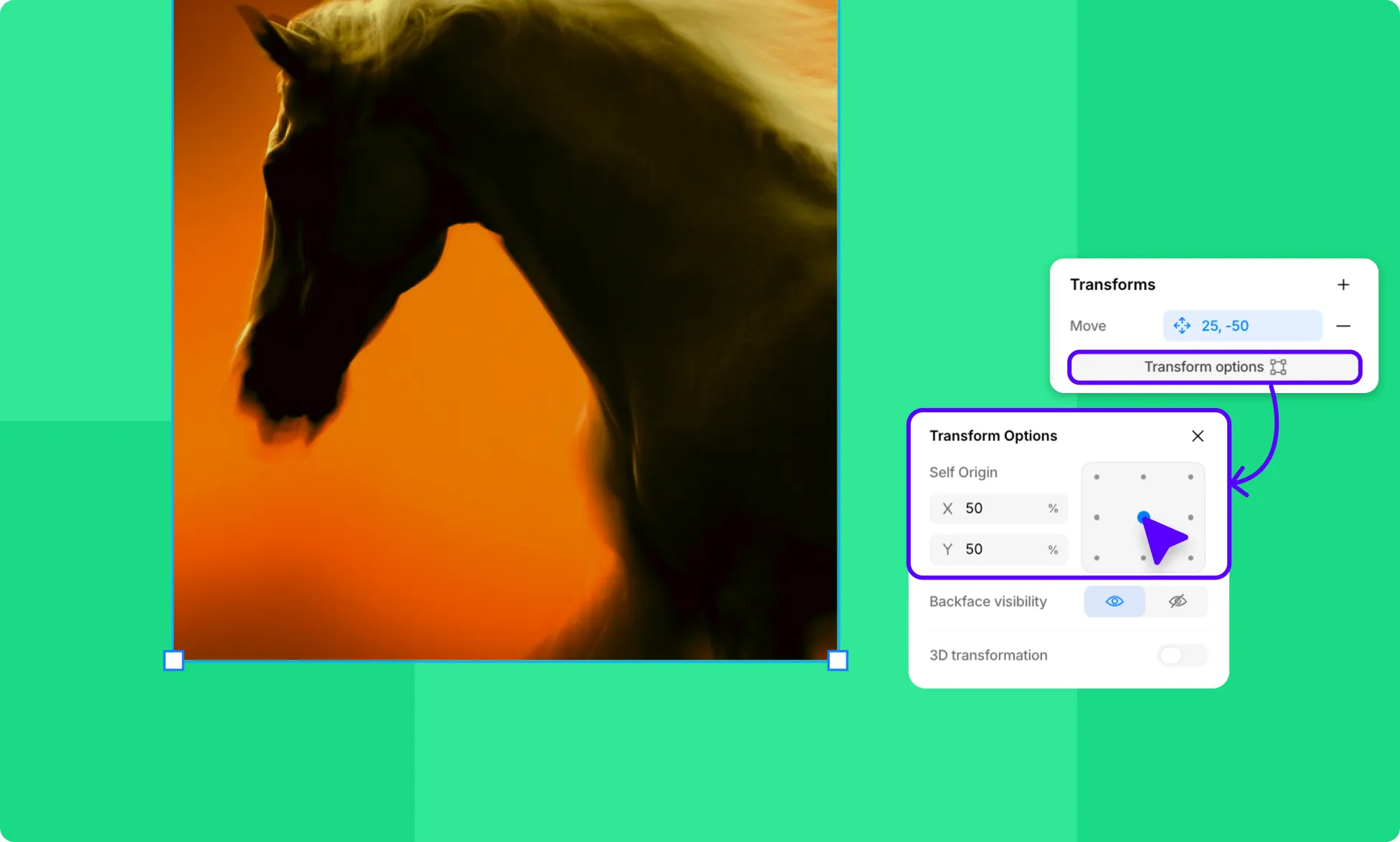
The Self Origin defines the point on the element from which the transformation originates. By default, this is set to the center (50% / 50%).
- Select an element on the canvas.
- From the Right Panel, scroll to the Transforms section.
- Apply a transform if one isn’t already added.
- Click Transform Options and adjust the Self Origin using the grid or enter X and Y values directly.
How to Set Backface Visibility
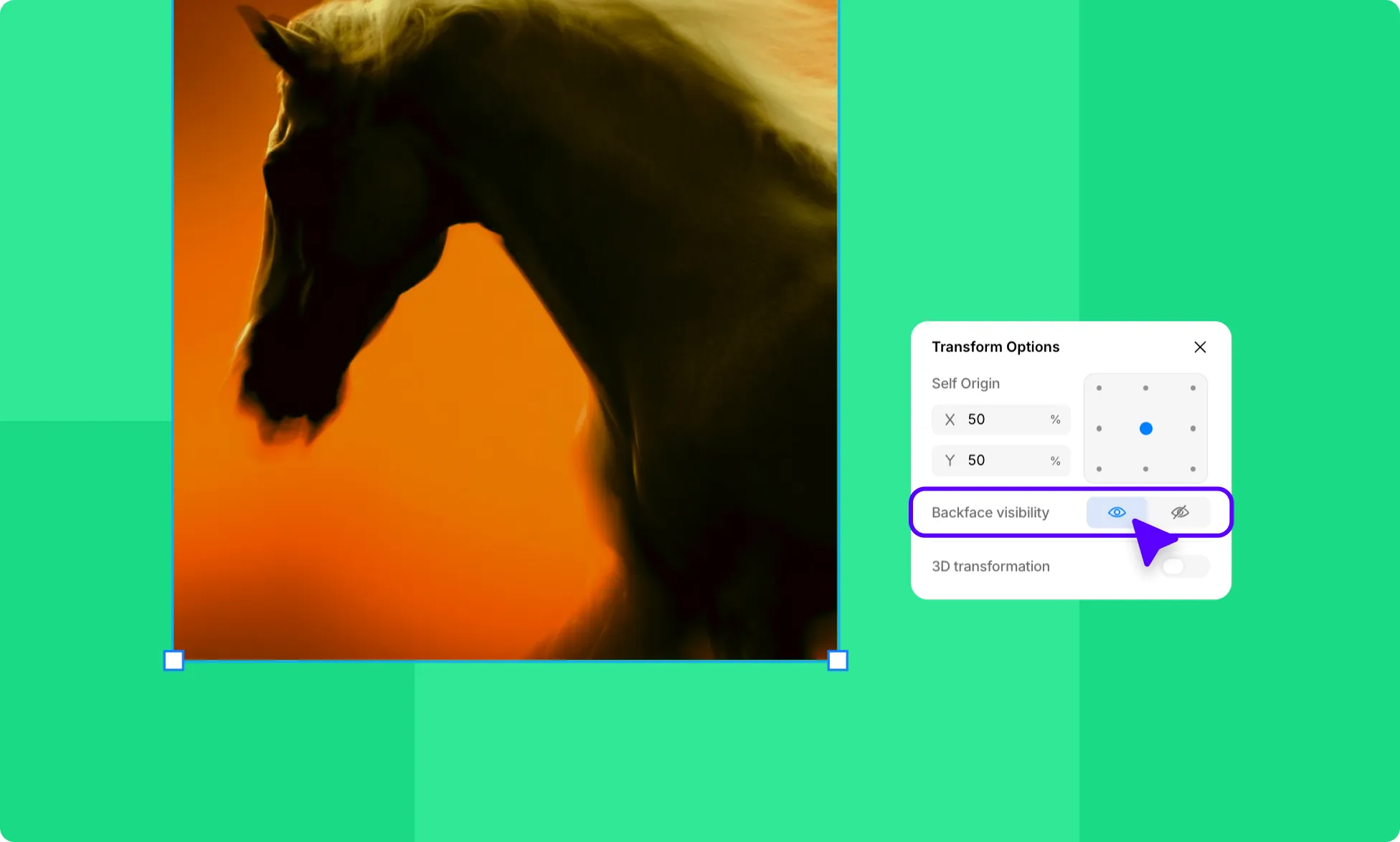
Backface Visibility controls whether the back of an element is shown when it’s rotated in 3D space.
- Select an element on the canvas.
- From the Right Panel, scroll to the Transforms section.
- Apply a transform if one isn’t already added.
- Click Transform Options and toggle Backface Visibility to Visible or Hidden.
3D Transformation
3D Transformation lets you add depth and perspective to your elements, turning flat designs into dynamic 3D visuals. Once enabled, you can control how perspective is applied – either to a single element or across a group of children.
How to Enable 3D Transformation
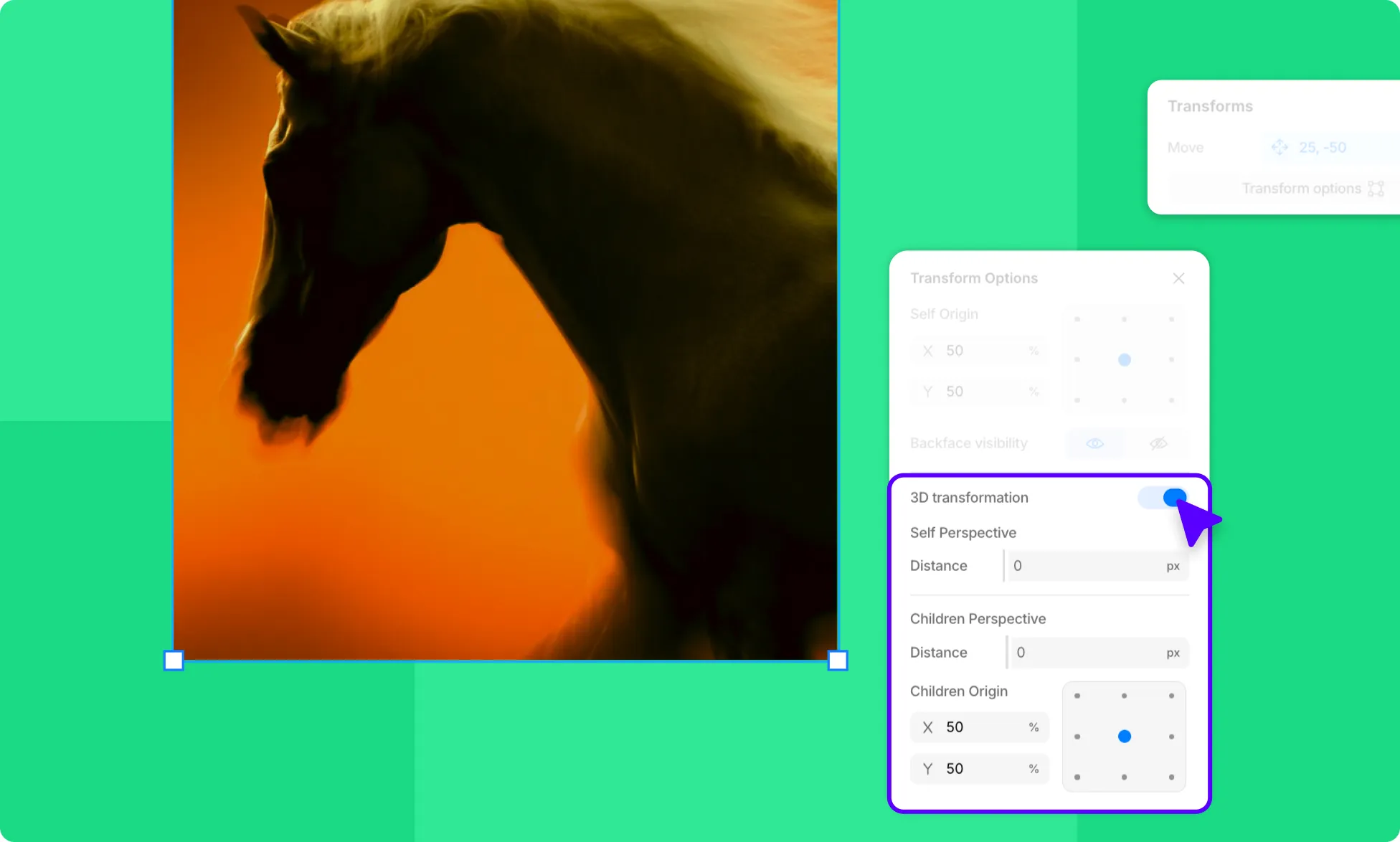
- Select an element on the canvas.
- From the Right Panel, scroll to the Transforms section.
- Apply a transform if one isn’t already added.
- Click Transform Options and enable 3D Transformation.
Self Perspective
Applies perspective to the element and its own children. Distortion is relative to the element itself. Best for transforming a single element in isolation.
- Distance – Set the perspective depth.
Children Perspective
Applies perspective to all child elements. The parent acts like a camera through which children are viewed. Best for transforming multiple elements together for a more realistic 3D result.
- Distance – Set the perspective depth.
- Children Origin – Defines the position from which the viewer appears to be looking at the child elements. Similar to setting a camera angle. You can use the grid or enter values directly:
- X – Horizontal position as a percentage.
- Y – Vertical position as a percentage.