Typography, like any design aspect, needs to be consistent across your entire website. But styling text the same way over and over can get tedious fast.
Reusable Text Styles solves this by letting you save Typography settings, like font family, size, weight, and more, and reuse them anywhere across your site.
This helps maintain consistent typography while making updates faster and easier.
In this guide, you’ll learn how to create, apply, and manage Reusable Text Styles in Kirki.
Create Text Styles
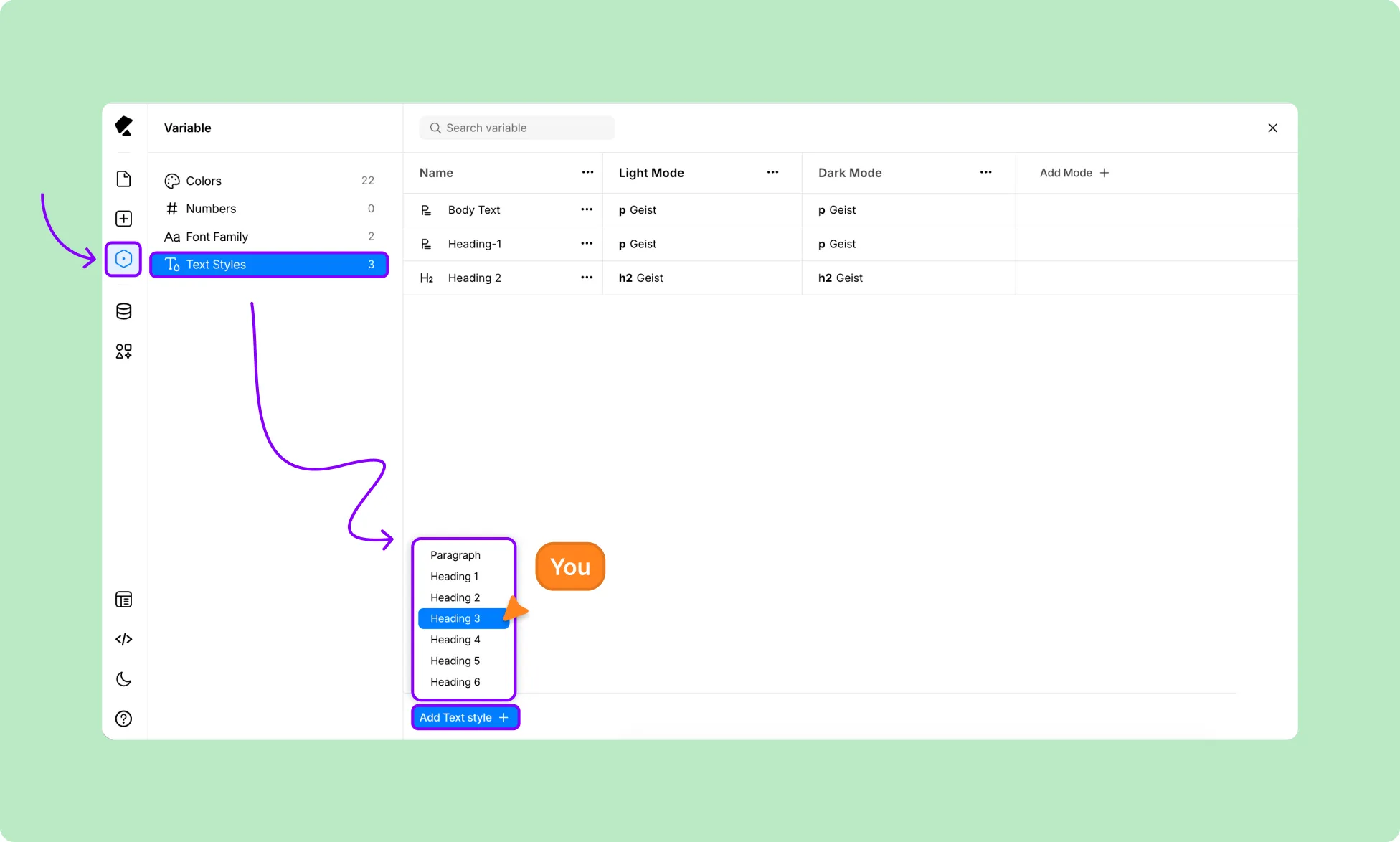
You can create and manage Text Styles from Variables:
- From the left sidebar, open Variables.
- Go to the Text Styles tab and click Add Text Style.
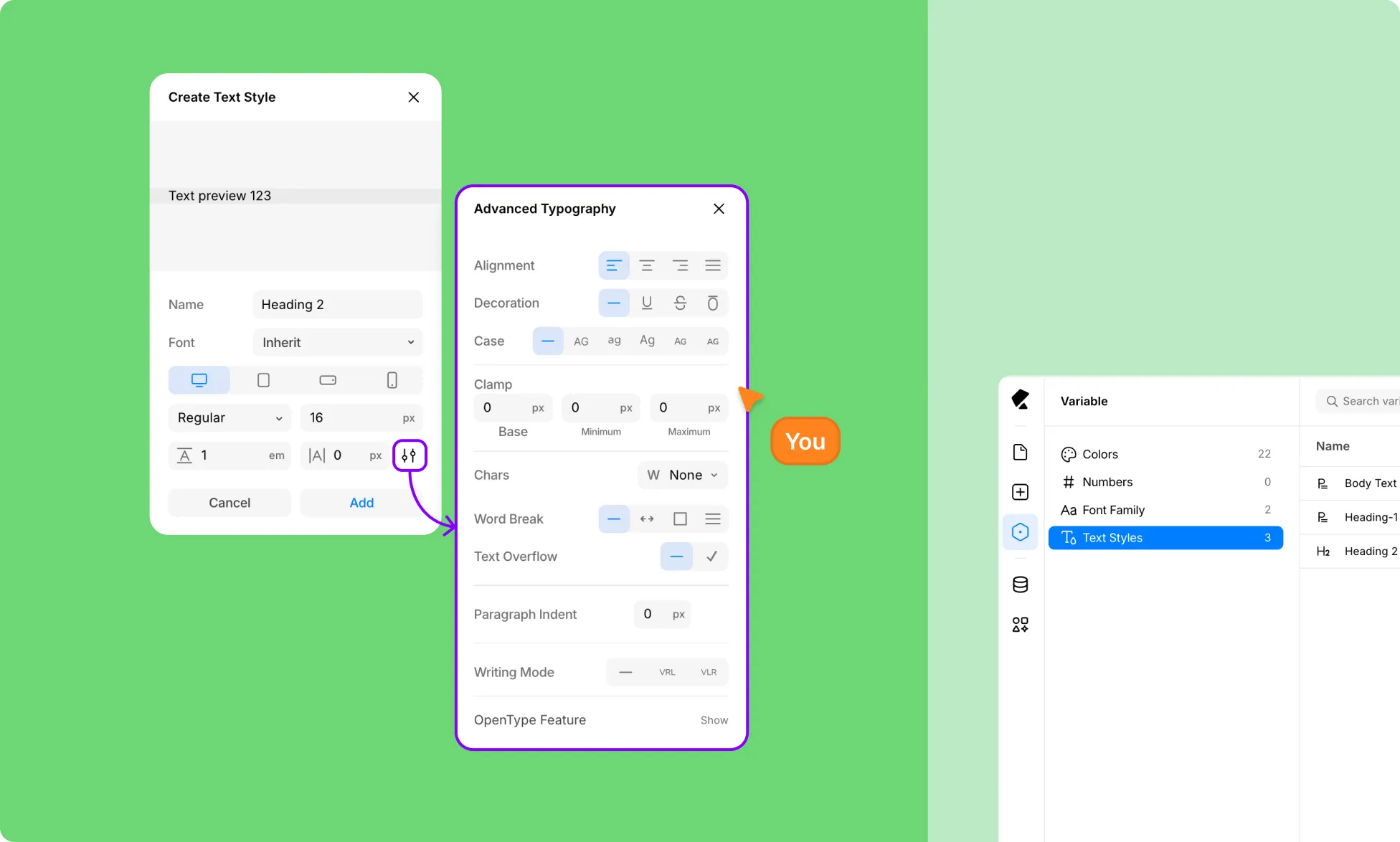
- Choose the appropriate heading level or paragraph type.
- Give your Text Style a clear and unique name.
- Customize the typography using the available type settings.
- Click Add to save your Text Style.
Apply Text Styles
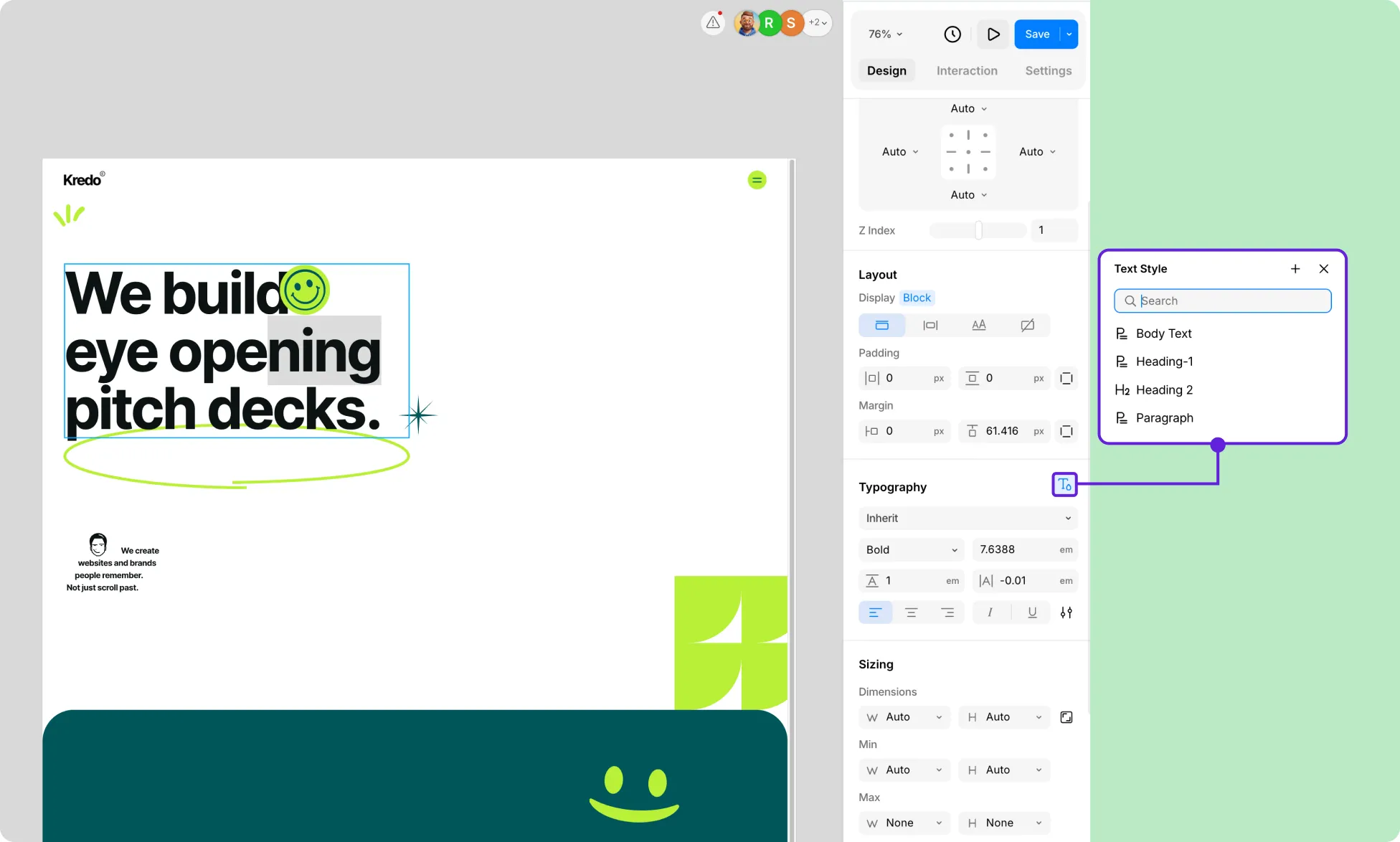
Once you’ve created Text Styles, you can easily apply them to any text layer:
- Select your text element.
- In the Typography section on the Right Panel, click the Text Style icon.
- From the Text Style panel, select the one you want to apply.
Unlink Text Styles
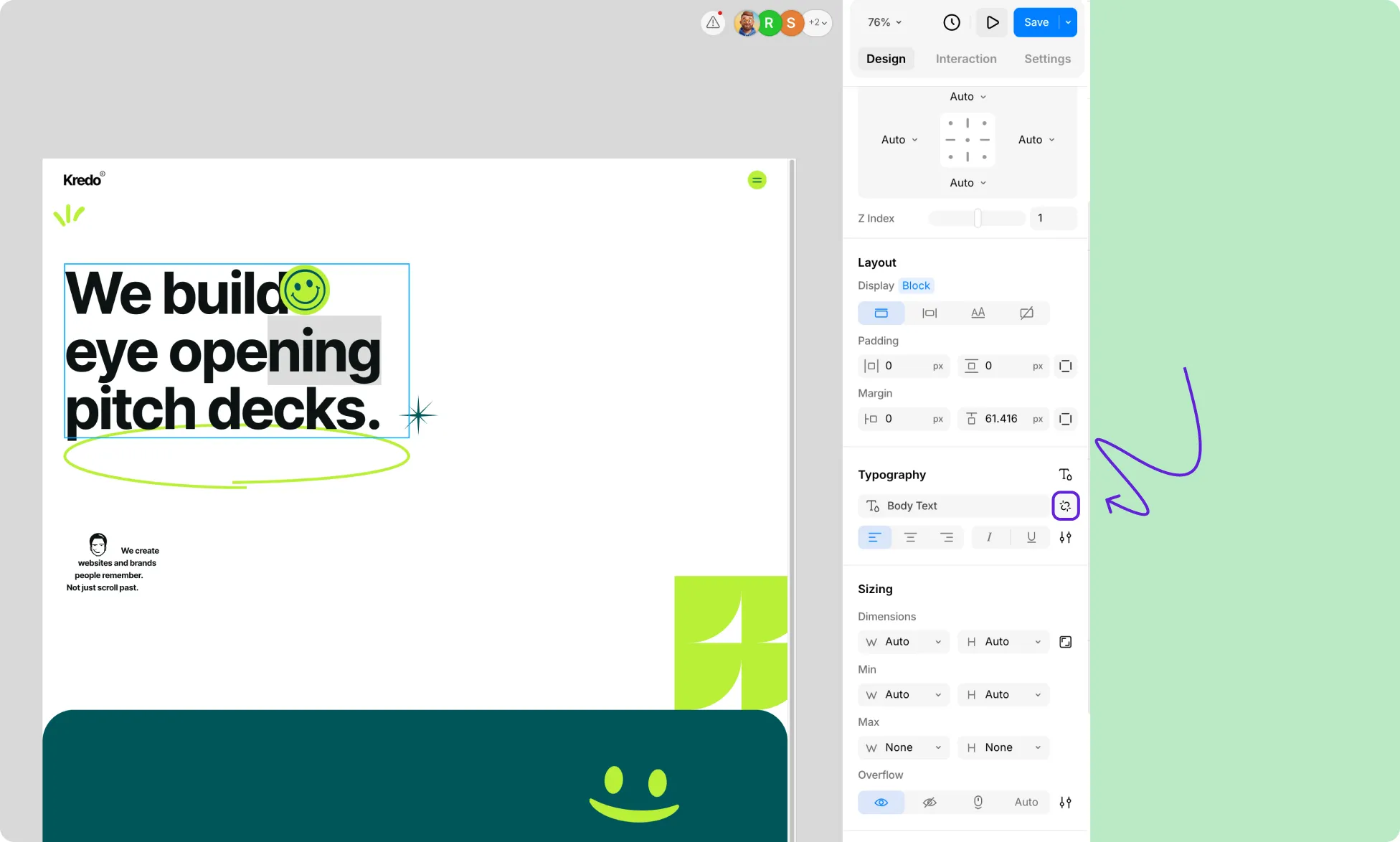
You can also unlink Text Styles applied to text elements just as easily:
- Select your text element.
- In the Typography section on the Right Panel, click on the Unlink icon.
Just like that, your text element will no longer
Add Breakpoints
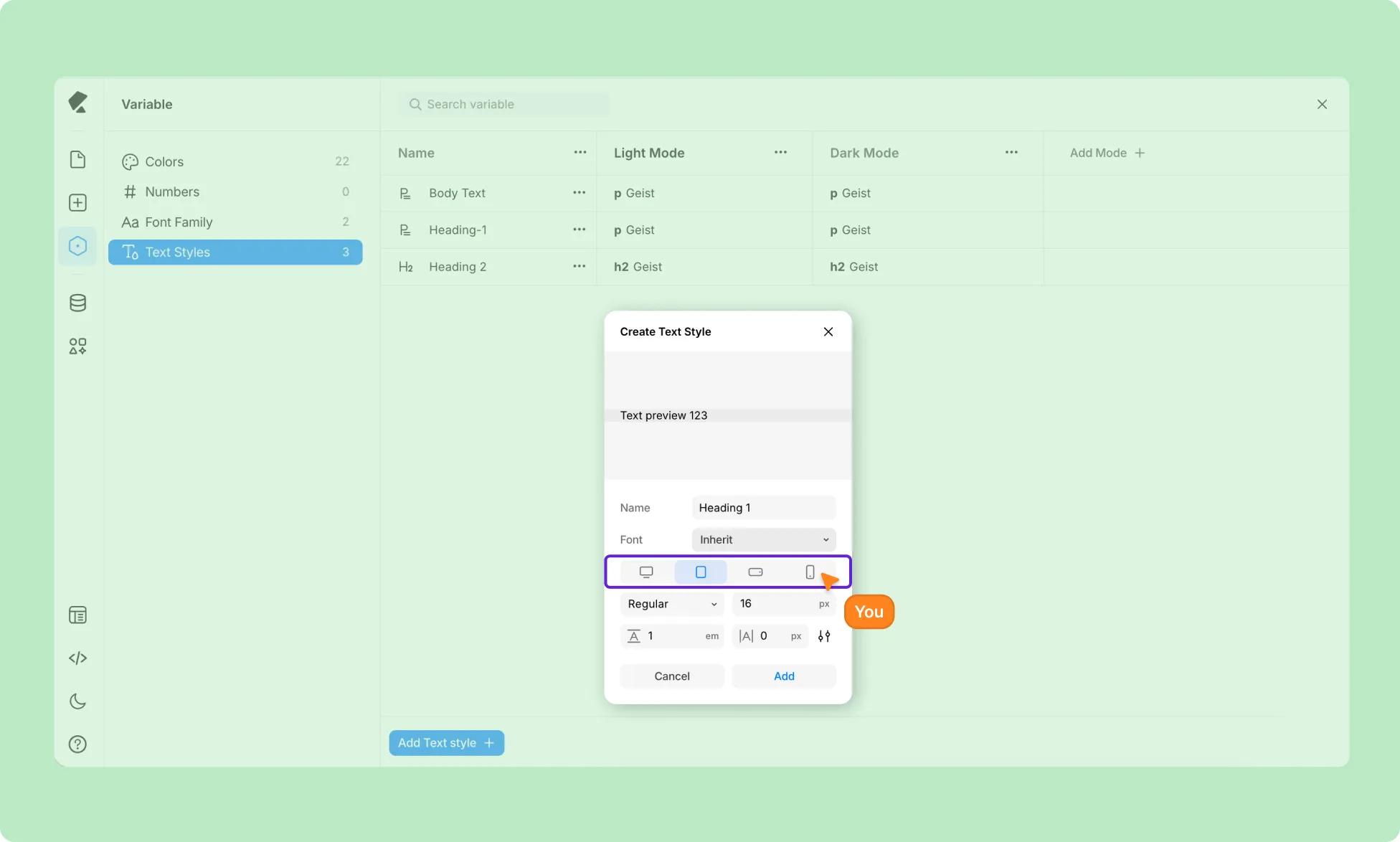
You can also make your Text Styles responsive so they adapt across different screen sizes:
- Start creating a Text Style as you normally would.
- In the Text Style editor, switch between devices to select a breakpoint.
- Adjust the type settings for that screen size.
Now, any text elements linked to this Text Style will automatically adapt across those screen sizes.
Manage Text Styles
Edit Text Styles
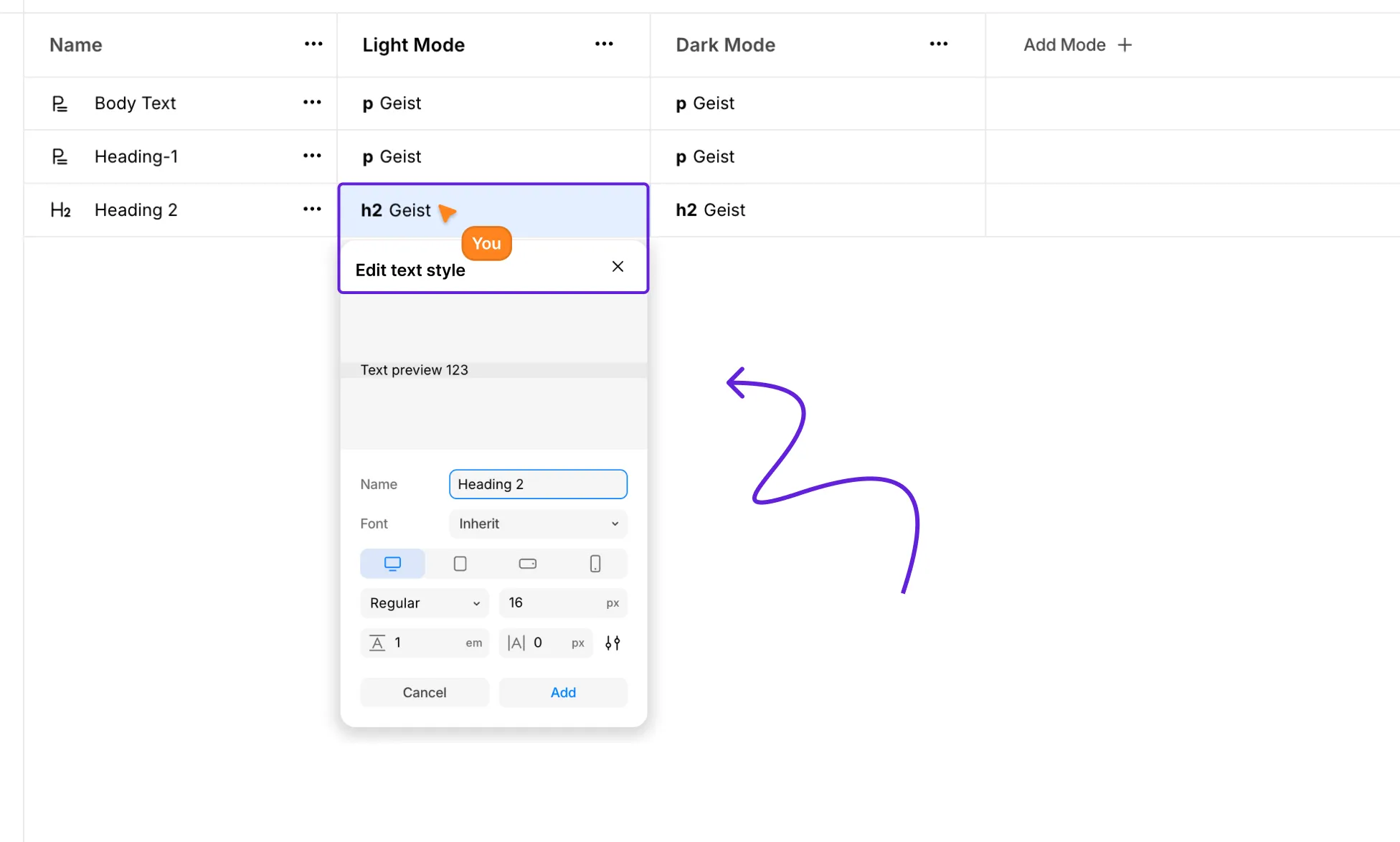
After creating or even applying a Text Style, you can easily edit it from Variables:
- From the left sidebar, open Variables.
- Go to the Text Styles tab.
- Click the Text Style you want to edit.
- This opens the Text Style editor, where you can adjust the typography settings.
Any text elements linked to this Text Style will automatically update to reflect your changes, making it easy to update globally.
Rename Text Styles
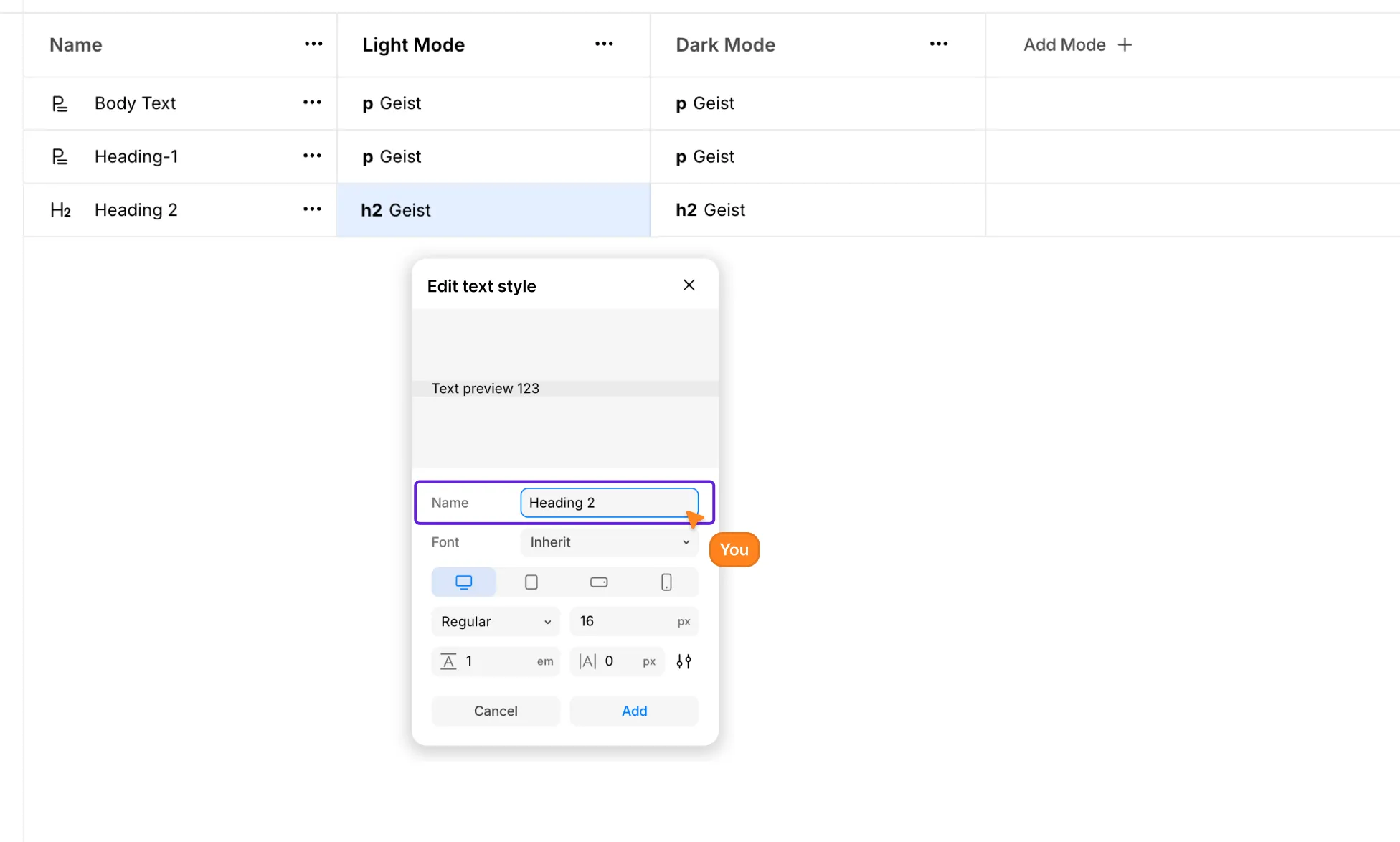
Similarly, you can also rename Text Styles:
- From the left sidebar, open Variables.
- Go to the Text Styles tab.
- Select the Text Style you want to edit.
- From the Text Style editor, edit the Name field.
Delete Text Styles
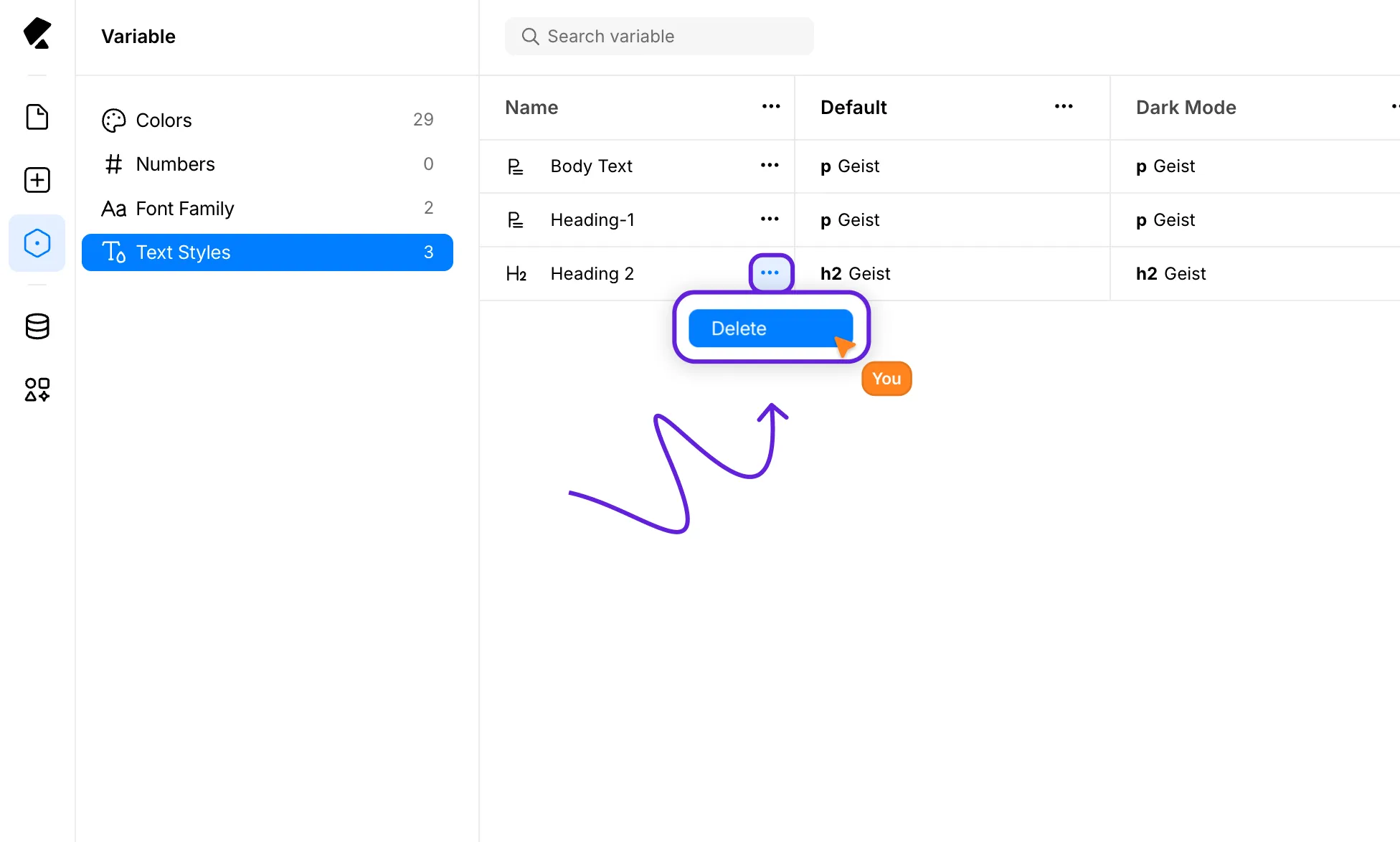
Finally, to delete Text Styles:
- From the left sidebar, open Variables.
- Go to the Text Styles tab.
- Click the ellipsis (…) icon beside the Text Style you want to remove.
- Hit Delete.
This will permanently remove the Text Style from your project.