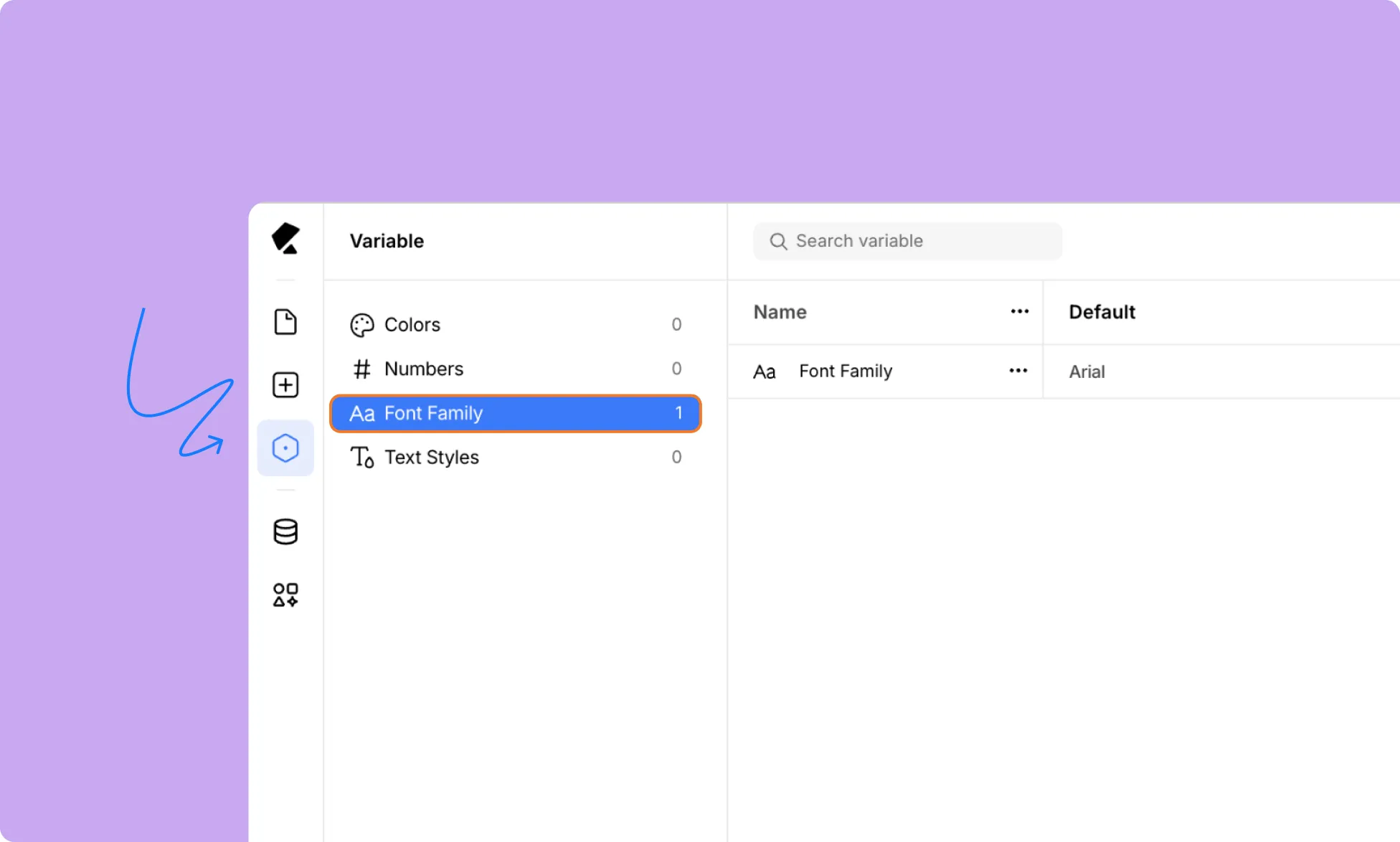
Apart from Reusable Text Styles, which saves fully styled text for repetitive use, you can also save just fonts for reuse in Variables.
This lets you avoid having to look for the font you need or the time lost if you forget which fonts you were using, helping you design websites quickly and cohesively.
How to Create Variable Fonts
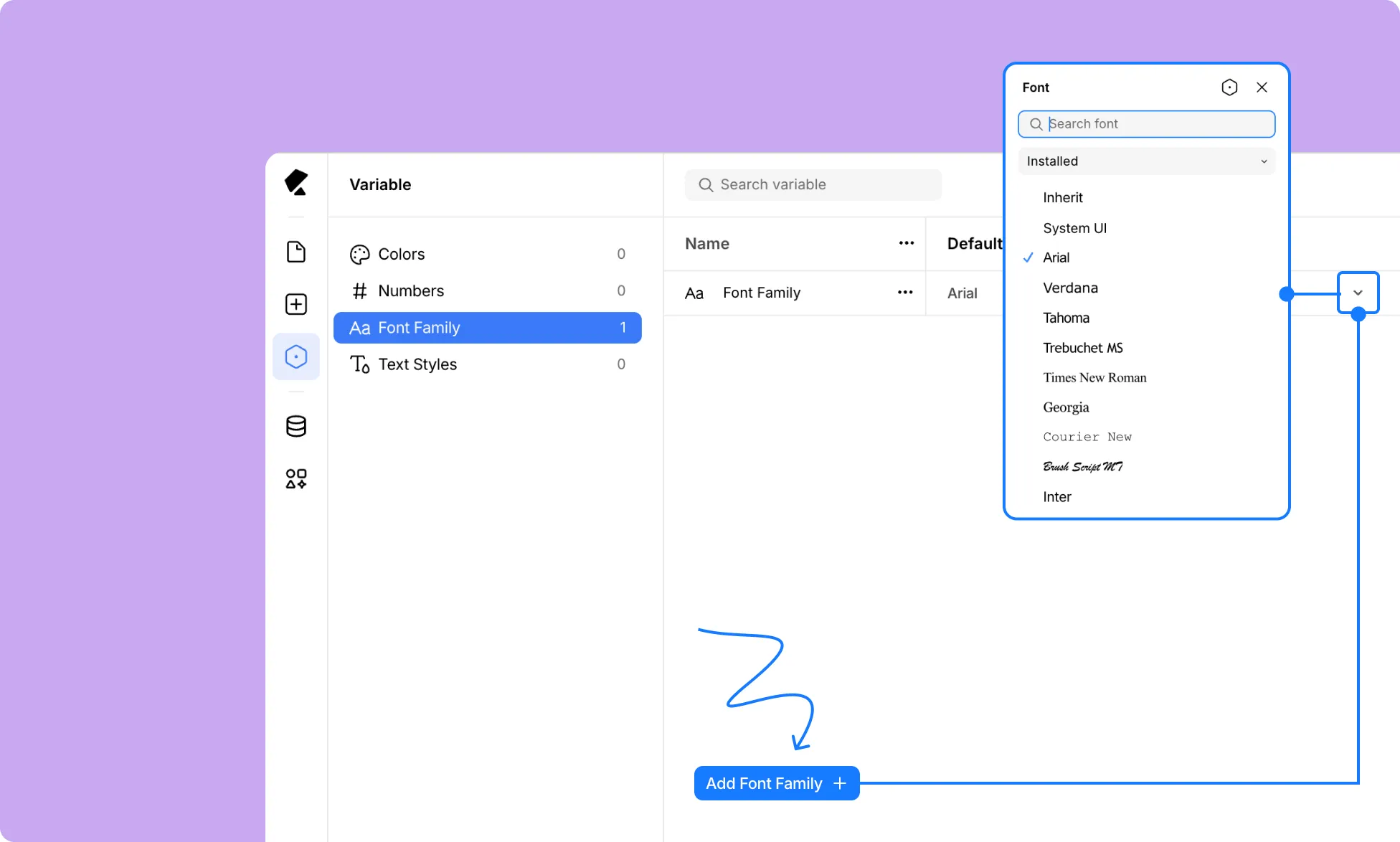
Here’s how to create fonts as Variables in Kirki:
- Open Variables from the left sidebar.
- Switch to Font Family from the left menu.
- Click Add Font Family.
- Under Default (or other modes), click the Font field and select your desired font.
How to Rename Variable Fonts
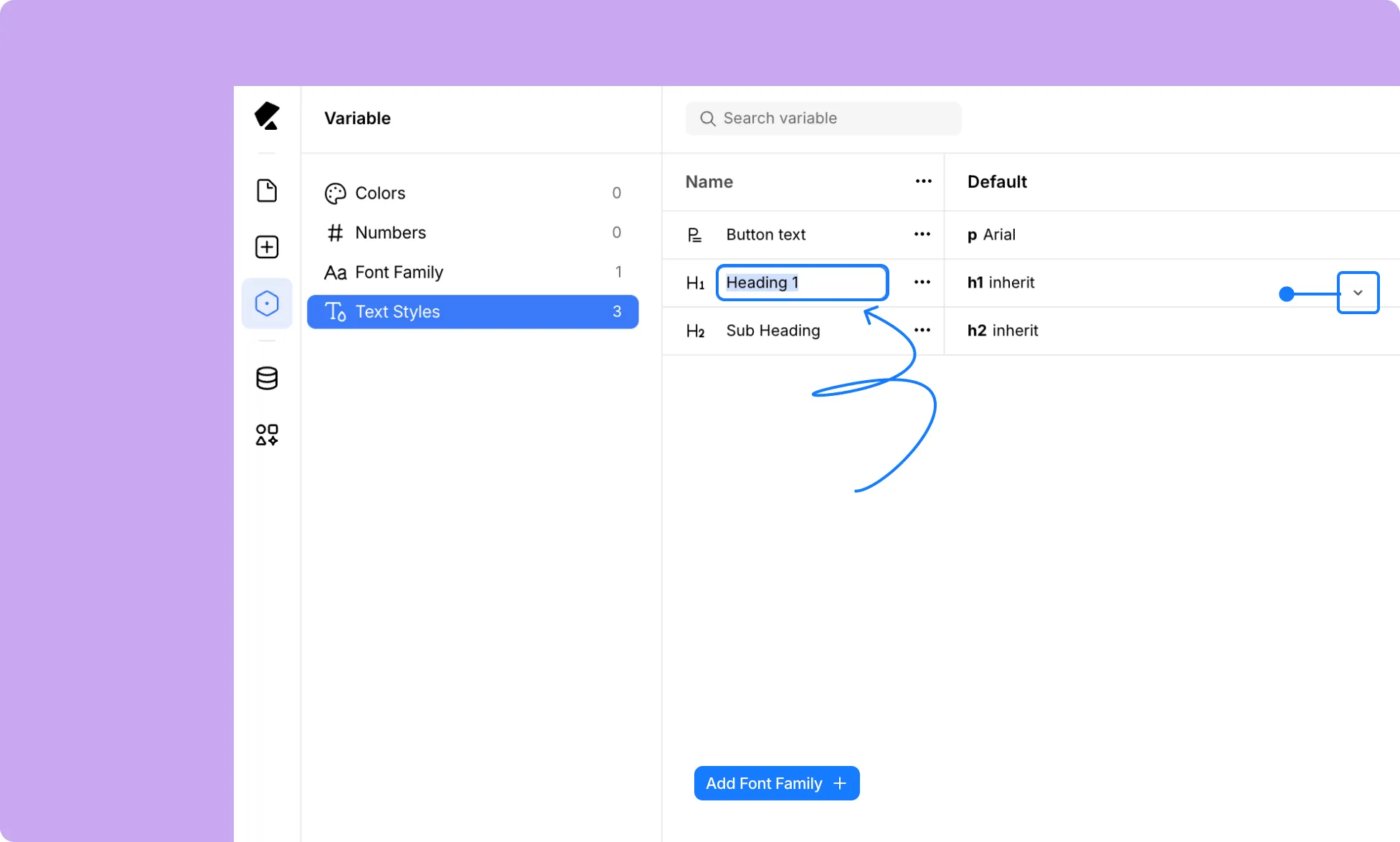
Once created, it’s a good idea to rename your Variable Font for easier identification:
- In the Font Family section within Variables, double-click the Name field
- Enter a clear and unique name to avoid confusion when applying it in your design.
How to Apply Variable Fonts
Once your Variable Fonts are set up, you can apply them to any text element:
- Add a Text (or Heading) element to your page.
- In the Typography settings, on the Right Panel, open the Font dropdown.
- Here, click on the Variable icon.
- Select the Variable Font you want to apply.
Synchronously Update Fonts
Partway through your design process, say you want to change a font you were using.
With Variables, this is easy. All you need to do is update the Variable Font, and the change will be reflected across your site, wherever the Variable was applied.
This ensures your design remains cohesive and makes the process quicker and more efficient.
To update your Variable Font:
- Open Variables from the left sidebar.
- Switch to Font Family from the left menu.
- Under Default (or other modes), click the Font field and reselect the font you want to switch to.
Copy Variable Fonts CSS
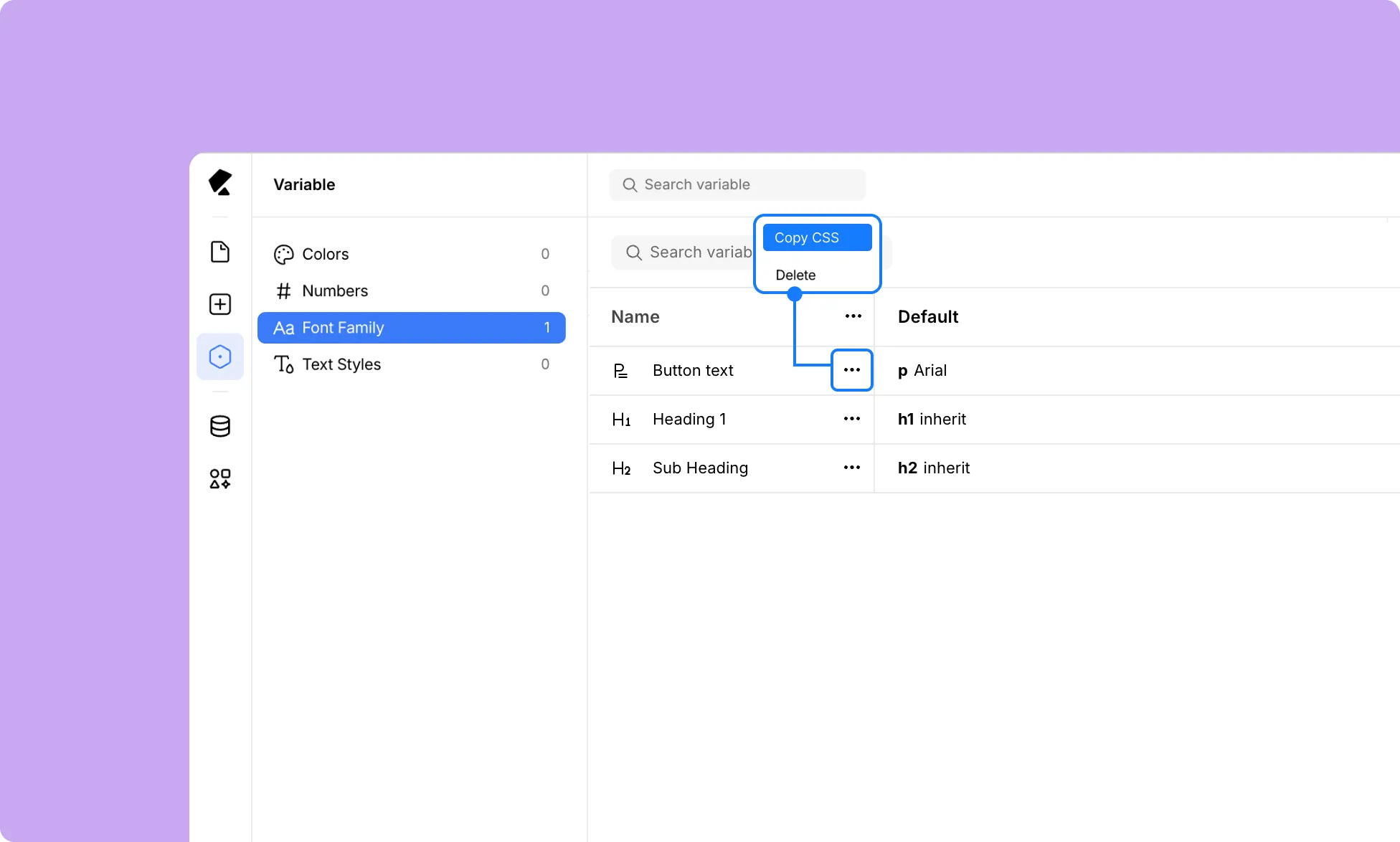
Quickly copy the CSS for a Variable Font to use it elsewhere:
- Open Variables from the left sidebar.
- Switch to Font Family from the left menu.
- For the Variable Font you want to copy CSS for, click the ellipsis (…) icon beside the Name field.
- Select Copy CSS.
Reorder Variable Fonts
You can also reorder Variable Fonts after creating them, based on your convenience and their relevance. (redo this sentence and reasoning)
- Open Variables from the left sidebar.
- Switch to Font Family from the left menu.
- For the Variable Font you want to reorder, click around the Name field and drag.
The new order will be reflected when applying Variable Fonts.
Delete Variable Fonts
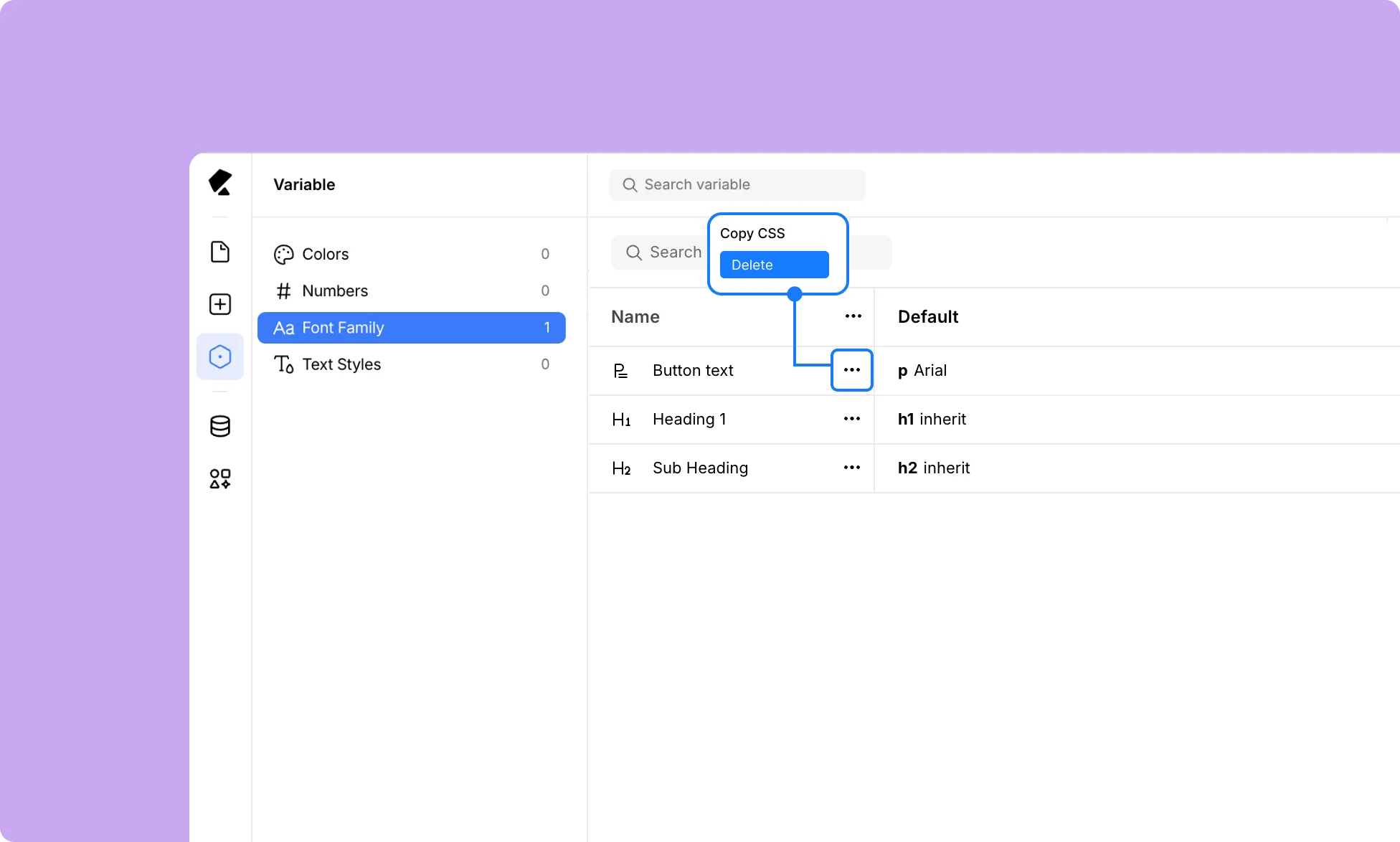
Remove Variable Fonts you no longer need:
- Open Variables from the left sidebar.
- Switch to Font Family from the left menu.
- For the Variable Font you want to remove, click the ellipsis (…) icon beside the Name field.
- Select Delete.