Use Border to add a line around the edges of your element, and Radius to round its corners. Both can be applied uniformly or customized per side or corner for more precise control.
Border
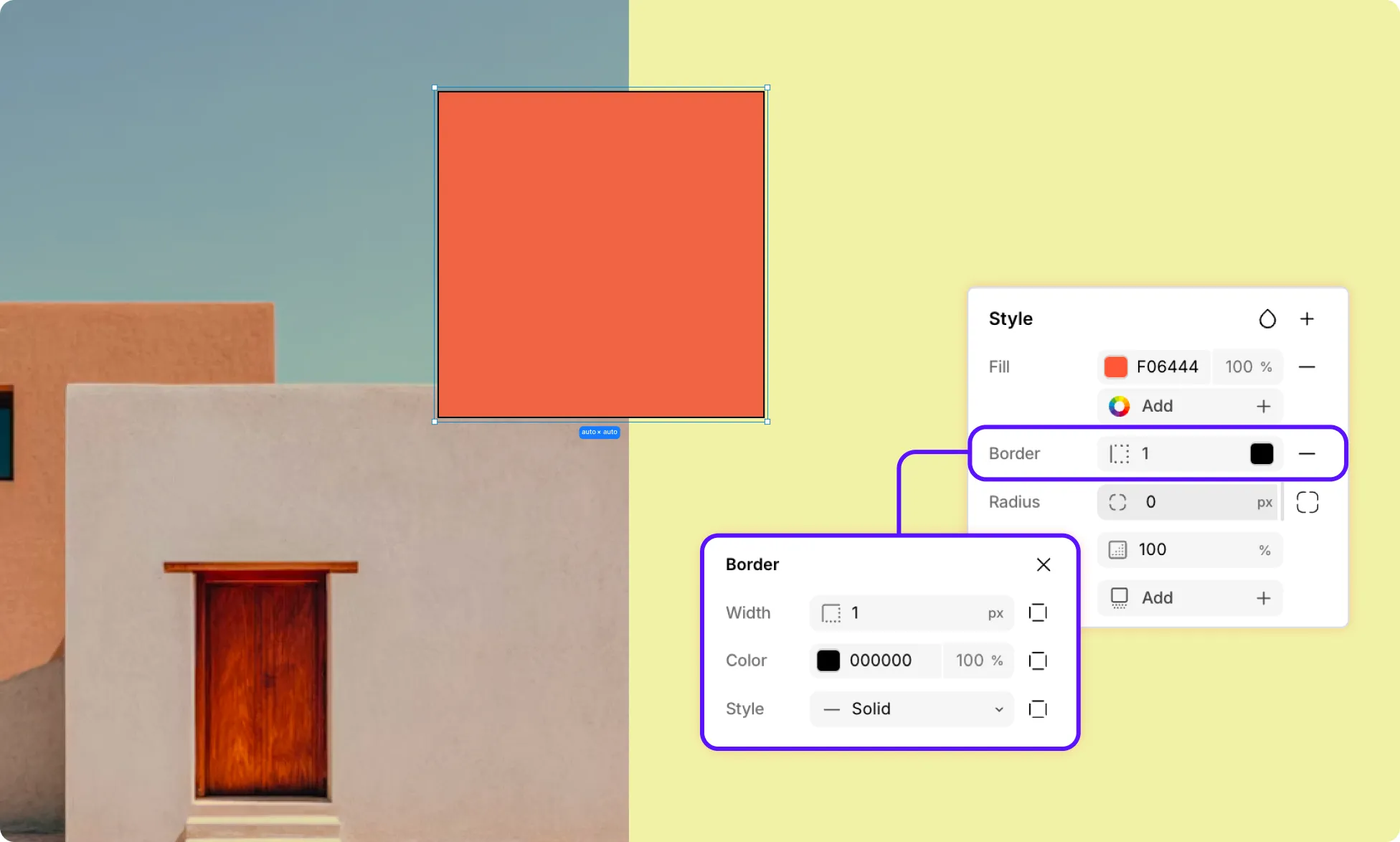
A border is a line drawn around the edges of an element. You can control its width, color, and style, and customize each side independently.
How to Add a Border
- Select an element on the page.
- Go to Right Panel → Style.
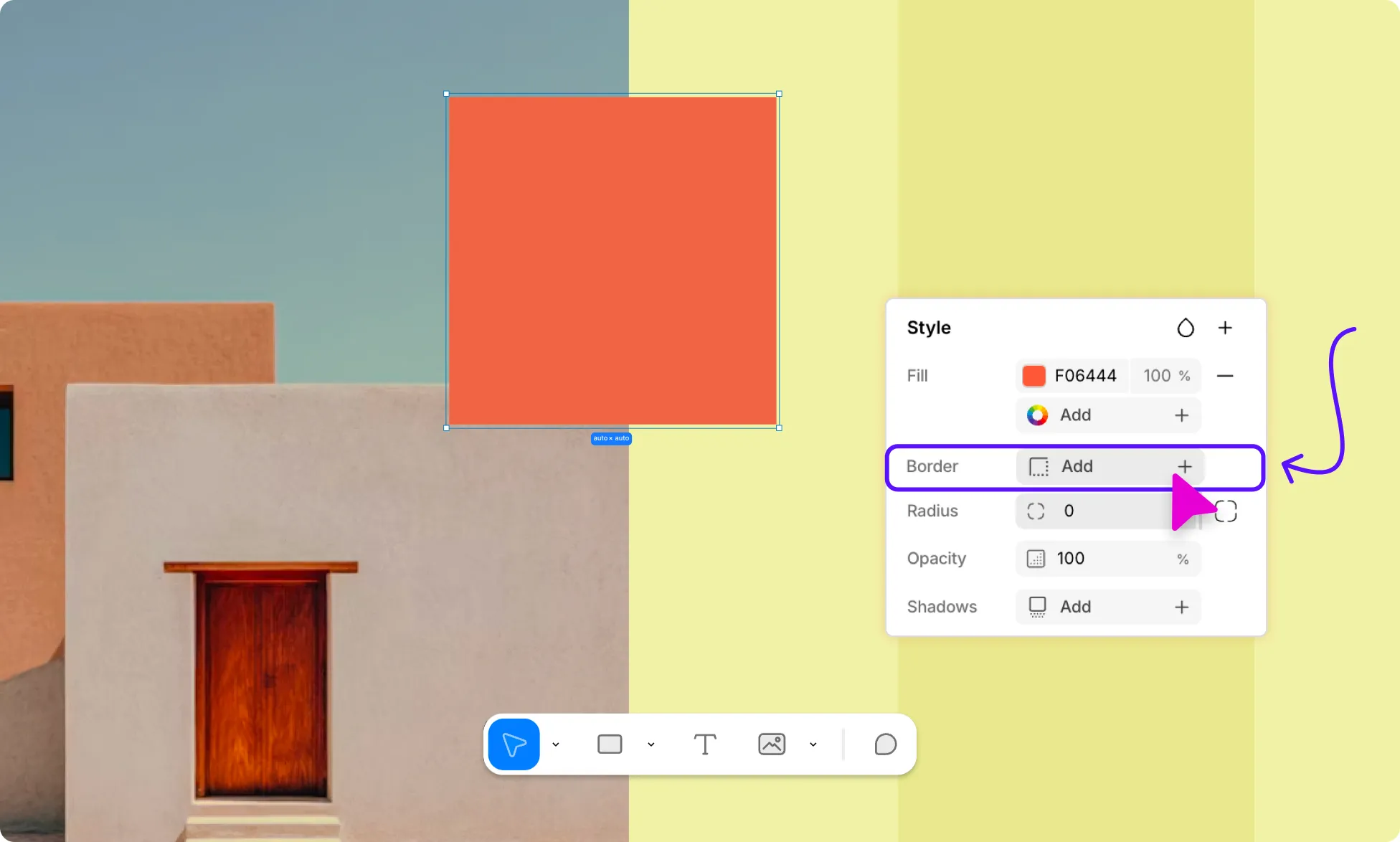
- Click Add next to Border to open the Border panel.
- Set the Width of the border.
- Click the color swatch to set the Color.
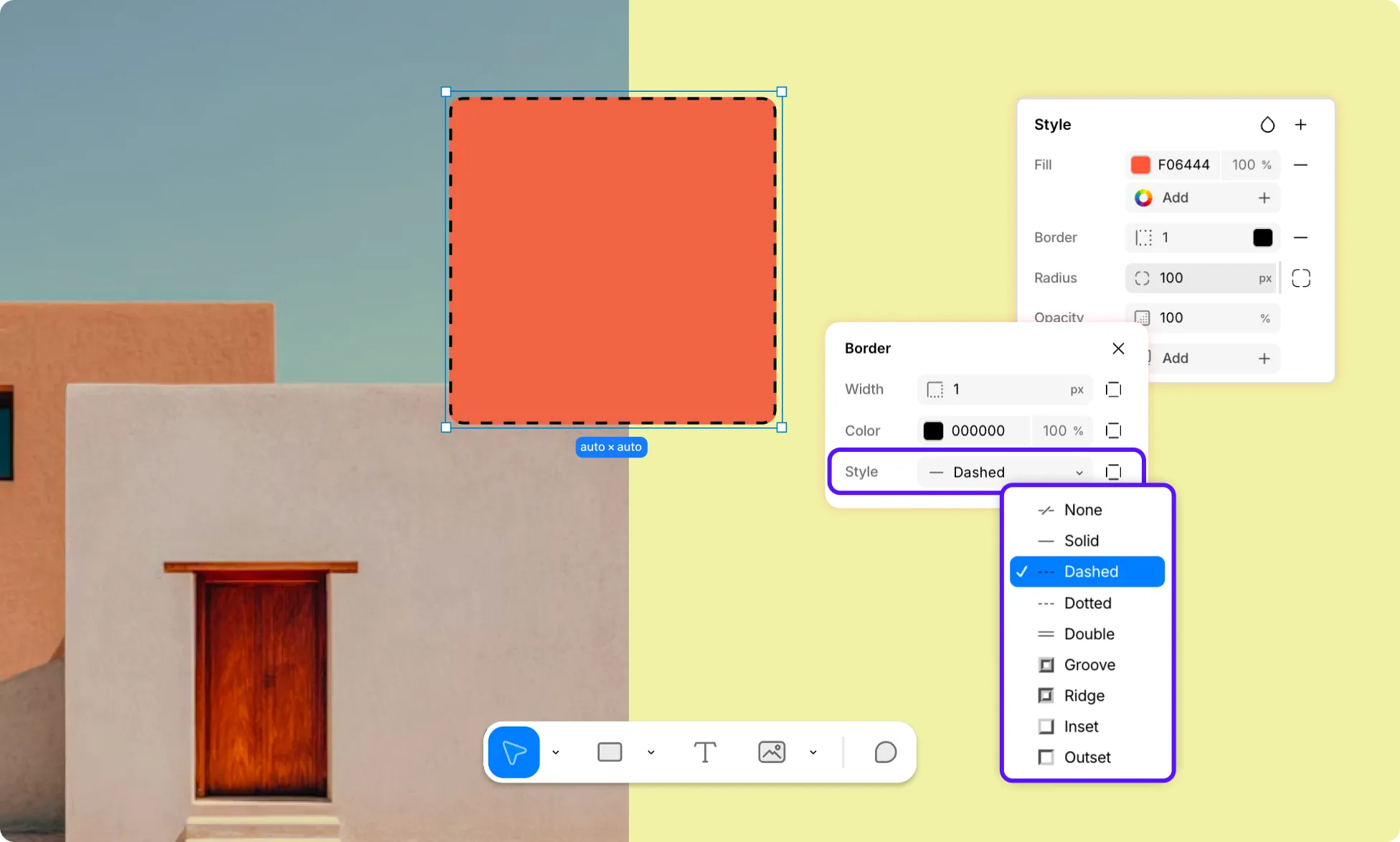
- Open the Style dropdown to choose a border style. Available border styles include:
- None
- Solid
- Dashed
- Dotted
- Double
- Groove
- Ridge
- Inset
- Outset
How to Customize Border Sides Individually
By default, the width, color, and style apply to all four sides equally, but you can also customize each side individually:
- Click the box icon next to the Width, Color, or Style field.
- This reveals individual controls for each side – Top, Left, Right, and Bottom.
- Set the width, color, and style for each side as needed.
This way, each side can have its own width, color, and border style independently.
Outline
Outline is similar to Border but is drawn outside the element’s border and does not affect the layout or spacing of surrounding elements. It also has an additional Offset control to set the gap between the outline and the element.
How to Add an Outline
- Select an element on the page.
- Go to Right Panel → Style.
- Click the plus (+) icon in the Style section and select Outline.
- Click on the Outline field to expand it.
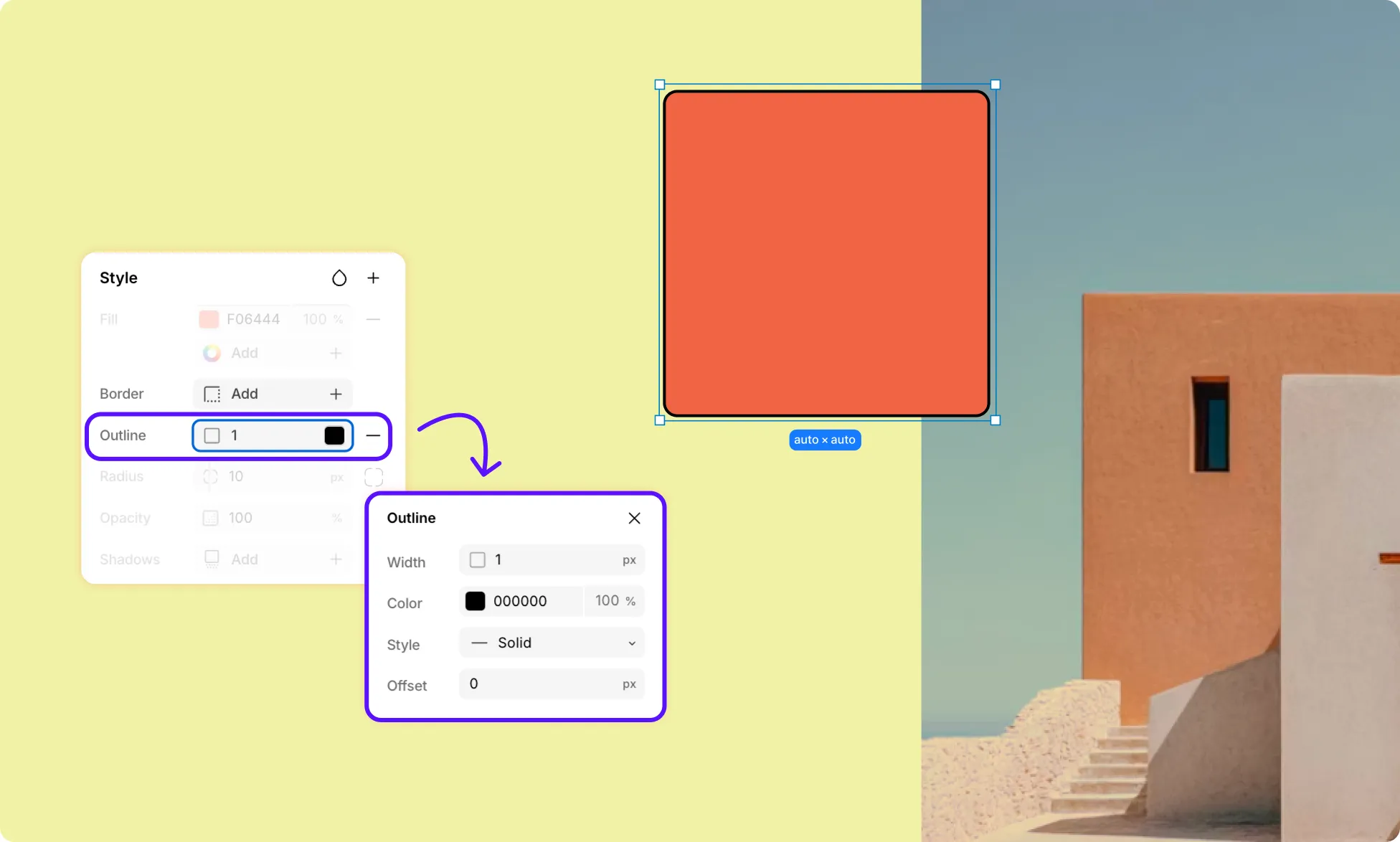
- Set the Width.
- Click the color swatch to set the Color.
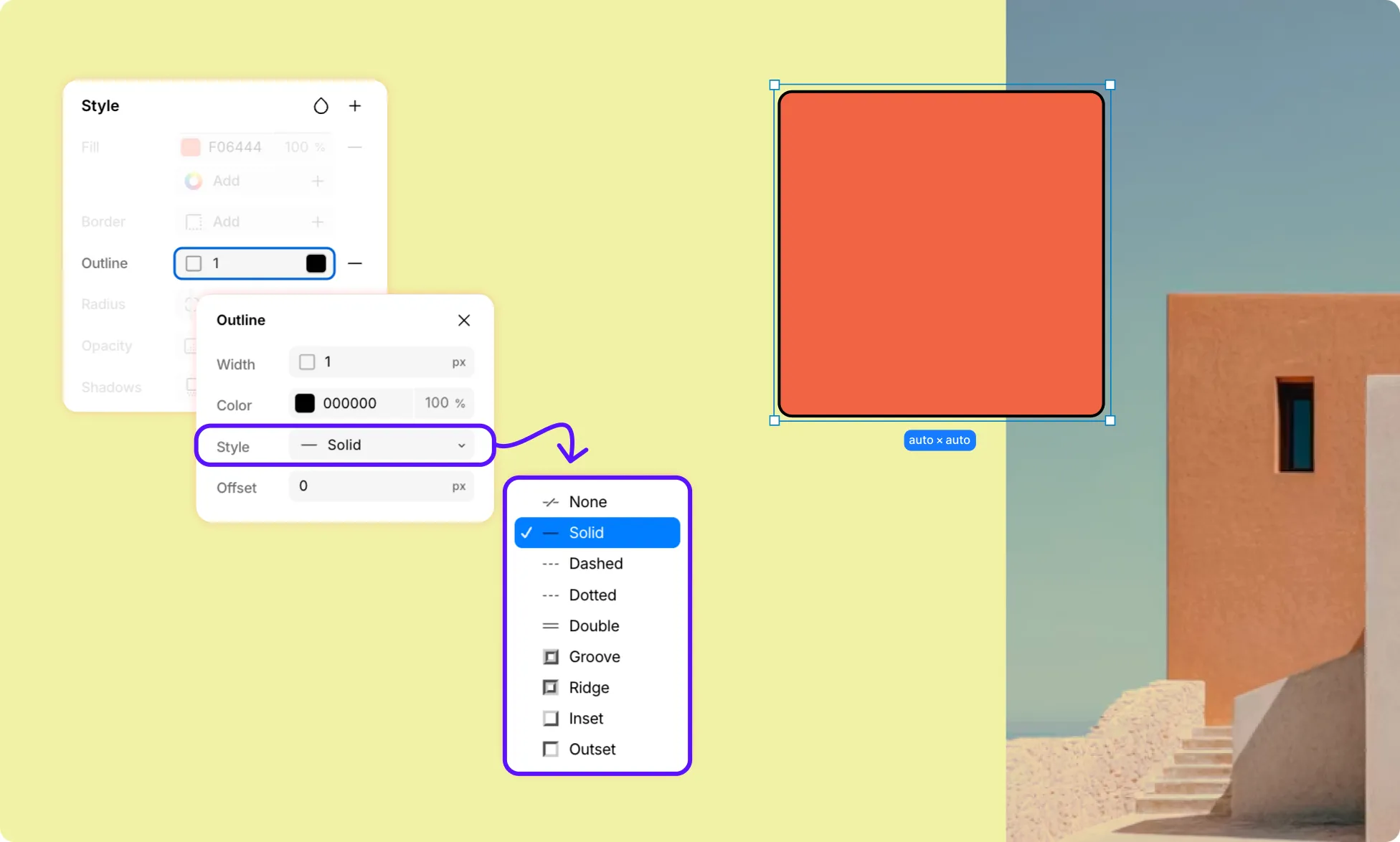
- Open the Style dropdown to choose an outline style. Available outline styles include:
- None
- Solid
- Dashed
- Dotted
- Double
- Groove
- Ridge
- Inset
- Outset
- Set the Offset to control the gap between the outline and the element.
Radius
Radius rounds the corners of an element. You can apply the same rounding to all corners at once, or set each corner to a different value for asymmetric shapes.
How to Set Radius
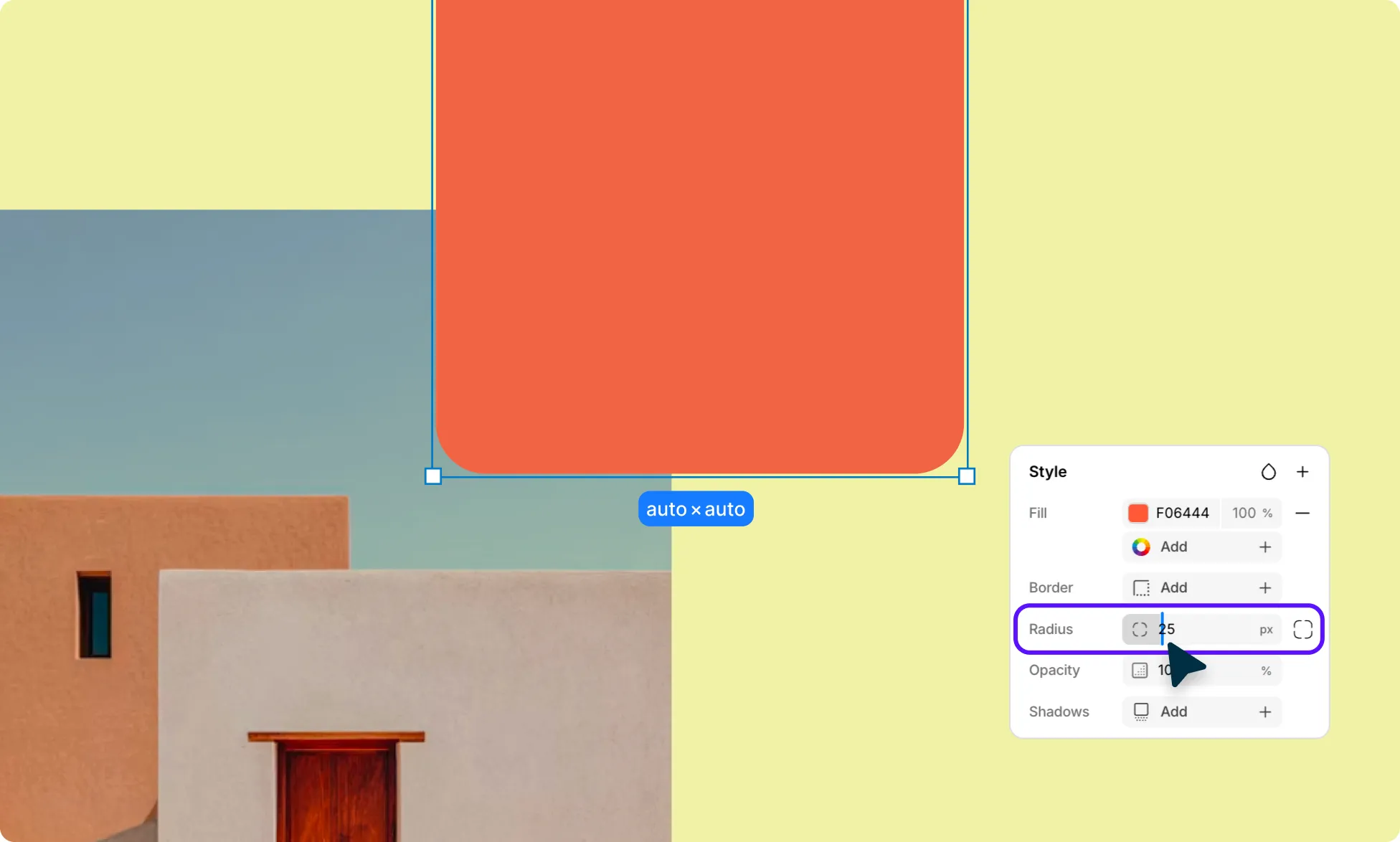
- Select an element on the page.
- Go to Right Panel → Style.
- Enter a value in the Radius field or drag the slider to apply the same rounding to all four corners of your element.
Customize Each Corner Radius Individually
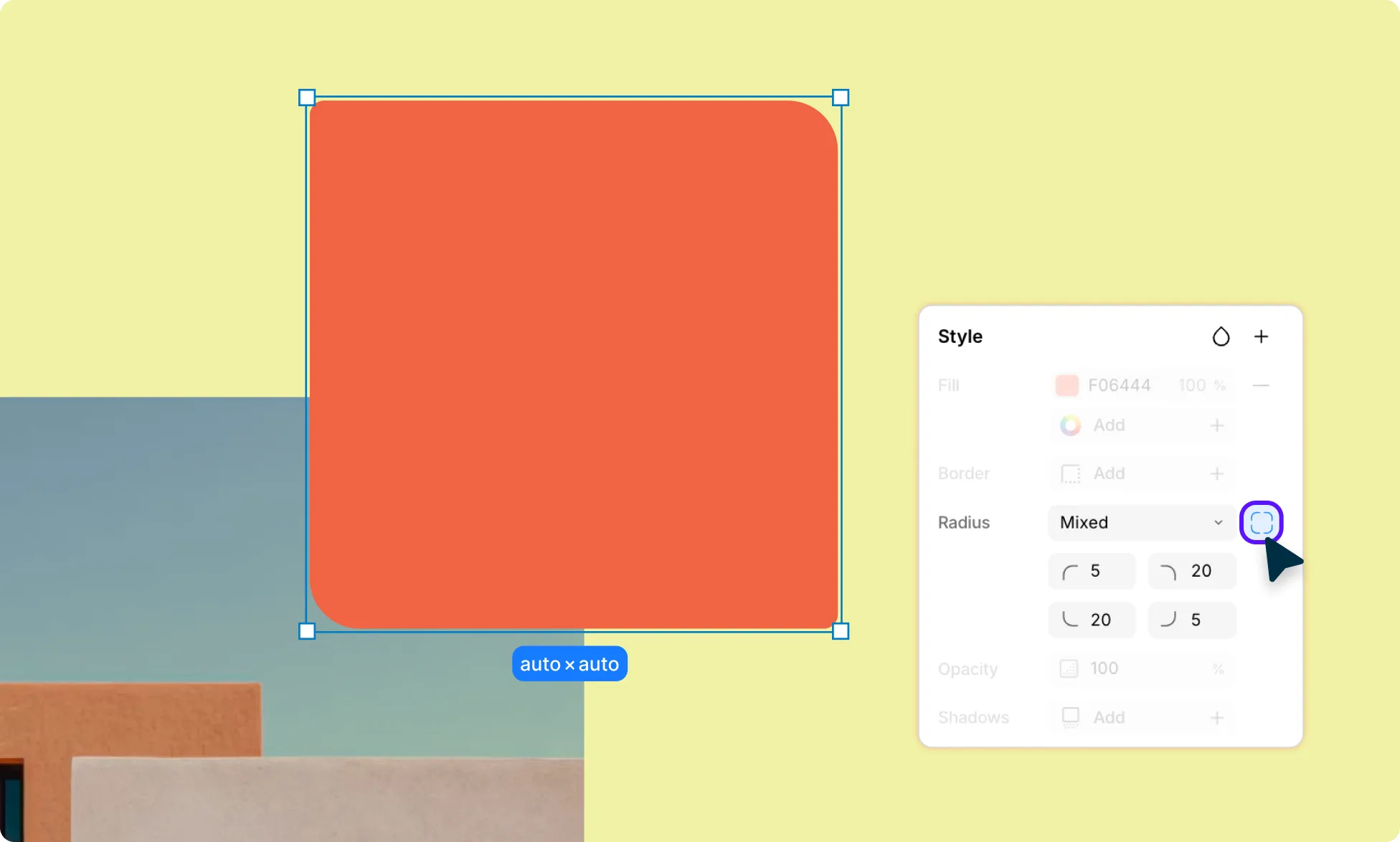
You can also set each corner radius individually:
- Click the rounded-box icon next to the Radius field.
- This will reveal the four corner controls.
- Enter a value for each corner as needed to create asymmetric rounding.