Using Shadows, you can add depth and dimension to any element by applying one or more drop shadows. You can control the position, blur, spread, and color of each shadow, and choose between outer and inner shadow types.
Types of Shadows
Kirki supports two shadow types:
- Outer Shadow – Projects the shadow outside the element’s boundary, creating a floating or lifted effect.
- Inner Shadow – Projects the shadow inside the element, making it appear inset or pressed in.
How to Add a Shadow
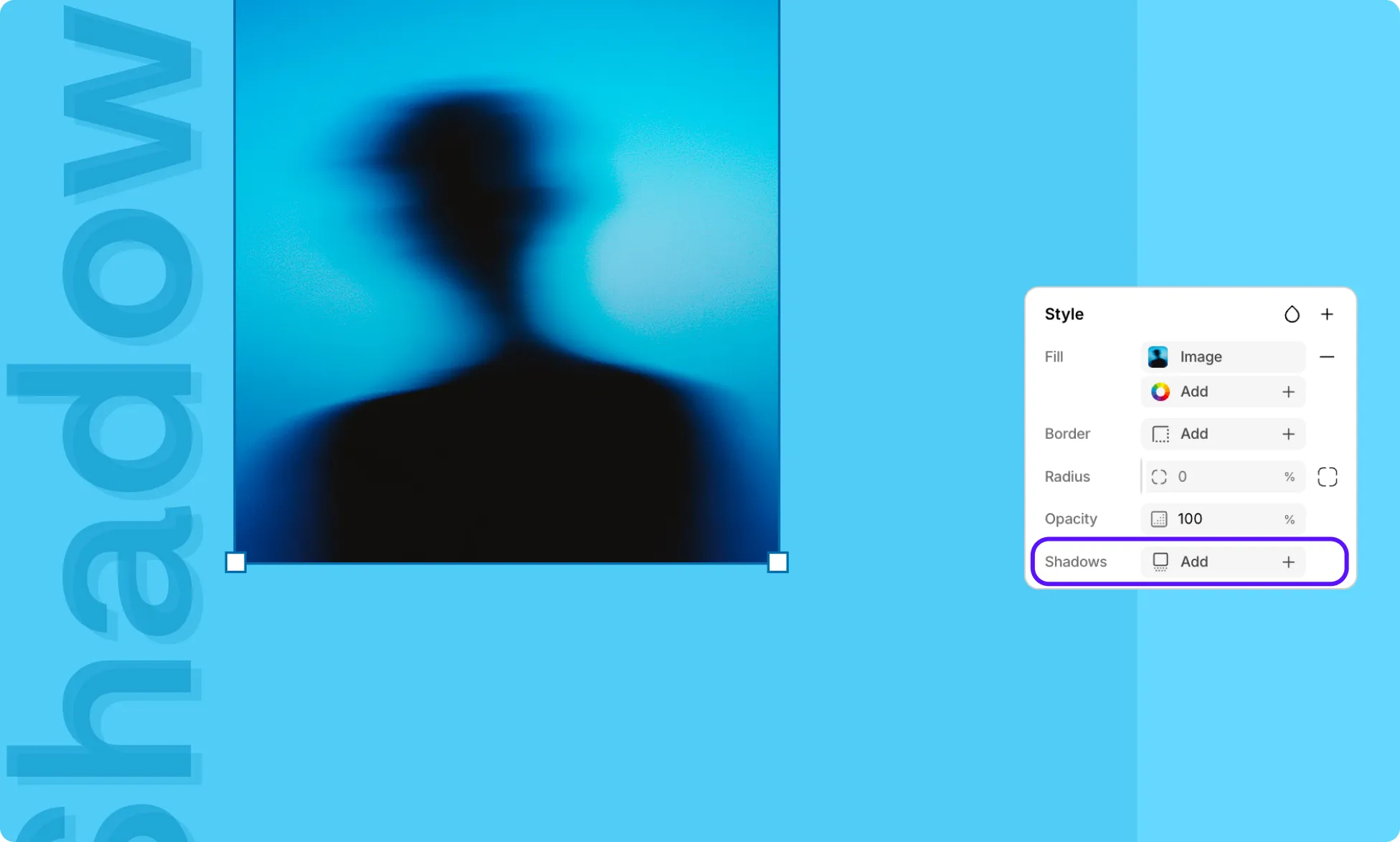
- Select the element you want to style.
- In the Right Panel, scroll to the Shadows section.
- Click Add next to Shadows.
A shadow is added immediately with these defaults:
- X: 0
- Y: 0
- Blur: 8
- Spread: 0
- Color: #06163B
- Type: Outer Shadow
How to Customize Shadows
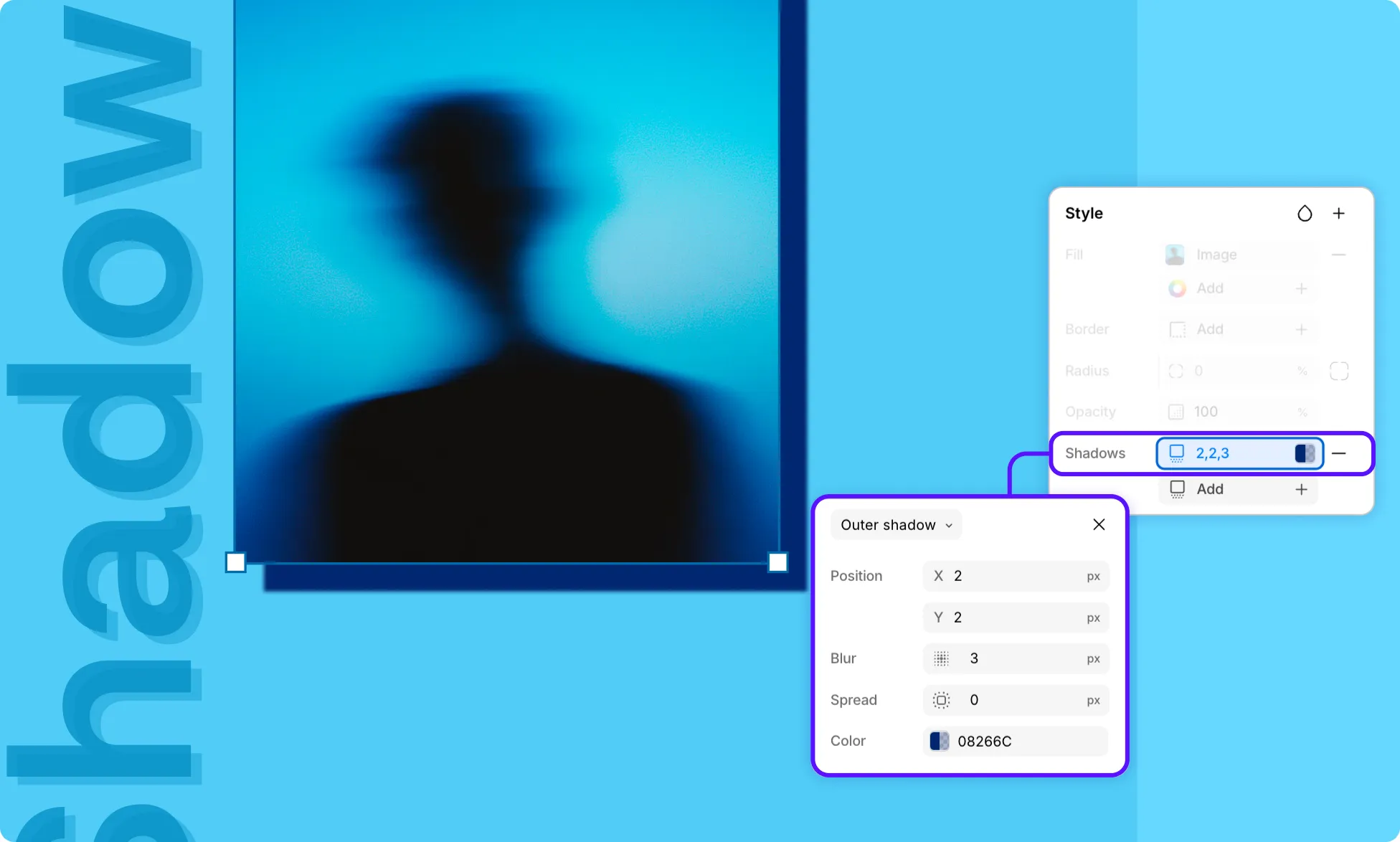
Once a shadow is added, click on it to open the Shadow editor. You’ll see the following controls:
- Type – Toggle between Outer Shadow and Inner Shadow from the dropdown at the top of the editor.
- X (Horizontal Offset) – Offsets the shadow horizontally. Positive values move it right, negative values move it left.
- Y (Vertical Offset) – Offsets the shadow vertically. Positive values move it down, negative values move it up.
- Blur – Controls how sharp or soft the shadow edge appears. Higher values create a softer, more diffused shadow.
- Spread – Expands or shrinks the shadow size. Positive values spread it outward, negative values contract it inward.
- Color – Sets the shadow color. Click the swatch to open the color picker, where you can also adjust opacity.
Switch Between Outer and Inner Shadow
- Select an element on the page.
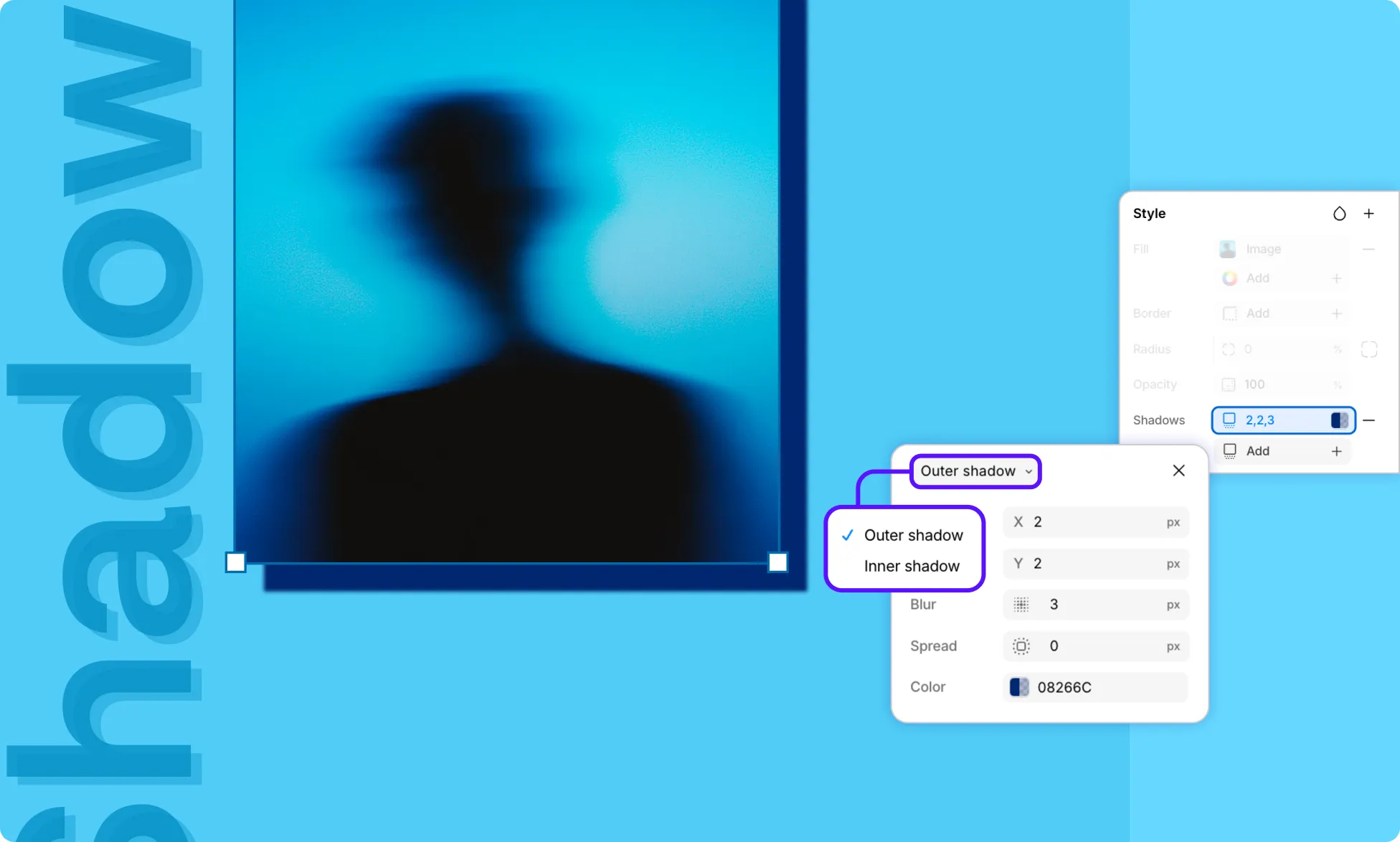
- Click an existing shadow on the Right Panel to open the editor.
- Click the shadow type label (e.g., Outer shadow) at the top of the editor panel.
- A dropdown appears with two options: Outer shadow & Inner shadow. Select the one you want; the shadow updates instantly on the canvas.
Stack Multiple Shadows
You can also layer several shadows on a single element for richer effects.
- Select an element on the page.
- After adding your first shadow, click Add again in the Shadows section on the Right Panel.
- A second shadow entry appears – configure it independently.
- Repeat as needed.
Each shadow is listed separately and can be edited or removed on its own.
Reorder Shadows
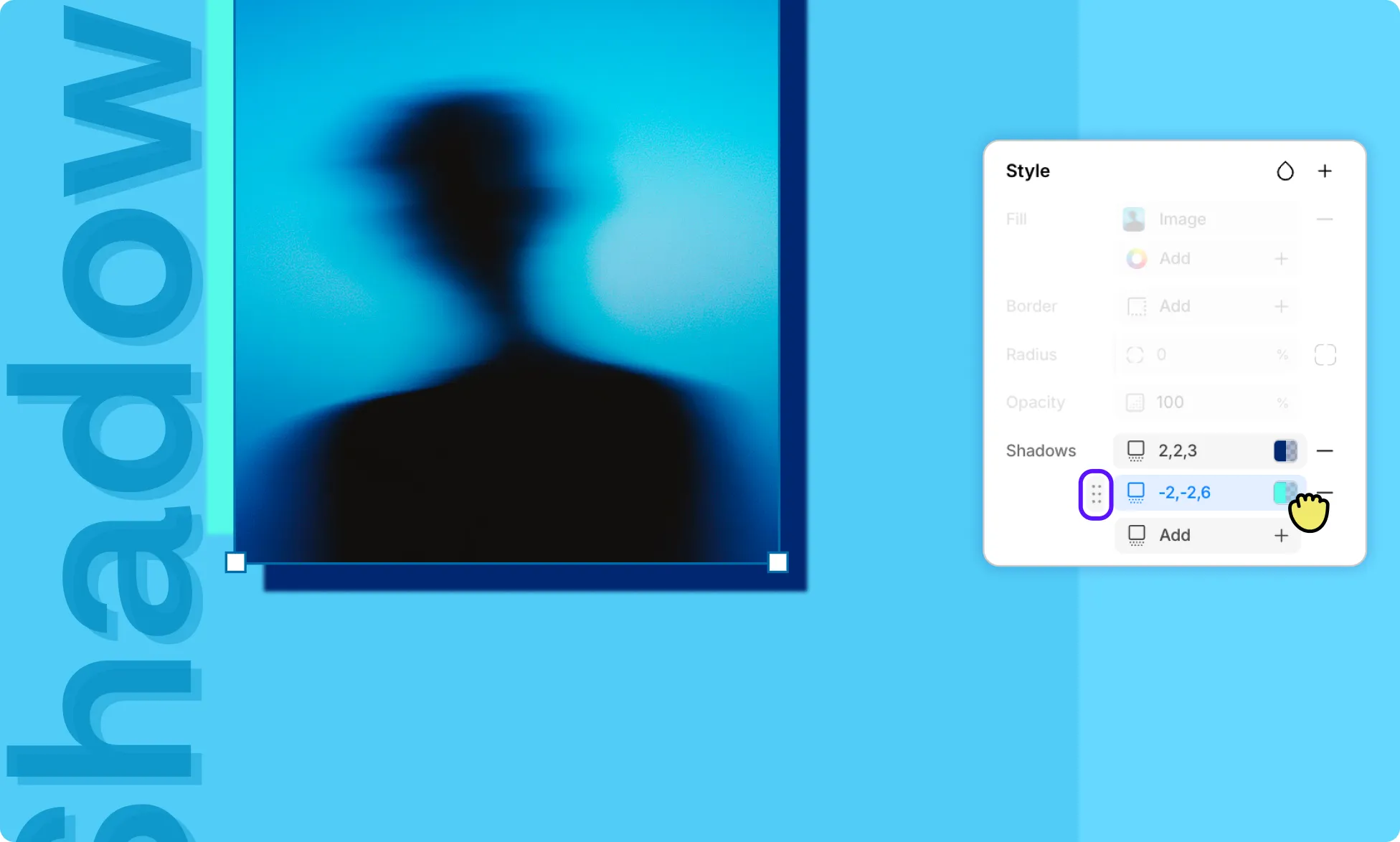
- Select an element on the page.
- Go to Right Panel → Shadows.
- Drag the handle icon next to each shadow layer to reorder them.
Remove a Shadow
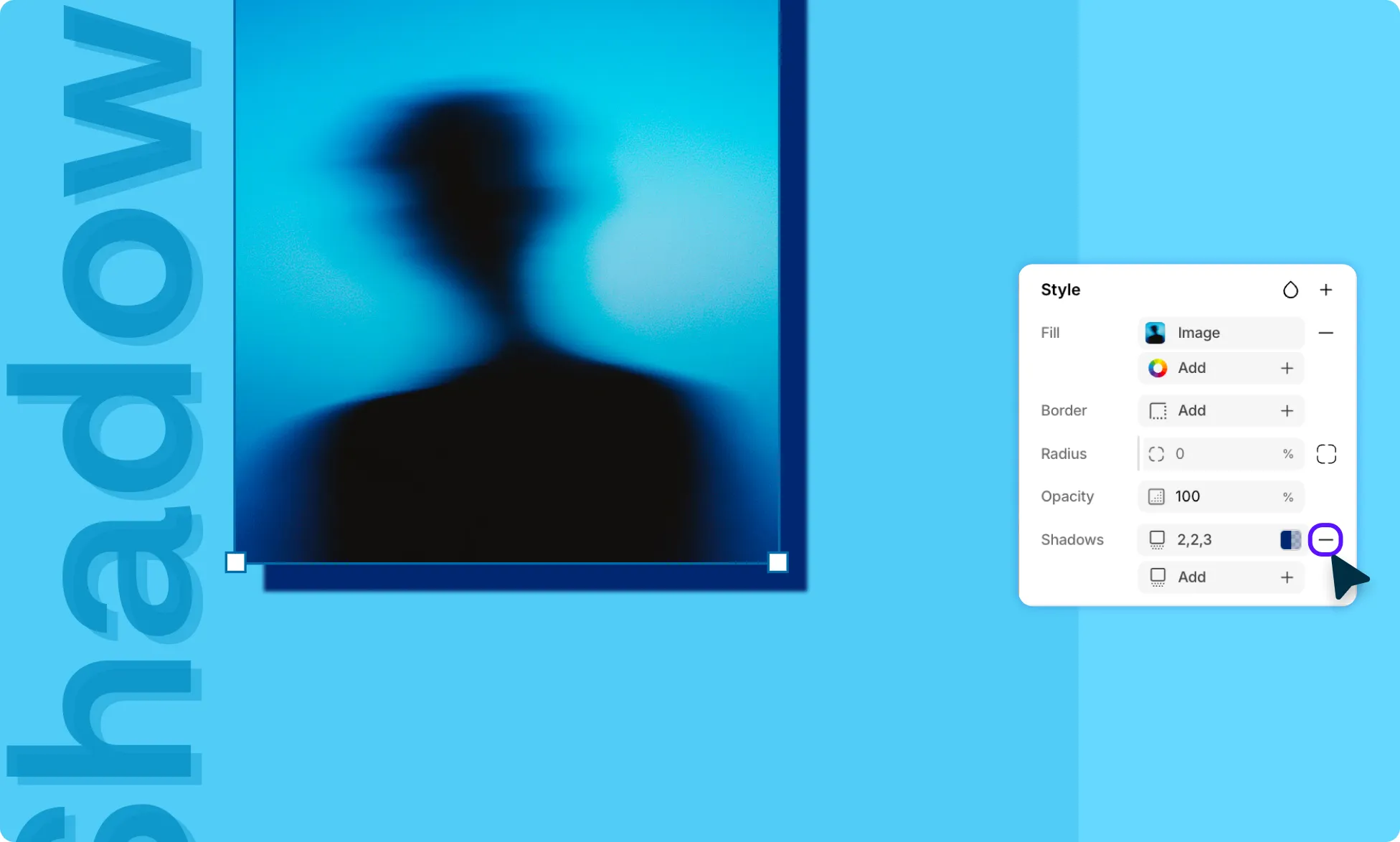
- Select an element on the page.
- Go to Right Panel → Shadows.
- Click the minus (-) icon to the right of any shadow entry to delete it.