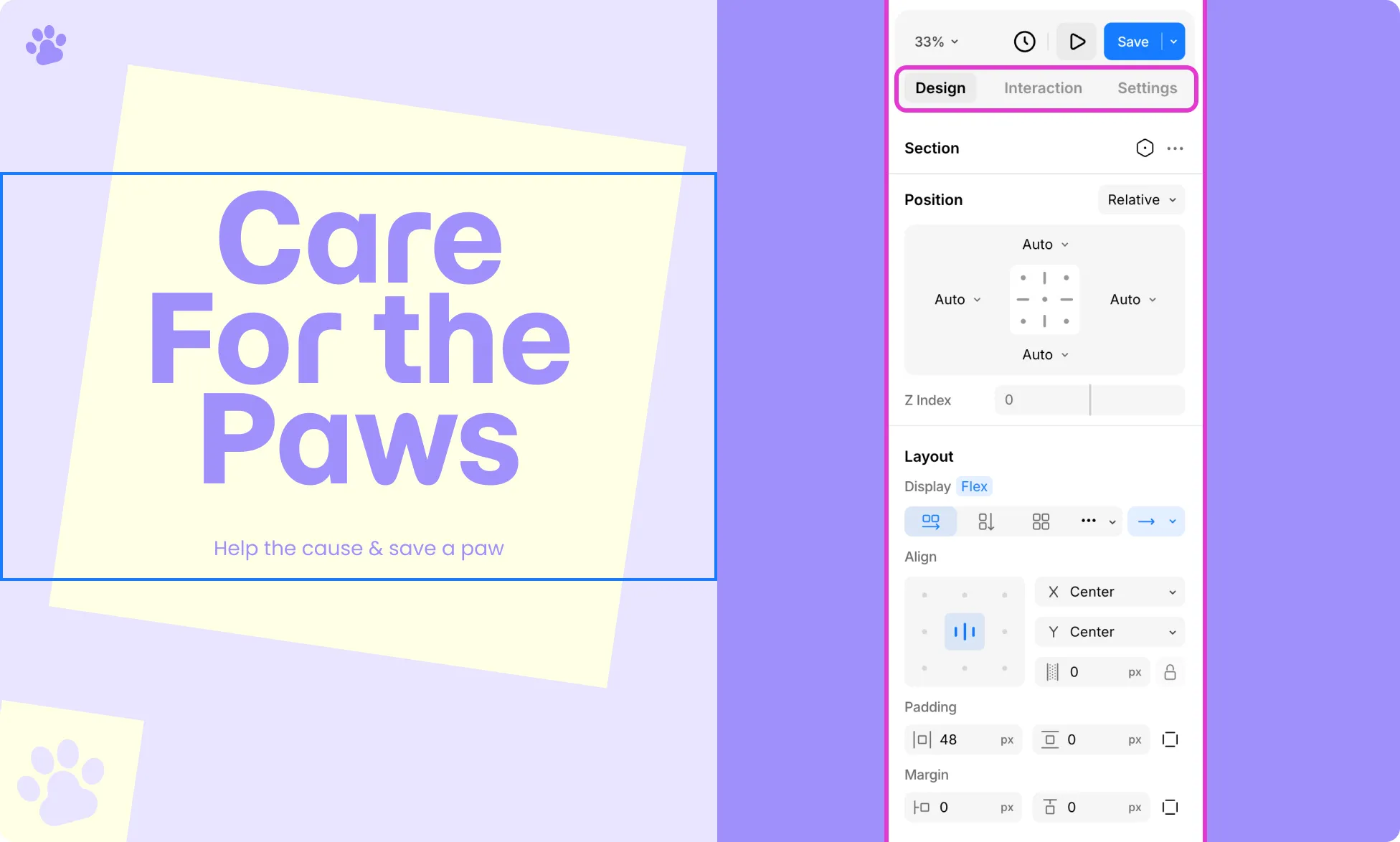
The Right Panel is your primary workspace for configuring and styling any element on the canvas.
It is context-aware, meaning the sections and options it displays change based on the selected element on the canvas. For example, text and heading elements show Typography options, image elements reveal an Image section, and structural elements like Div Blocks omit options that don’t apply to them.
The Right Panel has three tabs: Design, Interaction, and Settings.
Design
The Design tab is where you’ll spend most of your time. It’s organized into the following sections:
Classes
Connect elements to Classes from here. Classes let you save and reuse styles across your design.
Learn more about Classes.
Element States
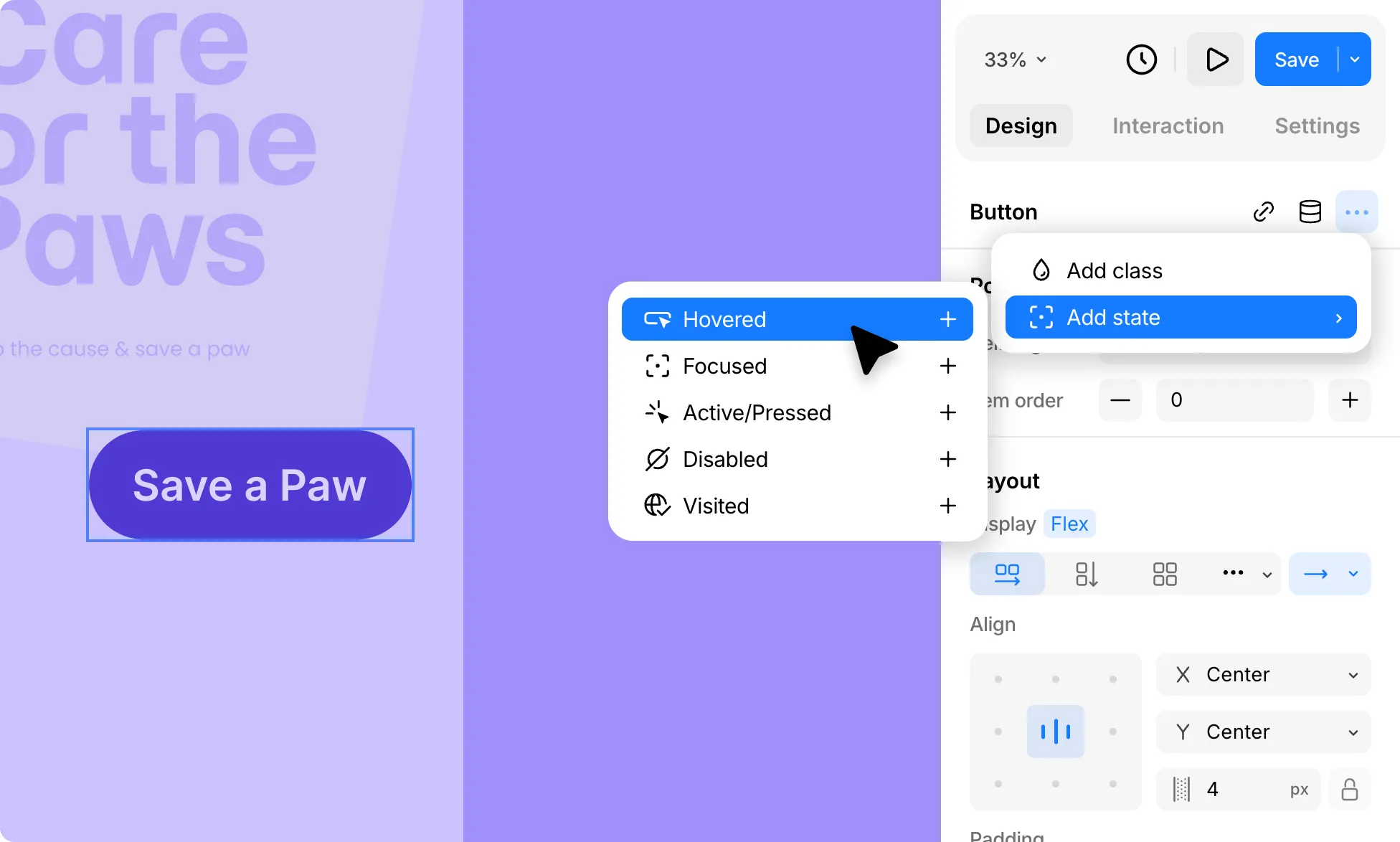
States let you define how an element looks and behaves under different conditions.
Click the States dropdown next to Classes to access the States menu. Apart from the Default State, you can add and style the following:
- Hovered – Styles applied when the user hovers over the element.
- Focused – Styles applied when the element is focused, typically via keyboard navigation.
- Active/Pressed – Styles applied when the element is being clicked or pressed.
- Disabled – Styles applied when the element is non-interactive or disabled.
- Visited – Styles applied to links that the user has already visited.
Styles set in the Default state apply across all states as a baseline. When you make changes to a specific state, those changes apply only to that state, keeping the Default styles intact everywhere else.
Design-Based Interactions
By combining Element States with the options in the Design tab and Transitions, you can also create simple interactions like a button changing color on hover or an image zooming in on click.
Element Settings
Depending on what’s selected, element-specific settings appear at the top of the Design tab. For example, a Slider shows slide management options, an Image shows Image management options, and a Navigation element shows Nav Item controls.
Position
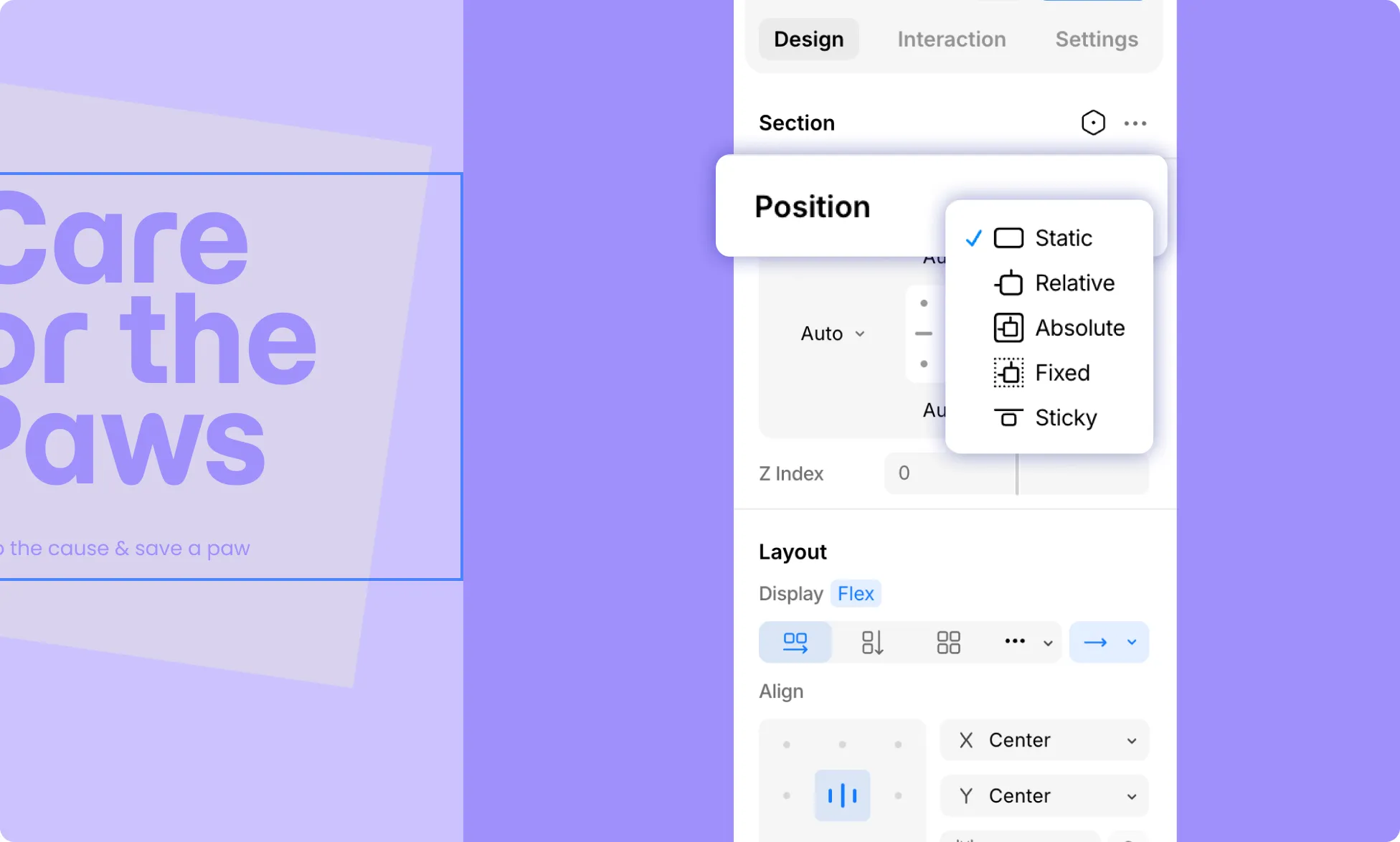
Set how the element is positioned on the page: Static, Relative, Absolute, Fixed, or Sticky.
Learn more about Position.
Layout
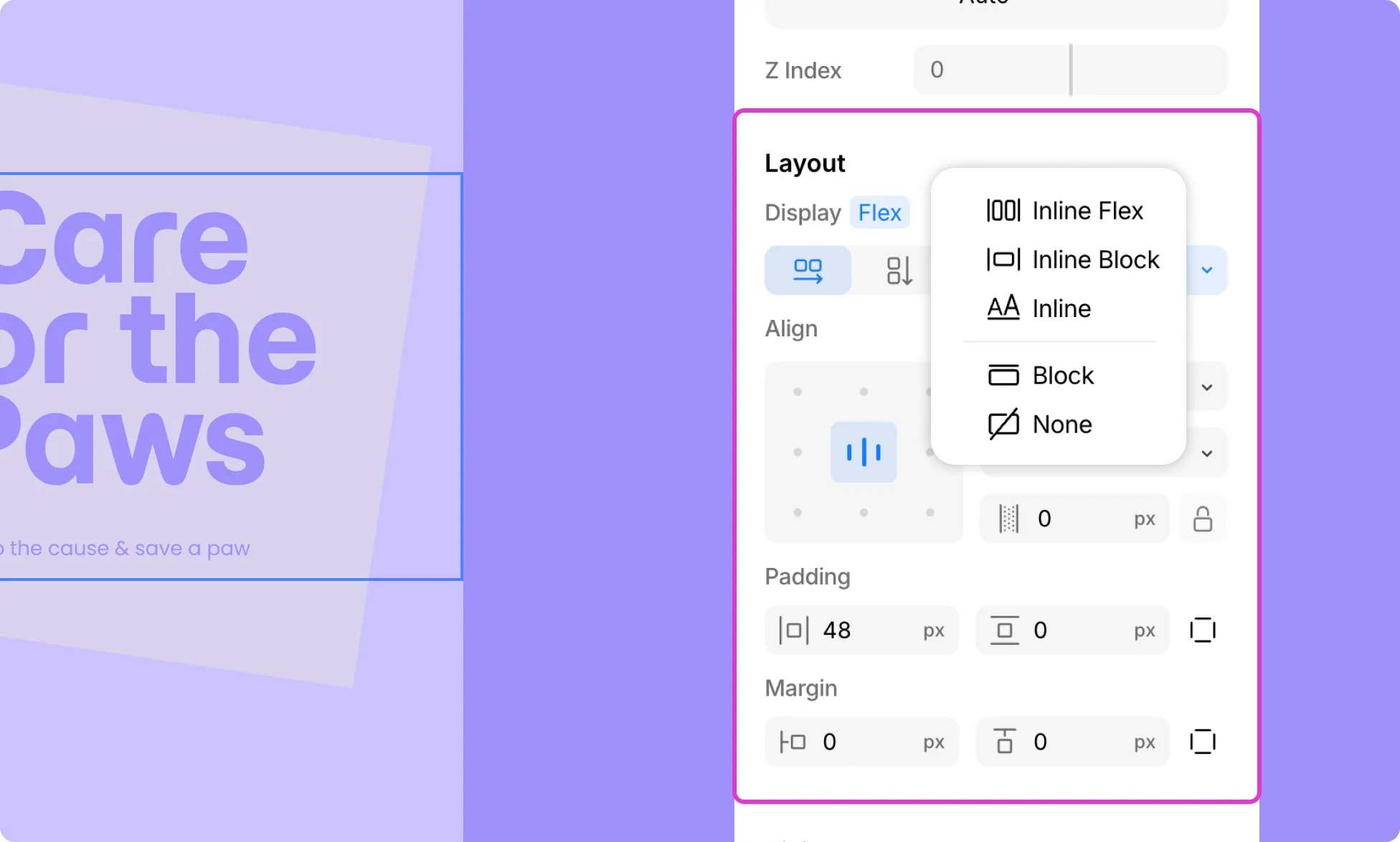
Control how the element and its children are displayed. Set the Display type (Block, Flex, Grid, and more), alignment, gap, etc. Adjust Padding and Margin to control spacing inside and around the element.
Learn more about Layout.
Sizing
Define the Width and Height of the element, set Minimum and Maximum size constraints, and control Overflow behavior.
Learn more about Sizing.
Style
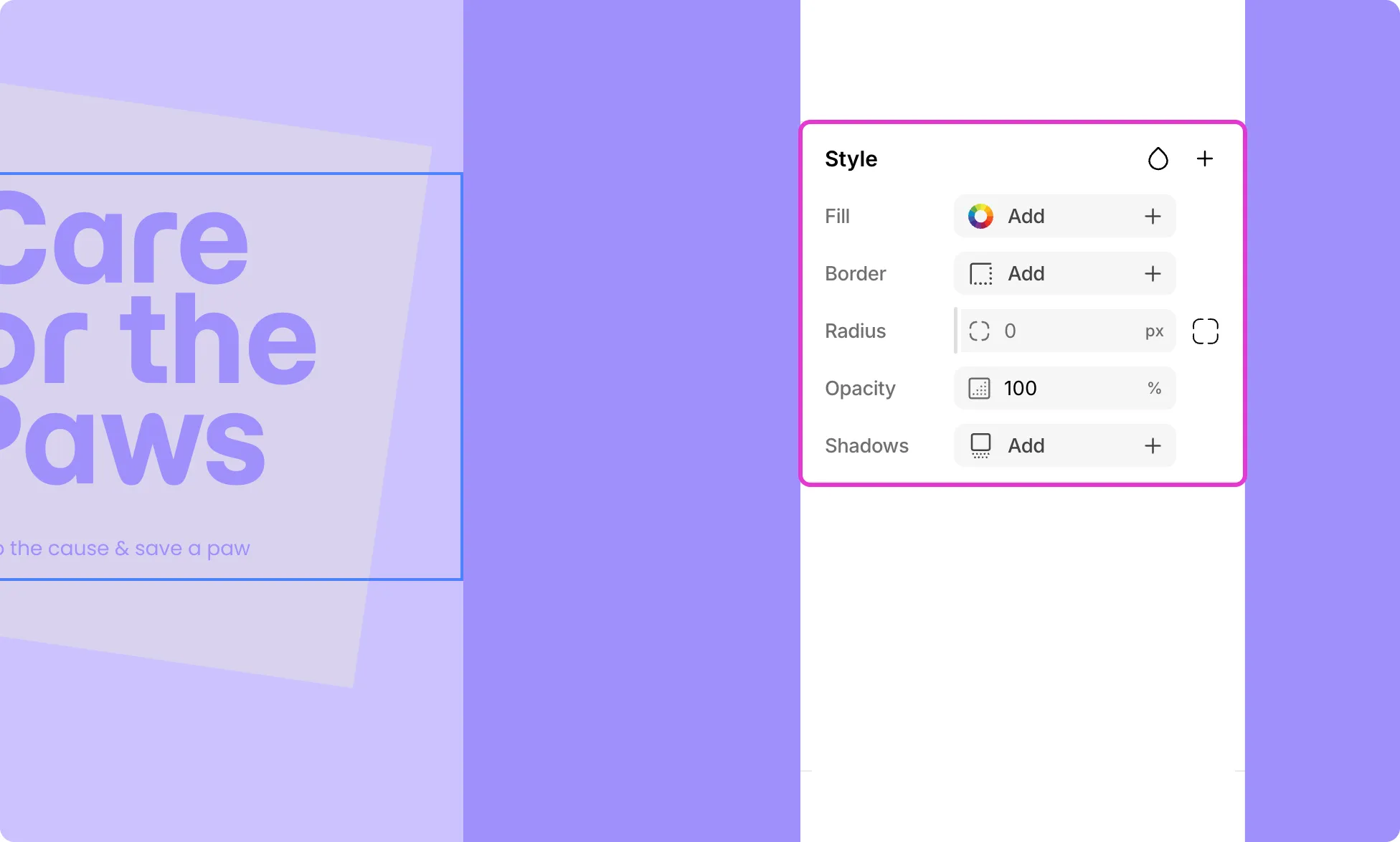
Style your element visually with the following options:
- Fill – Add a solid color, gradient, or image background.
- Border – Add a border with custom width, color, and style.
- Radius – Round the corners of your element.
- Opacity – Adjust the transparency of the element.
- Shadows – Add outer or inner shadows.
Click the plus (+) icon in the Style section to access additional options:
- Outline – Add an outline around the element that sits outside the border.
- Filters – Apply visual effects directly on the element itself, including Opacity, Blur, Brightness, and more.
- Backdrop Filters – Apply the same set of visual effects to the area behind the element rather than the element itself.
- Glass Effect – Give the element a realistic glass appearance using various controls.
- Cursor – Customize the mouse cursor style when hovering over the element.
- Pointer Event – Control whether the element responds to mouse and touch interactions.
Learn more about Style.
Transforms
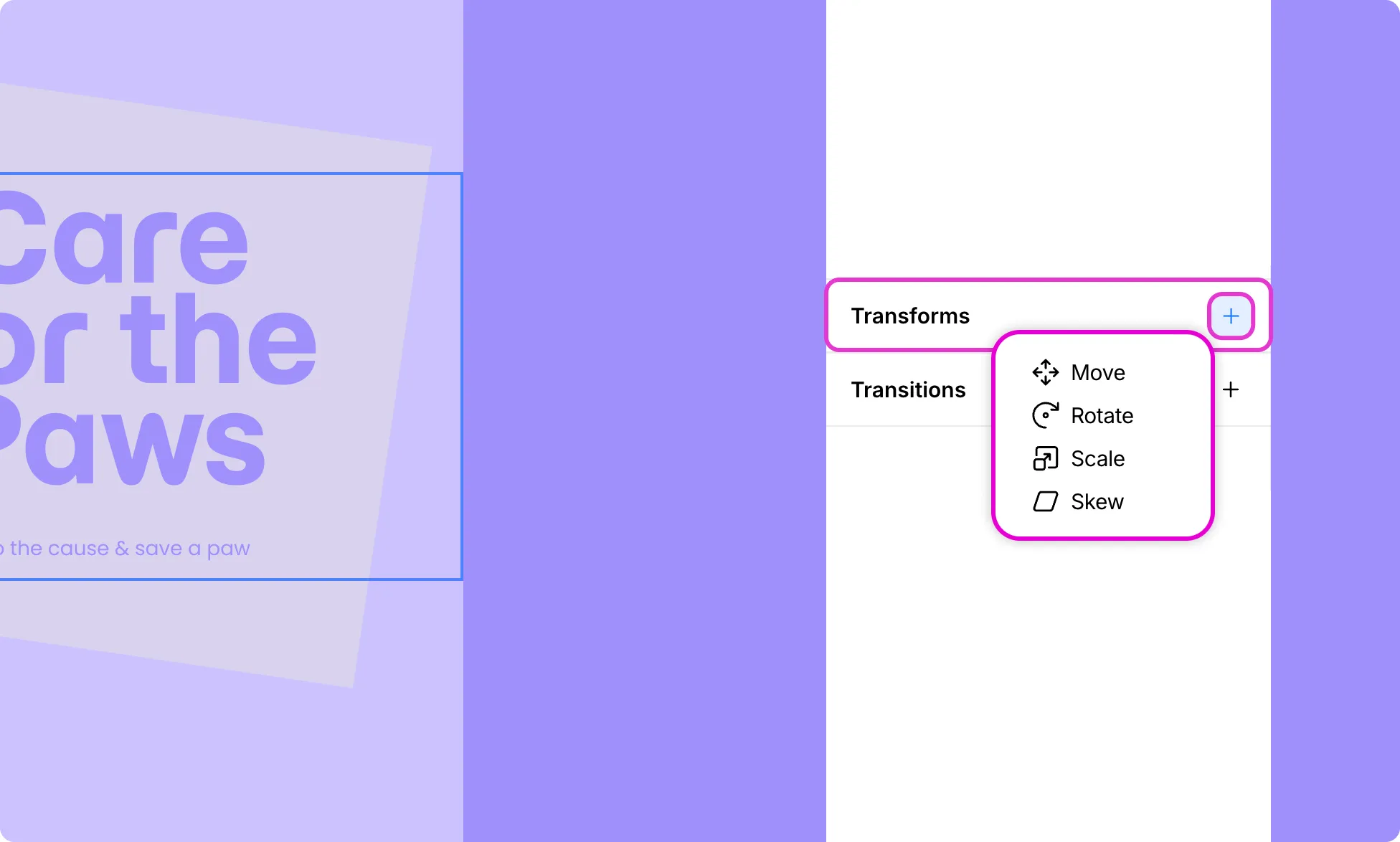
Manipulate an element’s appearance and position using:
- Move
- Rotate
- Scale
- Skew
Typically used in combination with Element States to create interactive animations.
Learn more about Transforms.
Transitions
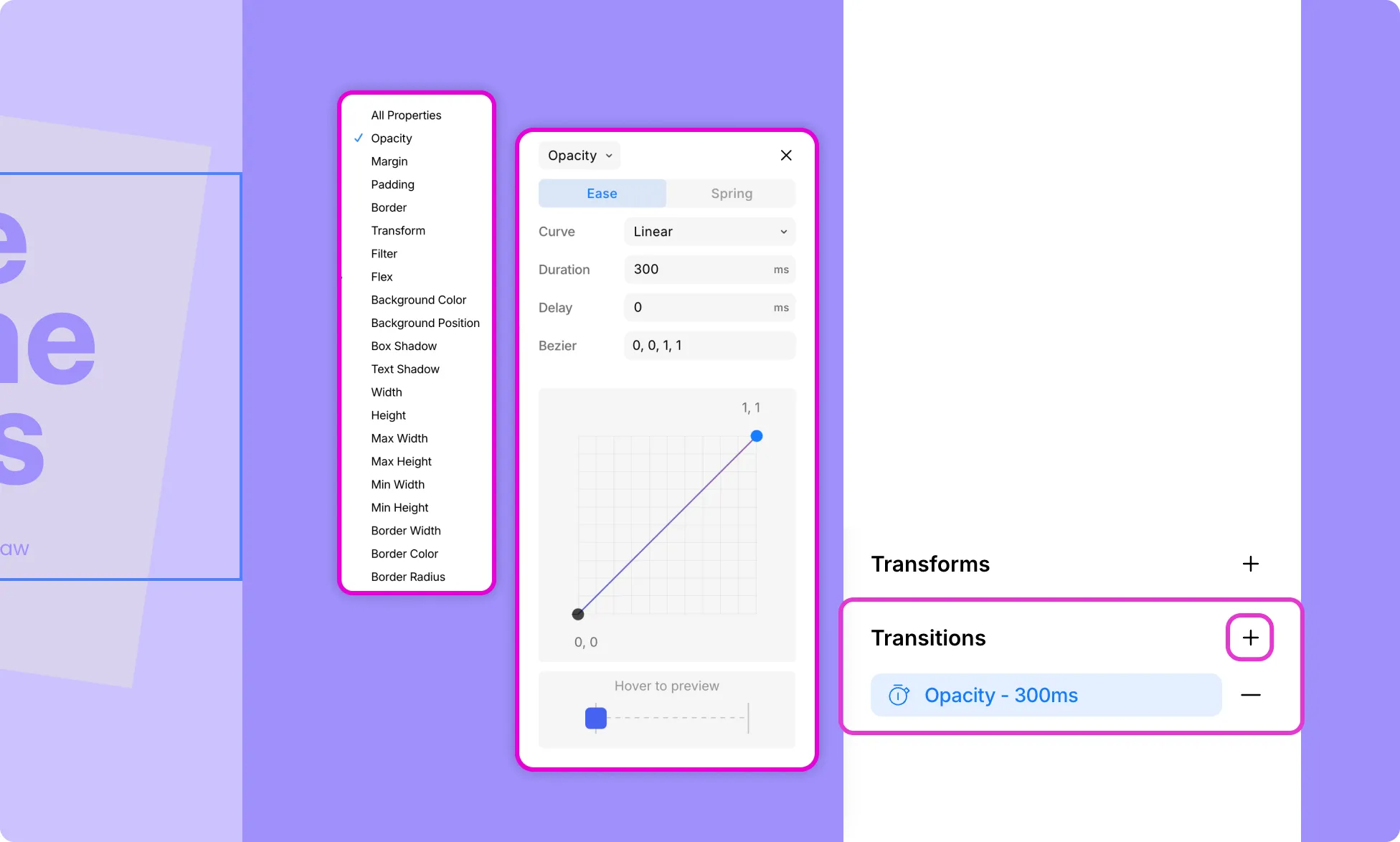
Add smooth transitions to changes that occur when an element switches between states.
Learn more about Transitions.
Interaction
The Interaction tab is where you add interactive animations to your elements – like triggering animations on scroll, on click, or on hover.
In Kirki, there are several ways to add interactions:
- Interaction Library
- Interaction Timeline Editor
- Text Animation
- Cursor Trail
You can also enhance your interactions further with:
- Spring Transitions
- Custom Timing Editor
Learn more about Interaction.
Settings
The Settings tab in the Right Panel lets you configure Custom Properties and Visibility Rules for any selected element.
Custom Properties
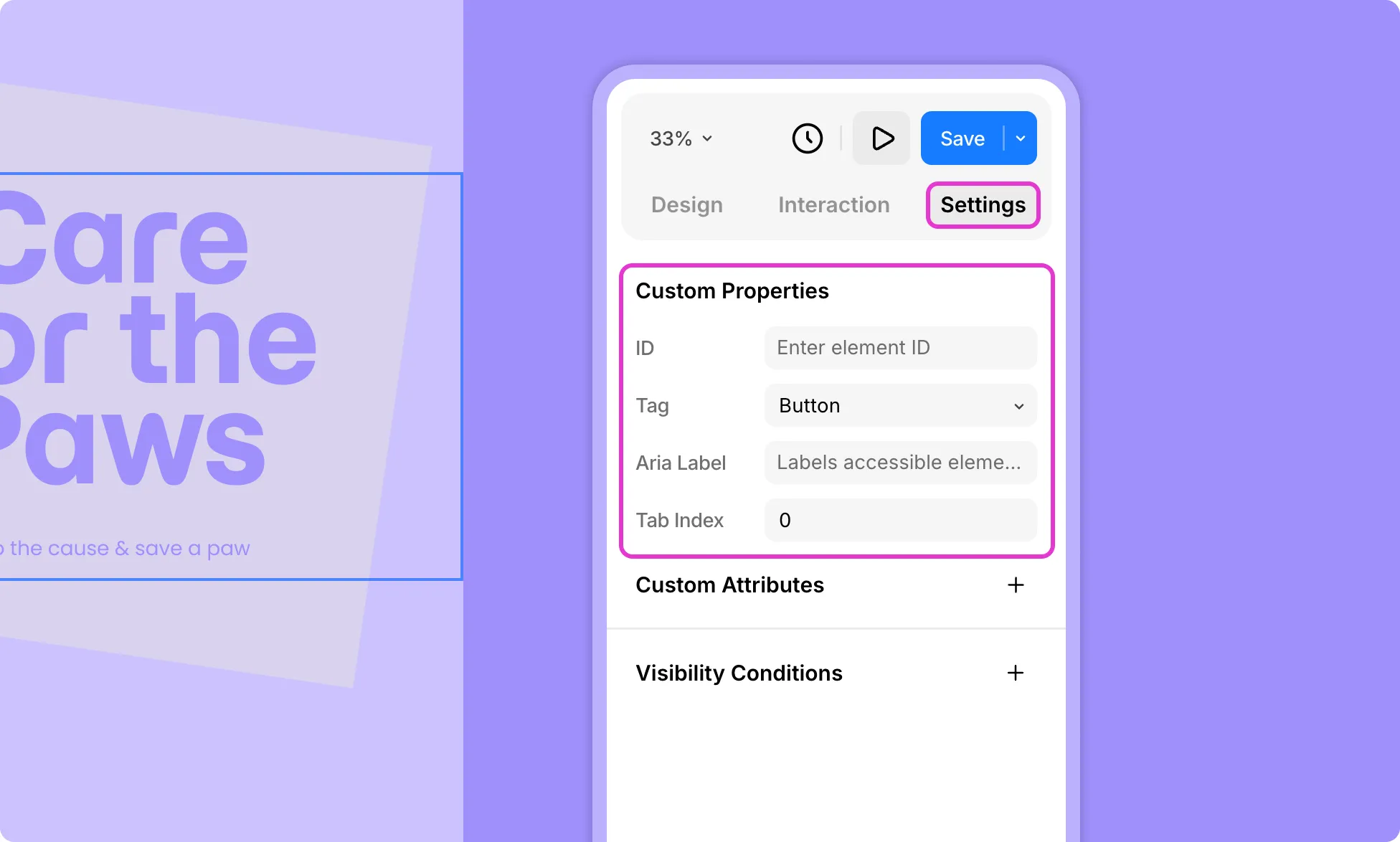
Add an Element ID
Enter a unique ID in the ID field to identify the element – useful for custom CSS targeting or JavaScript hooks.
Add an Aria Label
Use the Aria Label field to label the element for screen readers and other assistive technology, improving accessibility for users who don’t rely on visual cues.
Set Tab Index
Enter a value in the Tab Index field to control the element’s position in keyboard navigation order. Defaults to 0.
Add Custom Attributes
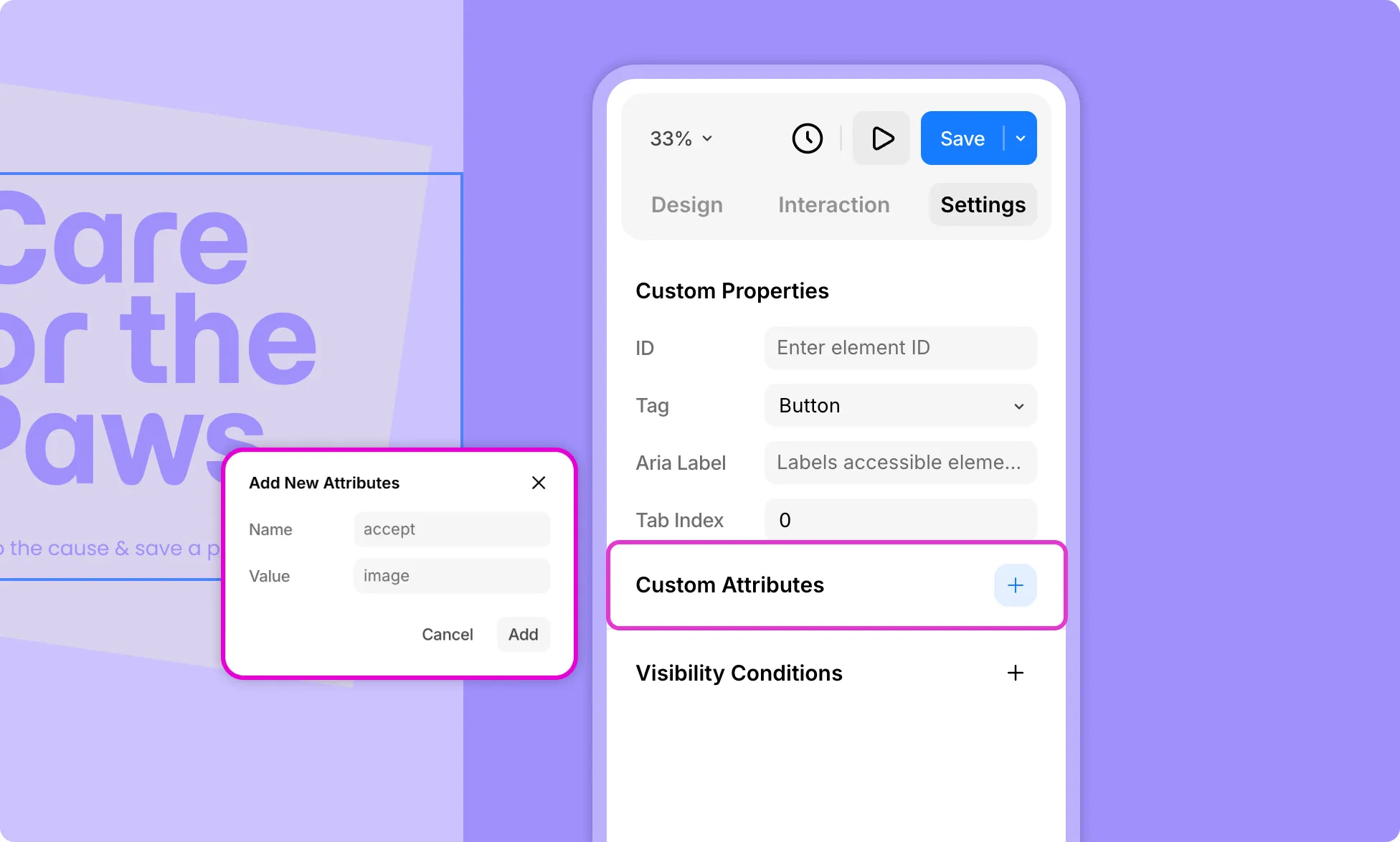
Custom attributes let you attach extra HTML attributes to an element that aren’t covered by built-in fields. For example, you can use ‘accept’ to restrict file types on an upload input.
To add one:
- Click the plus (+) icon next to Custom Attributes.
- Enter an Attribute Name and Value.
- Click Add (or Cancel to discard).
Visibility Conditions
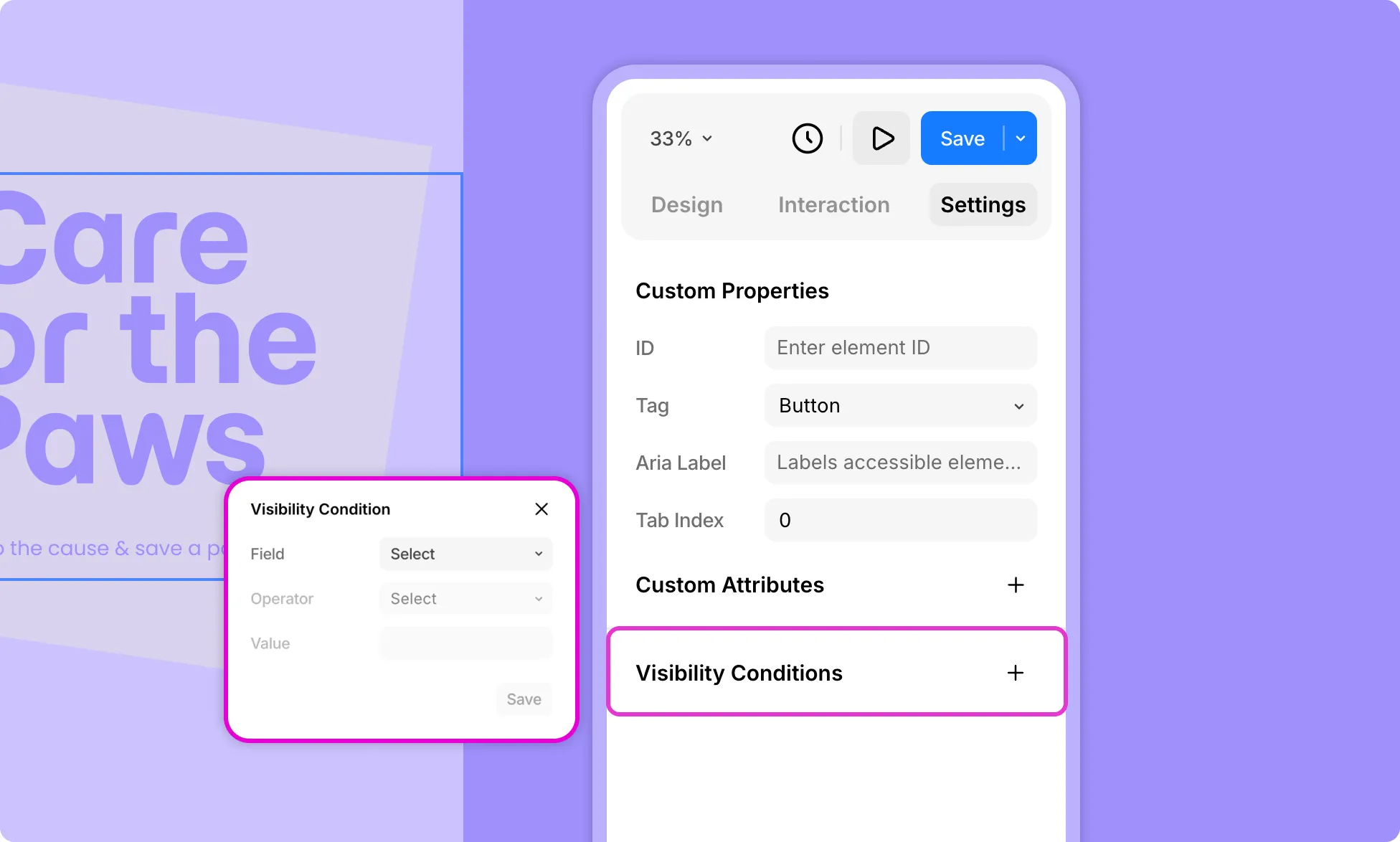
Control when and to whom the element is visible, such as showing it only to logged-in users or on specific devices.
Learn more about Visibility Conditions.