


Position controls how an element is placed on the page relative to other elements or the viewport.
You can set it from the Position dropdown in the Design tab on the Right Panel.
Position Types
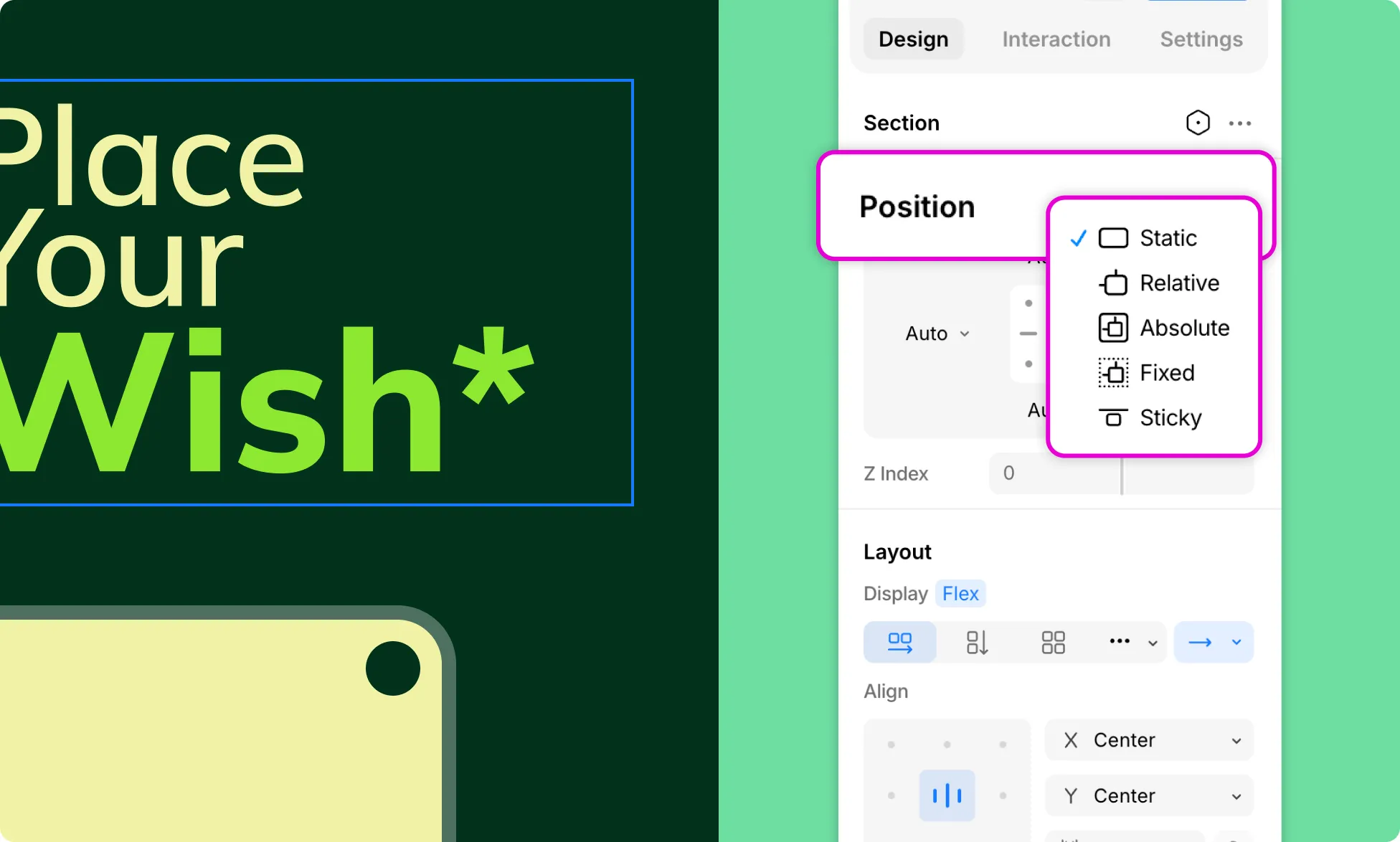
Click on the Position dropdown to select the Position Type. Below is the list of the 5 different values the Position property has to offer:
- Static – The default. The element follows the normal document flow.
- Relative – Stays in the document flow but can be nudged from its natural position using offset controls.
- Absolute – Removed from the document flow and positioned relative to its nearest positioned ancestor. Supports Freeform Positioning, letting you visually drag elements into place.
- Fixed – Removed from the document flow and locked to the viewport, staying in place as the user scrolls. Supports Freeform Positioning, letting you visually drag elements into place.
- Sticky – Follows the document flow until it hits a scroll threshold, then sticks in place.
Static
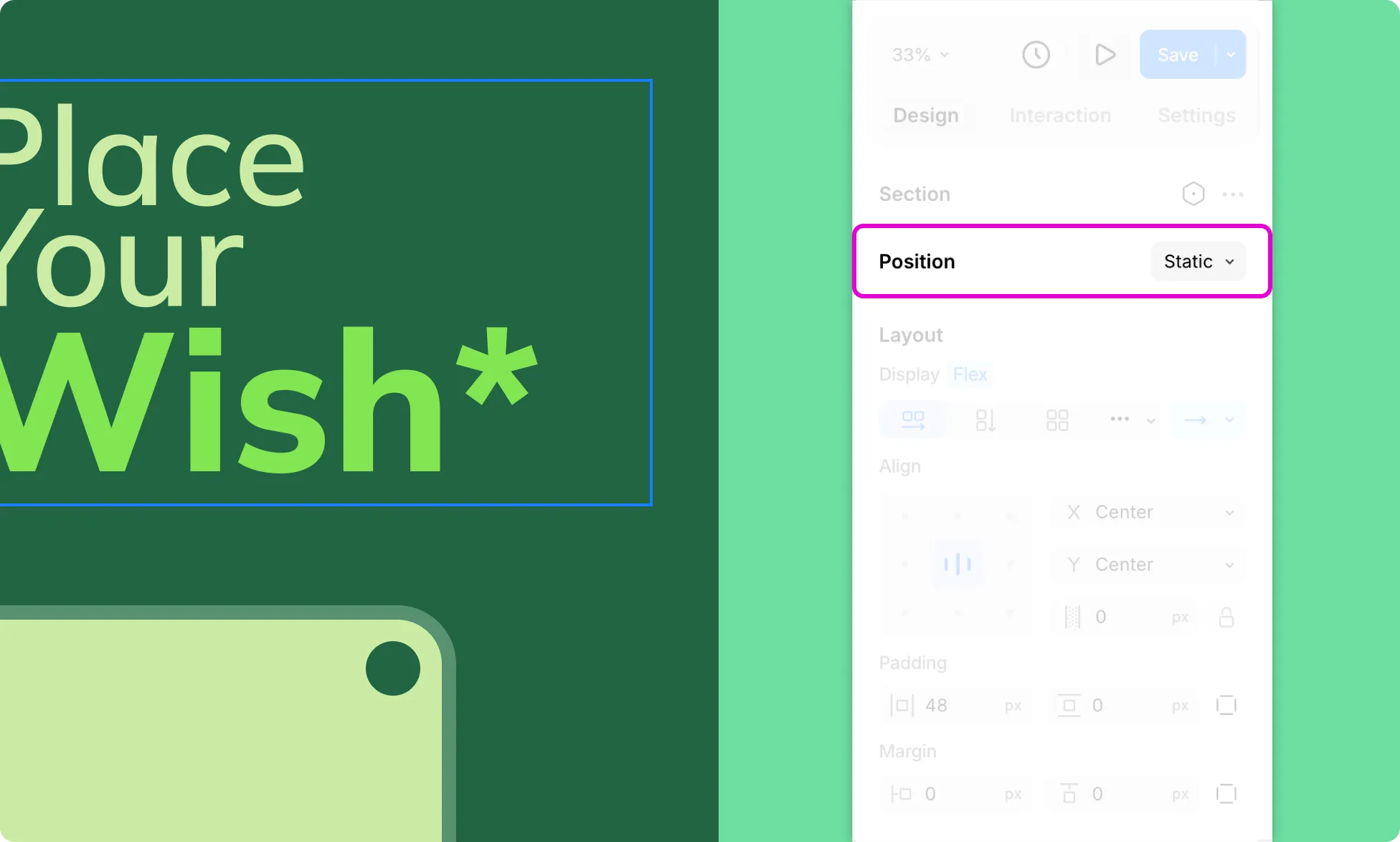
Elements are positioned based on the usual flow of the document. Other values have no effect. This is set as the default value for Position.
Relative
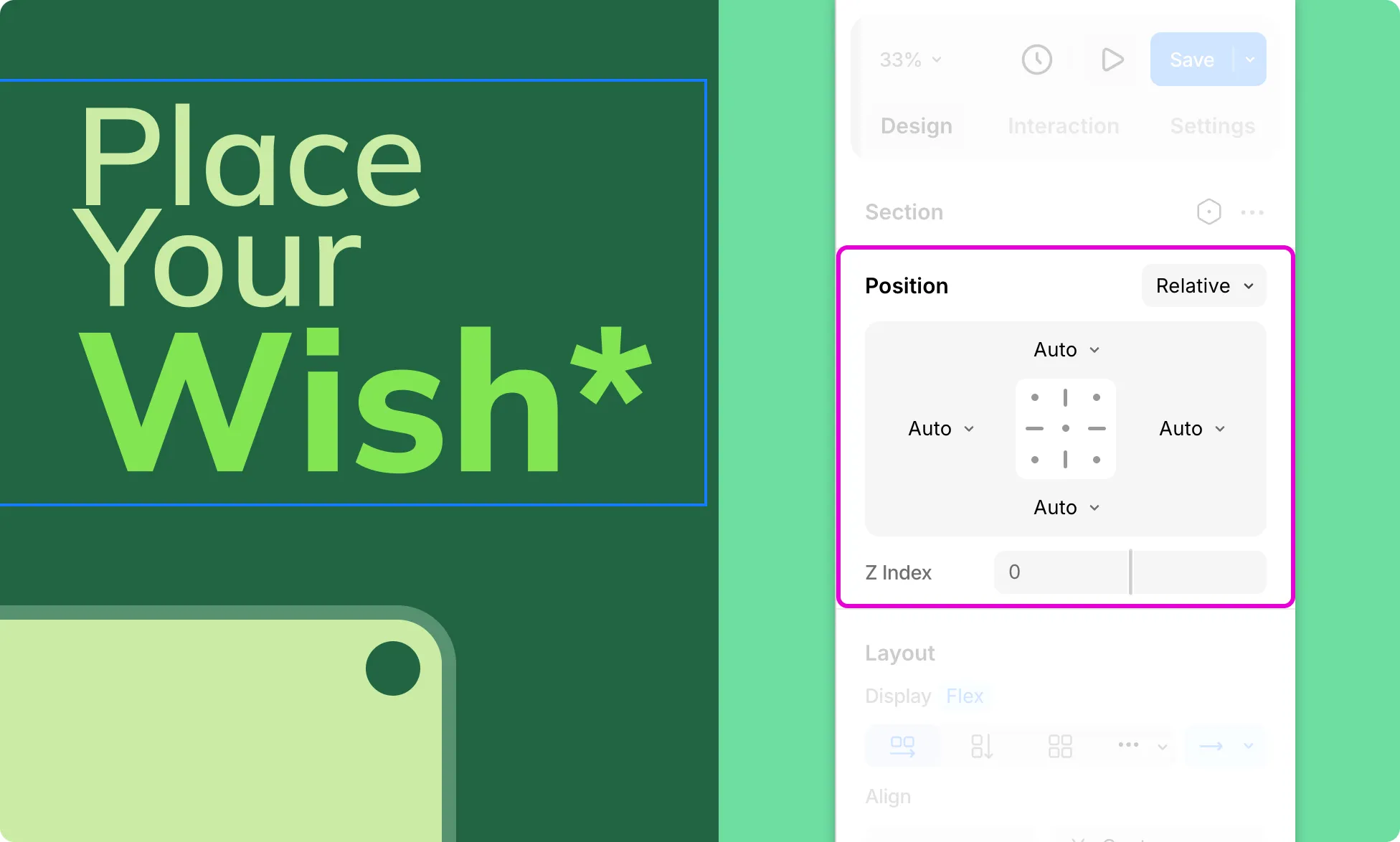
Elements flow normally but can be nudged using offset controls. This means that other elements will behave as if it is taking their usual position even when they are offset.
Absolute
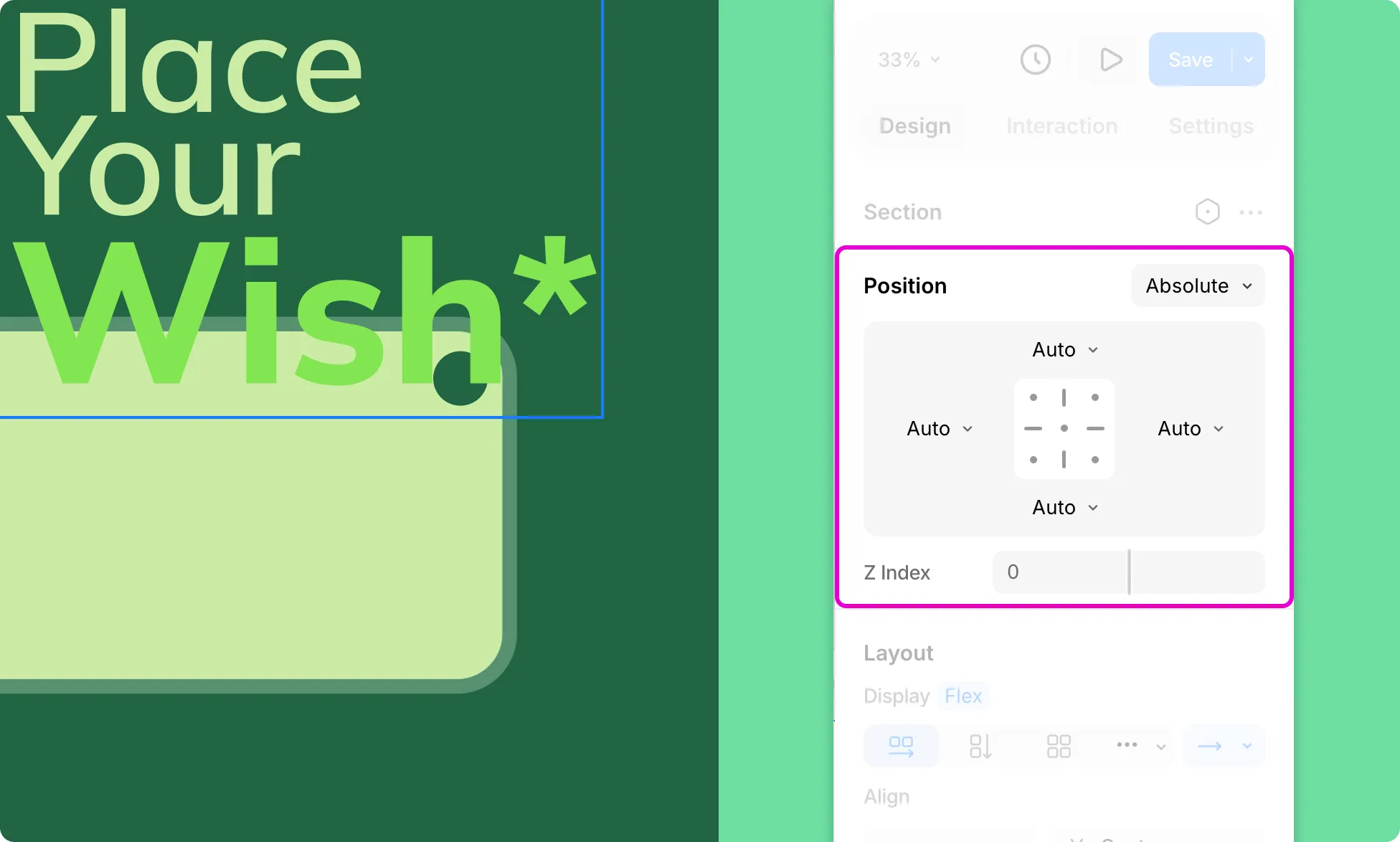
Elements are removed from the usual flow of the document and positioned relative to their closest ancestor, if any, or placed relative to the initial containing block. The final position is based on the offset values.
Absolute Position enables Freeform Positioning, which means you can skip setting offset values manually and instead visually drag the element into place.
Fixed
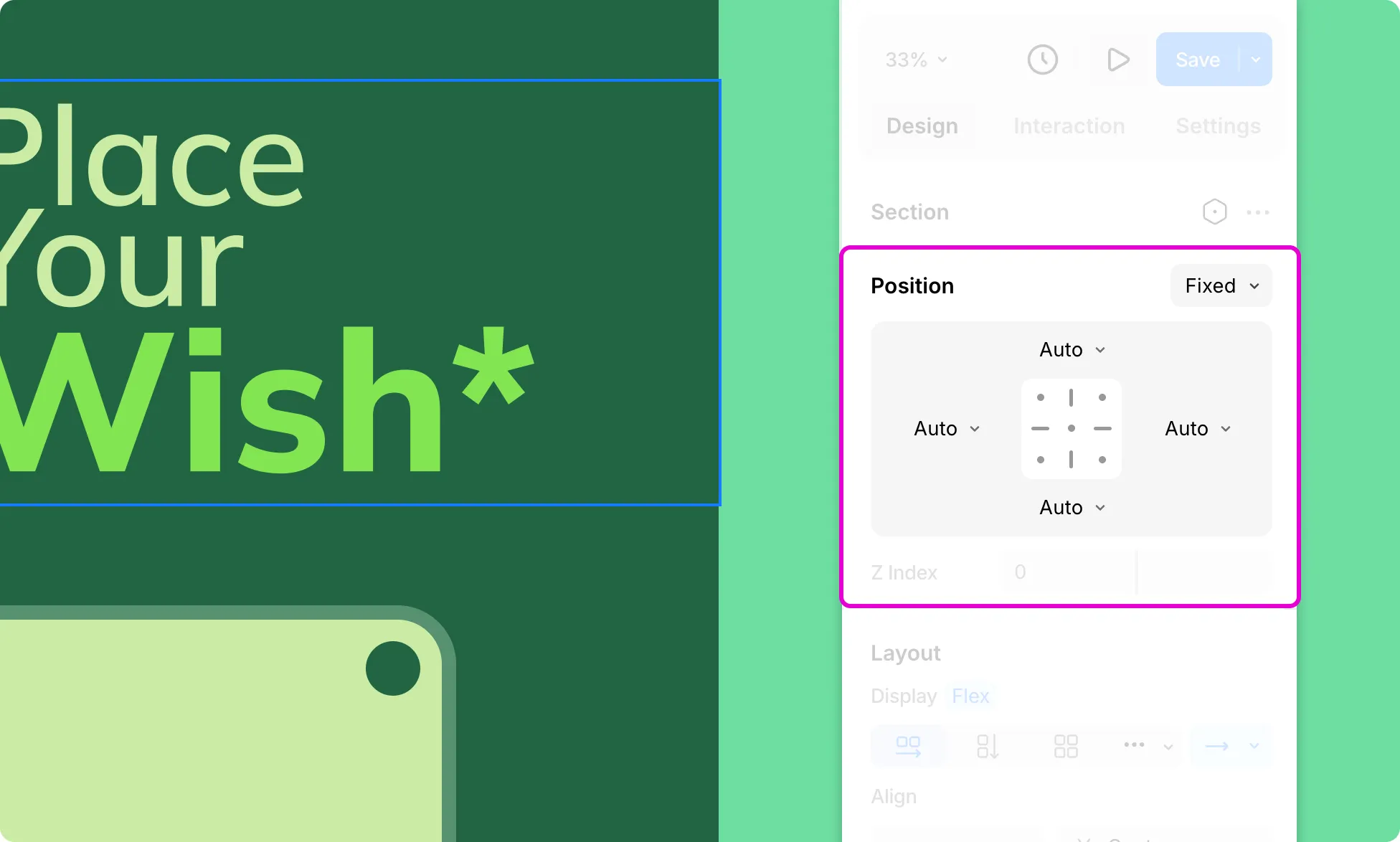
Fixed positioning removes an element from the normal document flow and positions it relative to the viewport, which means it remains fixed in its position even when the page is scrolled. This is true regardless of the ancestor elements’ properties like transform, perspective, filter, or will-change. The element’s final position is determined solely by the offset values, without considering the properties of its ancestor elements.
Like absolute, Fixed also supports Freeform Positioning – just drag the element into place visually, skipping manual offset values.
Sticky
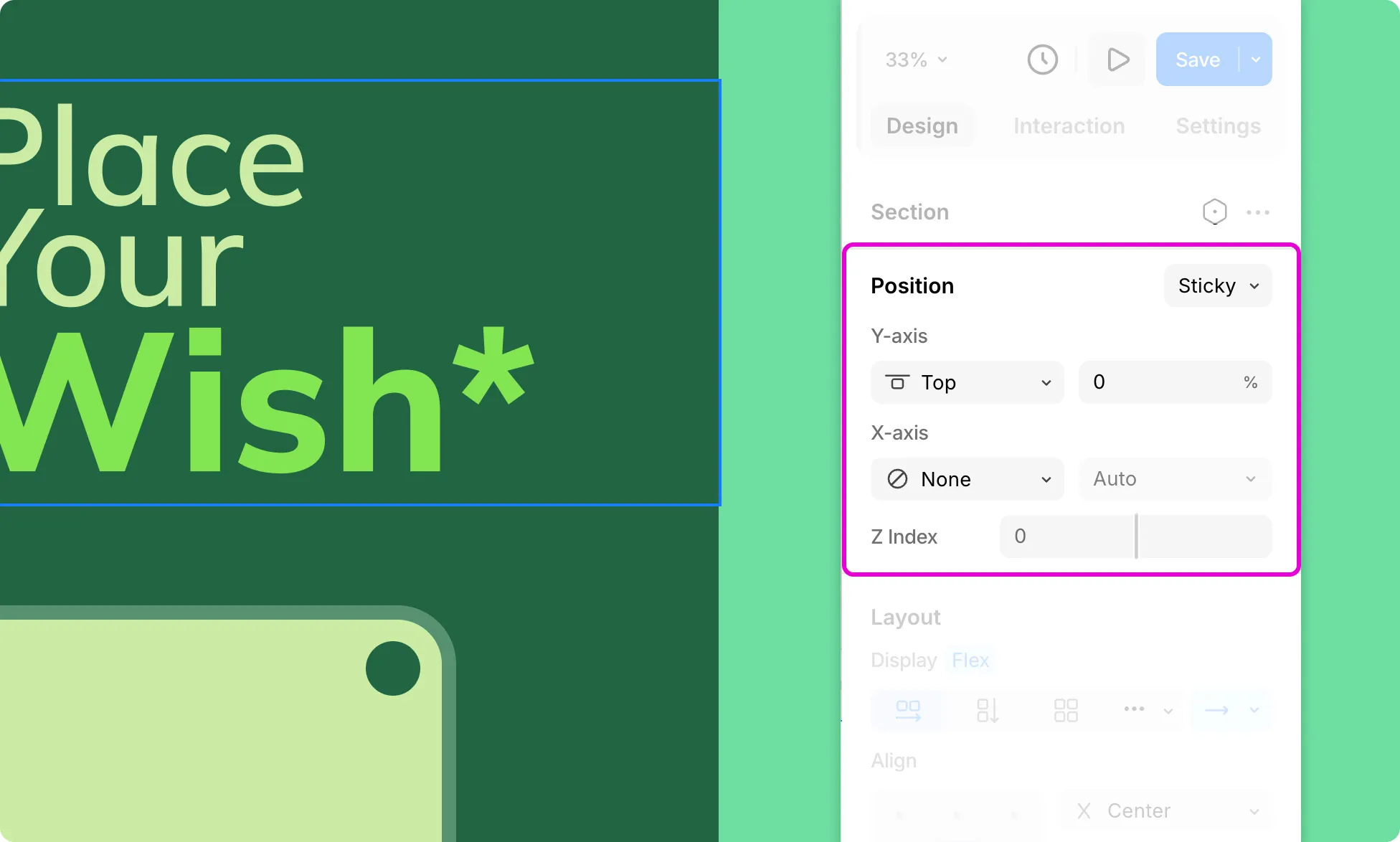
Elements are positioned based on the usual flow of the document and then nudged relative to the nearest scrolling ancestor and containing block based on offset values.
Other elements’ Position is not affected by this offset.
Adjust Position Using Offset Controls
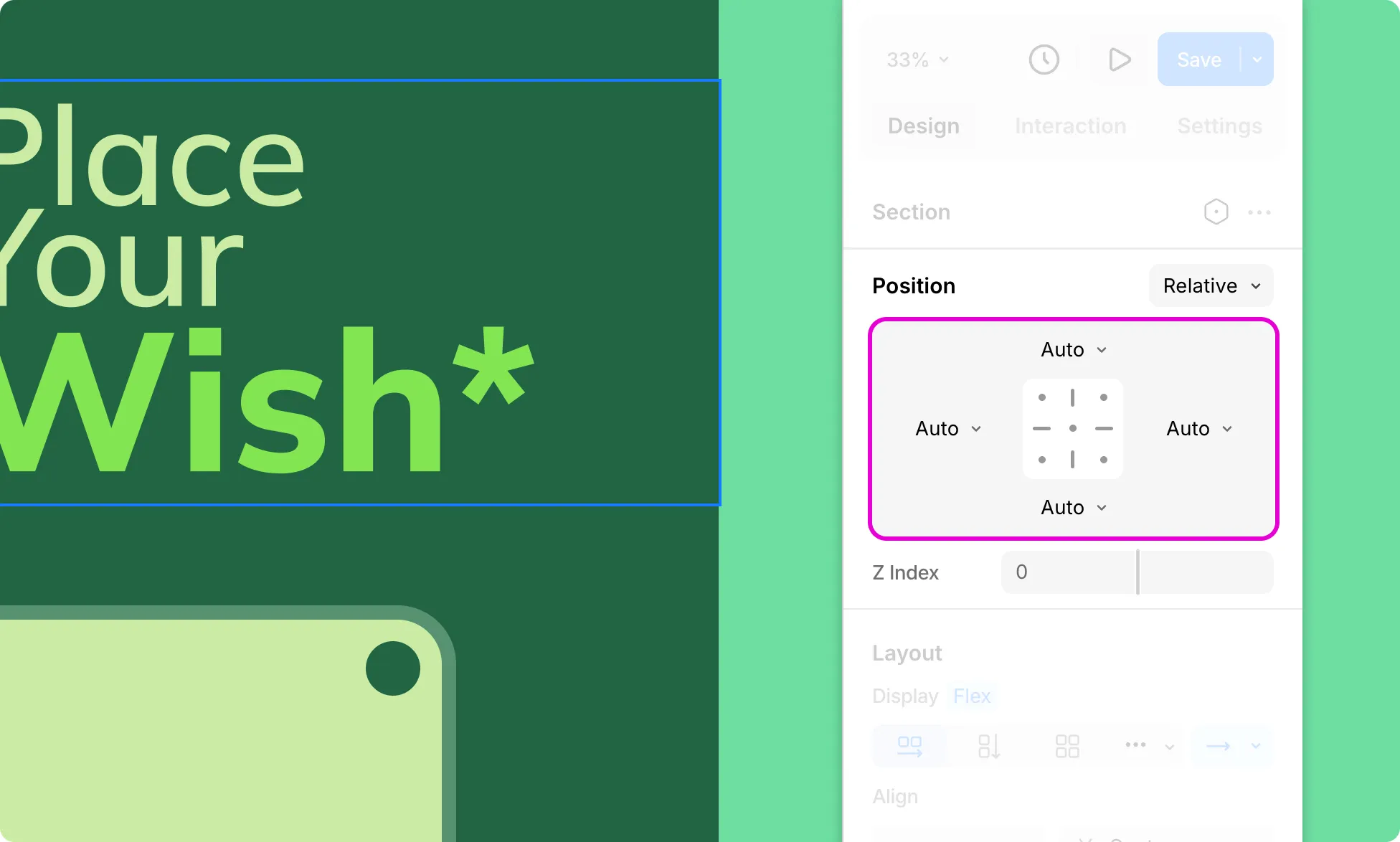
For Relative, Absolute, and Fixed positions, use the offset grid to define the element’s distance from each edge:
- Select your element on the page, go to Positions, and set type to Relative, Absolute, or Fixed as needed.
- Select a dot on the Offset Grid to set the offset to this predefined position.
- Or click the top, right, bottom, and left fields around the grid and type the value and unit directly into the field. (Unit can also be selected from the dropdown next to each field.)
Since Absolute and Fixed positions support Freeform Positioning, you can also skip the offset grid entirely and drag the element into place visually.
Z Index
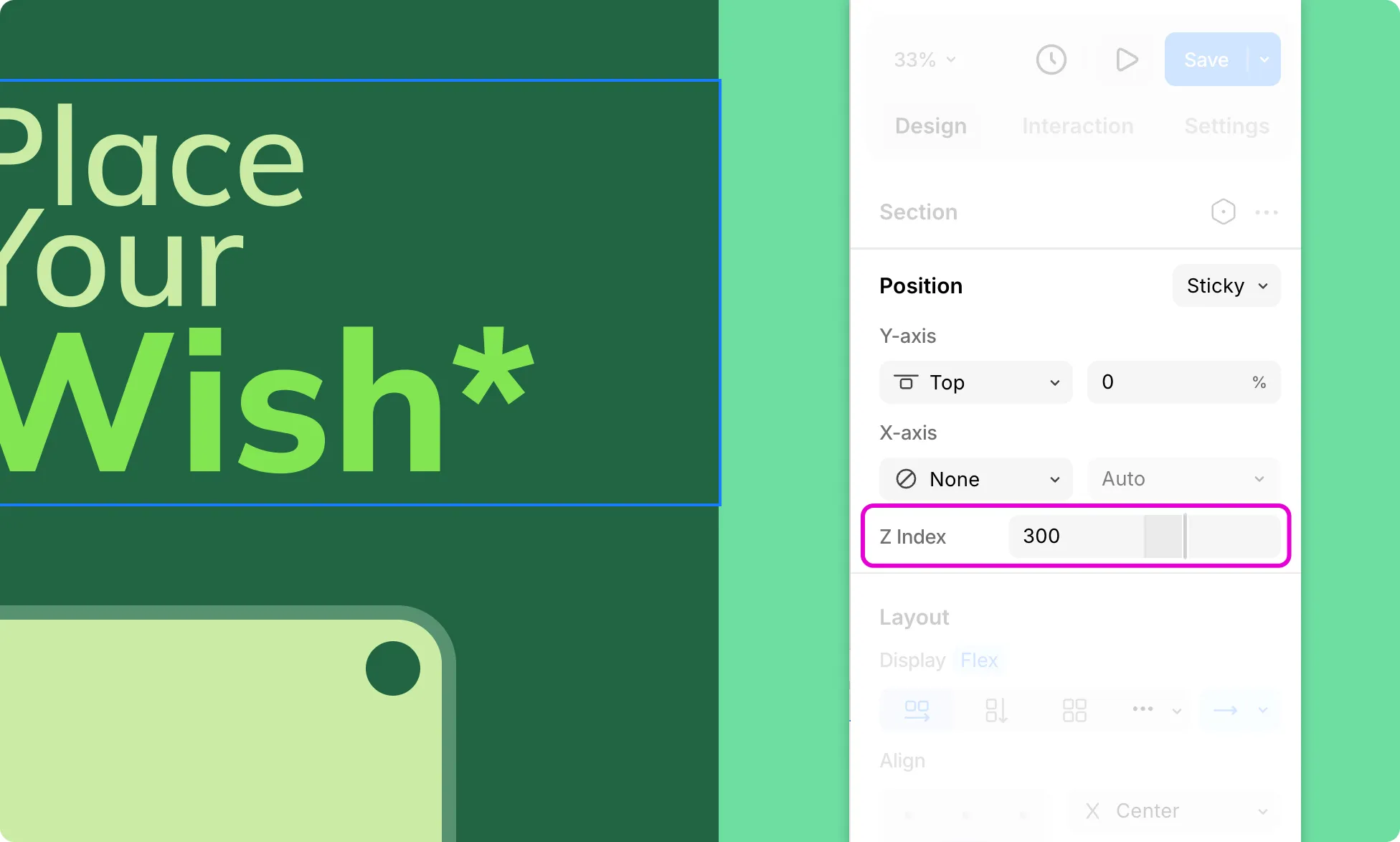
Available for all position types except Static, the Z Index controls the stacking order of the element on a page.
Elements with a higher Z Index appear on top of those with a lower value. Drag the slider or enter a value directly into the field to set it.
Make an Element Sticky
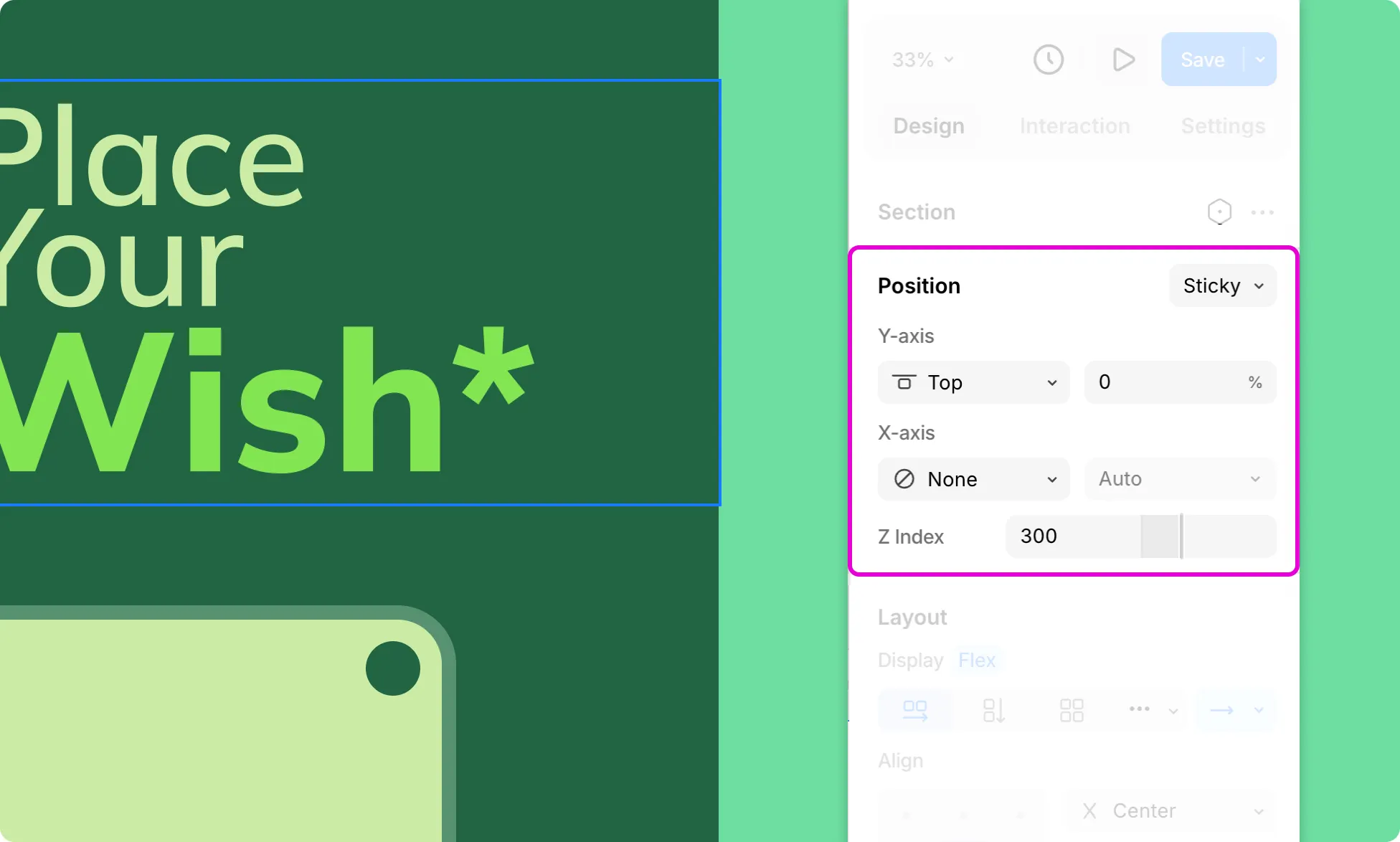
Sticky positioning is useful for elements you want to keep visible as the user scrolls – like a navigation bar, a sidebar, or a call-to-action button.
To make an element sticky:
- Select the element on the page.
- From the Design tab on the Right Panel, set Position to Sticky.
- Set the Y-axis to Top or Bottom, depending on which edge you want the element to stick to. For horizontal sticking, set the X-axis to Left or Right.
- Set the Z Index to a high value, like 100, to ensure the element stays visible above other elements on the page.
📝 Note: For sticky positioning to work correctly, make sure the element is not nested inside a parent with overflow set to hidden or auto, as this can prevent the sticky behavior from taking effect.