Starting From Pre-Built Blocks
If you’re just getting started and prefer to build on your own terms, Kirki’s Pre-built Blocks give you a flexible, creative foundation to build your website without starting from scratch.
These blocks are thoughtfully designed layouts that help you shape your website quickly – without locking you into rigid structures.
As your design evolves, Kirki’s infinite canvas and fully responsive system ensure everything adapts automatically. You can also use parallel responsive views to see how your site looks across devices side by side, all within a single unified workspace.
To access pre-built blocks and more, navigate to the Insert panel from the Left Sidebar.
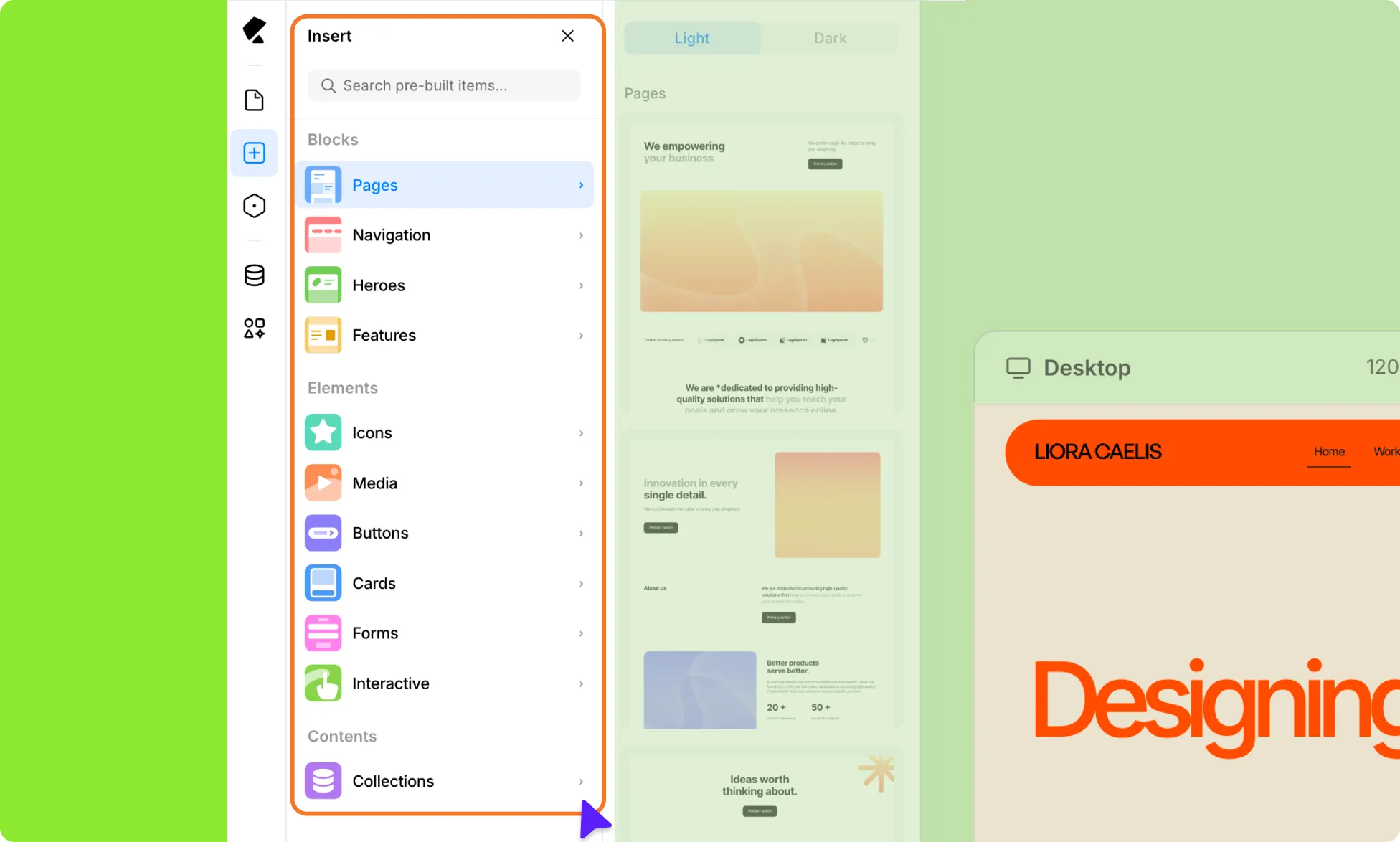
It’s divided into three key sections:
- Blocks
- Elements
- Contents
Blocks
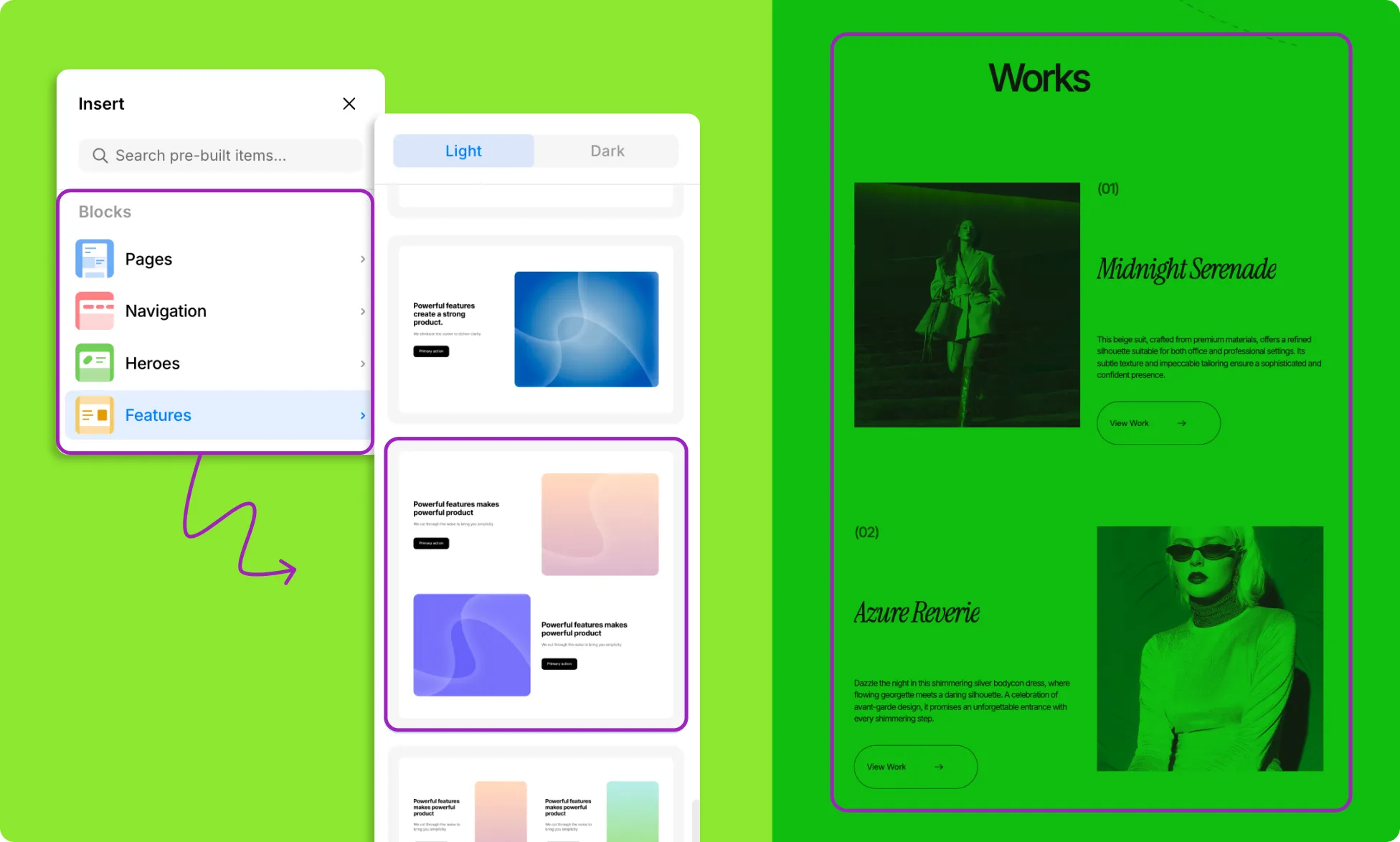
Blocks are pre-made page layouts and sections – think navigations, hero sections, and more. These help you quickly visualize and present your ideas, keeping your creative process on track from the very beginning without having to build from scratch.
And with both light and dark variants available, you can choose a style that fits your direction and keep your creative flow uninterrupted.
Once your layout is in place, you can move on to fine-tuning the details.
Elements
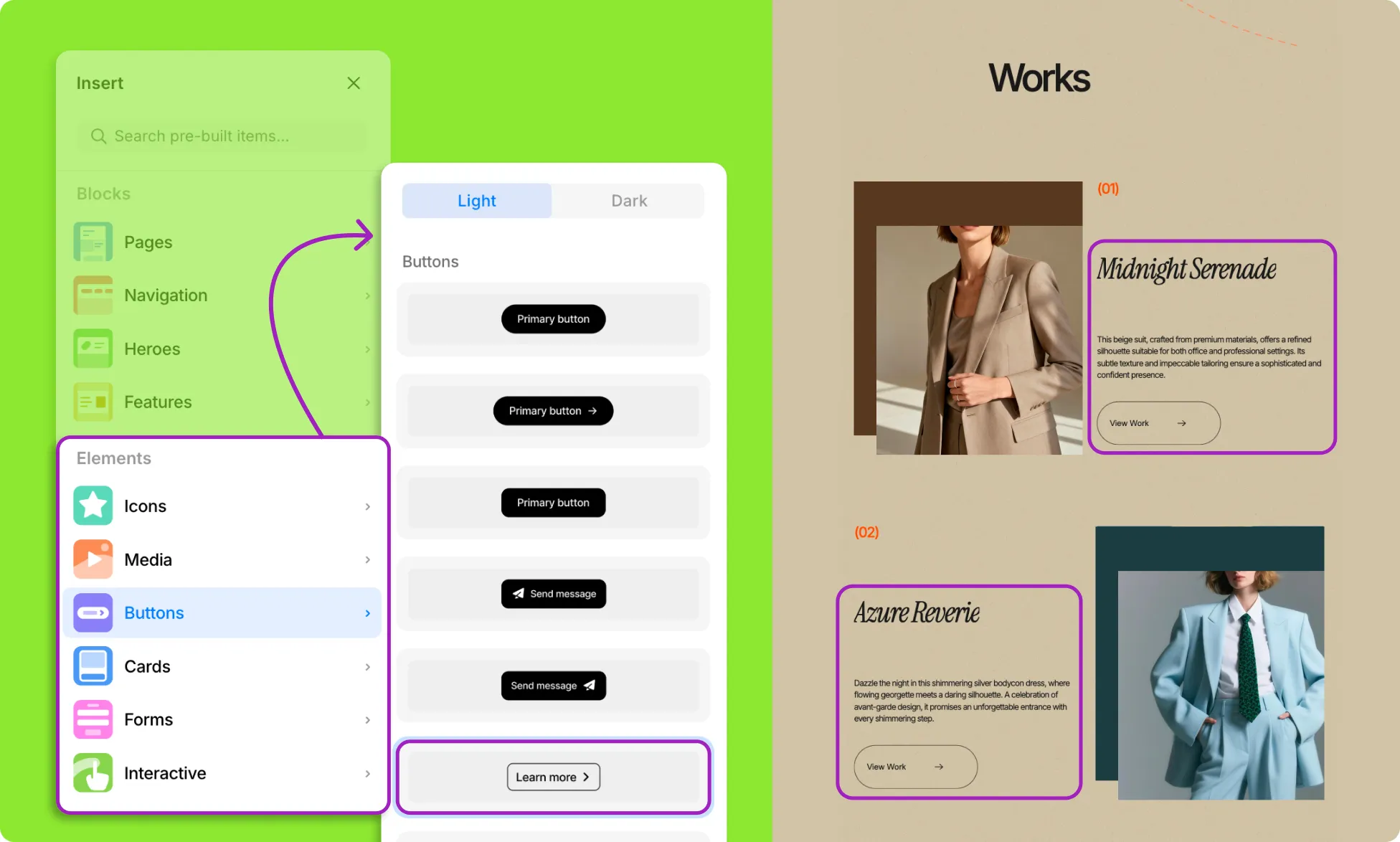
While Blocks help you lay out your page with pre-made sections, Elements take things a step further with built-in styled components – icons, buttons, cards, forms, and more. Pick what you need and update them to fit your design.
You can also work with interactive elements in their core form — already designed and functional on their own, but without the additional structural wrappers, headings, or extended styling often included in pre-built Blocks.
And for maximum flexibility, you can go even deeper with primitive Base Elements, giving you full control over every detail from the ground up.
Contents
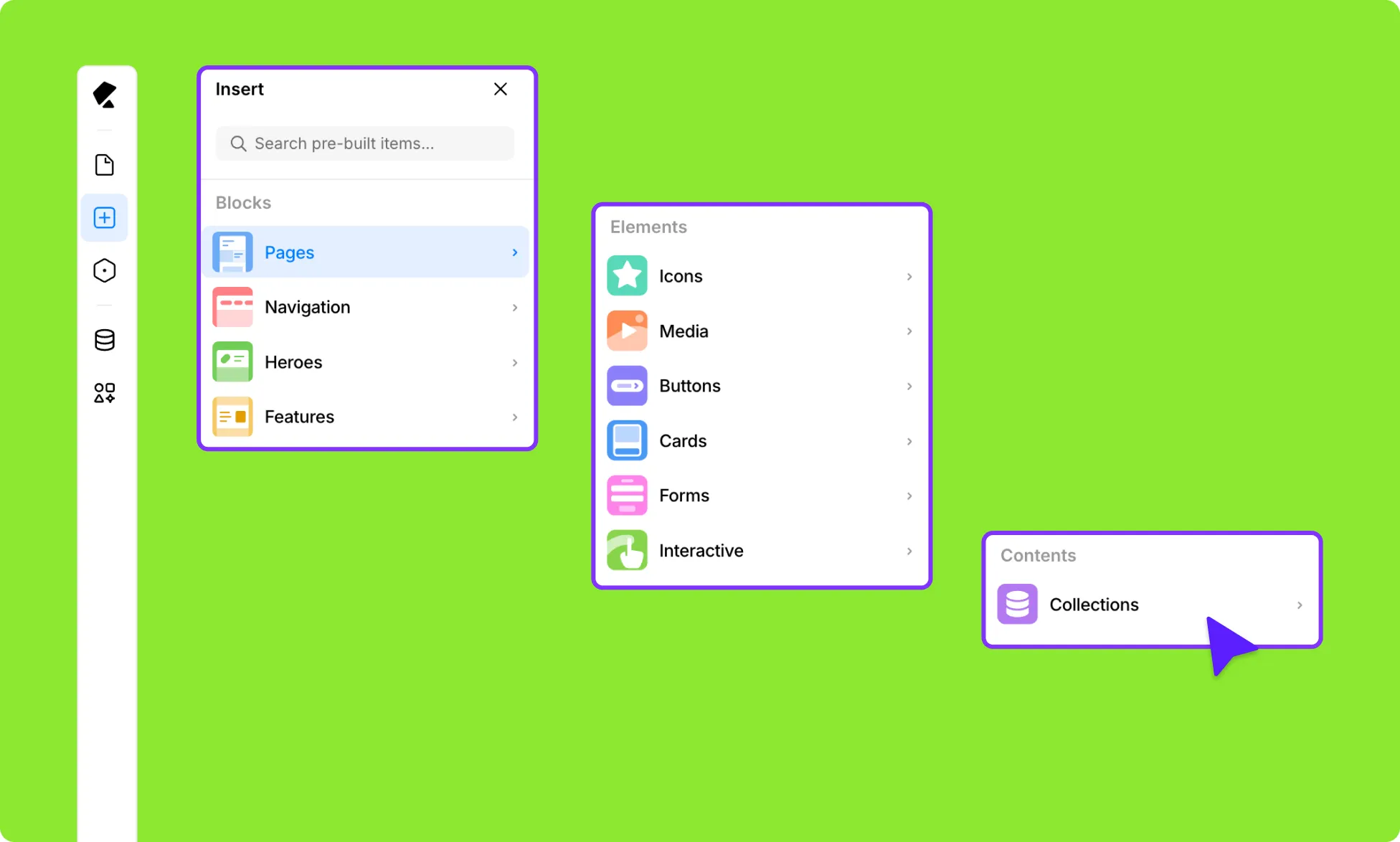
In the Contents section, you’ll find all your dynamic collections from the Content Manager as well as WordPress posts.
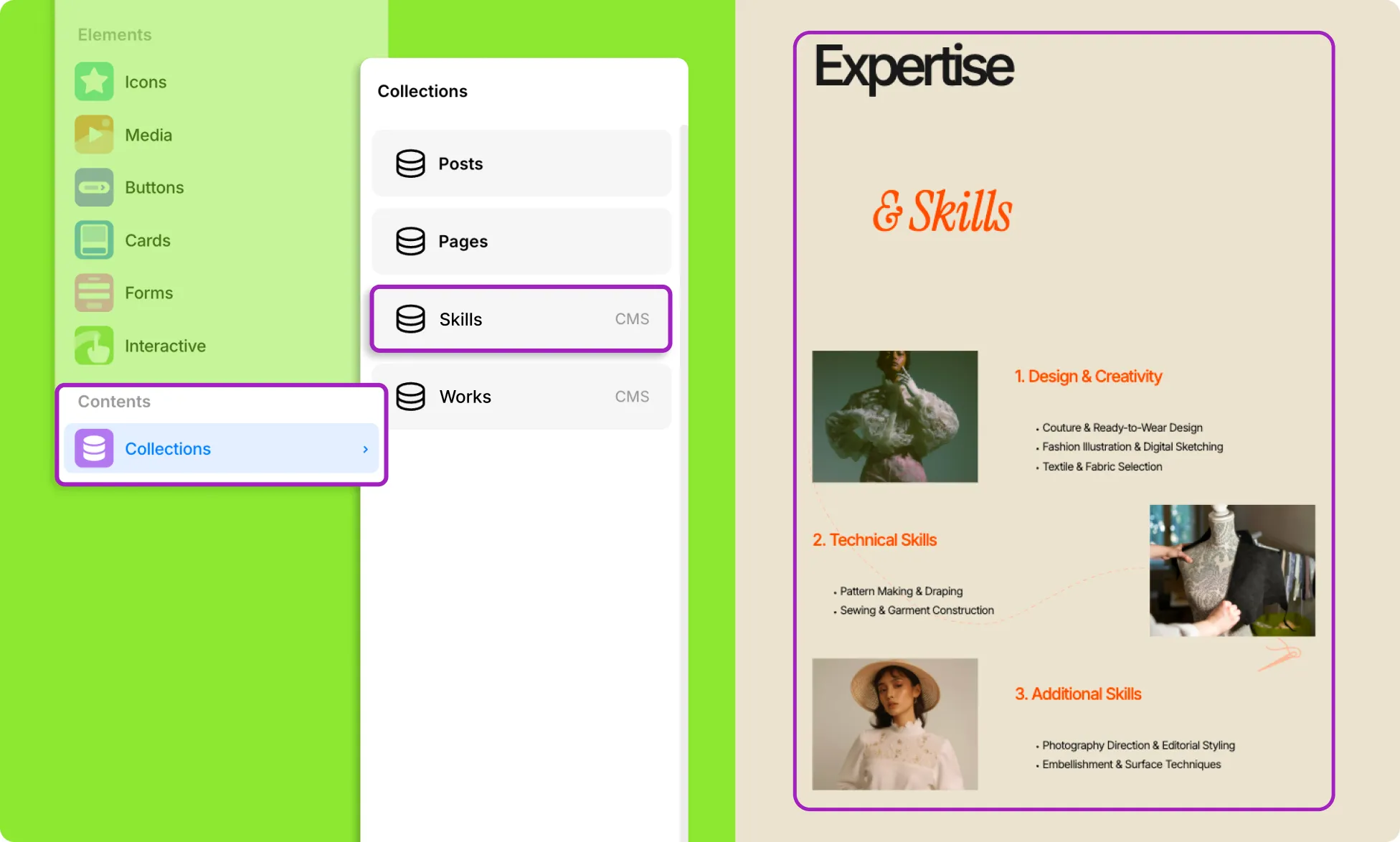
You can simply drag and drop items wherever needed on your page, making it easy to build dynamic layouts that stay in sync with your content.
Was this page helpful?