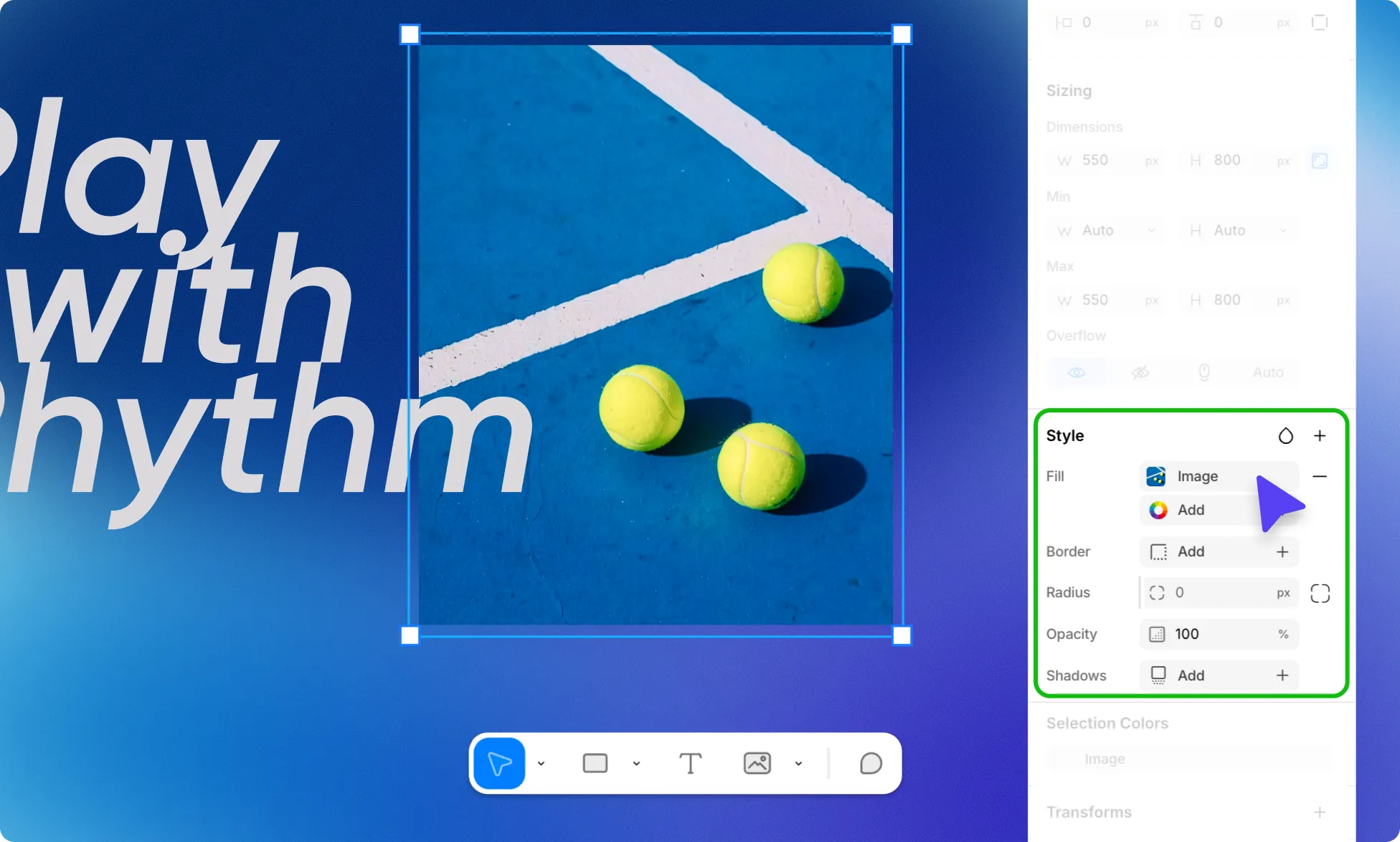
The Style section in the right panel lets you control the visual appearance of your element. It includes properties for fill, border, radius, opacity, and shadows – with additional properties like outline, filters, and effects available via the + button.
Fill
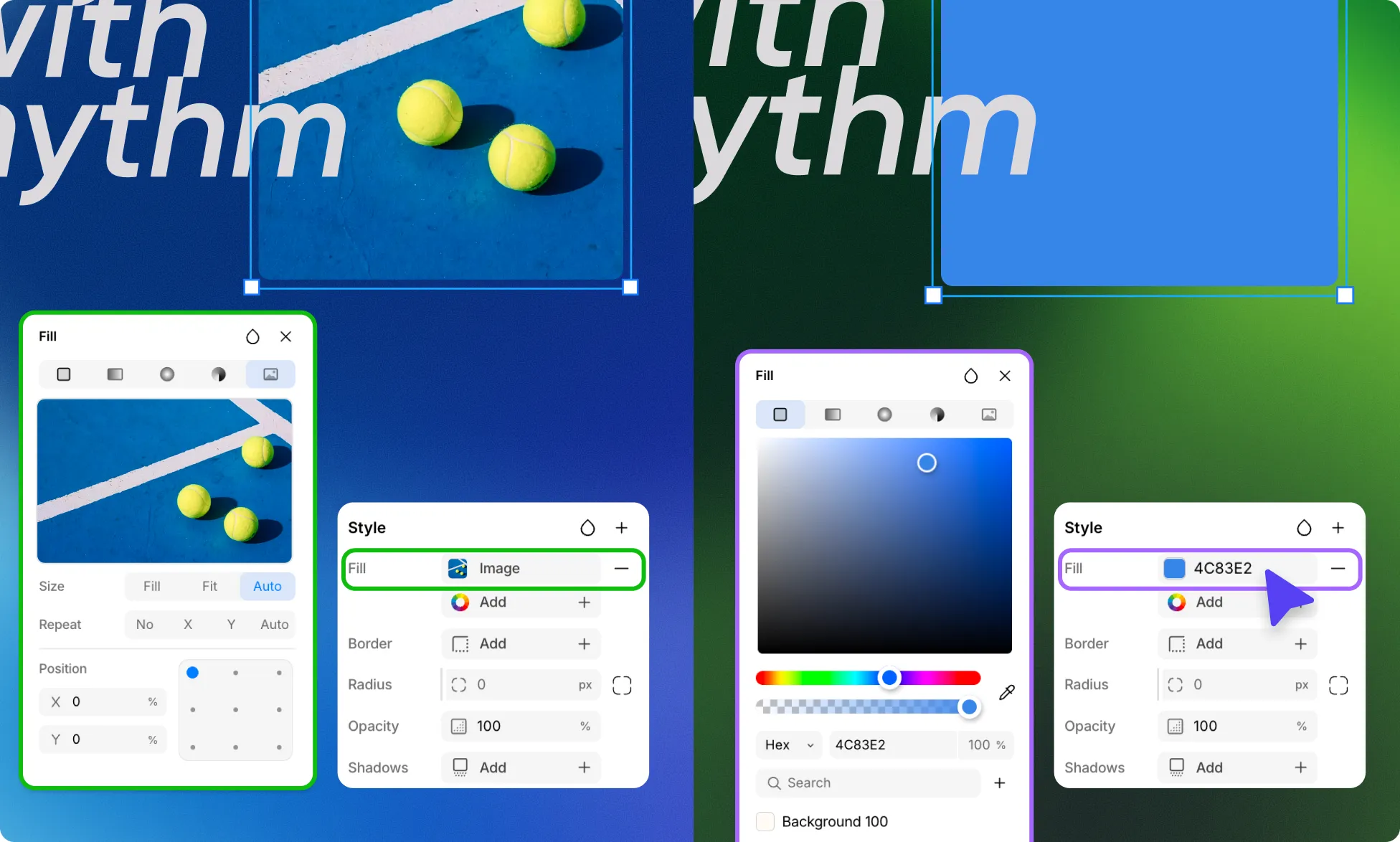
Add one or more fills to your element. For text elements, the fill is applied as the foreground (text) color. For all other elements, it is applied as the background color.
Each fill can be one of the following types:
- Solid – A flat, single color fill.
- Linear Gradient – A gradient that transitions colors along a straight line.
- Radial Gradient – A gradient that radiates outward from a center point in a circle.
- Conic Gradient – A gradient that rotates around a center point.
- Image – Use an image as the fill.
You can stack multiple fills by clicking the plus (+) icon.
Learn more about Fill.
Border & Radius
Border
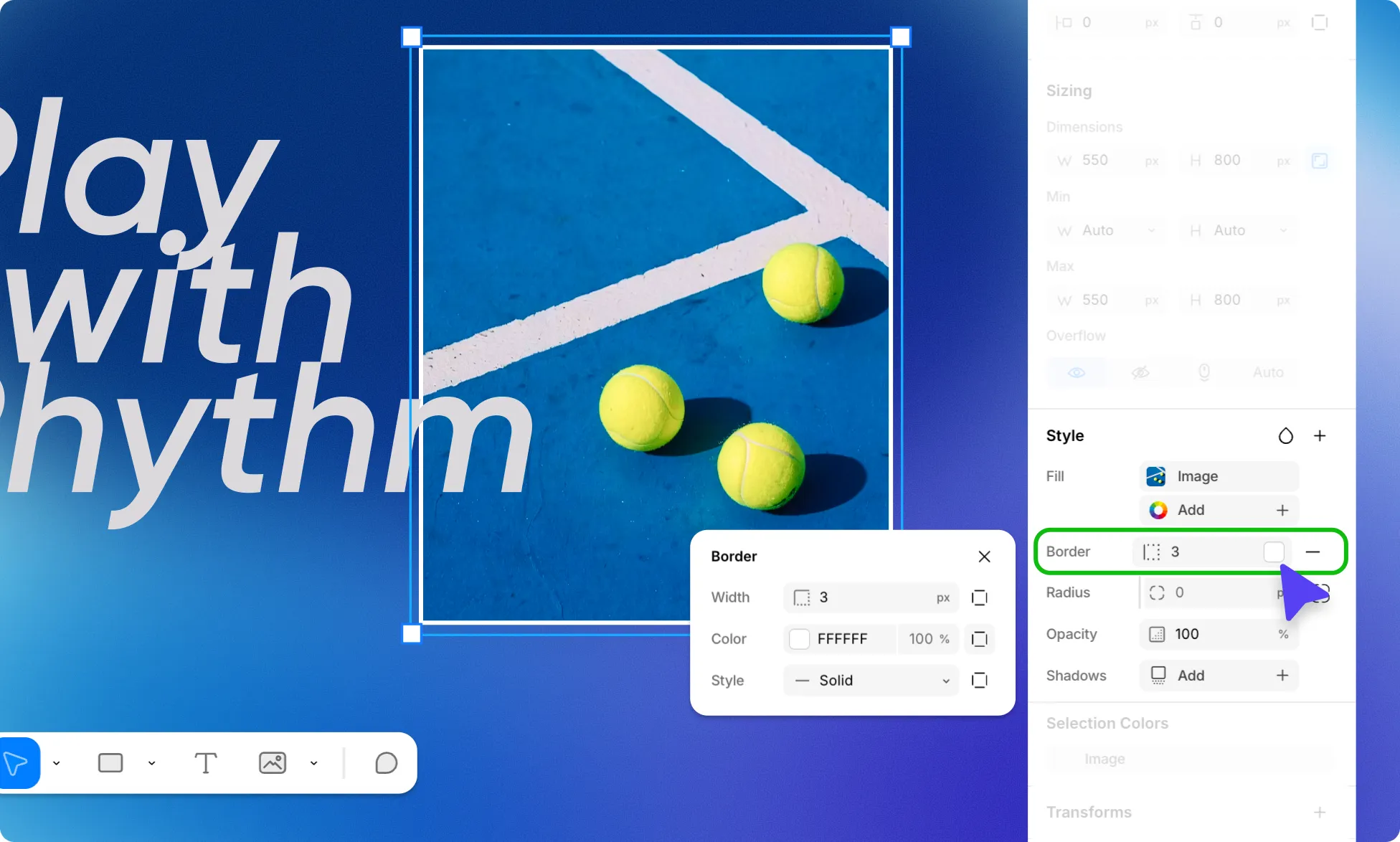
Add a border to your element and customize its width, color, and style. Available border styles include:
- None
- Solid
- Dashed
- Dotted
- Double
- Groove
- Ridge
- Inset
- Outset
Radius
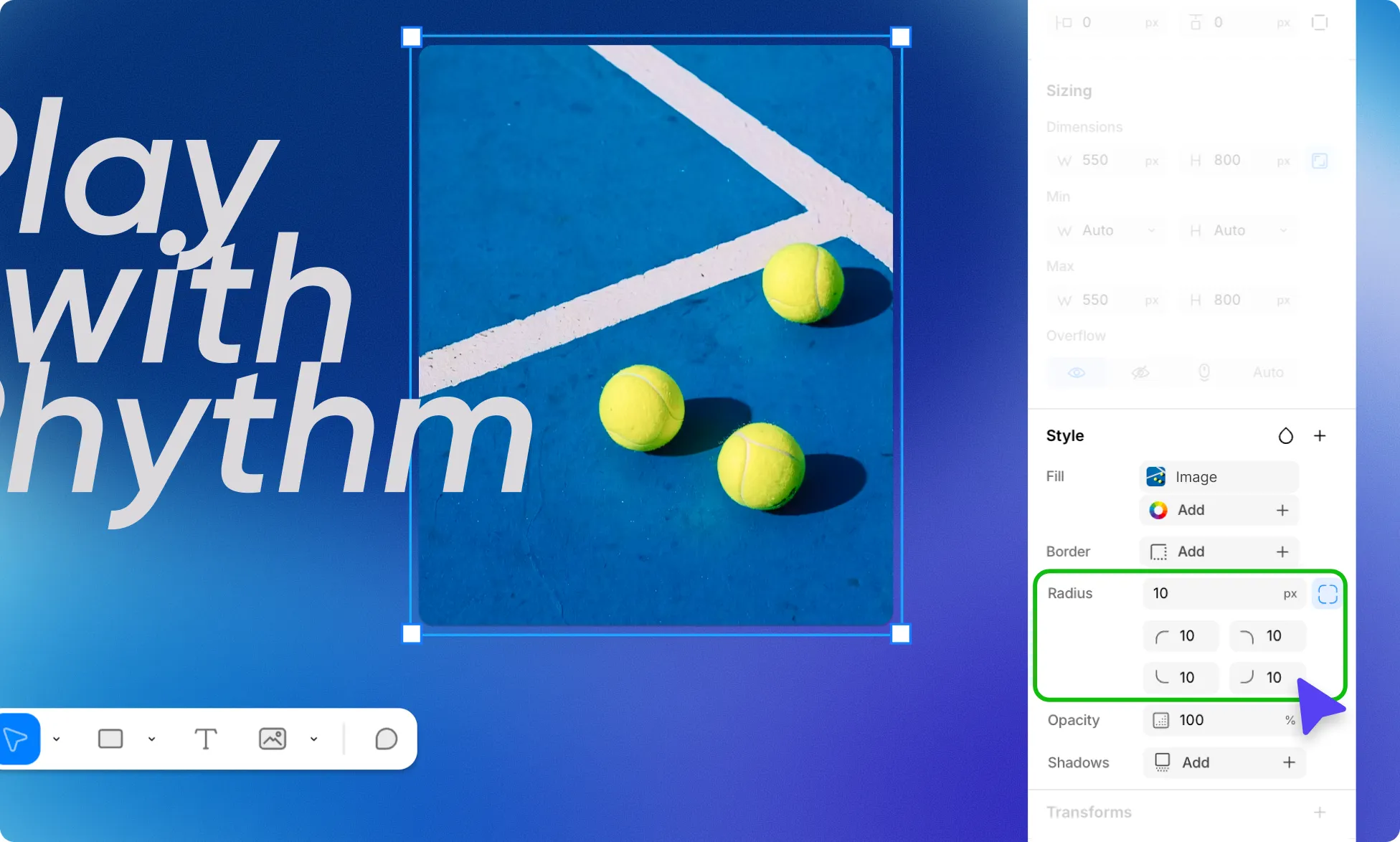
You can also round the corners of your element by setting a Radius value.
Learn more about Border & Radius.
Opacity
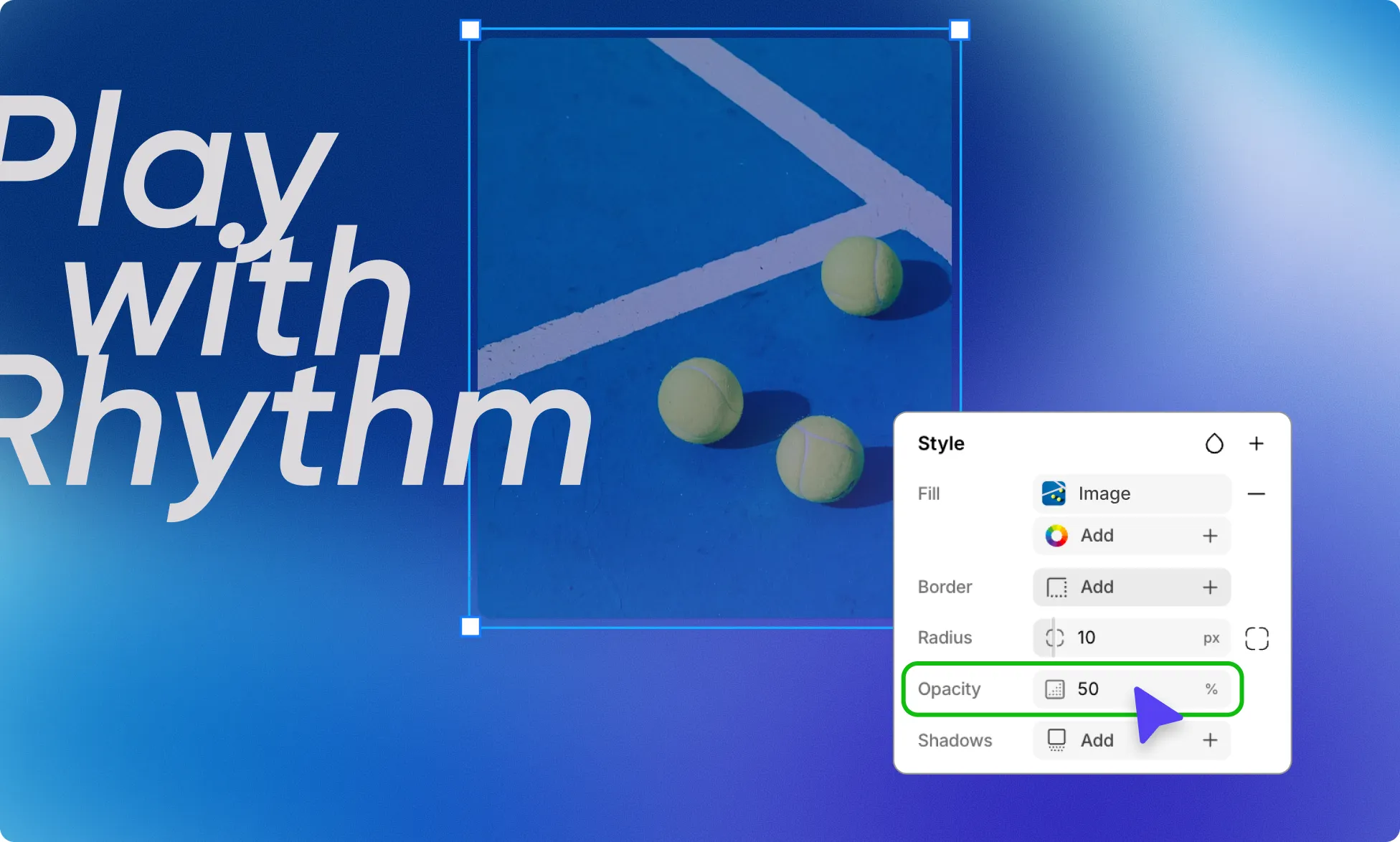
Control the overall transparency of your element as a percentage from 0 (fully transparent) to 100 (fully opaque):
- Select an element on the page.
- Go to Right Panel → Style.
- Set the value in the Opacity field or drag left or right over the opacity icon.
Shadows
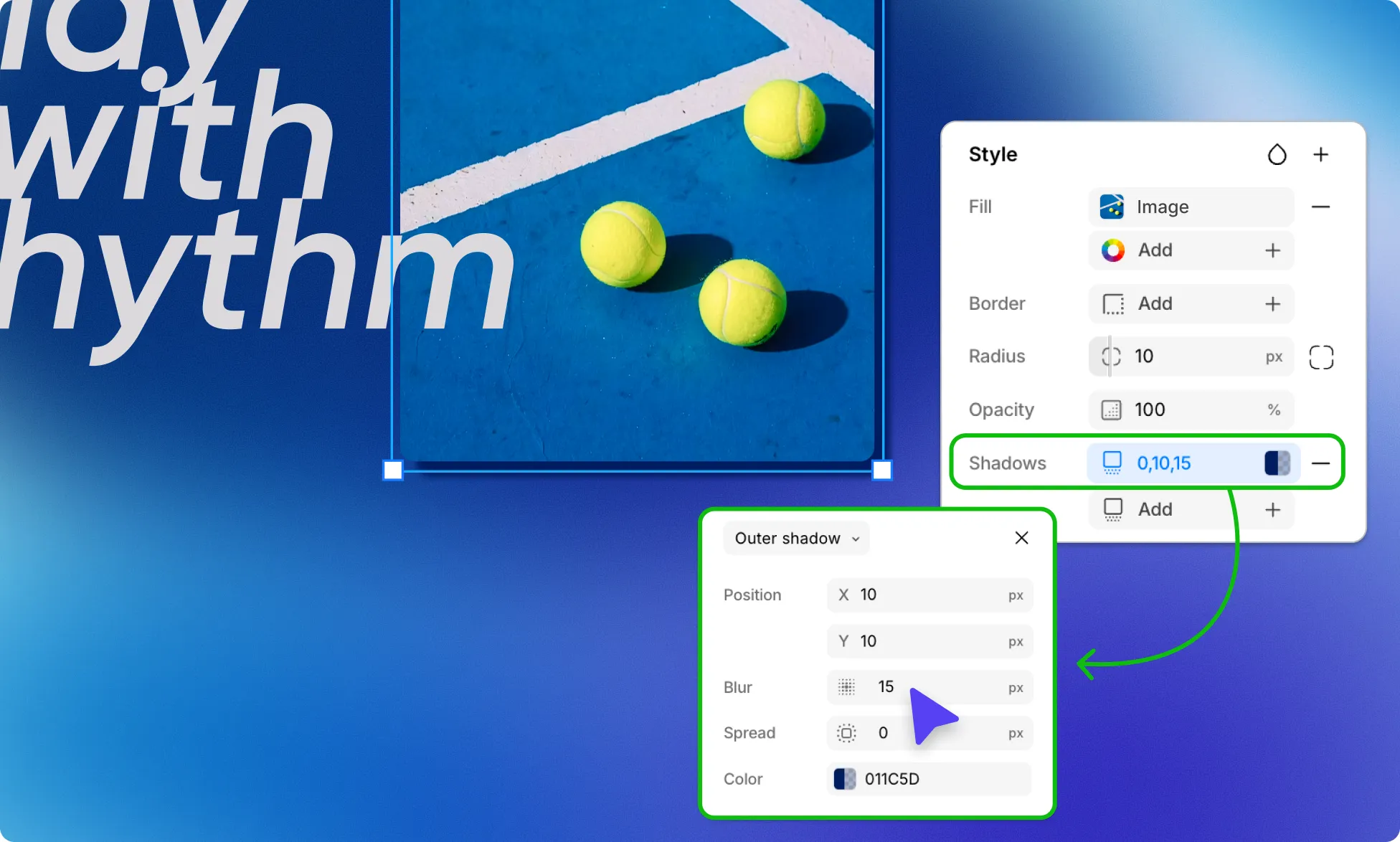
Add one or more shadows to your element. Learn more about Shadows.
Additional Properties
Click the + button to add any of the following properties to your element:
Outline
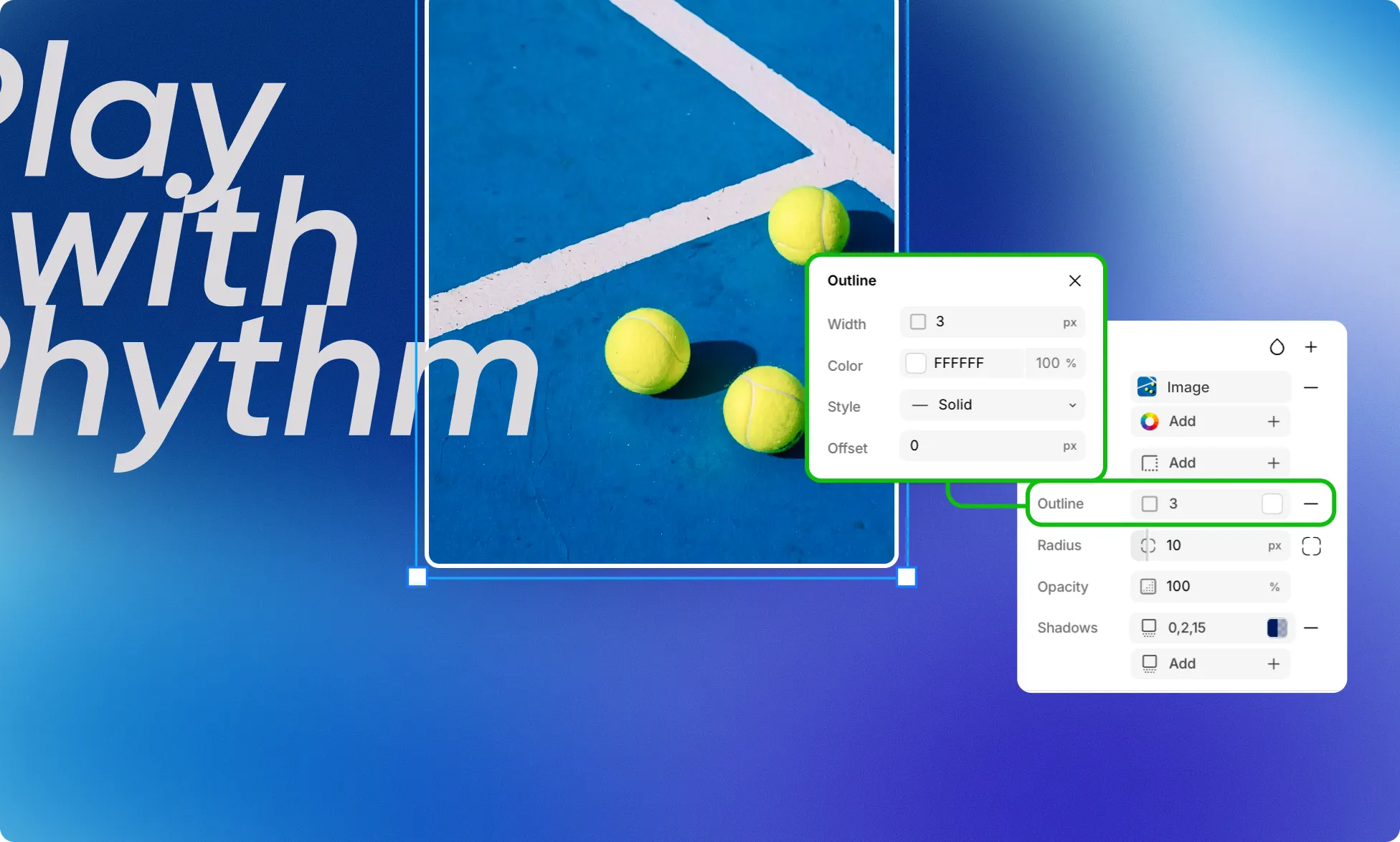
Add an outline outside the element’s border. Learn more about Outline.
Filters & Backdrop Filters
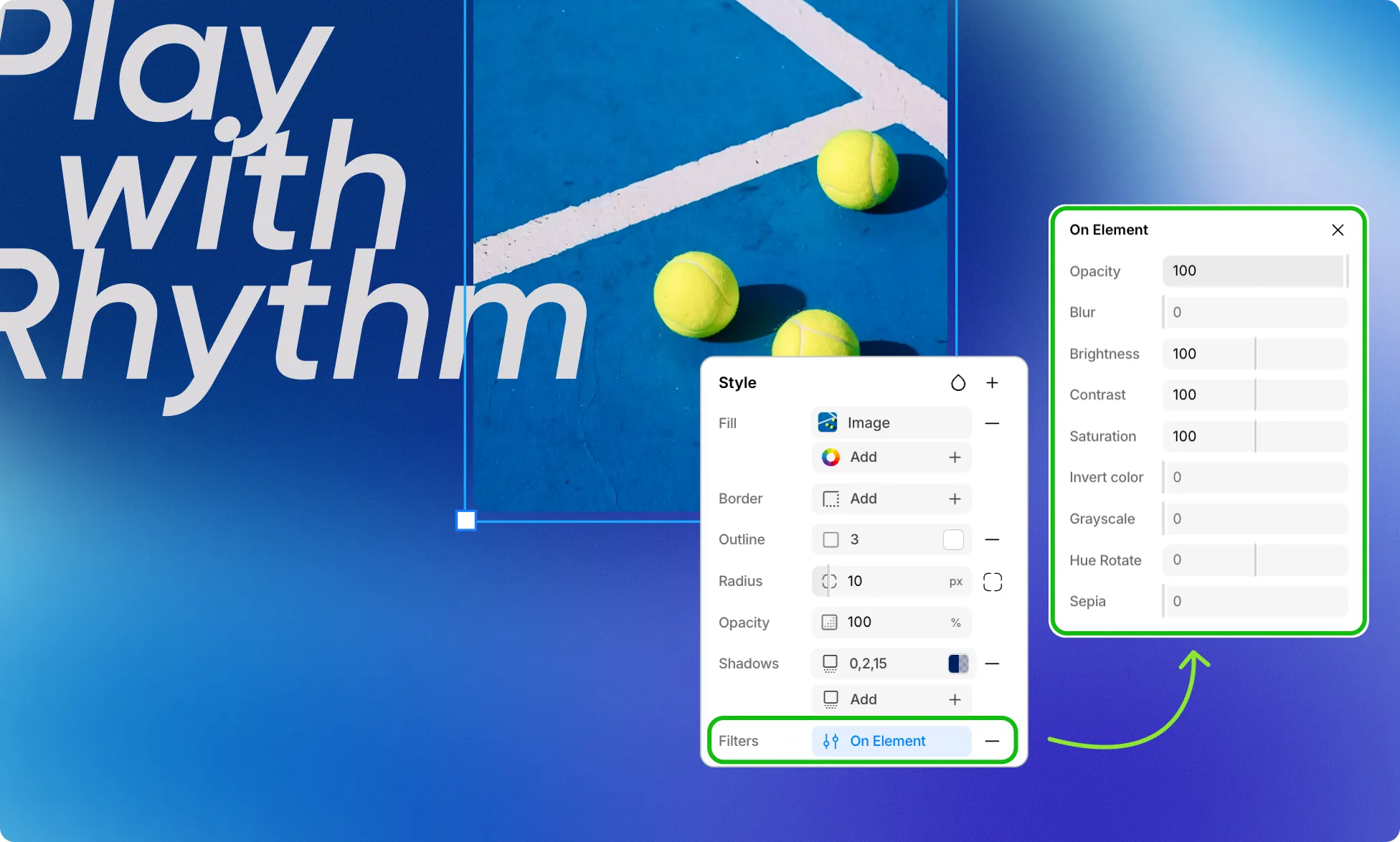
Apply visual filters to the element or its backdrop, such as blur, brightness, and more. Learn more about Filters.
Glass Effect
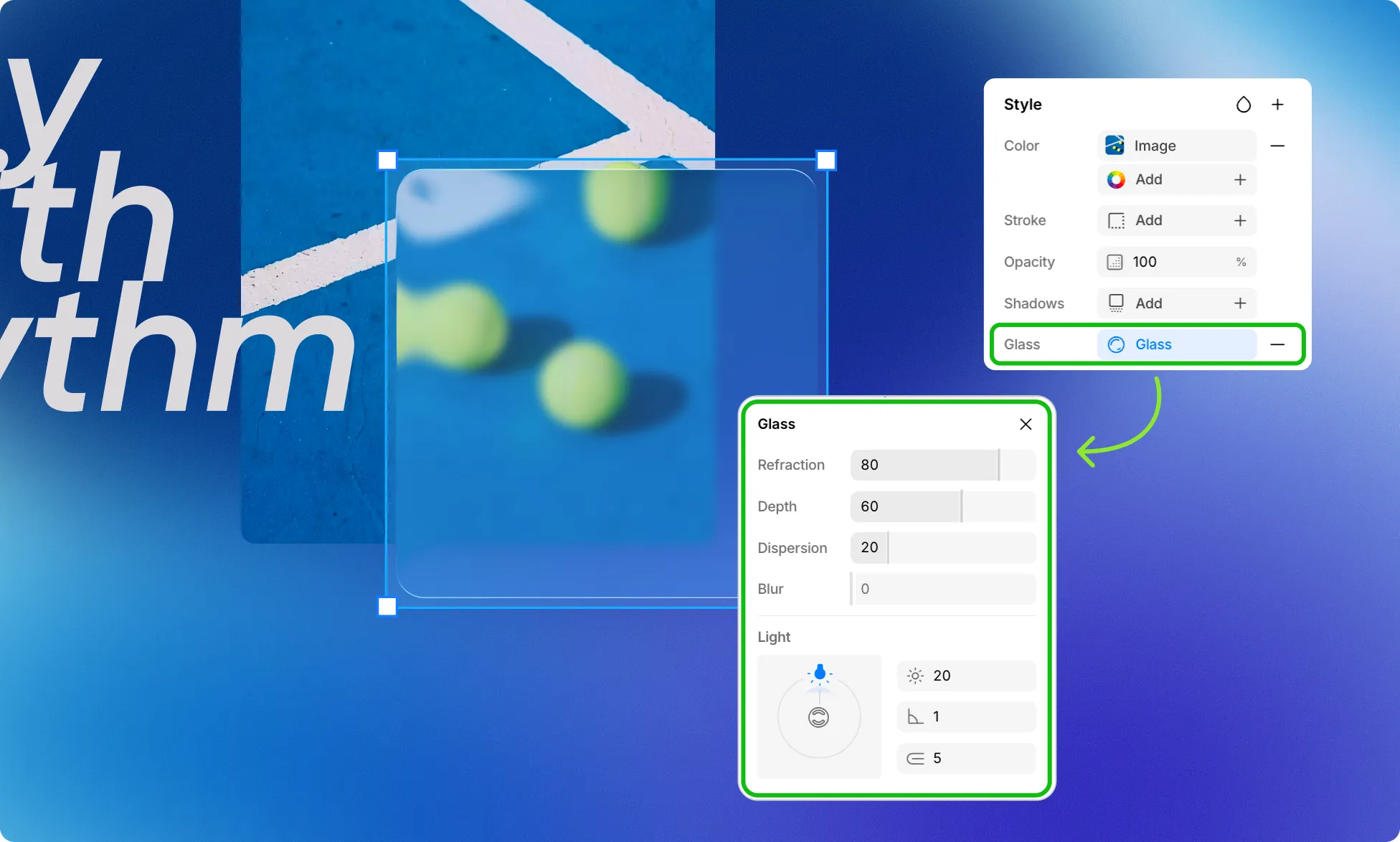
Give your element a frosted glass appearance. Learn more about Glass Effect.
Cursor
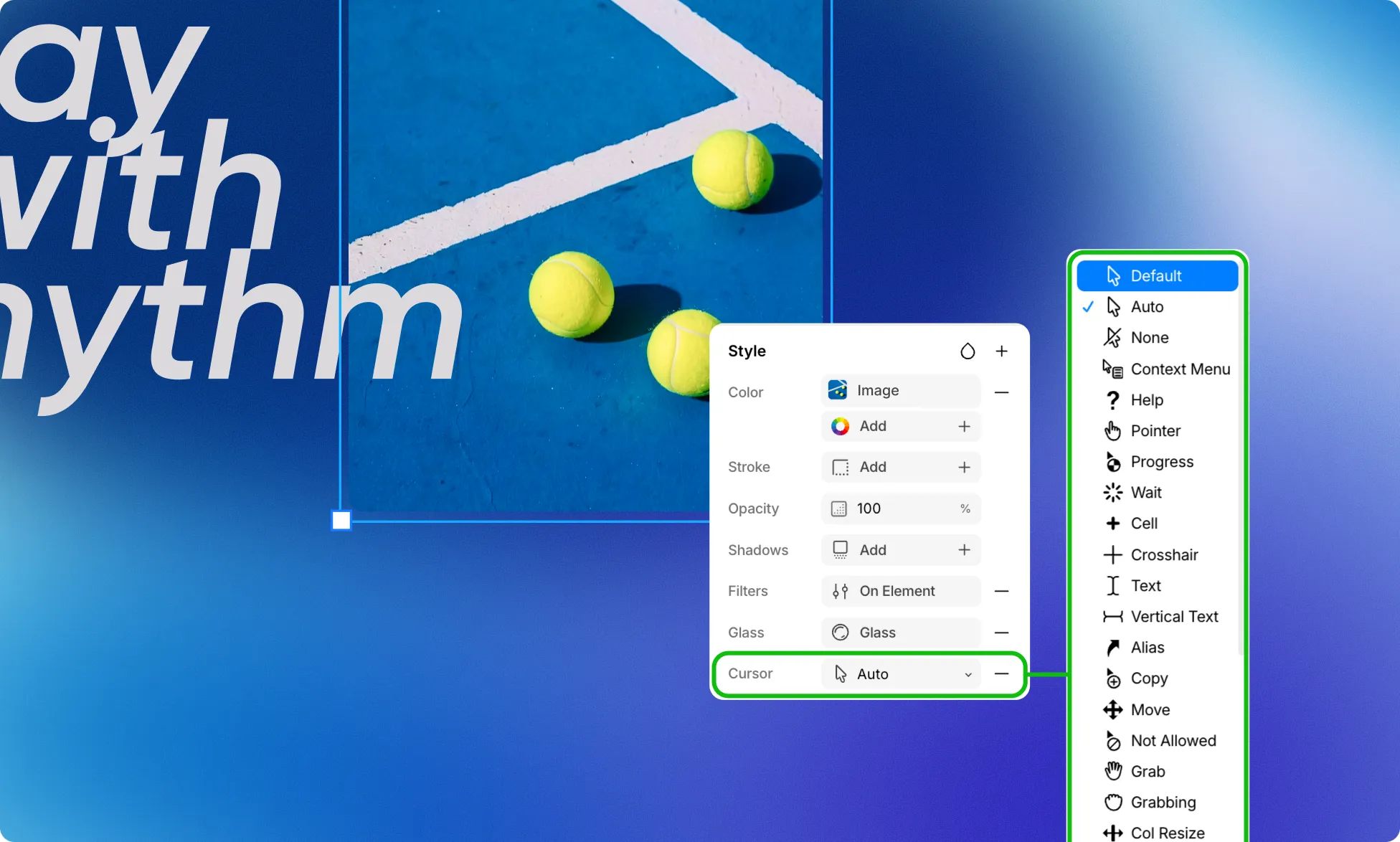
Like all things in Kirki, cursor styles are also context-aware. Hovering over a button or link switches it to a pointer, hovering over text switches it to a text cursor, and so on.
Choose from the following options:
- Default
- Auto
- None
- Context Menu
- Help
- Pointer
- Progress
- Wait
- Cell
- Crosshair
- Text
- Vertical Text
- Alias
- Copy
- Move
- Not Allowed
- Grab
- Grabbing
- Col Resize
- Row Resize
- N Resize
- E Resize
- S Resize
- W Resize
- NE Resize
- NW Resize
- SE Resize
- SW Resize
- EW Resize
- NS Resize
- NESW Resize
- NWSE Resize
- Zoom In
- Zoom Out
However, if you want to define a cursor style for an element based on user interaction, you can do so using Element States:
Change Cursor Styles Based on Element States:
- Select the element on the page.
- Open the Element States dropdown at the top of the right panel (next to Classes).
- Switch to the element state you want the cursor change to apply to. Commonly set to Hovered or Active/Pressed.
- In the Style section, click the plus (+) icon and select Cursor from the Additional Properties.
- Open the Cursor dropdown and select the style you want to display for this element state.
- Once done, switch back to the Default state from the Element States dropdown.
Learn more about Element States.
Pointer Event
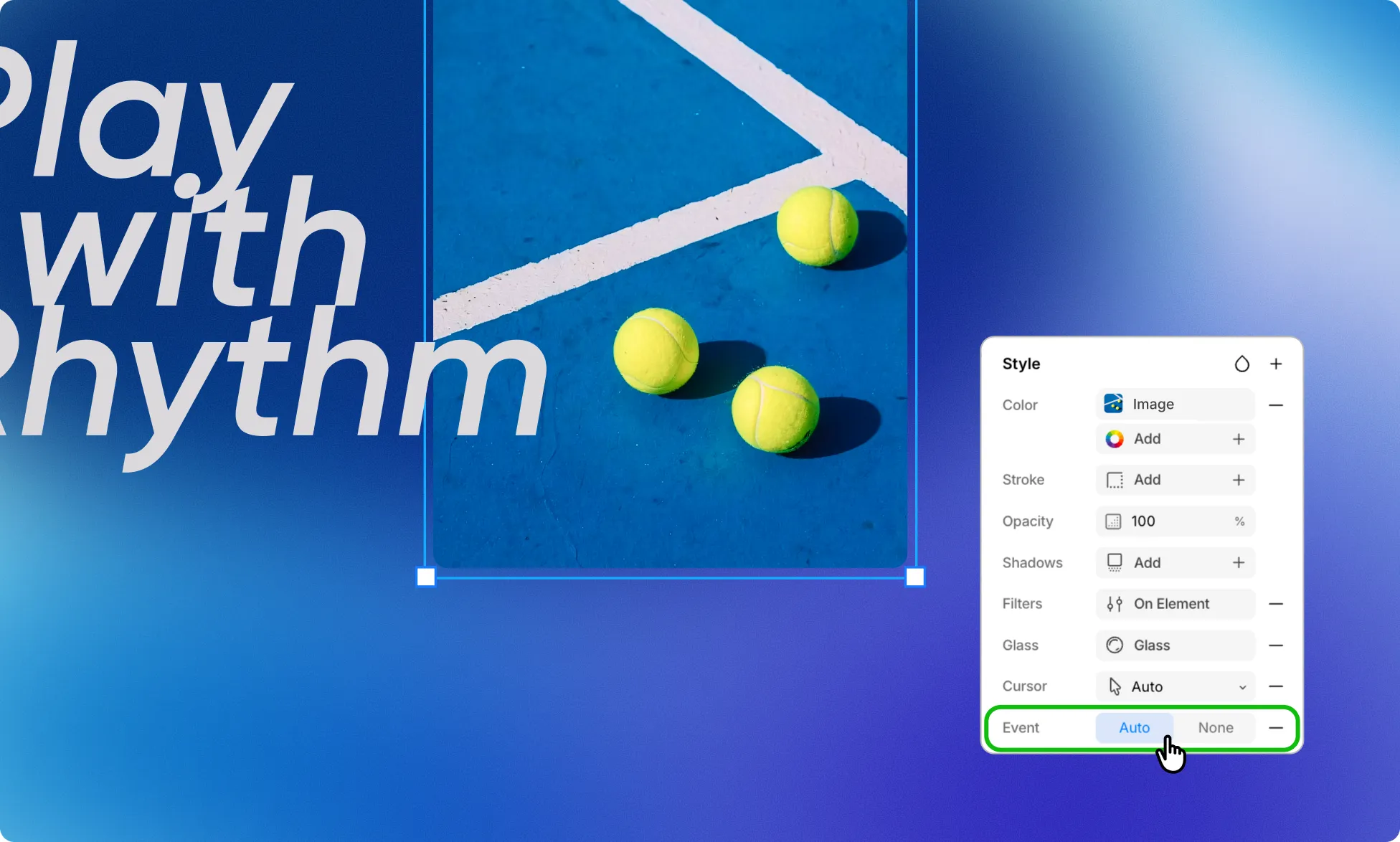
Control whether the element responds to mouse events:
- Auto – The element responds to mouse events as normal.
- None – The element does not respond to mouse events.