reCAPTCHA is an element that protects your forms from spam by stopping bots from submitting them. To set it up, add the reCAPTCHA element to your form, then connect it to Google reCAPTCHA with your Site Key and Secret Key.
Before you start, you need a form built with a Form Block. See Forms if you haven’t created one yet.
How to Add reCAPTCHA to a Form
reCAPTCHA is an optional spam-protection element that helps keep bots from submitting your form. It requires a Google reCAPTCHA Site Key and Secret Key, so the setup has three parts.
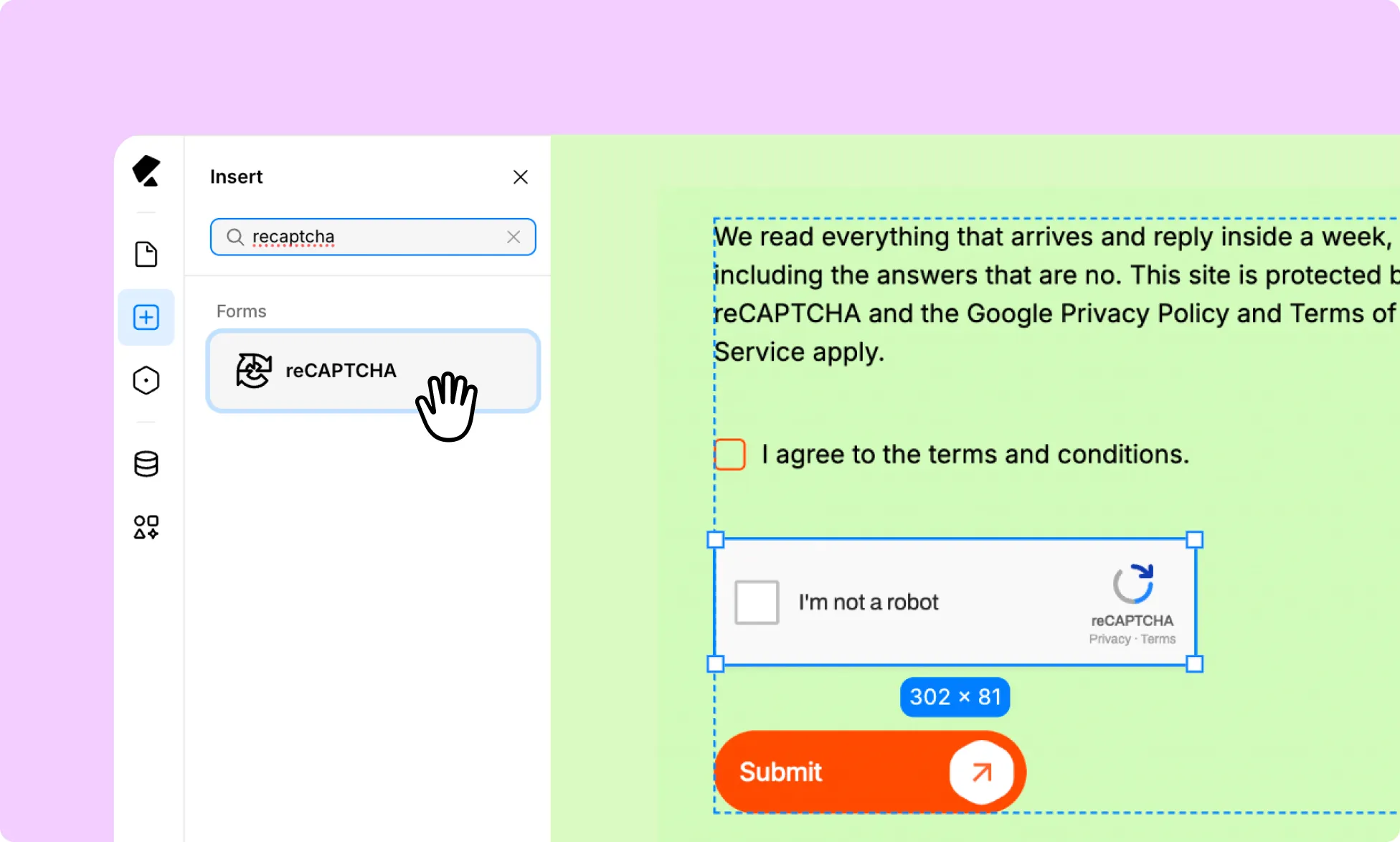
Part 1: Add the reCAPTCHA Element
- Open the Insert panel and select Base Elements.
- Drag the reCAPTCHA element into the Form Block.
Part 2: Generate Your API Keys
- Go to the reCAPTCHA Admin Console.
- Sign in with your Google account.
- Register a new site and enter a label to identify it.
- Choose the type of reCAPTCHA you want to use (v2 or v3).
- Enter the domain names of the website where you will use reCAPTCHA.
- Enter the email addresses of the owners who should have access to the reCAPTCHA report.
- Select the Send alerts to owners checkbox to receive email alerts about misconfigurations or suspicious traffic.
- Submit the form to generate your Site Key and Secret Key.
- Copy both keys and store them securely.
Part 3: Enter the Keys in Kirki
- Select the reCAPTCHA element in your form builder in the Kirki editor canvas.
- Enter your Site Key and Secret Key in the element’s settings on the right panel.