X (Twitter) Login allows visitors to sign in to your website using their existing X account instead of creating a separate username and password. Connect X (Twitter) Login through Kirki Apps to add an X Login button to your Kirki login forms. When a visitor signs in, X verifies their identity and redirects them back to your website.
What Is the X (Twitter) Login App
The X (Twitter) Login app is an integration available in Kirki Apps. Once connected, it allows visitors to authenticate on your website using their X account.
What You Need Before Connecting X (Twitter) Login
- An X account
- An X Developer app
- Your website domain
- A Client ID
- A Client Secret
Note: Social Login buttons can only be inserted on a Login/ Registration Utility Page.
How to Get X (Twitter) Client ID and Client Secret
- Go to the X Developer Console and sign in.
- If prompted, complete the Developer Agreement.
- Go to Apps —> Click Create App.
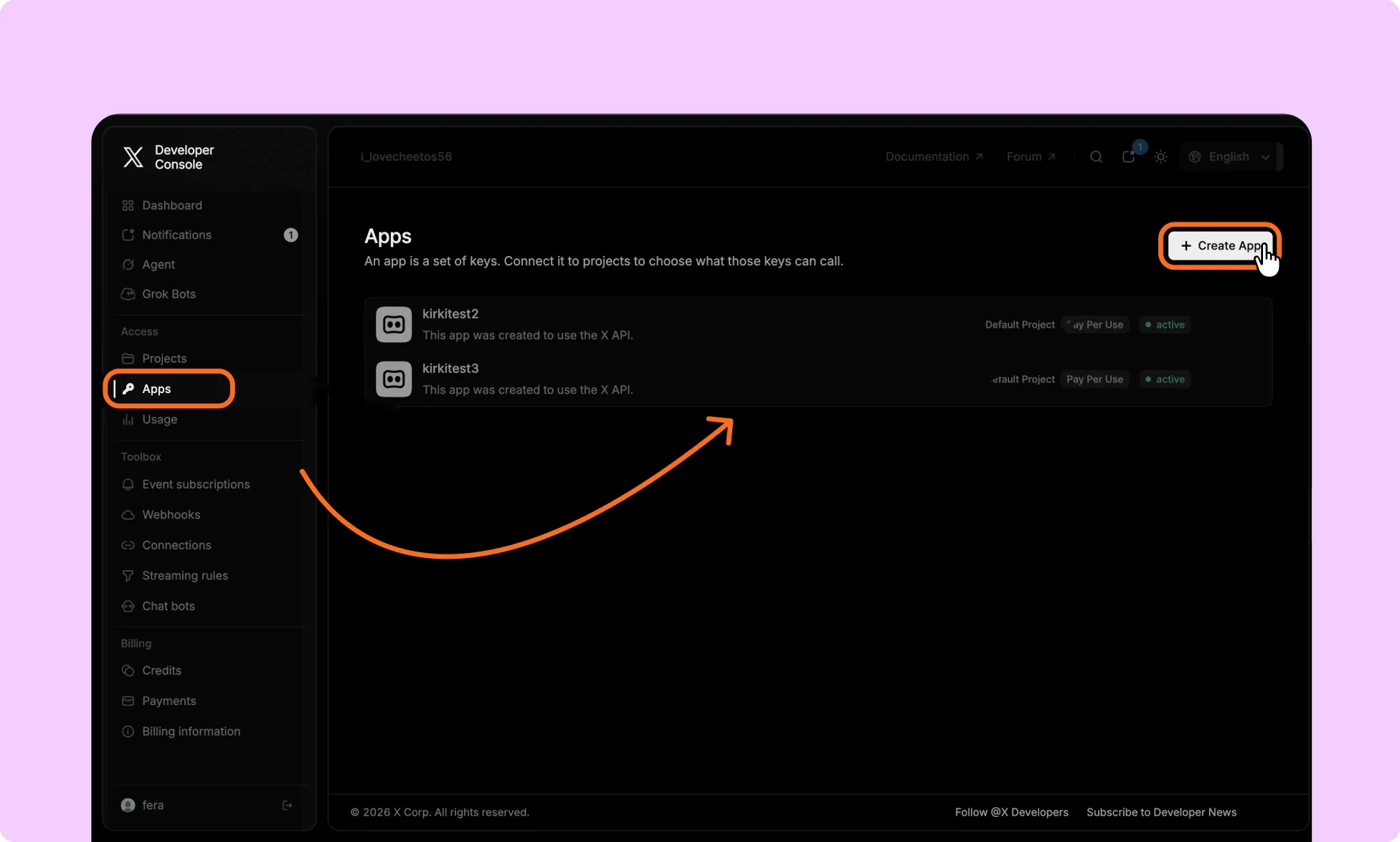
- Enter your Application Name and select the appropriate Environment and Create the app.
- Refresh the dashboard and select your app.
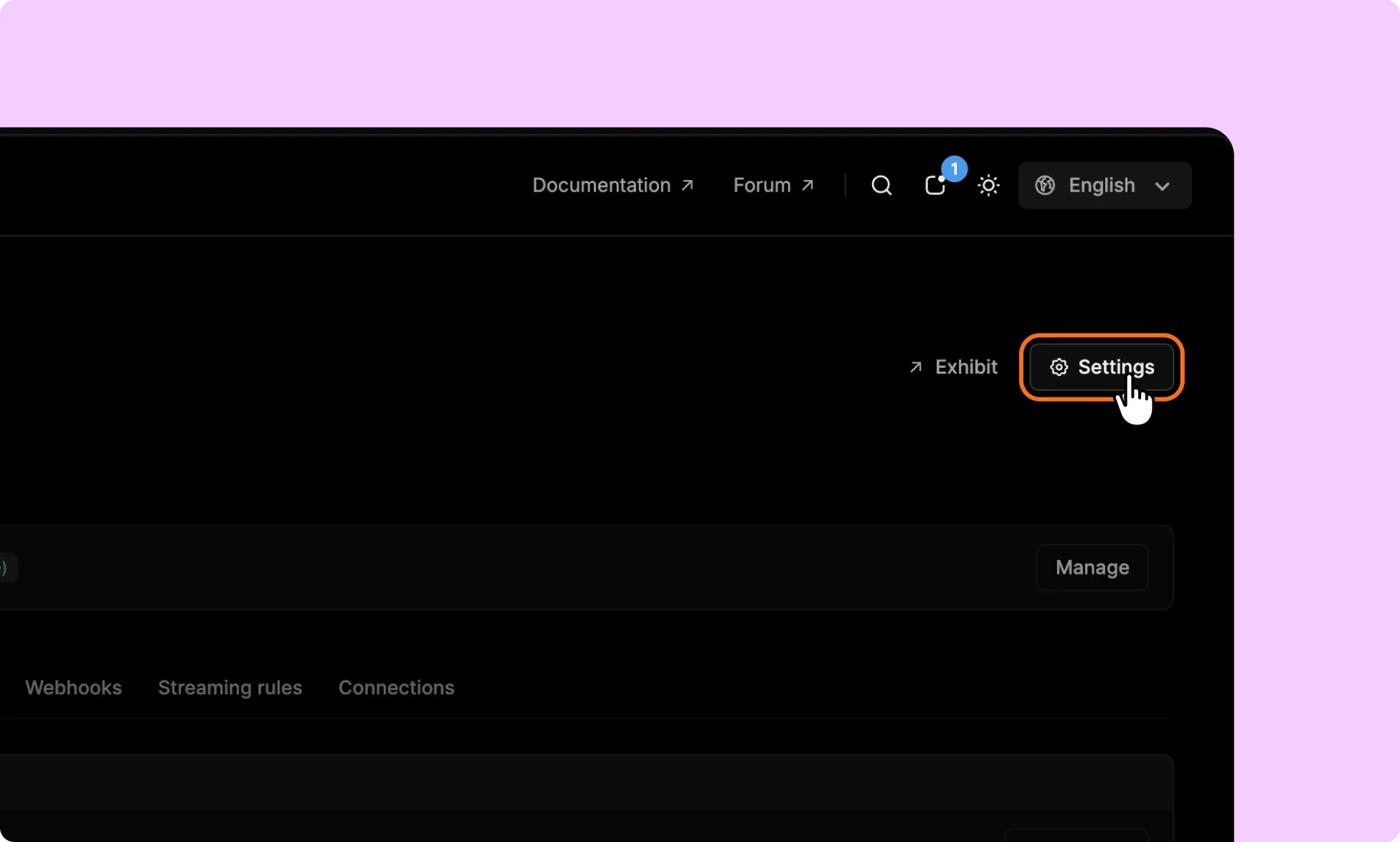
- Cilck Settings to get Authentication Settings
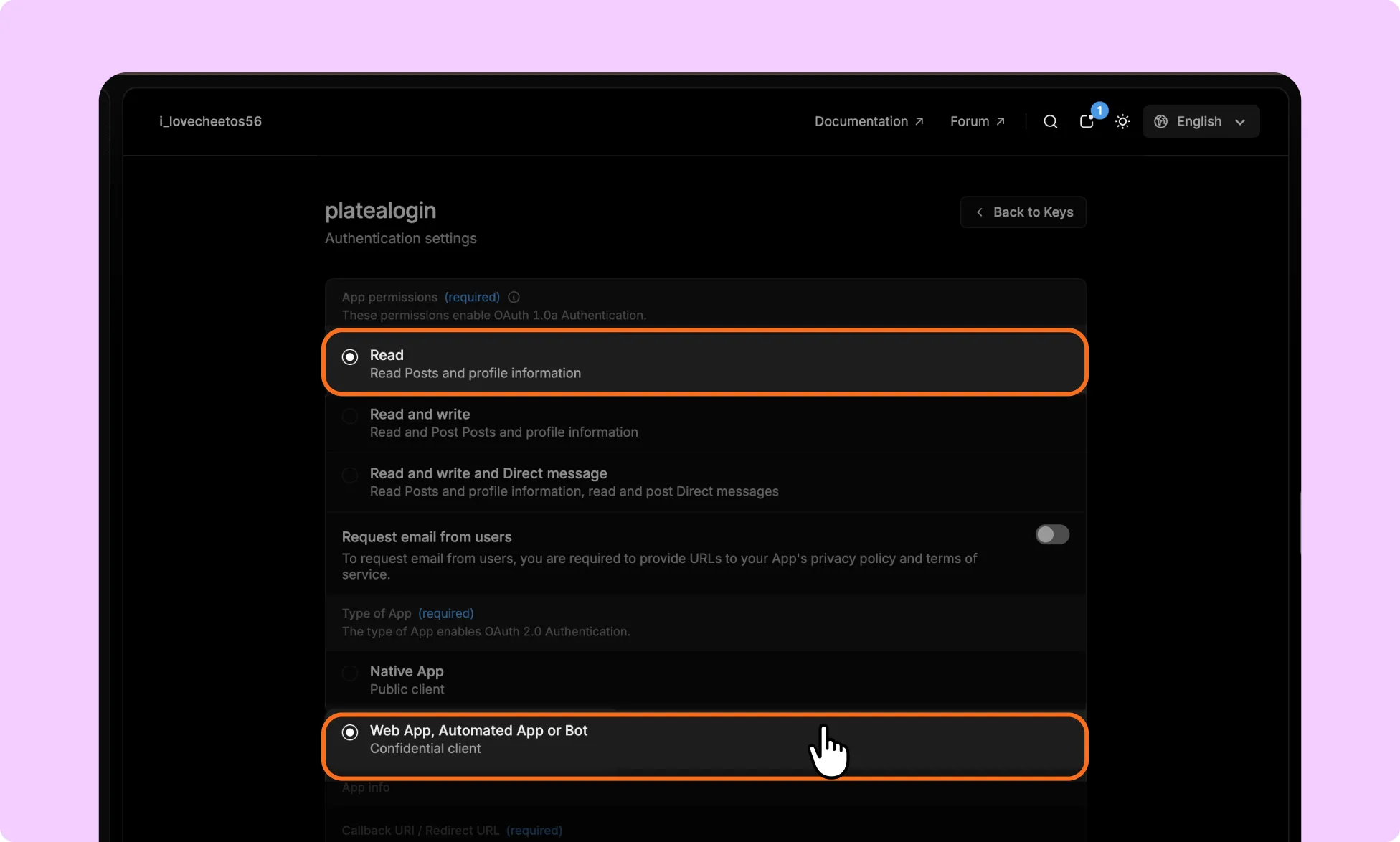
- Set the App Permissions to Read.
- Under Type of App, select Web App, Automated App, or Bot.
- Then add the Authorized Redirect URL here. You will get it in Kirki editor from the X Login App Configuration window
Redirect URI’s has the following URL structure:
“https://example.com/wp-json/XLogin/v1/Auth/X-login”
Note:The Redirect URI shown in Kirki already contains your website’s actual domain. Copy the URI directly from the Kirki X App configuration dialog; do not manually enter or modify it.
- Add your Website URL
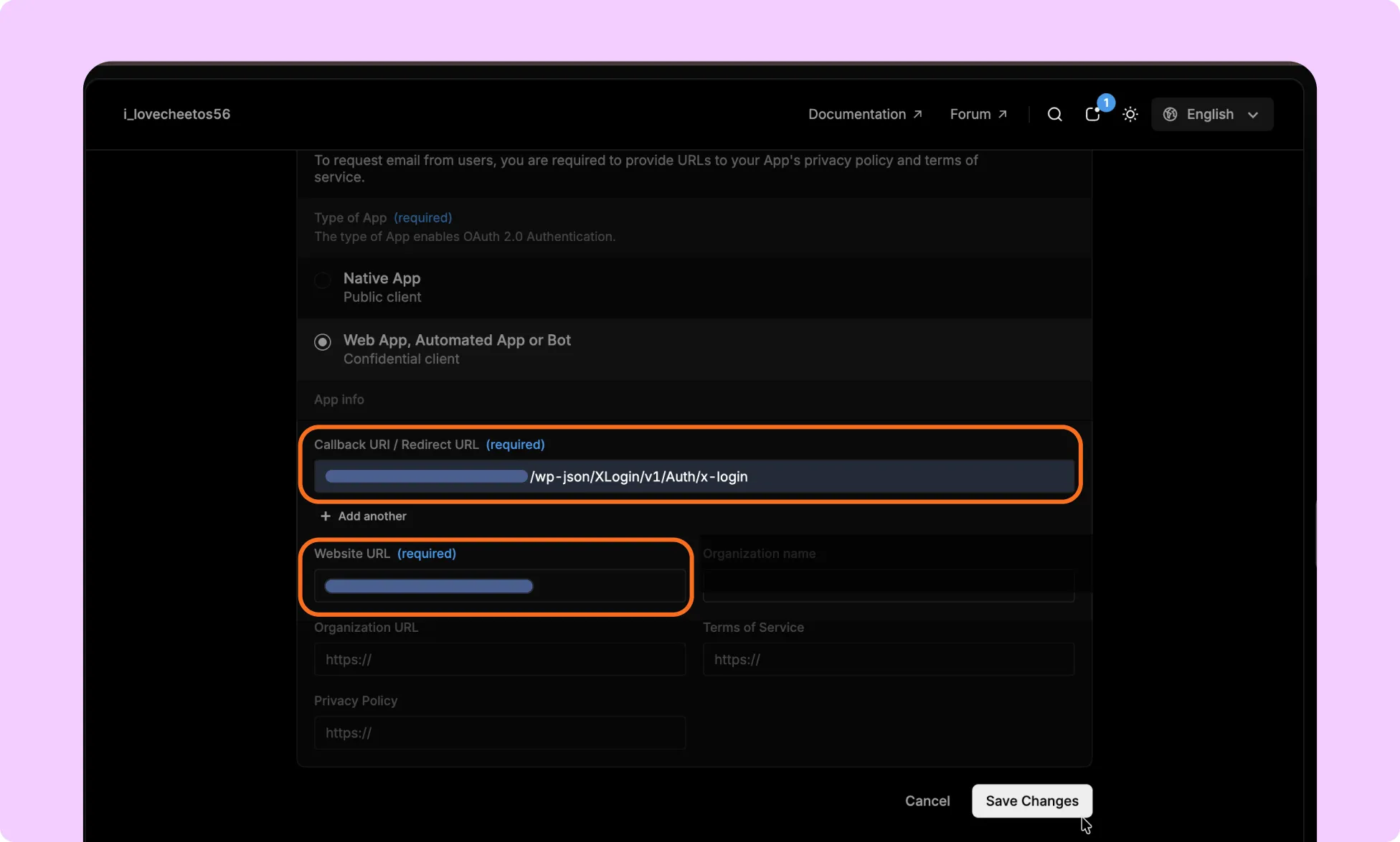
- Click Save Changes and then copy your Client ID and Client Secret.
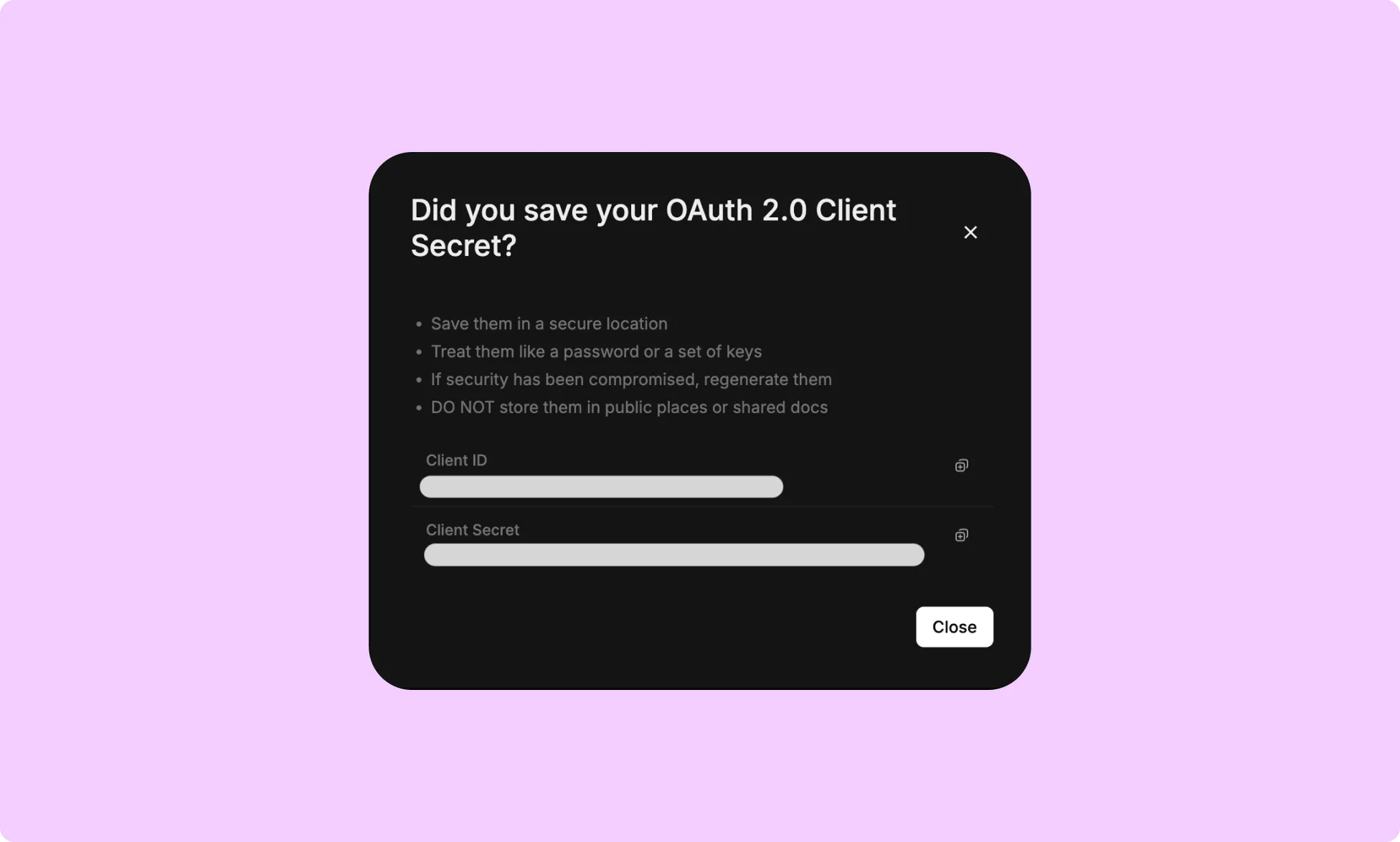
How to Install the X (Twitter) Login App in Kirki
- Open the Kirki Editor.
- Navigate to Apps from the left sidebar.
- Search for X (Twitter) Login.
- Click Install.
How to Configure the X (Twitter) Login App
- Once the app is installed, click the ellipsis (…) icon next to it.
- Select Configure.
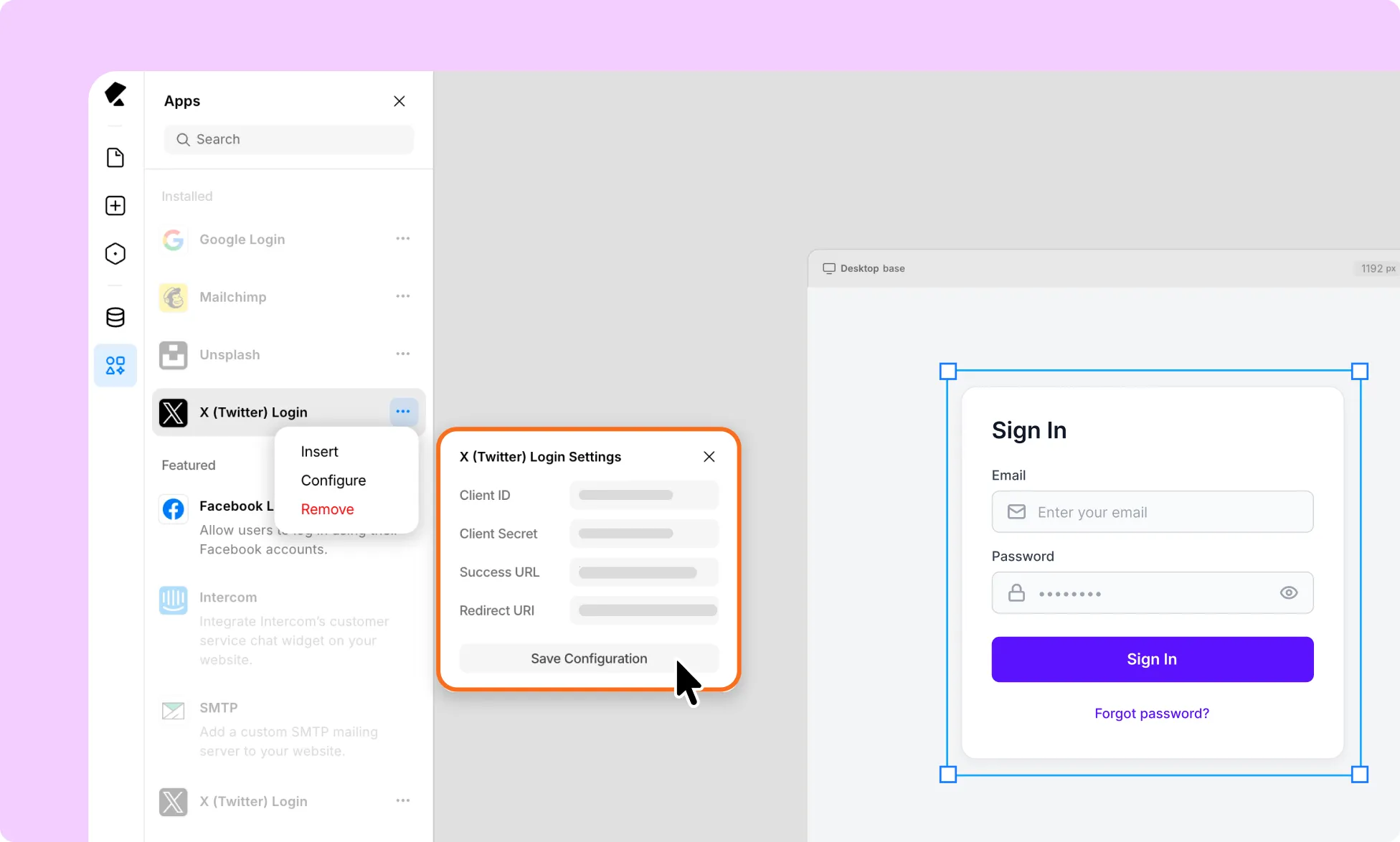
- Enter your X Client ID and X Client Secret. Set the Success URL where users should be redirected after successfully signing in.
- Click Save Configuration and refresh the Kirki editor page.
Your Kirki website is now connected to X (Twitter) Login.
How to Add X (Twitter) Login to Your Login Form
- Open your Login Utility Page in the Kirki editor.
- From Apps, find X (Twitter).
- Click the ellipsis (…) icon next to it.
- Select Insert.
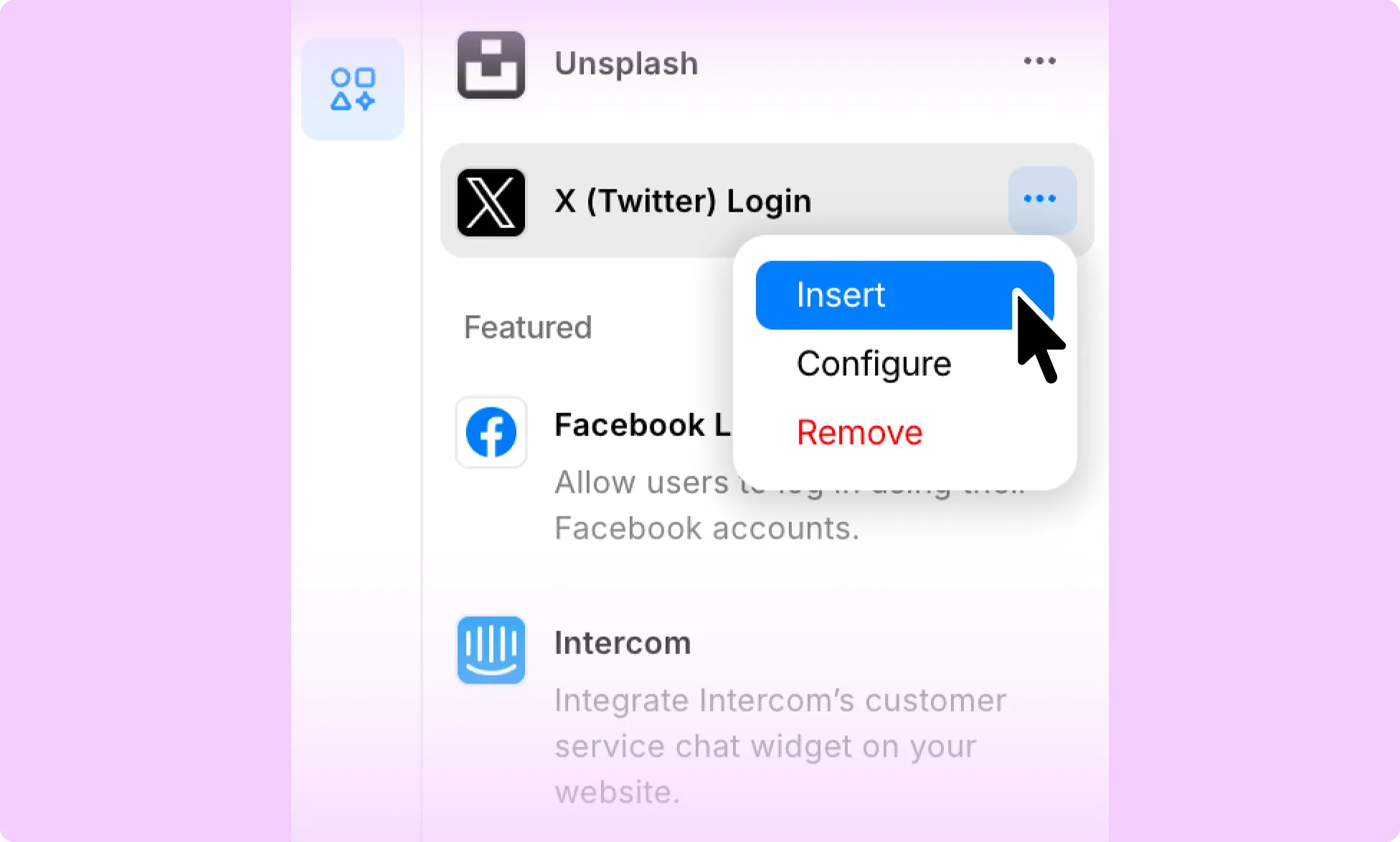
- Drag the X Login button into your login form.
- Customize the button style if needed.
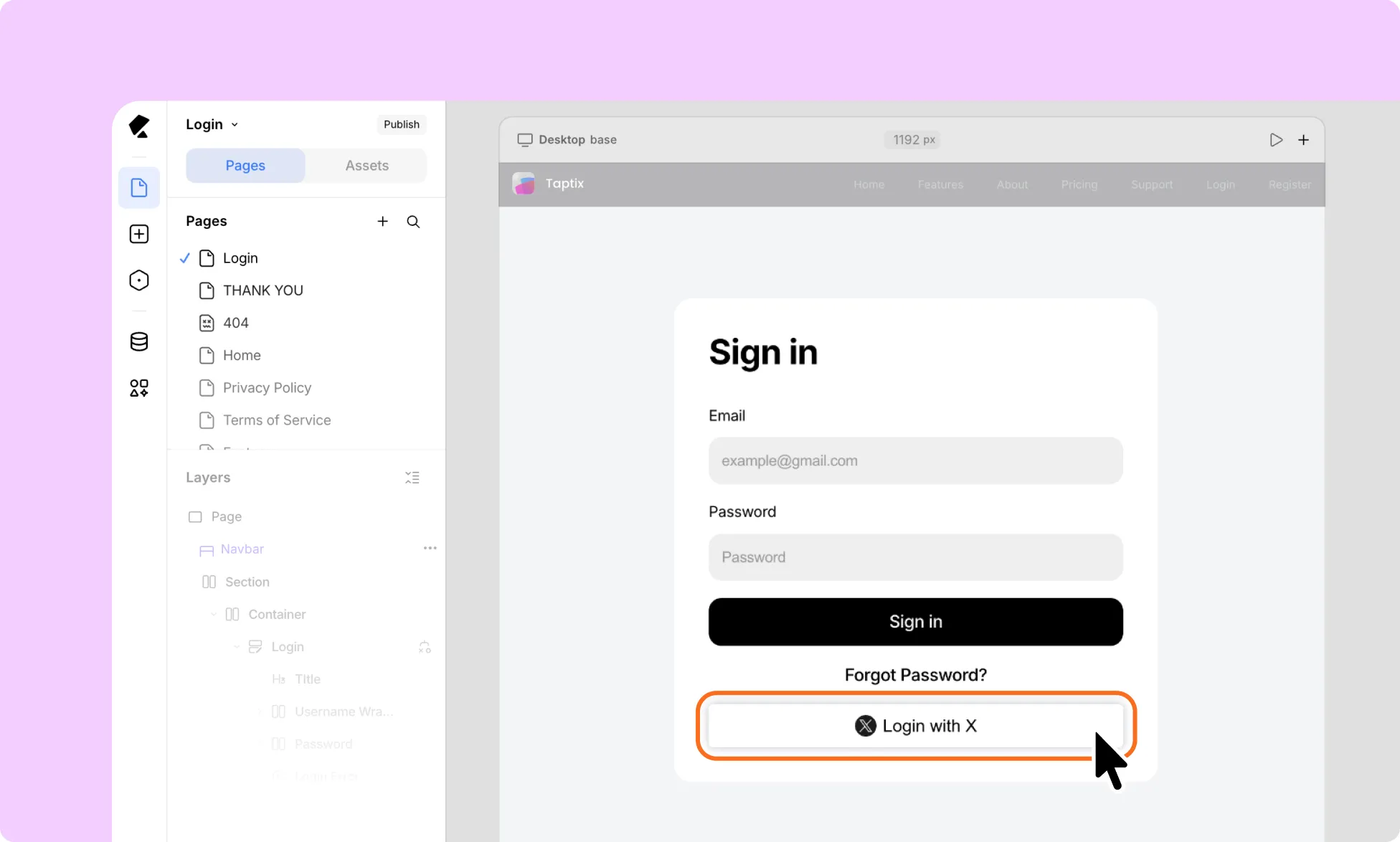
Your login form now includes X (Twitter) Login.
How to Test the X Login Integration
- Publish your changes and open your website in a fresh browser window or private/incognito window.
- Open your login form.
- Click Log in with X.
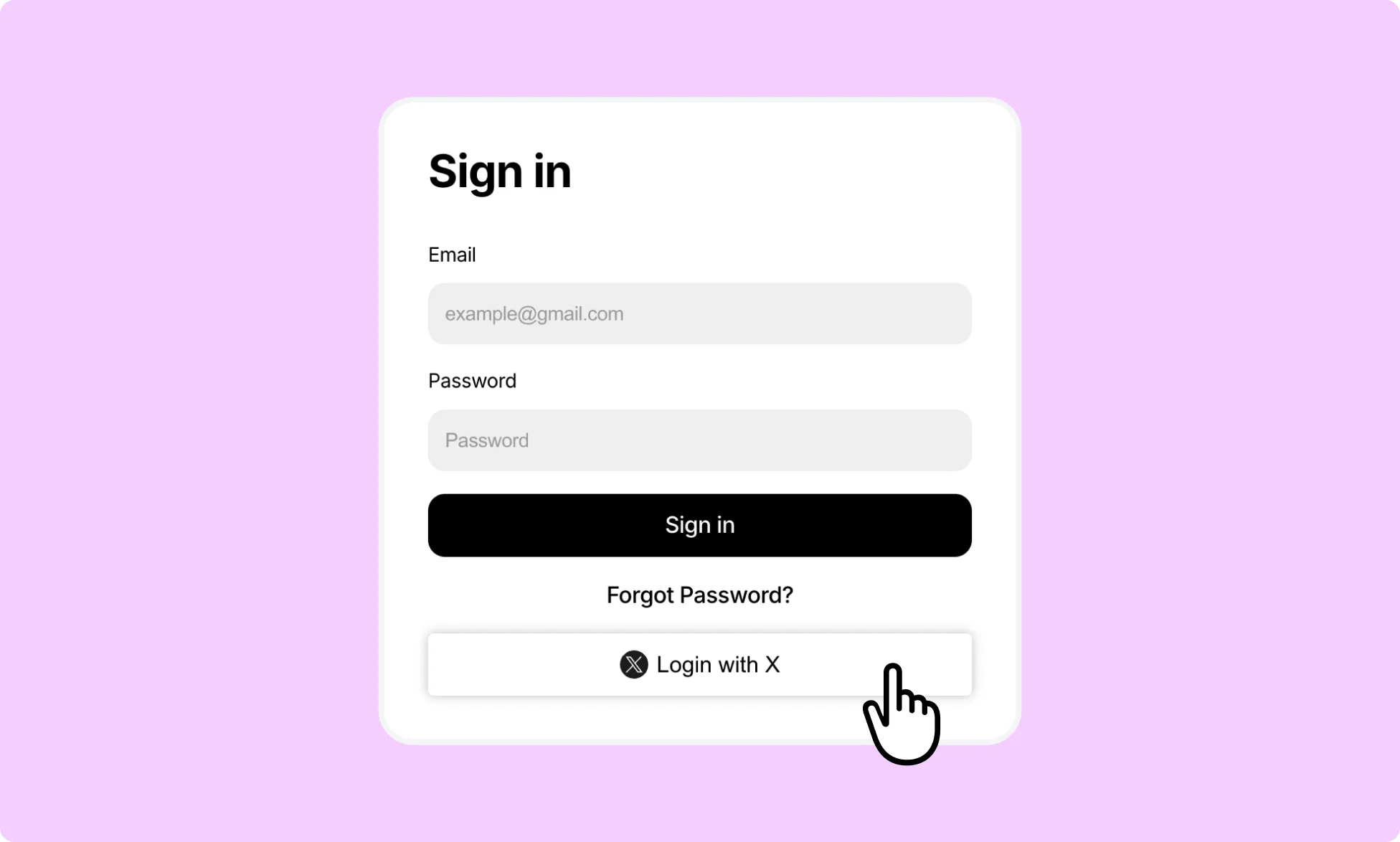
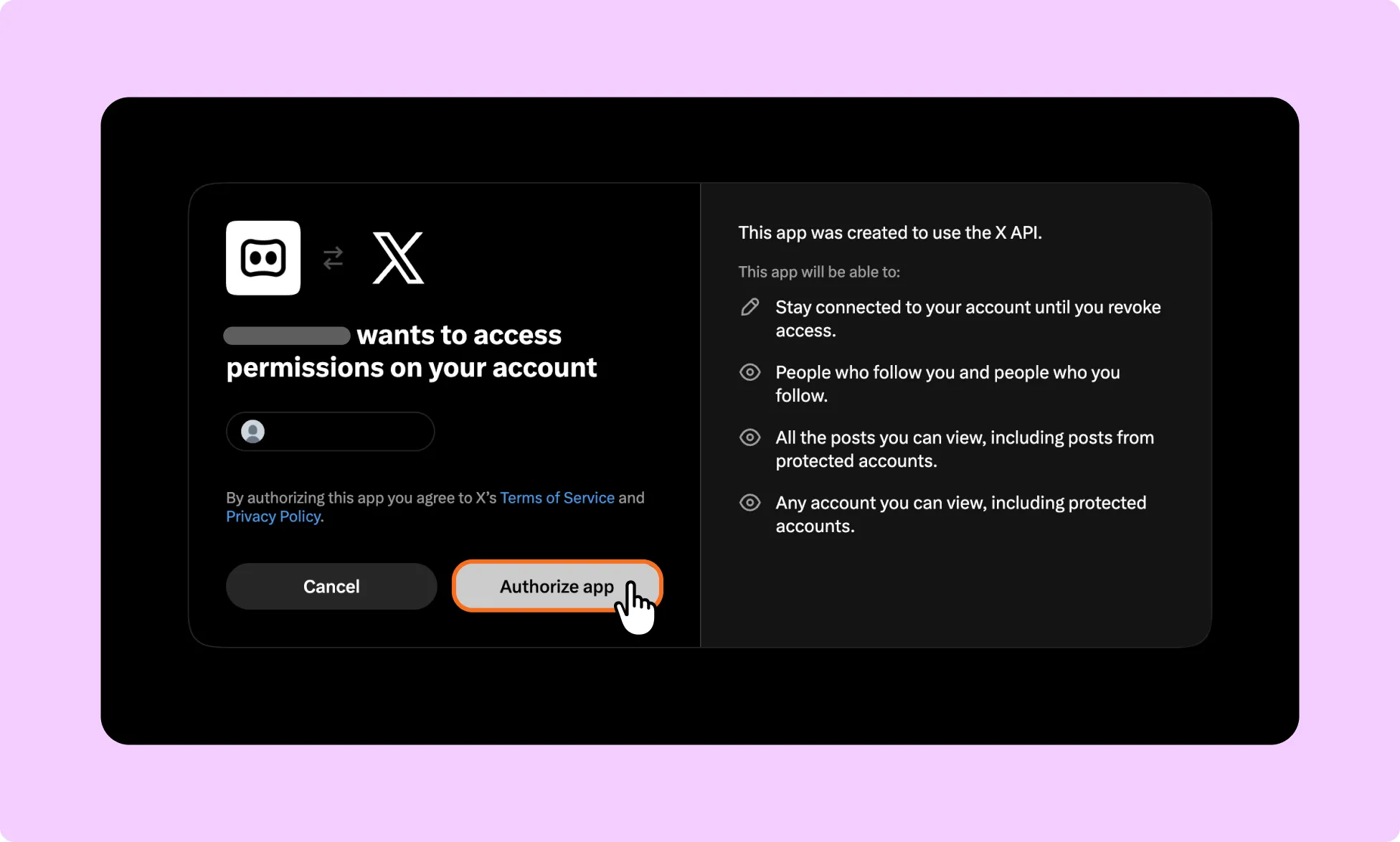
- Confirm that Twitter opens the authorization screen and click Authorize app; now users will get redirected to the success URL page you set during configuration.