The Kit integration connects your Kirki forms with Kit, formerly known as ConvertKit, an email marketing platform designed for creators. It provides tools for collecting subscribers and placing subscribers into automated email sequences.
What Is the Kit App?
Kit is an email marketing platform built for creators, bloggers, newsletter publishers, course businesses, and other online businesses. The Kirki Kit integration allows new subscribers from your Kirki forms to be added to a selected Kit Form. This makes it possible to automatically start a welcome sequence or other email automation when someone signs up through your website.
What You Need Before Connecting the Kit?
Before connecting Kit to Kirki, make sure you have:
- An active Kit account.
- Access to Settings → Developer in your Kit account.
- Your Kit API Key.
To connect Kit (formerly ConvertKit) to Kirki, copy your API Key from Kit , install the Kit app in Kirki, and paste the key under Configure.
How to Get Kit API Key
- Log in to your Kit account at app.kit.com.
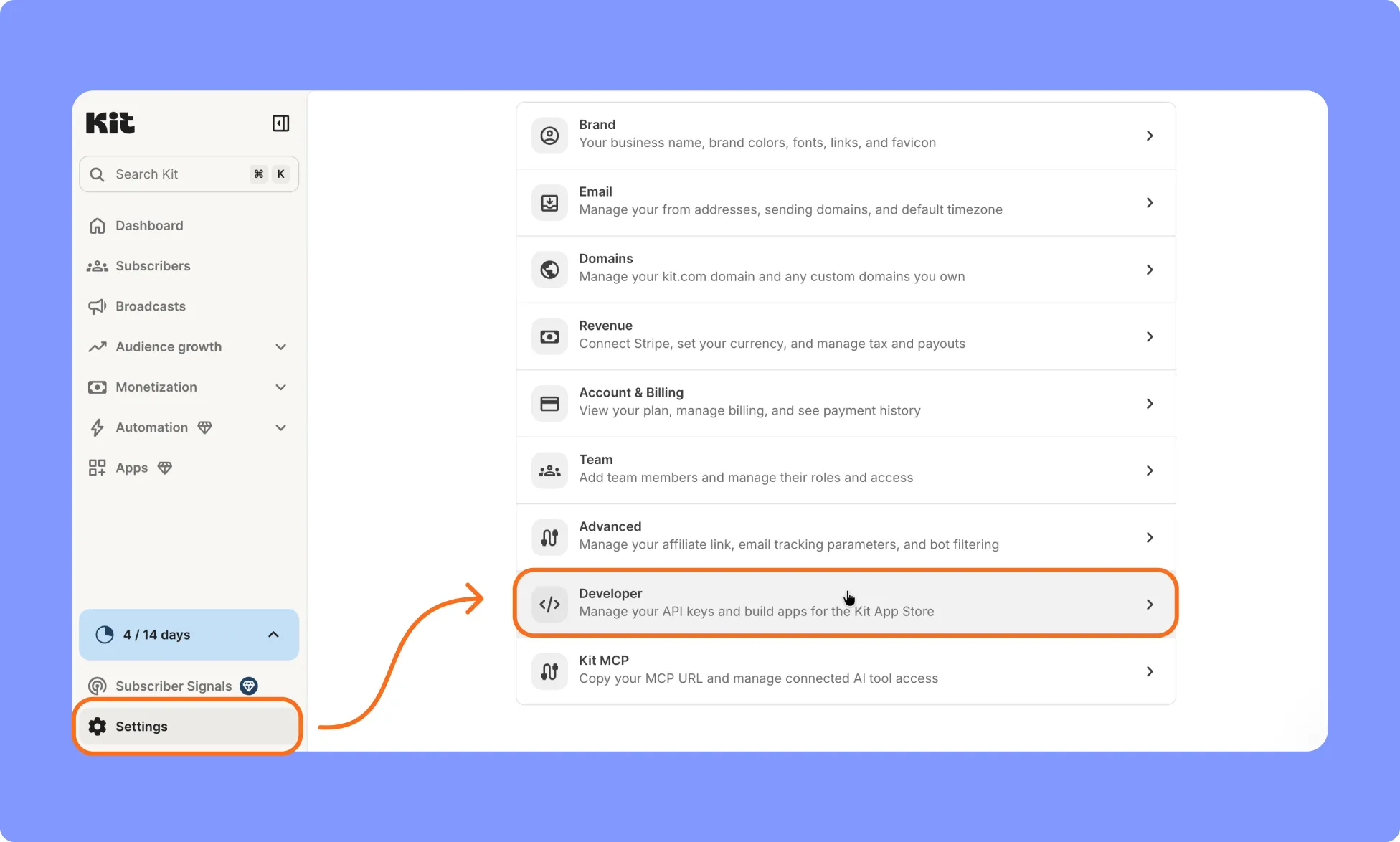
- Select Settings from the dashboard page
- In the Settings sidebar, click Developer.
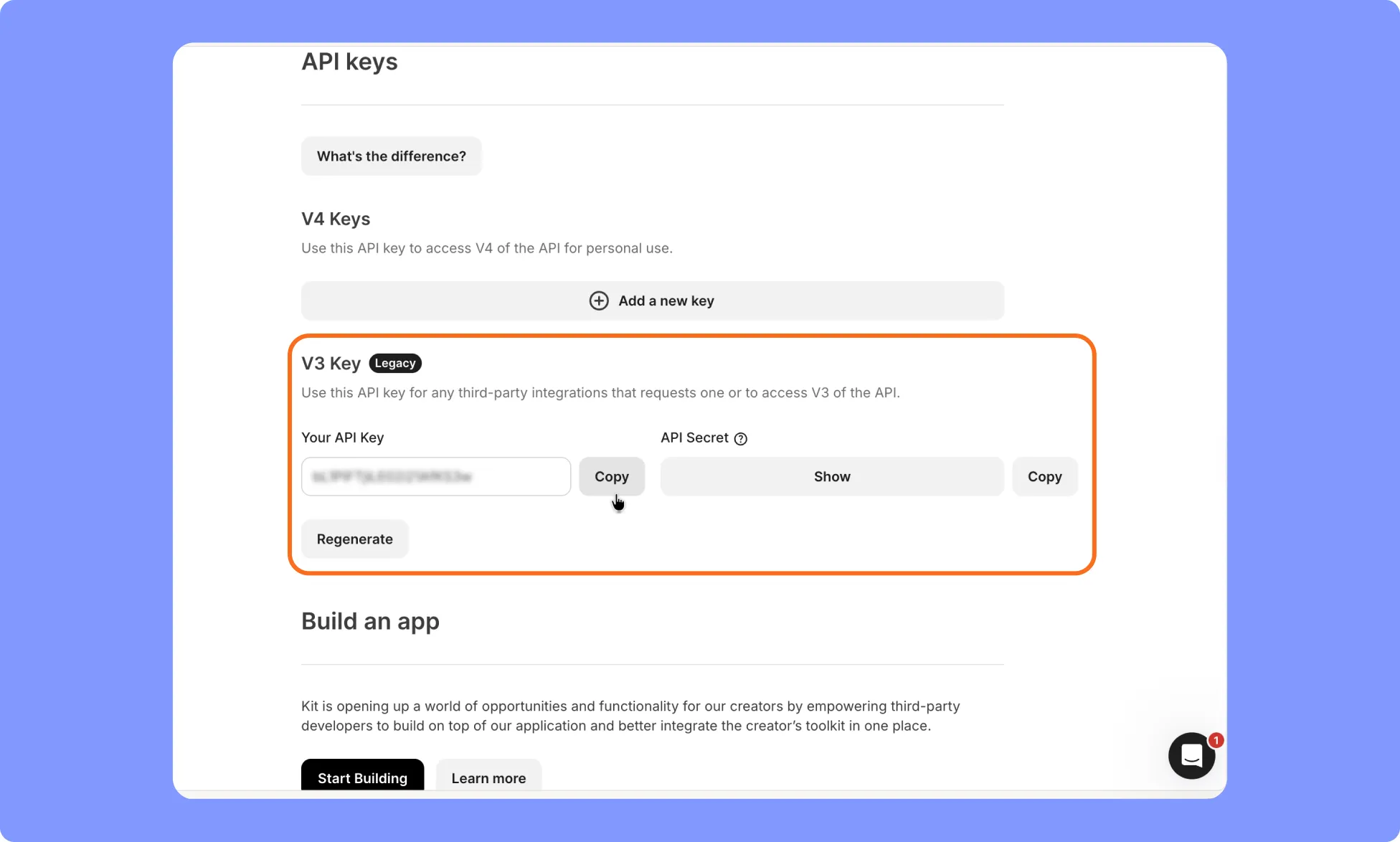
- Locate your API Key and copy.
How to Install the Kit App in Kirki
- Go to Kirki → Apps.
- Locate Kit.
- Click Install and Configure.
How to Configure the Kit Integration
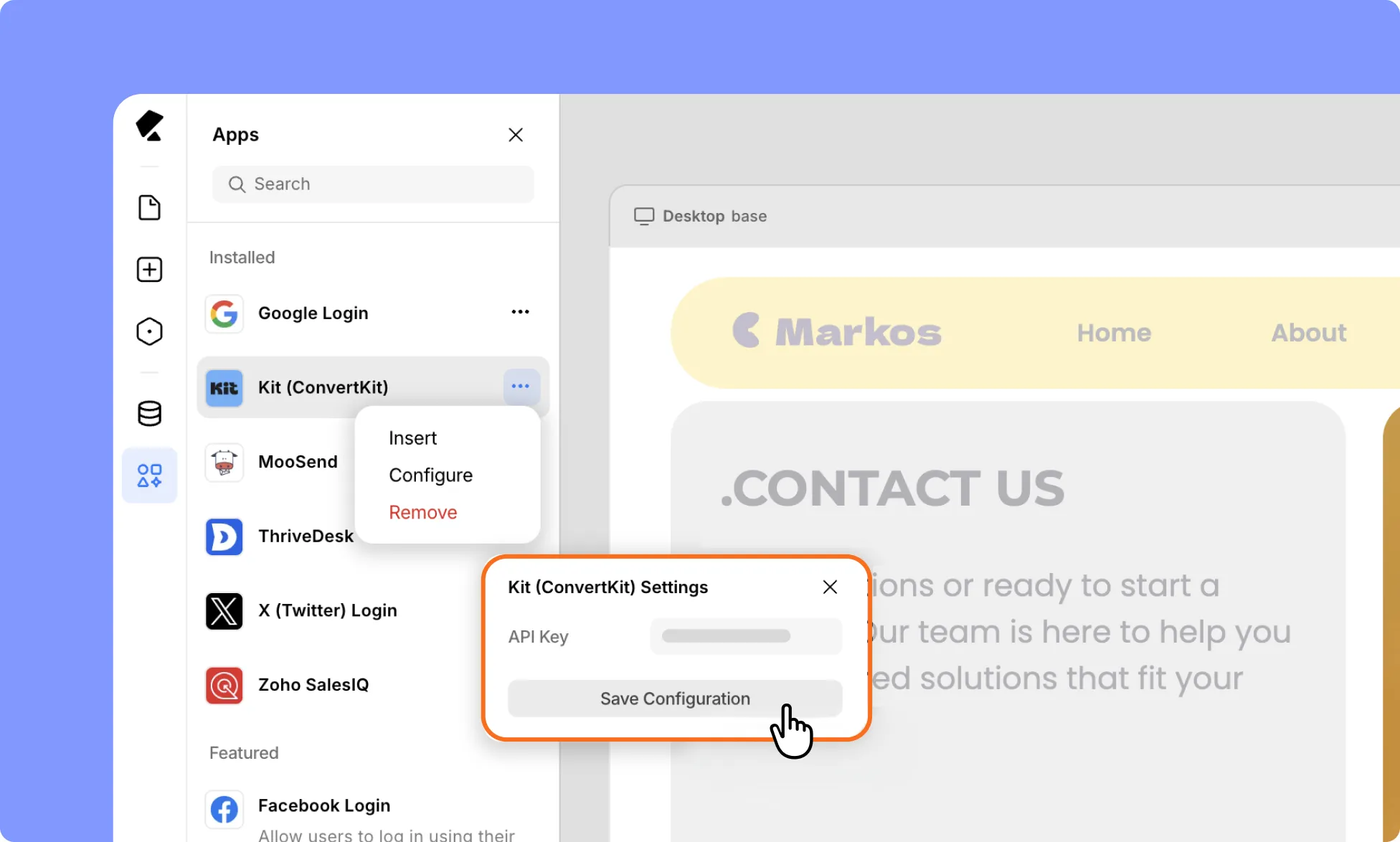
- After installation, click Configure to open the Kit settings.
- Paste your Kit API Key into the API Key field and Save Configuration.
- Refresh the page to get the Kirki Kit Form Element
How to Connect Kit to a Kirki Form
- Add the Kit Form element to your page using the Insert option in the Kit App in Kirki.
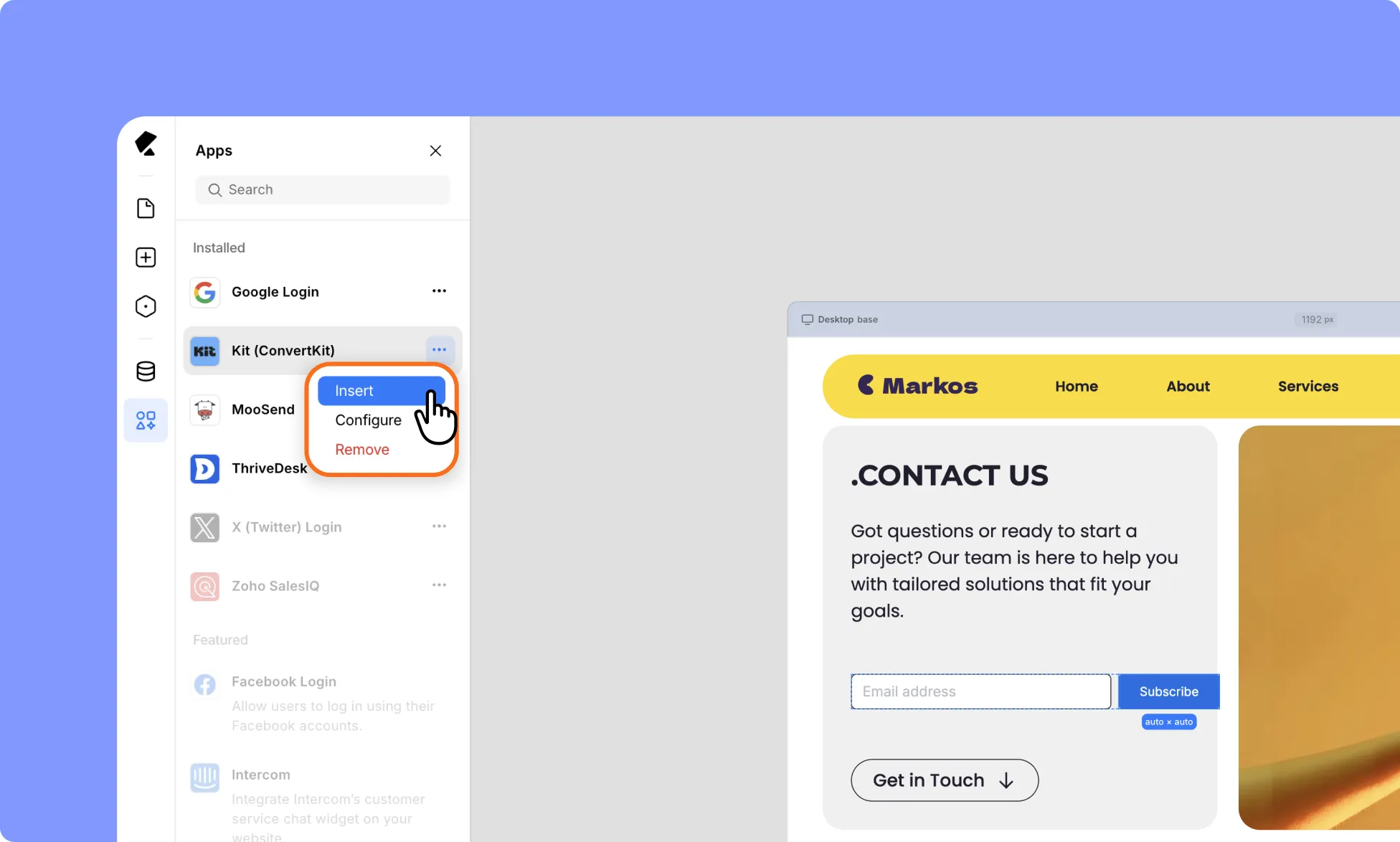
- You use it as a standalone mail subscription form.
Note: Add the mailing list form element on its own. If you place it inside an existing Form Block, the Submit button will not work as expected.
How to Test the Kit Integration
- Open a Kirki form connected to the Kit integration.
- Submit a test entry using a valid email address like, [email protected].
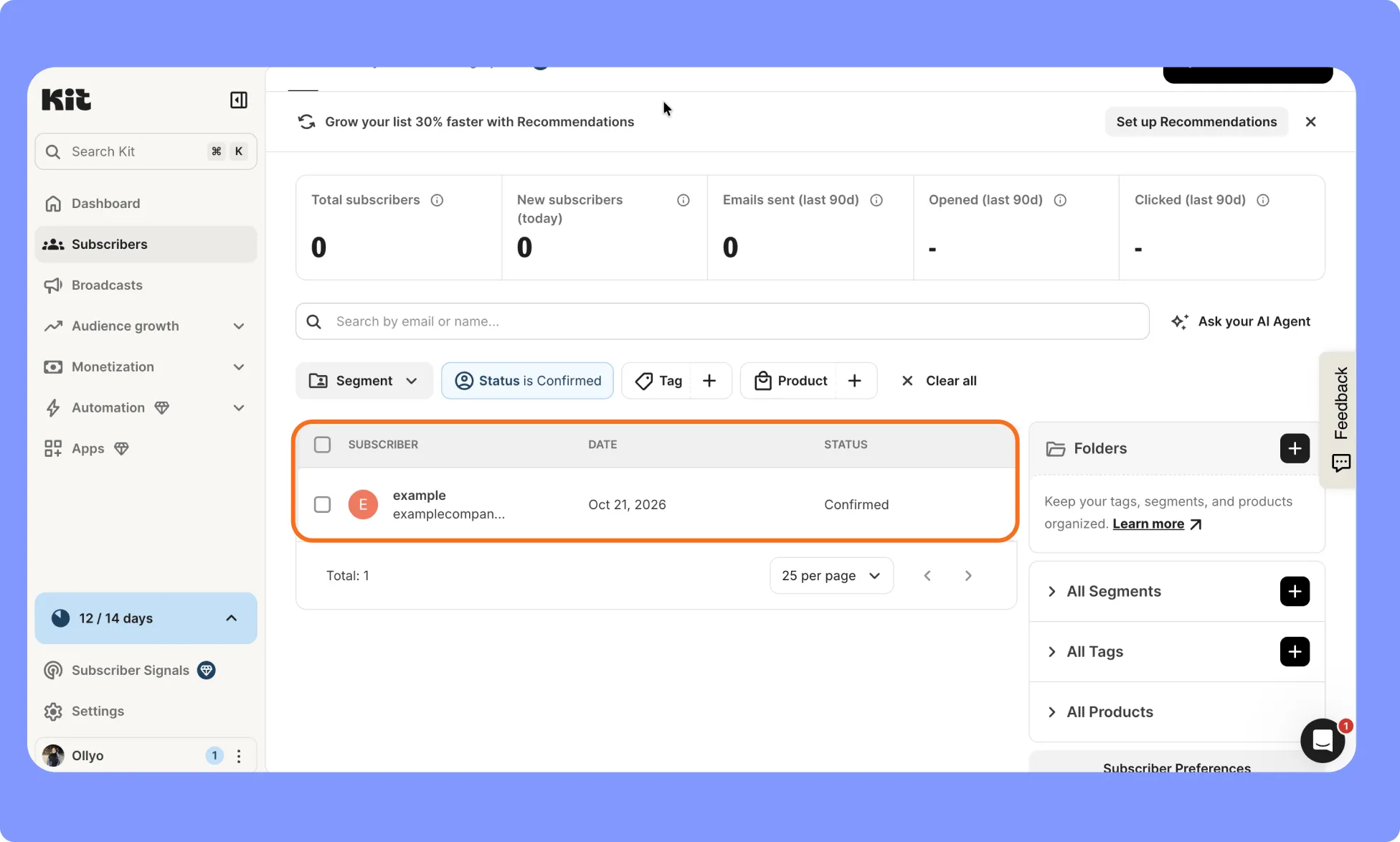
- Log in to Kit. and go to Subscribers.
- Confirm that the new subscriber appears.