ActiveCampaign is a customer experience automation platform that combines email marketing, marketing automation, and CRM tools. Connect ActiveCampaign through Kirki Apps to automatically send contacts from your Kirki-powered websites to ActiveCampaign.
What Is the ActiveCampaign App
The ActiveCampaign app is an integration available in Kirki Apps. Once connected, it links your Kirki forms to your ActiveCampaign account using an API URL and API Key.
This allows new leads to be added as contacts and, depending on your setup, added to a list, tagged, or included in an automation.
What You Need Before Connecting ActiveCampaign
- An active ActiveCampaign account
- Your API URL
- Your API Key
- A Kirki website
To connect ActiveCampaign to Kirki, you’ll copy the API URL and API Key from ActiveCampaign and enter them into the ActiveCampaign app in Kirki.
How to Get Your ActiveCampaign Credentials
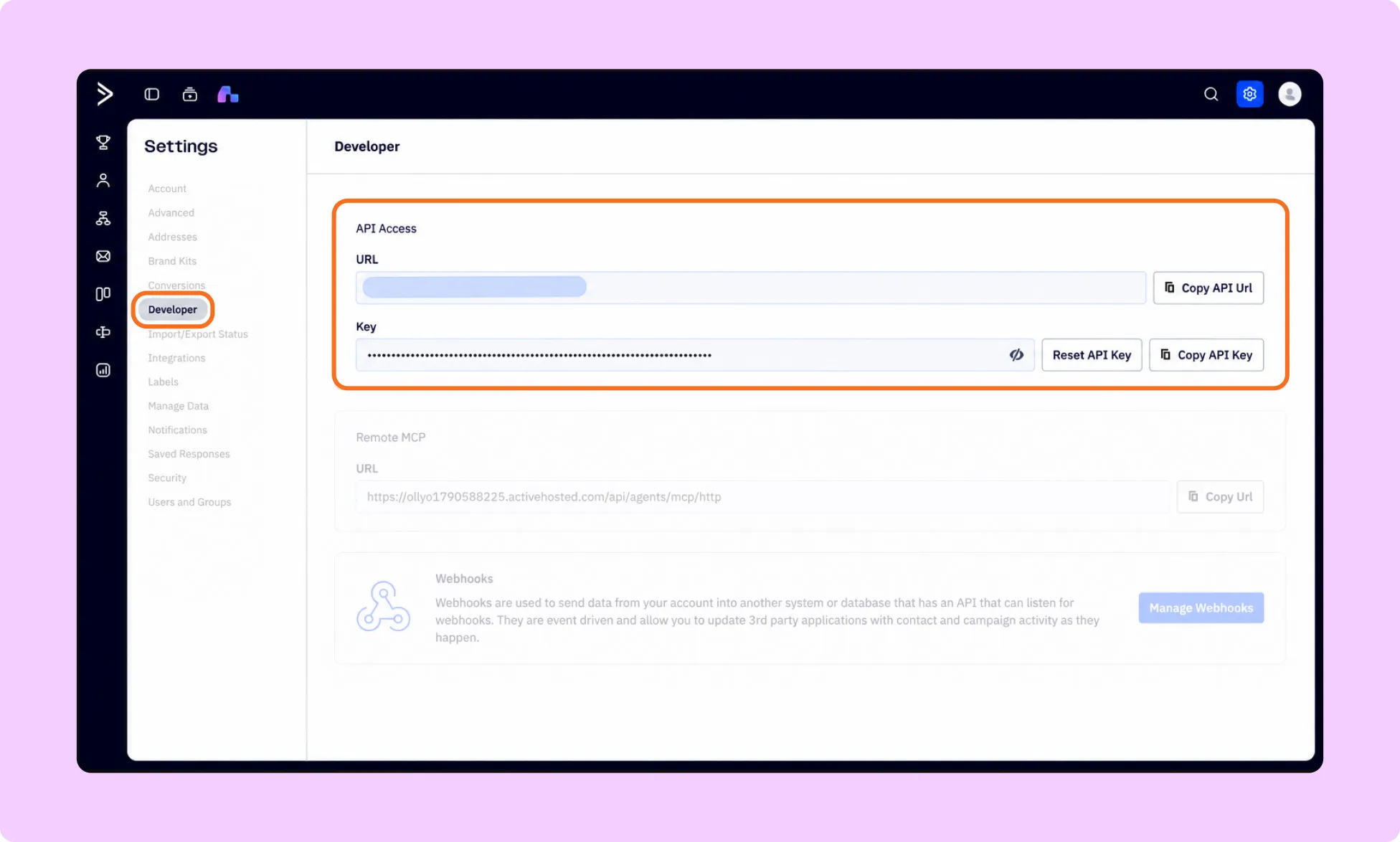
- Log in to your ActiveCampaign account.
- Click Settings using the gear icon.
- Select Developer from the Account Settings menu.
Testing first? Developers can request a free Developer Sandbox account to test the integration without touching live contacts.
- Find the API Access section.
- Copy your API URL and API Key. Each ActiveCampaign user has their own API Key. Keep the key secure and do not share it publicly.
Your API URL is similar to: “https://youraccount.api-us1.com”
How to Install the ActiveCampaign App
- Open the Kirki Editor.
- Navigate to Apps from the left sidebar.
- Search for ActiveCampaign.
- Click Install and configure.
How to Configure the ActiveCampaign App
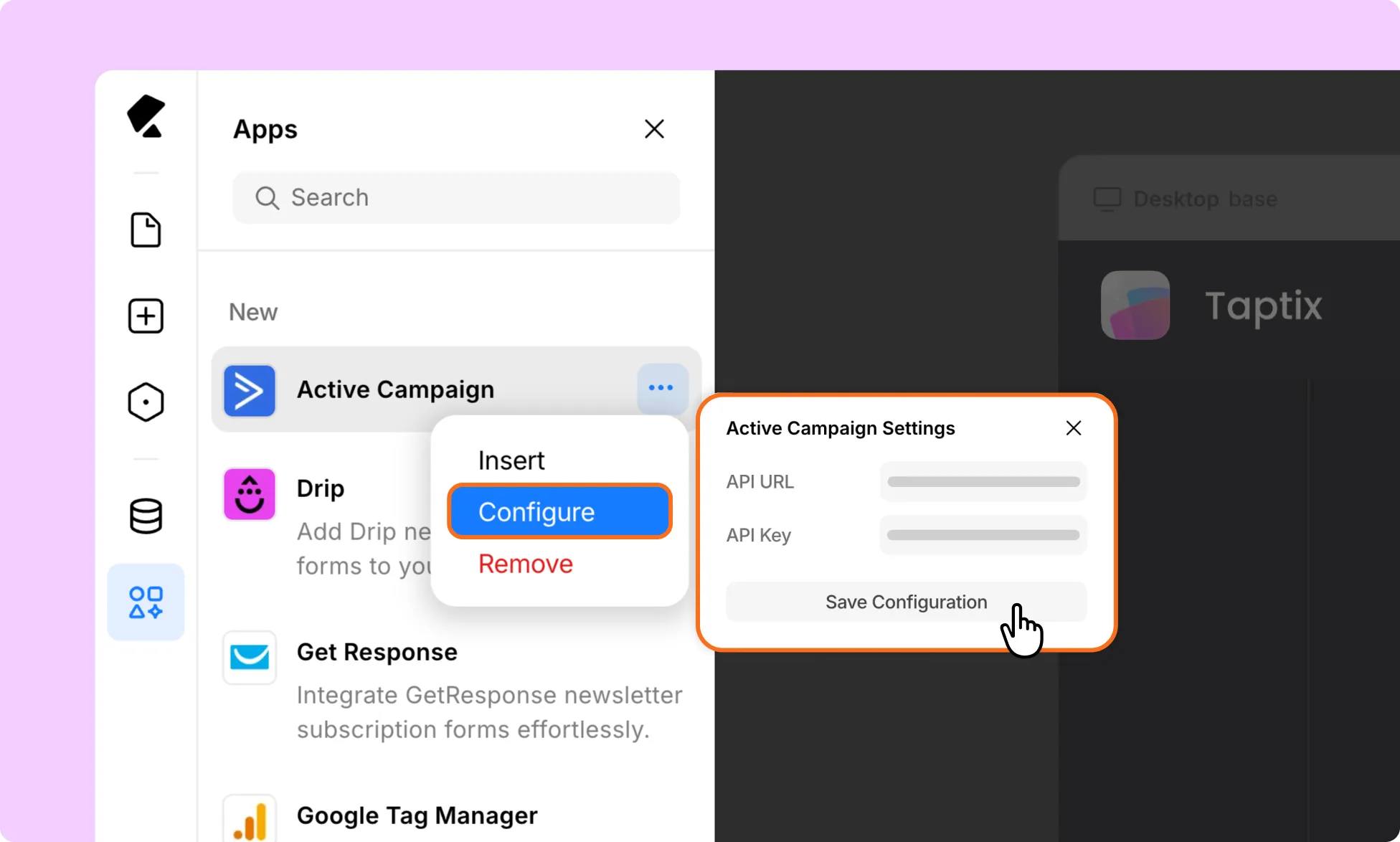
- Once the app is installed, click the ellipsis (…) icon next to it.
- Select Configure.
- Enter your ActiveCampaign API URL and API Key in the API fields.
- Click Save Configuration and refresh the Kirki editor page.
Your Kirki website is now connected to ActiveCampaign.
How to Connect ActiveCampaign to a Kirki Form
- Add the ActiveCampaign Form element to your page using the Insert option in the ActiveCampaign App in Kirki.
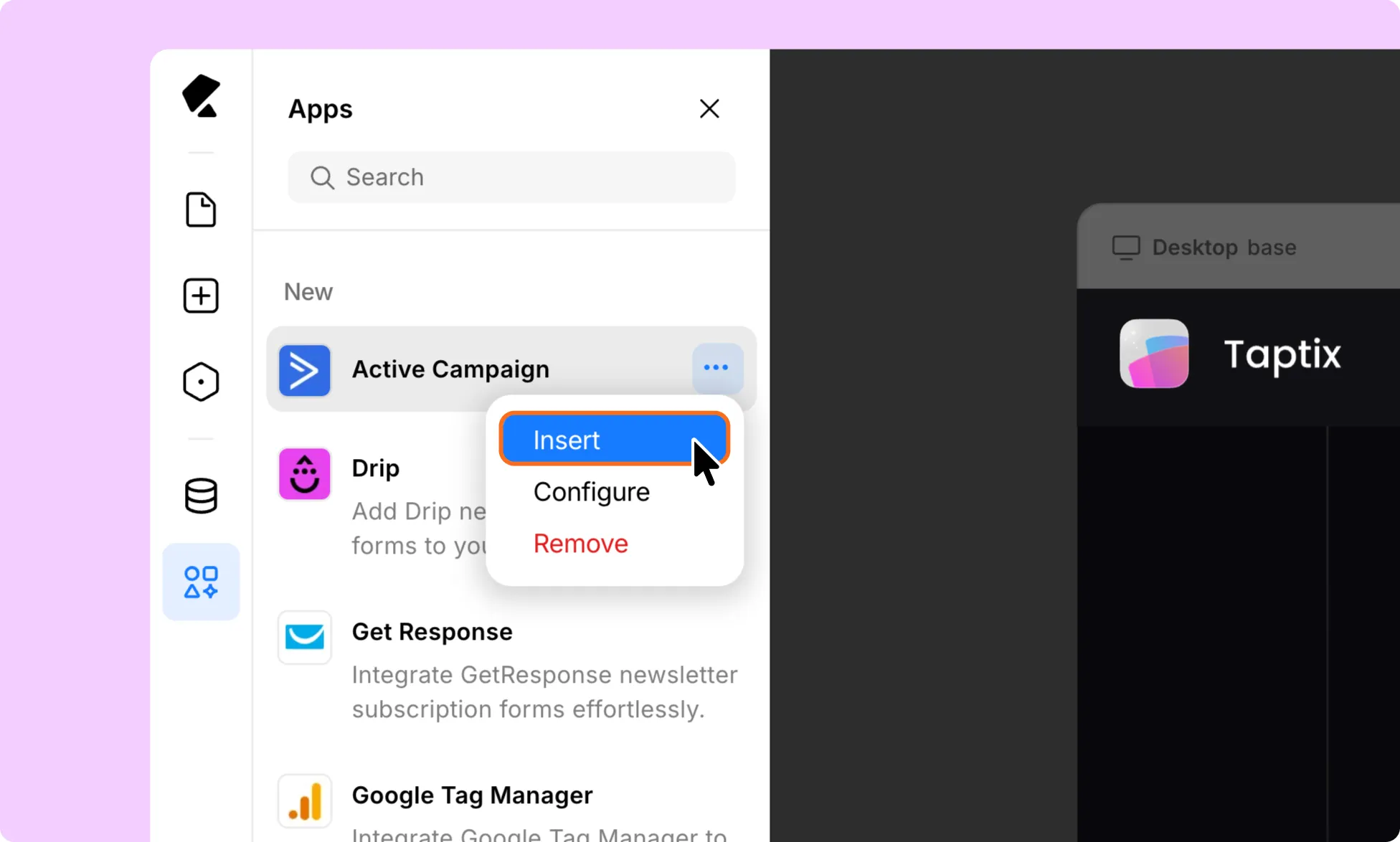
- You can use it as a standalone email subscription form.
Note: Add the mailing list form element on its own. If you place it inside an existing Form Block, the Submission button will not work as expected.
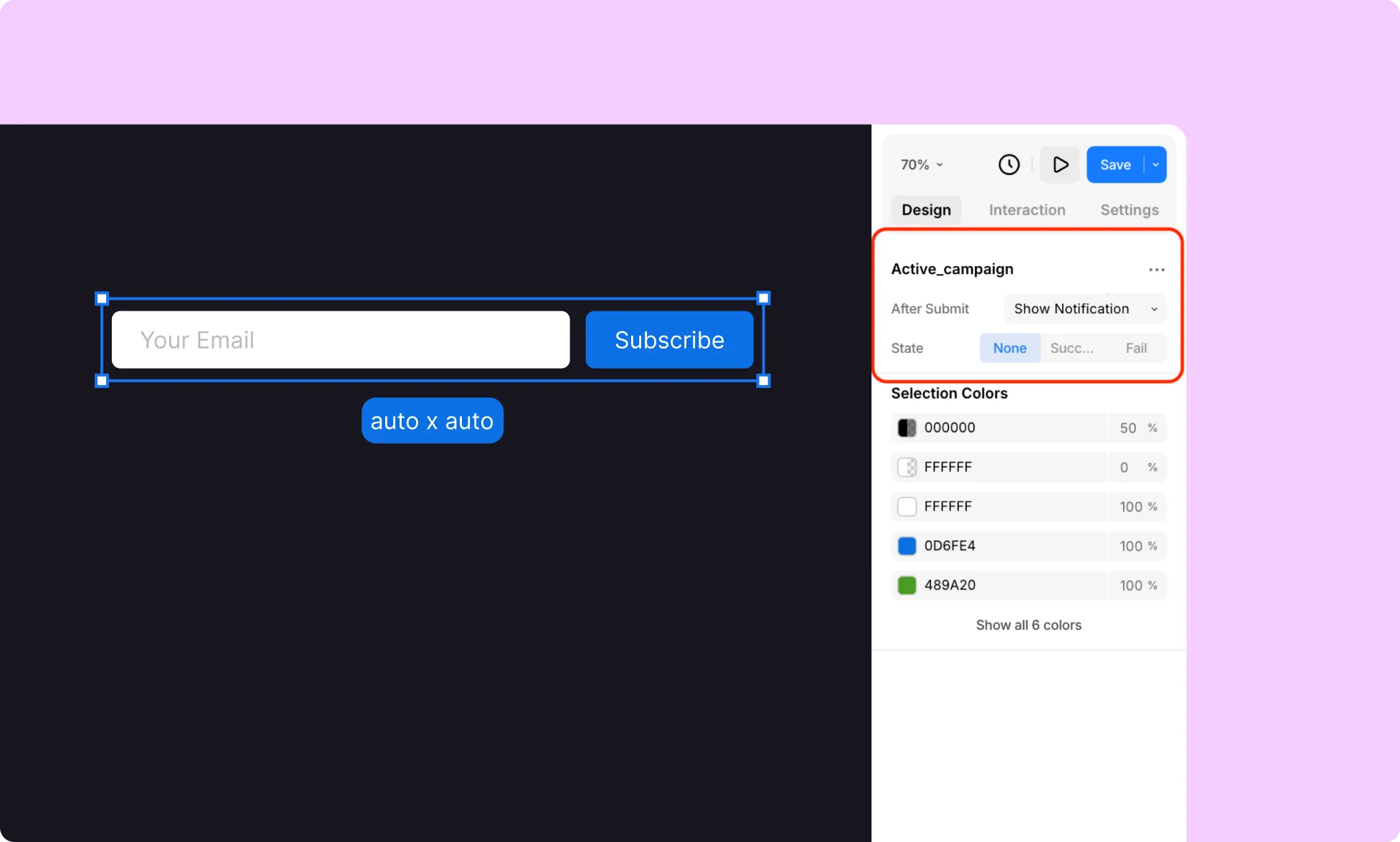
- Configure the After Submit Form Actions according to your requirements.
- Set up the required success, error, or other form visuals.
Your Kirki form is now connected to your ActiveCampaign Contacts list.
How to Test the ActiveCampaign Integration
- Open the page containing your connected Kirki form.
- Submit a test entry.
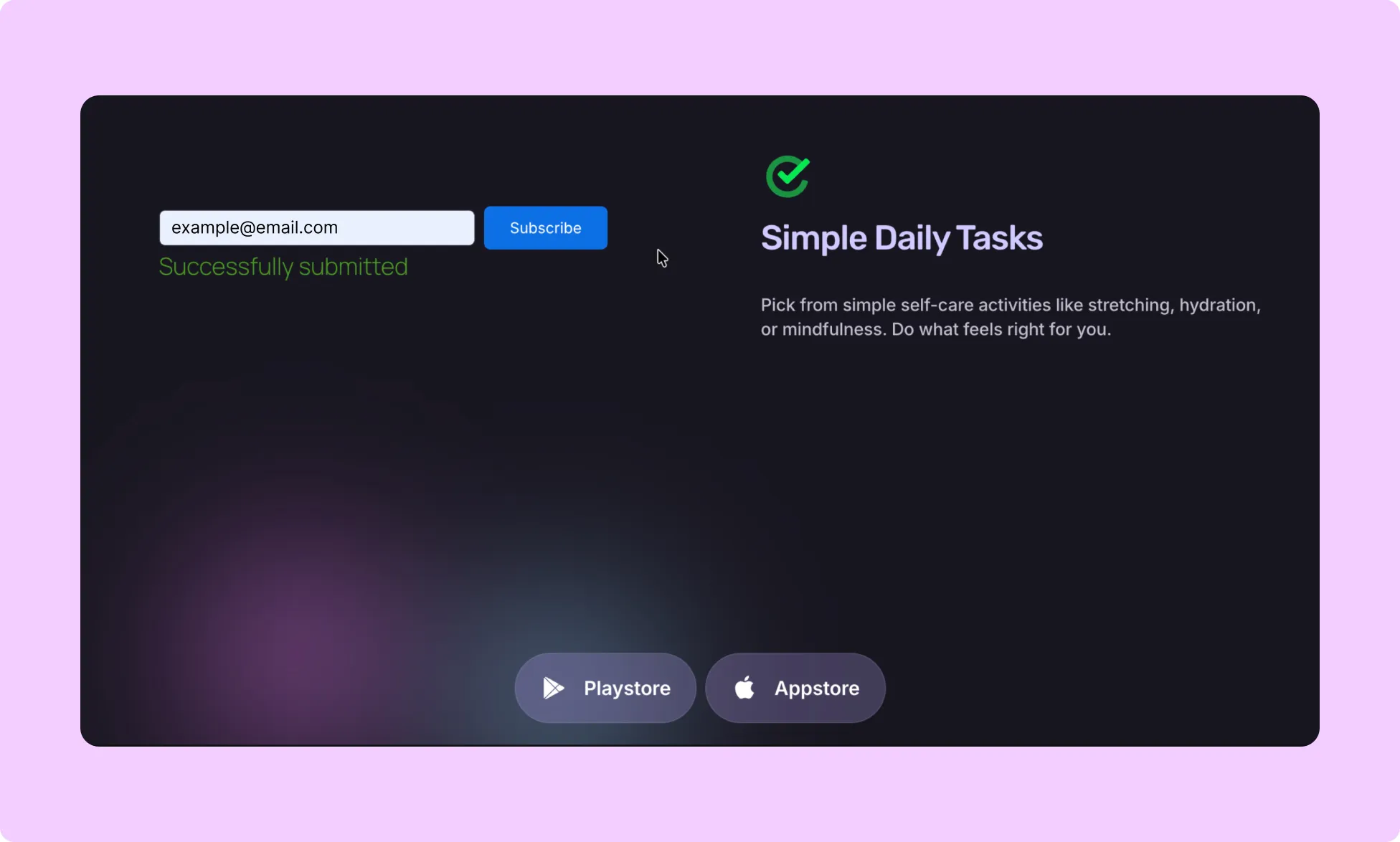
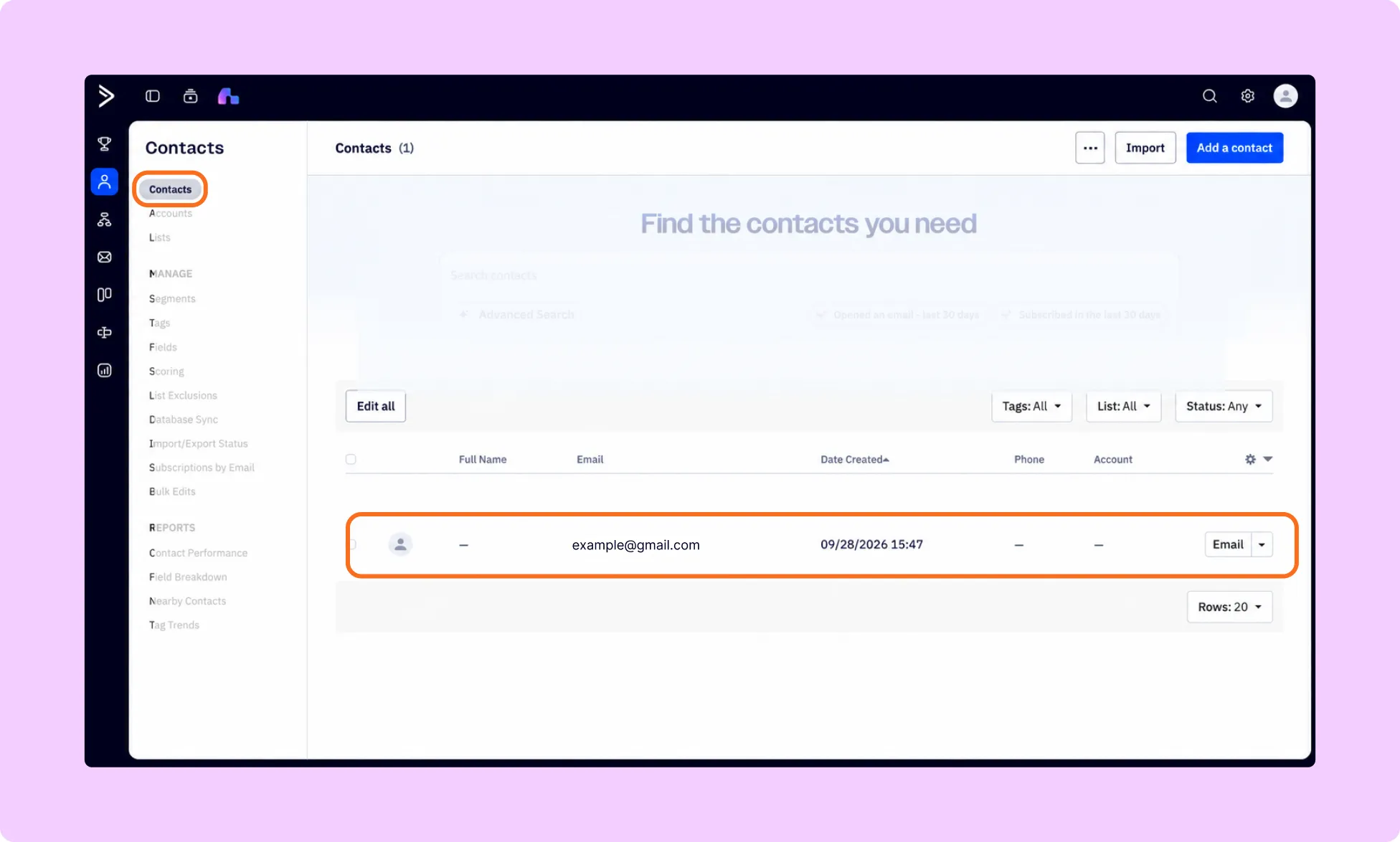
- Log in to ActiveCampaign.
- Go to Contacts.
- Confirm that the new contact appears.