Kirki stores every form submission in the Submissions panel, even when no actions are configured. This works because Store form data is on by default.
- Open the Kirki Dashboard.
- Select Submissions.
- Select a form to open its entries in a table. See Forms if you haven’t created one yet.
Note: You can also open the WordPress dashboard, go to the Kirki menu, and select Submissions.
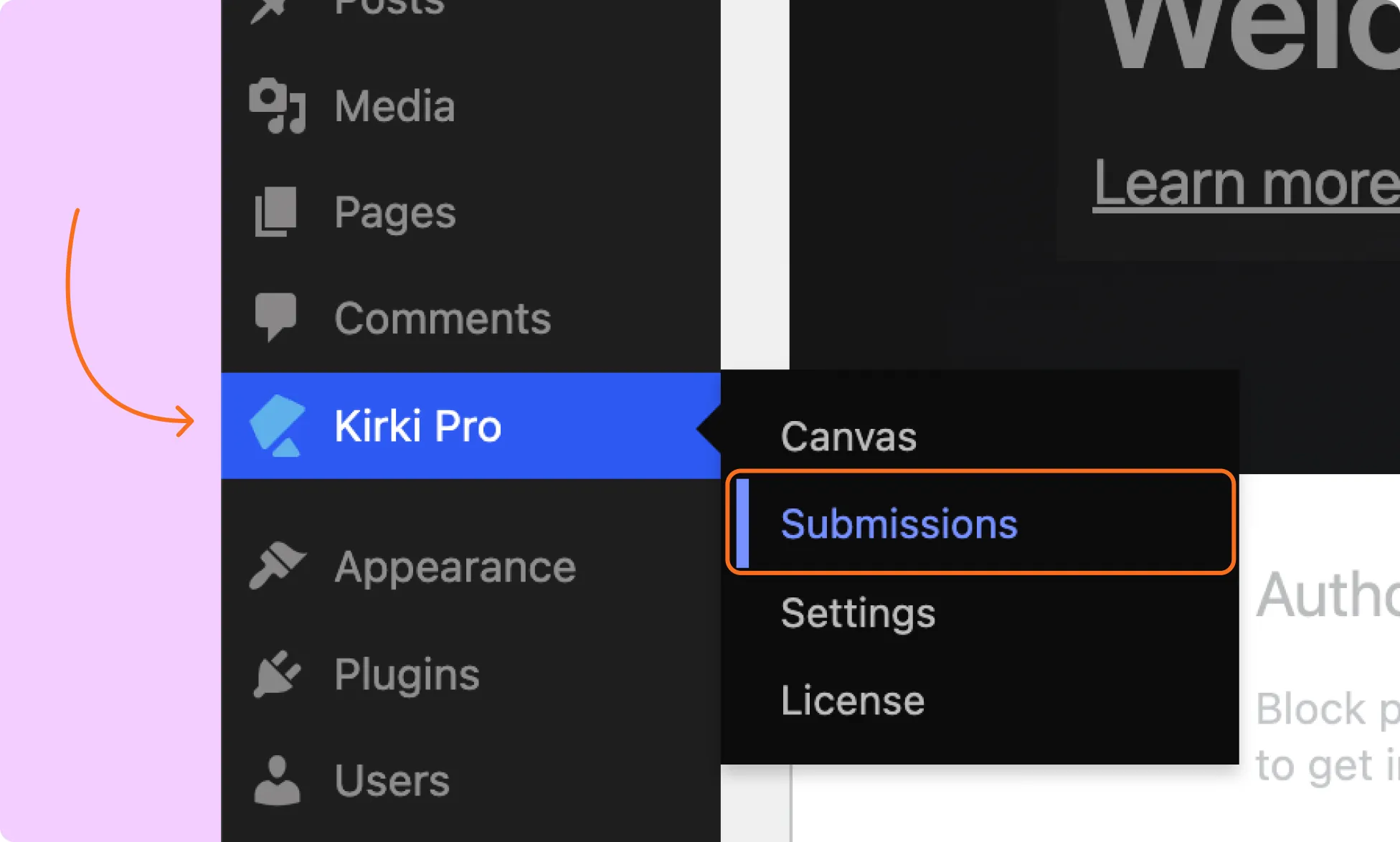
Every form created with the Form Block is listed in Submissions. The entries table lets you view, search, filter, sort, delete, and export entries.
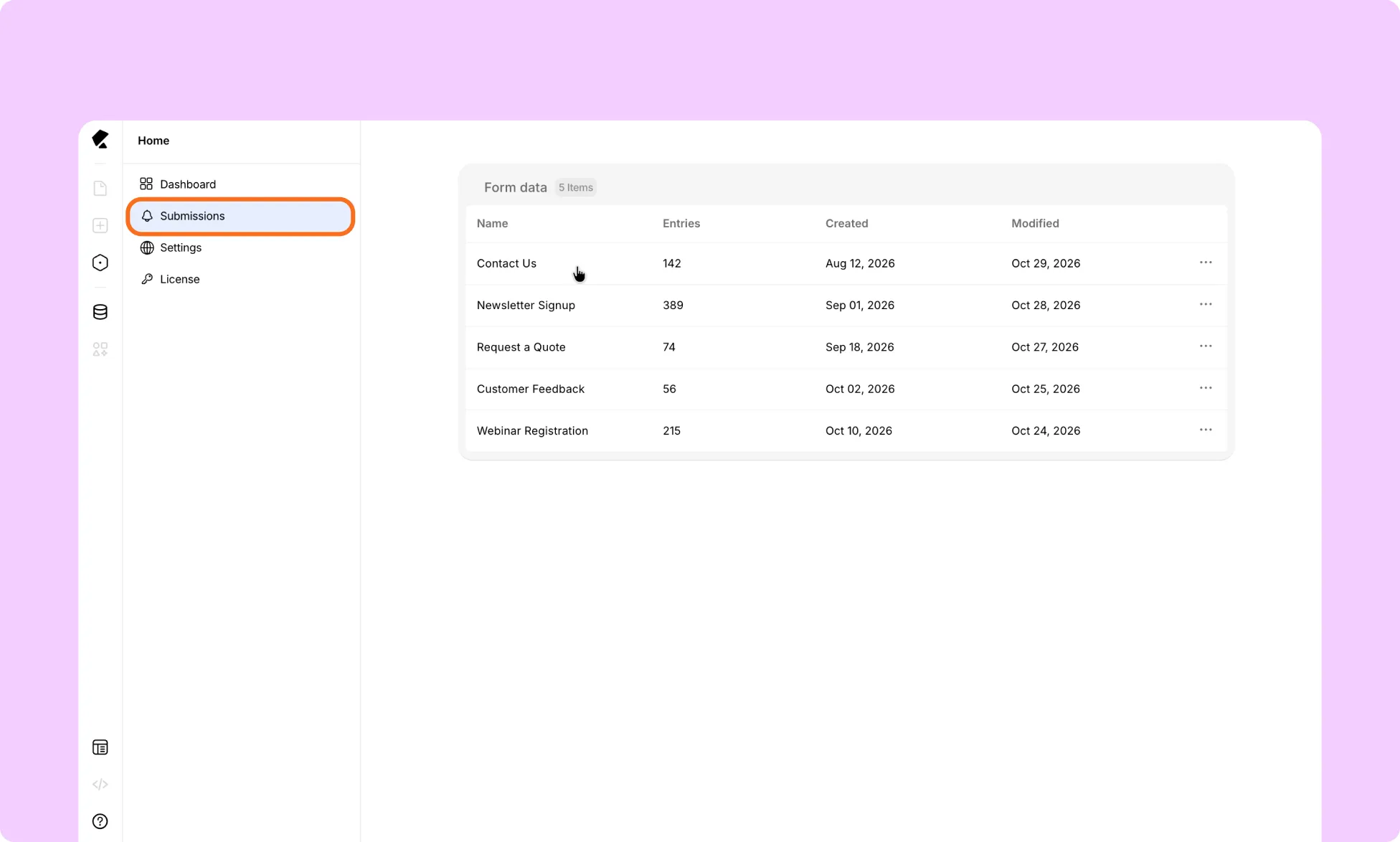
Kirki builds the entries table from your form’s structure, with one column for each input field in the Form Block. If you add, remove, or rename fields, the columns change to match.
For example, the default Form Block has First name, Last name, Email, Subject, and Description fields, so its table has a column for each of them. Kirki also adds a Created_at column that records when each submission was made.
How to Search and Filter Form Entries
To find a specific submission, type in the search bar. It searches across the fields created by the inputs in your Form Block.
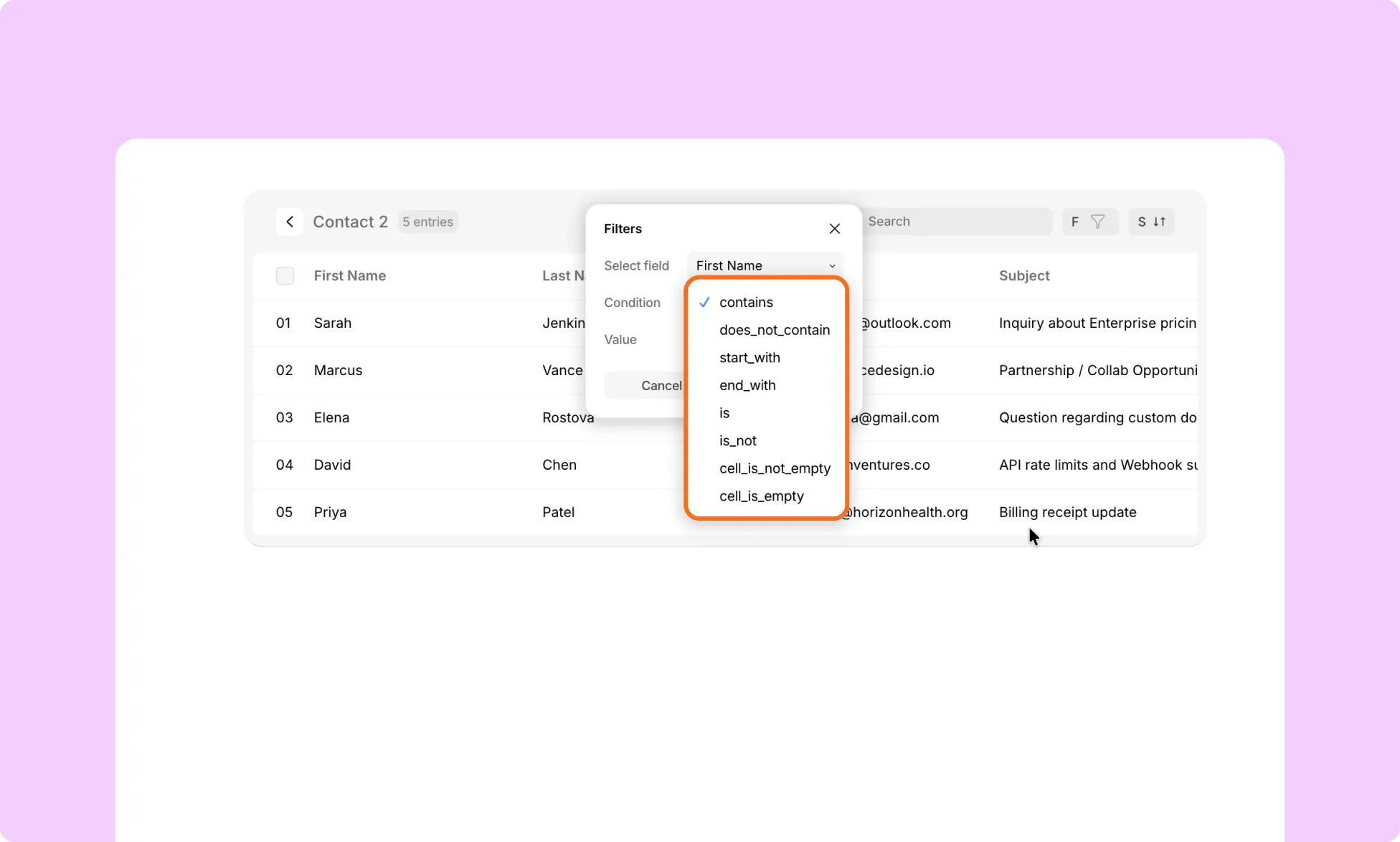
To narrow results further, add a filter on a field using one of these conditions:
- Contains: The field includes the text you enter, anywhere in the value.
- Does_not_contain: The field does not include the text you enter.
- Starts_with: The field’s value starts with the text you enter.
- Ends_with: The field’s value ends with the text you enter.
- Is: The field’s value exactly matches the value you enter.
- Is_not: The field’s value does not exactly match the value you enter.
- Cell_is_not_empty: The field has a value.
- Cell_is_empty: The field has no value.
How to Sort Form Entries
To sort entries, choose a sorting condition for a field:
- Newest → Oldest: shows the most recent entries first, based on creation date and time.
- Oldest → Newest: shows the earliest entries first, based on creation date and time.
- A → Z: Sorts the selected field alphabetically.
- Z → A: Sorts the selected field in reverse alphabetical order.
How to Delete or Export Form Entries
Select multiple entries to run a bulk action on them.
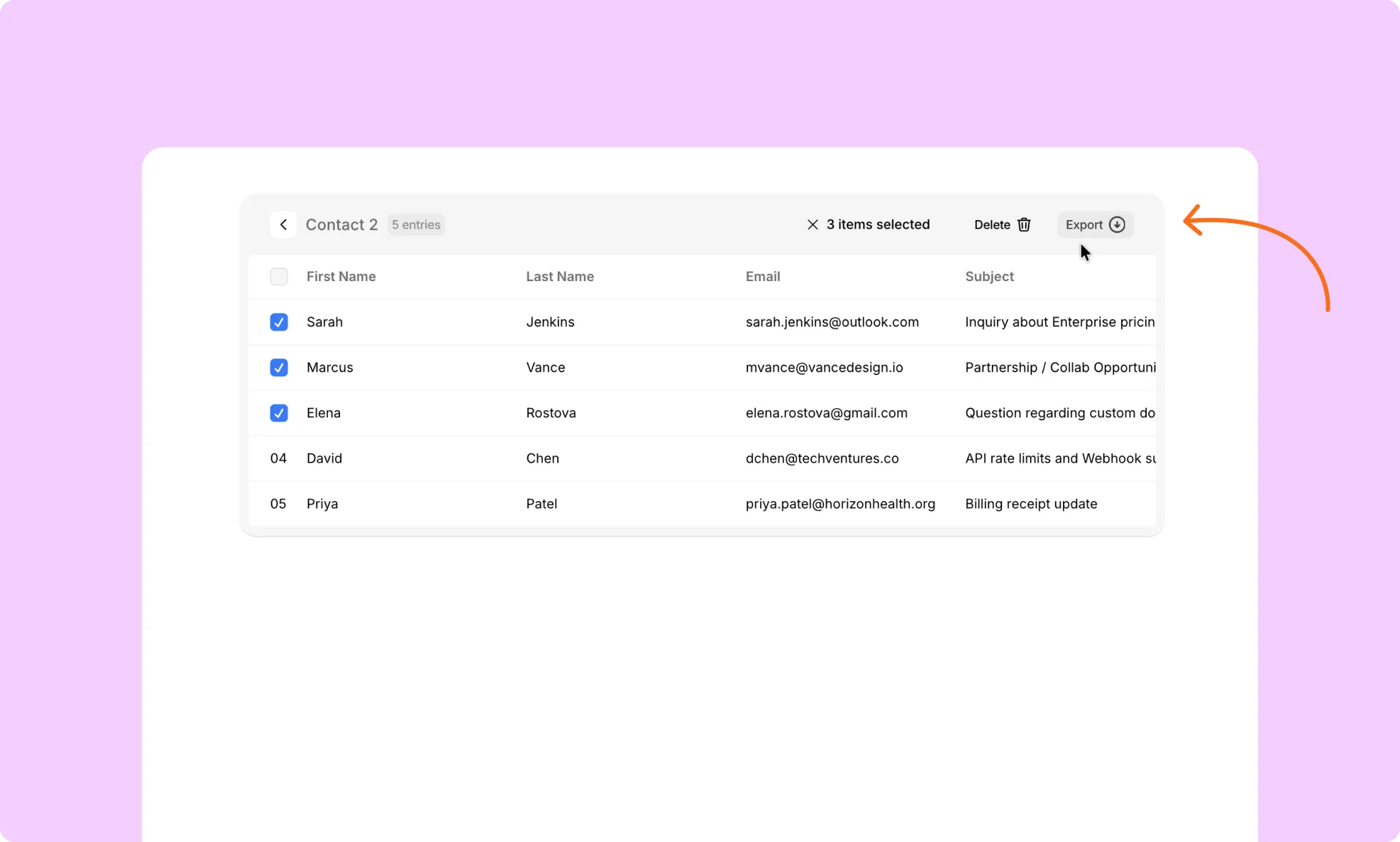
- Delete: Permanently removes the selected entries from your database. Use it to clear old or unwanted data.
- Export: Downloads the selected entries as a CSV file. Use it for backups or to move data to another tool.