MailerLite is an email marketing platform for creating newsletters, automations, and landing pages. The Kirki MailerLite integration automatically adds new form submissions from your website as subscribers to a selected MailerLite group.
What Is the MailerLite App
The MailerLite integration connects your Kirki forms with MailerLite. When someone submits a connected form, their information can be added to a MailerLite group so they can receive newsletters and other email automations. This is useful for site owners and small businesses that want to automatically grow and manage their email lists.
What You Need Before Connecting MailerLite
Before configuring the integration, make sure you have:
- An active MailerLite account.
- At least one Group created in MailerLite where new subscribers will be added.
To connect MailerLite to Kirki, generate an API token in MailerLite, install the MailerLite app in Kirki, and paste the token under Configure.
How to get MailerLite API Token
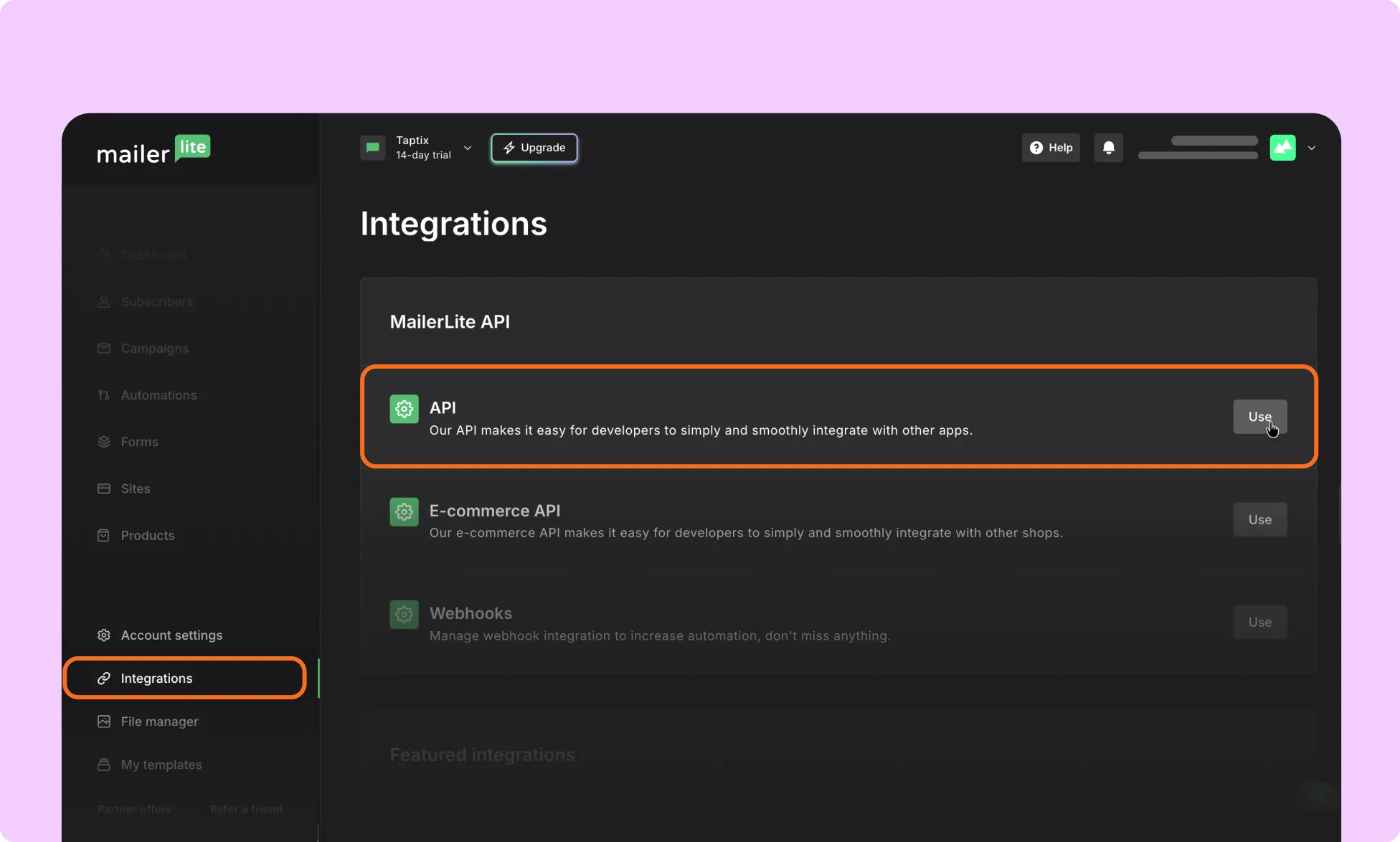
- In the left sidebar of your MailerLite dashboard, select Integrations.
- Find and select Developer API (also labeled MailerLite API).
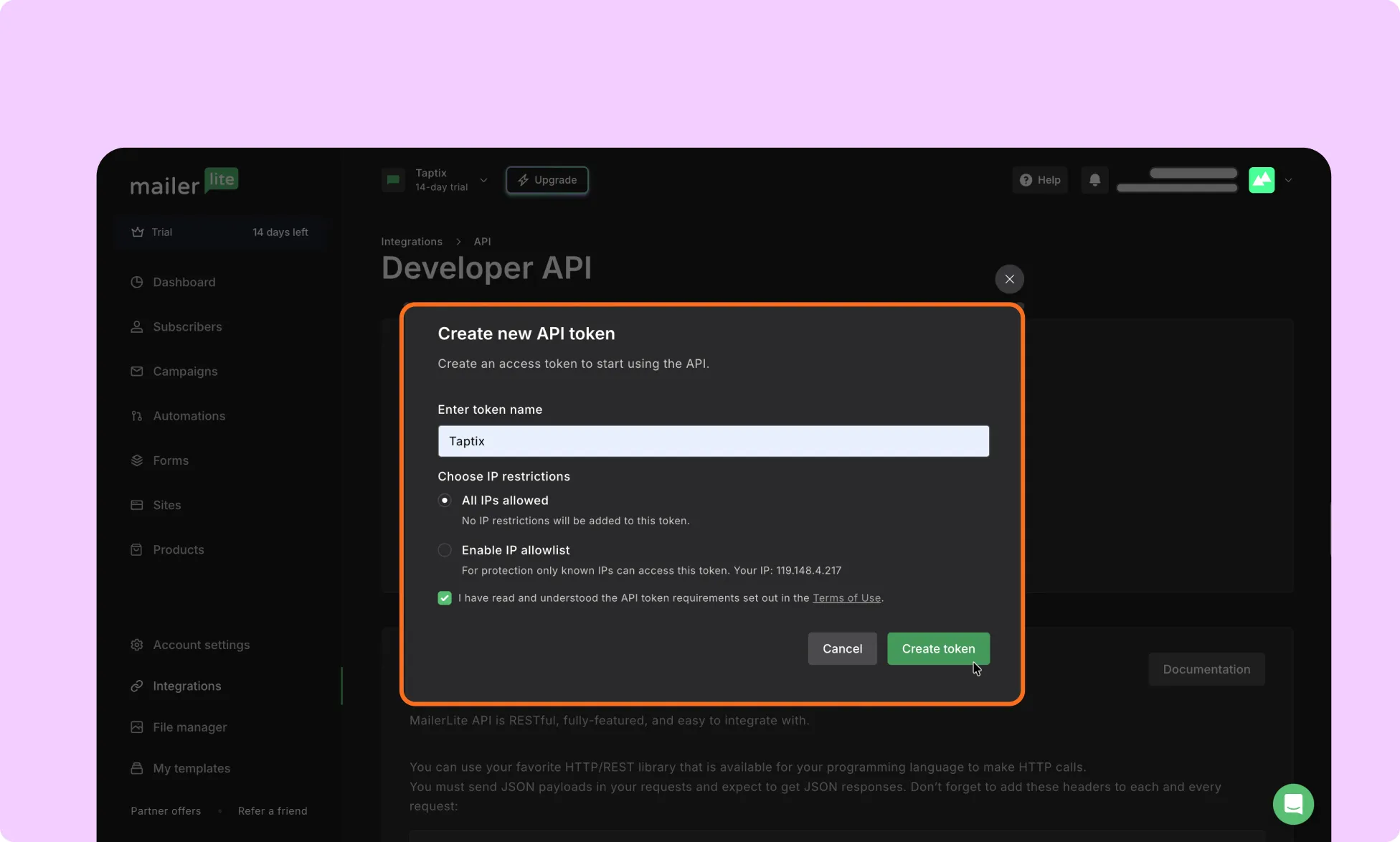
- Click Generate new token.
- Enter a name for the token.
- Agree to the requirements checkbox.
- Click Create token.
- Copy the API token immediately and store it securely.
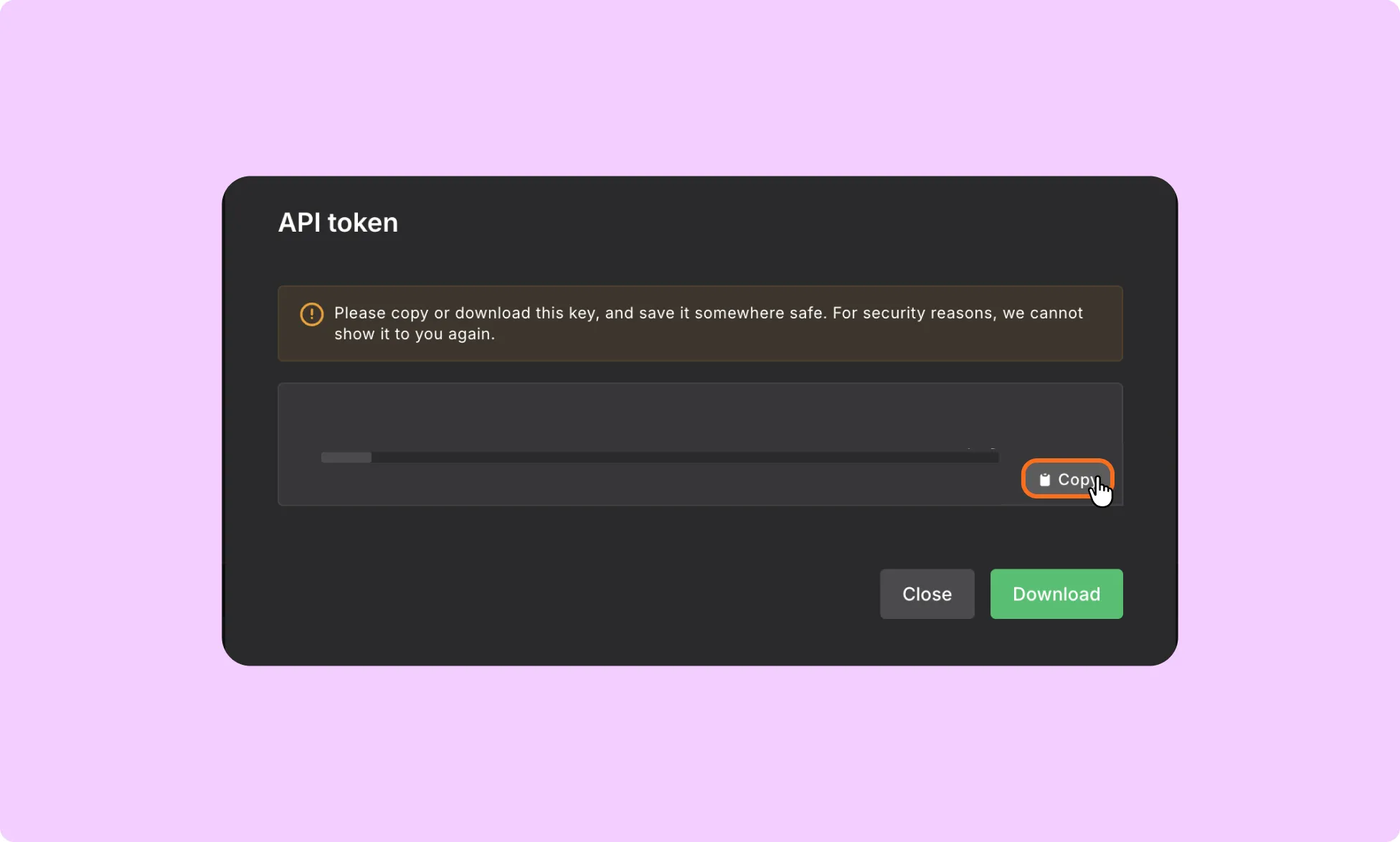
Note: MailerLite only shows the token when it is created. Make sure you copy and save it before leaving the page.
How to create a group in MailerLite
If you have not created a group in MailerLite, follow these steps.
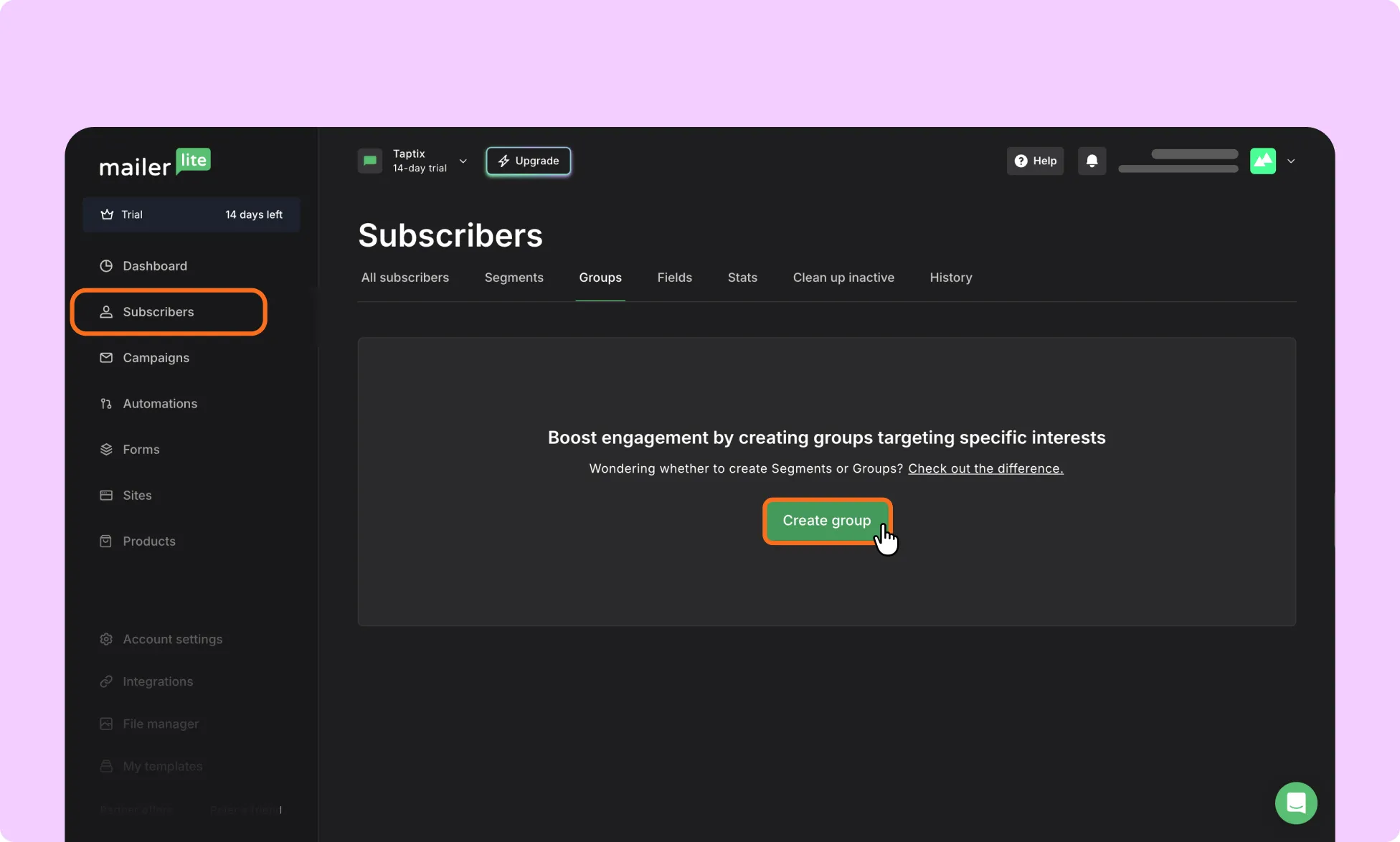
- From your MailerLite Dashboard, select subscribers from the left sidebar.
- Click the Create Group button
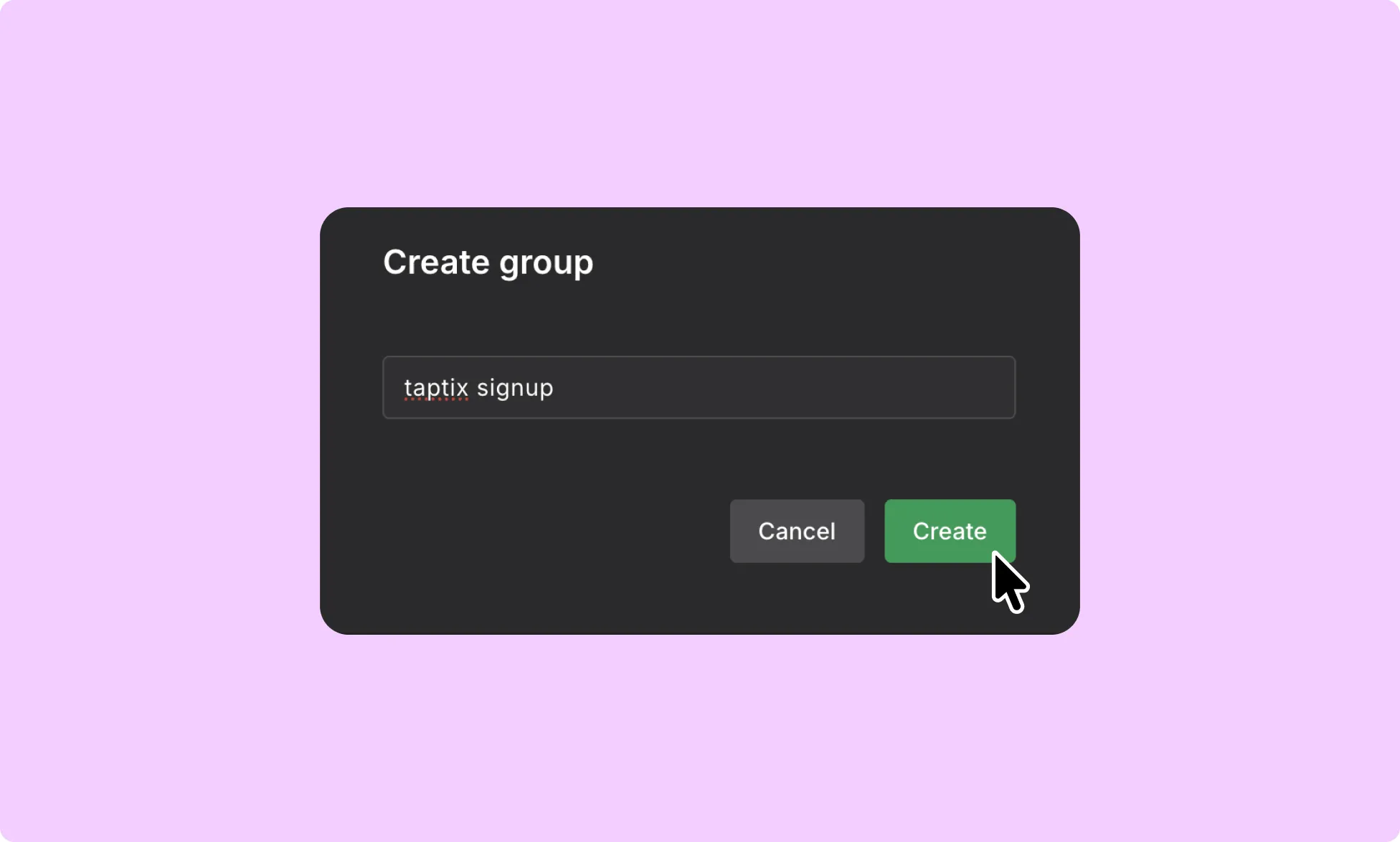
- Name your group and create it.
How to Install & Configure the MailerLite App in Kirki
- Go to Kirki → Apps
- Locate MailerLite
- Click Install.
- Click Configure to open the MailerLite settings.
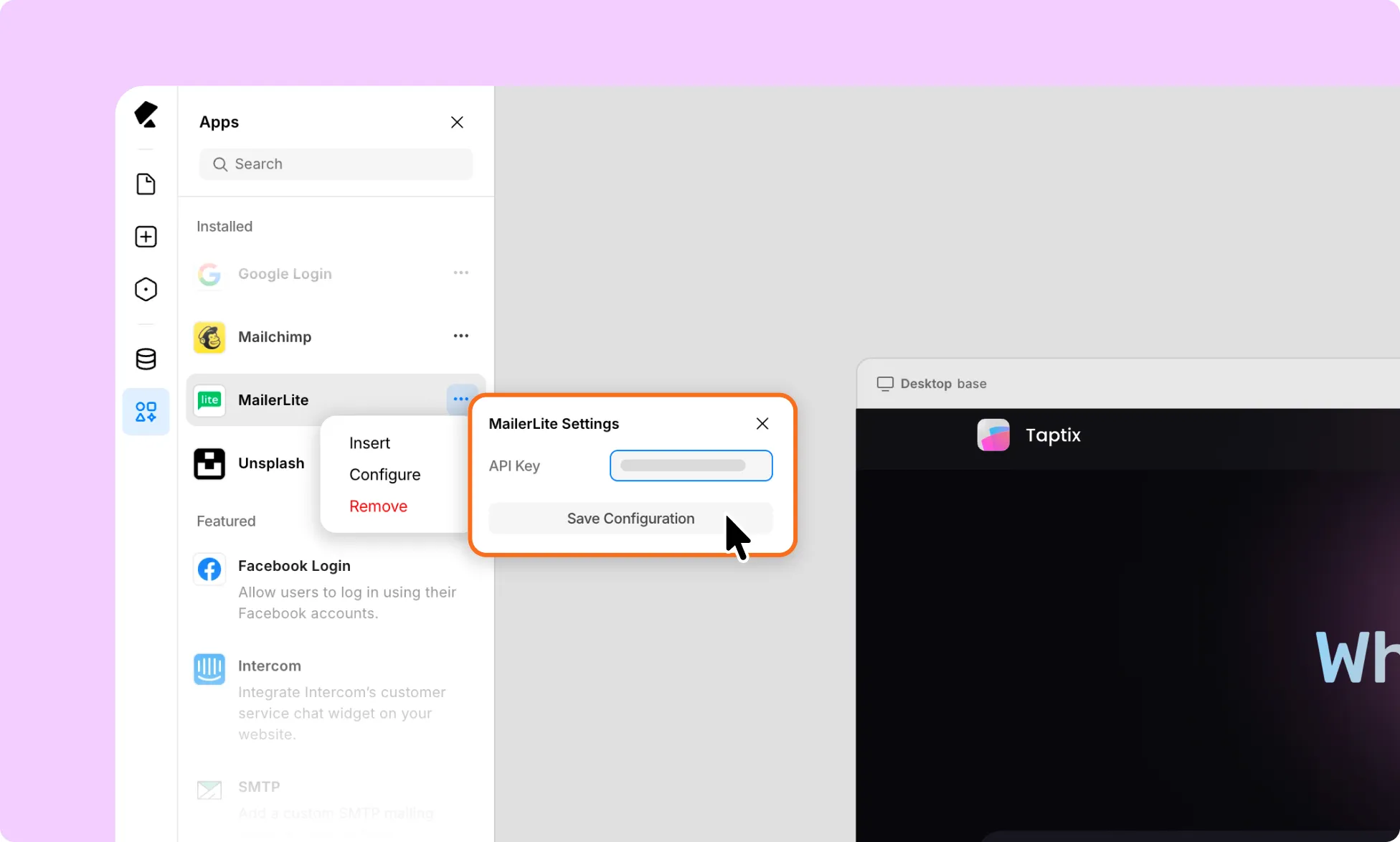
- Paste your MailerLite API token into the API Key field.
- Click Save Configuration and refresh the Kirki editor page.
How to Connect MailerLite to a Kirki Form
- Add the MailerLite Form element to your page using the Insert option in the MailerLite App in Kirki.
- You use it as a standalone mail subscription form.
Note: Add the mailing list form element on its own. If you place it inside an existing Form Block, the Submit button will not work as expected.
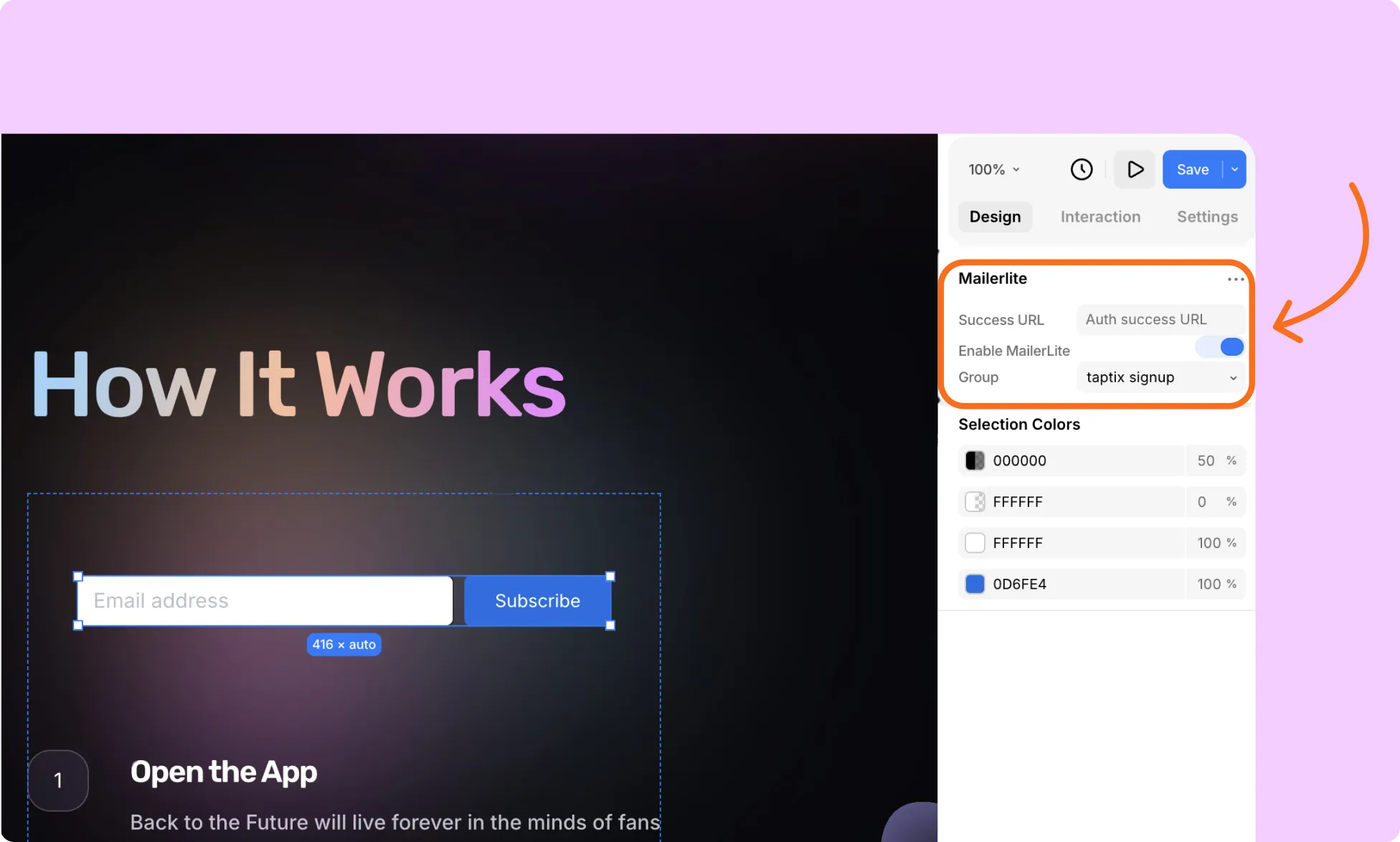
- In the configuration setting for that form element in the right, first enable MailerLite then select the Group.
How to Test the MailerLite Integration
- Open a Kirki form that is connected to the MailerLite integration.
- Submit a test entry using a valid email address.
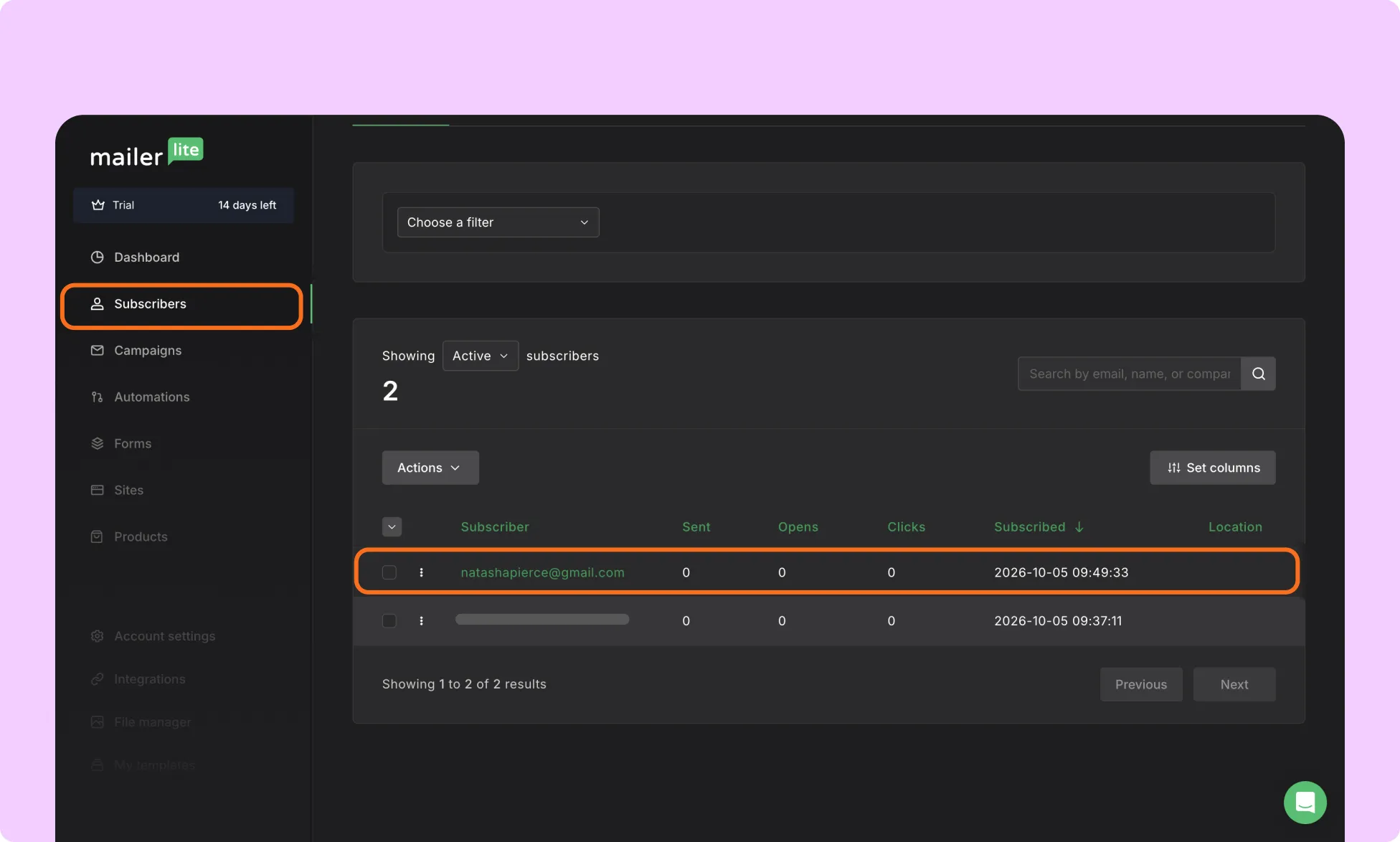
- Log in to MailerLite and go to Subscribers.
- Confirm that the test subscriber appears.