Buttons are essential elements that prompt user actions — whether submitting a form, canceling an operation, or navigating to a different page. This guide walks you through adding and customizing buttons in Kirki.
Add a Button
From Preset Buttons
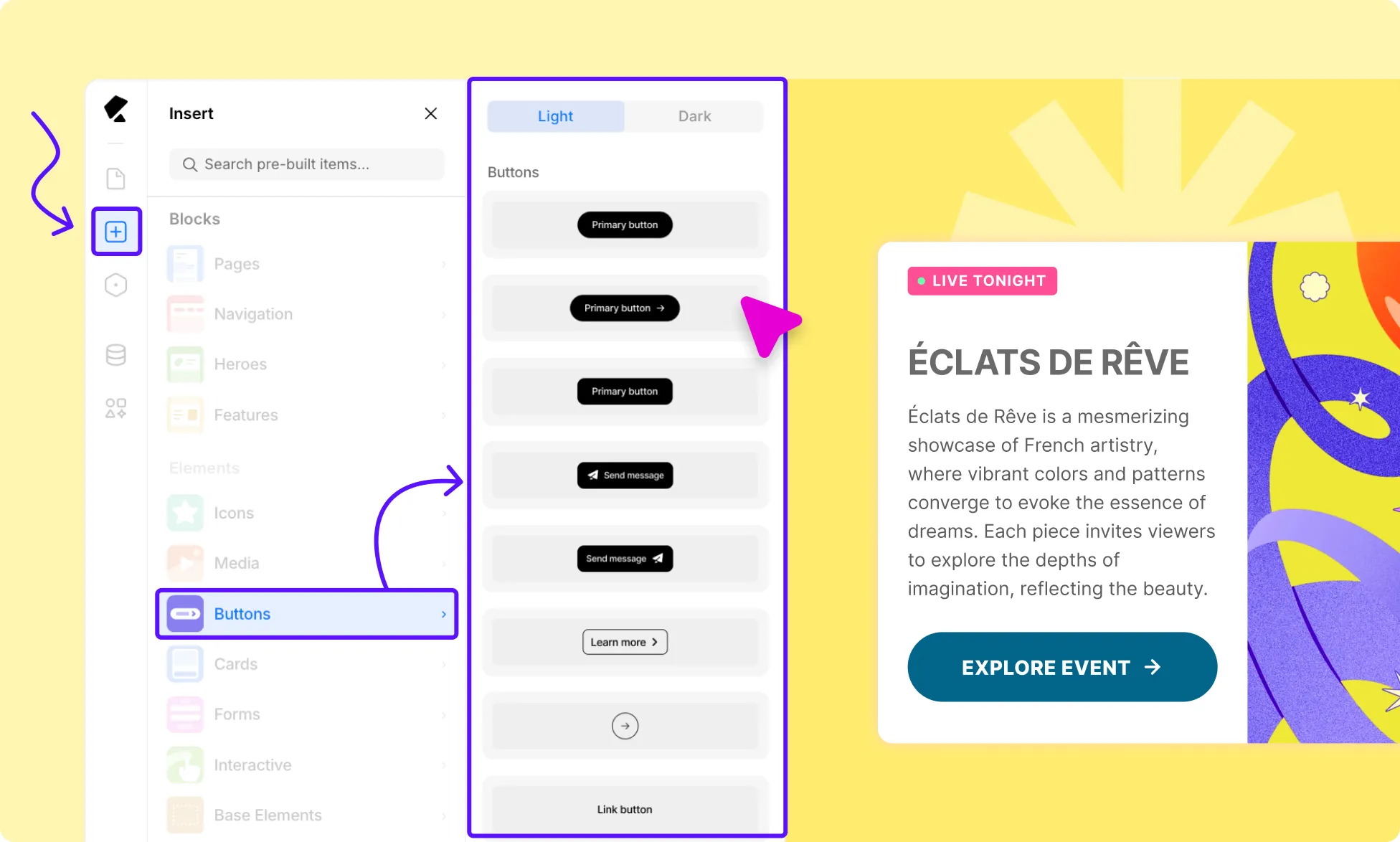
Kirki’s preset buttons are responsive across all breakpoints and come ready with interactive states to speed up your workflow right away.
- Open the Kirki editor and navigate to the Insert Panel from the left sidebar.
- Head over to the Elements → Buttons.
- Choose an option you like, then drag and drop it onto your editor.
From Base Elements
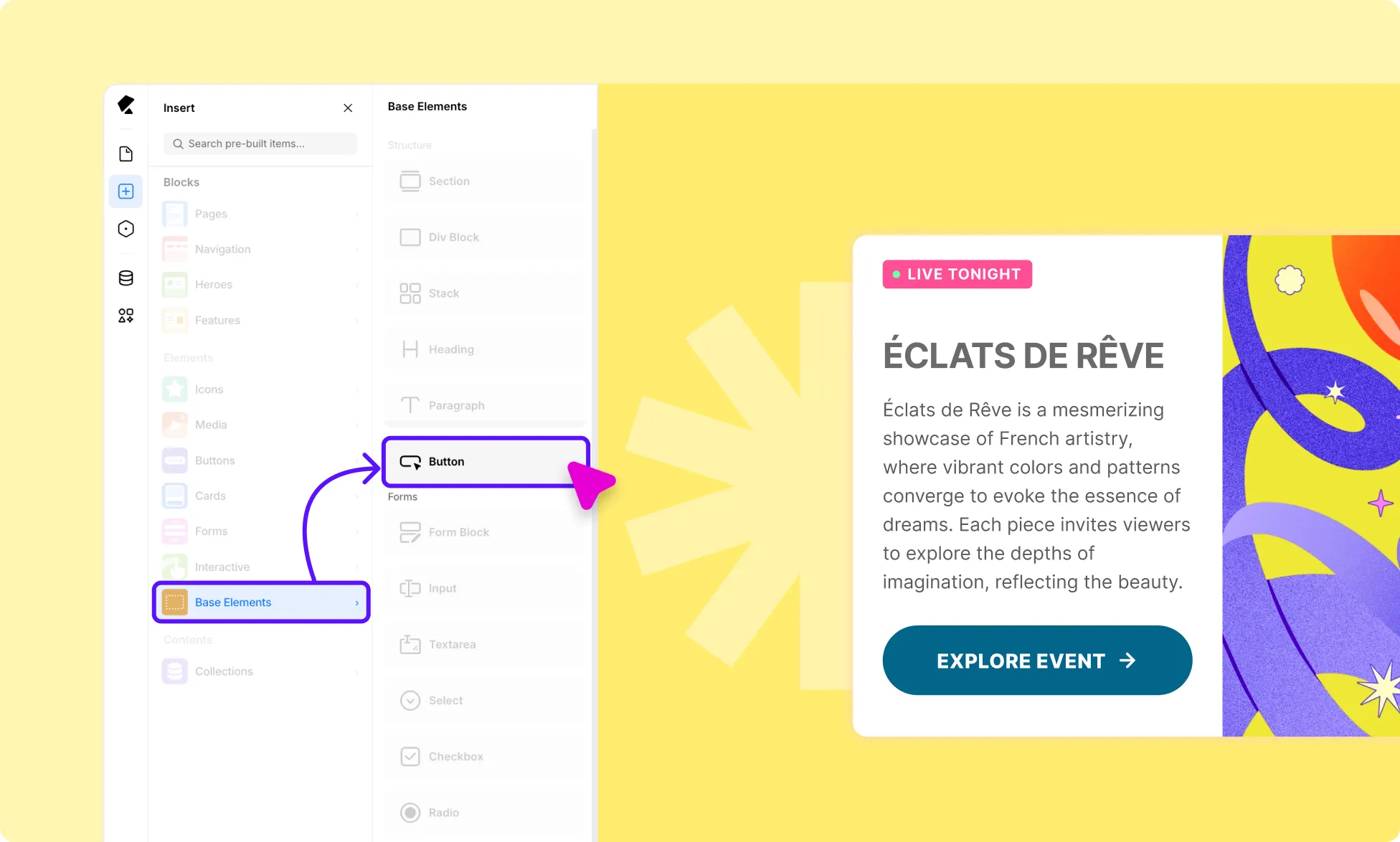
You can also add and fully customize buttons from scratch:
- Open the Kirki editor and navigate to the Insert Panel.
- Head over to the Elements block and find the Base Element.
- Locate the Button, then drag and drop it onto your editor.
Customize Buttons
If you want a button that matches your brand’s tone and style, Kirki gives you full control over colors, typography, states, and more.
Button Color, Border, Text, and More
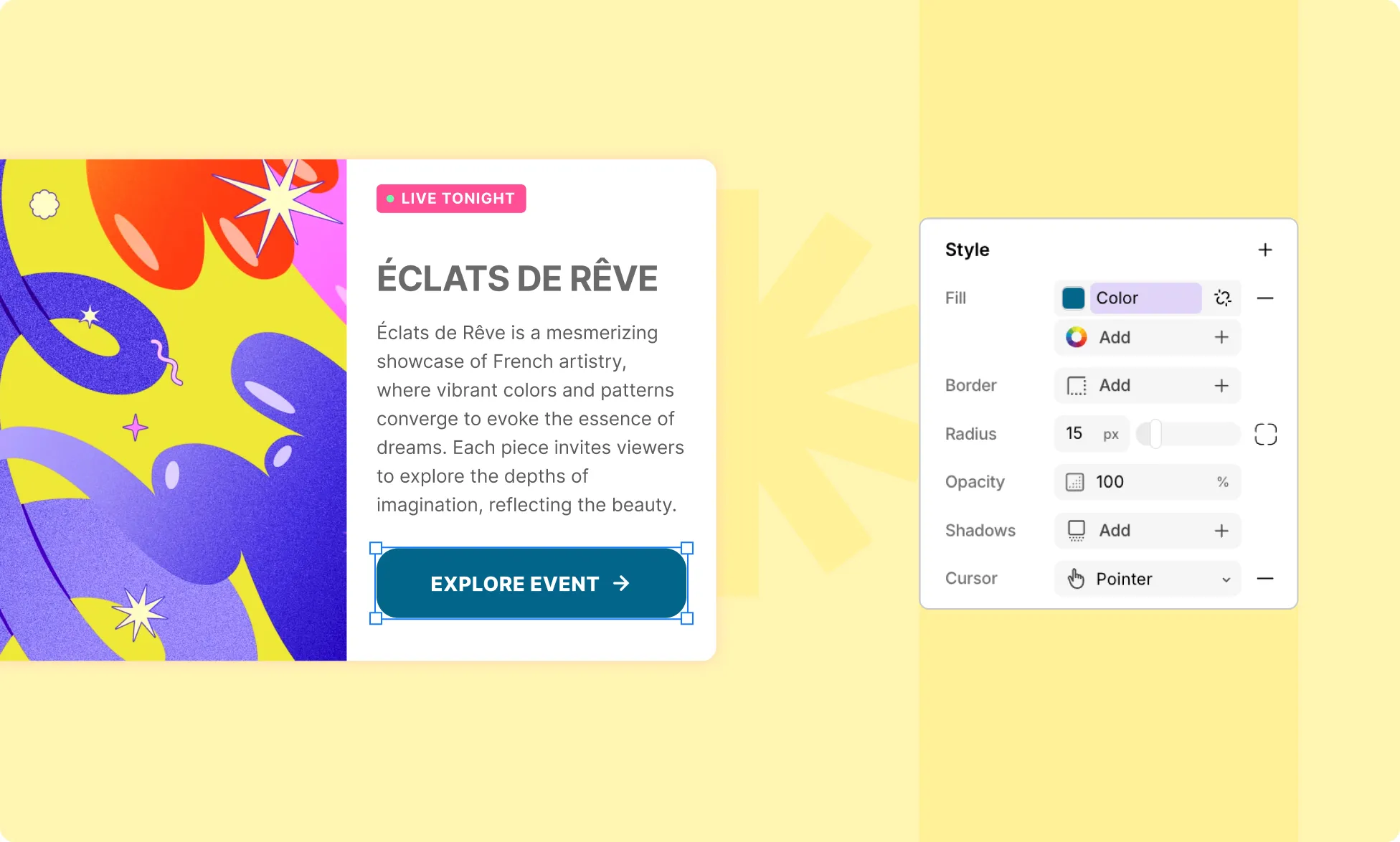
From the Style settings in the Right Panel, you can customize the button’s background color, border, border radius, shadows, and more.
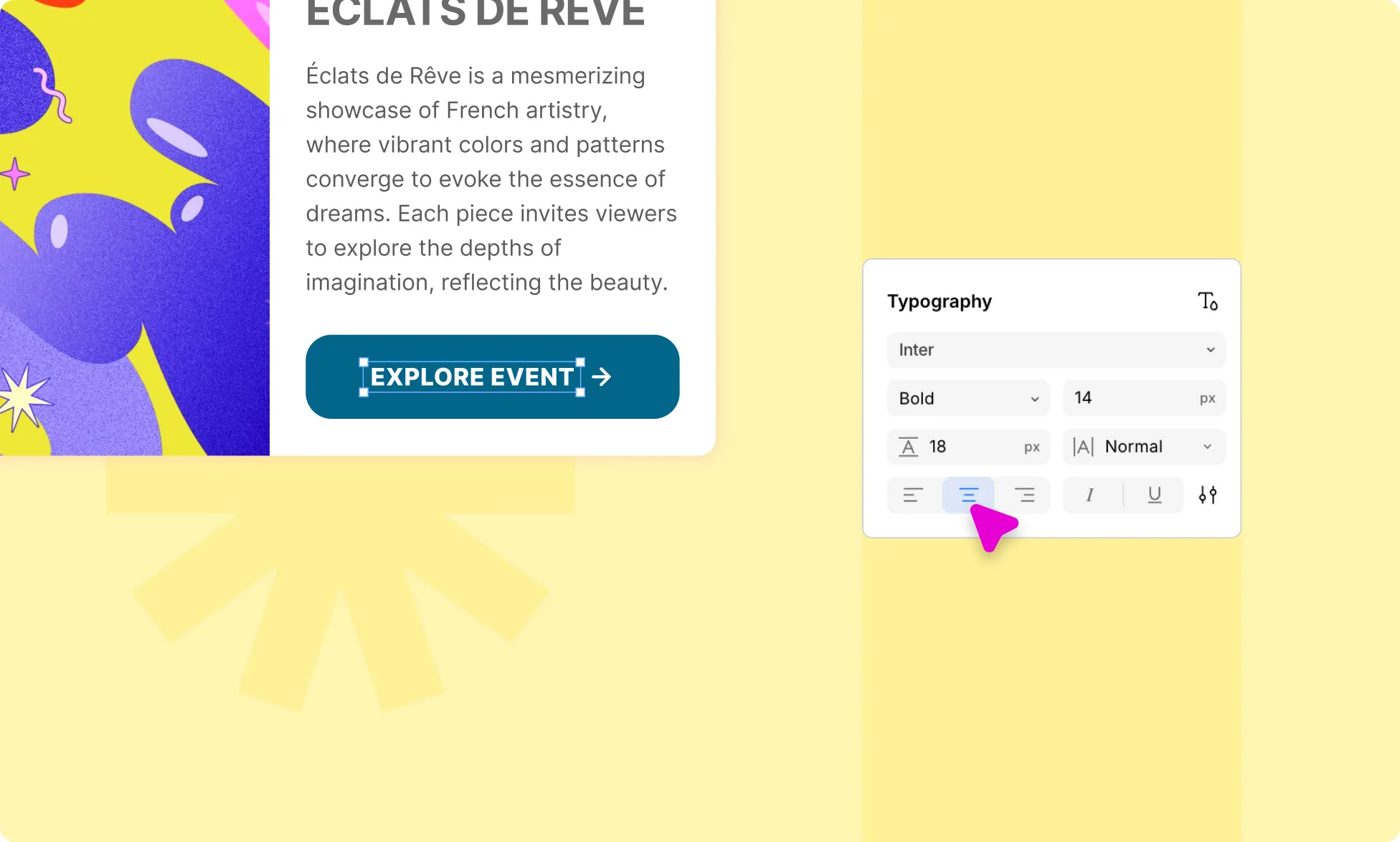
To edit the button text, double-click it or use the Right Panel – you can also style it from the Typography settings.
Learn more about Customizing Your Pages.
Button Link
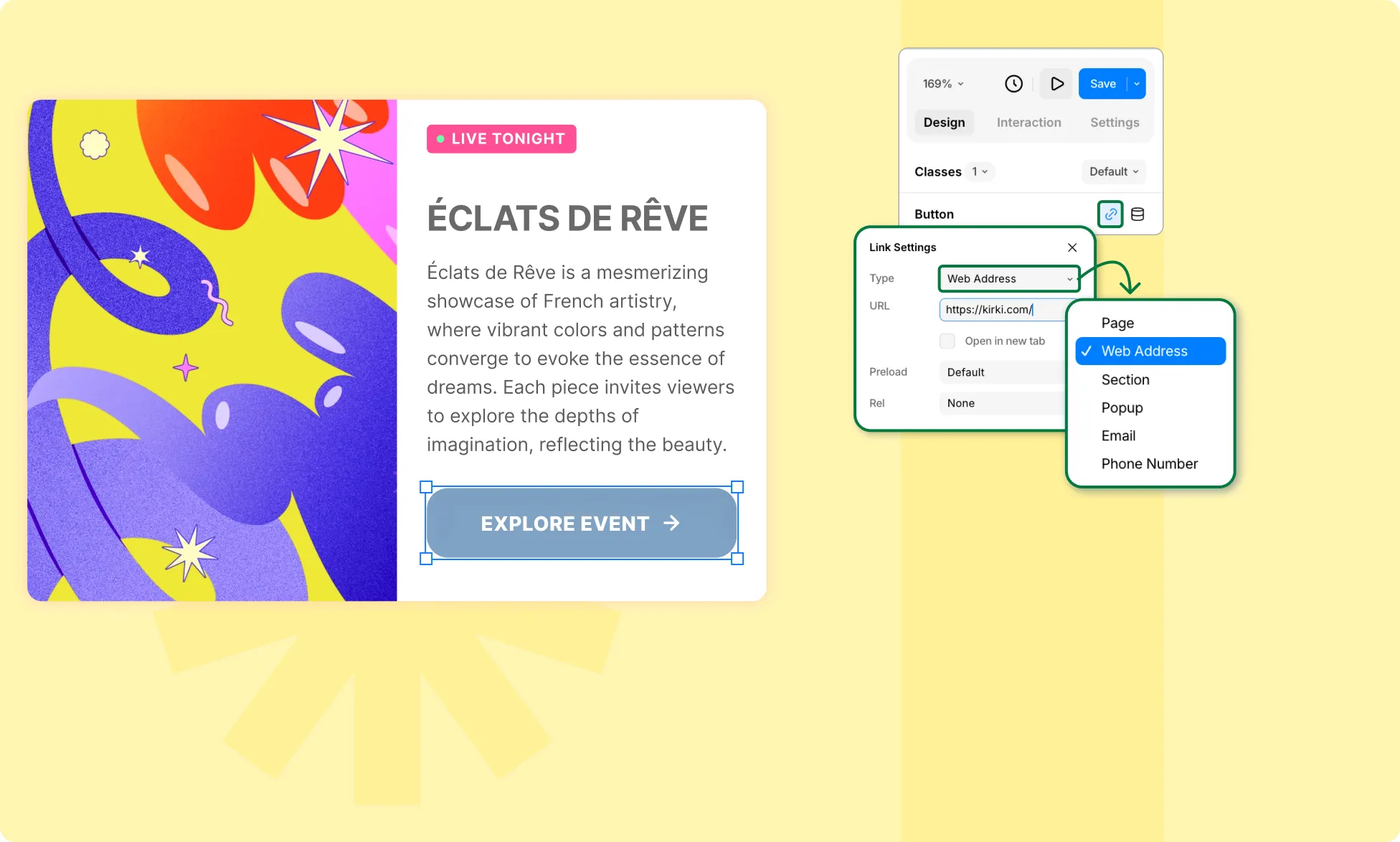
To link your button, select it and head over to the top section of the Right Panel, where you’ll find options to add a link and set the navigation destination.
Button States
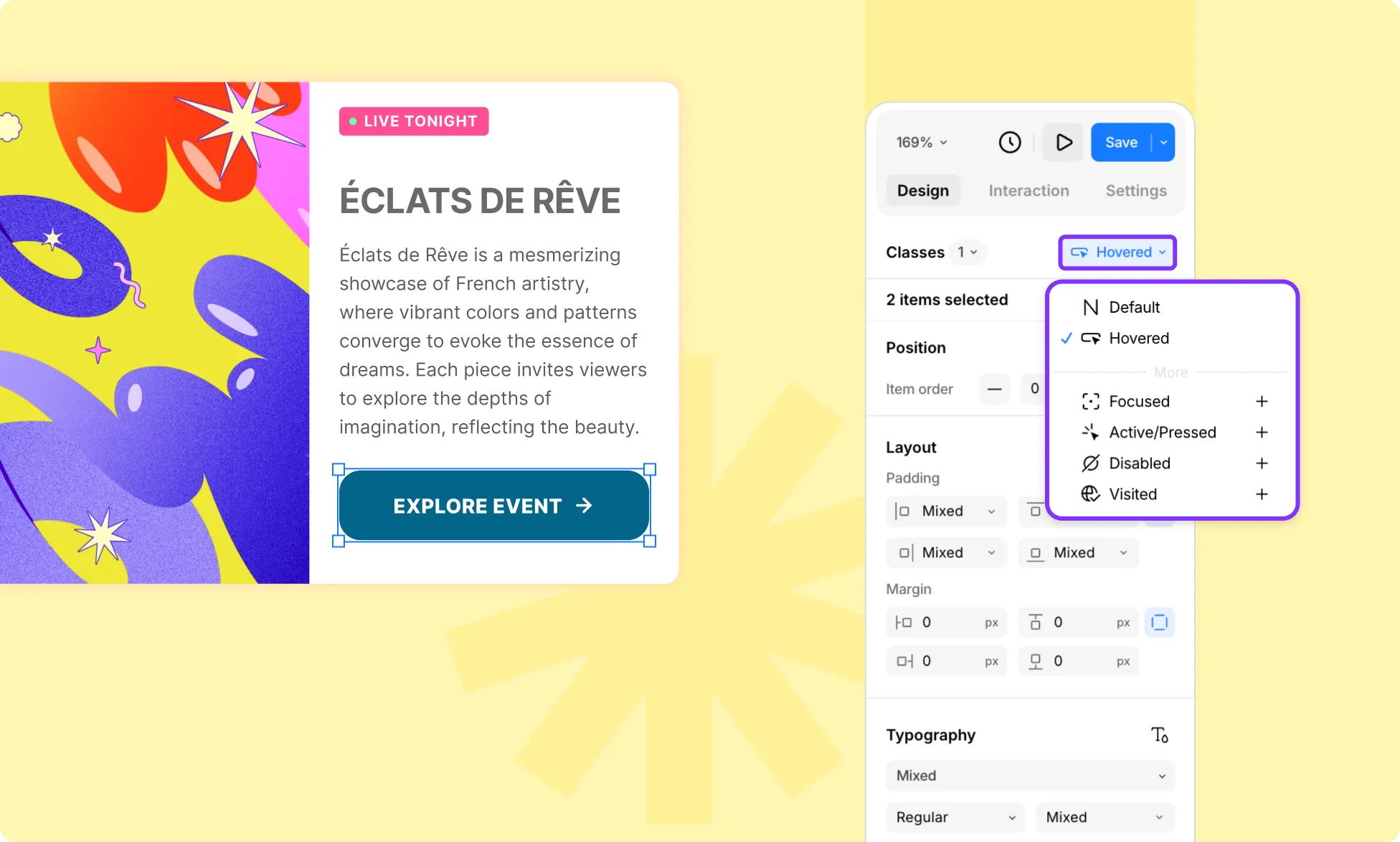
To define how your button behaves or appears during specific events – such as hover or mouse click – head to the top section of the Right Panel to configure the relevant states.
Create a Glass Button
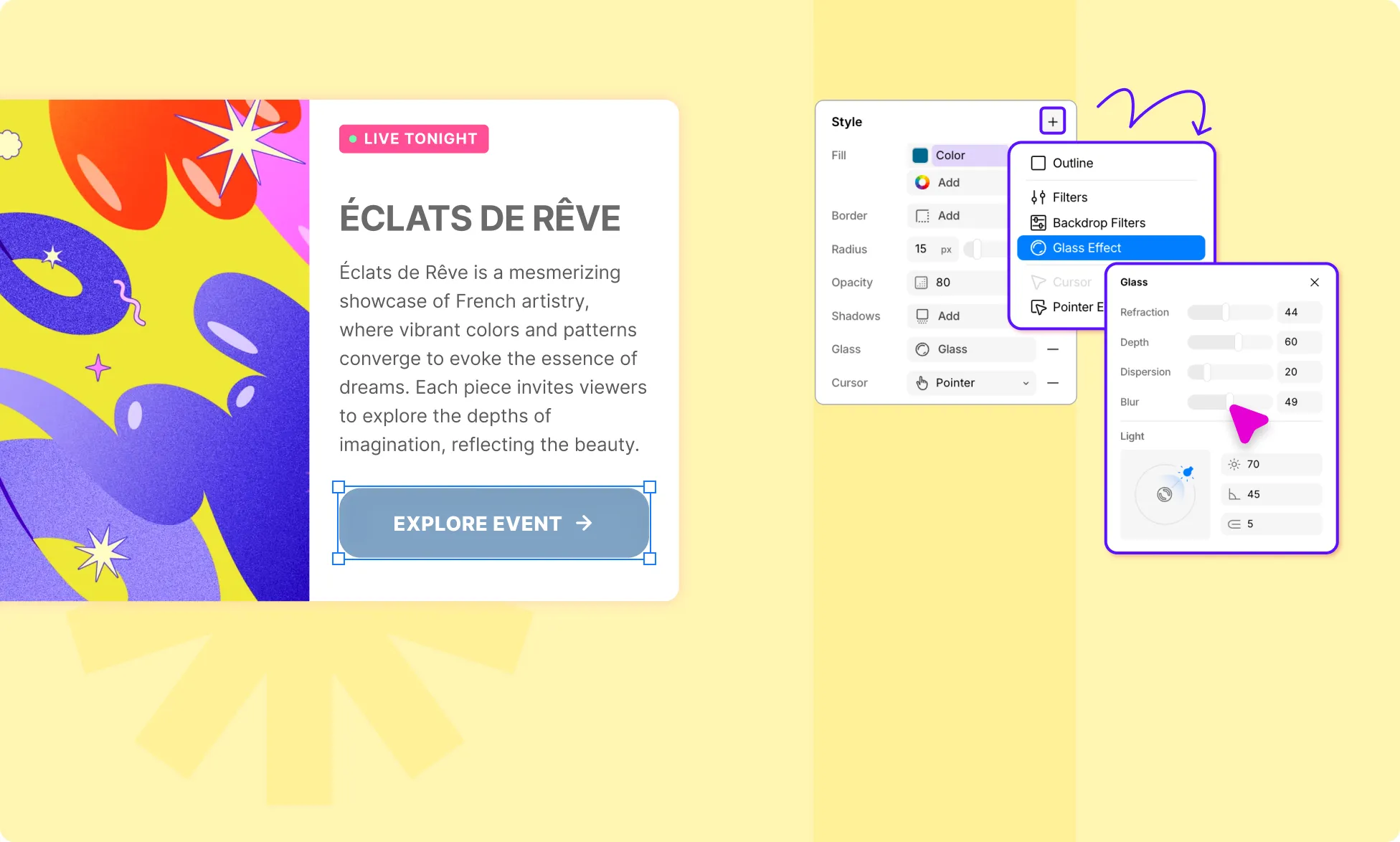
A visually inviting button can make all the difference in driving user action. To create a sleek glass button, follow these steps:
- Drop a button from the prebuilt components.
- Select the button and go to Right Panel → Design → Style → (+).
- From the effects, select Glass Effect.
- Fine-tune the options for a polished glass finish.
- Update the URL to set where the button navigates.
For further customization, you can also use Kirki’s custom attributes feature to control additional button properties.