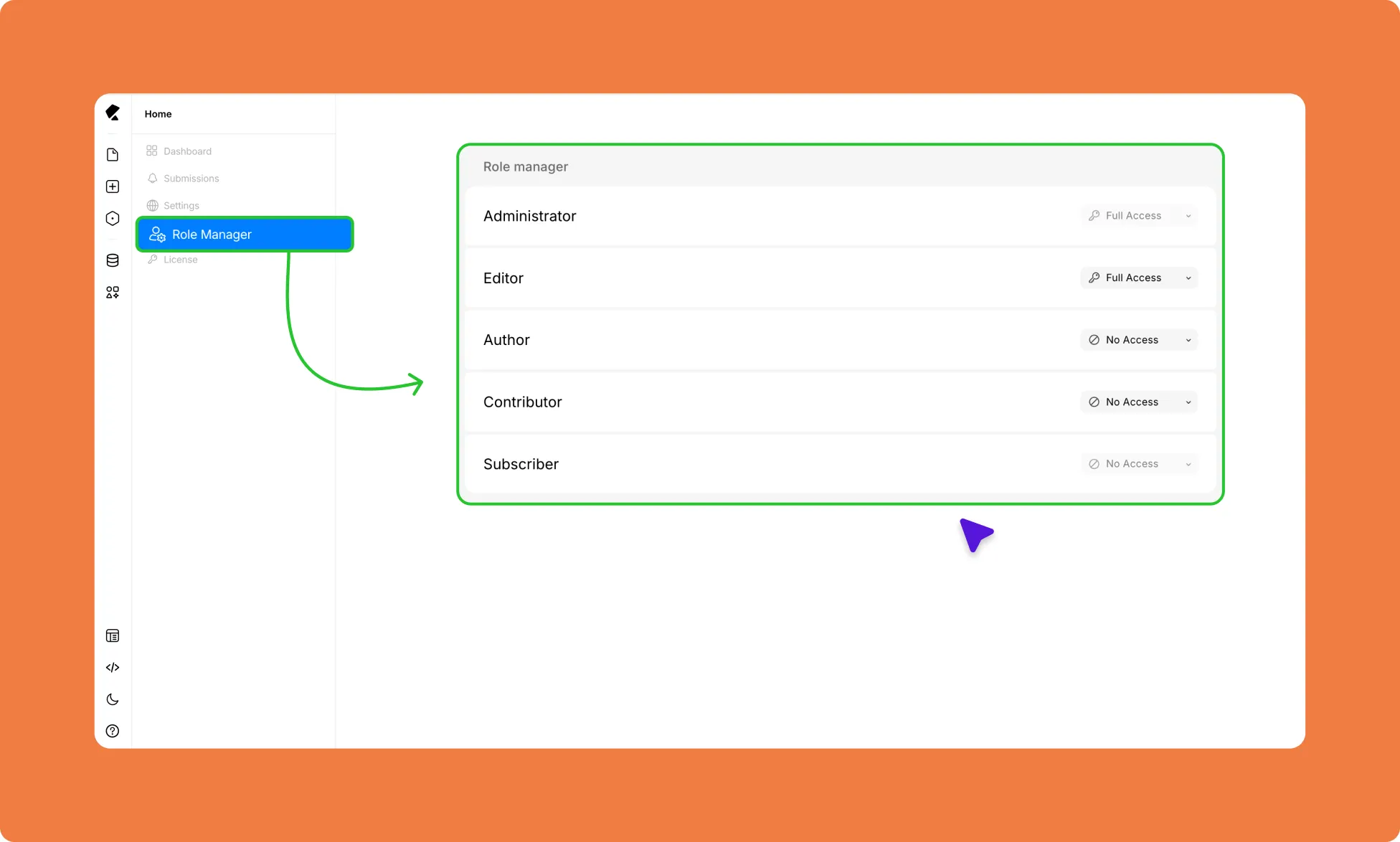
The Role Manager lets you control which WordPress user roles can use the Kirki editor and to what extent. Open it from the left sidebar of the Kirki Dashboard.
By default, Administrators and Editors have full permissions, while Authors, Contributors, and Subscribers are restricted entirely.
Access Levels
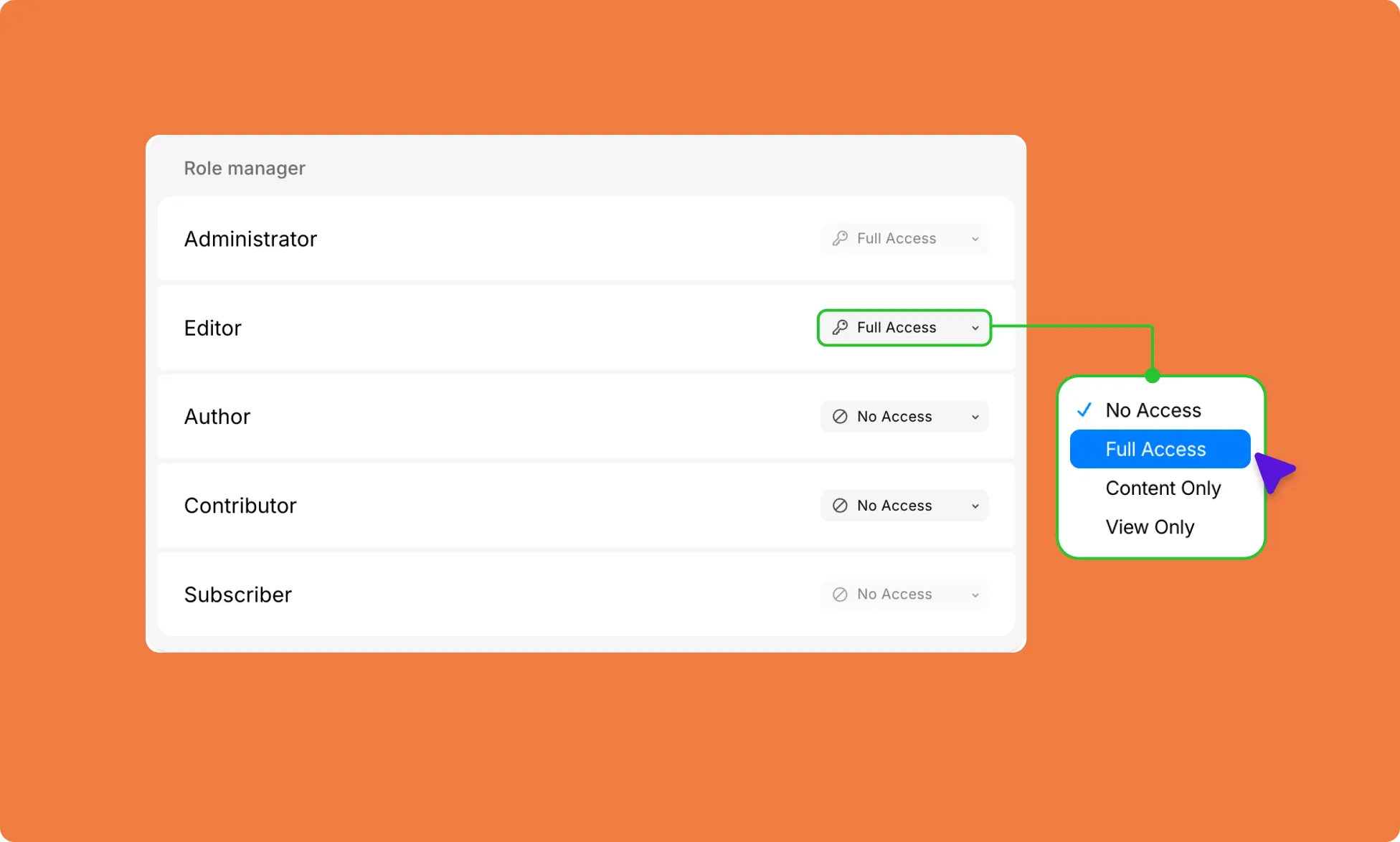
- No Access: Users with this level of access cannot use Kirki or its content.
- View Only: Users with this level of access can only view the site’s pages, but they cannot edit them.
- Content Only: Users with this level of access can only access and edit the content on the site.
- Full Access: Users with this level of access have complete access to all aspects of Kirki, including content.
User Roles
Kirki mirrors WordPress’s default user role structure:
- Administrator – Person with the highest level of access. Administrators can manage all aspects of the website, including adding and deleting users, installing and configuring plugins and themes, and creating and editing content. By default, they have full access to the Kirki editor.
- Editor – Can create and edit content, as well as publish content created by other users. You can manually adjust their access level in the Role Manager.
- Author – Can create and edit their own content, but cannot publish without approval from a higher-level user. You can manually adjust their access level in the Role Manager.
- Contributor – Can create and edit their own content but cannot publish without approval from a higher-level user. You can manually adjust their access level in the Role Manager.
- Subscriber – Has the lowest level of access and can only view content on the website. By default, they have no access to the Kirki editor.
Change a Role’s Access Level
- Go to Dashboard → Role Manager.
- Find the role you want to update.
- Click the dropdown next to the role.
- Select the desired access level.
- Save your changes.