The Layout panel in the Design tab controls how an element and its children are arranged on the canvas.
Select any element to see its current layout settings on the Right Panel under Layout, where the active display mode is highlighted in blue next to the Display label.
How to Set Display Modes
Using Display, define how an element and its children are laid out on the page. This maps directly to CSS Display and controls whether children stack, flow in a line, or snap to a grid.
In Kirki, you can work with the following display modes:
- Horizontal Flex
- Vertical Flex
- Grid
- Inline Flex
- Inline Block
- Inline
- Block
- None
The most commonly used modes, Horizontal Flex, Vertical Flex, and Grid, are accessible directly as icons in the Layout panel. Block, Inline Flex, Inline Block, Inline, and None are available via the ellipsis (···) icon on the right side of the display icon row.
Block
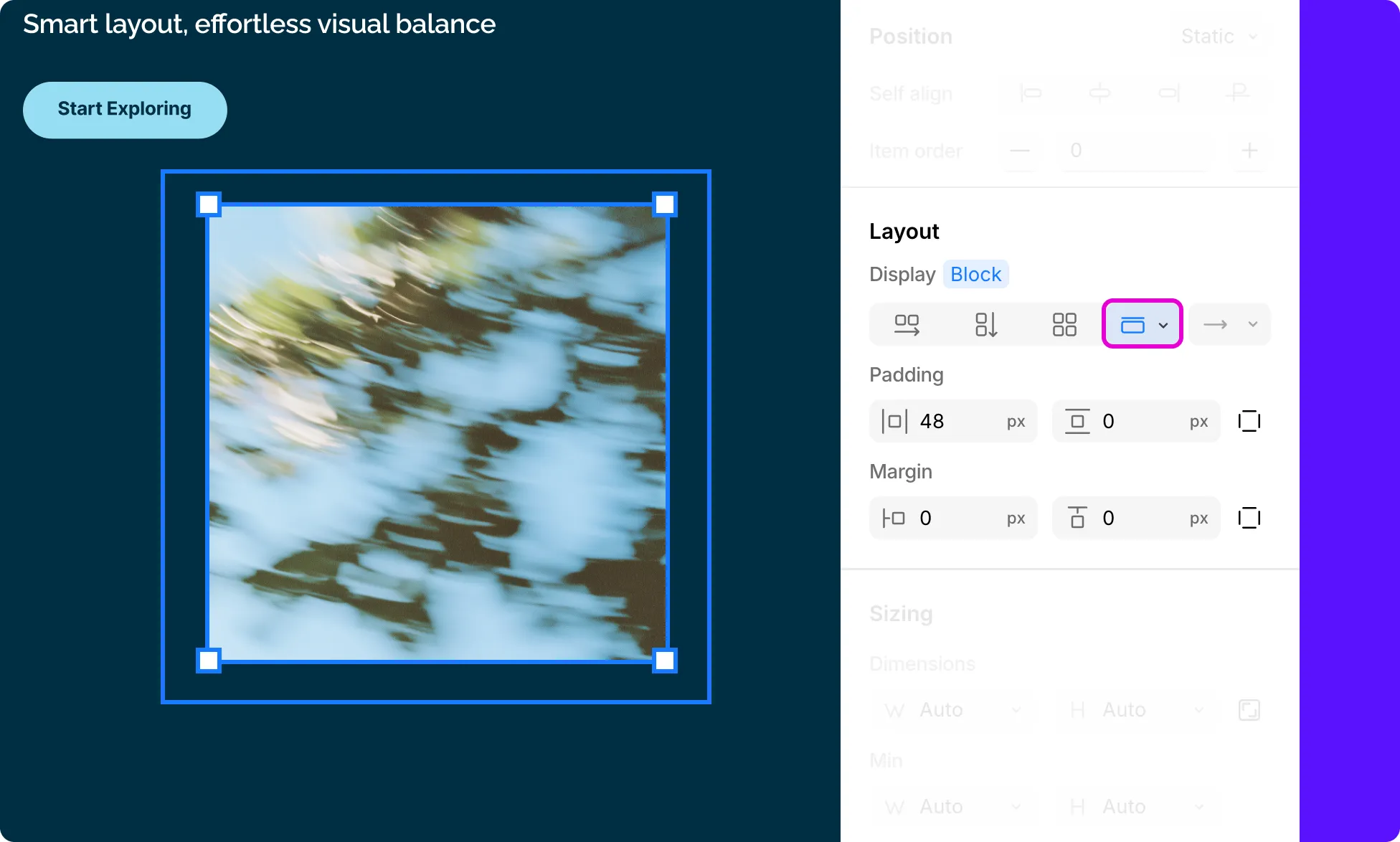
Block is the default display mode for most elements, like Div.
A block element always appears on a new line – underneath the element before it and above the element after it.
Unlike inline elements, you can explicitly set a specific width and height for block elements, and you have full control over padding, margin, and border on all four sides (top, bottom, left, and right).
Its width is determined by its content or whatever you set manually in the Sizing fields – it doesn’t automatically stretch to fill its parent’s full width, but you can set it to do so, like with Sections.
Use Block when you want an element to stand on its own line and have full control over its dimensions and spacing.
How to Set Element Layout to Block
- Select an element on the page.
- On the Right Panel, under Layout, click the ellipsis (…) icon next to the Display options.
- Select Block from the dropdown.
Inline
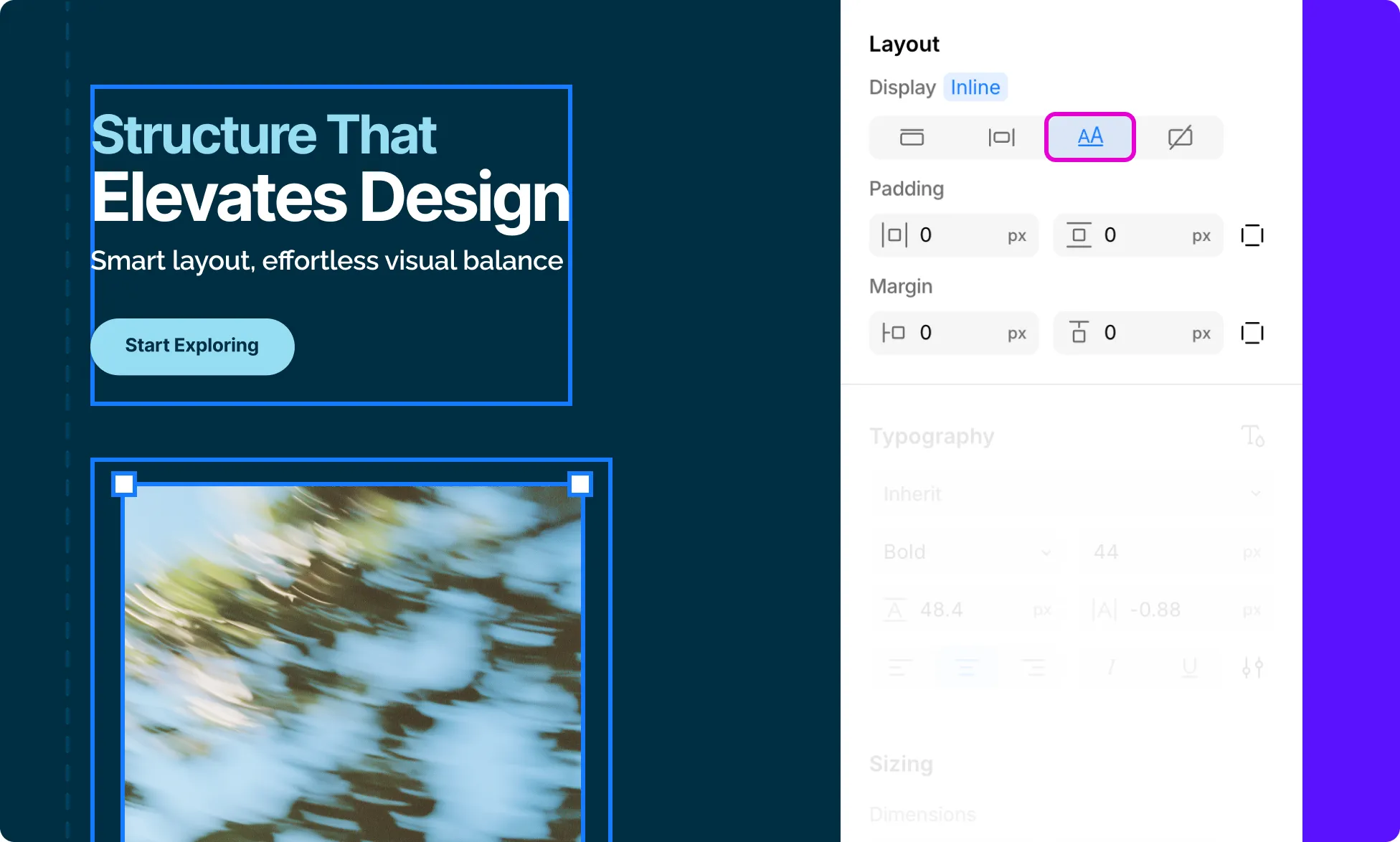
An inline element flows with surrounding text and does not break onto its own line – it sits beside other inline elements on the same line, only wrapping when it runs out of horizontal space.
Width and height cannot be set on inline elements, and top and bottom margin and padding have no effect.
Use Inline when you want an element to behave like a word or phrase within a line of text rather than as a standalone block.
How to Set Element Layout to Inline
- Select an element on the page.
- On the Right Panel, under Layout, click the ellipsis (…) icon next to the Display options.
- Select Inline from the dropdown.
Inline Block
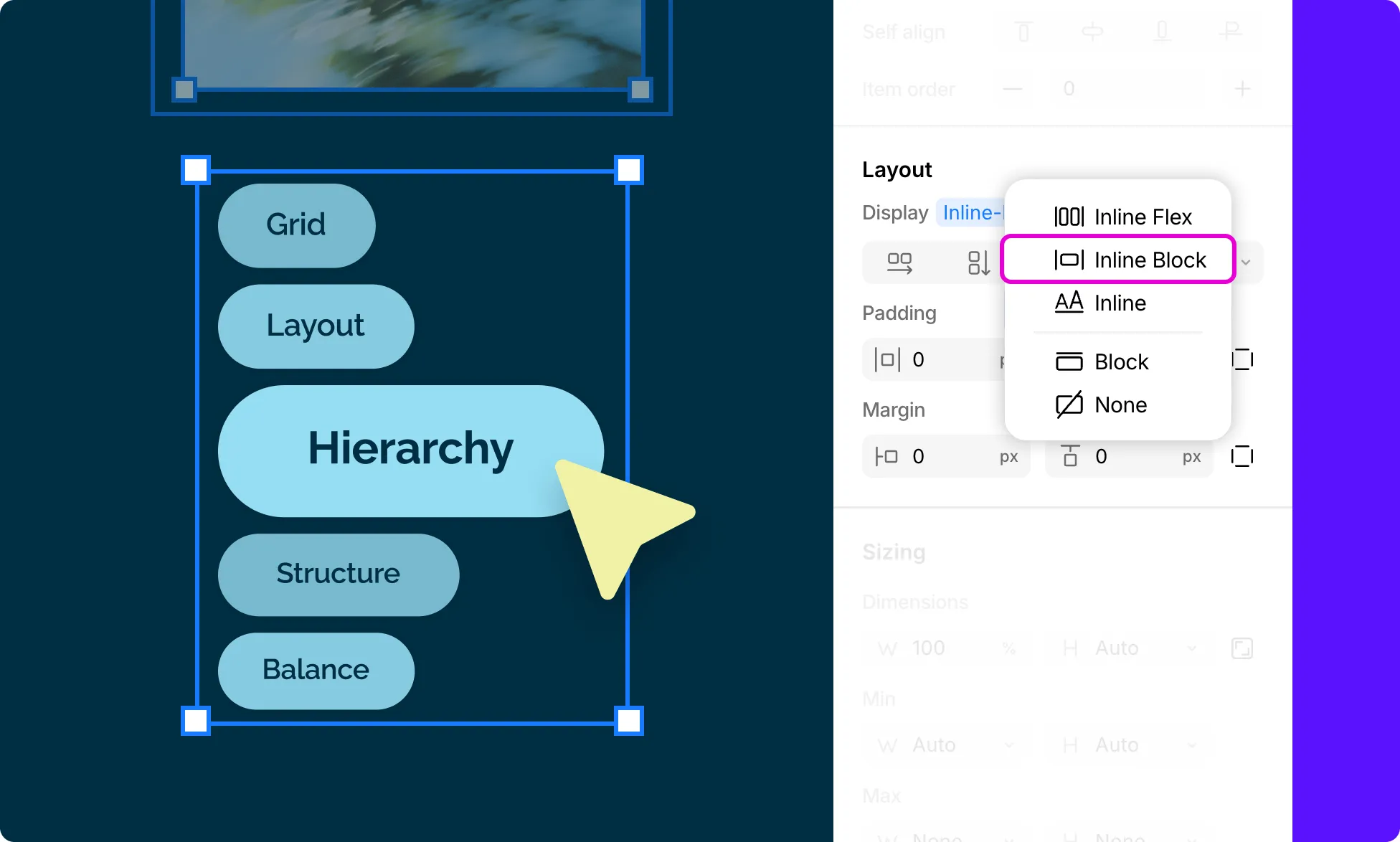
Inline Block is a middle ground between Block and Inline. Like an Inline element, it sits on the same line as surrounding content and does not force a line break.
But like a Block element, you can explicitly set its width and height, and padding, margin, and border work correctly on all four sides.
Use Inline Block when you need an element to flow inline with other content but still need precise control over its dimensions and spacing.
How to Set Element Layout to Inline Block
- Select an element on the page.
- On the Right Panel, under Layout, click the ellipsis (…) icon next to the Display options.
- Select Inline Block from the dropdown.
Flex
Flex arranges an element’s direct children in a single direction – either horizontally or vertically.
It also gives you precise control over how they align, space out, and wrap.
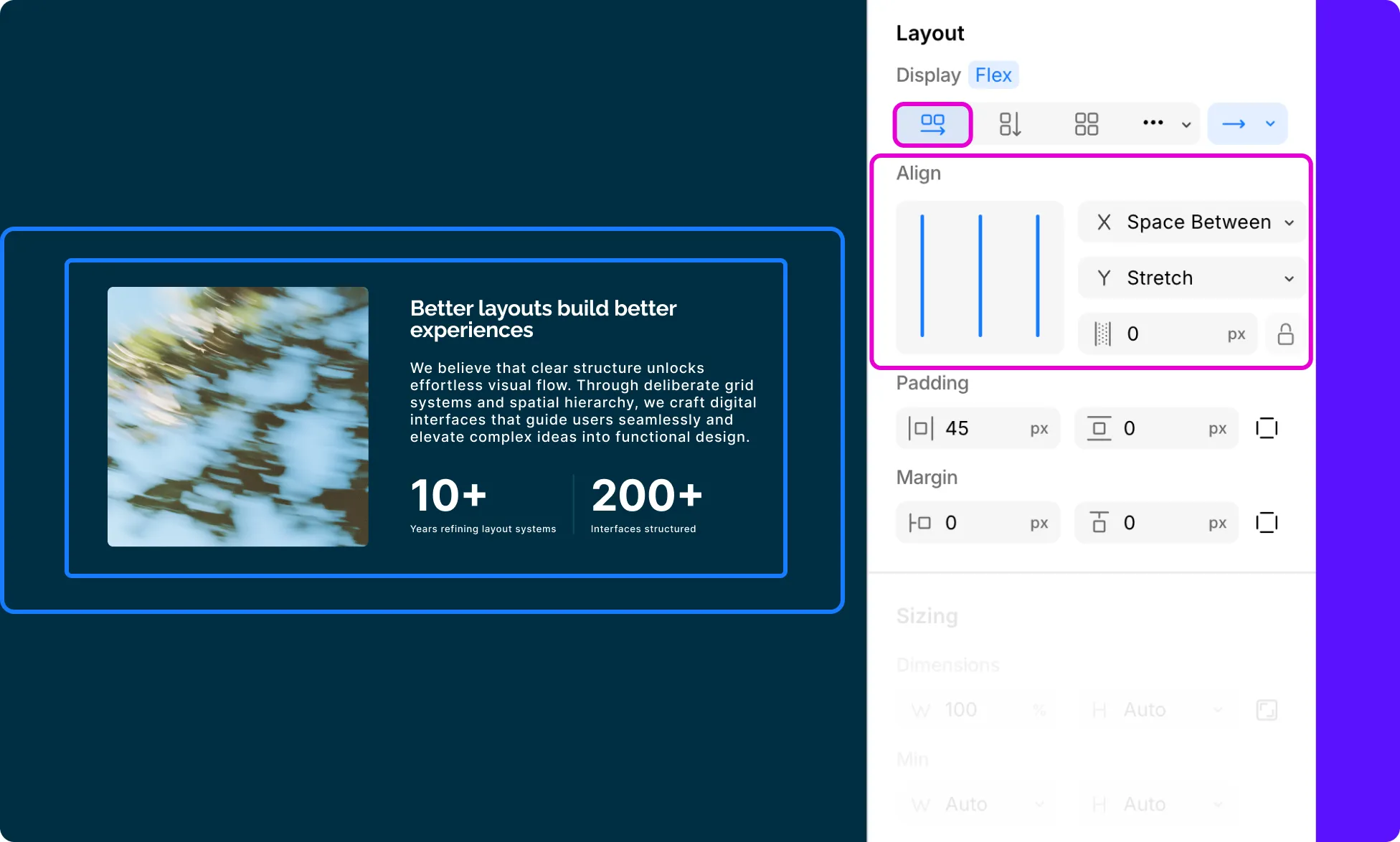
Horizontal Flex is the most commonly used layout mode for building side-by-side components, navigation bars, and hero sections.
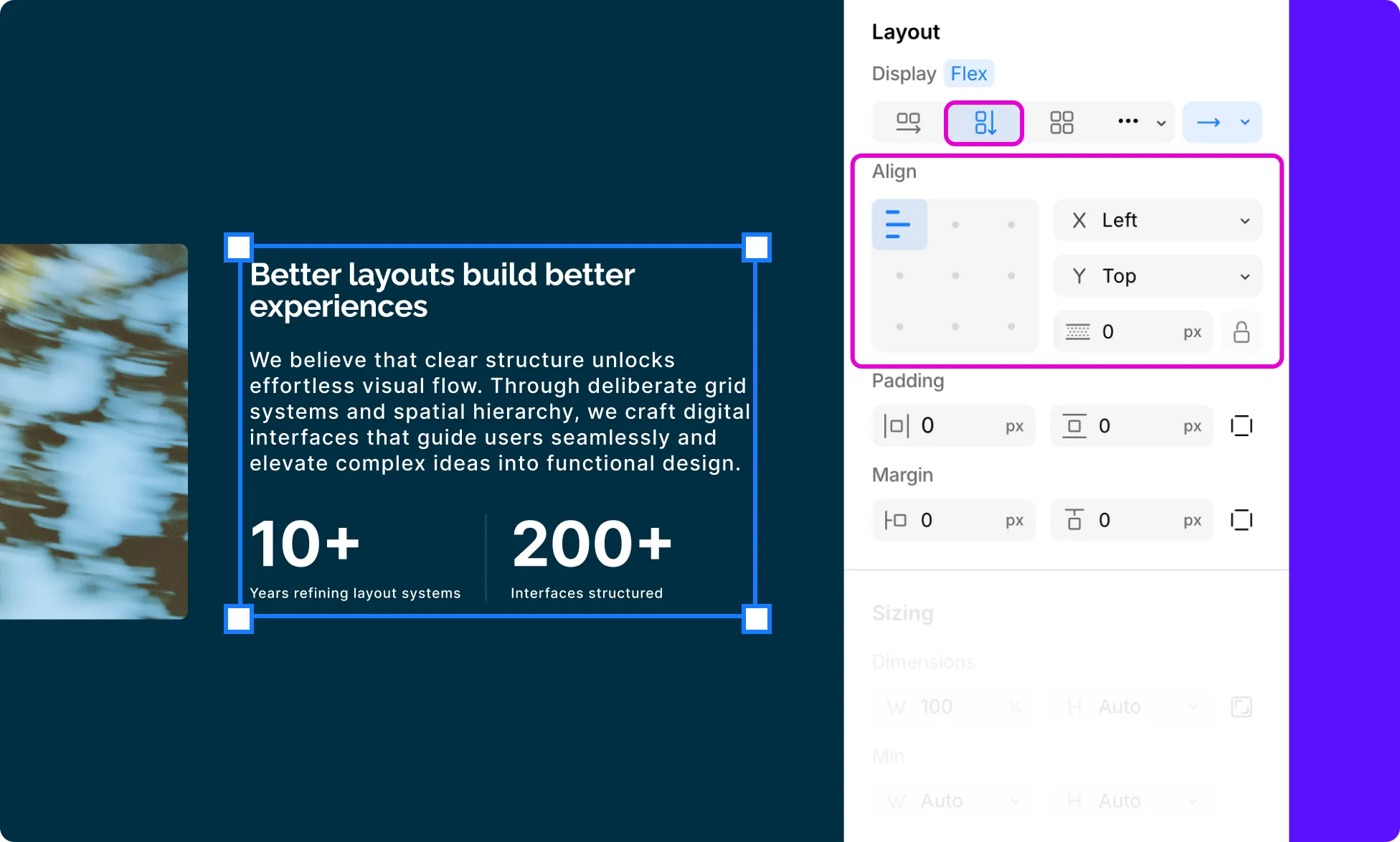
Vertical Flex is ideal for stacking content inside a container, like a card with an icon, a heading, and a paragraph arranged from top to bottom.
How to Set Element Layout to Flex
- Select an element on the page.
- Go to the Right Panel → Layout.
- Click the Horizontal or Vertical Flex icon in the Display options row.
Learn more about Flex.
Inline Flex
Inline Flex behaves exactly like Flex, with child elements arranged in a row or column, and all the same alignment and wrap controls, but the element itself flows inline with surrounding elements (unlike Flex, where elements behave like block elements)
Use Inline Flex when you need a flex container that sits within a line of text or alongside other inline content.
How to Set Element Layout to Inline Flex
- Select an element on the page.
- On the Right Panel, under Layout, click the ellipsis (…) icon next to the Display options.
- Select Inline Flex from the dropdown.
Grid
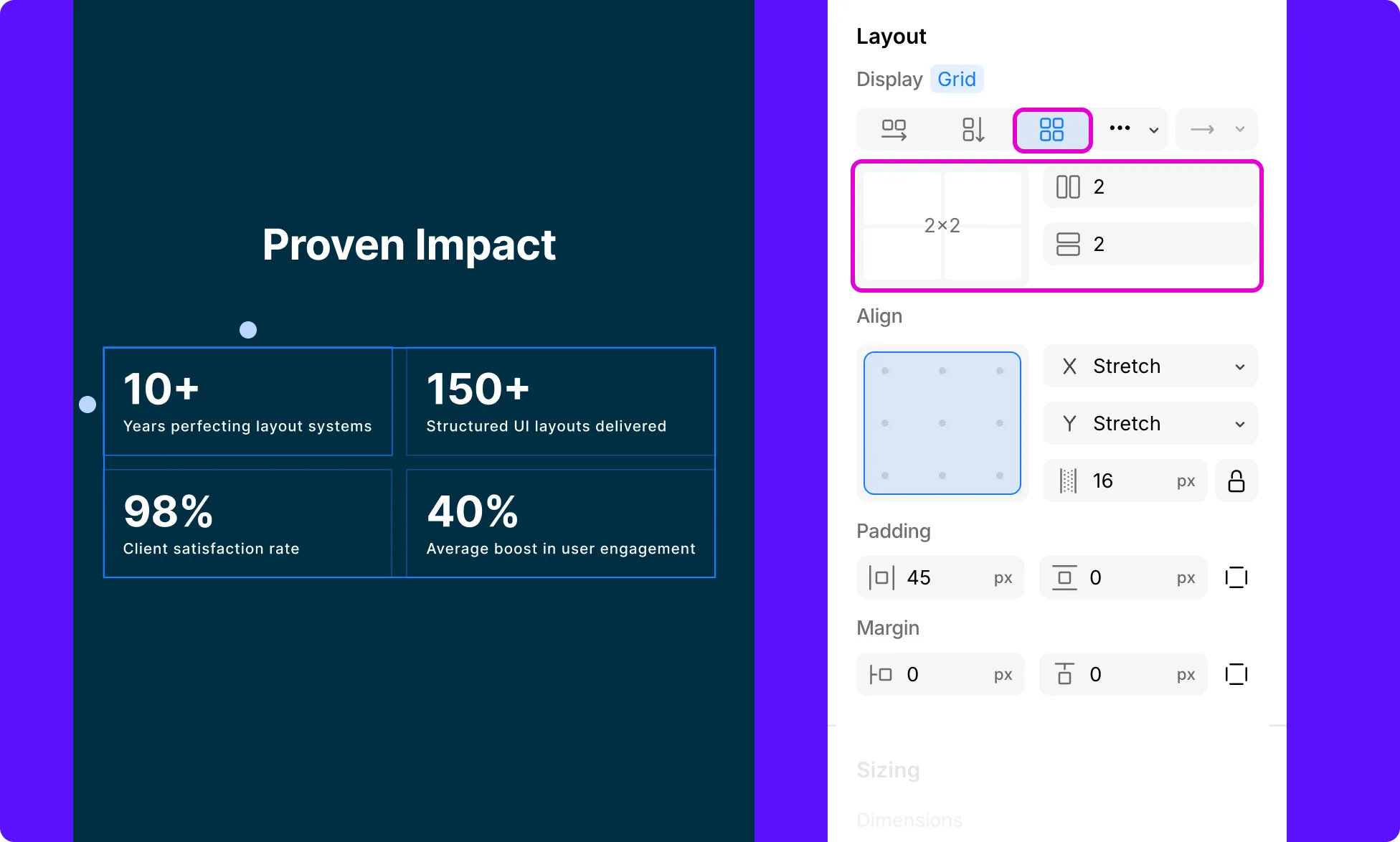
Grid arranges child elements into rows and columns simultaneously, giving you precise control over both axes at once.
Use Grid when you need items to align across both directions, like a 2×2 image gallery, a feature card layout, or any section where items need to snap to a defined structure.
How to Set Element Layout to Grid
- Select an element on the page.
- Go to the Right Panel → Layout.
- Click the Grid icon in the Display options row.
Learn more about Grid.
None
None removes the element completely from the layout. It becomes invisible and takes up no space on the canvas – unlike hiding an element visually, which still reserves its space.
Use None to temporarily remove an element from the page without deleting it, or to conditionally hide elements as part of an interaction or breakpoint.
How to Set Element Layout to None
- Select an element on the page.
- On the Right Panel, under Layout, click the ellipsis (…) icon next to the Display options.
- Select None from the dropdown.
Padding
Padding is the space between an element’s content and its own border. It pushes content inward and can be set independently on any side.
By default, the Padding fields show two inputs: One for horizontal (left and right) and one for vertical (top and bottom) padding.
To control each side individually, click the box icon next to the Padding label to expand all four sides: Top, Right, Bottom, and Left.
Keep in mind that padding can never be negative.
You can also adjust the padding directly on the canvas – hover over an element and drag the handles that appear inside its edges to visually increase or decrease it.
Margin
Margin is the space between an element’s outer edge and surrounding elements or the parent container’s edge. It pushes the element away from its neighbors.
By default, the Margin fields show two inputs: One for horizontal and one for vertical margin.
To control each side individually, click the box icon next to the Margin label to expand all four sides: Top, Right, Bottom, and Left.
Unlike Padding, Margin can be negative, useful for pulling elements closer together or creating deliberate overlaps.
You can also adjust the margin directly on the canvas – hover over an element and drag the red handles that appear outside its edges to visually increase or decrease it.