The Fill property lets you set the color or image applied to an element. For text elements, the fill is applied as the foreground (text) color. For all other elements, it is applied as the background color.
Set Element Fill
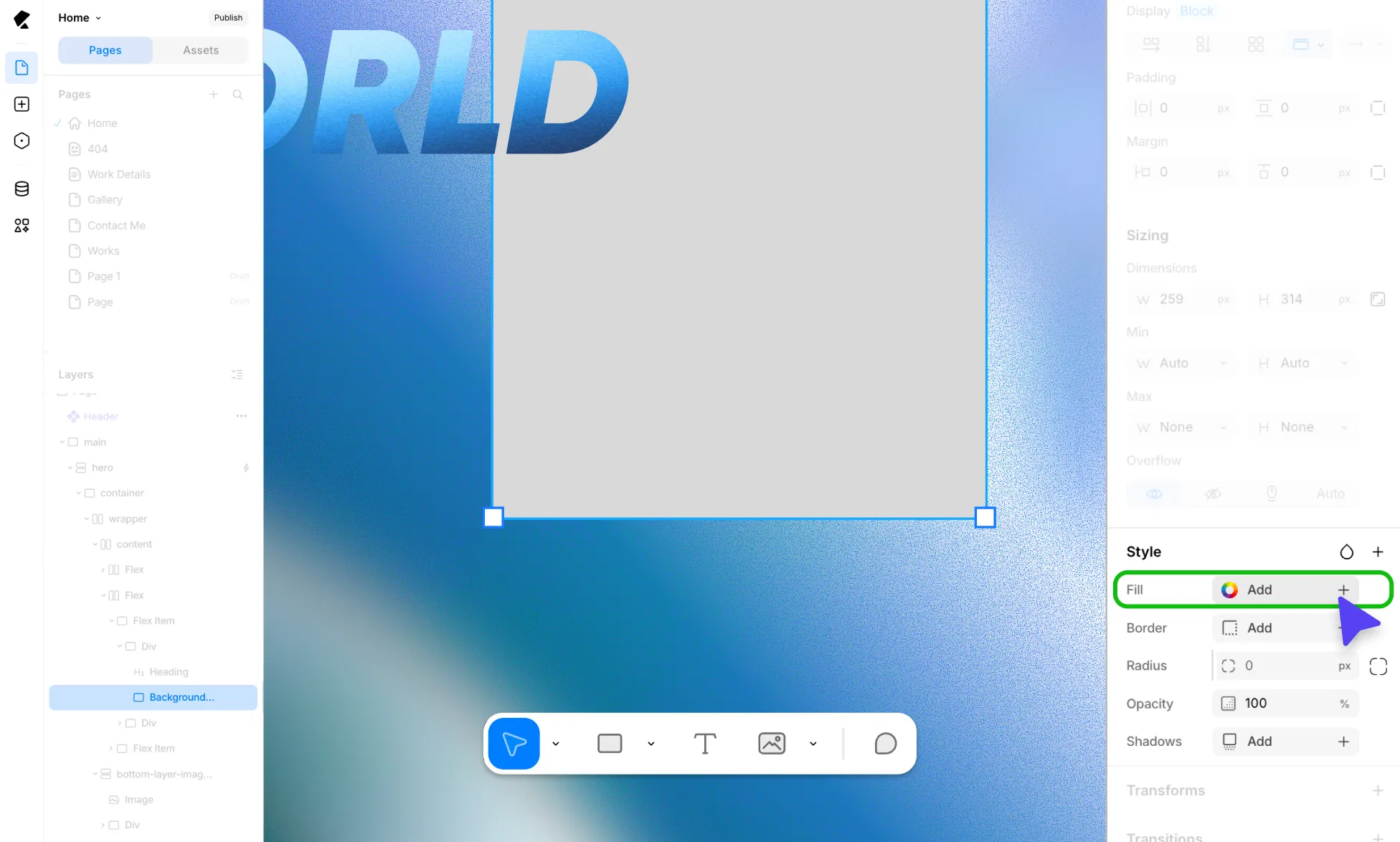
- Select an element on the page.
- Go to Right Panel > Style.
- Click Add + next to Fill to add a new fill layer, or click an existing one to edit it.
- In the Fill panel, select a fill type from the tabs at the top.
- Use the controls to set your color, gradient, or image.
You can stack multiple fills on a single element by clicking Add + again. To reorder fills, drag the handle icon next to each fill layer. You can play around with opacity and blend modes across stacked fills to produce a wide range of visual effects.
Fill Types
- Solid – A flat, single color fill.
- Linear Gradient – A gradient that transitions colors along a straight line.
- Radial Gradient – A gradient that radiates outward from a center point.
- Conic Gradient – A gradient that rotates around a center point.
- Image – Use an image as the fill.
Solid Fill
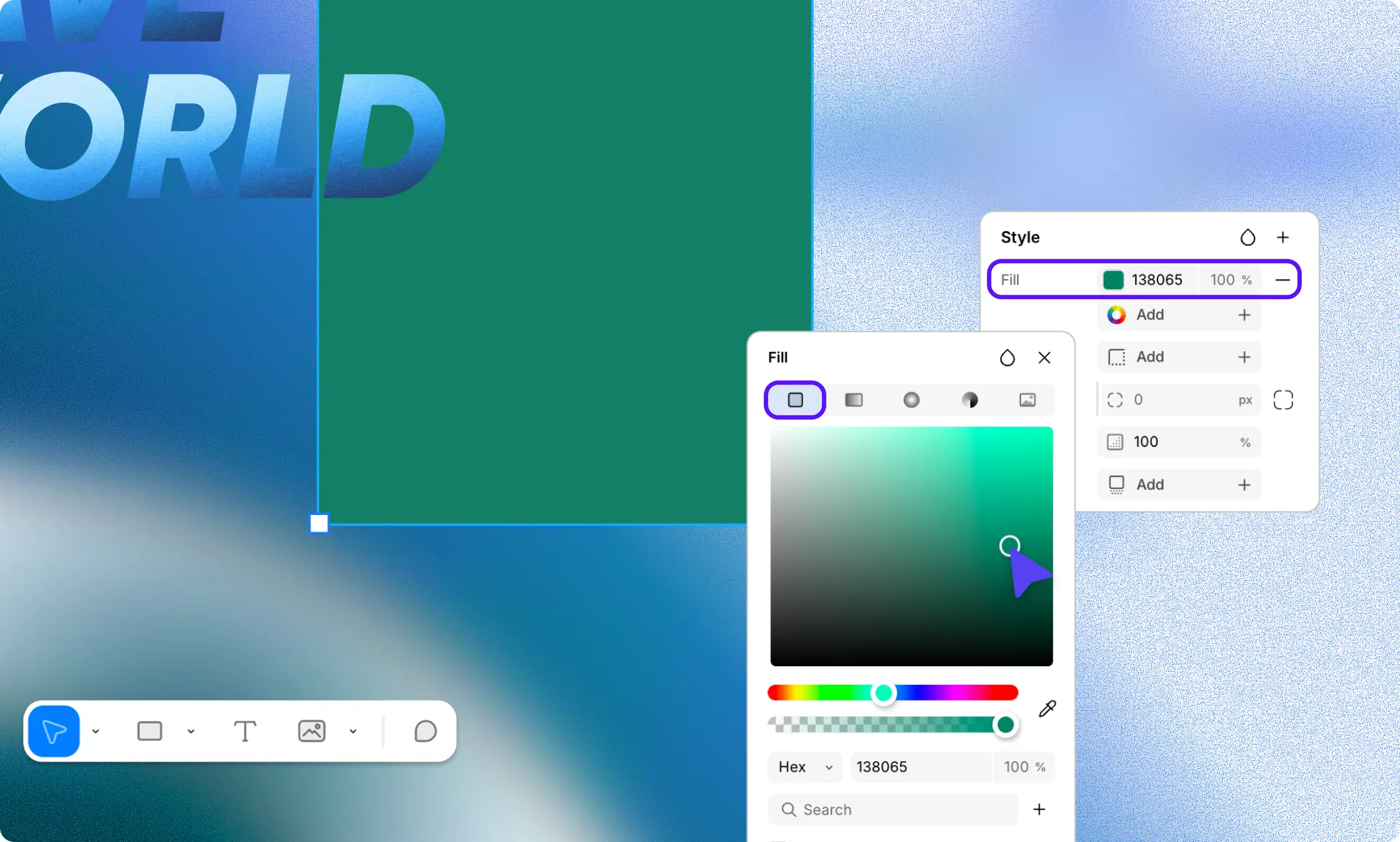
- In the Fill panel, select the Solid fill type.
- Click or drag on the Color Canvas to select a color visually.
- Drag the Hue Slider to shift the base hue.
- Drag the Opacity Slider to adjust the fill’s transparency.
- Alternatively, enter a color value manually using the Hex or RGB format fields.
Instead of fixed colors, you can also select a global Variable Color for consistent styling across your site. Learn more about Variables.
Gradient
Gradients let you blend two or more colors across an element. Kirki supports three gradient types: Linear, Radial, and Conic.
Each has its own configuration but shares a common set of controls for managing color stops and handles on the canvas.
Gradient Bar
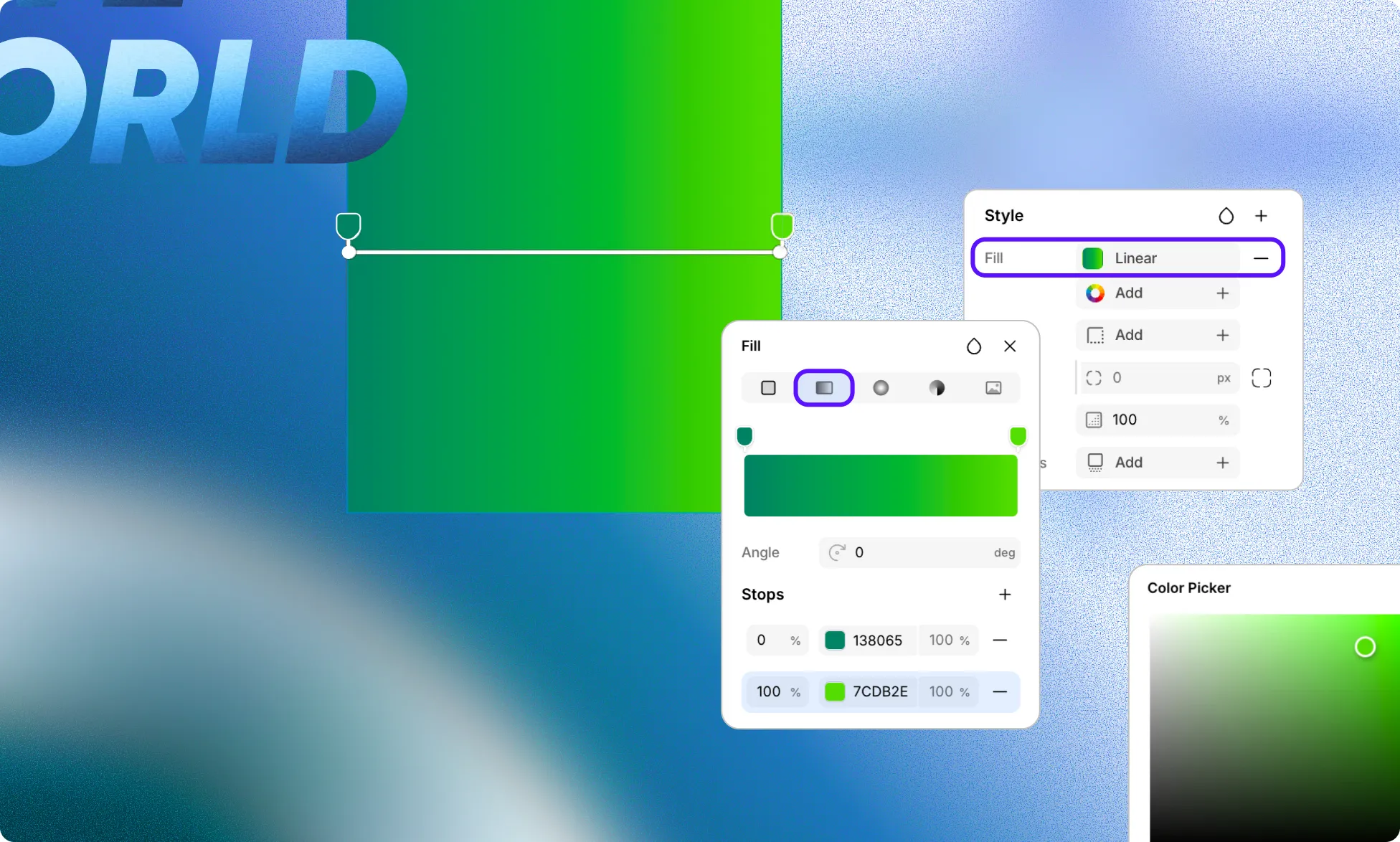
The gradient bar is the line visible on the element on the canvas. It shows the position of each color stop along the gradient. Click anywhere on it to add a new stop.
Color Stops
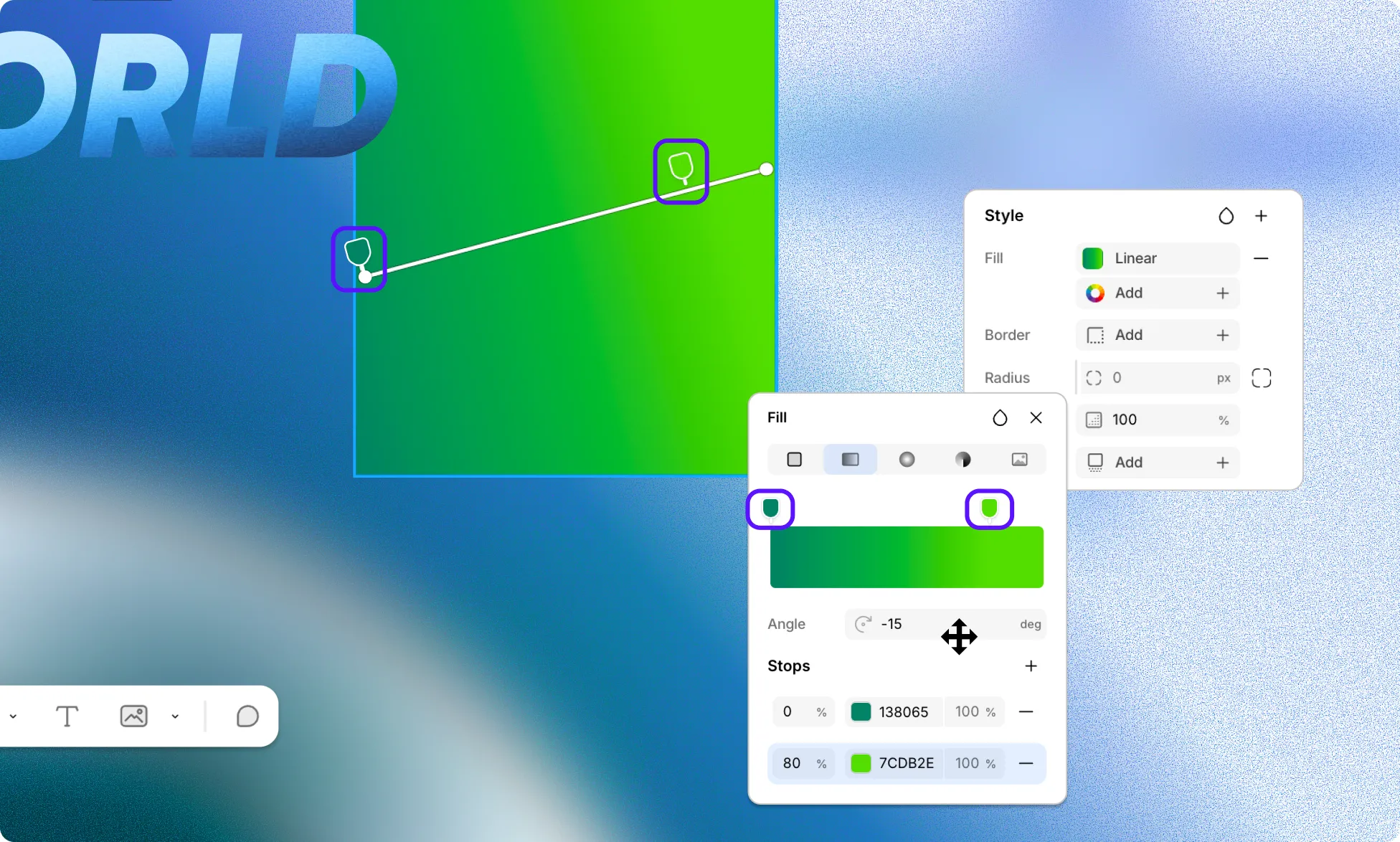
Color stops define the colors along the gradient. Each stop has:
- Position – Where the stop sits along the gradient, in % for Linear and Radial, or degrees for Conic.
- Color – The color of the stop.
- Opacity – The transparency of the stop.
To add a stop, click on the gradient bar on the element, click on the gradient preview in the Fill panel, or click the + icon next to the Stops heading.
To remove a stop, click the minus (–) icon next to it.
Center Point (Radial and Conic only)
The center point is the central dot visible on the element on the canvas. Drag it to reposition the origin of the gradient.
Endpoints
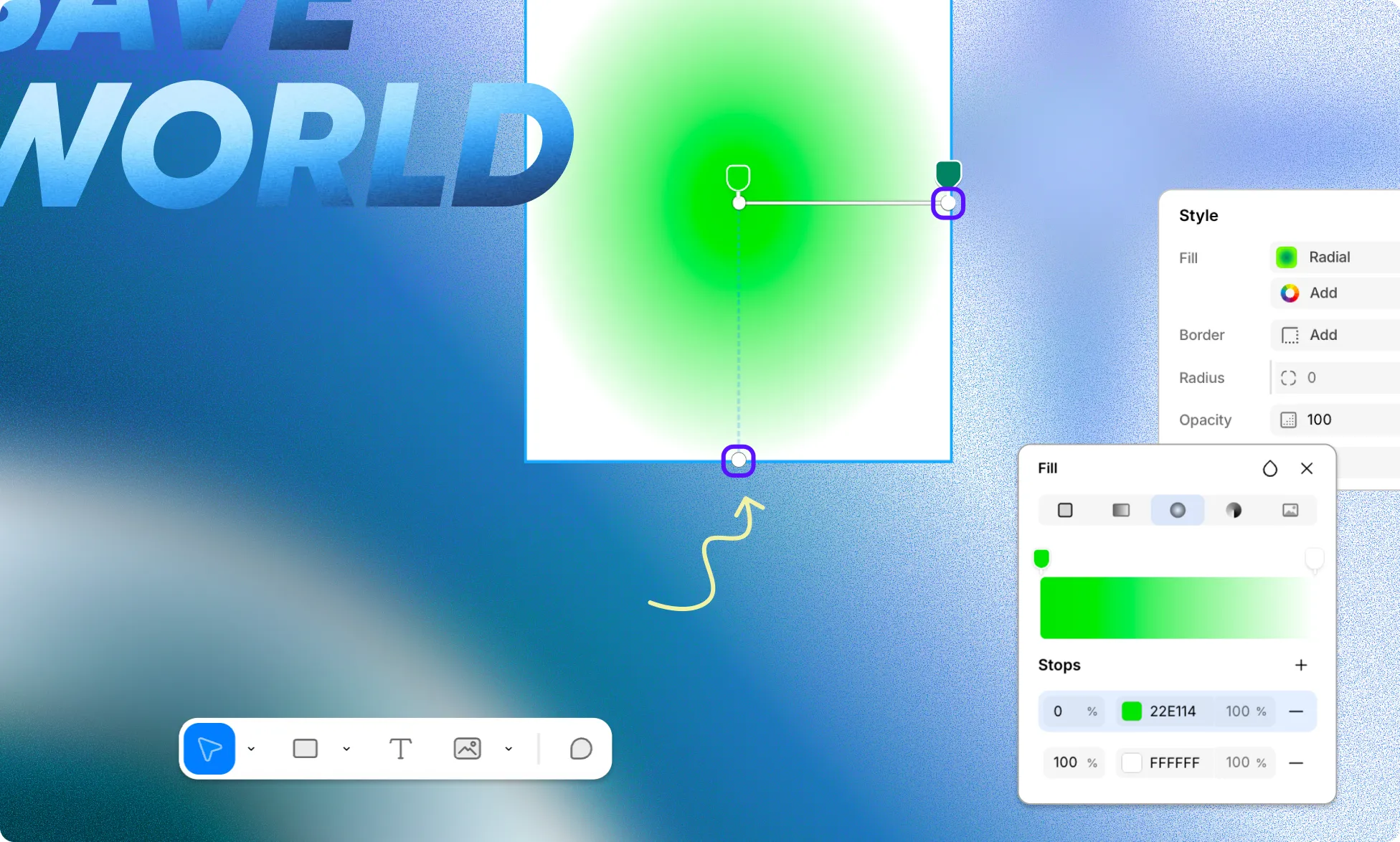
Endpoints are the dots at the outer edge of the gradient on the canvas.
- Linear – Drag either endpoint to change the angle of the gradient.
- Radial – Drag the side endpoint right to stretch the center of the gradient horizontally, or the bottom endpoint down to stretch it vertically, turning it into an ellipse. Drag left or up to decrease the spread.
- Conic – Drag the endpoint around the center point to change the angle of the gradient.
Linear Gradient Fill
- In the Fill panel, select the Linear Gradient fill type.
- Set the Angle in degrees to specify the gradient direction. You can also drag the endpoints on the element to set the angle.
- To add a Color Stop, click on the gradient bar directly on the element, the gradient preview in the Fill panel, or the plus (+) icon next to the Stops heading.
- For each stop, set its Position, Color, and Opacity. You can also drag the color stops on the element or in the gradient preview to set their positions.
- To edit a color stop, click its color value from the Color Stops list to reopen the Fill panel.
Radial Gradient Fill
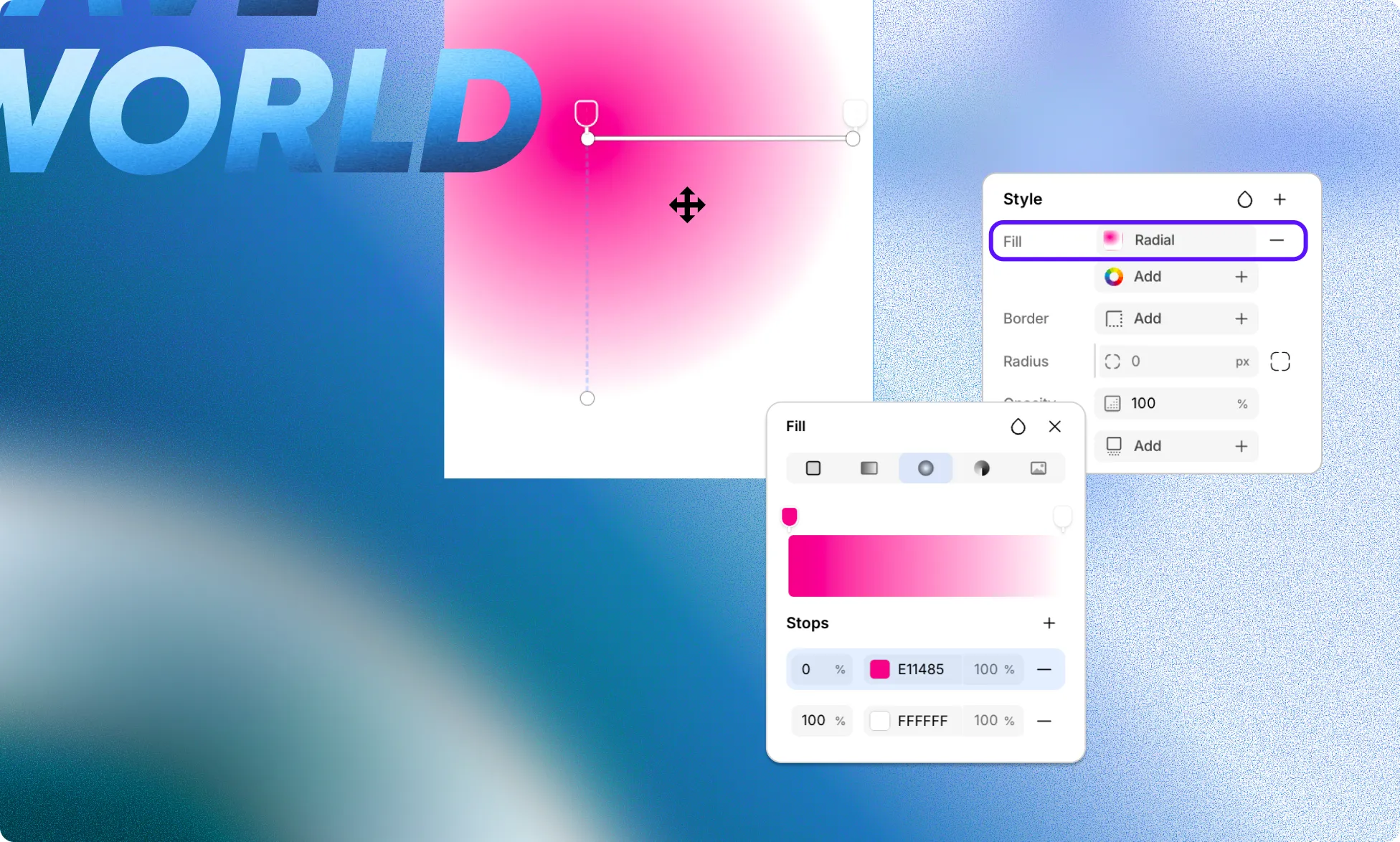
- In the Fill panel, select the Radial Gradient fill type.
- To add a Color Stop, click on the gradient bar on the element, the gradient preview in the Fill panel, or the plus (+) icon next to the Stops heading.
- For each stop, set its Position, Color, and Opacity.
- Optionally, you can reposition the radial gradient’s origin by dragging the Center Point (central dot) on the element.
- You can also drag the Endpoints on the element to increase or decrease the central spread horizontally and vertically.
Conic Gradient Fill
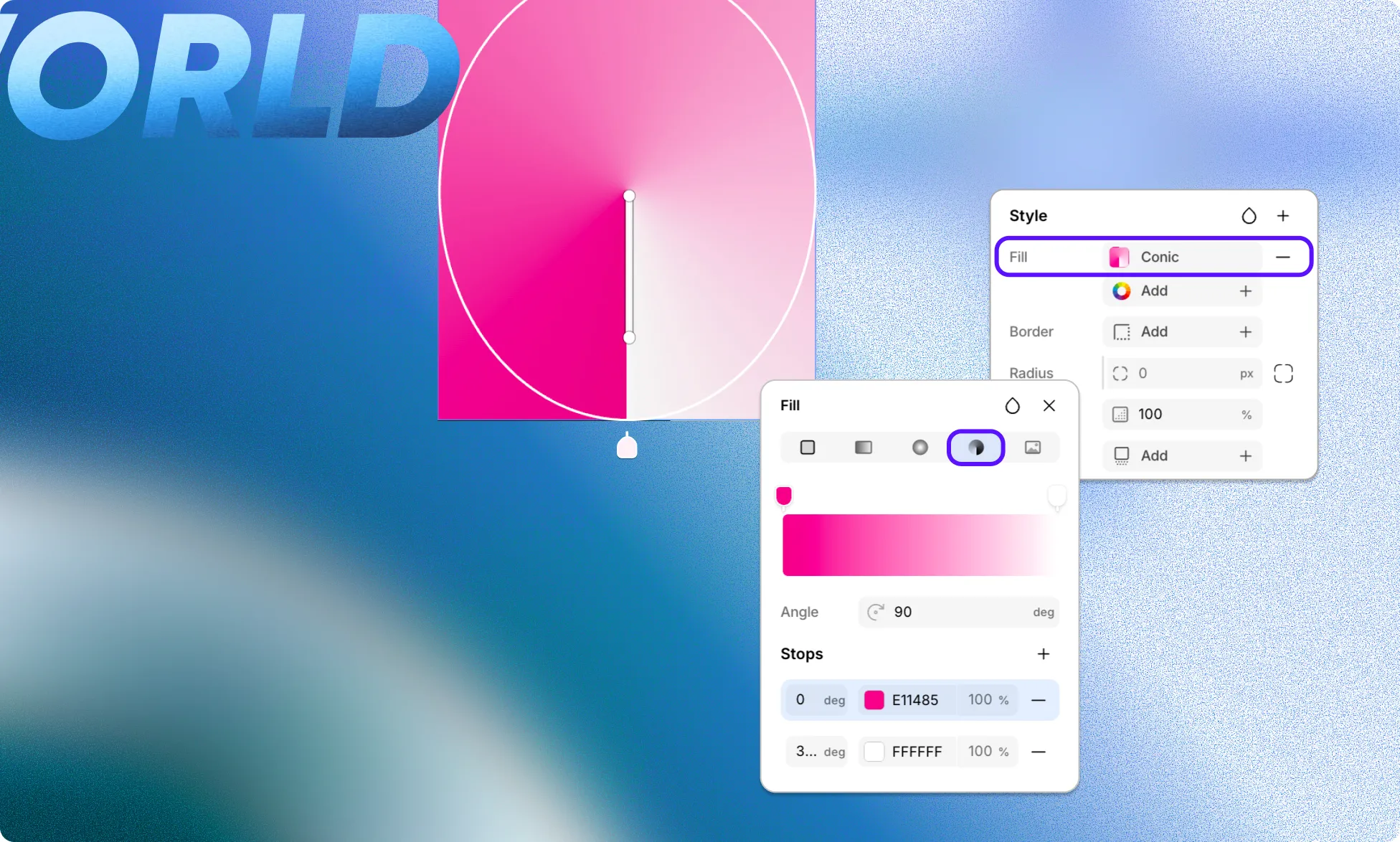
- In the Fill panel, select the Conic Gradient fill type.
- Set the Angle in degrees to define where the rotation starts. You can also drag the Endpoint on the element to adjust this.
- To add a Color Stop, click on the gradient bar on the element, the gradient preview in the Fill panel, or the + icon next to the Stops heading.
- For each stop, set its Position, Color, and Opacity. You can also drag the color stops on the element to change the position.
- Optionally, you can drag the Centerpoint on the element to reposition the conic gradient’s origin.
Image Fill
- In the Fill panel, select the Image fill type.
- Click Upload to open the Media Manager and upload a new image, or click Browse to select a previously uploaded image.
- Set the Size to define how the image fits within the element:
- Fill – Scales the image to completely cover the element.
- Fit – Scales the image to fit inside the element without cropping.
- Auto – Displays the image at its original size.
- Set Repeat to define whether and how the image tiles. Options include:
- No
- X (horizontal)
- Y (vertical)
- Auto
- Set the Position using the X and Y percentage fields, or click a point on the 3×3 grid to align it quickly.
Blend Modes
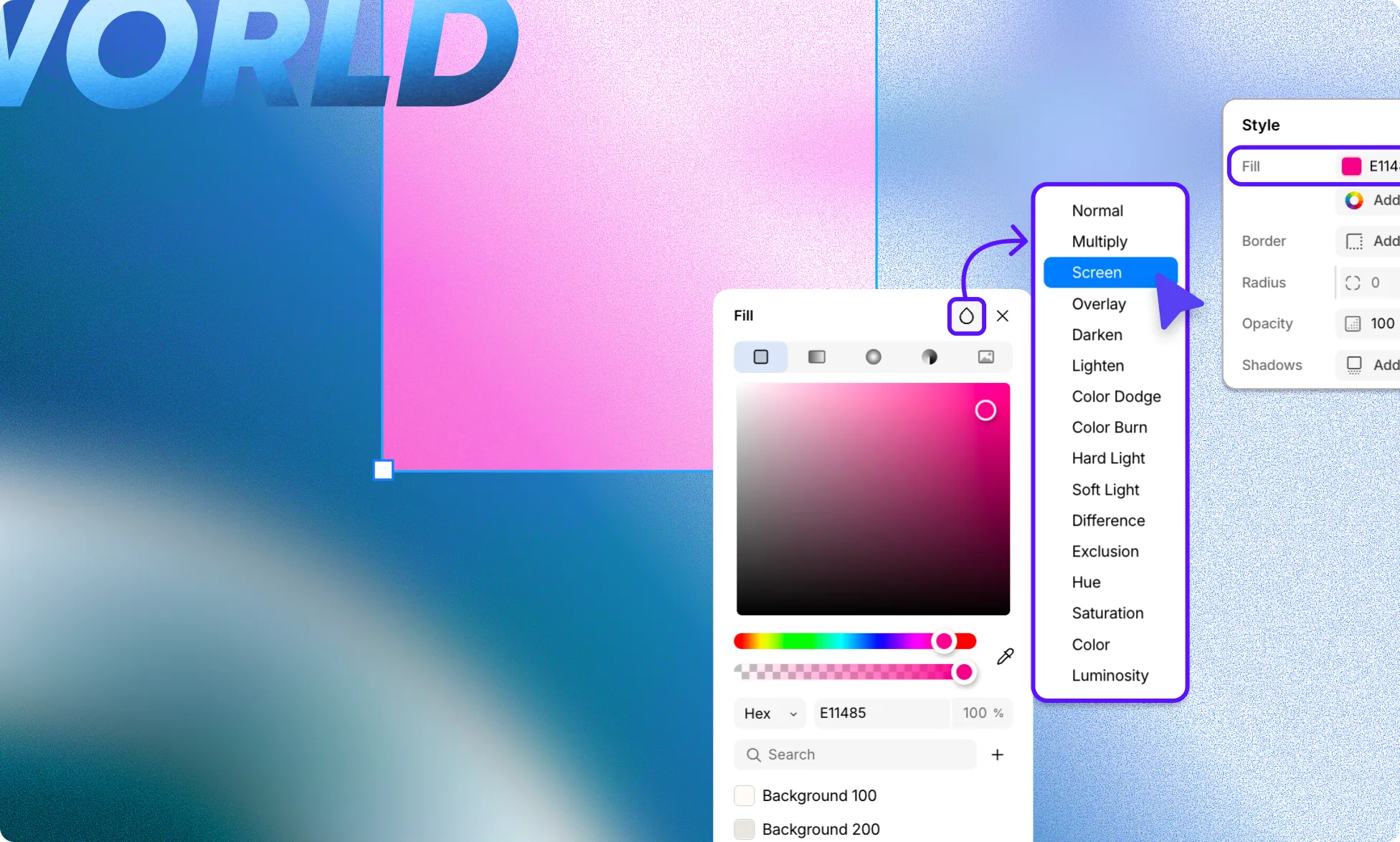
Blend modes define how a fill interacts visually with the fills beneath it. To set a blend mode, open the Fill panel and click the teardrop icon in the top-right corner.
Available blend modes:
- Normal – Default. The fill shows as-is with no blending effect.
- Multiply – Darkens the fills beneath. Good for shadows and overlays. Black stays black; white has no effect.
- Screen – Lightens the fills beneath. Good for glows and highlights. White stays white; black has no effect.
- Overlay – Darkens dark areas and lightens light areas, boosting contrast. Mid-range colors are unaffected.
- Darken – Shows only the darker of the two fills for each color channel.
- Lighten – Shows only the lighter of the two fills for each color channel.
- Color Dodge – Brightens the fills beneath to reflect the current fill’s color. Black has no effect.
- Color Burn – Darkens the fills beneath and increases contrast. White has no effect.
- Hard Light – Like a harsh spotlight. Lightens light areas and darkens dark areas with strong contrast.
- Soft Light – Like a diffused spotlight. Similar to Hard Light but softer and with less contrast.
- Difference – Subtracts the darker color from the lighter one. Identical colors produce black; white inverts the fill beneath.
- Exclusion – Similar to Difference, but with softer, lower contrast results.
- Hue – Applies the hue of the current fill while keeping the saturation and luminosity of the fills beneath.
- Saturation – Applies the saturation of the current fill while keeping the hue and luminosity of the fills beneath.
- Color – Applies the hue and saturation of the current fill while keeping the luminosity of the fills beneath.
- Luminosity – Applies the luminosity of the current fill while keeping the hue and saturation of the fills beneath.